
In Part 1 of this series, we discussed OCI Full Stack DR’s enhancements, including the US Government Cloud support, native Oracle Integration Cloud protection, and improved Object Storage script functionalities. Let’s now explore the latest features that offer precise control over recovery sequences and enhance operational intelligence during disaster recovery events.
These enhancements address a common challenge: while automated DR plan generation is powerful, every application has unique dependencies and operational requirements. This release equips you with tools to customize recovery workflows and gain critical visibility when it matters most.
1. Dependency Mapping: Reorder Plan Groups and Steps
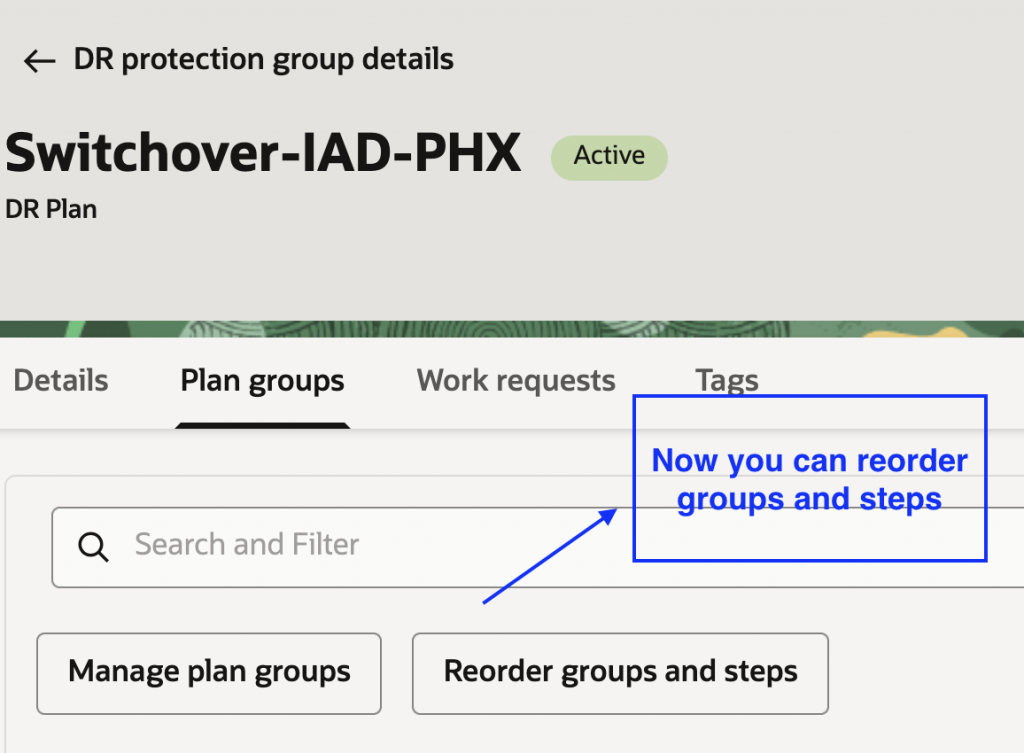
OCI Full Stack DR now allows you to customize recovery sequences by reordering plan groups and moving individual steps between groups.
Why This Matters
Imagine you’ve created a DR plan, conducted a drill, and found the recovery sequence misaligned with your application’s specific dependencies. Perhaps certain application-level steps need to be grouped together, or the execution order requires adjustment to meet your business system requirements.
While Full Stack DR’s automatic dependency analysis provides an optimized recovery sequence for OCI resources, every application stack has unique business requirements. Your application might necessitate a specific initialization sequence or require certain monitoring or middleware services to be grouped together. Without the ability to customize, you might face challenges such as:
- Inflexible recovery sequences: Inability to adapt automated plans to your specific business logic.
- Workarounds required: Necessity to create complex custom scripts to handle special ordering needs.
- Higher risk during recovery: Potential for technical success but functional failure if services start in the wrong order.
- Longer RTOs: Manual intervention to adjust sequences during actual DR events.
The ability to reorder plan groups and move steps provides the flexibility to align the recovery workflow with your specific business logic, without losing the benefits of automated plan generation. This is essential for complex, multi-tier applications where precise recovery sequencing directly impacts RTO and recovery success.
How Full Stack DR Handles Dependencies
Full Stack DR automatically identifies the relationships and interdependencies between OCI resources in your primary and standby DR Protection Groups to determine the correct sequence of steps during recovery. It uses this analysis to quickly generate DR drill, failover, and switchover plans with steps grouped by resource dependencies into built-in plan groups—ensuring systems are restored in the right order so each component has the prerequisite services, data sources, and infrastructure needed to function correctly.
In addition to built-in groups, Full Stack DR allows you to incorporate custom scripts or OCI functions into user-defined plan groups. Within a DR plan, steps inside a plan group execute in parallel, while plan groups themselves follow the defined sequence.
What’s New: Customizable Recovery Sequences
The default order of operations is carefully tuned to be the exact sequence needed to recover OCI infrastructure and platform resources. Now, you can customize these groupings to create finer-grained dependencies that match your specific business system requirements. You can change the order of plan groups and reorganize individual steps from built-in plan groups into new user-defined groups or move them between existing groups.
How to Reorder Plan Groups
You can reorder both built-in and user-defined plan groups to adjust the execution sequence. Note that the prechecks built-in group always remains first and cannot be moved. Oracle recommends not reordering built-in plan groups since they follow an optimal sequence—focus on reordering user-defined groups instead. In case you plan to reorder the built-in plan groups, please make sure the required dependent plan group orders are correctly placed; otherwise, the plan executions will fail.
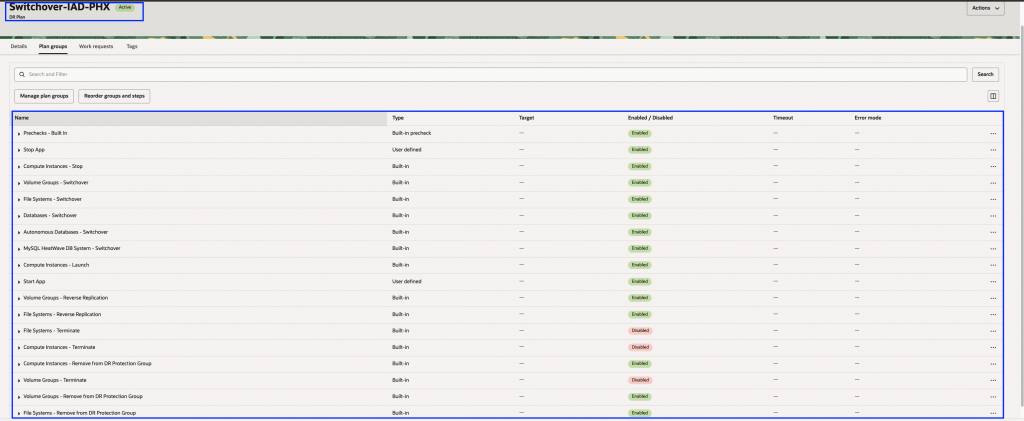
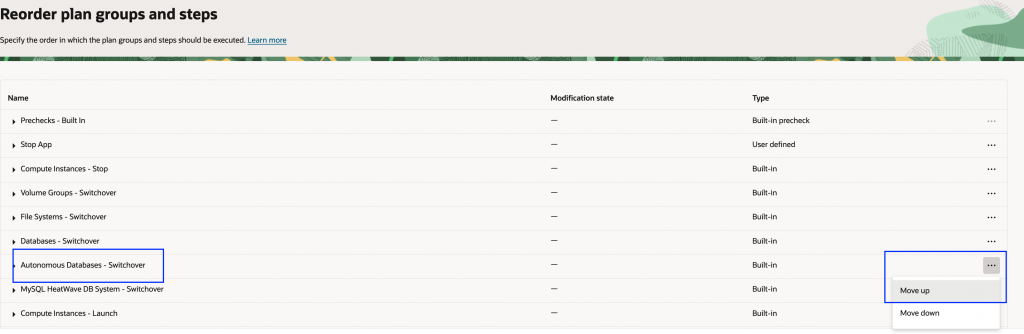
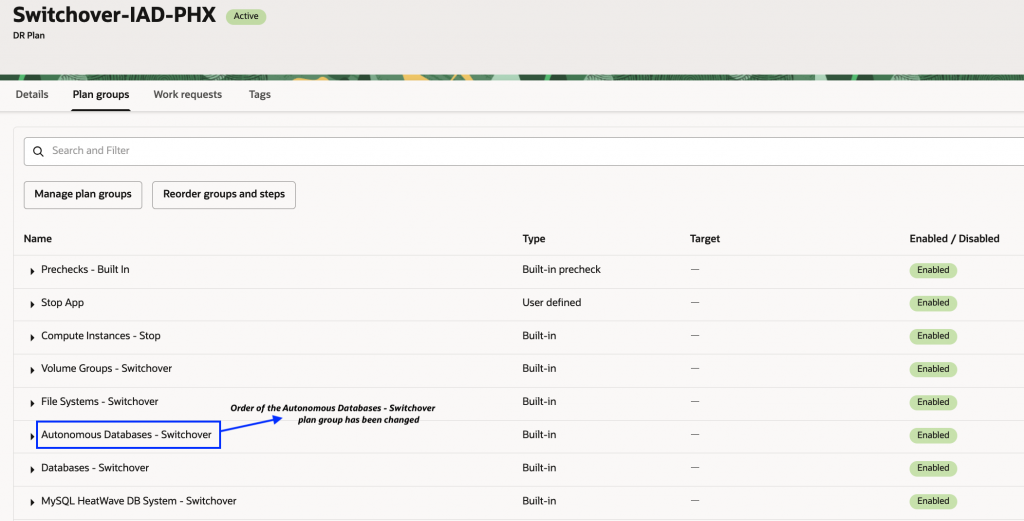
Example: In this walkthrough, we’ll select a Switchover plan and reorder the Autonomous Database – Switchover and Database – Switchover plan groups.
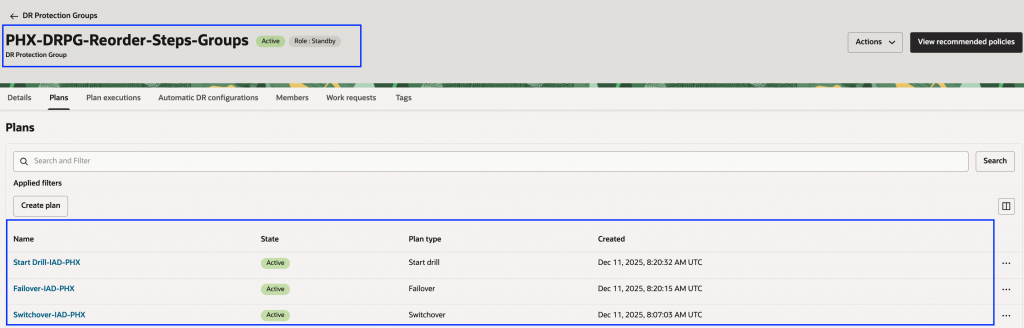
1. Navigate to your standby DR protection group, click Plans, and select the DR plan you want to modify.
2. Click Plan groups to see the sequential list.
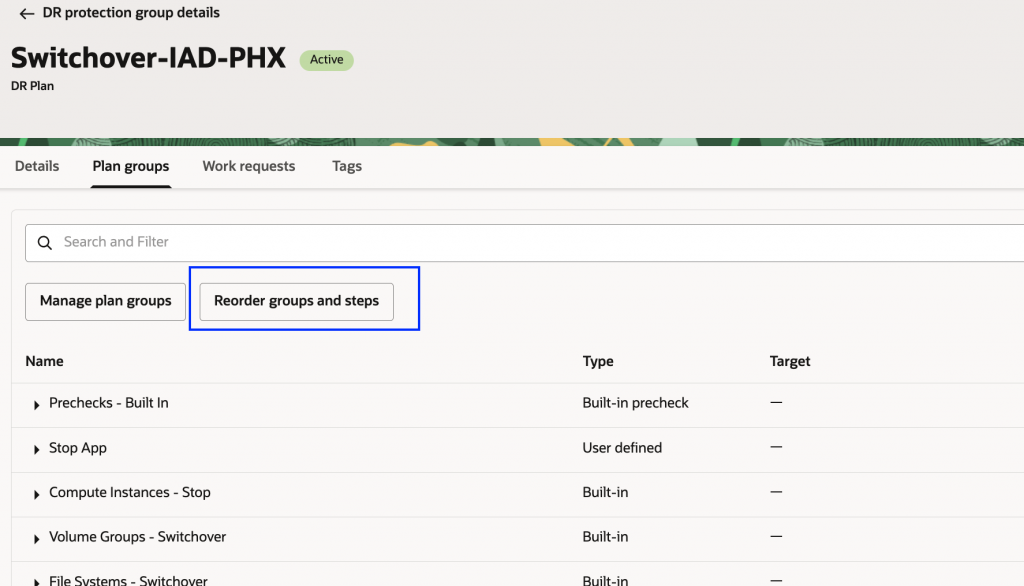
3. Click Reorder groups and steps.
4. Locate the plan group you want to change and click the three-dots action menu. In this example, we’ll move the Autonomous Database – Switchover plan group before the Database – Switchover plan group. Select Move up or Move down to reposition the group.
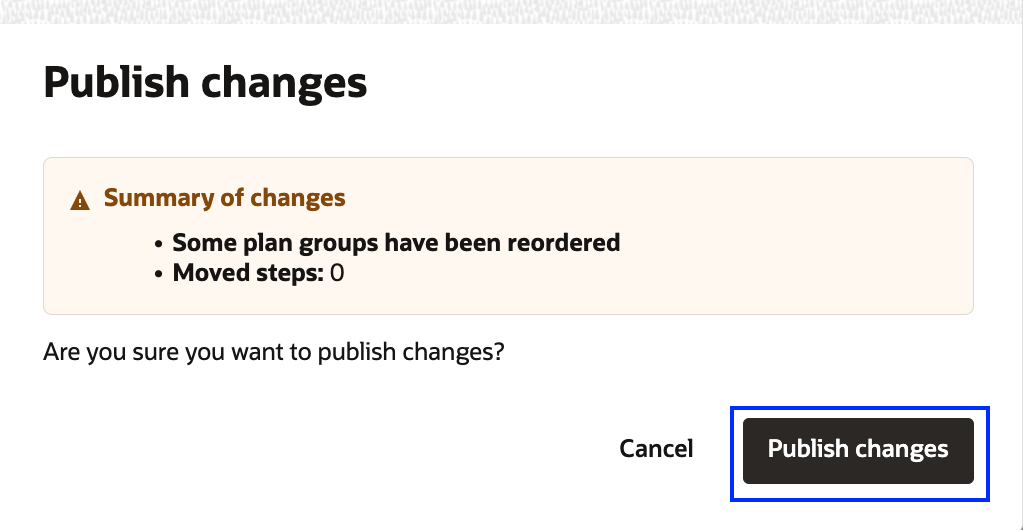
5. Click Update, verify the summary of changes, and publish.
6. Review the updated plan group order.
How to Move Steps Between Plan Groups
You can consolidate plan steps from one or more built-in plan groups into another built-in or user-defined plan group.
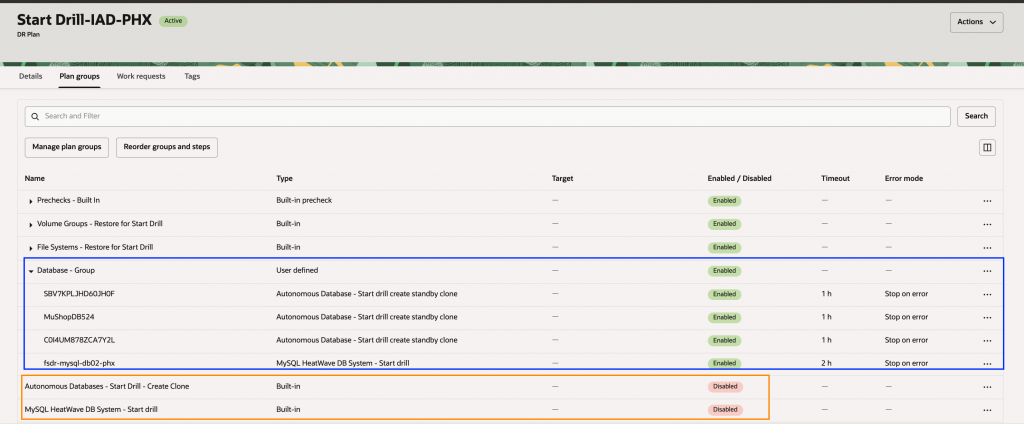
Example: In this walkthrough, we’ll select a Start Drill plan and move all database steps (Autonomous Database and MySQL HeatWave) into a single user-defined plan group called “Database – Group”.
1. Navigate to your standby DR protection group and select the Start Drill plan.
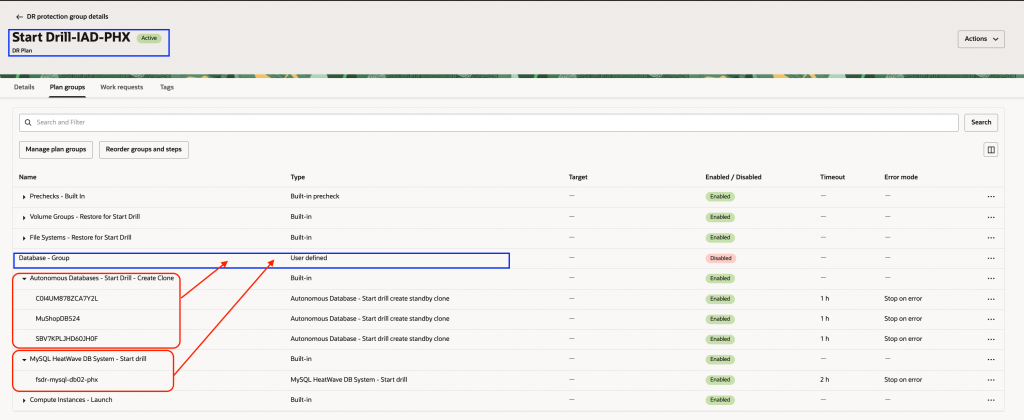
2. Click Plan groups, then Reorder groups and steps. We’ll use an existing user-defined plan group “Database Group” and move all the steps from both “Autonomous Databases – Start Drill – Create Clone” and “MySQL HeatWave DB System – Start drill” to the “Database – Group”.
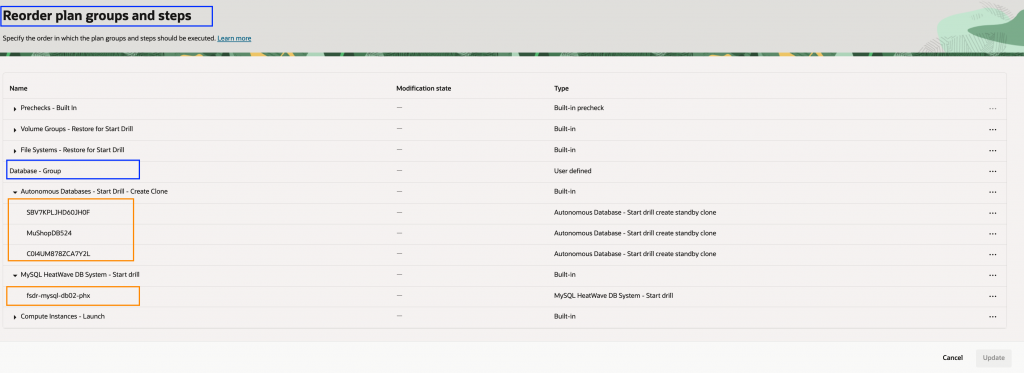
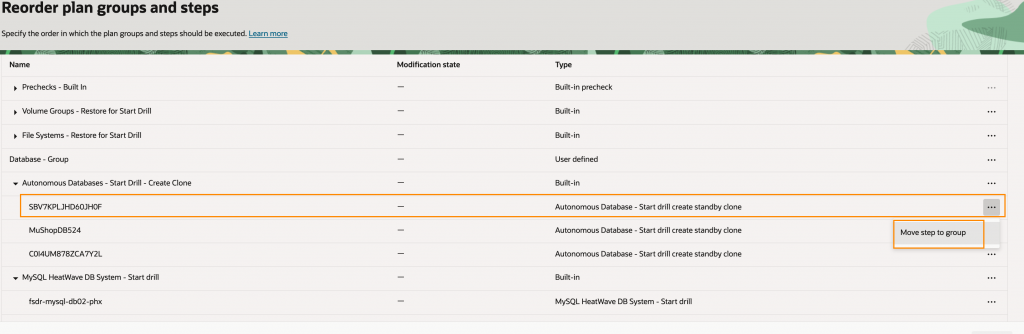
3. Expand the plan group containing the step(s) you want to move, click the three-dots action menu, and select Move step to group.
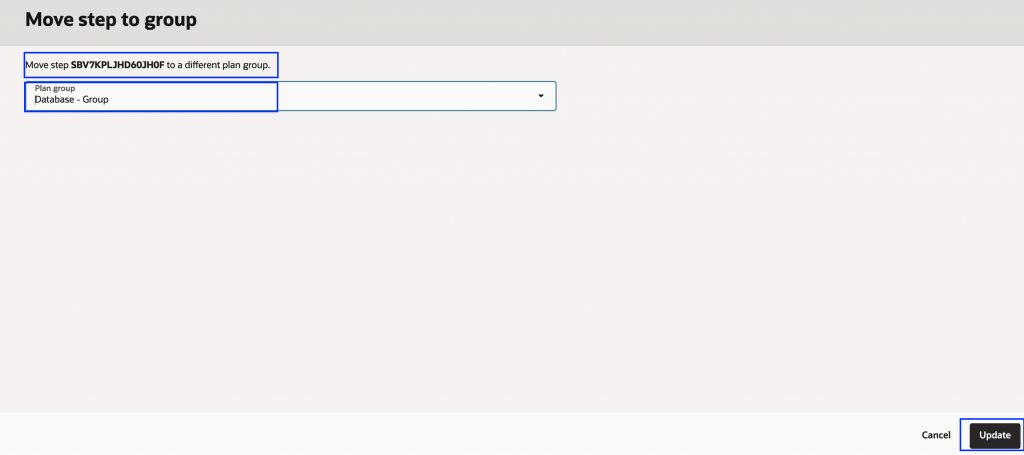
4. Select the target plan group and click Update.
5. Repeat for other steps. Once all are moved, the steps should show as “Moved.”
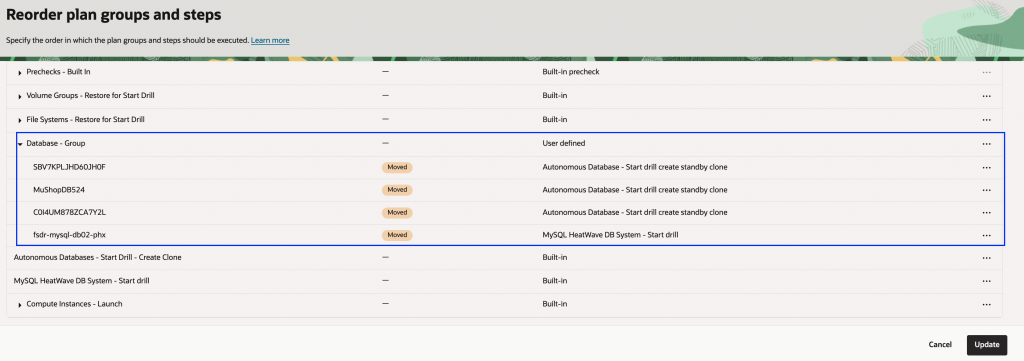
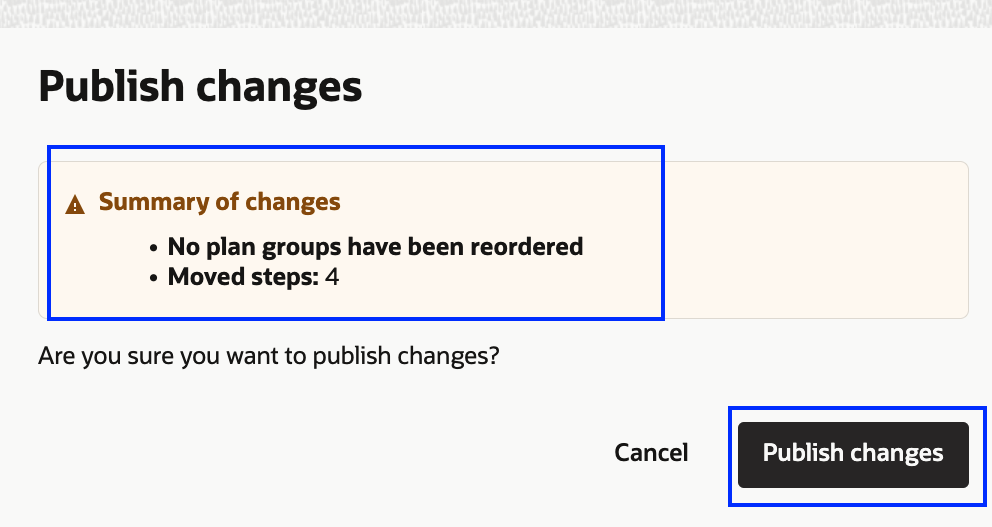
6. Verify and click Update to Publish changes.
7. Review the consolidated plan group.All the steps from “Autonomous Databases – Start Drill – Create Clone” and “MySQL HeatWave DB System – Start drill” are now in “Database – Group”.
Critical Consideration
When reorganizing plan groups and steps, you’re responsible for maintaining proper recovery dependencies. Don’t place steps in the same plan group if one step depends on another When reorganizing plan groups and steps, ensure proper recovery dependencies. Avoid placing dependent steps in the same group, as they execute in parallel and may fail if started simultaneously. Position prerequisite steps in preceding plan groups.
For more information, see the documentation on Reorder Groups and Steps.
2. OKE Resource Modifiers for Kubernetes Workloads
OCI Full Stack DR now supports resource modifiers for Oracle Kubernetes Engine (OKE), providing precise control over Kubernetes resource configurations during DR operations.
Why This Matters
DR environments often require configurations distinct from production—such as fewer replicas for cost optimization, adjusted resource limits, environment-specific labels for monitoring, or modified network settings. Without this capability, you might face challenges like:
- Maintain separate manifests: Creating and maintaining DR-specific Kubernetes manifests, leading to configuration drift and increased maintenance burden.
- Manual adjustments during recovery: Modifying configurations manually during plan executions, increasing RTO, and introducing human error risk.
- One-size-fits-all recovery: Using production configurations in DR results in unnecessary costs or inappropriate resource allocation.
- Complex scripting: Building custom automation to modify configurations, adding complexity and potential failure points.
Resource modifiers allow you to define DR-specific configurations once and apply them automatically and consistently, ensuring your containerized workloads recover with the exact configuration needed while eliminating manual steps and configuration drift.
How Resource Modifiers Work
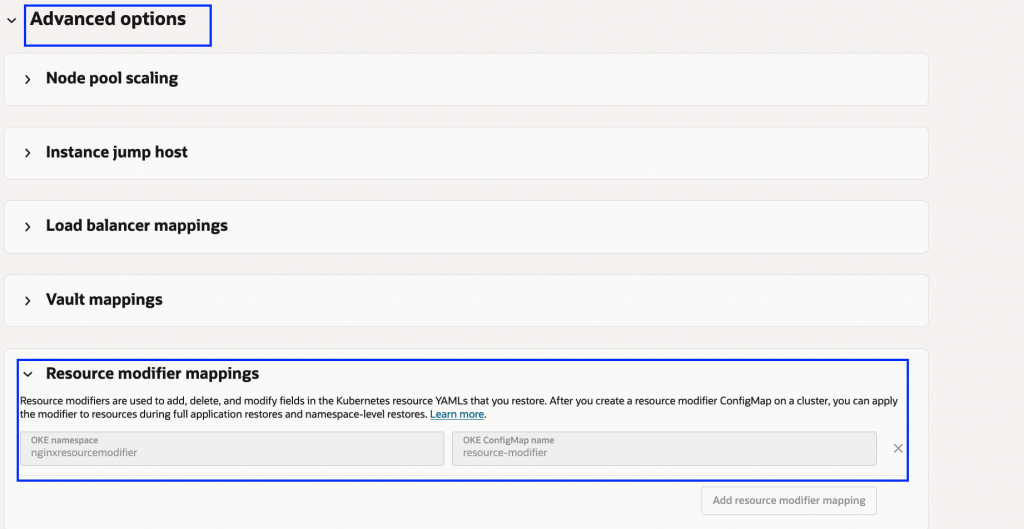
Resource modifiers enable automatic patching of Kubernetes resource configurations during recovery—adjusting labels, annotations, replica counts, and resource limits—without the need for separate DR-specific manifests. You define modification rules within a ConfigMap, specifying target resources and desired changes using standard JSON Patch operations (add, remove, replace, test). This feature is accessible under the Advanced options when adding an OKE cluster to a DR protection group.
Example Use Case
Consider an nginx deployment in production with specific labels. During DR, you may need to add environment-specific labels, modify existing values, or remove production-only labels. By creating a resource modifier ConfigMap with your patch rules and configuring it in the OKE member’s advanced properties in Full Stack DR, these modifications are applied automatically during switchover or failover.
For more information, see the documentation Add an OKE Cluster to a Disaster Recovery Protection Group.
3. Enhanced Visibility: DR Plan Execution Group Step Summary
OCI Full Stack DR now provides a consolidated summary view of all steps within a DR plan execution.
Why This Matters
Managing Disaster Recovery plans with numerous steps can be overwhelming, especially during critical events. Previously, understanding the recovery workflow required navigating multiple screens, leading to:
- Increased cognitive load: Impaired decision-making due to screen switching.
- Slower troubleshooting: Difficulty identifying failed or warning steps.
- Challenging post-mortems: Extensive navigation needed for reviews.
- Lack of at-a-glance status: Inability to quickly assess overall status.
A consolidated view reduces cognitive load and enables faster, informed decisions.
DR Plan Execution Summary
The new summary view allows you to:
1. Quickly Assess Statuses: Identify steps that are successful, pending, have warnings, failed, or were skipped at a glance
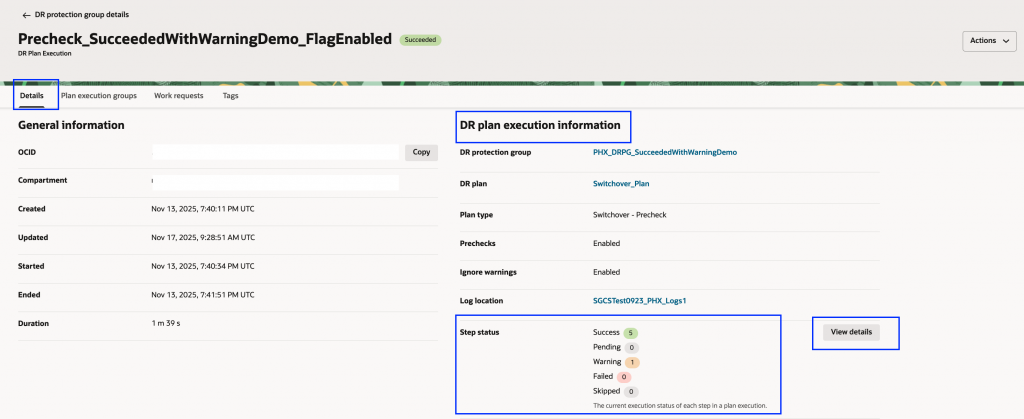
2. Simplify Reviews and Troubleshooting: Streamline the process of reviewing plans and addressing issues, especially under pressure
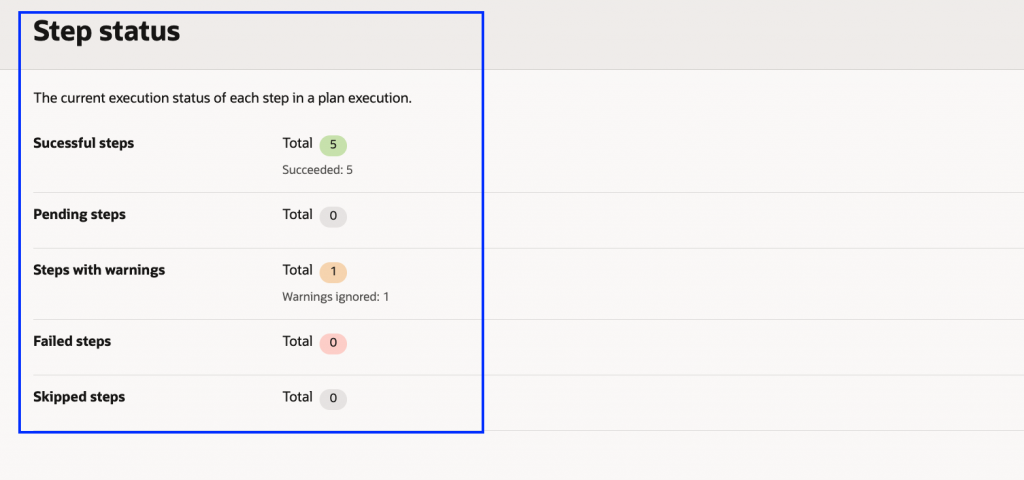 DR Plan execution Step status summary
For more information, see the documentation Monitor Disaster Recovery Plan Executions.
4. DR Plan Execution: Succeeded with Warnings
OCI Full Stack DR now introduces a “Succeeded with Warnings” status for DR plan executions, allowing plans to complete successfully while highlighting non-critical issues encountered during the process.
Why This Matters
Disaster Recovery operations often face scenarios that aren’t outright failures but aren’t flawless successes either. Previously, DR plan executions were binary: Succeeded or Failed. This approach led to challenges:
- False failures: Minor issues halted recovery processes, even when core objectives were met.
- Longer RTOs: Delays due to investigating non-critical issues before proceeding.
- Unnecessary manual intervention: Teams are making judgment calls on whether to proceed despite warnings.
- Lost context: No way to note that recovery succeeded with caveats needing later attention.
The “Succeeded with Warnings” status accommodates real-world situations such as:
- Downstream services are returning warnings instead of errors.
- Steps are executed partially but achieve their primary goals.
- Legacy or compatibility issues leading to resources recovering with default options.
- Resource configuration mismatches that don’t impede successful recovery.
This flexibility ensures that minor issues don’t derail your recovery process, allowing for more resilient and efficient DR operations.
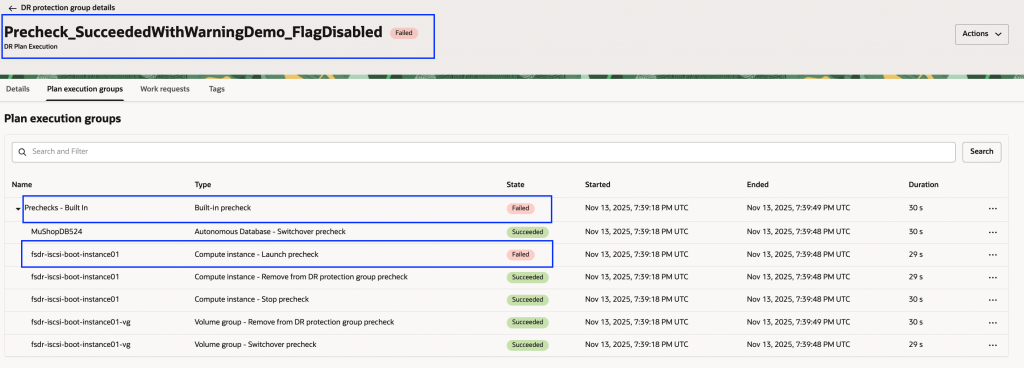
Important: Currently, this enhancement is available only for pre-check executions.
Example: Handling Outdated Compute Instance Launch Options
Consider a compute instance originally created with now-unsupported launch options. Previously, the pre-check would fail, stopping your recovery. Now, you have options:
1. Default Behavior (Ignore warnings = false): The pre-check fails with a clear error message detailing the unsupported attributes and offers two solutions:
a. Rerun with the ‘Ignore warnings’ option enabled.
b. Disable the pre-check step.
Both options allow the standby instance to launch with default settings.
2. With Ignore warnings = true: The pre-check succeeds with a warning, logs the unsupported attributes, and the standby instance launches automatically with default settings.
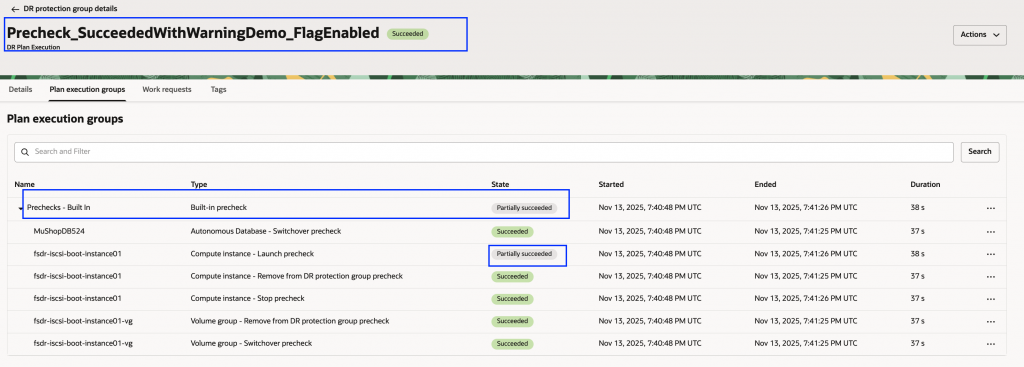
By introducing the “Succeeded with Warnings” status, OCI Full Stack DR enhances operational flexibility, allowing organizations to manage DR processes more effectively by acknowledging and addressing non-critical issues without compromising the overall recovery objectives.
For more information, see the documentation Prechecks for Disaster Recovery Plan Executions.
Wrapping Up
These enhancements empower organizations to tailor their disaster recovery strategies to their unique operational requirements. By providing greater control, automation, and visibility, OCI Full Stack DR enables faster, more reliable recovery processes, minimizing downtime and ensuring business continuity.
Combined with the capabilities we covered in Part 1—Government Cloud support, native Oracle Integration protection, and enhanced automation—this release delivers greater control, improved visibility, and reduced manual intervention when it matters most.
Learn More
If you haven’t seen OCI Full Stack Disaster Recovery in action yet, ask your Oracle Cloud Infrastructure account team to set up a demonstration today. For more information, including documentation, pricing, customer success stories, videos, tutorials, and hands-on labs, visit Full Stack Disaster Recovery.
Additional Resources:
Feel free to connect with me directly on LinkedIn, X, and Bluesky.