

1 – Introduction
In the previous post, we detailed how to configure OCM and connect it to vCenter. In this post, we already have the OCM prerequisites and configuration done to migrate our VMs from a VMware environment to OCI instances, and we will detail how to prepare the migration, as well as the prerequisites that must be applied to the VMs.
2 – Creation of Migration Project/Plan
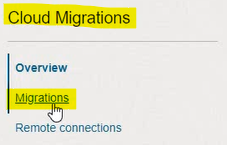
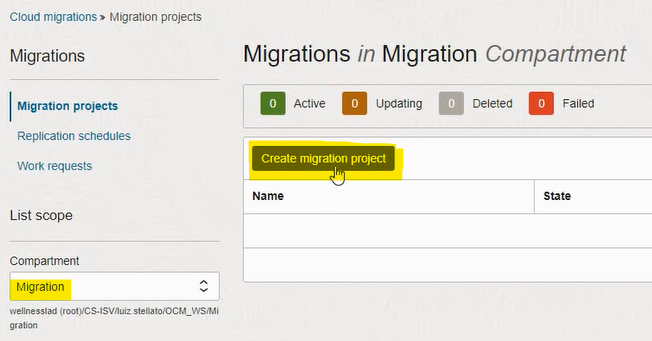
In Cloud Migrations, Migrations, select the Migration compartment, click on Create migration project:

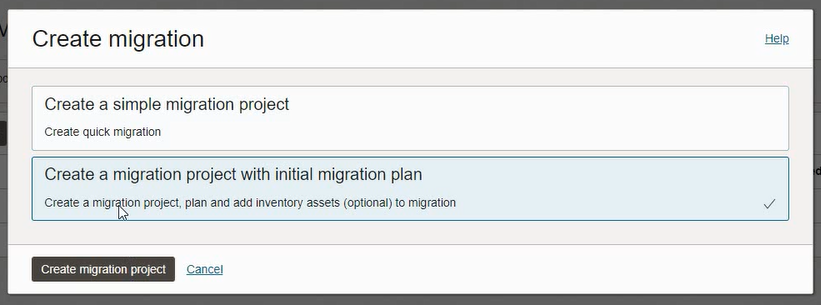
Select the second option:
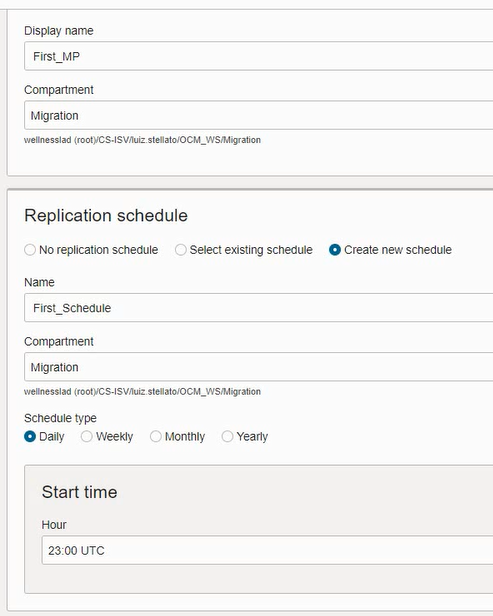
Give the project a name, create a schedule to start replication automatically (optional) and click Next:
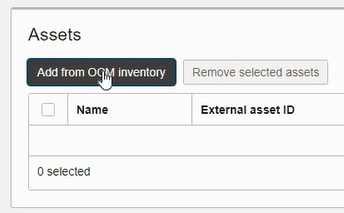
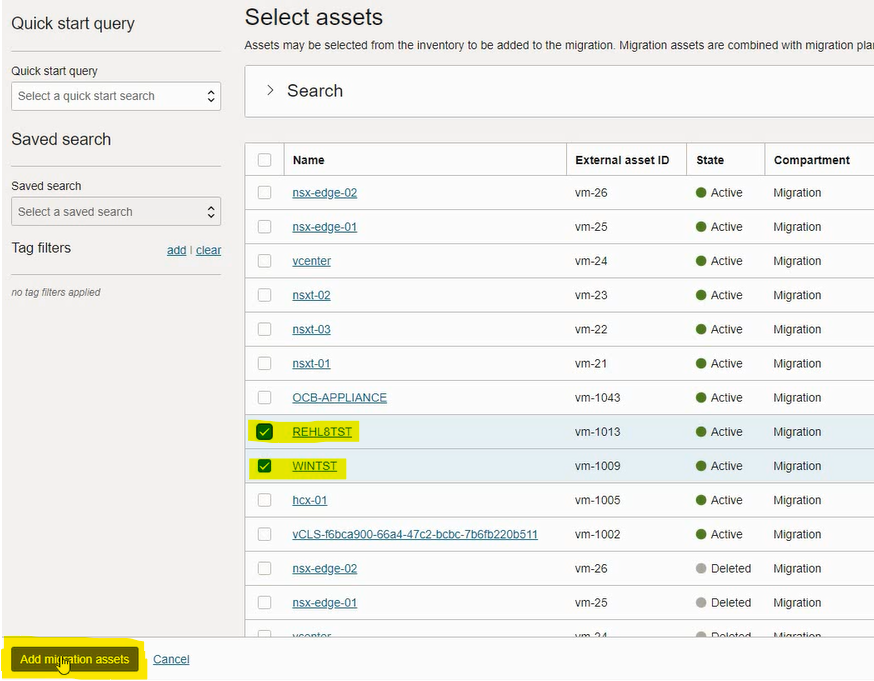
Click on Add from OCM Inventory, add the VMs that will be migrated. Click on Add migration assets and Next:
Choose the replication bucket, click Select and Next:

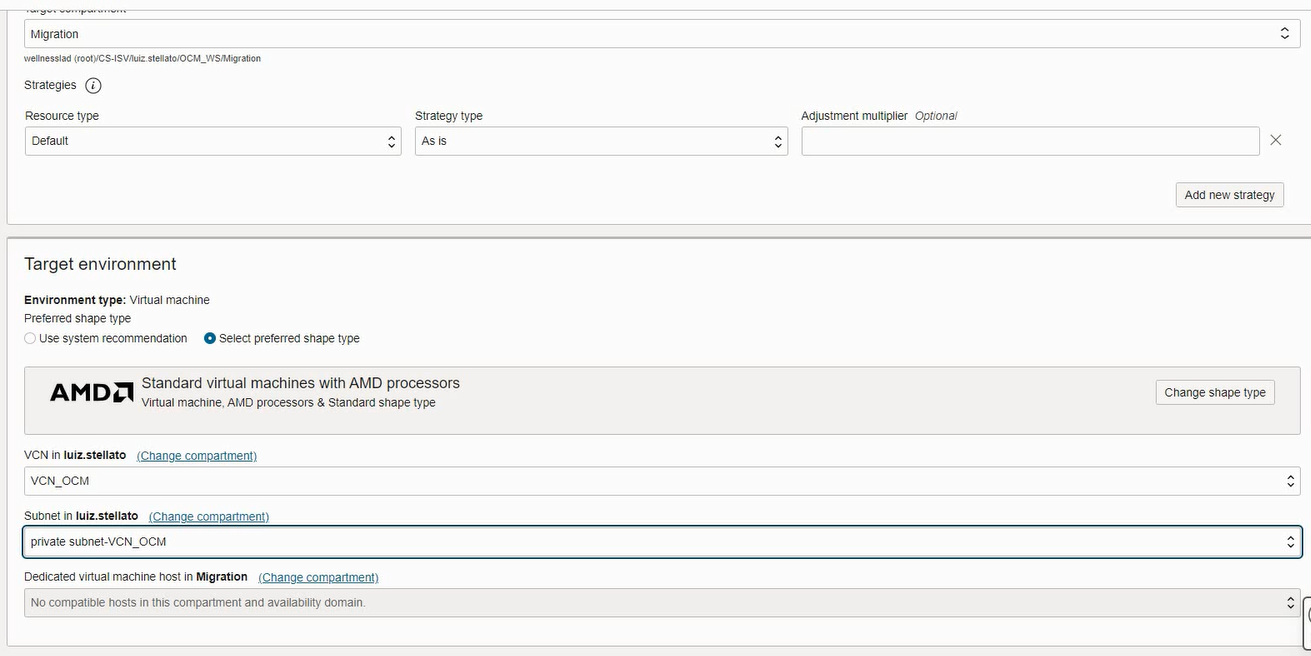
In the Migration Plan, there are defined the shape that the VM will have in OCI, CPU/memory (which can be as is, or based on usage history), VCN/Subnet, among others. Select the options that suit you best, click Next and Submit on the following screen:
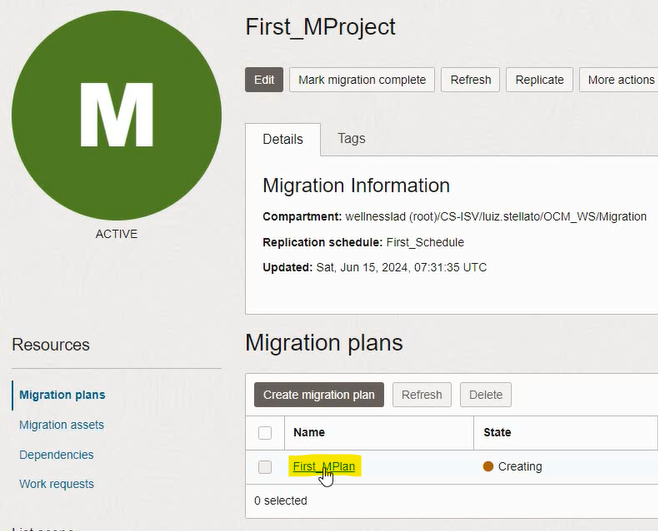
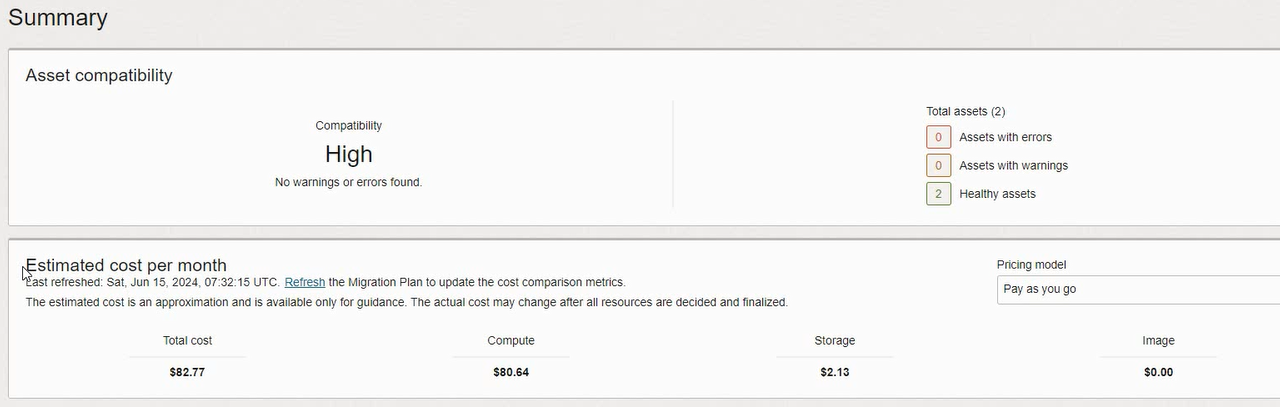
The migration project and plan will be created. Once the creation is complete, entering the plan, it is possible to see if errors were detected that prevent migration, as well as cost estimates of the instances in OCI and other information:
3 – Prerequisites on VMs
Advanced Settings
In vCenter, open the advanced settings of the VMs that will be migrated, and make sure that the following settings are present:
disk.EnableUUID = “TRUE”
ctkEnabled = “TRUE”
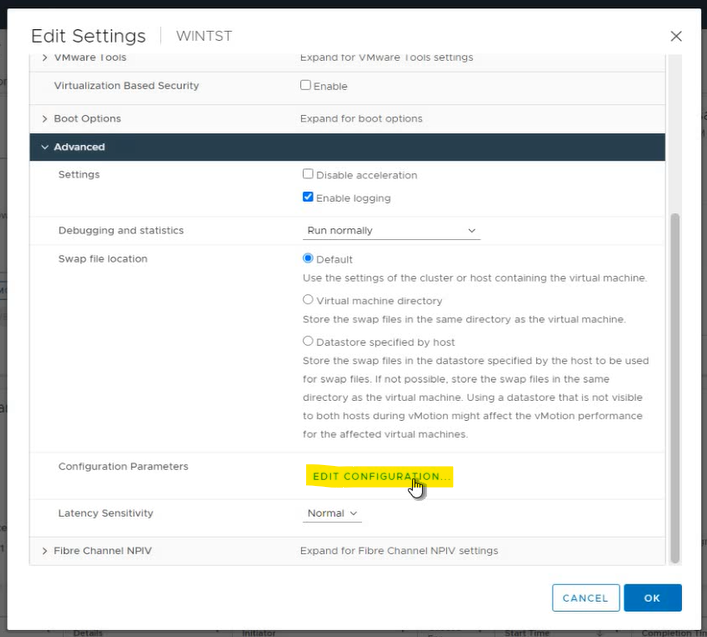
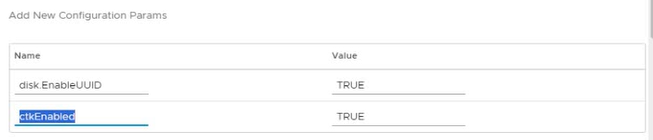
If they do not exist, add them.
VirtIO
VirtIO is a set of drivers that must exist on instances that run on OCI.
Procedures:
For Linux VMs, pay attention:
- If the VM has remotely attached storage, such as NFS or block volumes, configure all services that depend on that storage to be started manually. Remotely attached storage is not available the first time an imported instance launches into Oracle Cloud Infrastructure.
- Make sure all network interfaces use DHCP and that the MAC address and IP addresses are not hard-coded. See your system documentation for steps to perform network configuration for your system.
For Windows VMs, pay attention:
- Configure Remote Desktop Protocol (RDP) access to the VM. Enable remote desktop connections to the VM and allow the respective rule in Windows Firewall.
- Determine whether your current Windows license type is a volume license by running the following command in PowerShell:
Get-CimInstance -ClassName SoftwareLicensingProduct | where {$_.PartialProductKey} | select ProductKeyChannel
If the license is not a volume license, after you import the image, you must update the license type.
- If the VM has remotely attached storage, such as NFS or block volumes, configure all services that depend on that storage to be started manually. Remotely attached storage is not available the first time an imported instance is launched into Oracle Cloud Infrastructure.
- Make sure all network interfaces use DHCP and that the MAC address and IP addresses are not hard-coded. Consult your system documentation for steps to perform network configuration for your system.
4 – Next Steps
Replication and Migration: https://blogs.oracle.com/lad-cloud-experts-pt/post/migrating-vms-with-oracle-cloud-migrations-part-4-replication-and-migration