


App configuration structure, framework components, visual tools, the app lifecycle, and the communication lifecycle — the complete foundation for building agentic applications
Introduction
You now understand the design philosophy (decision-making partners, not data tools), the anatomy (four pillars), and the multi-agent architecture (specialized composable teams). With those foundations in place, it is time to get concrete: what exactly do you configure, what tools do you use, and what does the framework do at runtime?
This post covers the core concepts that bridge theory and practice. We will walk through the app configuration structure (what properties define an agentic app), the four framework components (Agents, Widgets, Communications, Actions), the three visual configuration tools (Builder UI, Actions Editor, Template Editor), and the two lifecycles that govern runtime behavior (the app lifecycle and the communication lifecycle). By the end, you will have a complete map of the building blocks and how they connect.
App Configuration Structure
Every agentic app is defined by a configuration object – you do not edit this object directly—all configuration is done through visual interfaces—but understanding its structure helps you know what you are configuring and how the pieces fit together.
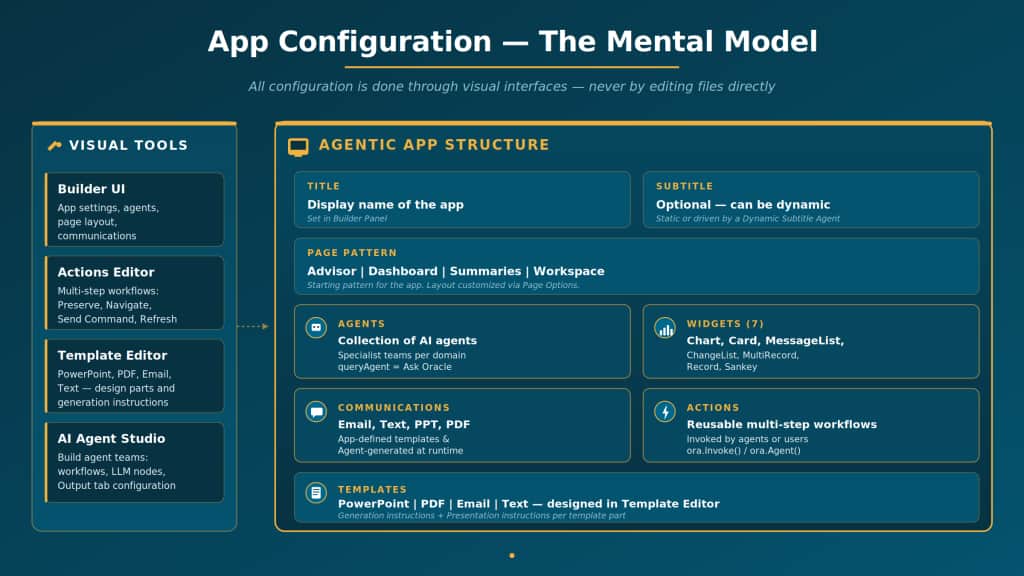
| Property | Description |
| title | The application’s display name, shown in the header bar. Set in App Settings. |
| subTitle | Optional descriptive text below the title. Can be static or dynamically generated by an agent (see subtitleAgentCode). |
| pageConfig | Column layout, configured in Page Options. |
| agents | The collection of AI agents in the application. Each agent is assigned to a slot in the page pattern. |
| communications | Communication templates that agents can suggest. Configured in the Builder UI’s Communications panel. |
| actions | Reusable action workflows built in the Actions Editor. Agents invoke these via ora.Invoke(). |
| templates | Document templates (PowerPoint, PDF, Email, Text) designed in the Template Editor. |
| queryAgent | The agent handling Ask Oracle functionality. Configured as a static agent in the Builder UI. |
| summary | Configuration for the summary agent, including its Summary Prompt. Also a static agent. |
| subtitleAgentCode | Optional: designates which agent dynamically generates the app subtitle at startup via InitSubtitle. |
| initiallyHideActions | Optional: whether to hide the actions panel by default. Users can reveal it manually. |
The Four Framework Components
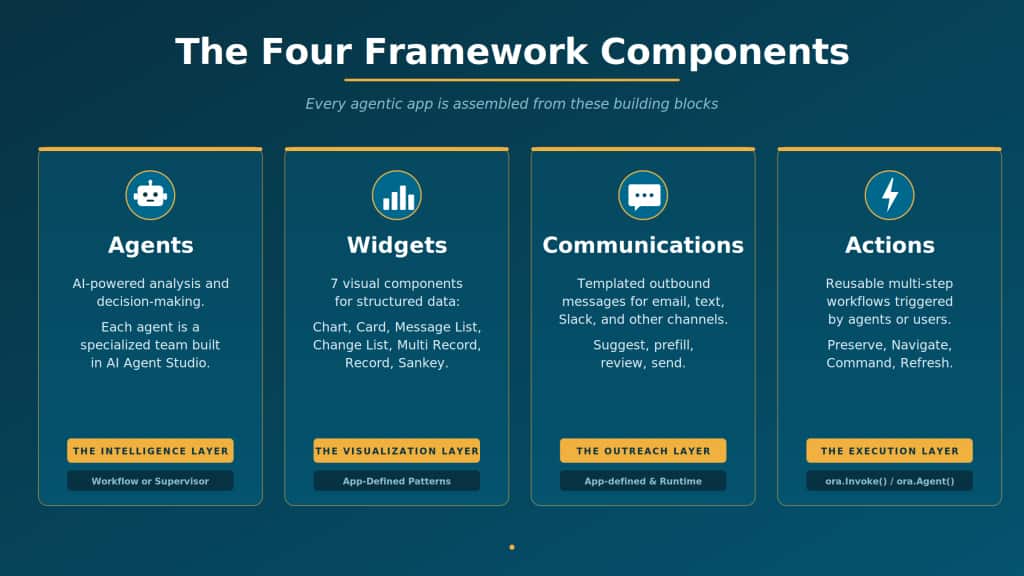
Every agentic app is assembled from four types of building blocks. Each serves a distinct purpose, and together they provide the full spectrum of capabilities users need—from seeing data to making decisions to taking action to communicating results.
1. Agents — The Intelligence Layer
Agents are the brain of every agentic app. Each agent is a specialized team built in AI Agent Studio that analyzes data, generates insights, produces information displays, suggests actions, and recommends communications. Agents are the only component that reasons—everything else in the framework renders, routes, or delivers what agents produce.
Key facts about agents:
- Each agent is an Agent Team (Workflow or Supervisor type) configured in AI Agent Studio with its own prompts, tools, and Output tab settings.
- Agents are arranged in the page pattern via the Builder UI. Each slot in the pattern holds one agent. The recommendation is exactly one agent per panel.
- Two agents are “static”: the Ask Oracle agent (handles user queries) and the Summary agent (generates the executive overview). These are configured separately at the top of the Builder panel. **This is optional step, you can always rely on agentic app orchestrator to dynamically assist with summary and user query based on agents used in your agentic app.
- Agents must be configured for agentic apps via the Output tab in AI Agent Studio: enable “Expose to Agentic Apps,” select widgets, enable actions, and enable communications.
2. Widgets — The Visualization Layer
Widgets are the visual components that render agent-generated data. The framework provides seven widget types, each designed for a specific data visualization pattern. Agents produce structured JSON metadata specifying the widget type (patternId) and its properties, and the framework renders the widget in the appropriate section.
The seven widgets are: chartWidget (line, bar, pie charts), cardWidget (single alerts with priority variants), messageListWidget (ordered lists with badges), changeListWidget (before/after comparisons), multiRecordWidget (tabular data), recordWidget (single record details or forms), and sankeyWidget (flow visualization between stages).
3. Communications — The Outreach Layer
Communications handle outbound messaging when decisions require follow-through. They support four formats: email, text/SMS, PowerPoint, and PDF. Communications can be app-defined (template-based, configured ahead of time in the Builder UI and Template Editor, supporting all four formats) or agent-generated (produced at runtime via the <oraComms> tag, limited to email and text, with the agent providing actual content).
4. Actions — The Execution Layer
Actions are reusable multi-step workflows that connect agent insights to concrete execution. Built in the Actions Editor, each action defines a sequence of steps: Preserve Action (maintains context for subsequent steps), Navigate to Agentic App (opens another app with optional payload), Send Agent Command (sends a command to an agent), and Refresh Agents (refreshes specified agents after an action completes). Agents invoke actions via ora.Invoke() for defined workflows or ora.Agent() for ad-hoc agent commands.
The Three Visual Configuration Tools
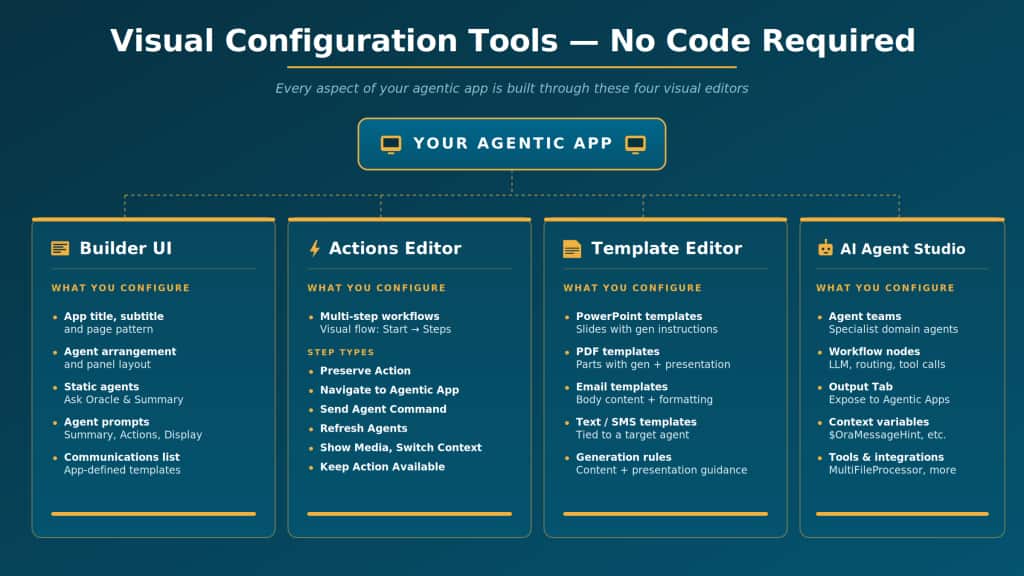
All configuration happens through three visual interfaces. No code. No JSON editing. This is a deliberate design choice: it means domain experts and solution architects can build agentic apps without needing developers for every change.
The Builder UI
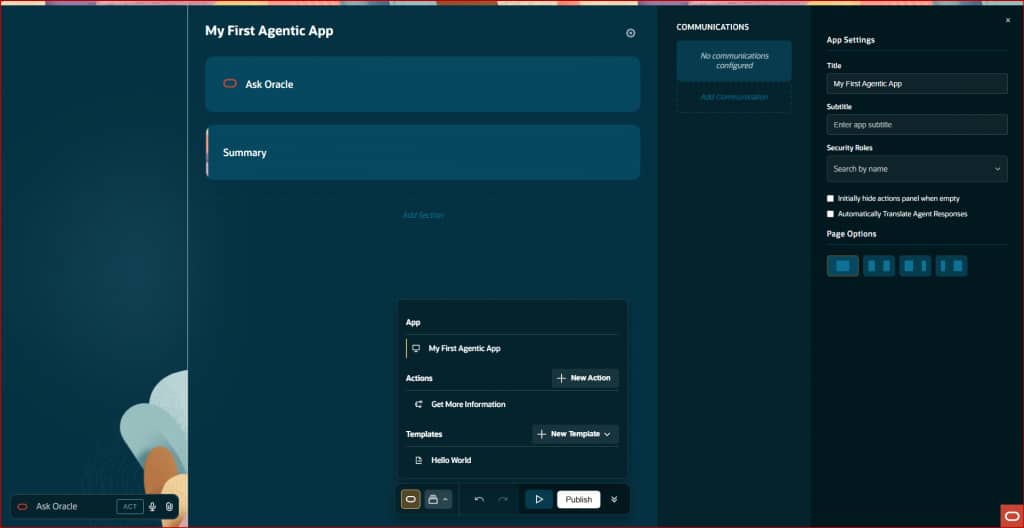
The Builder UI is your primary workspace. It is where you set the app’s title, subtitle, and page pattern. It is where you arrange agents in the layout—dragging panels, adding slots, and assigning agent teams. It is where you configure the static agents (Ask Oracle and Summary). And it is where you set up each agent’s prompts:
- App Settings (Title, Subtitle, Security Roles, Page Layout)
- Ask Oracle – specific agent to handle all user queries (as opposed to using agentic app orchestrator). It responds with answers and supports info displays.
- Summary – specific agent to generate main summary (as opposed to using agentic app orchestrator which can aggregate insights from all agents)
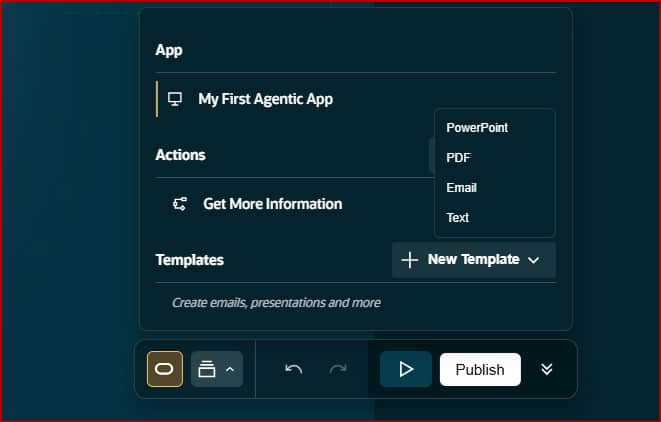
- App Builder Menu: Access the Actions Editor and Templates Editor from the bottom toolbar. These panels open within the Builder context, so you can switch between app configuration and action/template editing seamlessly.
- Undo (↶): Reverse the last change.
- Redo/Reverse (↷): Redo the last undo.
- Preview (▶): Opens the app in Preview mode so you can test it with live agent responses. Use this constantly during development to verify that your prompts, displays, and actions work as expected.
- Publish: Publishes the app to production. Once published, users with the appropriate security roles can access it. You can continue editing after publishing—changes require re-publishing to go live.
The Actions Editor
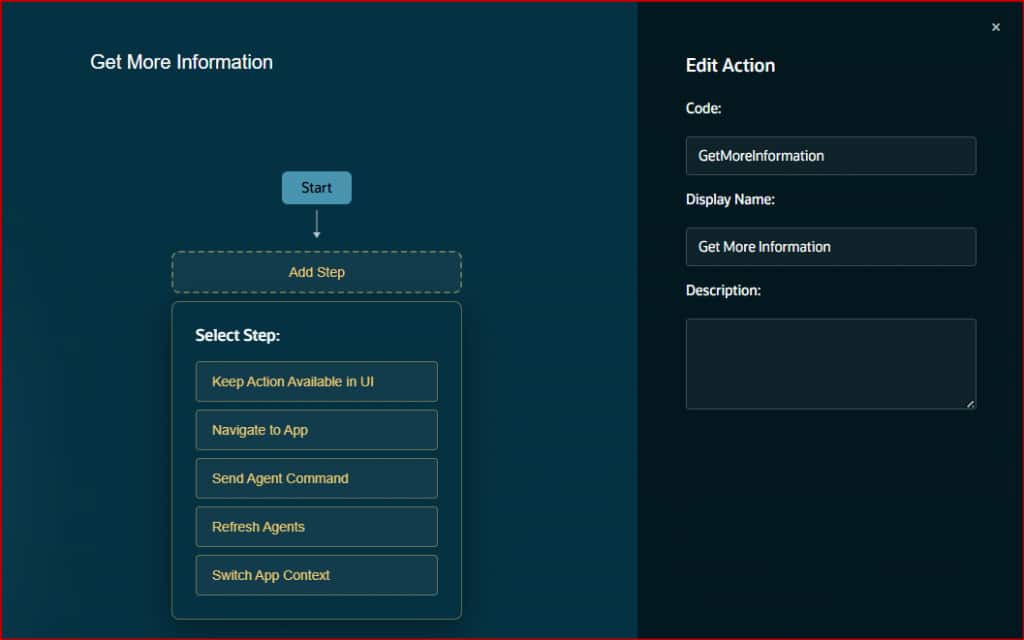
The Actions Editor is where you build reusable multi-step workflows that agents can invoke. Each action starts with a Start node and chains together steps. You create an action, give it a display name, and add steps from the available types: Preserve Action, Navigate to Agentic App, Send Agent Command, and Refresh Agents. The visual flow shows the sequence clearly, and you can delete or reorder steps as needed.
The Template Editor
The Template Editor is where you design the document templates that power app-defined communications. You choose a template type (PowerPoint, PDF, Email, or Text), then configure parts with generation instructions (what content the AI should create) and presentation instructions (how it should be formatted). PowerPoint templates are configured slide by slide; PDF templates have sequential parts; Email and Text templates have body content with formatting guidance.
| Workflow Tip Keep AI Agent Studio open in one browser tab and the Agentic App Builder in another. Apps auto-save as you make changes, so you can quickly switch between configuring agent workflows and previewing the app. Test each tool independently before integrating. |
The App Lifecycle
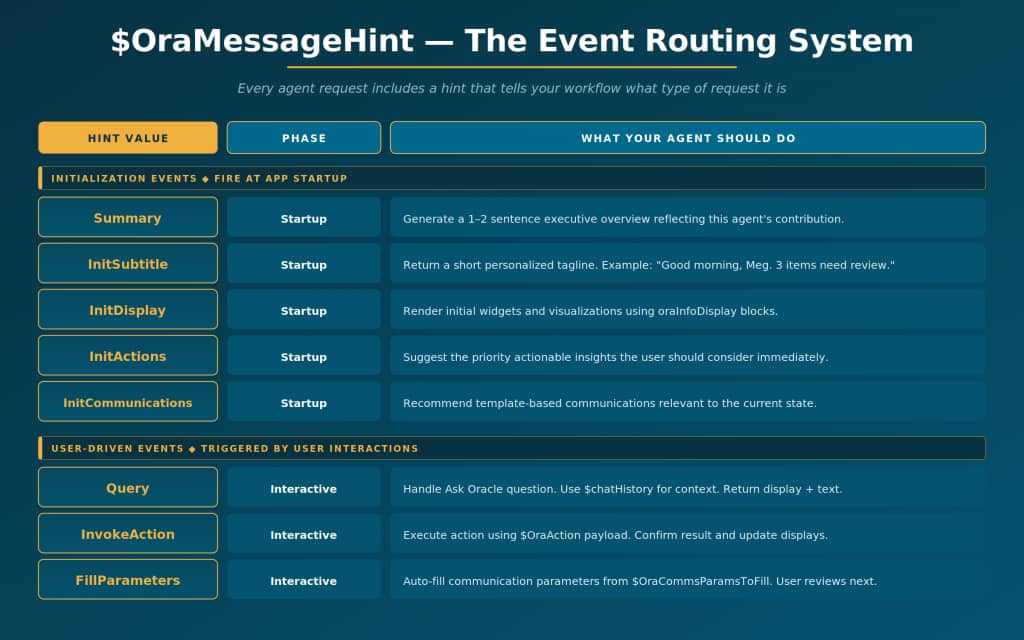
The app lifecycle governs when and how agents are invoked at runtime. Understanding this lifecycle is essential because it determines how you structure your agent workflows—specifically, how you route on the OraMessageHint value that the framework passes with every request.
Phase 1: Parallel Initialization
When a user opens the app, five initialization events fire simultaneously:
- InitSubtitle — Requests a dynamic tagline. The designated subtitle agent returns a personalized greeting.
- Summary — Requests a 1–2 sentence executive overview. The summary agent aggregates insights from all domain agents.
- InitDisplay — Requests initial information displays. Each agent renders its startup widgets based on its Display Prompt.
- InitActions — Requests actionable insights. Agents surface the priority actions the user should consider immediately.
- InitCommunications — Requests communication suggestions. The communications panel is pre-populated with recommended outreach.
Because these fire in parallel, the app populates quickly. Users see a fully loaded experience within seconds—summary, displays, actions, and communications all appear as they resolve.
Phase 2: User-Driven Events
After initialization, the app enters an interactive phase where events are triggered by user actions:
- Query: User types a question in Ask Oracle. The agent receives $chatHistory for conversational context and should respond with both text and information displays.
- InvokeAction: User clicks an action button. The originating agent receives $OraAction with the action payload and executes accordingly.
- FillParameters: System asks agents to auto-fill communication parameters. The agent receives $OraCommsParamsToFill and returns populated values.
- SendCommunication: User confirms sending. The designated communications agent processes and delivers the message.
- AdditionalContent: Framework requests more content for an agent’s additional panel. The agent receives $OraPanelName and generates panel-specific content.
How Everything Connects
Let us trace the complete flow from configuration to user experience to see how all the core concepts work together.
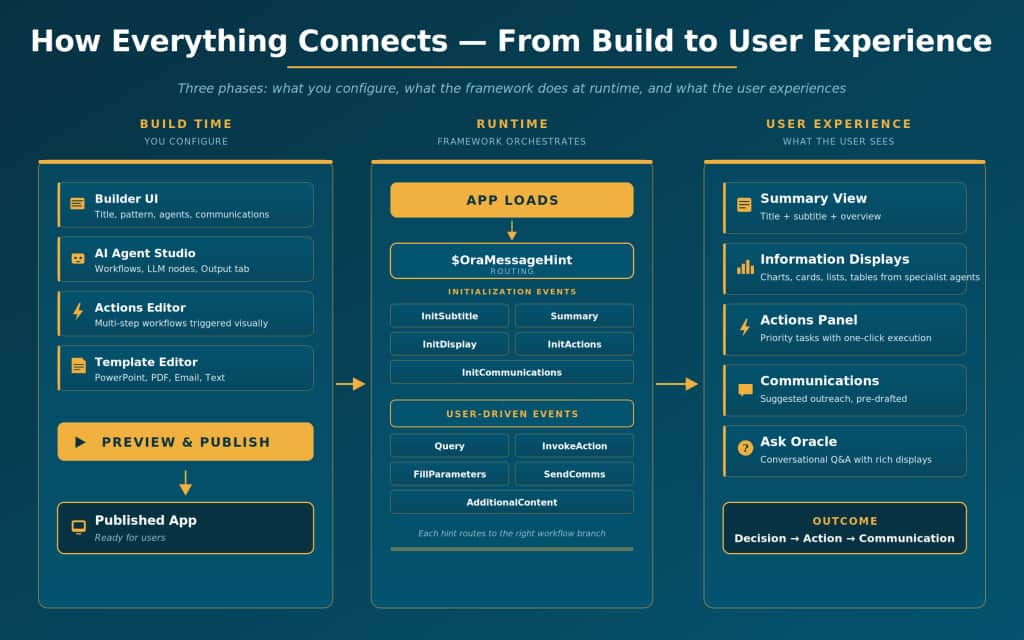
At build time, you use the four visual tools to configure your app. The Builder UI defines the app shell (title, pattern, agents, communications). AI Agent Studio defines each agent’s workflow, prompts, and output capabilities. The Actions Editor defines reusable multi-step workflows. The Template Editor defines document formats. When you click Publish, the framework generates the appConfig and the app goes live.
At runtime, the framework takes over. When a user opens the app, it fires five parallel initialization events via OraMessageHint. Each agent’s workflow routes on the hint value, processes the request, and returns structured output: summaries, displays (via widgets), actions, and communication suggestions. The user sees a fully populated app in seconds.
During interaction, the user can ask questions (Query), click actions (InvokeAction), and send communications (FillParameters → SendCommunication). Each event follows the same pattern: the framework delivers the hint and context to the right agent, the agent processes and returns structured output, and the framework renders the result. The communication lifecycle manages the full suggest-to-send flow for outbound messaging.
The result: a coherent, intelligent experience where agents analyze, displays visualize, actions execute, and communications reach the right people—all configured visually, orchestrated by the framework, and experienced as a single unified app.
| The Core Concepts Principle Think of core concepts as the grammar of agentic apps. The appConfig is the sentence structure. Agents, Widgets, Communications, and Actions are the parts of speech. The visual tools are how you write. The lifecycles are how the sentence gets spoken. Master the grammar, and you can build any app. |
New to Oracle Fusion AI Agents?
Explore AI Agent Studio Learning Path — blog series to help build from zero to production-grade AI agents, with deep dives on every agent pattern, node type, and tool integration.
Explore AI Agentic Apps Learning Path — blog series on everything you need to build Oracle Fusion AI Agentic Apps using AI Agent Studio.