
Working with the
VECTORdatatype just became even easier with the ORDS v26.1.0/vectorSearchendpoint for Auto-RESTenabled tables and views.
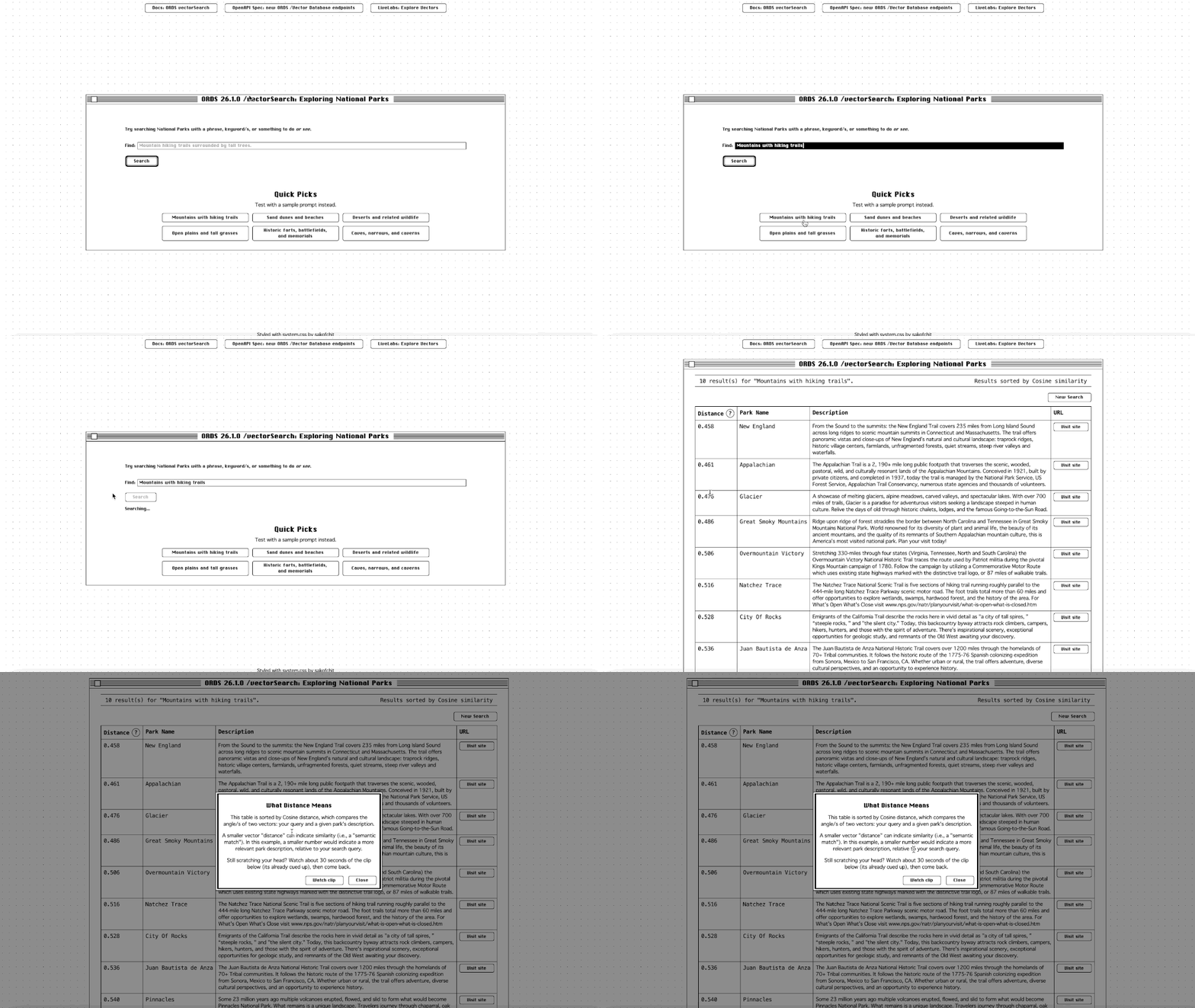
VECTOR search app exampleYesterday’s app
You might have an app that provides recommendations to your users based on search queries. This is a very common use case spanning across sectors, industries, products, etc. To solve for this use case you may have created a solution to deliver relevant results (using Regular Expressions, SUBSTR functions, LIKE operators, etc.). But maintenance and updates on something like this can become a nightmare: you’re constantly updating filters, meaning and intent might be difficult to capture and quantify, your own biases and assumptions are unknowingly baked-in, etc. There are a lot of other reasons for why something like this doesn’t always make sense:
...FROM
          (
              WITH search_words AS (
                  -- Tokenizes the a user's search query
                  SELECT DISTINCT
                      LOWER(REGEXP_SUBSTR(:user_query, '[[:alnum:]]+', 1, LEVEL)) AS WORD
                  FROM
                      DUAL
                  CONNECT BY
                      REGEXP_SUBSTR(:user_query, '[[:alnum:]]+', 1, LEVEL) IS NOT NULL
              ), filtered_words AS (
                  -- Removes stop words and performs simple singularization
                  SELECT
                      CASE
                          WHEN WORD LIKE '%s' THEN
                              SUBSTR(WORD, 1, LENGTH(WORD) - 1)
                          ELSE
                              WORD
                      END AS WORD
                  FROM
                      search_words
                  WHERE
                      WORD NOT IN ( 'the', 'a', 'an', 'with', 'and', 'or', 'of', 'in', 'on', 'to' )
              )...
Today
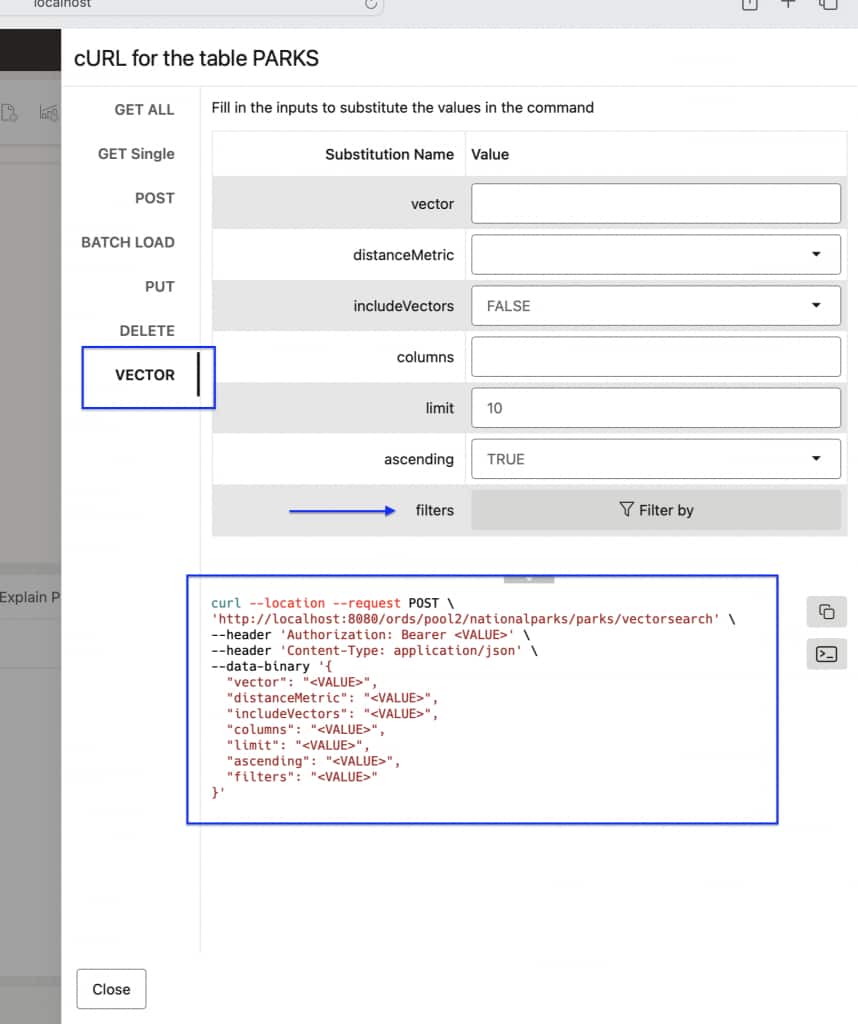
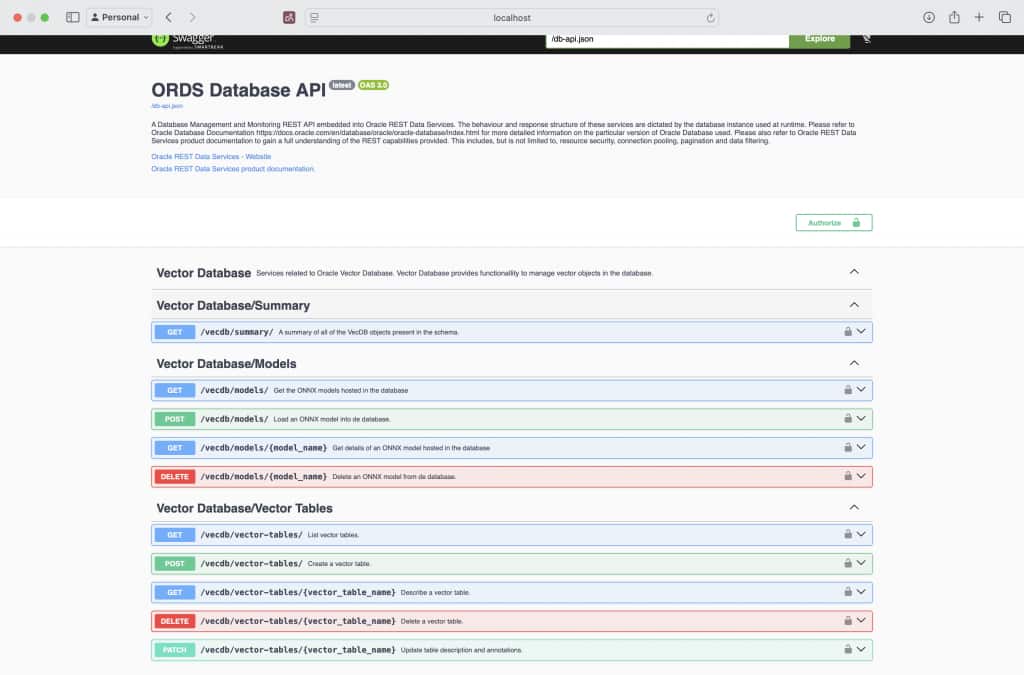
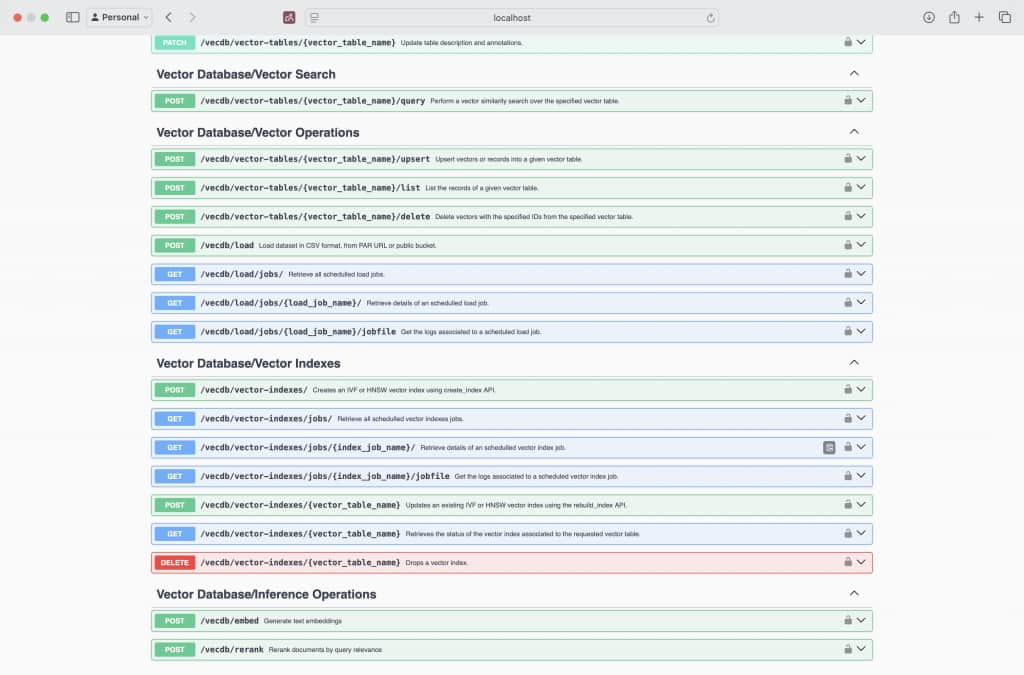
But for this use case, Vector search makes a ton of sense. In this example, when we say “Vector search” think “semantic search.” And ORDS 26.1.0 makes working with the VECTOR datatype simple. ORDS now includes a new /vectorSearch endpoint for Auto-REST enabled tables and views and nearly 30 additional APIs for all of your VECTOR operations.
VECTOR embedding a search query
“How can I use these new VECTOR endpoints in my app?“
Intro to the /vecdb/embed endpoint
Let’s say your app looks something like this.
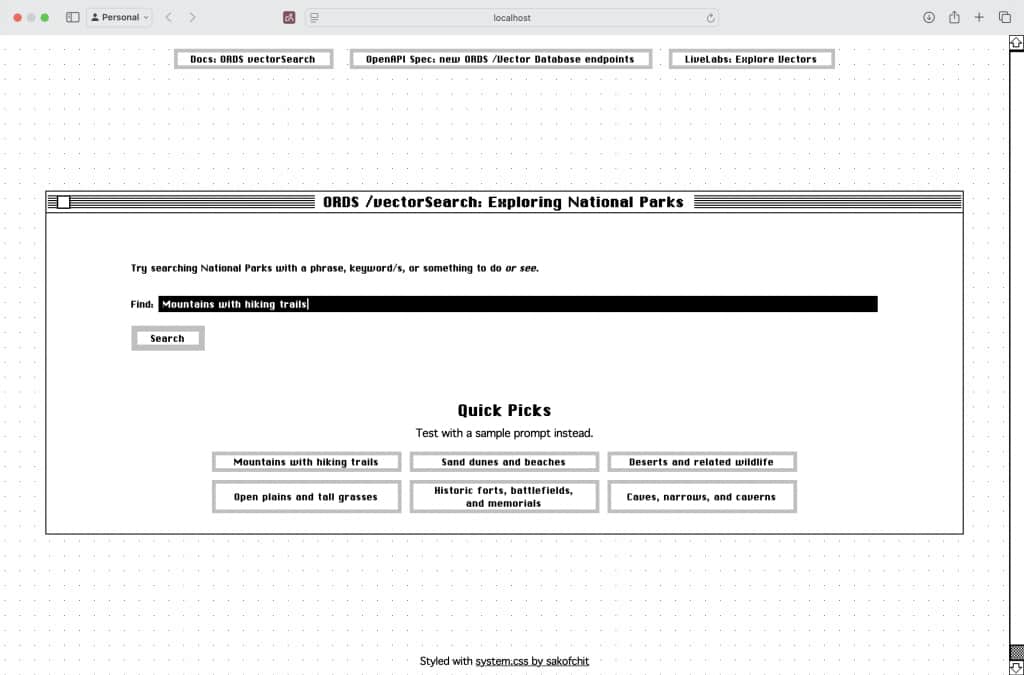
You have the typical free text <form> field for user queries, and perhaps some helpful “Quick Picks” queries for your users.
In this example a user enters some text (their query). And shortly after, the user presses the Search button (<submit>). A query would then need to be converted to a VECTOR embedding. You can achieve this vectorization via ORDS.
/vecdb/embed via the ORDS DB-API
One example: you can do the embedding through your app’s backend by submitting a POST request to the new /db-api/vecdb/embed ORDS endpoint.
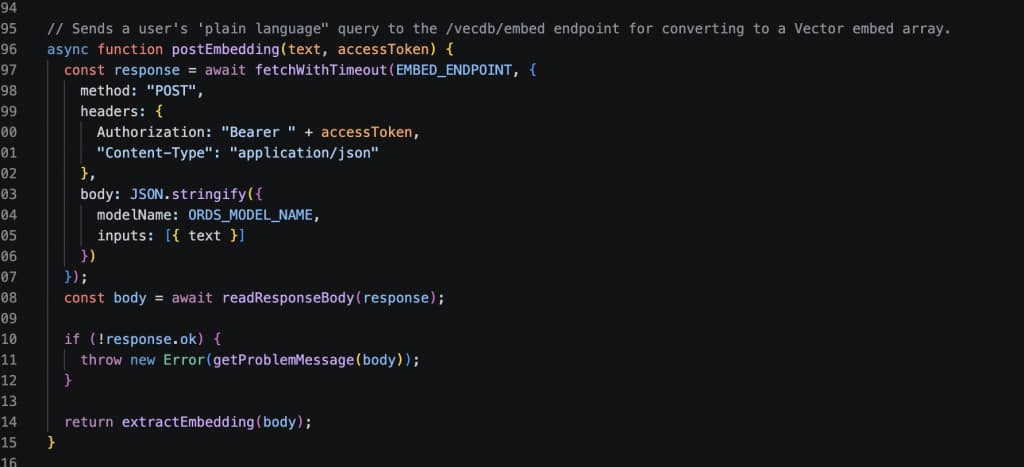
vecdb/embed endpoint.The POST request headers and JSON payload would look like this (we use OAuth2.0 Client Credentials in this example, not required though):
curl --request POST \
  --url http://localhost:8080/ords/nationalparks/_/db-api/stable/vecdb/embed \
  --header 'Authorization: Bearer abcdefgh12345678' \
  --header 'Content-Type: application/json' \
  --header 'User-Agent: insomnia/12.5.0' \
  --data '{"modelName": "minilm_l12_v2",
 "inputs": [
	 {
		 "text": "Mountains with hiking trails"
	 }
 ]
}'
Special note: For this /vecdb/embed endpoint, minimally, the required parameters for the POST request JSON payload are:
- the ONNX model name to be used for Vector embedding (of your query), and
- the text to be embedded (the
input).1,2
About the DB-API pattern
The use of of the ORDS DB-API requires the following pattern:
https://<server>/<context root>/<my database>/<my schema>/_/db-api/[stable, latest, or version number]/<service path>This explains why you noticed /nationalparks/ in the URL path.
The /vecdb/embed response
And after the Vector embedding is complete, you’d receive a response payload from the /vecdb/embed endpoint. That JSON payload would include the following:
- the text that was vectorized
- the complete
VECTORarray (of the user’s original query)
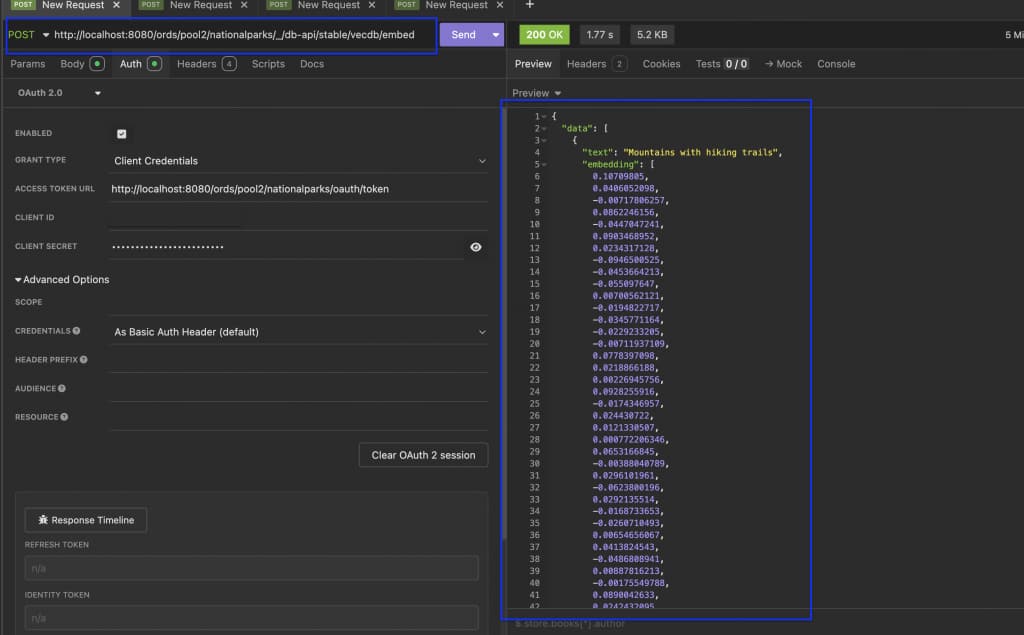
/vecdb/embed endpoint.{"data": [{"text": "Mountains with hiking trails",
"embedding": [0.10709805, ...]
}
]
}From there, you’d perform a VECTOR search on your target table, using that Vector embedding (of the original search query).
The /vectorSearch endpoint
A quick reminder, you still get all the Auto-REST enabled endpoints too: GET (all), GET (by ID), POST, PUT, BATCHLOAD, DELETE, (and now) VECTOR.
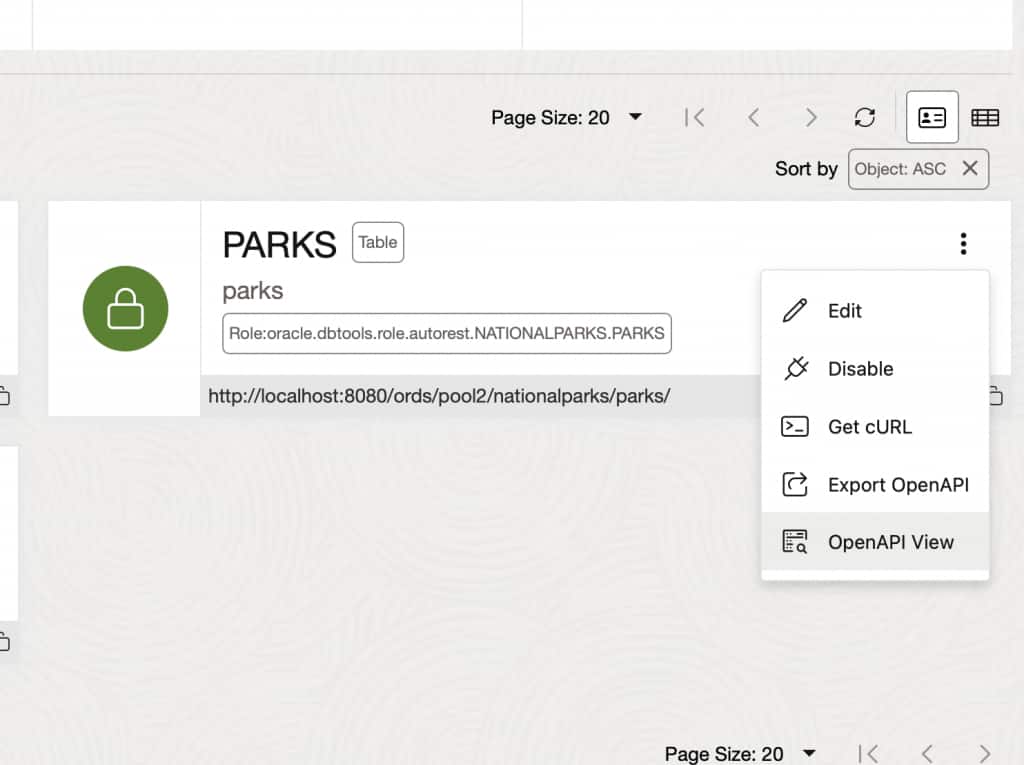
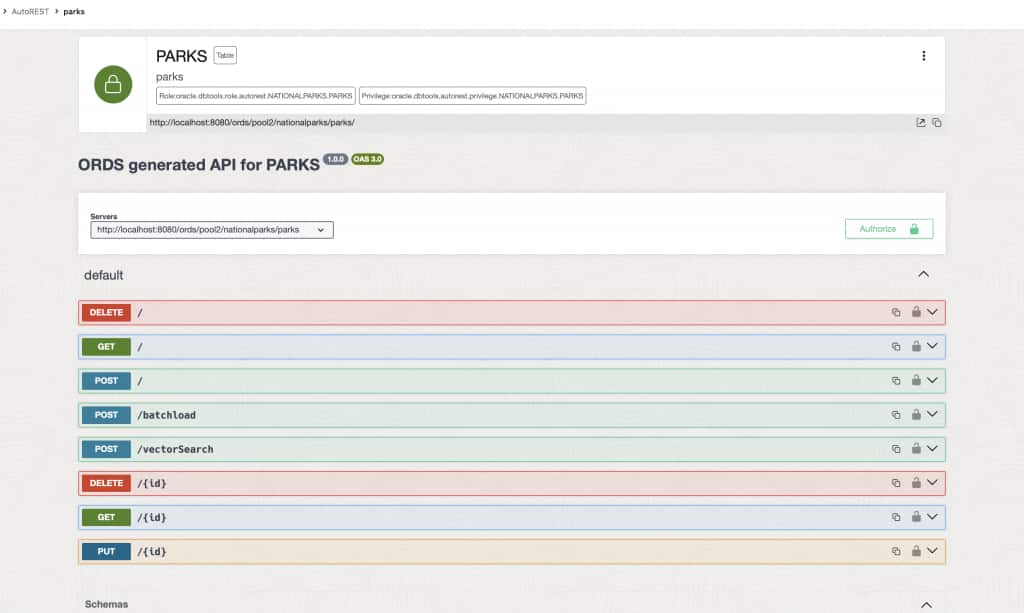
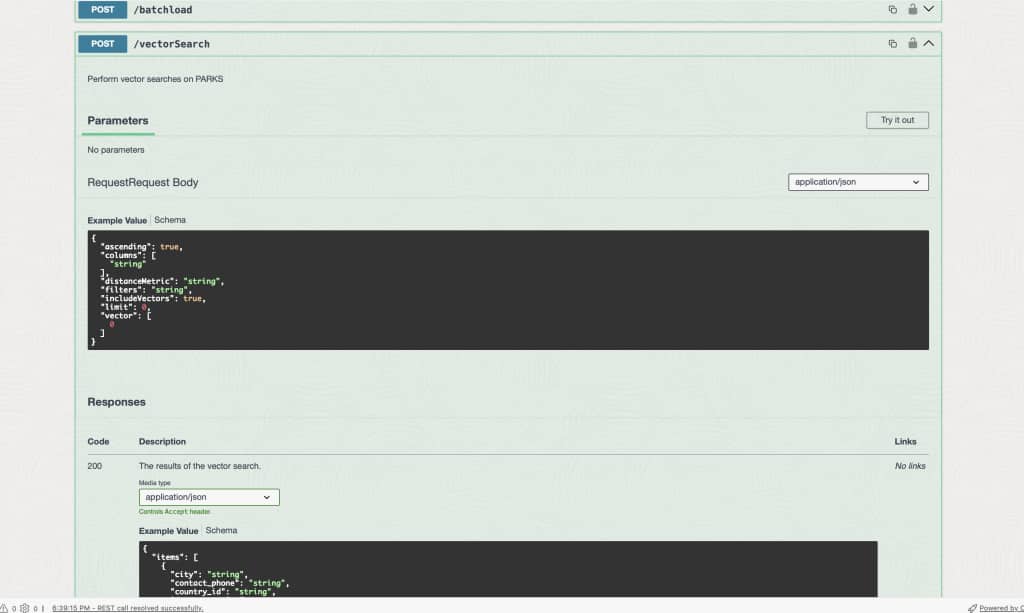
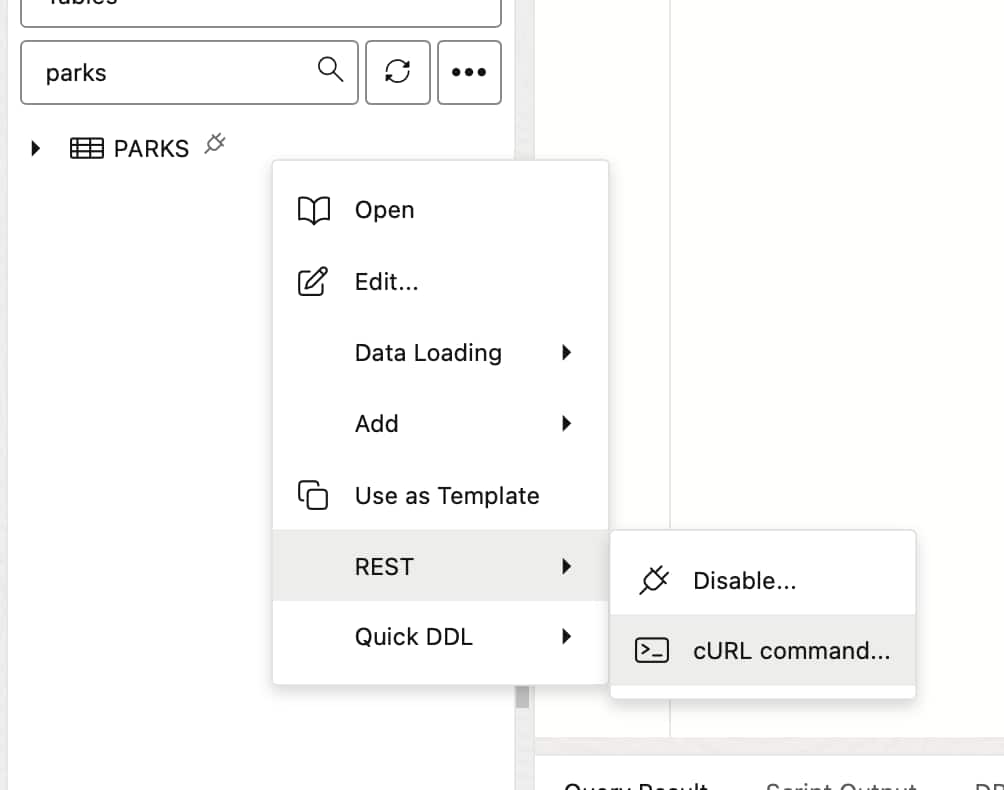
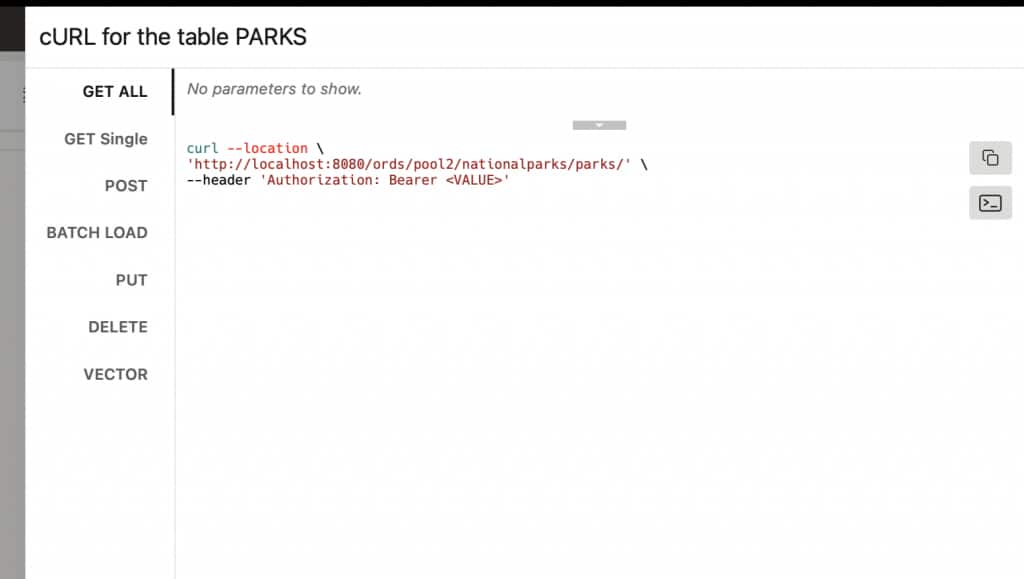
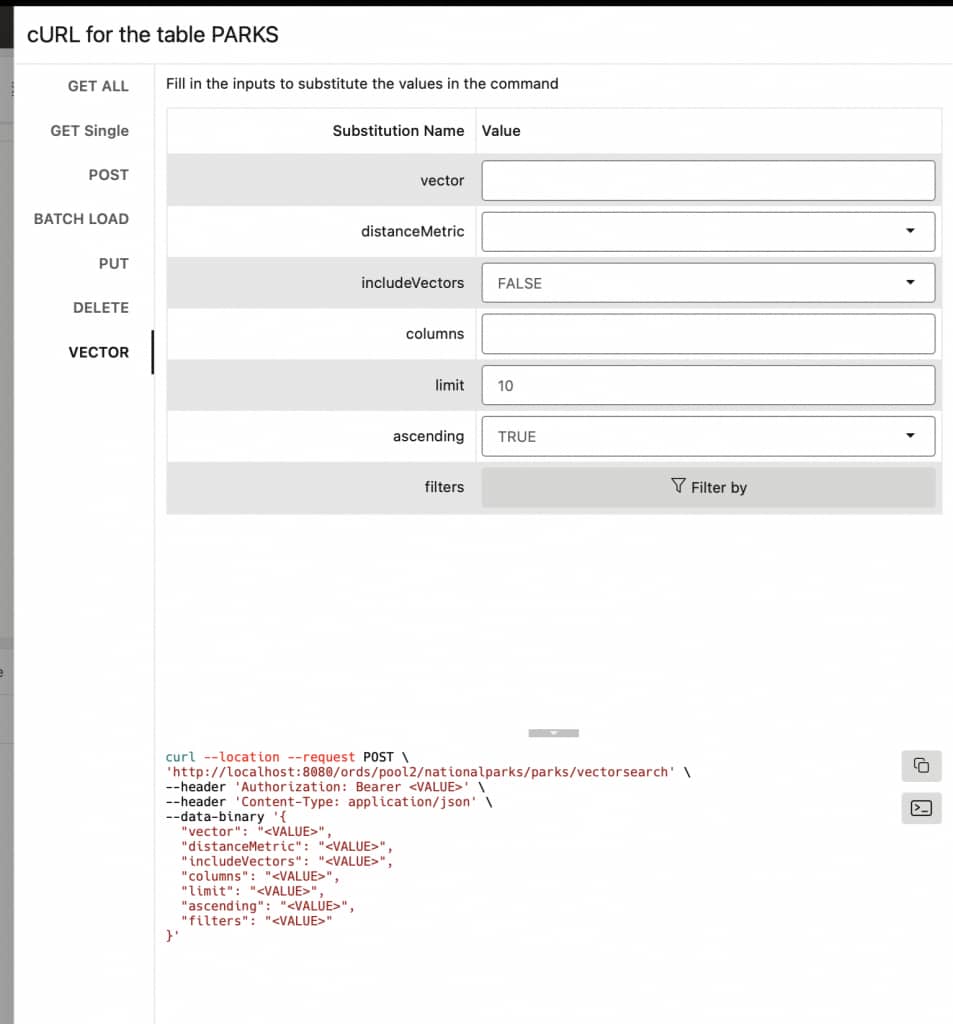
In normal practice, you could use the new /vectorSearch endpoint in the app’s backend. You’d submit a POST request to your target table or view (in this case we submit a POST request to the /parks/vectorSearch endpoint, since it is technically a POST endpoint).3
curl --request POST \
  --url http://localhost:8080/ords/nationalparks/parks/vectorSearch \
  --header 'Authorization: Bearer abcdefgh12345678' \
  --header 'Content-Type: application/json' \
  --data '{
  "vector":[0.10709805,...]}'\'''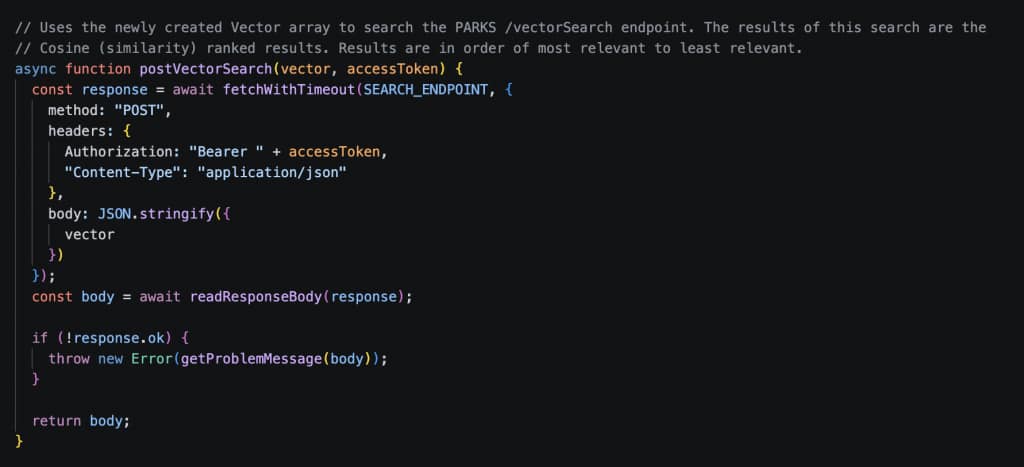
Response
And you’d receive a response payload, consisting of relevant search results, listed in order of closest match (semantically similar).
{
	"items": [
		{
			"park_id": "CF83E09C-3E55-4B5A-9D8B-E833CF6FEB5A",
			"park_code": "neen",
			"url": "https://www.nps.gov/neen/index.htm",
			"name": "New England",
			"description": "From the Sound to the summits: the New England Trail covers 235 miles from Long Island Sound across long ridges to scenic mountain summits in Connecticut and Massachusetts. The trail offers panoramic vistas and close-ups of New England’s natural and cultural landscape: traprock ridges,  historic village centers,  farmlands,  unfragmented forests,  quiet streams,  steep river valleys and waterfalls.",
			"latitude": 42.29158191,
			"longitude": -72.52427673,
			"location": {
				"srid": 4326,
				"point": {
					"directposition": [
						-72.52427673,
						42.29158191
					]
				}
			},
			"directions_info": "More than 100 public roads cross the New England Trail,  and there are trail head parking areas at or near many of these crossings. Detailed Trail Maps are available from Appalachian Mountain Club and Connecticut Forest & Park Association. For Massachusetts maps,  visit the AMC Berkshire Chapter; for Connecticut,  visit the CFPA Bookstore. Direct access by bus is available at several points in Connecticut and Massachusetts. Train service is available at two points – in Guilford,  CT and Northampton,  MA.",
			"directions_url": "https://newenglandtrail.org/interactive-map/",
			"contact_phone": "0014133518182",
			"email_address": "net@nps.gov",
			"street": "New England Trail",
			"city": "Springfield",
			"states": "MA",
			"postal_code": "01105",
			"country_id": "USA",
			"vectorsearchdistance": 0.4581690784470277,
			"links": [
				{
					"rel": "self",
					"href": "http://localhost:8080/ords/nationalparks/parks/CF83E09C-3E55-4B5A-9D8B-E833CF6FEB5A"
				}
			]
		}, ...additional results...],
	"hasMore": false,
	"count": 10,
	"links": [
		{
			"rel": "self",
			"href": "http://localhost:8080/ords/nationalparks/parks/vectorSearch"
		},
		{
			"rel": "edit",
			"href": "http://localhost:8080/ords/nationalparks/parks/vectorSearch"
		},
		{
			"rel": "describedby",
			"href": "http://localhost:8080/ords/nationalparks/metadata-catalog/parks/item"
		}
	]
}
Your app might treat the response payload prior to rendering.
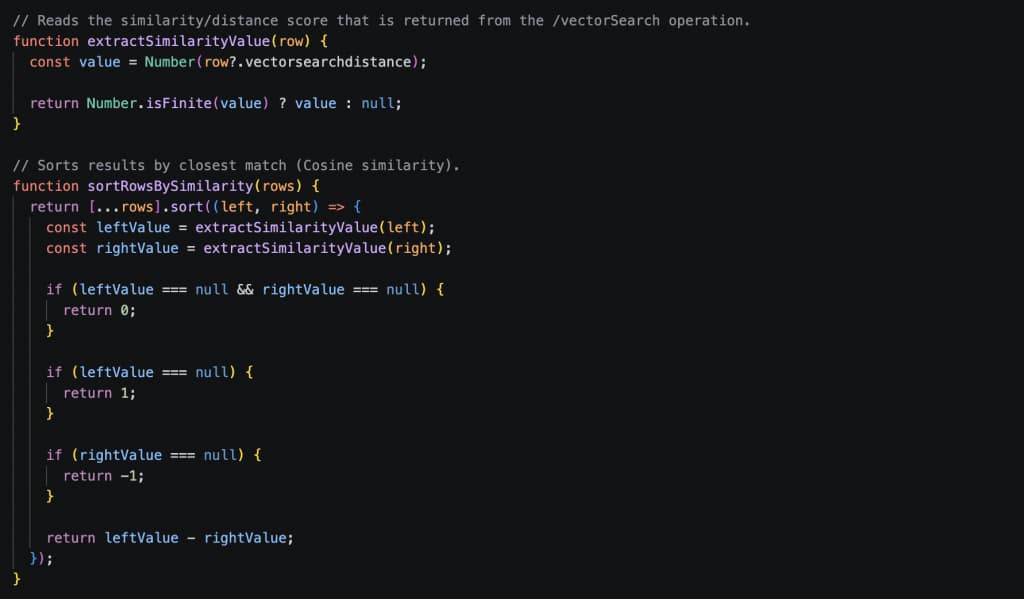
And an example of how results can be displayed to the user:
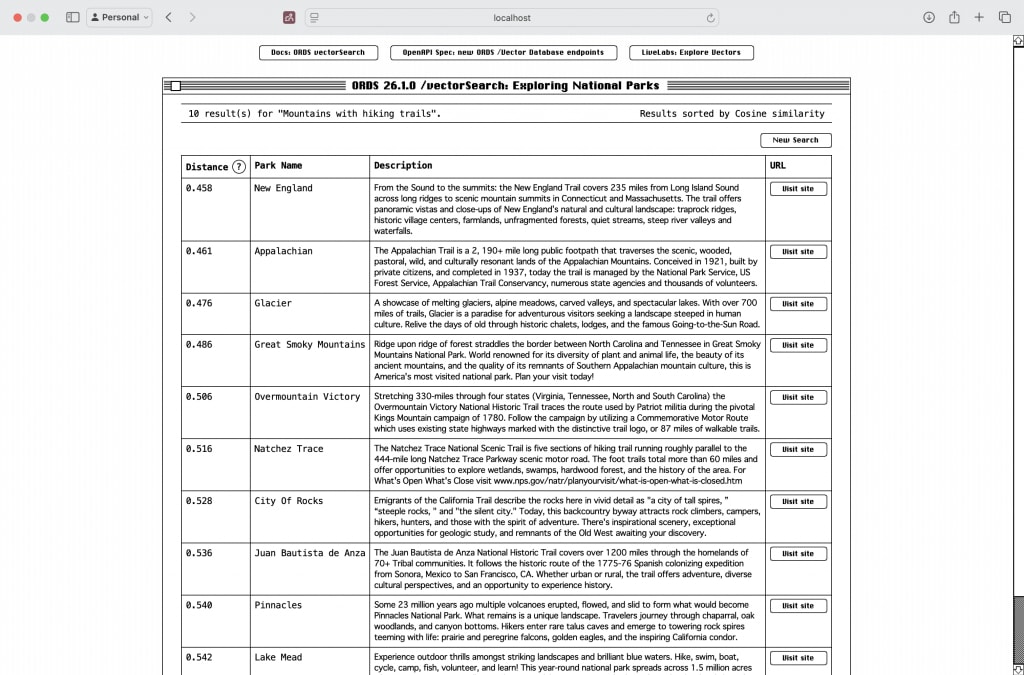
A special note: if you take a closer look at the above image, you’ll see how the results are sorted by Cosine similarity. This is one of many Distance Metrics available, but Cosine makes the most sense in this example.
Generally it’s best to match the distance metric you use to the one that was used to train the vector embedding model that generated the vectors.4,5
And that’s it, a quick practical example of how you can start using VECTORS and embedding in your ORDS-backed apps.
Easy integration
Vector search can differentiate your app by allowing users to use plain language queries, which are then converted to a Vector, for their searches. The vector embedding is used to determine, mathematically, the most relevant results to your user’s initial query (i.e. the results are a query’s “nearest neighbor”, semantically speaking).
Experimenting with Vectors is a really fun and accessible entry point into the world of LLMs (aka AI). And if you are using the Oracle AI database, this is all available for you to test out today.
Try
- Review the ORDS DB-API OpenAPI spec for Vector Database operations
- Review using Auto-REST enabled objects with Vector search queries
- Download ORDS 26.1.0
About the sample app
Throughout this article we’ve loosely referenced a sample application as a way of demonstrating practical usage of ORDS and Vectors. This sample app has minimal dependencies: a Node.js server, basic HTML, JS, and CSS.
App details
This app uses the same tables, data, and ONNX model found in the Getting Started with AI Vector Search LiveLab. Completing Labs 1-4 of the LiveLab will provide you with two advantages:
- You’ll be able to move seamlessly between this demo and the LiveLab, and
- You can complete the entire LiveLab without having to perform additional setup
We use the NATIONALPARKS schema, just like in the LiveLab.
You can check out the app here. We’ll be referring to this sample app in the next ORDS + VECTOR article.
Footnotes
- In this example, we would have preloaded the ONNX model by following Labs 1-4 in the Getting Started with AI Vector Search LiveLab. Top
- This means you will have already performed the vectorizing (embedding) on a column in your table. For instance, in this example, we began with a Description column. We then “vectorized” the rows in the
DESCRIPTIONcolumn, and placed these values in a newDESC_VECTORVector column. Top - Some considerations:
vectoris a mandatory parameter, theCOLUMNSparameter is optional if your target table or view has but a singleVECTORcolumn, theincludeVectorsandascendingparameters aretrueby default, and in this case everything else is optional. Top - We’ve chosen to use the default,
COSINE, because that is what the all-MiniLM-L12-v2 model was fine-tuned on. You should use what the model was trained on for best results. See Hugging Face’s all-MiniLM-L12-v2 fine-tuning notes for details on the distance metric. Top - “Generally it’s best to match the distance metric you use to the one that was used to train the vector embedding model that generated the vectors.” – Oracle AI Vector Search User’s Guide Top