To help streamline and maintain your contacts list, map partner contacts to your SuiteApp listings. Managing and editing contacts will be done solely from the contact list portlet in your APC Dashboard. It is imperative that you update these mapped contacts since we base all our communications (leads, notices, BFN comms, testing reminders, renewals) on your information
Map Through the Contacts Portlet
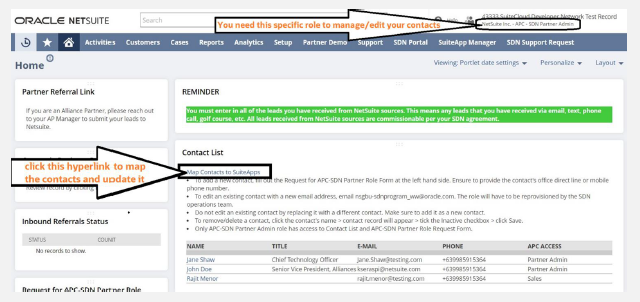
1. Login to NetSuite > Use APC – SDN Partner Admin role > Home Dashboard > Contact List > Map Contacts to SuiteApps
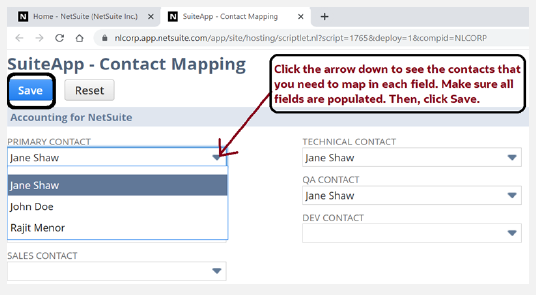
2. A new window will open which contains your SuiteApp listings. Pick the appropriate contact from the dropdown list for each contact type.
- Make sure that the contact is available on the contact list portlet from the dashboard.
- If the contact is not yet in the list, fill out the Request for APC-SDN Partner Role form on the left-hand side section of your APC dashboard. Once you have submitted it, you will see the contact already in the Contact List portlet.
3. Once done, click SAVE and close the window.
4. After saving, make sure to go to SuiteApp Manager tab > Scroll down to My Solution List > VIEW, to check the Mapped Contacts are correctly appearing under Company Information tab.
Map Through the SuiteApp Listing
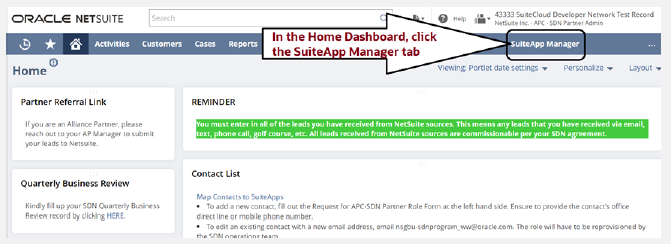
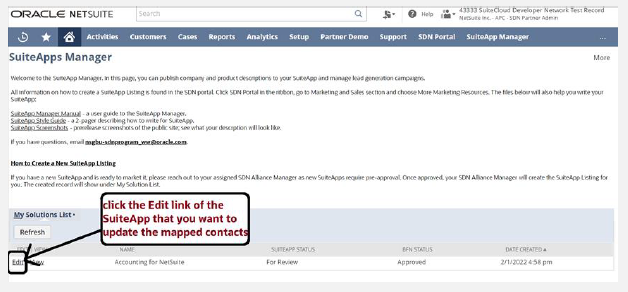
1. Login to NetSuite > Use APC-SDN Partner Admin role > Click SuiteApp Manager tab > Scroll down to My Solution List > Click Edit or View on the SuiteApp Listing.
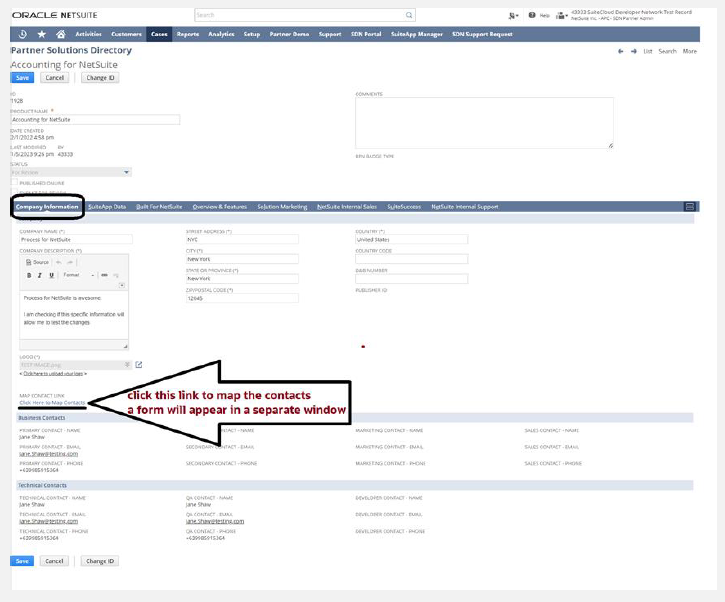
2. Once you are on Edit mode, scroll down to Company Information tab > On the left hand side, you will see MAP CONTACT LINK > Click Here to Map Contacts.
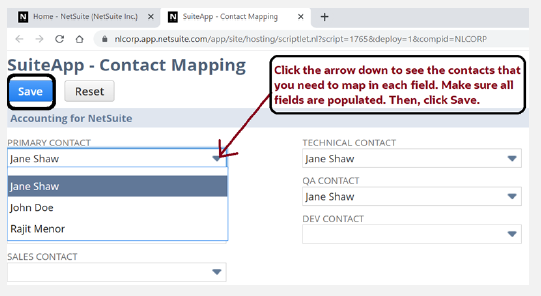
3. A new window will open which contains your SuiteApp listings. Pick the appropriate contact from the dropdown list for each contact type.
4. Once done, click SAVE and close the window. You will need to SAVE the entire listing as well.