
In the increasingly complex landscape of multi-cloud architectures, organizations require seamless and secure methods to authenticate and authorize workloads across different cloud environments. OpenID Connect (OIDC) Discovery offers a powerful solution for enabling Kubernetes pods in Oracle Cloud Infrastructure (OKE) to access resources in Google Cloud Platform (GCP) with minimal friction and enhanced security.
This approach eliminates the need for traditional credential management by implementing a token-based, federated identity mechanism. By utilizing OIDC’s standardized protocol, developers can establish trust relationships between different cloud platforms, allowing pods to assume specific roles and access required resources dynamically and securely.
1. Prepare OKE to support OIDC Discovery
1.1 – Enable OIDC discovery
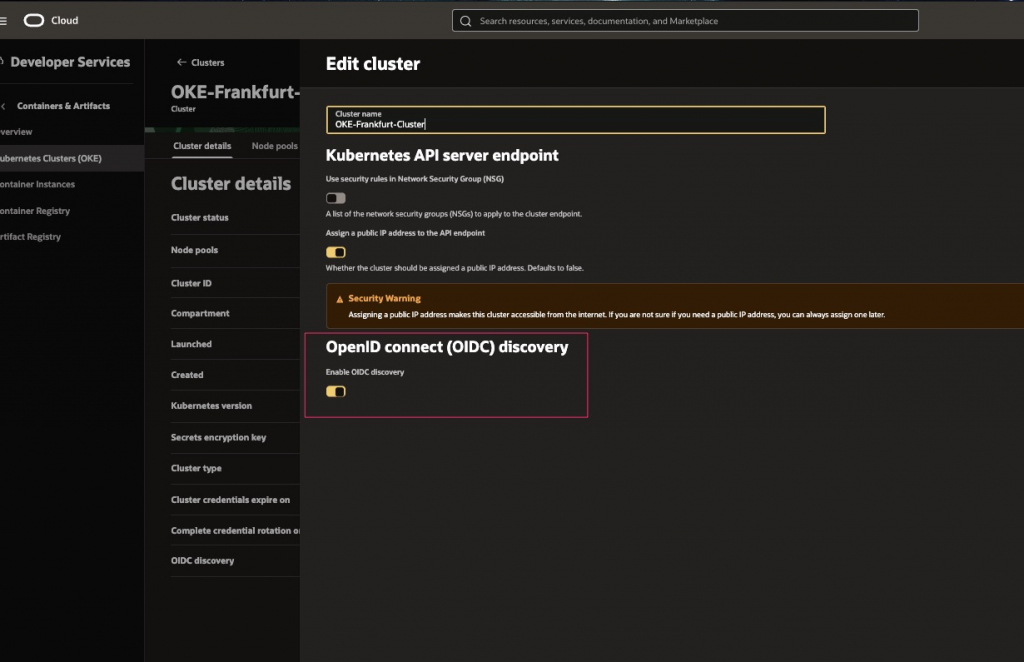
In the OKE Documentation you can see how to create a cluster with OIDC Discovery enabled. But you can also provision a cluster without it and update it once is provisioned.
Like this if you want to do it in the console:
Or like this if you want to do it with OCI CLI:
Create a JSON file cluster-enable-oidc.json :
{
  "options": {
    "openIdConnectDiscovery": {
      "isOpenIdConnectDiscoveryEnabled": true
    }
  }
and run the following command:
oci ce cluster update --cluster-id ocid1.cluster.oc1.iad.aaaaaaaaaf______jrd --from-json file://./cluster-enable-oidc.jsonYou might need to wait a few moments. If you want to confirm, run the following command:
oci ce cluster get --cluster-id ocid1.cluster.oc1.iad.aaaaaaaaaf______jrd | grep -C 'open-id-connect-discovery'You should see something like the image below:
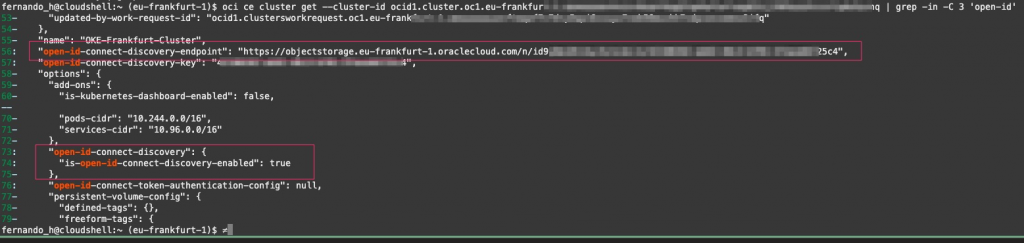
retain the open-id-connect-discovery-endpoint . We will need it later.
The complete documentation for these first steps is here: OpenID Connect Discovery – Oracle Cloud Infrastructure Docs
1.2 – Create a namespace and a service account
Create a namespace and a service account for the OKE workloads:
kubectl create ns oke-gcp-ns;
kubectl -n oke-gcp-ns create sa oke-gcp-sa;
2 – Prepare GCP resources
We will try to run the commands with GCP CLI, but you can always try to do it in the console as well:
2.1 Create a GCP project
GCP recommends to use a dedicated project to manage workload identity pools and providers, so lets create a GCP project :
gcloud projects create oke-oidc-gcp;Retain the PROJECT_NUMBER.
2.2 Enable billing for the project
Don’t forget verifying that billing is enabled for your oke-oidc-gcp Google Cloud project.
gcloud billing projects link oke-oidc-gcp --billing-account=MY-BILLING-ACCOUNT-IDOnce done you can validate it:
gcloud billing projects describe oke-oidc-gcp
3. Enable APIs for your project
Make sure that the following APIs are enabled:
- Identity and Access Management (IAM) API
- Cloud Resource Manager API
- IAM Service Account Credentials API
- Security Token Service API
gcloud services enable iam.googleapis.com cloudresourcemanager.googleapis.com iamcredentials.googleapis.com sts.googleapis.com
4. Configure Workload Identity Federation
4.1. Create workload identity pool
gcloud iam workload-identity-pools create "oke-pool" \
  --location="global" \
  --description="Pool for OKE workloads"
4.2. Create identity provider
gcloud iam workload-identity-pools providers create-oidc "oke-provider" \
  --location="global" \
  --workload-identity-pool="oke-pool" \
  --issuer-uri="https://objectstorage.eu-frankfurt-1.oraclecloud.com/n/xxxxxxxx/x/oidc/o/12345678-ab44-45c2-bg02-1234354555f4" \
  --attribute-mapping="google.subject=assertion.sub"
4.3. Create Service Account
gcloud iam service-accounts create oke-workload-sa \
  --description="Service account for OKE Workloads to access GCP Object Storage" \
  --display-name="OKE Workload Service Account"
4.4. Objective Viewer role for Service Account
The following command grants the service account named oke-workload-sa the Storage Object Viewer role on the entire oke-oidc-gcp project. We should be able to view buckets and list their files:
  gcloud projects add-iam-policy-binding projects/oke-oidc-gcp \
  --member="serviceAccount:oke-workload-sa@oke-oidc-gcp.iam.gserviceaccount.com" \
  --role="roles/storage.objectViewer"
4.5. WorkloadIdentityUser role for Service Account
This command grants a specific Kubernetes service account (created in point 1.2 and identified by its unique Workload Identity Pool member string) the permission to impersonate a particular Google Cloud service account ( oke-workload-sa@oke-oidc-gcp.iam.gserviceaccount.com ). The role granted, roles/iam.workloadIdentityUser , is specifically designed for this impersonation, allowing applications running in the Kubernetes cluster using the oke-gcp-sa service account,) to effectively “act as” the Google Cloud service account and access Google Cloud resources based on the Google Cloud service account’s permissions, without needing traditional service account keys:
gcloud iam service-accounts add-iam-policy-binding \
oke-workload-sa@oke-oidc-gcp.iam.gserviceaccount.com \
–role=”roles/iam.workloadIdentityUser” \
–member=principal://iam.googleapis.com/projects/PROJECT_NUMBER/locations/global/workloadIdentityPools/oke-pool/subject/system:serviceaccount:oke-gcp-ns:oke-gcp-sa \
–condition=None
4.6. Create a credential configuration file
Now, to deploy a Kubernetes workload that can access Google Cloud resources , we need to create a credential configuration file:
gcloud iam workload-identity-pools create-cred-config \
    projects/PROJECT_NUMBER/locations/global/workloadIdentityPools/oke-pool/providers/oke-provider \
    --service-account=oke-workload-sa@oke-oidc-gcp.iam.gserviceaccount.com \
    --credential-source-file=/var/run/service-account/token \
    --credential-source-type=text \
    --sts-location=global \
    --output-file=credential-configuration.json
4.7. Create a bucket with a file inside
Now, lets create some resources in GCP:
gcloud storage buckets create gs://oke-gcp-bucket ;
echo "File Content" | gcloud storage cp - gs://oke-gcp-bucket/file.txt ;
5 – Testing
5.1. Create the GCP credential configuration file, as a config map
Return to OKE and lets create the GCP credential configuration file, as a config map in our namespace oke-gcp-ns:
kubectl create configmap gcp-credential-configuration \
  --from-file credential-configuration.json \
  --namespace oke-gcp-ns
5.2. Creating the pod to test
The following pod will use the ServiceAccount oke-gcp-sa and ConfigMap gcp-credential-configuration to authenticate to Google Cloud:
apiVersion: v1
kind: Pod
metadata:
  name: oke-gcp-pod
  namespace: oke-gcp-ns
spec:
  containers:
  - name: oke-gcp-container
    image: google/cloud-sdk:alpine
    command: ["/bin/sh", "-c", "gcloud auth login --cred-file $GOOGLE_APPLICATION_CREDENTIALS && gcloud auth list && sleep 600"]
    volumeMounts:
    - name: token
      mountPath: "/var/run/service-account"
      readOnly: true
    - name: workload-identity-credential-configuration
      mountPath: "/etc/workload-identity"
      readOnly: true
    env:
    - name: GOOGLE_APPLICATION_CREDENTIALS
      value: "/etc/workload-identity/credential-configuration.json"
  serviceAccountName: oke-gcp-sa
  volumes:
  - name: token
    projected:
      sources:
      - serviceAccountToken:
          audience: https://iam.googleapis.com/projects/PROJECT_NUMBER/locations/global/workloadIdentityPools/oke-pool/providers/oke-provider
          expirationSeconds: 3600
          path: token
  - name: workload-identity-credential-configuration
    configMap:
      name: gcp-credential-configuration
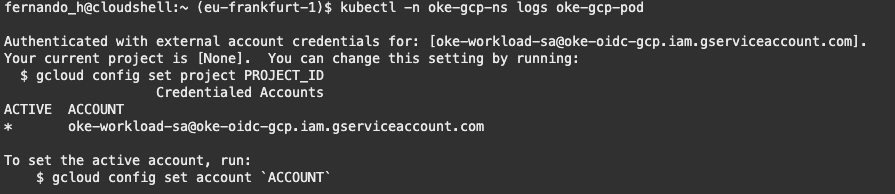
Once its running you can first check its logs to validate the result of the authentication process:
kubectl -n oke-gcp-ns logs oke-gcp-pod
The output expected:
You can then exec into it and list your buckets:
kubectl exec oke-gcp-pod --namespace oke-gcp-ns -- gcloud storage ls gs://oke-gcp-bucket/The output should be something like this:

Well, that’s it! Hope its helps ! 😀
Documentation: Workload Identity Federation with Kubernetes
Other interesting references: