
When users start building and consuming reports in Oracle Analytics, administrators need more than working dashboards. They need visibility. Which reports are used most? Which subject areas are popular? Which queries are slow? Are users hitting cache, or is every request going back to the database?
Oracle Analytics Usage Tracking provides that visibility by capturing query activity, performance details, execution status, cache usage, and generated SQL. Oracle describes Usage Tracking as a way for administrators to track user-level queries and identify performance bottlenecks based on query frequency and response time.
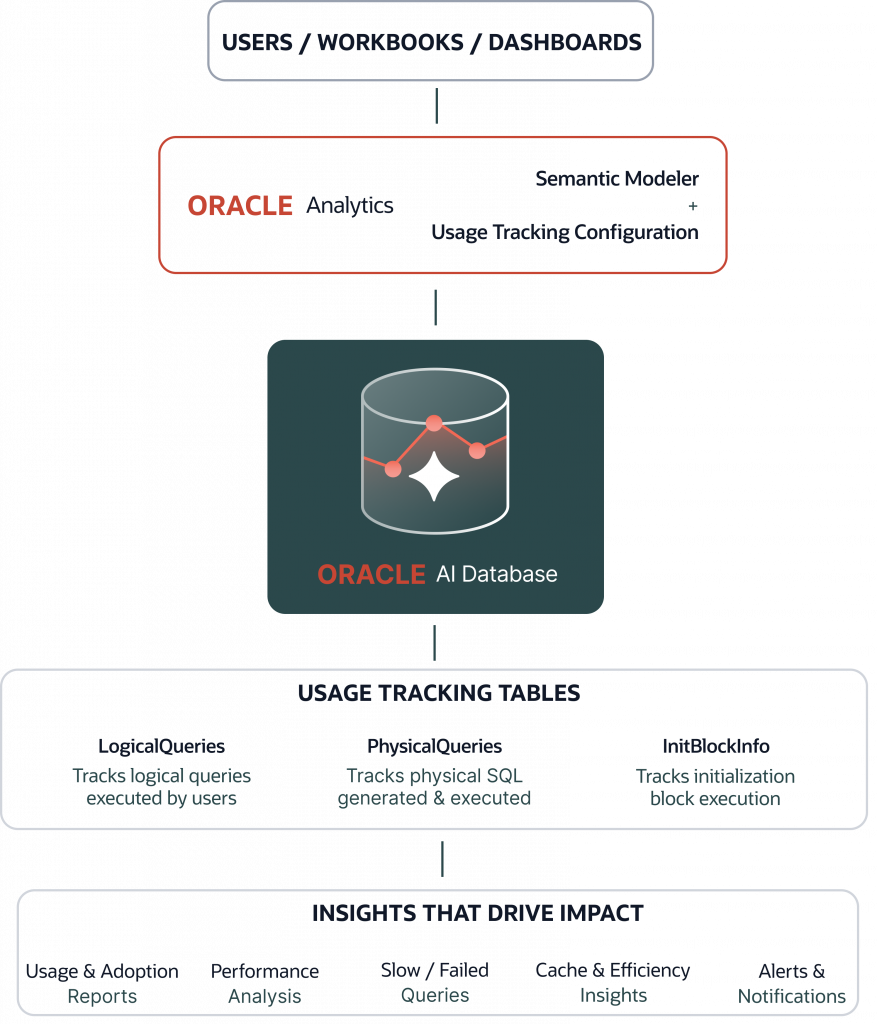
This article explains how to enable Usage Tracking in Oracle Analytics using Semantic Modeler, a dedicated connection to Oracle AI Database, and Console-level Usage Tracking settings. It also explains the purpose of the three main tracking tables: LogicalQueries, PhysicalQueriesand InitBlockInfo
Key Takeaways
- Oracle Analytics Usage Tracking captures query activity, performance, cache usage, and generated SQL.
- Usage Tracking is enabled through Semantic Modeler, a system connection, and Console settings.
LogicalQueriestracks user and dashboard activity, whilePhysicalQueriescaptures database SQL execution.- Usage Tracking helps teams monitor adoption, troubleshoot slow reports, and optimize performance.
- Usage data can be analyzed directly in Oracle Analytics using SQL, datasets, and workbooks.
Why Usage Tracking Matters
Usage Tracking is useful for analytics administrators, BI developers, support teams and platform owners. It helps answer practical questions such as:
- Which dashboards and workbooks are used most often?
- Which users are running the most queries?
- Which subject areas are driving the most activity?
- Which reports are slow or failing?
- Are queries using cache effectively?
- What physical SQL is generated behind semantic model queries?
- Which dashboards should be optimized or retired?
Without Usage Tracking, teams often rely on user complaints or manual investigation to identify performance issues. With Usage Tracking enabled, administrators can use query-level evidence to prioritize tuning, governance and adoption efforts
High-Level Architecture
At a high level, Usage Tracking works like this:
- A user opens a workbook, dashboard or analysis in Oracle Analytics.
- Oracle Analytics processes the request through the semantic model.
- The request is translated into logical and physical queries.
- Usage Tracking writes execution details into configured database tables.
- Administrators analyze those tables using SQL, datasets, workbooks or a dedicated subject area.
When Semantic Modeler is used to develop semantic models, Oracle recommends configuring the usage tracking database through Semantic Modeler. The database connection used for tracking must be created with the System Connection option selected.
Configuration Overview
Usage Tracking configuration has two main parts:
| Area                                   | Purpose                                                           |
| -------------------------------------- | ----------------------------------------------------------------- |
| Semantic Modeler                       | Defines the usage tracking database object and connection pool.   |
| Console → Advanced System Settings     | Enables Usage Tracking and identifies the target tracking tables. |
The Semantic Modeler setup tells Oracle Analytics where the usage tracking repository is located. The Console settings turn tracking on and tell Oracle Analytics which connection pool and table names to use.
Step 1: Create the Usage Tracking Connection
Before configuring Semantic Modeler, create a database connection for the schema where Usage Tracking tables will be stored.
Example:
Connection Name: OAC_USAGE_TRACKING
Schema/User: USAGE_TRACKING
Database Type: Oracle AI Database
Connection Type: System Connection
The connection user should match the schema where the tracking tables will be created. Oracle documentation notes that usage tracking tables are created in the schema whose name matches the user name specified in the database connection details.
The database user should have privileges to create tables and insert rows because Oracle Analytics creates and writes to the tracking tables after Usage Tracking is enabled.
Step 2: Configure Semantic Modeler
Open your semantic model in Semantic Modeler and create a separate physical database object for Usage Tracking.
This database object is not your business reporting model. It is a physical-layer configuration used by Oracle Analytics to write tracking data.
Example setup:
Physical Database Name: UsageTracking
Connection Pool Name: UsageTracking_CP
Connection: OAC_USAGE_TRACKING
Schema: USAGE_TRACKING
In Semantic Modeler:
- Go to the Physical Layer.
- Create a new database object named
UsageTracking. - Open the new database object.
- Add a connection pool, for example
UsageTracking_CP. - Select the usage tracking system connection.
- Save the model.
- Run consistency checks.
- Deploy the semantic model.
Oracle states that the Usage Tracking Connection Pool setting uses the format:
<database name>.<connection pool name>For example:
UsageTracking.UsageTracking_CPThis setting applies to the deployed semantic model.
Step 3: Enable Usage Tracking in Console
After the semantic model is configured and deployed, enable Usage Tracking from the Oracle Analytics Console.
Navigate to:
Console → Advanced System Settings → Usage TrackingSet the required parameters. Example:
Enable Usage Tracking:
On

Usage Tracking Connection Pool:
UsageTracking.UsageTracking_CP

Usage Tracking Logical Query Logging Table:
UsageTracking.USAGE_TRACKING.LogicalQueries

Usage Tracking Physical Query Logging Table:
UsageTracking.USAGE_TRACKING.PhysicalQueries

Usage Tracking Initialization Block Table:
UsageTracking.USAGE_TRACKING.InitBlockInfo

Usage Tracking Maximum Rows:
100000
Oracle documentation explains that Usage Tracking parameters are configured from Console → Advanced System Settings, and after the settings are applied, Oracle Analytics creates the usage tracking tables and starts logging user queries.
Understanding the Usage Tracking Tables
Oracle Analytics stores usage tracking data in three database tables: the logical query logging table, the physical query logging table, and the initialization block table.
| Table             | One-line purpose                                                                                                                                |
| ----------------- | ----------------------------------------------------------------------------------------------------------------------------------------------- |
| `LogicalQueries`  | Tracks high-level semantic query activity, including user, subject area, logical SQL, timing, rows, cache usage, and success or failure status. |
| `PhysicalQueries` | Tracks the actual database SQL generated and executed for each logical query, including timing and row information.                             |
| `InitBlockInfo`   | Tracks initialization block and session variable execution details, mainly for troubleshooting login or session setup performance.              |
For most usage and performance reporting, LogicalQueries and PhysicalQueries are the primary tables. InitBlockInfo is mainly useful when investigating initialization block behavior or login/session initialization performance.
LogicalQueries: What Users Ran
LogicalQueries captures the semantic-level query request. This is usually the most useful table for administrators because it shows the query from the Oracle Analytics perspective.
Typical questions answered by LogicalQueries include:
- Who ran the query?
- Which subject area was used?
- Which workbook, analysis, or dashboard triggered it?
- Did the query succeed or fail?
- How long did the query take?
- How many rows were returned?
- Was cache used?
- How many database queries were generated?
This table is especially helpful for usage adoption analysis and dashboard performance monitoring.
PhysicalQueries: How the Query Ran on the Database
PhysicalQueries captures the SQL that Oracle Analytics generated and sent to the database.
This table helps answer deeper technical questions such as:
- What physical SQL was generated?
- How long did the database query take?
- How many rows were processed?
- Which logical query generated this physical query?
- Is one semantic query generating many database queries?
This is useful for performance tuning because it connects user-facing analytics activity to actual database execution.
InitBlockInfo: Session and Initialization Diagnostics
InitBlockInfo captures information about initialization blocks, such as session variable initialization. This is not usually the first table you use for report performance analysis, but it is valuable for troubleshooting session setup and login-related issues.
It can help answer:
- Which initialization block ran?
- Which user or session triggered it?
- How long did it take?
- Are session variables contributing to login or query delays?
If this table is empty, that may be normal. It depends on whether initialization blocks are configured and triggered in the environment.
Validating the Setup
After enabling Usage Tracking, run a simple workbook or analysis from any subject area. Then check whether rows are being written to the tracking tables.
Example validation SQL:
SELECT COUNT(*)
FROM USAGE_TRACKING.LogicalQueries;

SELECT COUNT(*)
FROM USAGE_TRACKING.PhysicalQueries;

SELECT COUNT(*)
FROM USAGE_TRACKING.InitBlockInfo;
If LogicalQueries and PhysicalQueries contain rows, Usage Tracking is working.
If InitBlockInfo is empty, that does not necessarily mean the setup failed. It may simply mean that no initialization blocks have been triggered.
Analyzing Usage Tracking Data
Once Usage Tracking data is available, there are several ways to analyze it:
- Query the tables directly using SQL.
- Create datasets from the usage tracking tables.
- Build Oracle Analytics workbooks on top of
LogicalQueriesandPhysicalQueries. - Import the tables into Semantic Modeler and create a dedicated Usage Tracking subject area.
Oracle’s usage tracking analysis tutorial shows that administrators can create visualizations from LOGICALQUERIES and PHYSICALQUERIES to analyze query behavior and performance.
Best Practices
- Use a dedicated schema for Usage Tracking, such as
USAGE_TRACKING. - Keep Usage Tracking separate from business reporting schemas.
- Use clear names for the Semantic Modeler database and connection pool.
- Set a reasonable maximum row count based on platform usage and retention needs.
- Build a workbook to monitor adoption, slow queries, failures and cache behavior.
- Review Usage Tracking data regularly as part of platform governance.
- Avoid manually changing the structure of Oracle-created usage tracking tables.
Oracle Analytics Usage Tracking gives administrators a practical way to understand how analytics content is being used and how it is performing. By combining Semantic Modeler configuration, Console-level Usage Tracking settings, and a dedicated schema in Oracle AI Database, teams can capture valuable query-level data and convert it into actionable insights.
The three main tables — LogicalQueries, PhysicalQueries, and InitBlockInfo — provide visibility into semantic queries, generated database SQL, and initialization block performance. With this data, teams can monitor adoption, identify slow dashboards, troubleshoot failures, improve cache usage, and optimize the overall Oracle Analytics experience.
Usage Tracking is more than a logging feature. Used well, it becomes a governance and performance monitoring layer for Oracle Analytics.
FAQ
What is Oracle Analytics Usage Tracking?
Oracle Analytics Usage Tracking is a feature that captures user-level query activity and performance information for workbooks, dashboards, analyses, and subject areas. It helps administrators monitor usage, performance, and query behavior.
Which tables are used for Usage Tracking?
Usage Tracking commonly uses three tables: LogicalQueries, PhysicalQueries, and InitBlockInfo. LogicalQueries stores semantic query details, PhysicalQueries stores generated database SQL details, and InitBlockInfo stores initialization block execution details.
Do I need Semantic Modeler to enable Usage Tracking?
If your semantic models are developed using Semantic Modeler, you configure the usage tracking database and connection pool there. Console settings then reference the deployed connection pool to enable Usage Tracking.
How can I use Usage Tracking data?
You can query the tables directly, create datasets, build Oracle Analytics workbooks, or create a dedicated Usage Tracking subject area. Common use cases include monitoring adoption, identifying slow reports, analyzing cache usage, and troubleshooting failed queries.