

Oracle AI Data Platform, a unified and scalable AI-powered data analytics solution, is designed to accelerate data-driven decision making across organizations. This platform offers integrated data ingestion, transformation, governance, machine learning and AI capabilities on Oracle Cloud Infrastructure.
OCI GoldenGate now supports integration into Oracle AI Data Platform. This powerful combination provides real-time data integration, continuously synchronising data into the Oracle AI Data Platform, which enables up-to-date data for AI and analytics.
OCI GoldenGate and Oracle AI Data Platform Integration
In this blog post, we will dive deeper into the implementation aspects of this integration and show how to configure OCI GoldenGate’s Big Data deployment for data replication to Oracle AI Data Platform.
Reference Architecture
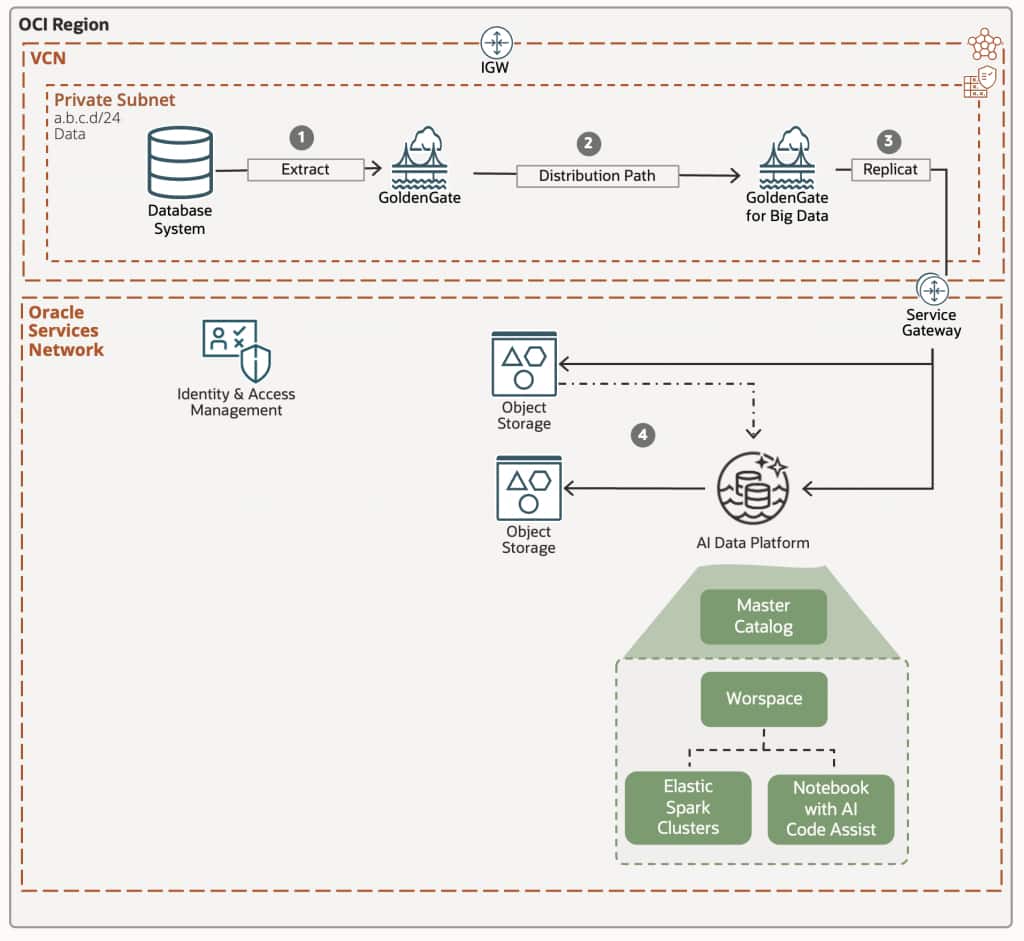
The following diagram illustrates this reference architecture for OCI GoldenGate integration with Oracle AI Data Platform.
The architecture defines a full data pipeline in which the data changes in a Source Database are extracted (1) from an Oracle GoldenGate deployment that distributes (2) the changes to an Oracle GoldenGate for Big Data deployment that collects this data and using a native connector to Oracle AI Data Platform, loads it into an internal Catalog (4) using a staging area (3) in OCI Object Storage.
Prerequisites
The following prerequisites are required:
- An instance of Oracle AI Data Platform with a Workspace and an AIDP Spark Cluster
- A Big Data deployment 26ai in OCI GoldenGate
- An OCI GoldenGate deployment for the extract process (Oracle, Non-Oracle or Big Data) that is capturing data from the source system and sends trails to the Big Data deployment.
In the following subsection, we cover the configuration to let the Big Data deployment 26ai in OCI GoldenGate to mirror the source tables into Oracle AIDP.
Create and test OCI GoldenGate connection for Oracle AI Data Platform and OCI Object Storage
Replication to Oracle AI Data Platform requires two connections as it uses a stage and a merge location in the dataflow:
- the change data from the Oracle GoldenGate for Big Data trails is staged in micro-batches into a temporary staging location in OCI Object Storage. By default, data is flushed to the staging area every 3 minutes. This interval is controlled by the a property called:
gg.handler.filewriter.fileRollIntervaland can be adjusted to meet specific latency or throughput requirements. Could be mentioned values in range of [ms], [s], [m] or [h]. - the staged records are then merged into the Oracle AI Data Platform target catalog’s tables using a merge SQL statement.
To create an OCI GoldenGate connection for the stage Object Storage:
Use the Oracle Cloud Console breadcrumb to navigate back to the Deployments page.
Click Connections, and then click Create Connection.
Enter a connection name (A) and optionally, a description (B).
Specify the compartment in which to create the connection (C).
Specify Type of connection as OCI Object Storage (D).
- For Connection and authentication details, select Select then authentication method you prefer (E) to allow the connection to interact with the Object Storage.
Click Create.
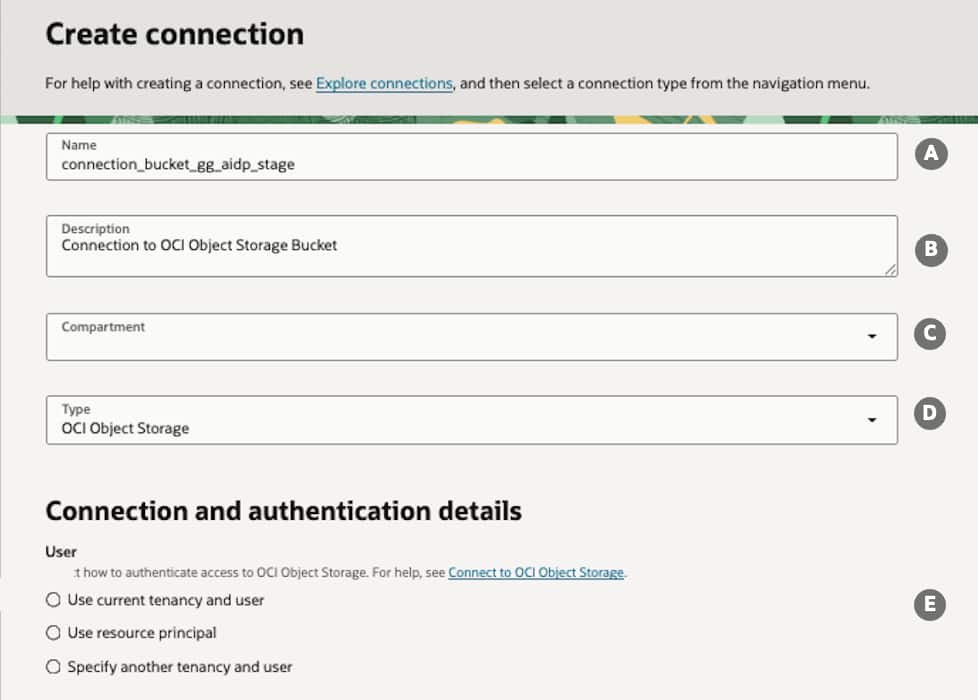
:The authentication method have to enable GoldenGate to interact with the OCI Object Storage Bucket used as stage location.
To create an OCI GoldenGate connection for the target Oracle AI Data Platform:
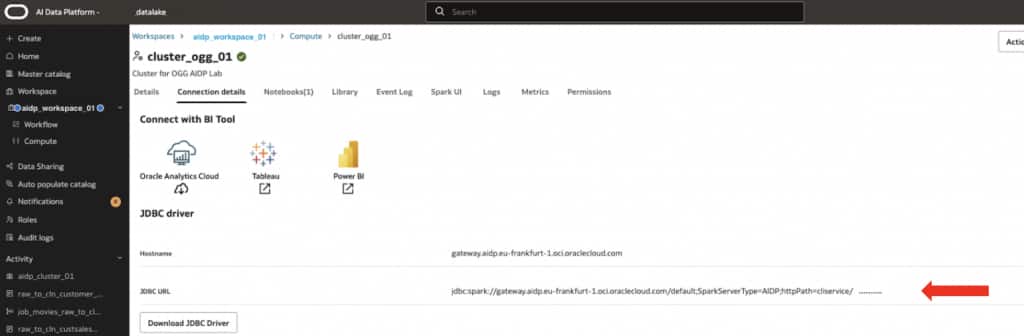
- Connect to the Oracle AI Data Platform Instance, once logged in, select the AIDP workspace, click on compute.
- Then, identify the AIDP Spark Cluster you want to use to ingest the data, then click on it

- Move under Connection Details then take note of the JDBC URL
- Click Connections, and then click Create Connection.
- Enter a connection name (A) and optionally, a description (B).
- Specify the compartment in which to create the connection (C).
- Specify Type of connection as Oracle AI Data Platform (D).
- For Connection and authentication details, in the Connection URL (E) specify the JDBC URL of the AIDP spark cluster then select authentication method (2) you prefer (F) to allow the connection to interact with the Oracle AIDP.
- Click Create.
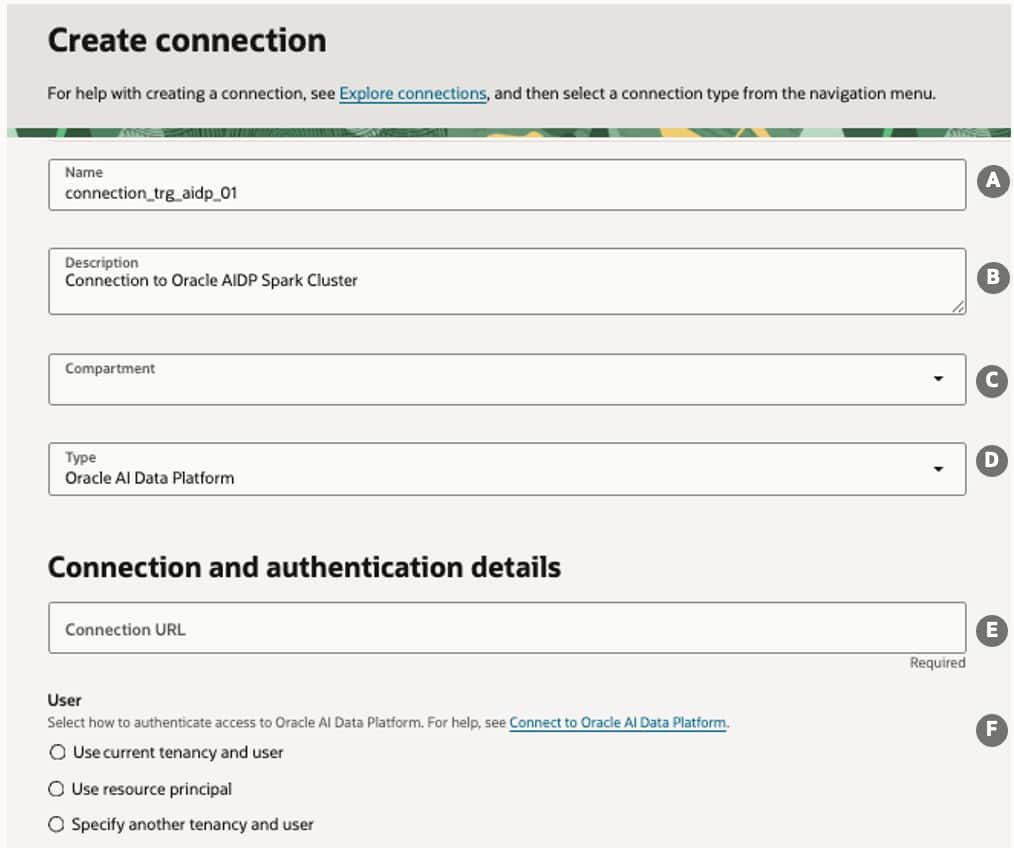
: The authentication method have to enable GoldenGate to interact with AIDP. This means that in the AIDP the right permission have to be granted to let the connection connect to the cluster, create tables, execute DDL, execute DML, etc.
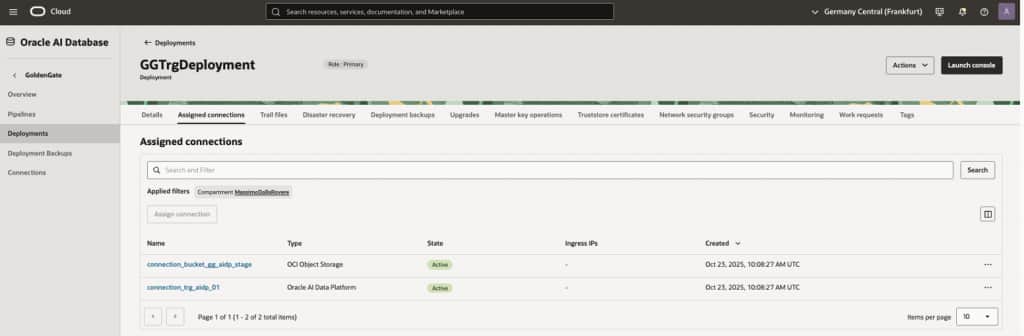
After the connections are created, they appears in the Connections list. Be sure to assign both the connections to the OGG Big Data deployment to use it as a target.
Create AIDP Catalog and Schema
An Oracle AI Data Platform Standard Catalog is required to let OGG replicate the data into AIDP. A Standard catalog is a logical container for schemas (databases) in which create tables, views and volumes in a schema for where the lifecycle of metadata of all these objects is managed by AIDP itself.
Login into the Oracle AIDP Instance.
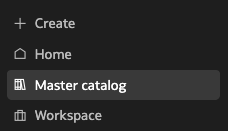
- in the Menu select Master Catalog then click Create Catalog button.
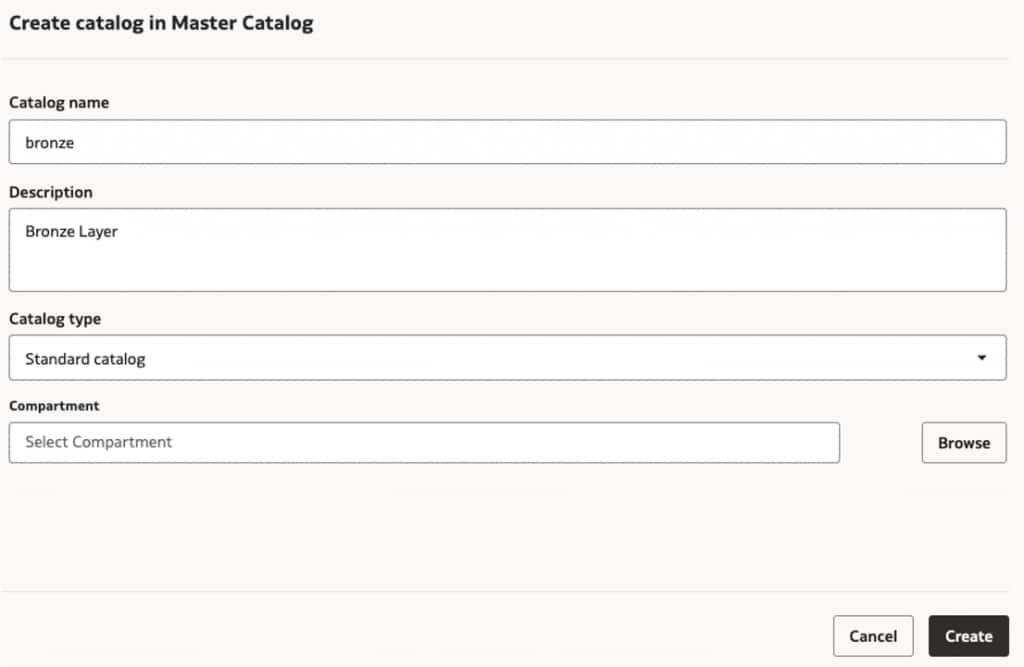
- Specify a catalog name, a description and select Standard Catalog as catalog type.
- Click Create
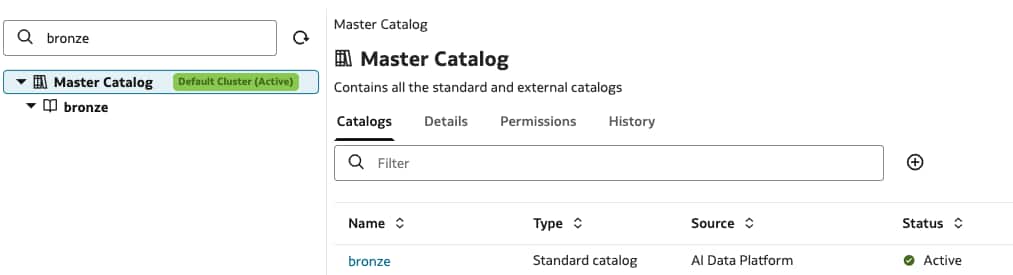
- Once created click on the catalog name you have just created to create the schema that will host the mirrored tables. Click Create Schema button.
- Specify a schema name and a description.
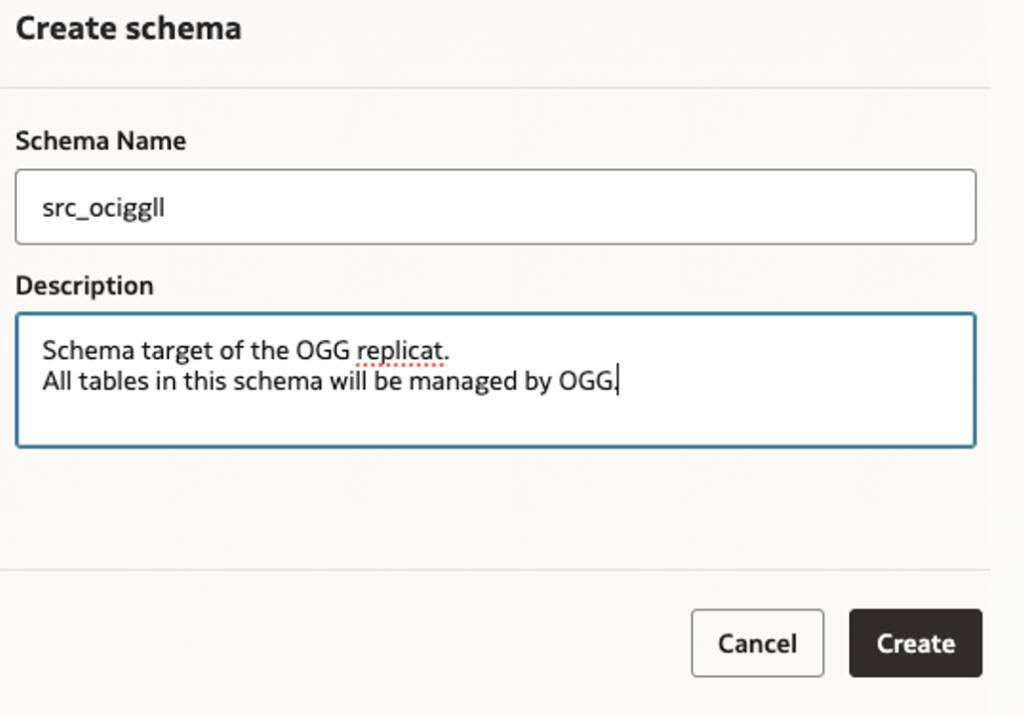
- Click Create
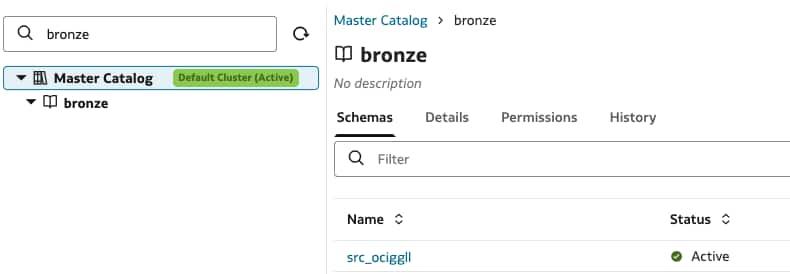
Replicating Data into Oracle AI Data Platform (Internal Storage)
Create and Configure the Big Data Replicat for Oracle AI Data Platform
- Login into the OGG Big Data deployment console with the GoldenGate username and password specified while creating the deployment
- The Administration Service Overview page is displayed. To add a Replicat, click the + adjacent to Replicats label.
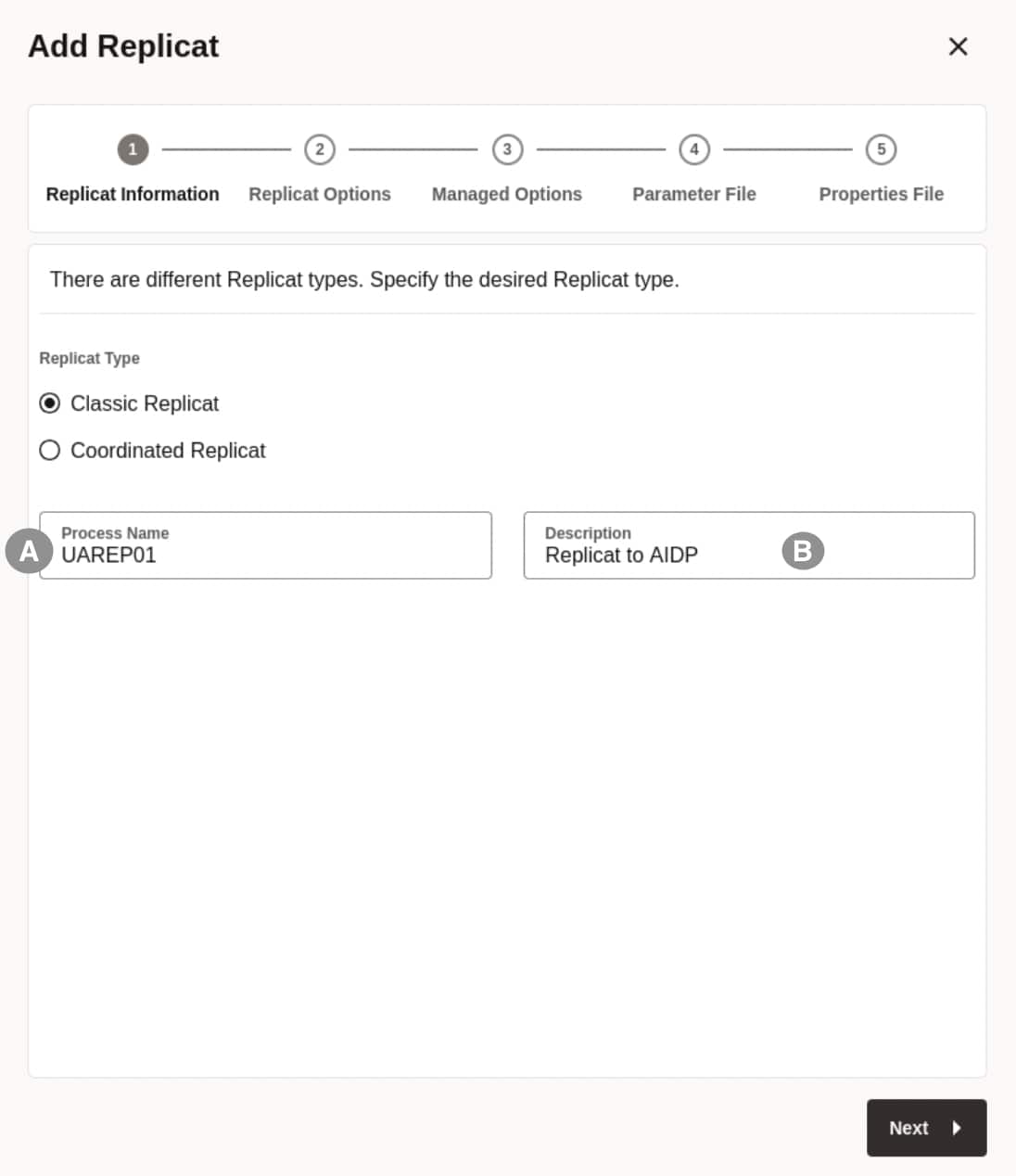
- Enter the Replicat options. Select the Classic Replicat as Replicat Type, specify the replicat process name (A) and a description (B)
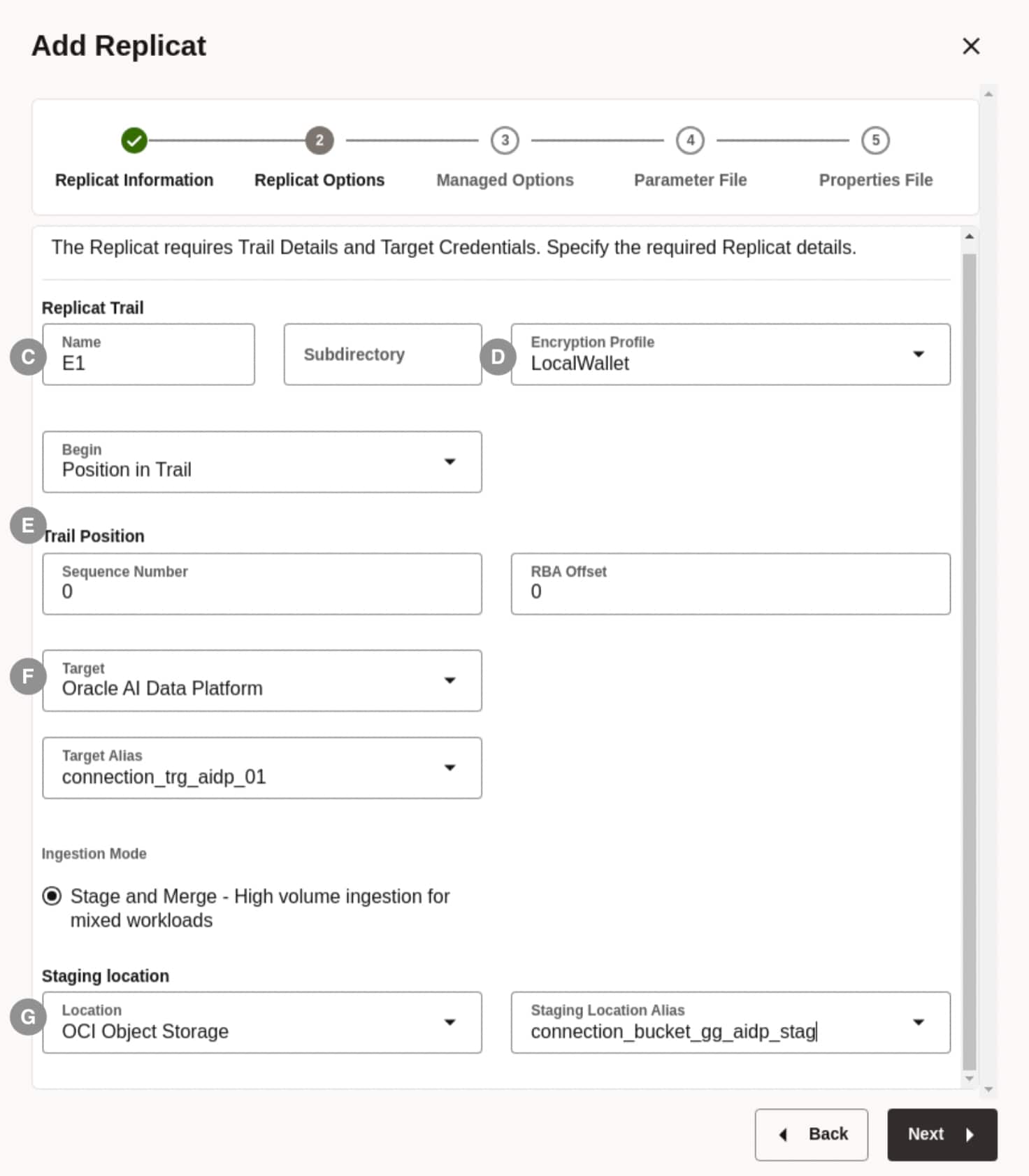
- Specify the name of the Trail to process (C) , the Encryption Profile (D), the position in the trail you want to start to replicate (E) then the Target Oracle AI Data Platform connection (F) and the stage OCI Object Storage Connection (G)
- Set Critical to deployment Health (H)
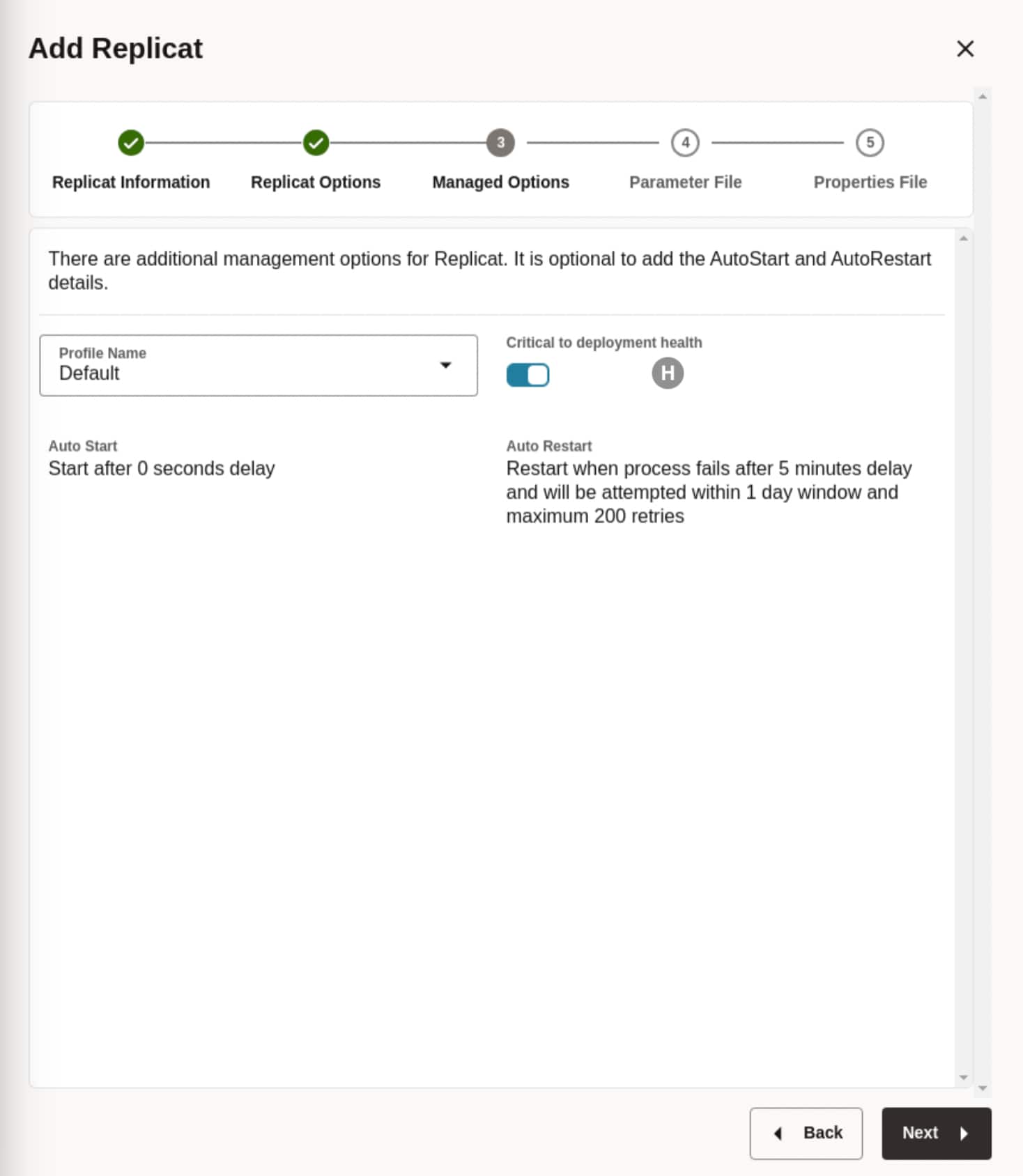
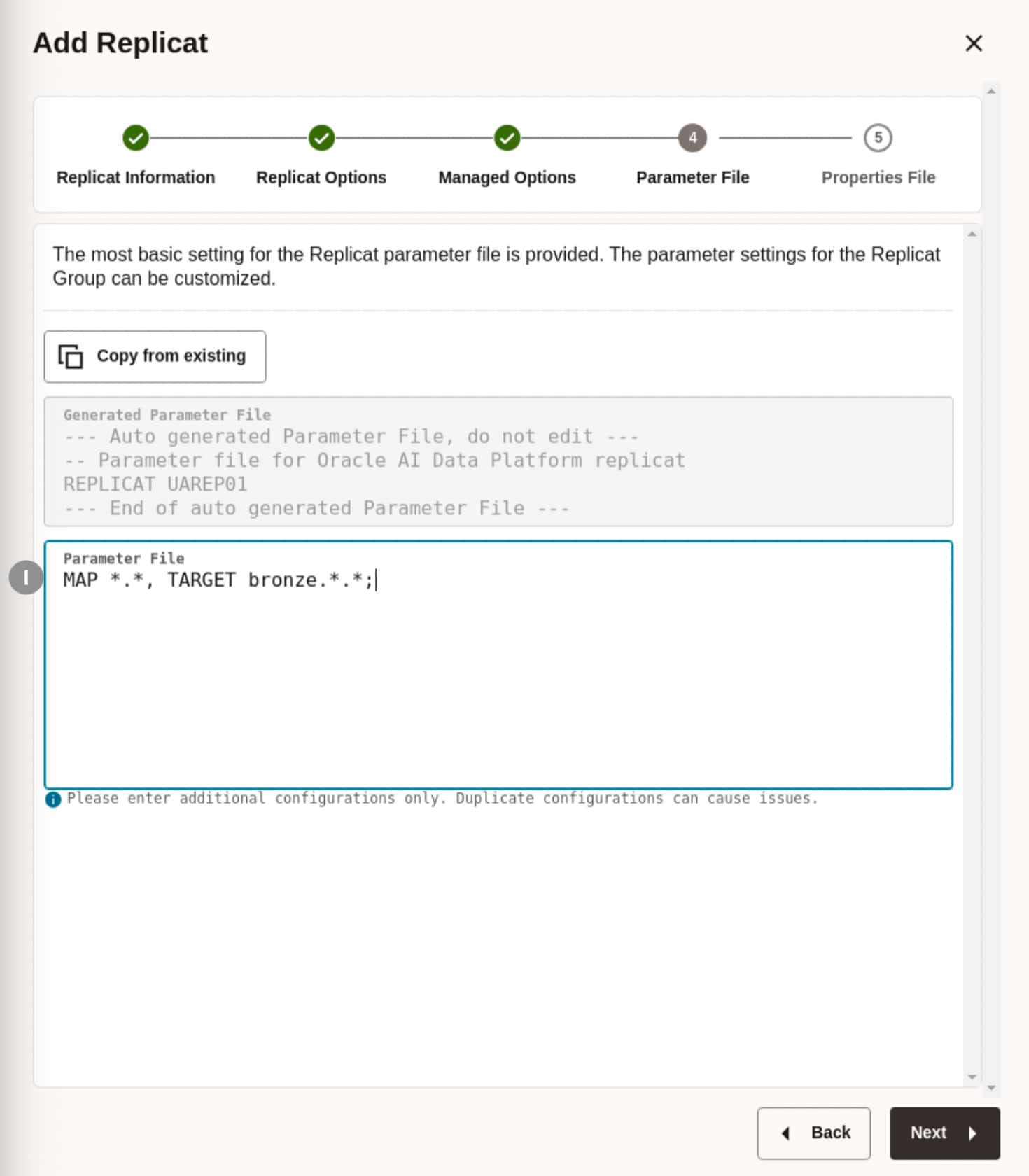
- Specify the parameter profile (I) for the replicat in the AIDP data catalog and configure it to replicate all schema objects present in the trail. In this example, the trail contains objects captured from the source database schema SRC_OCIGGLL (as defined in the extract process).
The mappingMAP *.*, TARGET bronze.*.*replicates all<all_schemas>.<all_tables>in the trail file (including SRC_OCIGGLL) into the bronze catalog, preserving the original schema and table names.
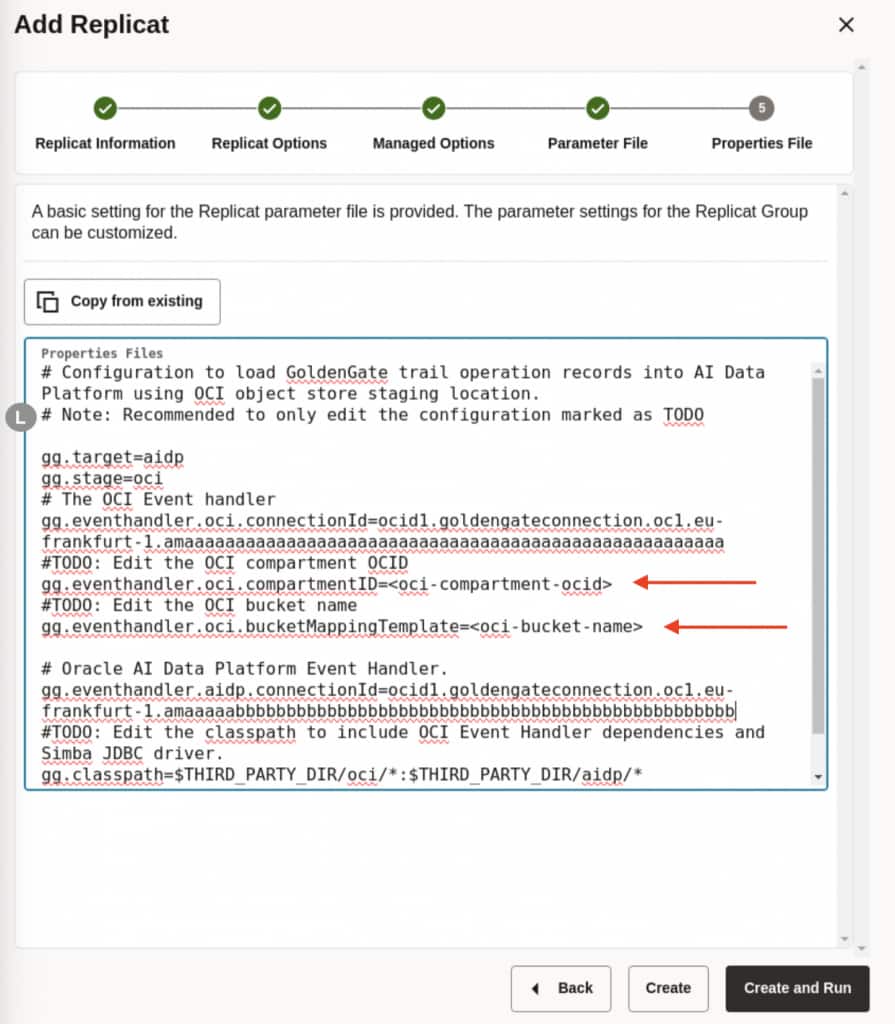
- Specify the requested Oracle Object Storage bucket you want to use as a stage area then click Create to create the replicat then Run it.
Monitor GoldenGate Replicat
Once the replicat is running, all the transaction can be monitored in the OCI GoldenGate deployment console navigation menu.
Click Replicates, then Replicat name, and then Statistics. Verify that SRC_OCIGGLL schema’s tables replication statistics.
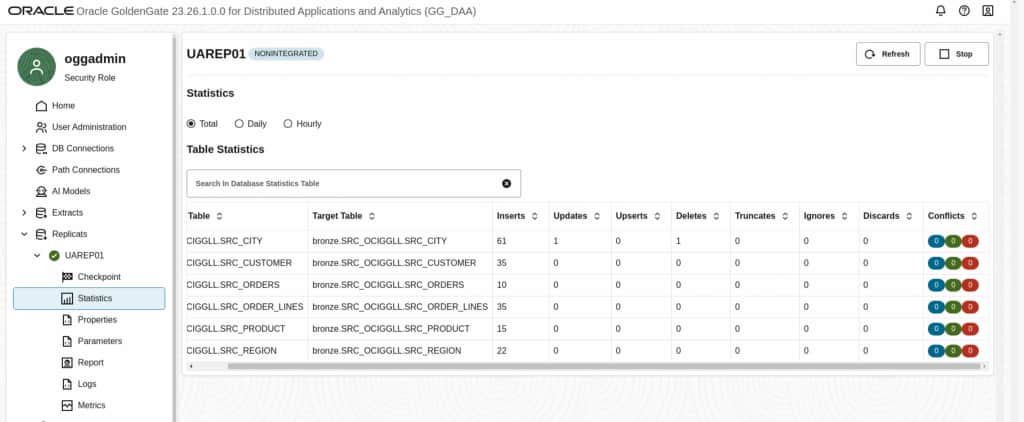
The report show how many transaction has been replicated in the AIDP Catalog:
- Tables are created (DDL) in the Catalog Schema as Delta Table format.
- Table records are kept in line with the source system (DML – insert/update/delete).
Query Data from Oracle AIDP Notebook
The catalog tables are available in the bronze catalog and can be used in the AIDP Notebook as source table in your data pipeline.
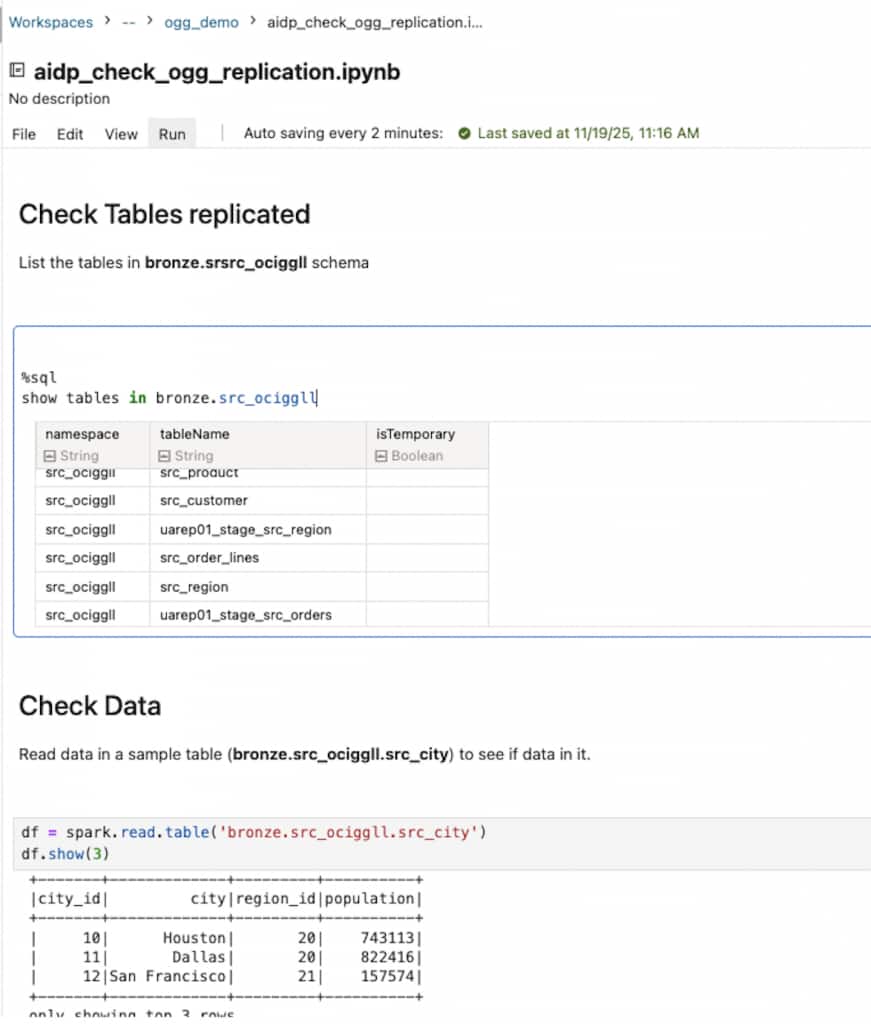
Replicate data into OCI Object Storage and create External Tables in Oracle AI Data Platform
This blog currently focuses on replicating into AIDP’s managed/internal catalog storage via GoldenGate Big Data Replicat. However, if your target is OCI Object Storage (for example, because you already replicate there with OGG, or you want an append-only landing pattern that does not require updating existing records), you can land data files in OCI Object Storage and query them in AIDP as external tables using the steps below.
As you have already the connection to the OCI Object Storage, it will be used as target of our replicat. If you did not create it yet, you have the detailed steps above.
Create and Configure the Big Data Replicat for Oracle AI Data Platform
- Select Replicat Type as Classic Replicat and provide the Process Name and a description
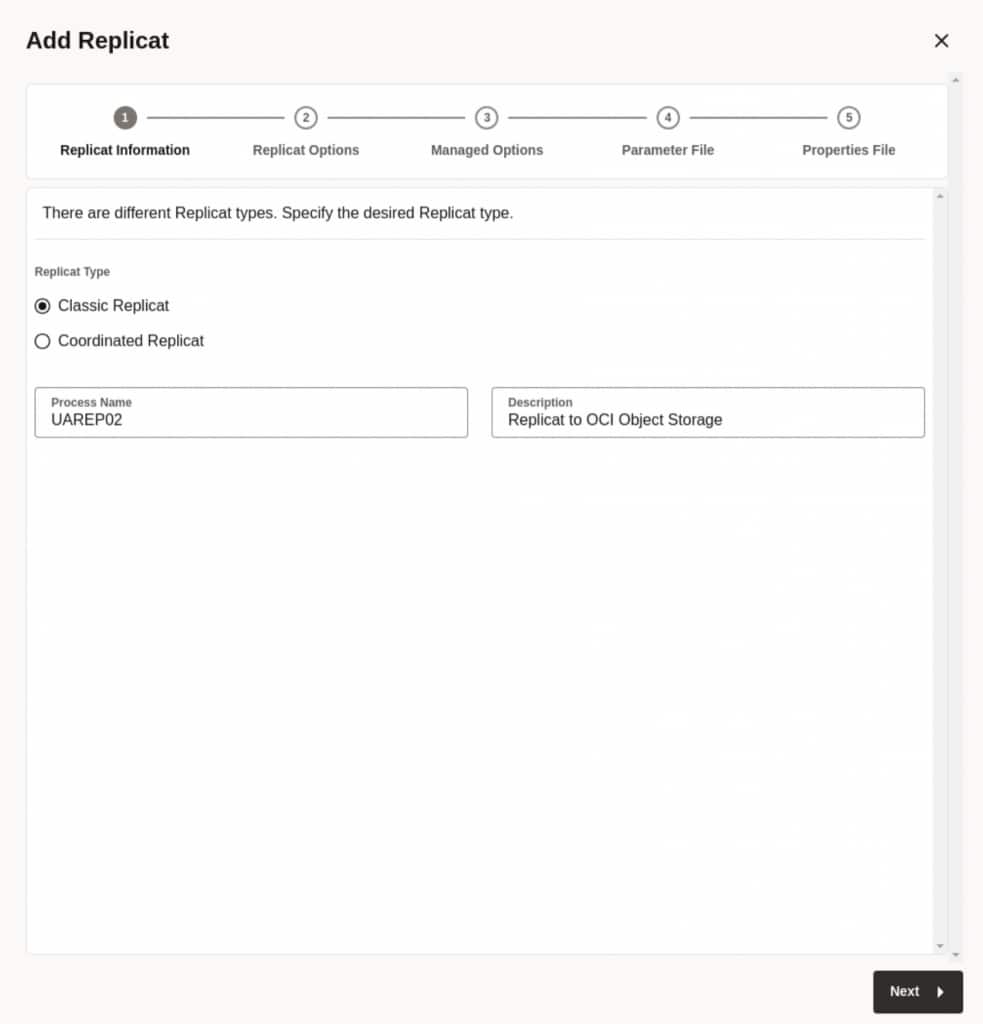
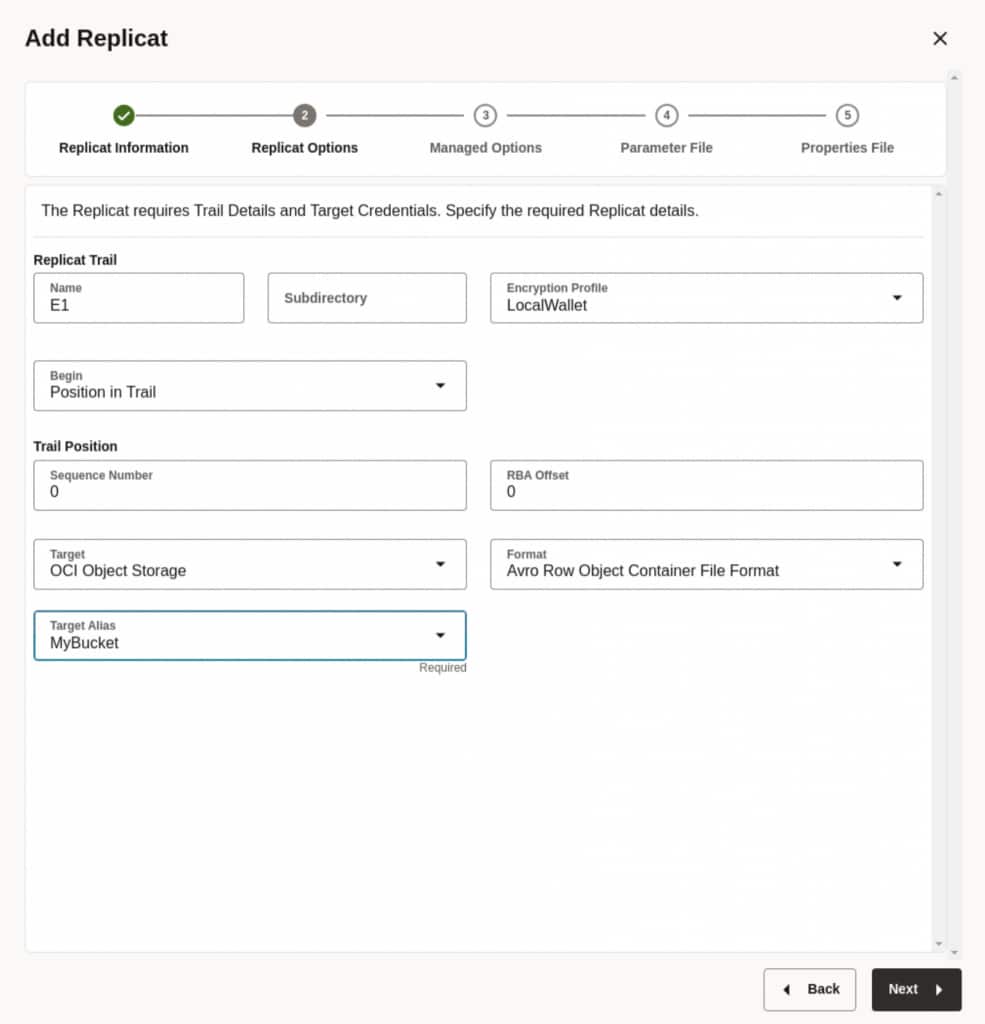
- Same as in previous steps, provide the trail file name, ex: E1.
- As Target, select from the list OCI Object Storage, format Avro Row Object Container File Format. As soon as this information is provided, all the available connections will be displayed in the Available aliases field.
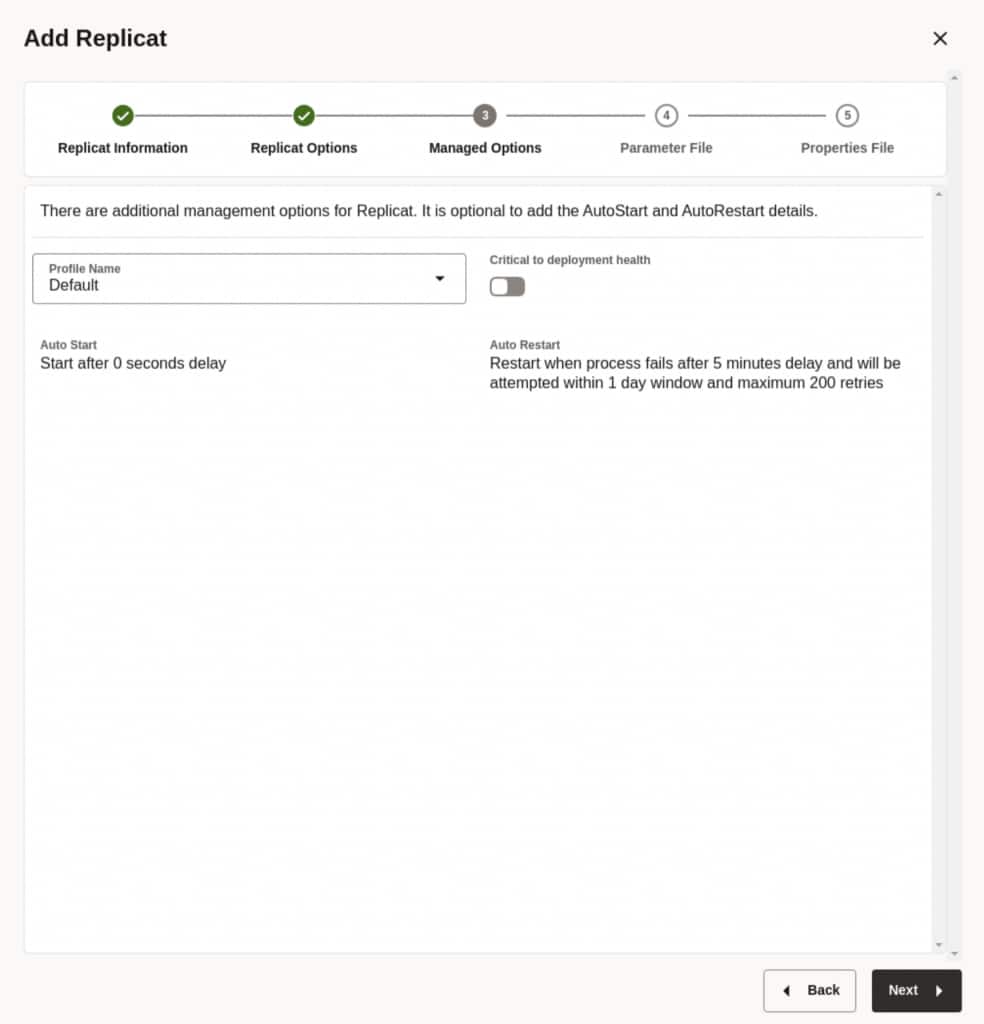
- Use standard information that is already pre-populated. If needed, you could create a custom profile.
- Specify the mapping conditions if required. As we are replicating into Object Storage, we could leave the default values to replicate previously created transactions into our bucket.
**Note that using a replication OGG over OCI Object Storage, the DML are appended to the file (no update or delete) so we defined three technical column in the table:- – optype : Type of DML (Insert, Update, etc.)
- – scn : System Change Number
- – rsn : Operation order in the SCN
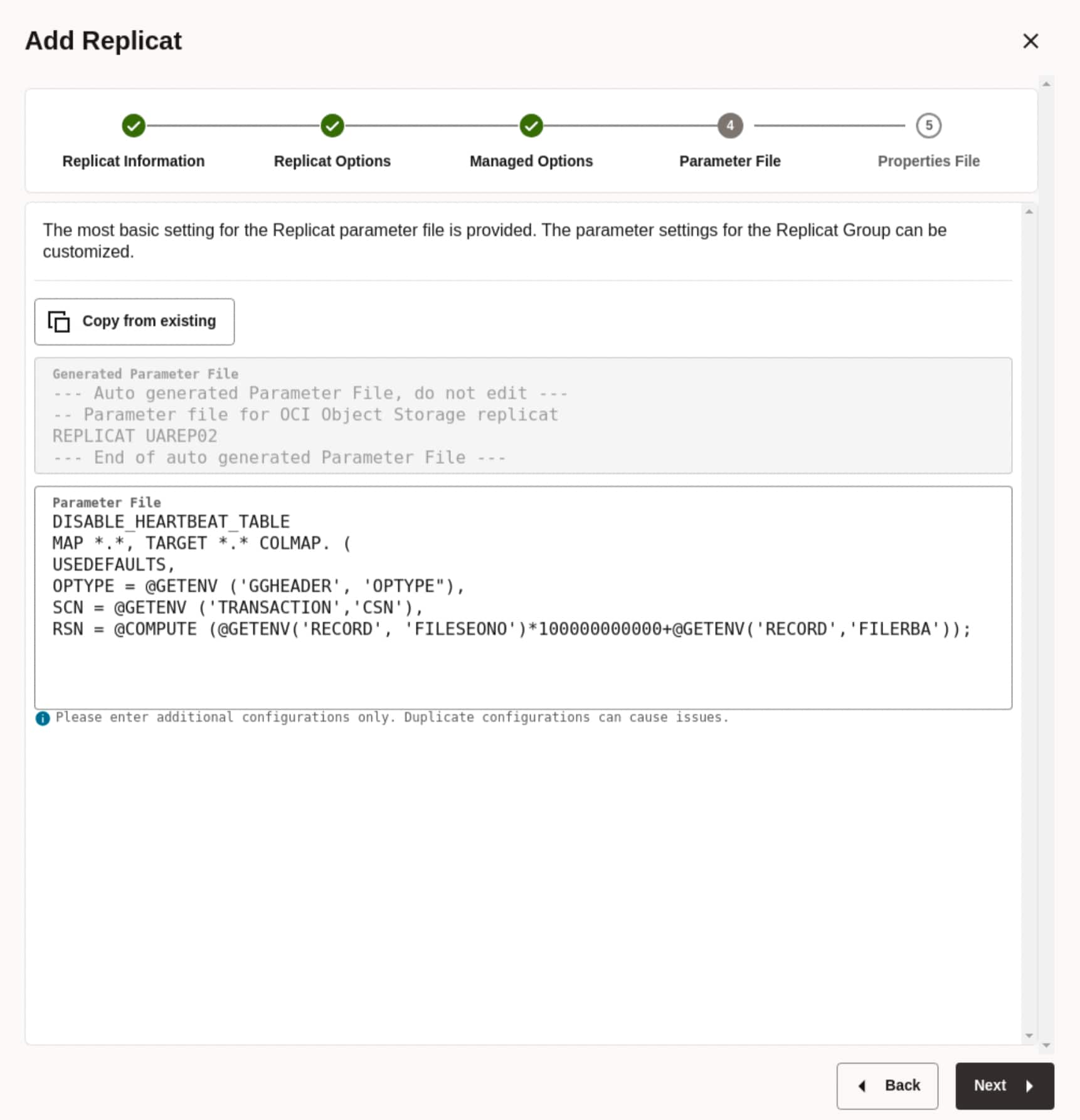
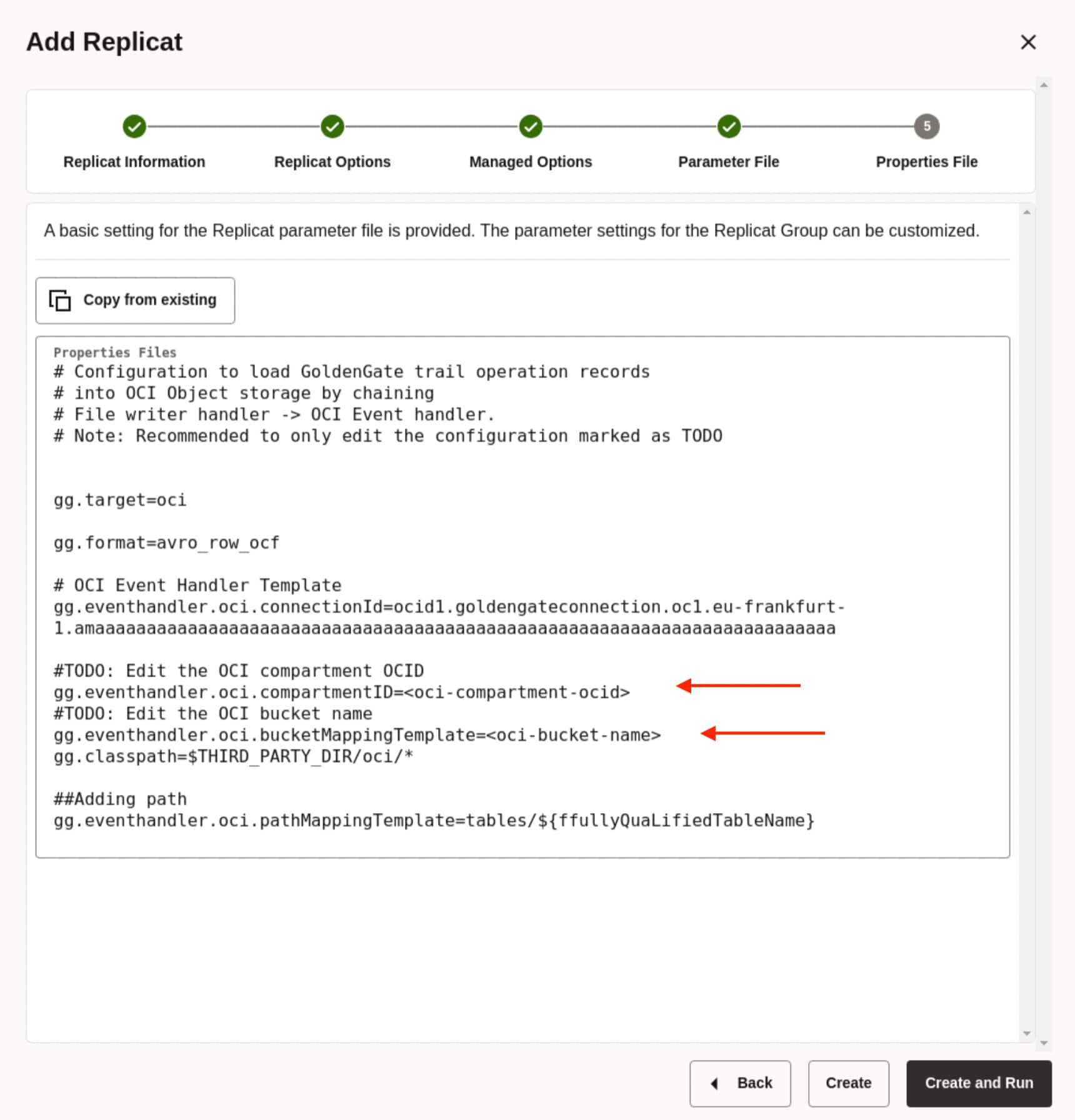
- Populate the necessary fields from #TODO
- Optional: Using property
gg.eventhandler.oci.pathMappingTemplateyou could indicate the exact path under which the files and directories will be stored. - Once done, click Create and Run
Monitor GoldenGate Replicat
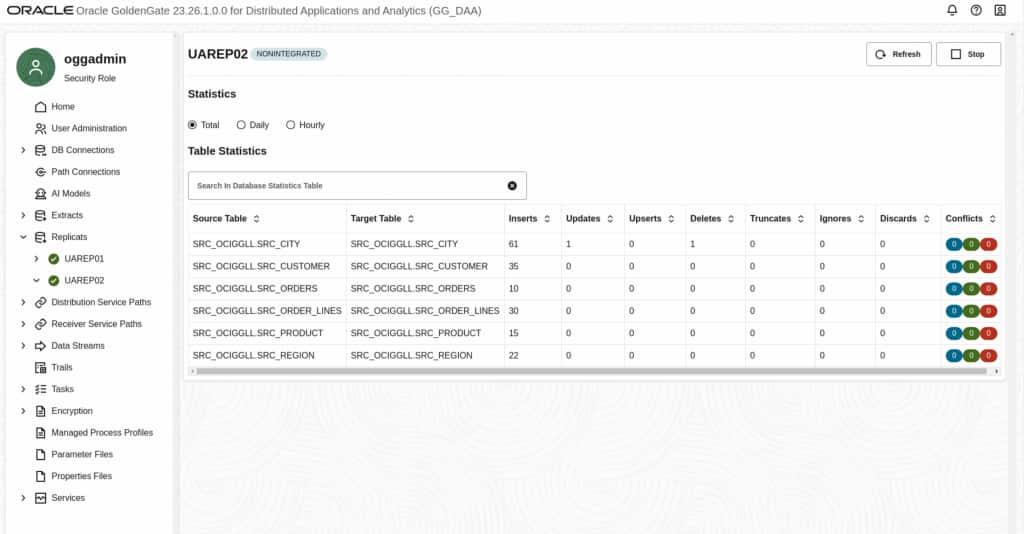
Check Statistics section of the Replicat to ensure that it manages to process the trail file.
Create External Tables in AIDP Notebook
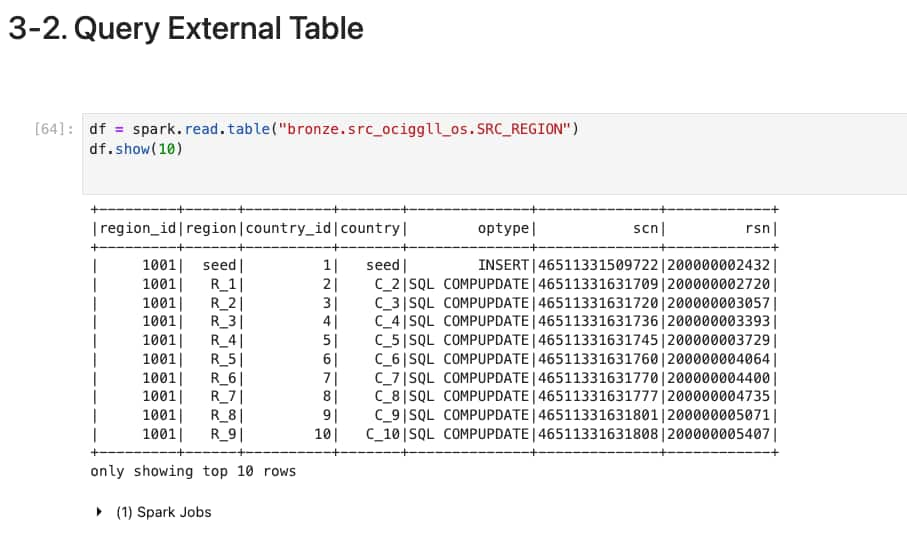
In order to see data, create External Tables in AIDP for all the tables that were replicated.
This is an example of creating an External Table for SRC_REGION.
spark.sql(f"DROP TABLE IF EXISTS {catalog_name}.{schema_name}.{external_table_name_region}")

# Create external table
create_table_sql = f"""
CREATE TABLE {catalog_name}.{schema_name}.{external_table_name_region} (
    region_id BIGINT,
    region STRING,
    country_id BIGINT,
    country STRING,
    optype STRING,
    scn STRING,
    rsn STRING
)
USING AVRO
LOCATION '{oci_file_path_region}'
"""

spark.sql(create_table_sql)
print(f"External table '{catalog_name}.{schema_name}.{external_table_name_region}' created successfully.")

# Optional: Read the table to verify
df = spark.read.table(f"{catalog_name}.{schema_name}.{external_table_name_region}")
df.show()
print(f"Total rows: {df.count()}")
Once all the External tables have been created, you could proceed with checking data.
In conclusion, OCI GoldenGate allows real-time data replication into Oracle AI Data Platform using both direct ingestion into the internal catalog and flexible staging in OCI Object Storage with external table access. These complementary patterns allow organizations to balance performance, governance, and flexibility while building modern, scalable data pipelines for analytics and AI.