Welcome back to more learning on Oracle Cloud Infrastructure Data Integration. Check out a few of our previous blogs on Workspaces and Virtual Cloud Network (VCN) with Oracle Cloud Infrastructure Data Integration. In this blog, we will understand the Data Assets in Oracle Cloud Infrastructure Data Integration.
Data Assets represent a data source, such as a database, an object store, a file that can be used as a Source or Target for data integration solutions. When a data asset is created, the default connection is specified. A connection is a user/password combination used to connect to a data source. Additional connections for a data asset can be created as needed. Each connection should give access to additional schemas and data entities to integrate.
- To view/access the existing list of Data Assets within the workspace console –
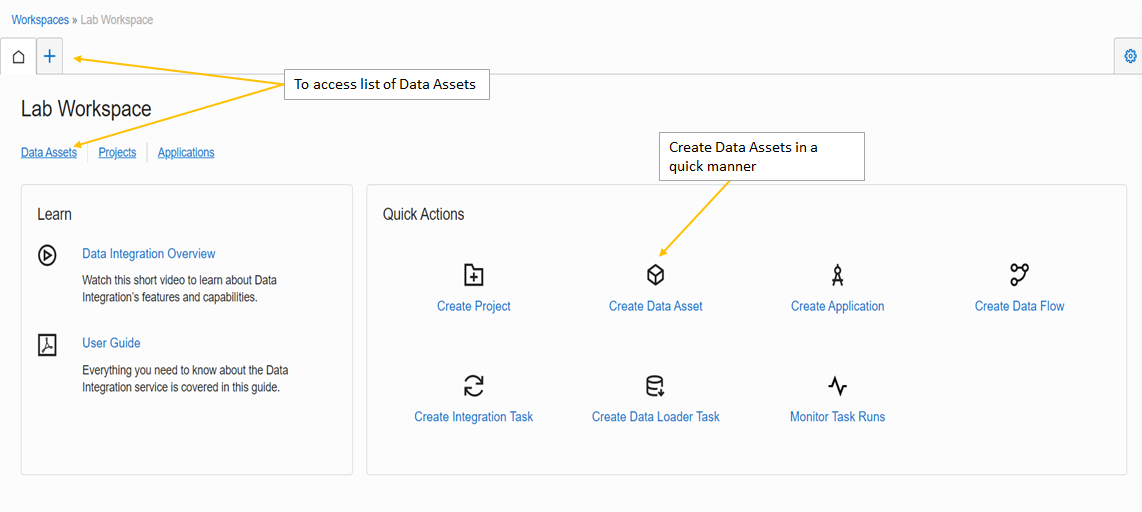
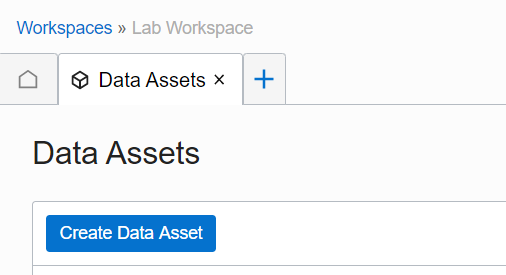
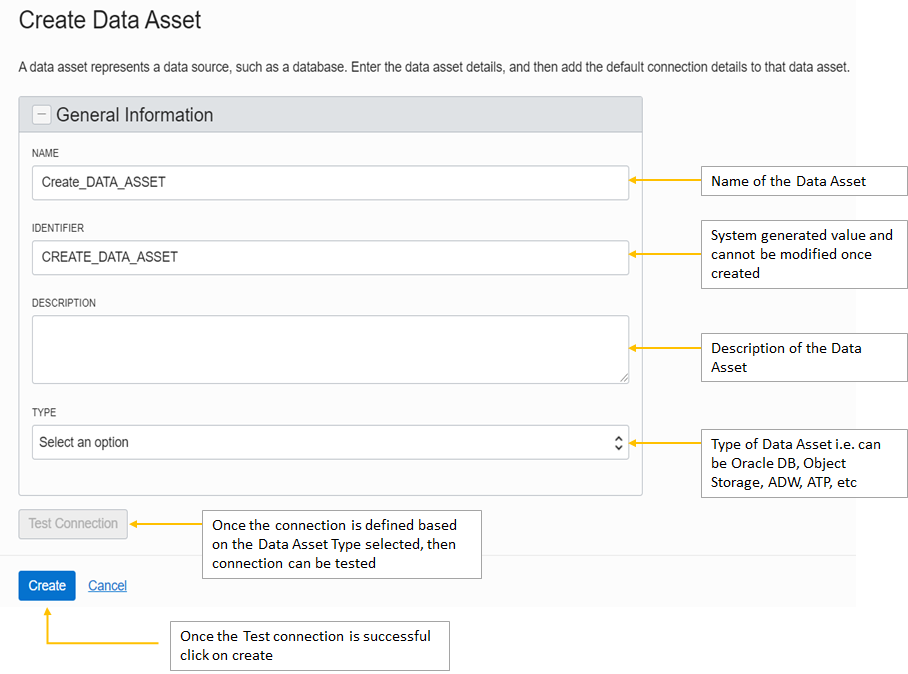
To access Data Assets, Use the navigation link on the Home page or select Data Assets from the Open tab (plus icon) menu in the tab bar. Existing Data Assets are listed on the Data Asset page. Also, Data Assets can be created using “Create Data Asset” under Quick Actions tile or under the Data Asset page while looking at the list of Data Assets.
- While creating a Data Asset, provide the default connection details. You can then create additional connections as needed.
To create a new connection –- From the Workspace’s Home page, click the Open tab (plus icon) and then select Data Assets.
- On the Data Assets page, select a data asset that you want to add a connection for.
- On the Data Asset Details page, click Create Connection, and then complete the fields in the Create Connection panel as needed.
- After you complete all required fields successfully, click Test Connection to ensure a connection can be established.
- Click Create.
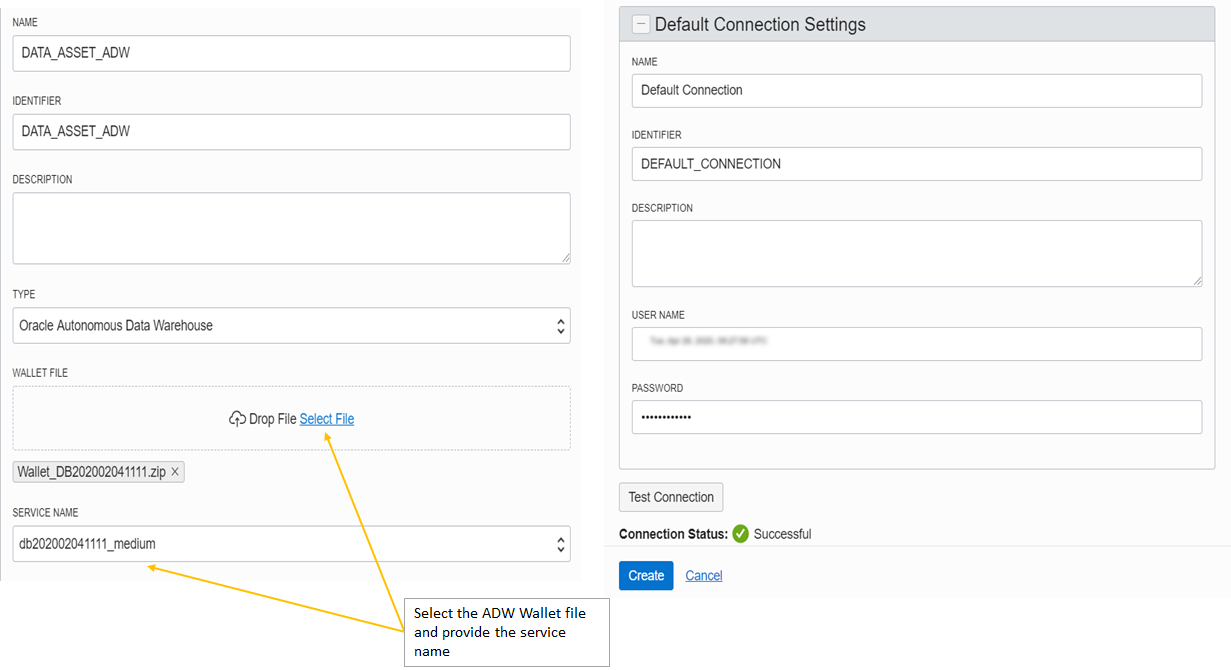
- Let us take two examples, one for ADW (Autonomous Data Warehouse) and another one for Oracle Database. In the above step, we have selected the Data Asset type as Autonomous Data Warehouse.
For ADW, you just need to add the Wallet file and select the “Service Name” along with username and password.
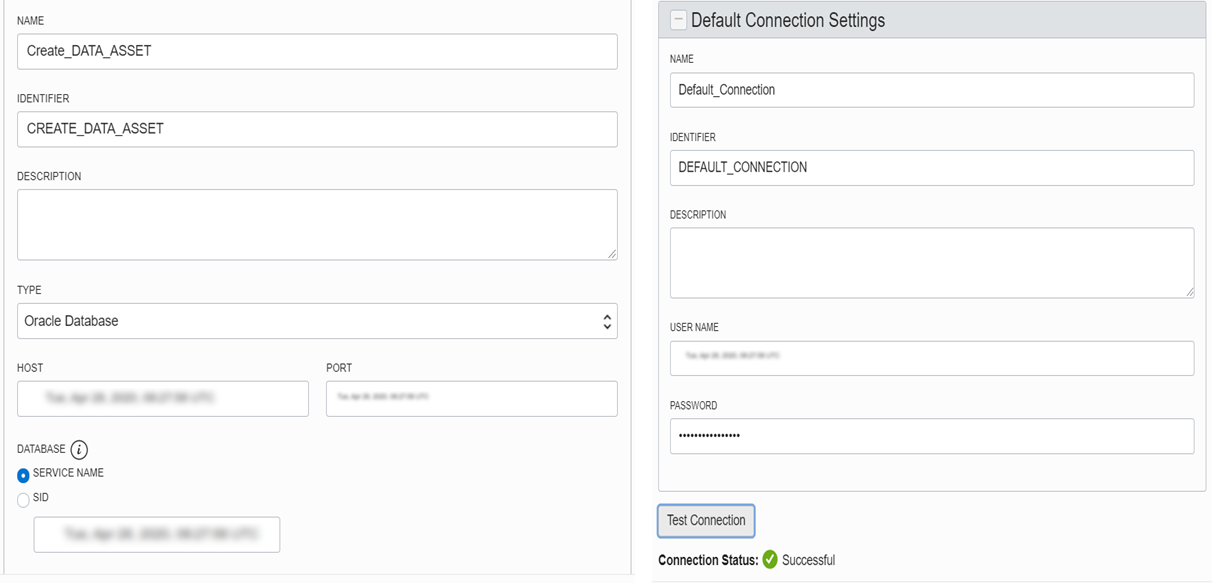
- Let’s take another example based on the above steps. Now while creating Data Asset, we have selected the Data Asset type as Oracle Database.
-
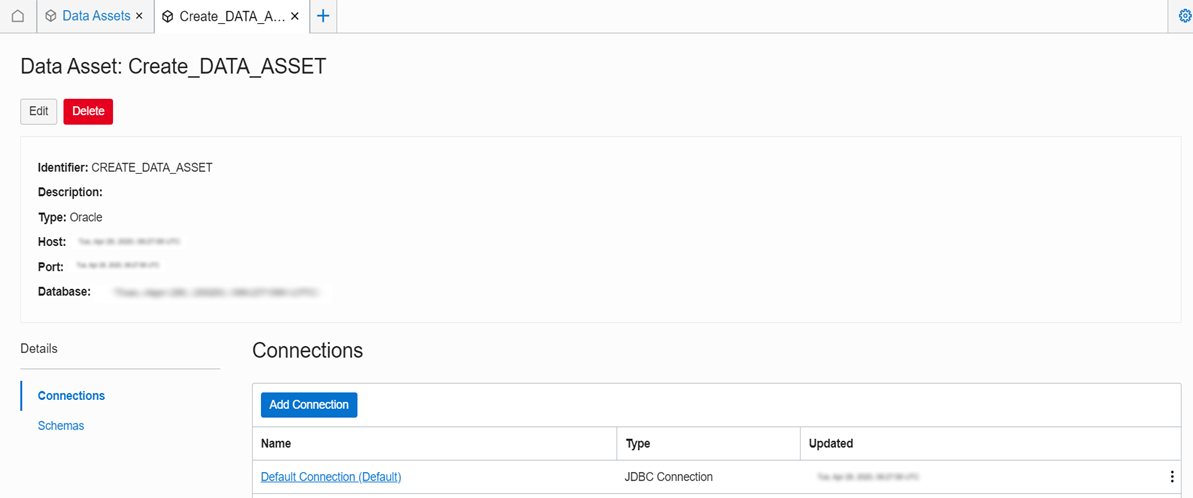
Once the Data Asset is created, it will navigate to Data Asset page which got created
-
The Data Assets page shows a list of all the data assets in your workspace. Select a data asset to view its details. On the Data Asset Details page, you can access the Data Asset’s summary information, connections, schemas, and data entities. In the summary view, one can review the Data Asset’s Details and Connections. Also, it can designate a different connection as the default, add a new connection, edit, or delete a connection.
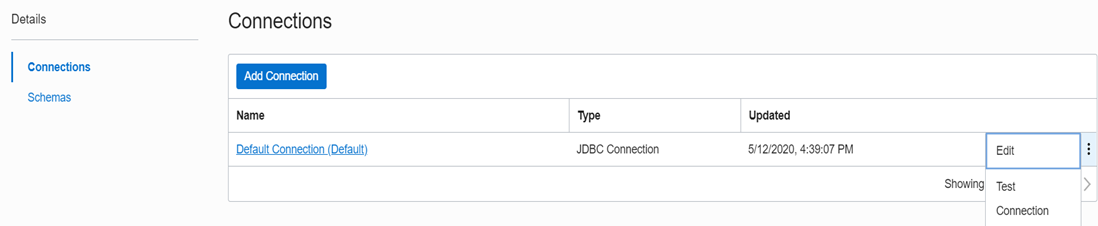
Schemas – On the data asset’s detail page, select Schemas to view the list of schemas available to you through the data asset’s connections. Select a schema to view its data entities.
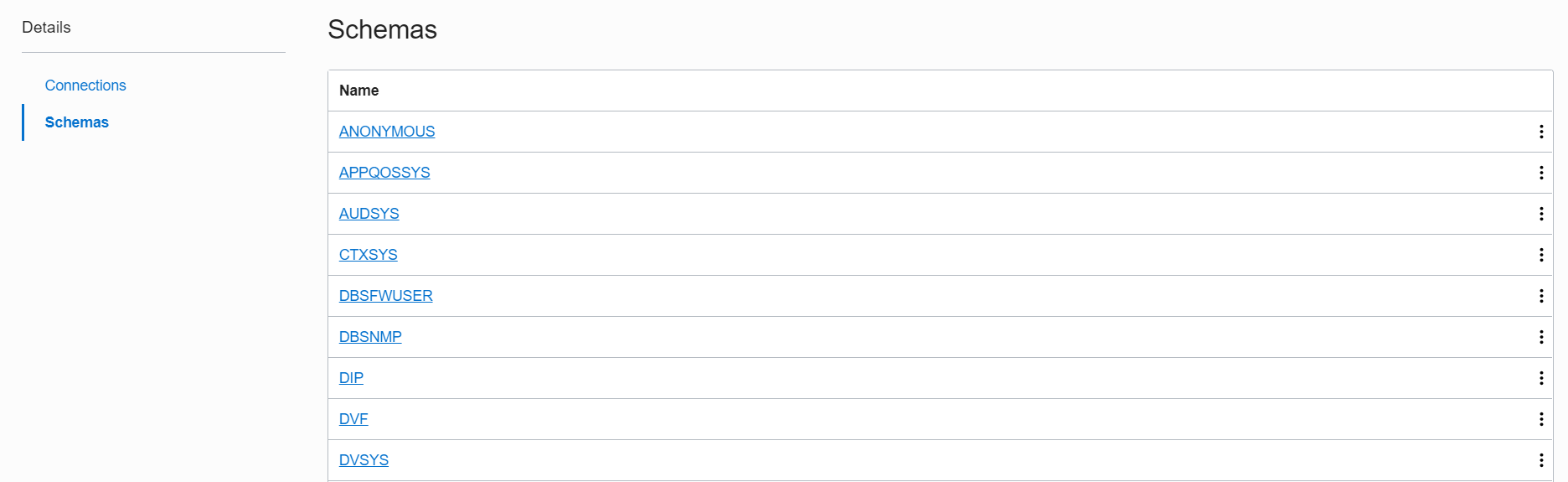
Data Entities –
The Schema Details page shows a list of data entities available to you from the selected schema. You can select data entities to view attributes.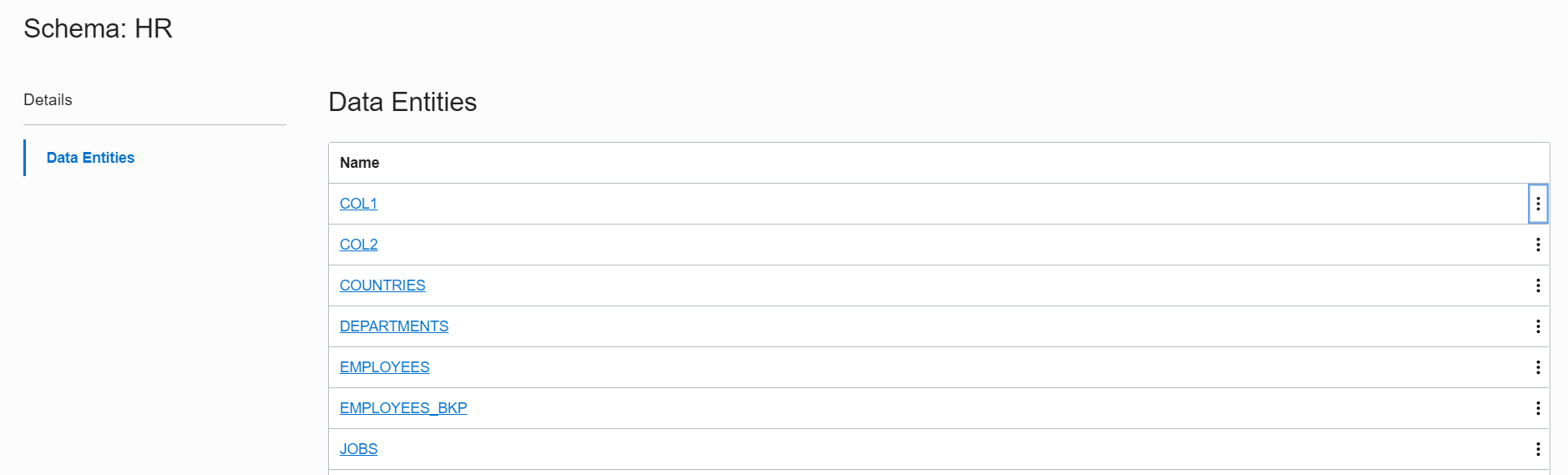
-
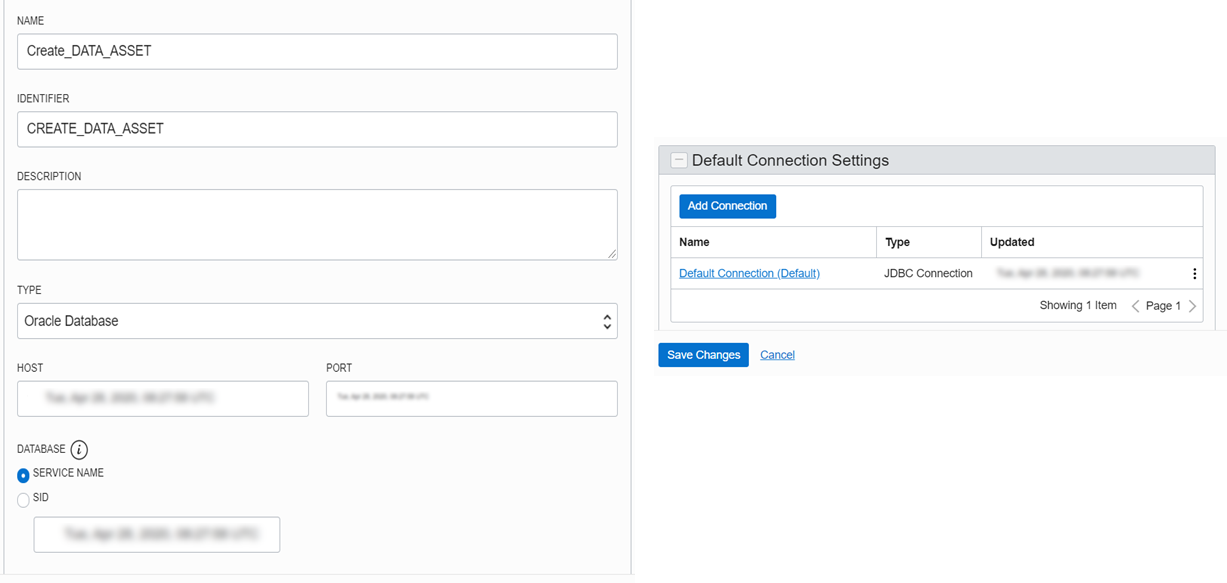
Edit a Data Asset:- Can only edit a data asset from the Data Assets page. Data Asset’s details can be modified while editing like select or add new connections, and change the default connection.
Click the Open tab (plus icon) in the tabs bar, and then select Data Assets. Select a data asset from the list and from its Actions (three dots) menu, and then select Edit (or) In the Edit Data Asset page, you can modify the data asset details, select or add new connections, or select a new default connection. After you save your changes, you’re brought back to the Data Assets page.
-
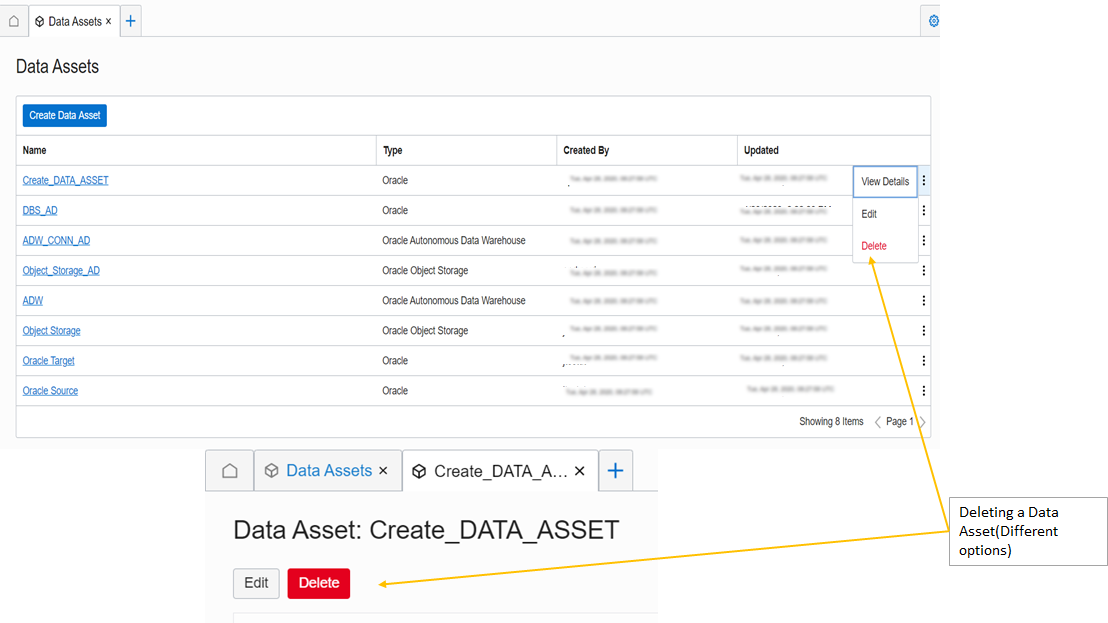
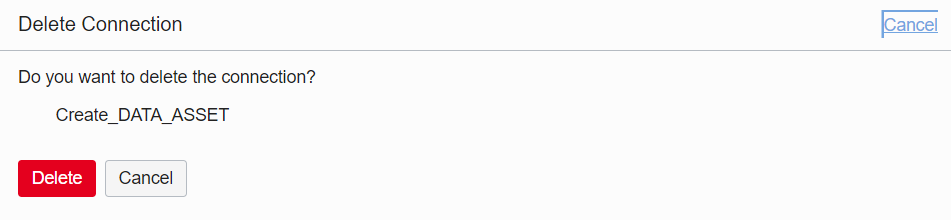
To delete a data asset – Deleting a Data Asset, permanently delete its connections. Once deleted, the data asset and its connections cannot be restored.
Click the Open tab (plus icon) in the tabs bar, and then select Data Assets. On the Data Assets page, select the data asset that needs to be deleted and then select Delete from its Actions (three dots) menu.
You can also click Delete from the data asset’s detail page.Confirm that you want to delete the data asset and its connections, and click Delete