
Hello Everyone,We hope that you’re enjoying the introductory blogs about Oracle Cloud Infrastructure (OCI) Data Integration.
A common ask from customers when integrating data in the cloud is how to send Notifications in OCI Data Integration.
In this blog post, will cover how this can be achieved using the OCI Events and Notification service that will generate Email notification based on job status.
Prerequisites
1) Define Data Assets for source and target in the workspace.
2) Workspace, Projects, Integration Task and Applications have been created. To know more, refer to our blogs on Data Integration and Oracle documentation.
Introduction
The Oracle Cloud Infrastructure (OCI) Notifications service broadcasts messages to distributed components through a publish-subscribe pattern, delivering secure, highly reliable, low latency and durable messages for applications hosted on OCI and externally.
The Notifications service enables you to set up communication channels for publishing messages using topics and subscriptions . When a message is published to a topic, the Notifications service sends the message to all of the topic’s subscriptions
Subscription – An endpoint for a topic. Published messages are sent to each subscription for a topic.
Topic – A communication channel for sending messages to the subscriptions in the topic. Each topic name is unique across the tenancy.
Message – The content that is published to a topic. Each message is delivered at least once per subscription.
Implementation
The following canvas screenshot shows the flow of creating a notification topic with an email subscription and sending a mail based on the job status in OCI Data Integration.
Sign in to OCI Console and Create a Notification Topic
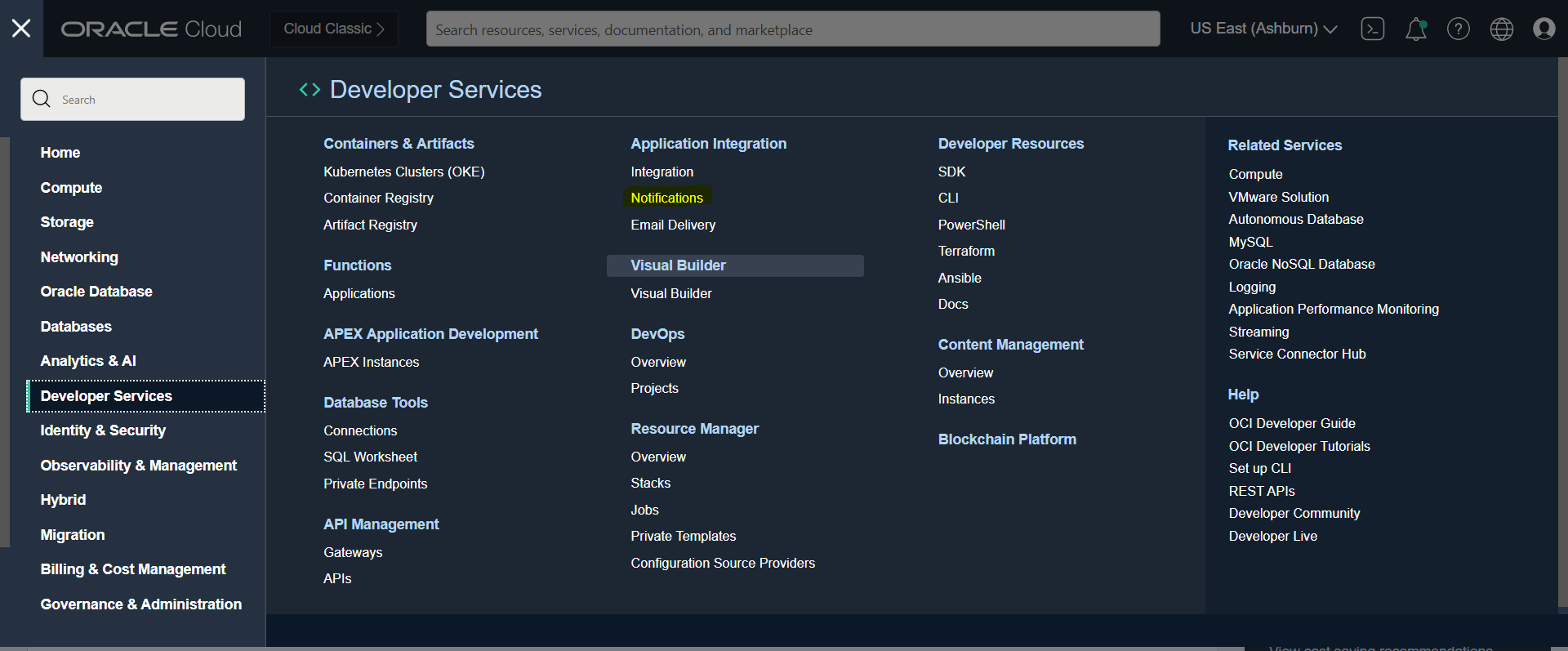
First, you will create a Notification topic. From OCI Services menu, click Developer Services -> Notifications
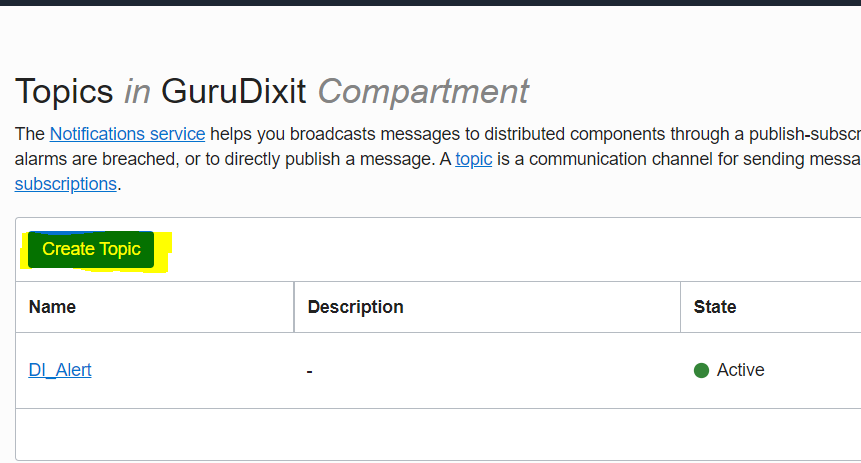
Click Create Topic.
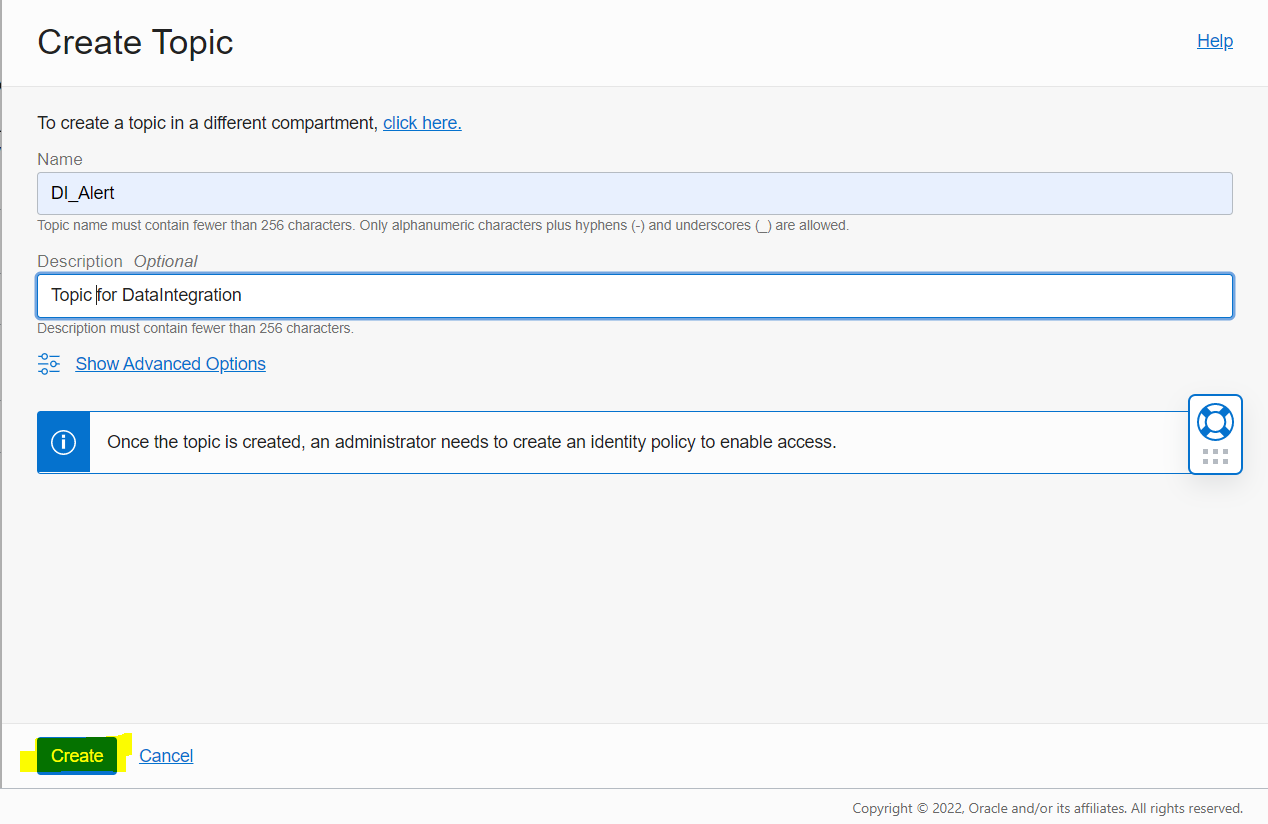
Fill out the dialog box:
Name: Provide a name
Description: Provide a description
Click Create.
Now that you have created a notification topic, create a subscription to that topic, so that you can receive email alerts when a job status changes. (You will create a rule with conditions in a following task.)
you create an email subscription. Subscriptions can be defined to trigger emails or pager notifications (for on-call staff whose phones will be paged.)
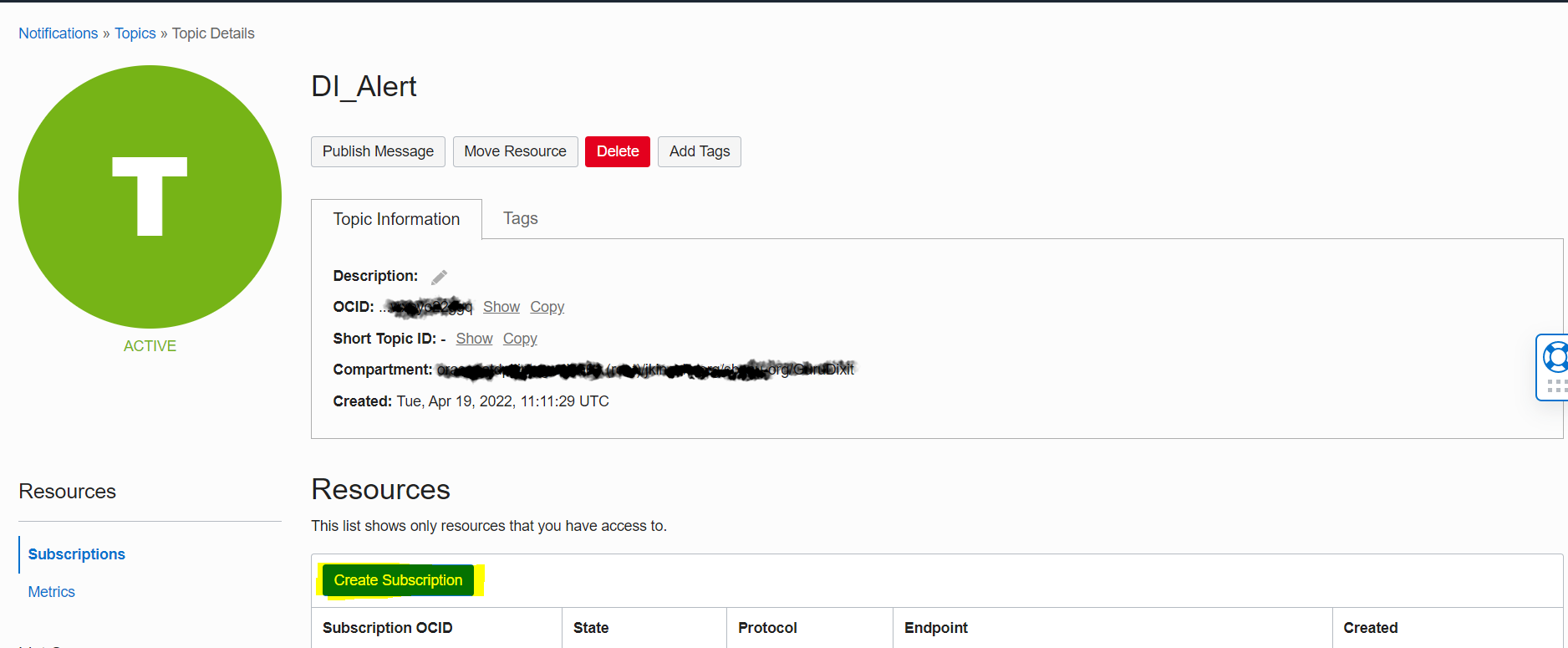
Click the topic Name. Click Create Subscription
Fill out the dialog box:
PROTOCOL: Email
EMAIL: Provide your email id
Click Create.
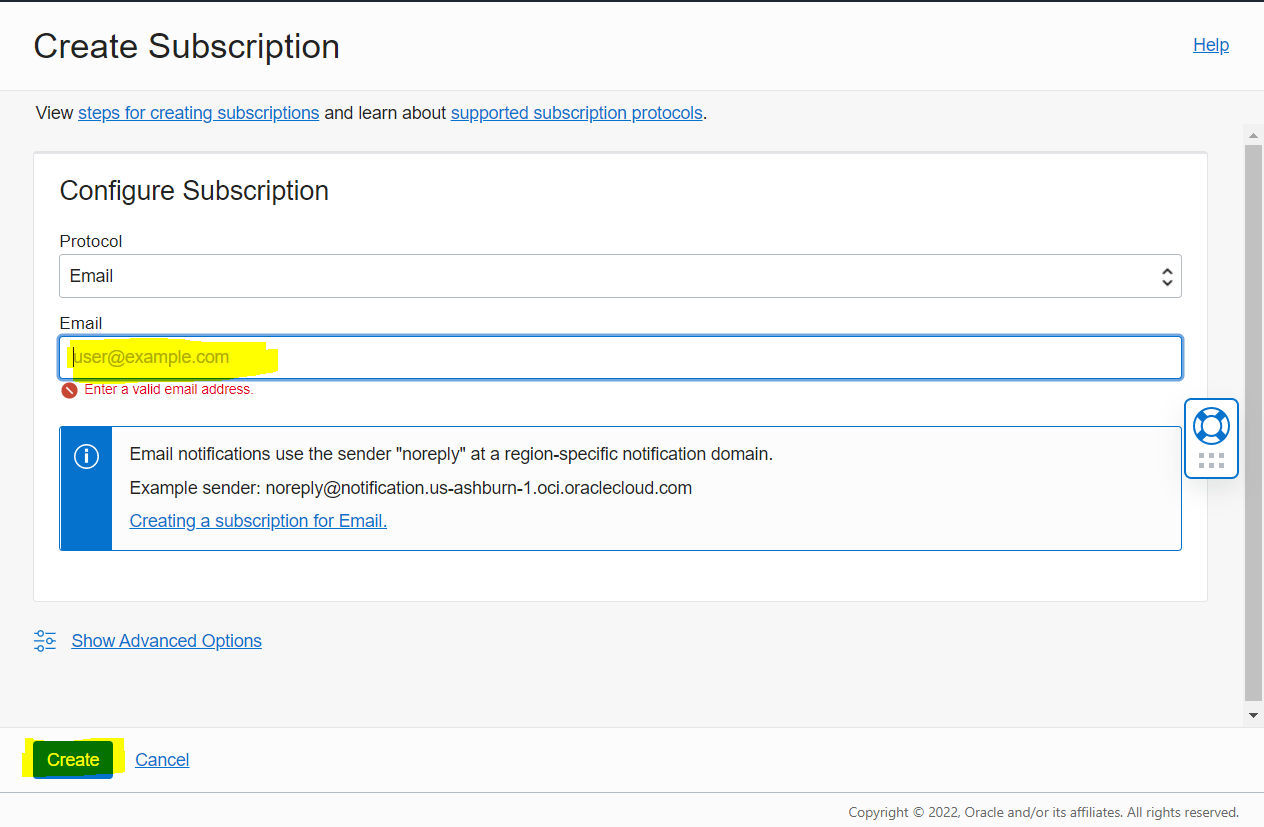
The Subscription Details screen will be displayed with subscription status showing Pending confirmation.
You will receive an email notification of your subscription. You will need to respond to the email’s verification request.
Check the email account you specified and open the verification email. Click the Confirm subscription verification link for this subscription.
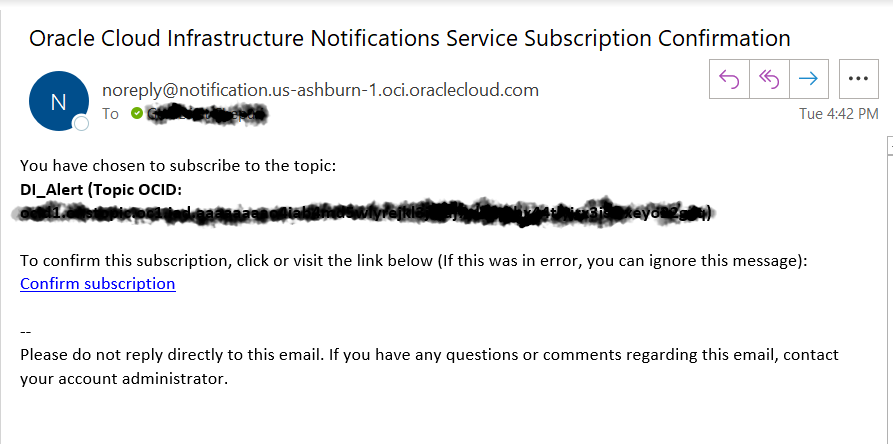
A browser tab will open, confirming that you have subscribed your email account to the topic:DI_Alert
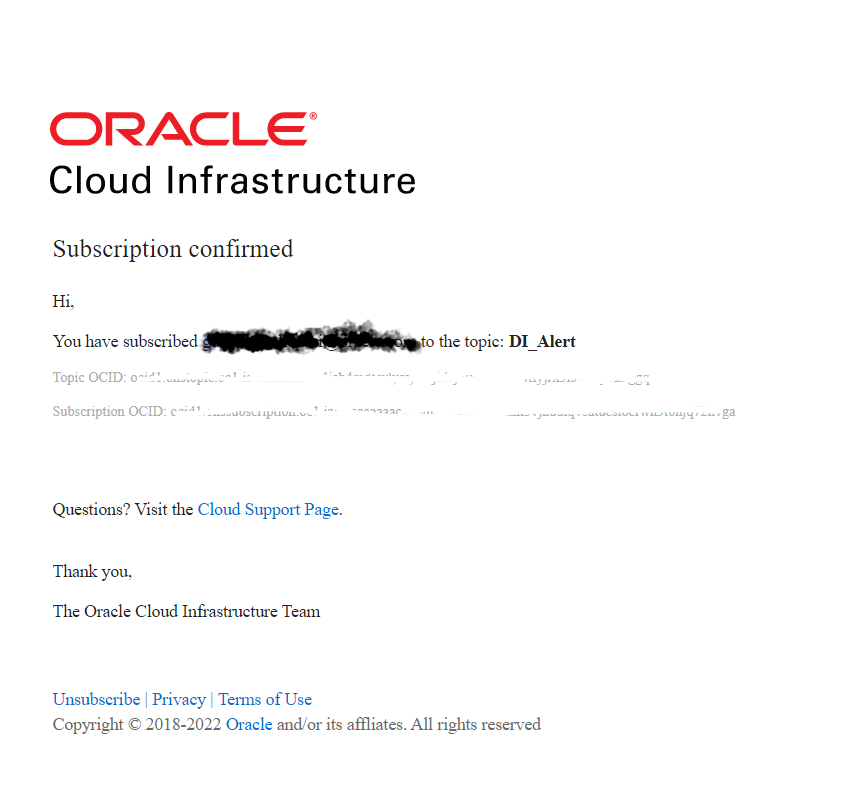
Your verification of the email will change the subscription status from pending to active.
Switch back to OCI console window and verify the subscription status changed to Active. You may need to refresh your browser.
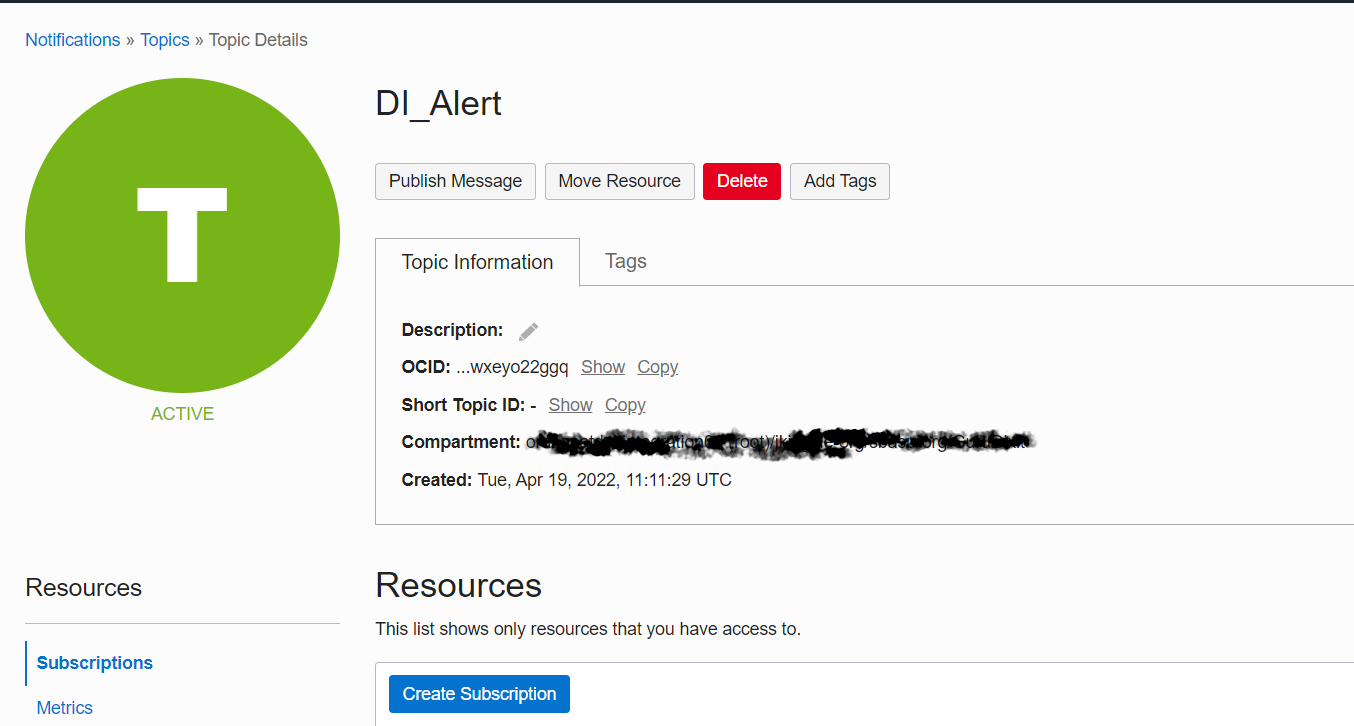
You are now subscribed to a Notification topic. Next you will define an event with conditions that, when met, will publish messages to this Notification topic.
Let’s define an event that triggers an email notification when job status changes in OCI Data Integration
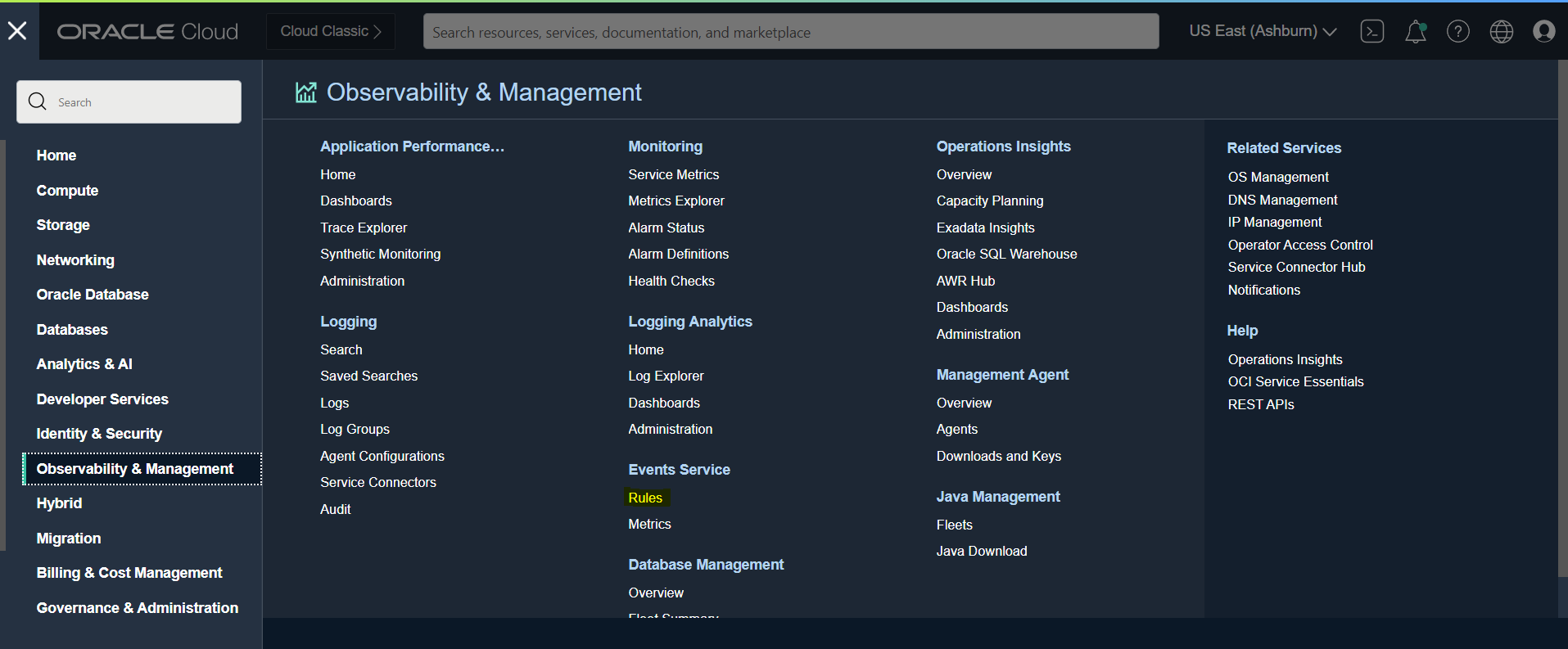
From OCI Services menu, click Observability & Management > Rules.
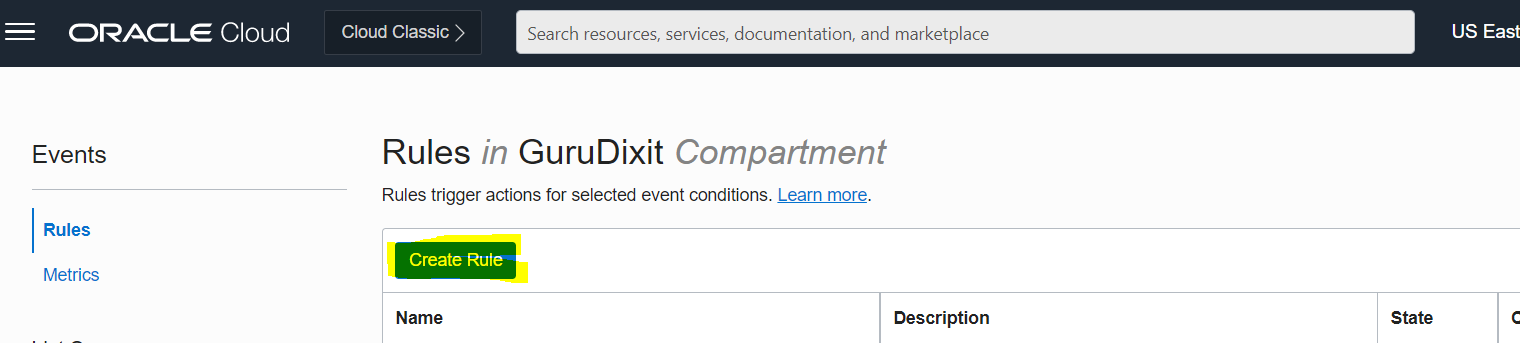
Click Create Rule.
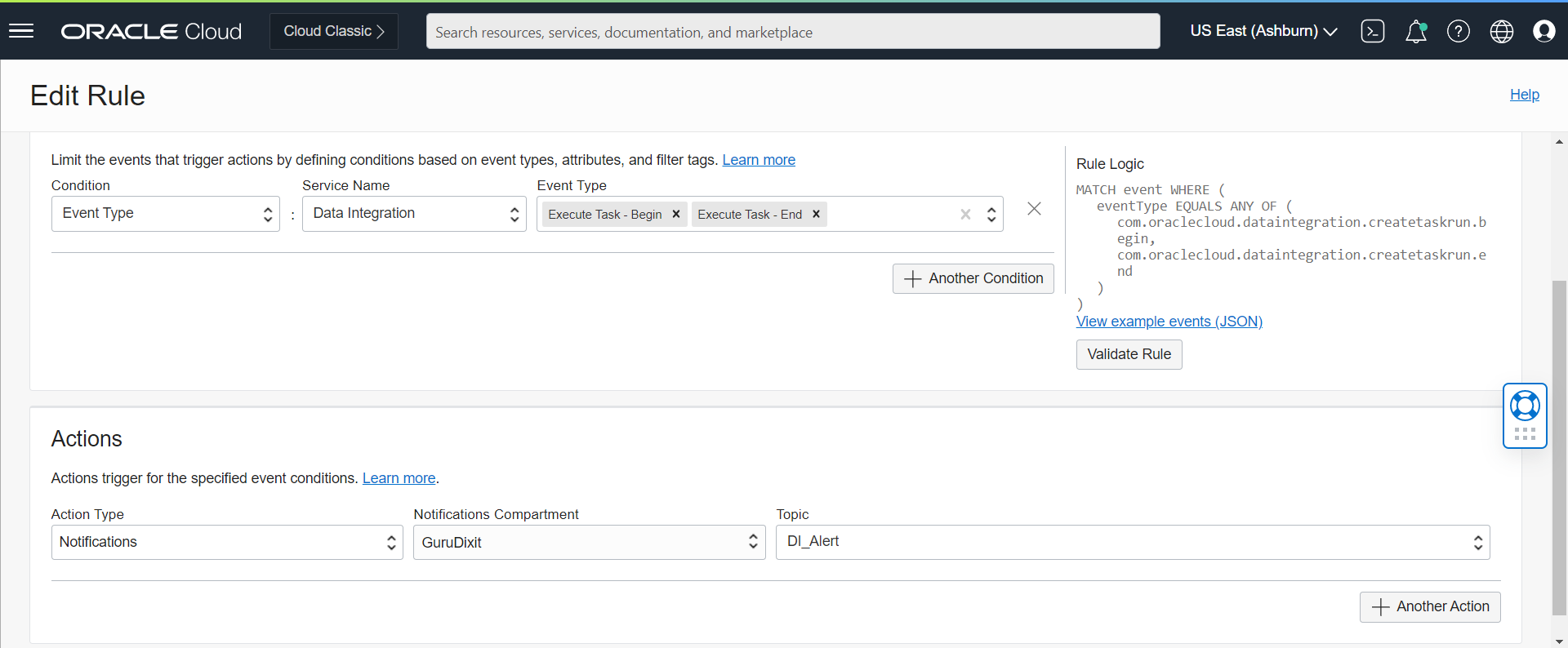
Fill out the dialog box:
DISPLAY NAME : Provide a name, such as the event type that you will be choosing;
DESCRIPTION : Provide a description.
Under Rule Conditions
CONDITION: Event Type
SERVICE NAME: Data Integration
EVENT TYPE : Execute Task – Begin and Execute Task – End from the drop down menu.
Under Actions
ACTION TYPE: Notifications
NOTIFICATIONS COMPARTMENT: Choose your compartment.
TOPIC: Choose the topic created earlier, DI_Alert
Click Create Rule.
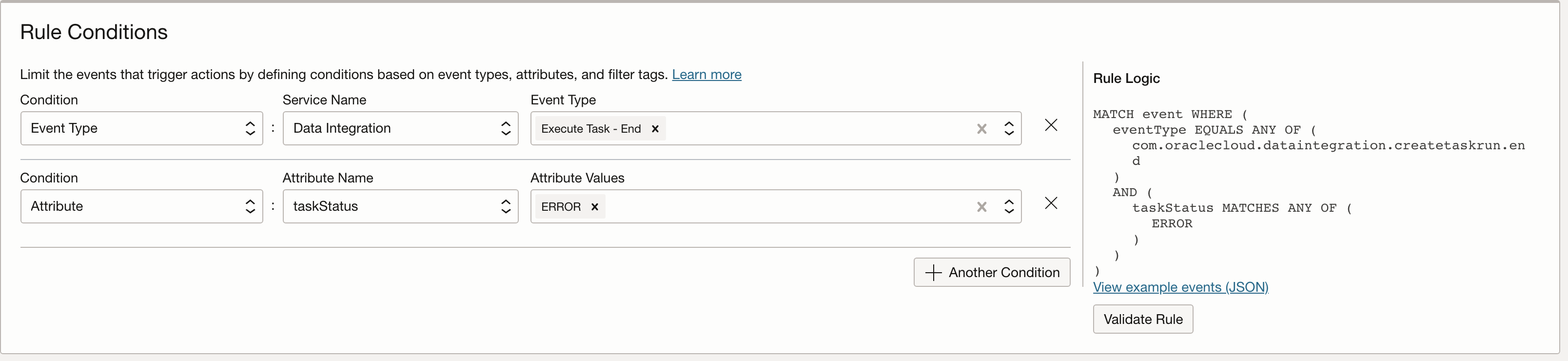
You have configured a Notification service and tied an event to it with a specific compartment. When a job status changes in OCI Data Integration, an email notification will be sent to the email address specified. You can also use this to trigger an event only when a specific attribute value is set, such as trigger when task ends in ERROR status;
Trigger the Event
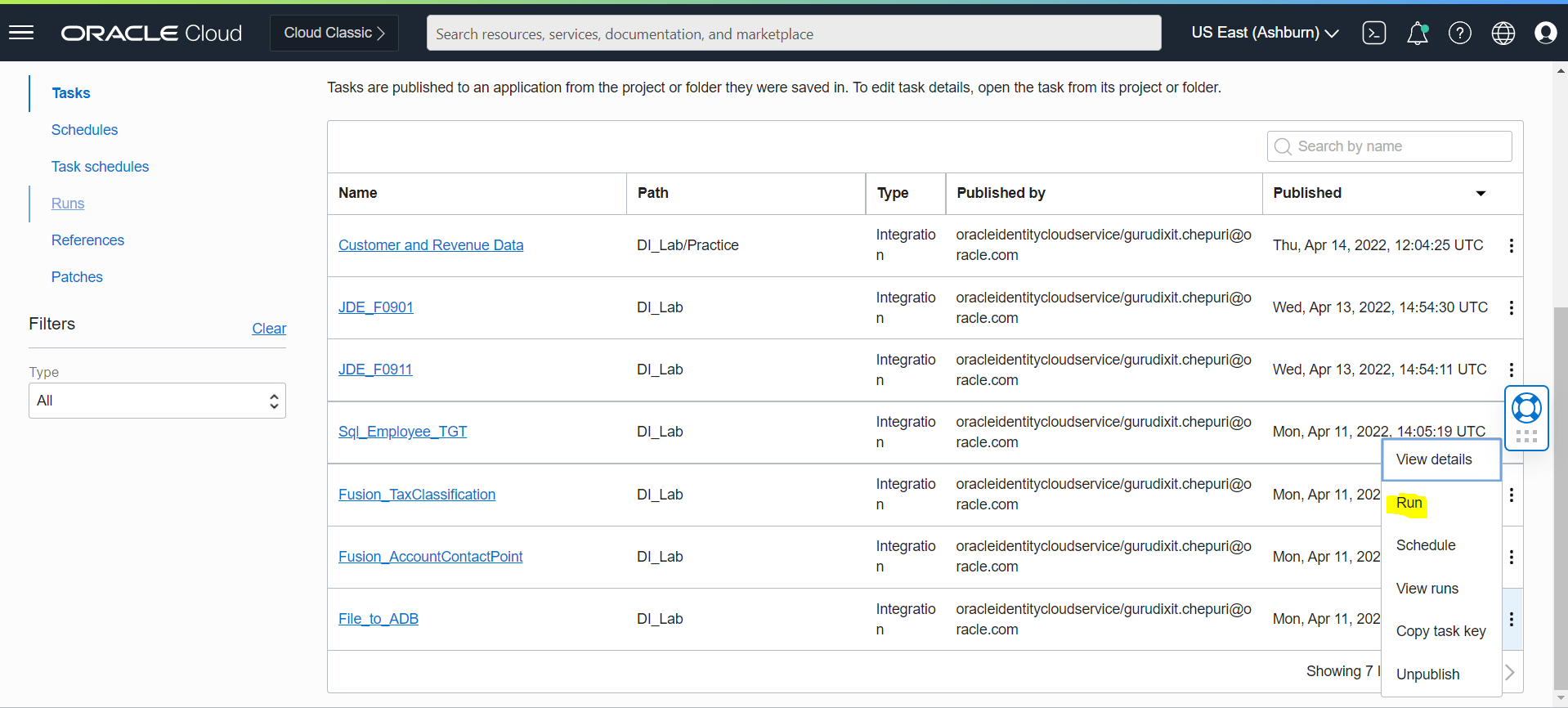
Now Run a job from OCI Data Integration to trigger the notification email.
Navigate to OCI Data Integration Workspace page. Select the application where the job is published and Run the Job.
Verify that an Email Notification Was Sent
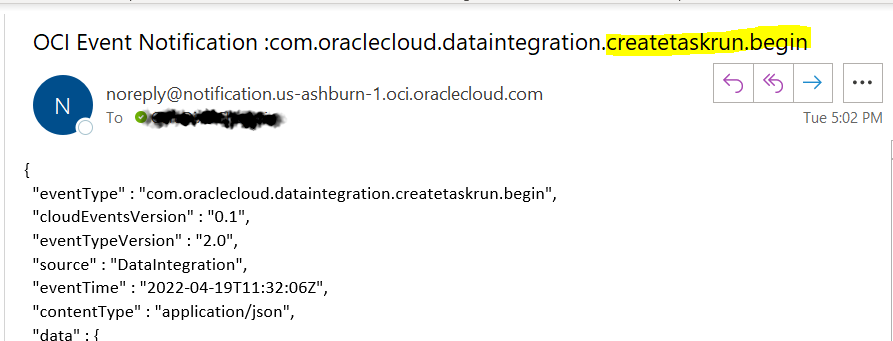
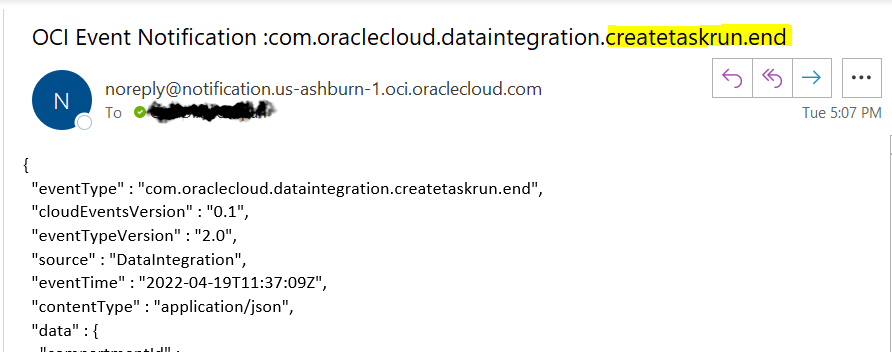
Check the email account you specified to verify that a notification email was sent.
Go to the specified email account and verify that a notification of the Job Status has been sent.
Similarly we can define events and alarms with conditional rules that will generate email notifications when the state of an Autonomous Database changes or an alarm condition has been met.
Conclusion
In this article, we illustrated how using the OCI Events and Notification service we can generate Email notification based on job status within OCI Data Integration.
We hope that this blog helps as you learn more about Oracle Cloud Infrastructure Data Integration.
For more information, check out the tutorials and documentation. Remember to check out all the Blogs on OCI Data Integration.