
A step-by-step guide to configuring real-time, notification-based data ingestion into Autonomous AI Database with Oracle Data Studio
Introduction
Modern data platforms demand continuous data ingestion and structured transformation to support real-time analytics and intelligent decision-making. Traditional batch-based pipelines introduce latency, increase operational overhead, and delay time-to-insight. In contrast, event-driven ingestion architectures significantly reduce data latency, enhance reliability, and simplify operational management.
This guide demonstrates how to use Oracle Data Studio to configure a notification-based Live Feed from cloud object storage into an Autonomous AI Database and how to extend that foundation into a full Medallion Architecture using Data Transforms.
Cloud object storage commonly serves as a staging zone for high-volume, continuously generated datasets. Querying data directly from object storage limits performance and optimization capabilities. Loading data into the database unlocks substantial advantages: query performance optimization, indexing, workload management, and advanced database processing. Combining event-driven ingestion with database-native performance features enables scalable, low-latency pipelines that keep a data warehouse continuously updated and analytics-ready.
Understanding Live Feed Types
Data Studio supports two operational modes for live feeds
⏱ Scheduled Live Feed
Runs at predefined intervals. On each execution, it scans cloud storage and loads any new or modified data into the database. Ideal for predictable, batch-oriented workloads where near-real-time ingestion is not required.
⚡ Notification-Based Live Feed
Event-driven and trigger-based. Whenever new data arrives or existing data is updated in cloud storage, a notification automatically invokes the database feed job. Enables near real-time ingestion with minimal latency between data arrival and analytics availability.
This guide focuses exclusively on the notification-based Live Feed, which provides the lowest possible ingestion latency.
Supported Cloud Storage Platforms
While this guide uses Oracle Cloud Infrastructure (OCI) Object Storage, the same architecture and configuration pattern applies to any cloud platform that supports URL-based event notifications like
OCI Object Storage, Amazon S3, Microsoft Azure Blob Storage and Google Cloud Storage
Notification-Based Ingestion Flow
The following diagram illustrates how a notification-based Live Feed operates end-to-end
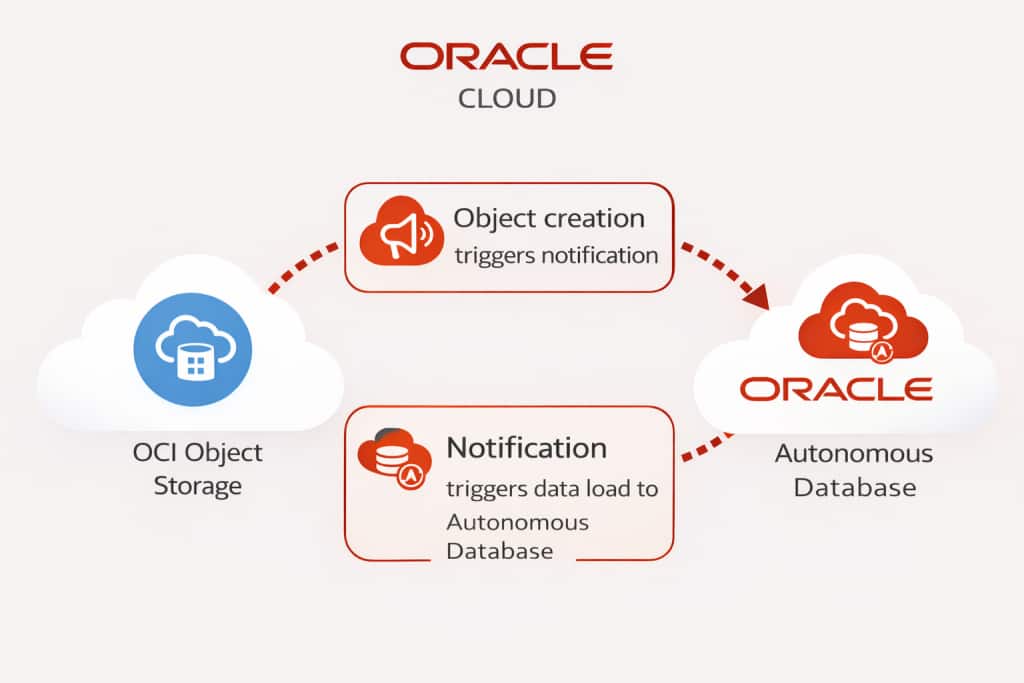
In a notification-driven architecture, ingestion is automatically triggered by storage events rather than fixed schedules. The process works as follows:
- Data is created or updated in cloud object storage.
- The storage service emits an event notification when the change occurs.
- The notification invokes the Autonomous AI Database endpoint associated with the Live Feed.
- The Live Feed job executes automatically.
- Newly added or modified data is ingested into the database and made immediately available for optimized processing and analytics.
Key benefit: This event-driven design ensures the data warehouse remains continuously updated without manual intervention or fixed scheduling, enabling a more responsive and scalable data pipeline.
Configuring the Live Feed
Create and Configure the Cloud Storage Bucket
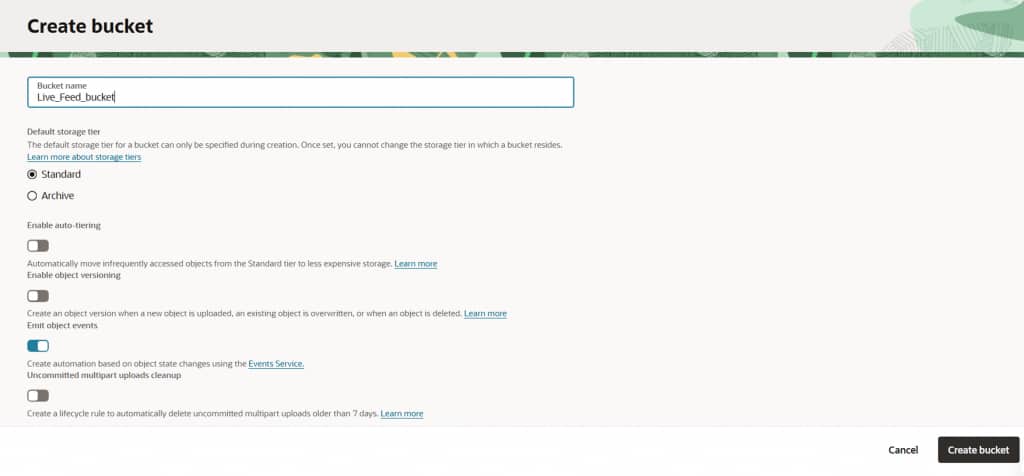
Begin by creating a new cloud storage bucket in your OCI tenancy. This bucket will act as the landing zone for incoming data files. Configure the bucket to emit object creation events, which will drive the notification-based ingestion pipeline.
Access Data Studio via Database Actions
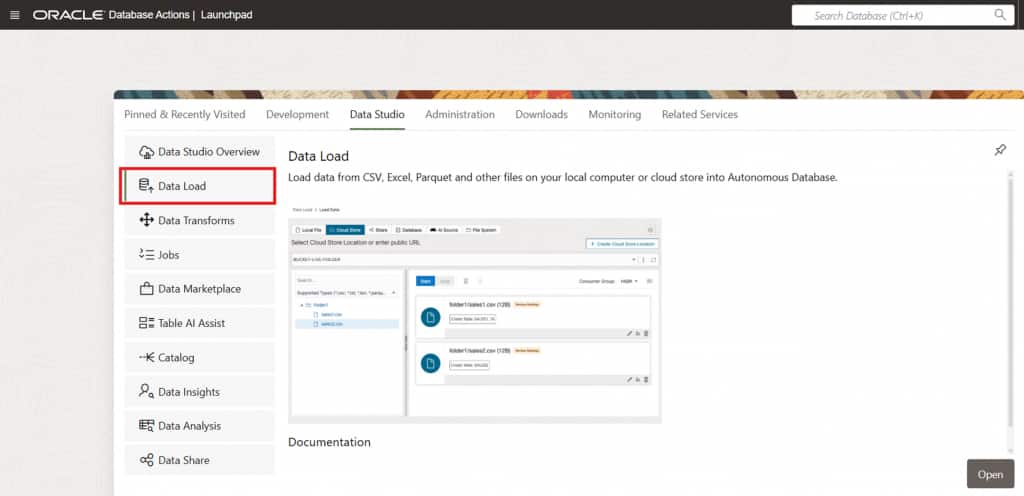
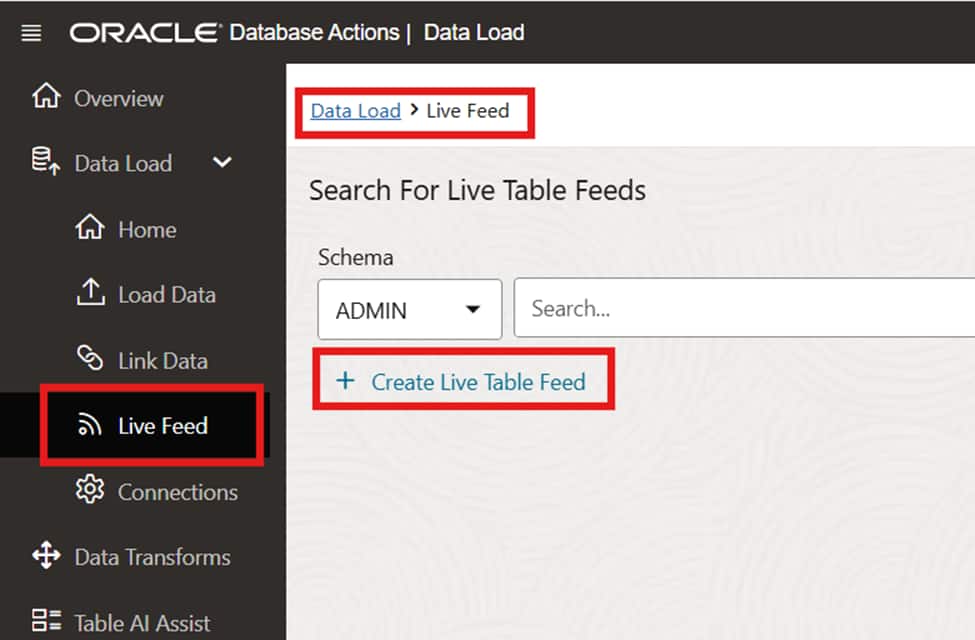
From the Database Actions launchpad of your Autonomous AI Database instance, navigate to Data Studio → Data Load. This is the central hub for managing live feeds and data transformation pipelines.
Create a Cloud Storage Connection
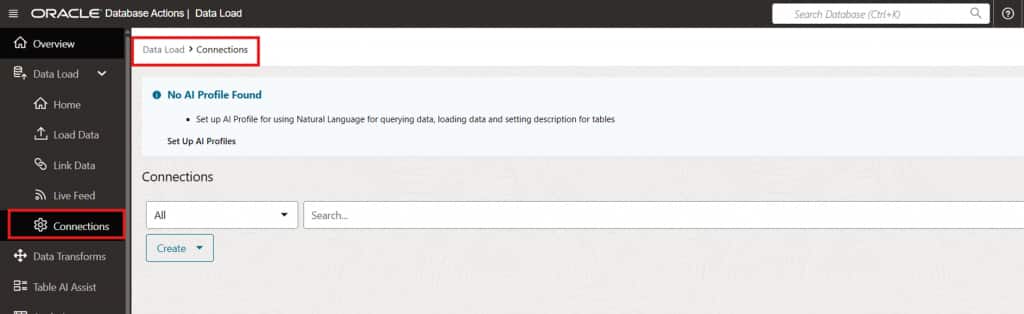
Before configuring the live feed, establish a connection to the cloud storage location where your source files are hosted. This connection defines the credentials and endpoint used by the Live Feed to access object storage.
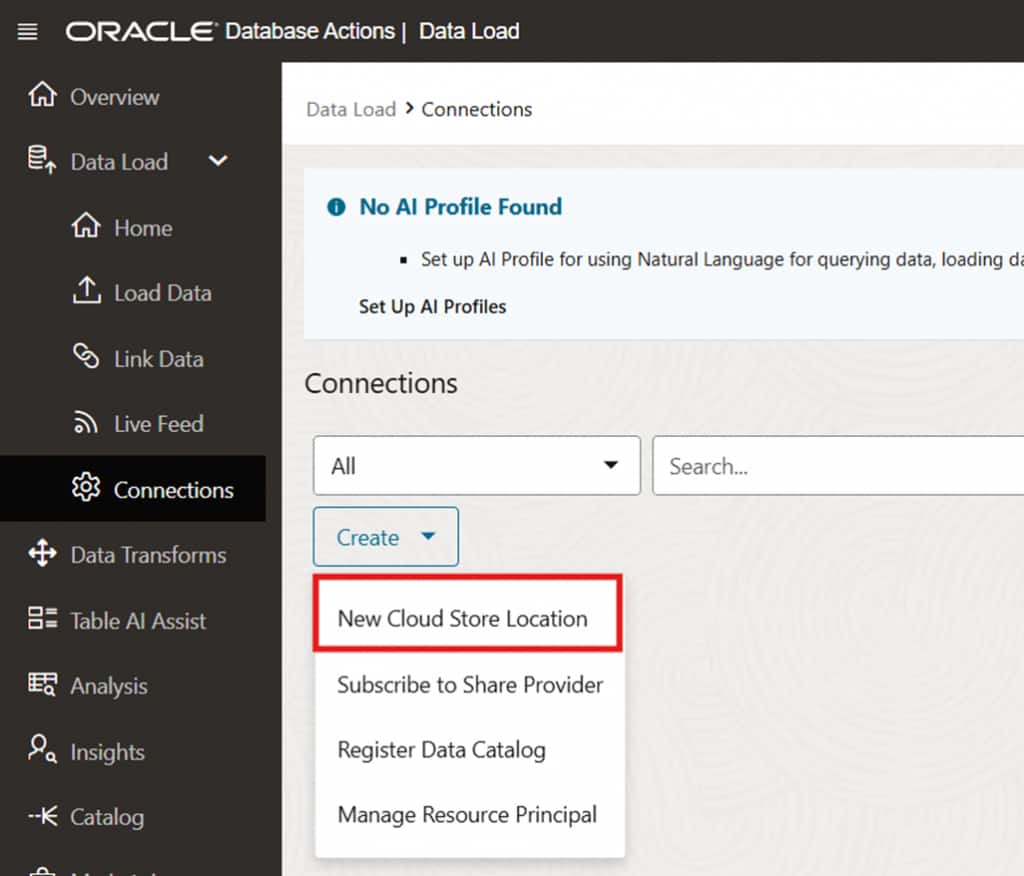
Entering connection credentials and storage endpoint details
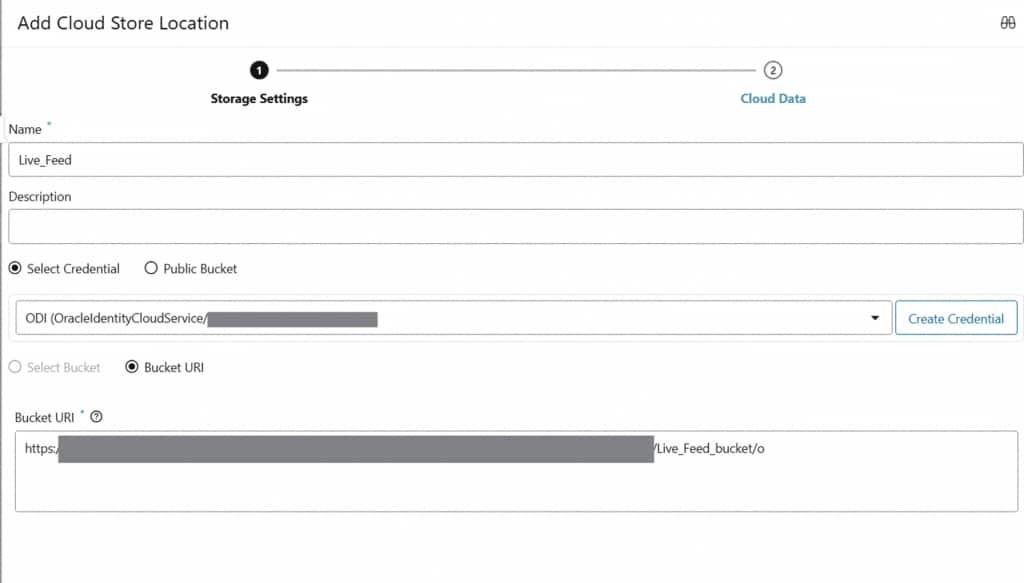
Connection successfully validated and ready for use
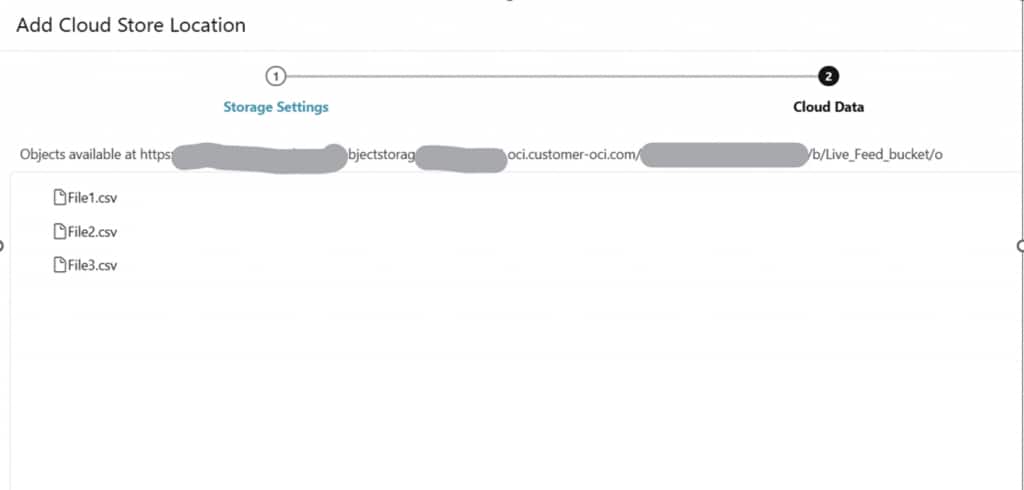
Selecting the target storage bucket within the connection
Checkpoint: At this point, the Cloud Storage Location has been created and is ready for use by the Live Feed configuration.
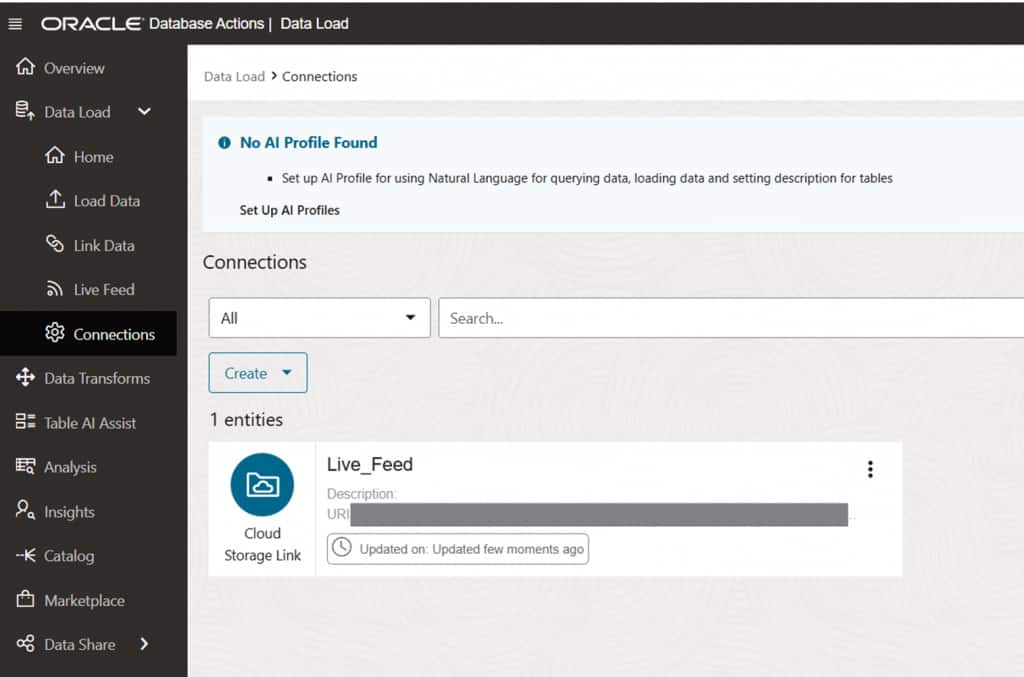
Configure the Live Feed
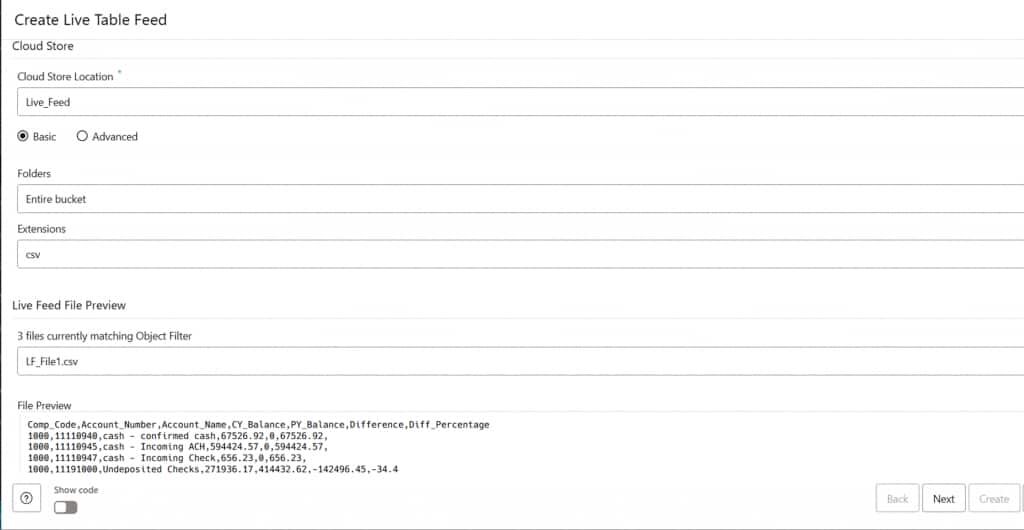
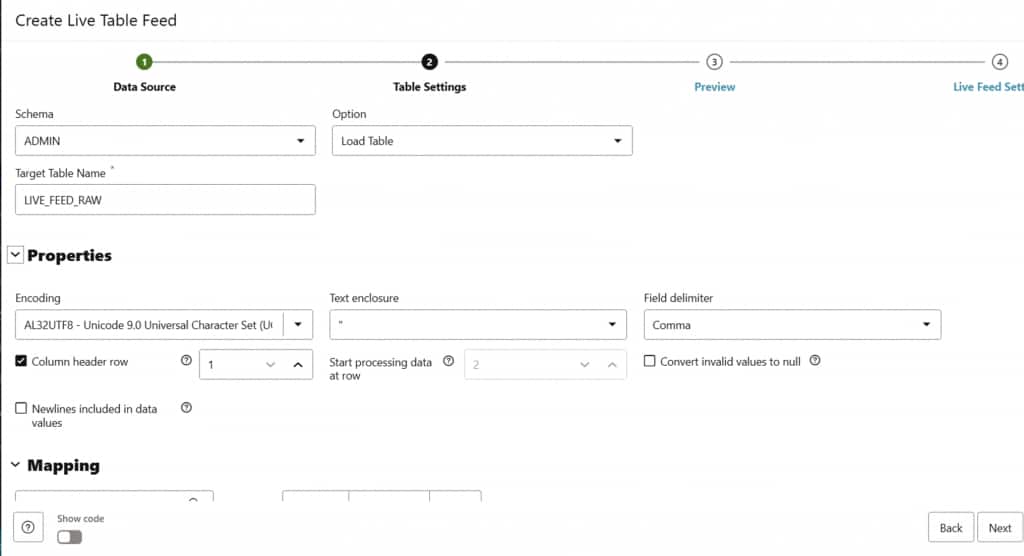
With the storage connection in place, proceed to configure the Live Feed. Define the source file pattern (e.g., *.csv), the target table, and the ingestion behavior. The configuration interface also allows you to enable scheduling if a hybrid approach is needed.
Live Feed configuration for source file pattern and target table selection
Configuring file format and column mappings for the target table
Enabling notification-based ingestion and reviewing metadata column options
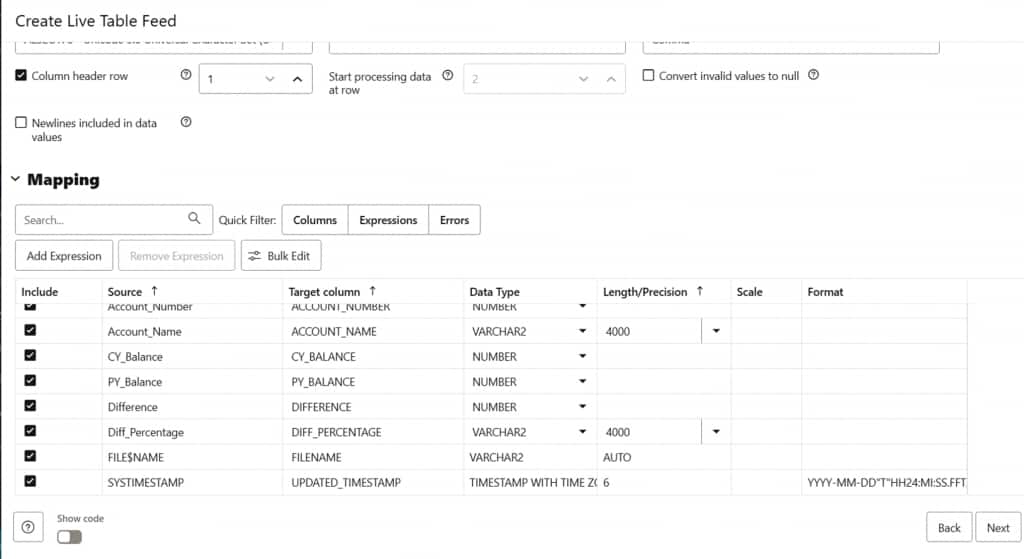
Note on metadata columns: The live feed automatically appends two system columns to each ingested row, The source filename and the ingestion timestamp. These columns support full auditability and lineage tracking at no additional cost.
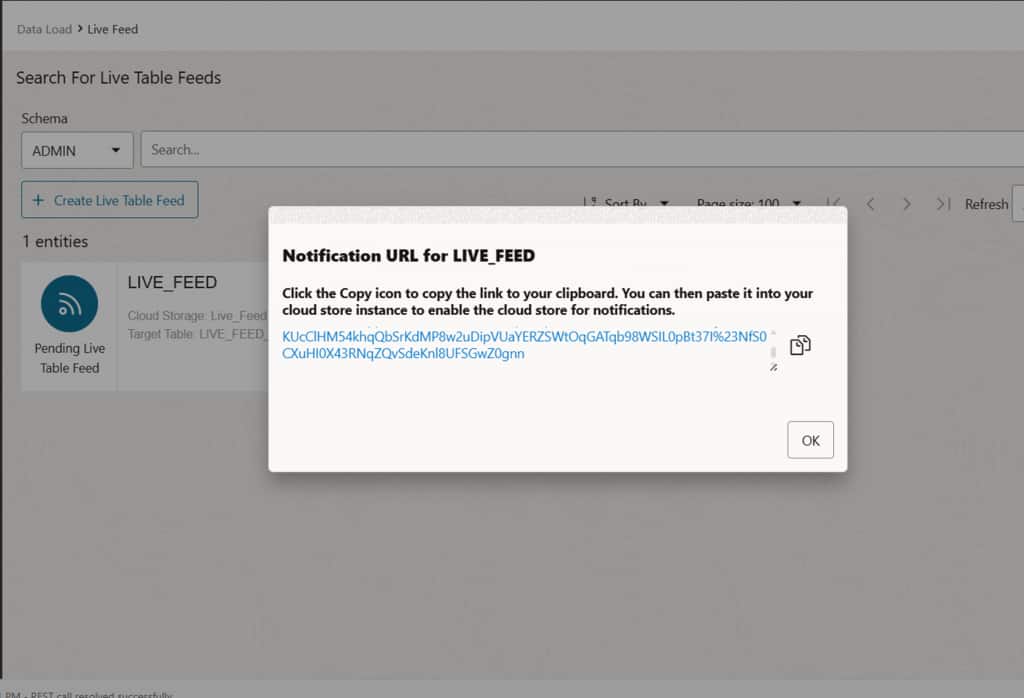
Copy the Notification URL
After enabling the notification option, the system generates a unique Notification URL for this Live Feed endpoint. Copy this URL, it will be used later when configuring the OCI Notification subscription to route storage events to the correct feed.
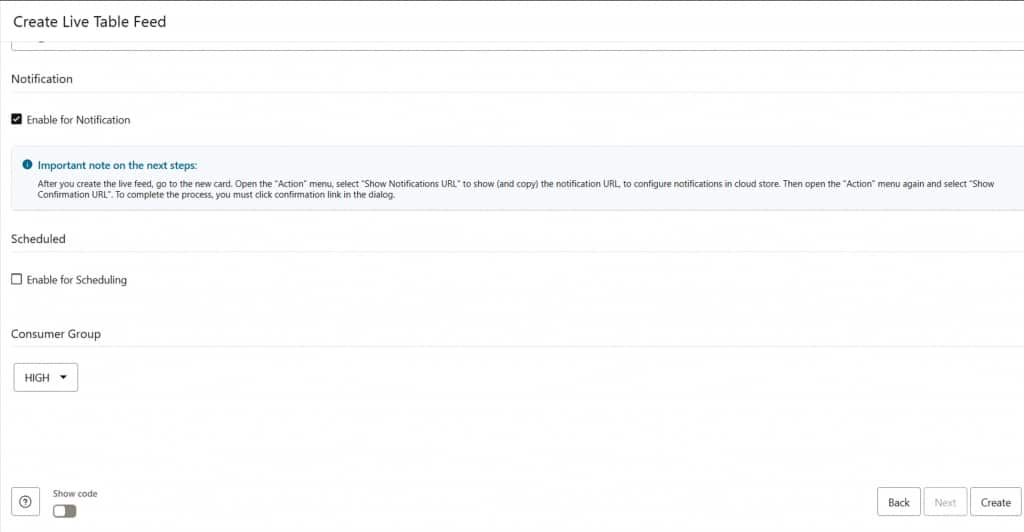
Create the Live Feed
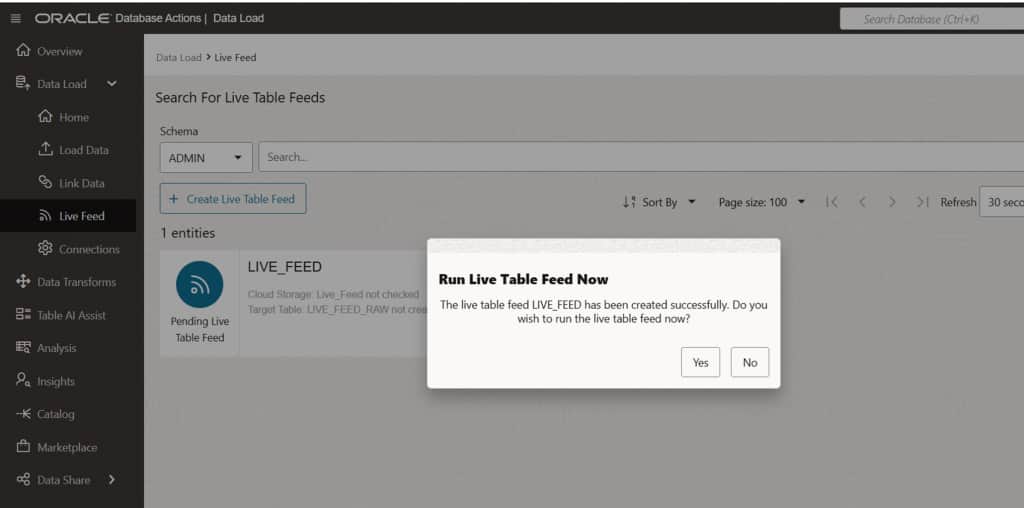
Click Create to finalize the Live Feed definition. You will be prompted to run the feed immediately or defer the initial execution. Either option is valid; the feed configuration is saved regardless of this choice.
Step-by-Step: Configuring OCI Event Notifications
With the Live Feed endpoint created, the next phase is to configure the event generation mechanism within OCI. This involves creating an OCI Notification topic, defining an event rule, and creating a subscription that connects storage events to the Live Feed endpoint.
Create an OCI Notification Topic
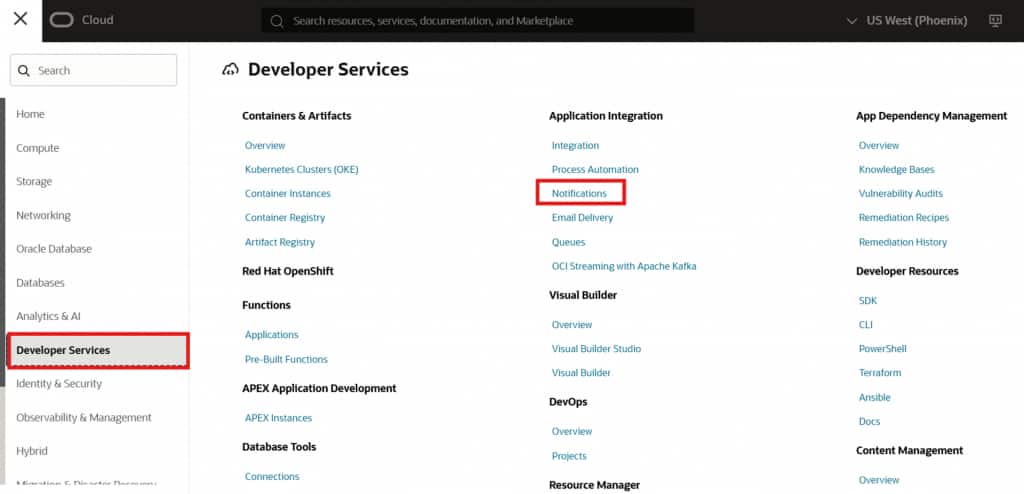
Navigate to the OCI Notifications service and create a new topic in the same compartment used for your storage bucket. This topic will act as the message broker between OCI Events and your Live Feed.
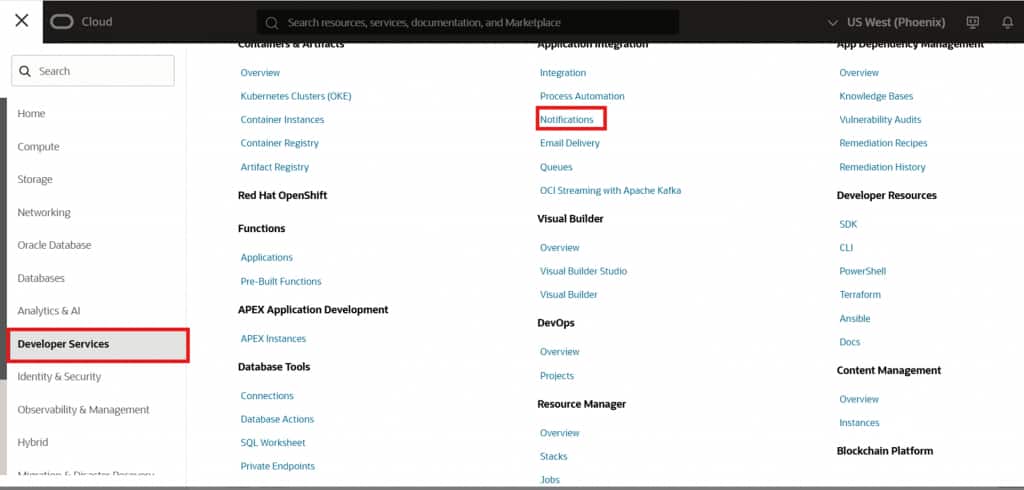
OCI Notifications service –> creating a new notification topic
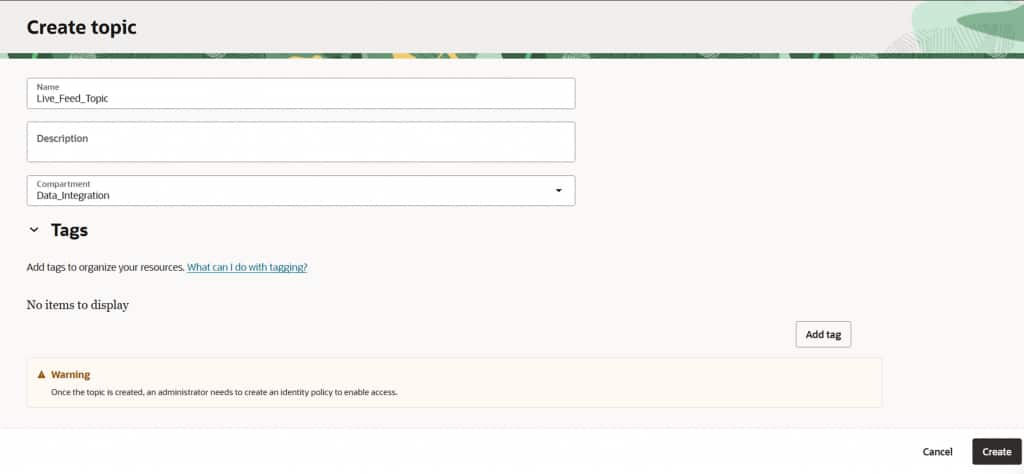
Naming the topic (e.g., Live_Feed_Topic) and selecting the correct compartment
Define an OCI Event Rule
From the OCI console search bar, navigate to Events Service → Rules and click Create Rule. Configure the rule as follows:
- Service Name: Object Storage
- Event Type: Object – Create
- Action Type: Notifications
- Topic: Live_Feed_Topic (created in the previous step)
This rule ensures that every time a new object is created in the monitored bucket, an event message is published to the notification topic.
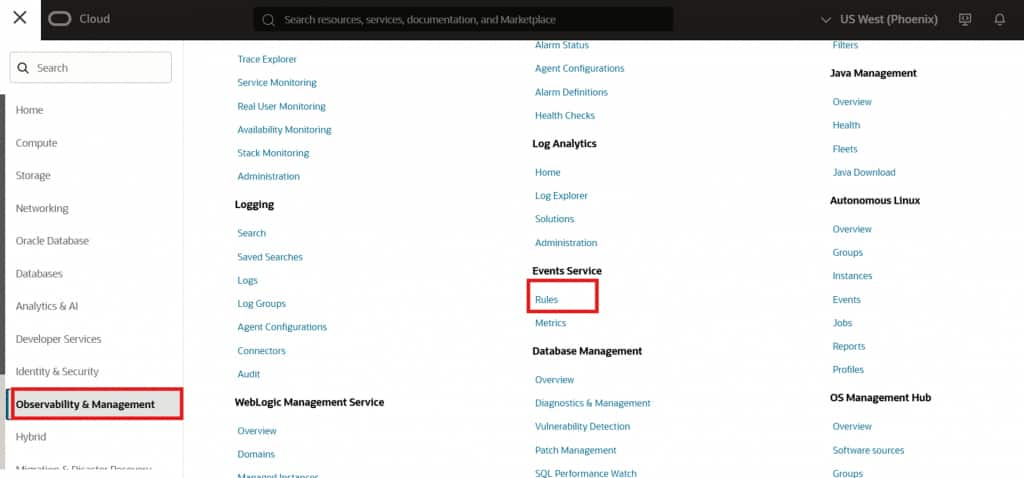
OCI Events Rule configuration –> selecting Object Storage and Object-Create event type
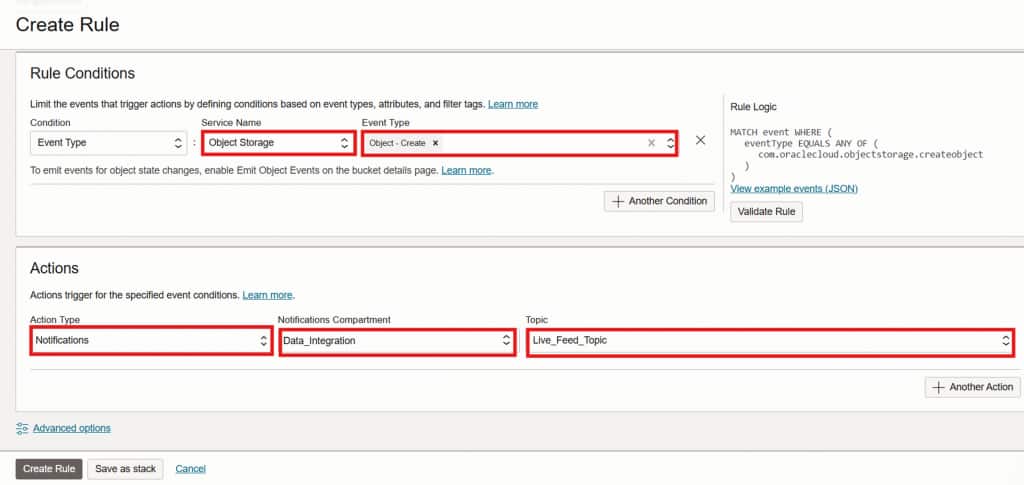
Complete event rule configuration with notification action targeting Live_Feed_Topic
Scope: The Object – Create event type ensures that only new file arrivals trigger ingestion. Existing or modified objects will not re-trigger the feed unless the event rule is extended to include additional event types.
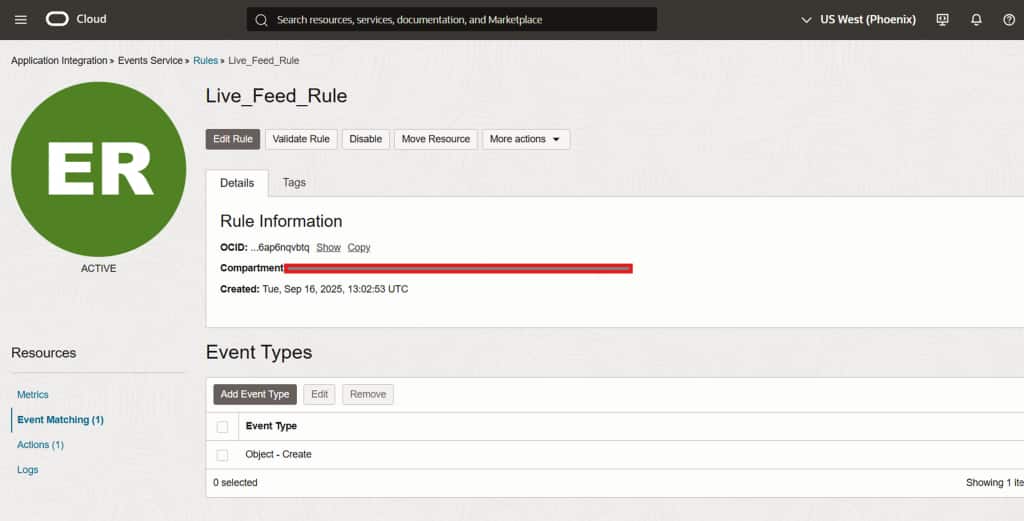
Event rule successfully created –> Object-Create event targeting the notification topic
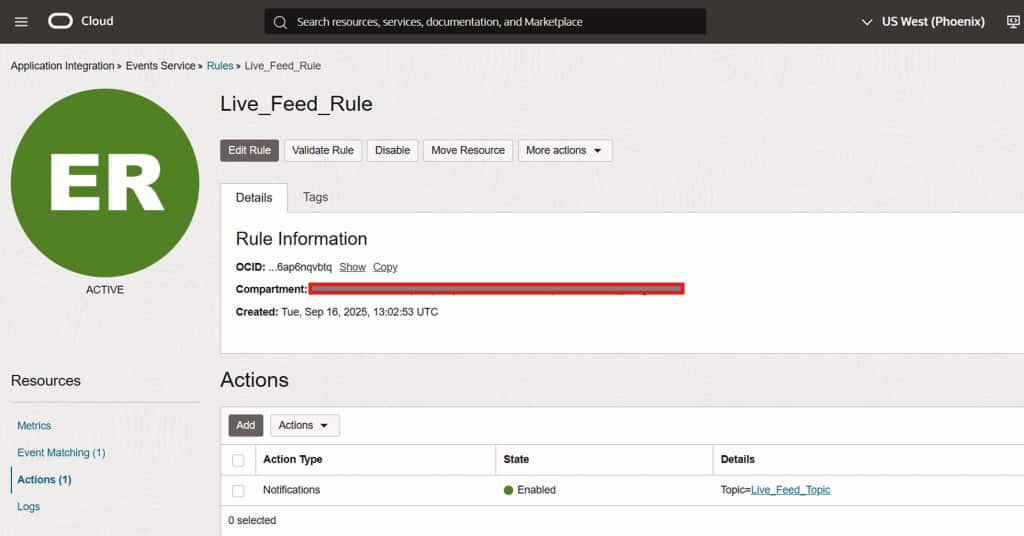
Rule active and monitoring the configured OCI Object Storage bucket
This rule will publish a notification to the OCI topic whenever an object is created in the bucket. Since the Live Feed is subscribed to that topic, it will execute automatically, scan for files matching the configured pattern (e.g., *.csv), and load them into the target table.
Rule summary confirming Object-Create events are routed to Live_Feed_Topic
Create an HTTPS Subscription
Within the newly created notification topic, create a Subscription using the following configuration:
- Protocol: HTTPS (Custom URL)
- URL: Paste the Live Feed Notification URL copied in Step 5
Click Create. The subscription will initially appear as Pending while OCI validates the endpoint.
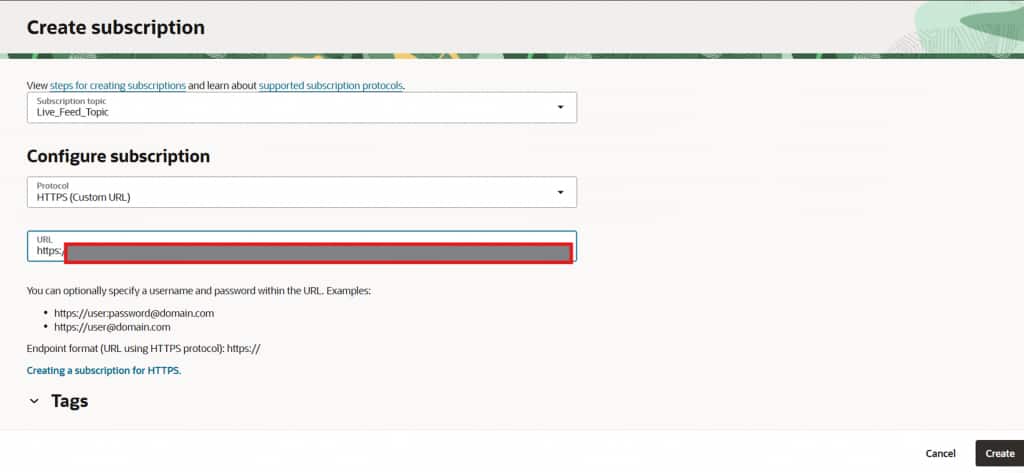
Creating an HTTPS subscription using the Live Feed notification URL
Subscription created –> status shows Pending while endpoint validation is in progress
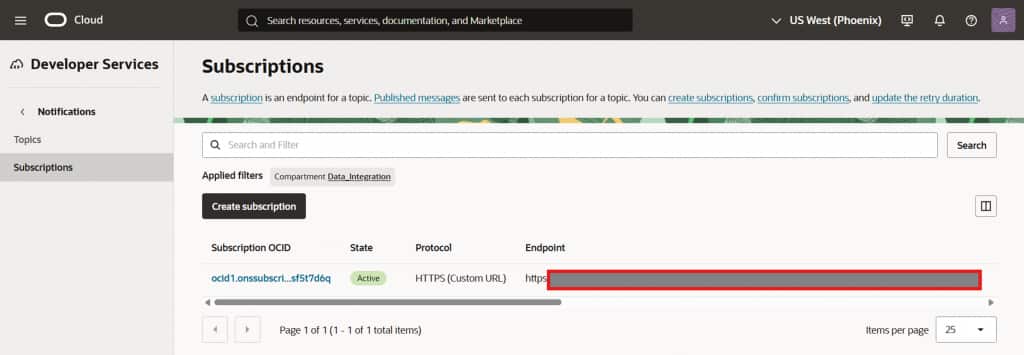
Subscription transitions to Active once the Live Feed endpoint is confirmed
Confirm the Live Feed Subscription
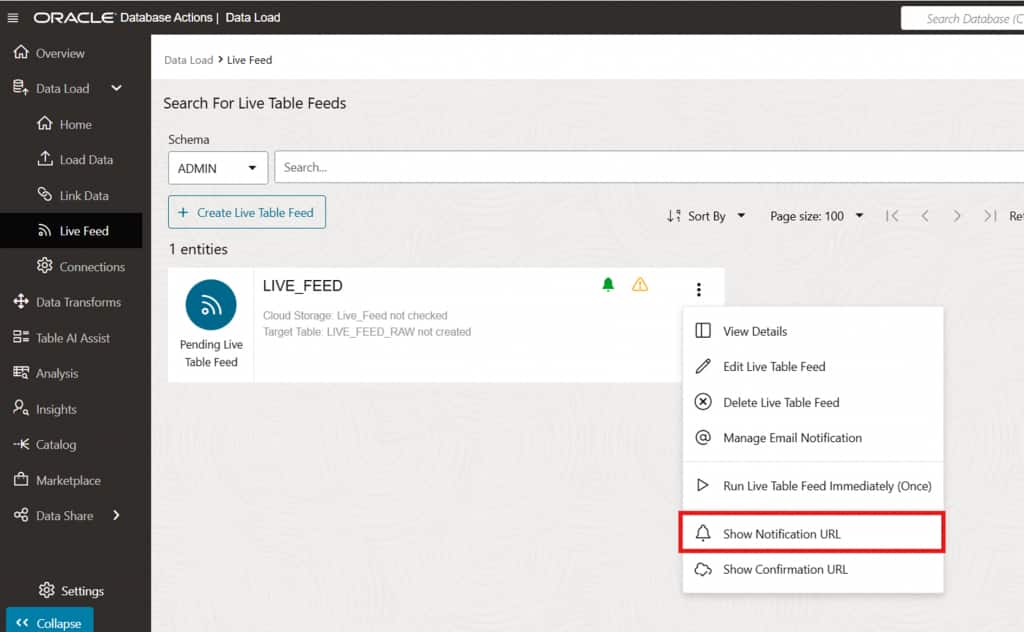
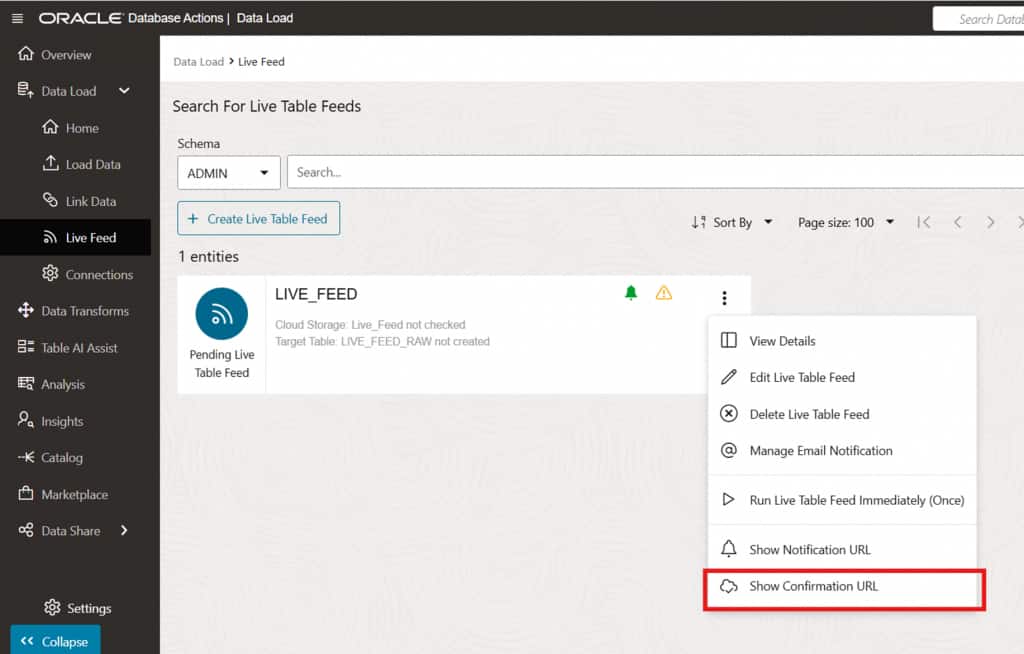
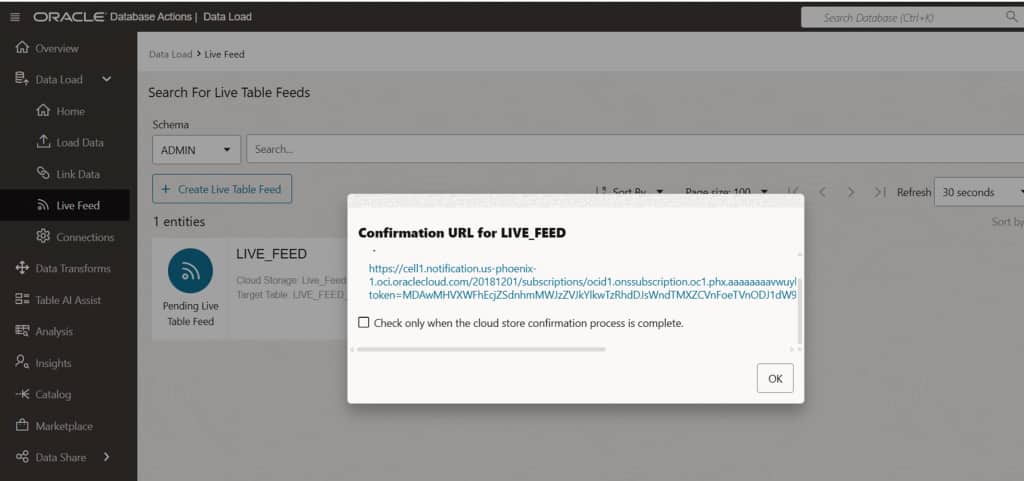
If the Live Feed shows a warning icon indicating the subscription has not yet been confirmed, navigate to the Live Feed’s menu and select Show Confirmation URL. Open the confirmation URL in a browser to finalize the endpoint validation. This ensures the subscription is fully active and the Live Feed is ready to receive OCI event notifications.
Live Feed showing an unconfirmed subscription warning –> access confirmation URL from the menu
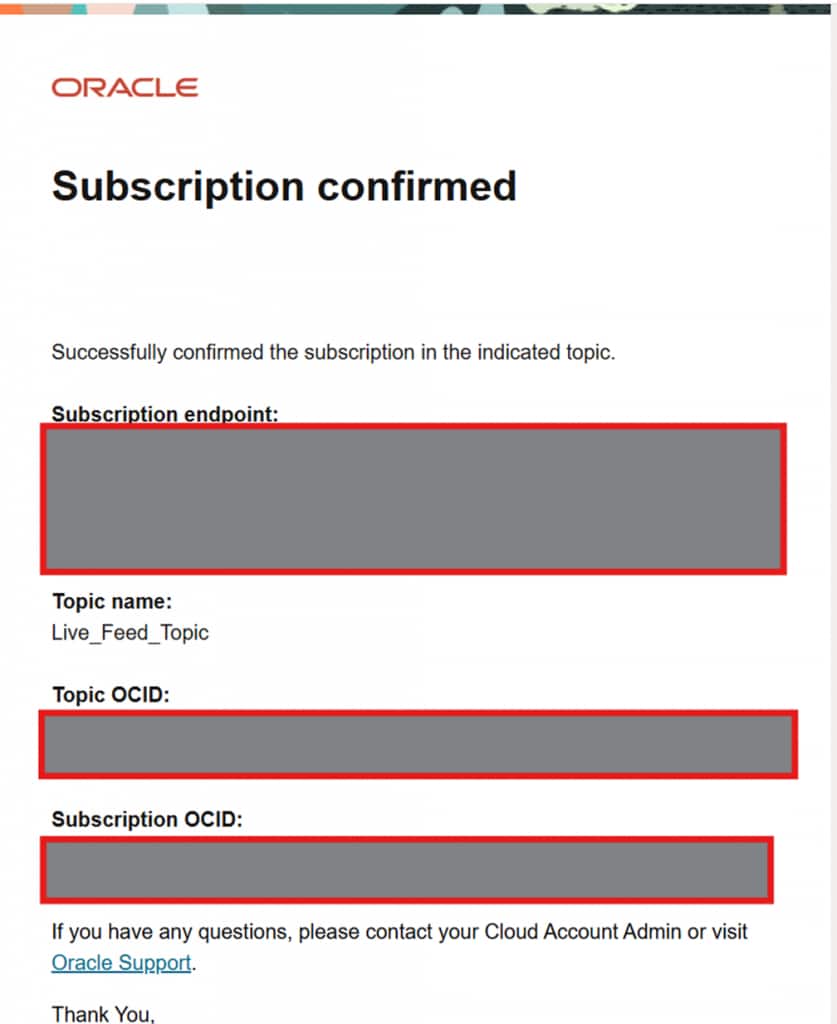
Subscription confirmation details –> open the confirmation URL to activate the Live Feed endpoint
Setup complete. The Live Feed is now fully configured. As new CSV files matching the defined schema arrive in the OCI Object Storage bucket, they are automatically ingested into the LIVE_FEED_RAW table in the Autonomous AI Database with no manual intervention required.
Extending to a Medallion Architecture
The Live Feed configuration described above is a capable standalone ingestion solution. However, it can also serve as the foundation for a fully layered Medallion Architecture within Autonomous AI Database, implemented using Data Studio’s Data Transforms feature.
The Medallion Architecture organizes data into three progressively refined layers Bronze, Silver, and Gold enabling structured transformation, governance, and performance-optimized analytics.
Layer 1 – Bronze — Raw Ingestion
- Event-driven ingestion via Live Feed
- Raw data stored without modification
- Source filename & ingestion timestamp
- Full auditability and replay capability
- Immutable landing zone for all incoming data
Layer 2 – Silver — Structured Transformation
- Data type normalization
- Null handling and defaults
- Deduplication logic
- Derived metric calculations
- Schema harmonization
Layer 3 – Gold — Curated Analytics
- Aggregated KPIs and fact tables
- Partitioned & indexed datasets
- Materialized views
- Executive dashboards & BI tools
- Machine learning workloads
Bronze Layer –> Raw Data Ingestion via Live Feed
The Live Feed in Data Studio naturally implements the Bronze Layer. The Bronze layer stores raw data exactly as received from source systems without modification. Its primary objectives are reliable ingestion, full traceability, and replay capability. Using a notification-based live feed, the Bronze layer provides event-driven ingestion triggered by object creation, automatic file filtering (e.g., *.csv), zero-transformation load preserving raw fidelity, and system-generated metadata columns for auditability. The Bronze layer acts as the immutable landing zone for all incoming datasets.
Silver Layer –> Structured Transformation via Data Transforms
Once raw data is captured in Bronze tables, Data Transforms in Data Studio implement the Silver Layer. This layer applies structured transformation logic to standardize and cleanse the data, preparing heterogeneous and semi-structured sources for downstream analytics. Typical Silver-layer operations include data type normalization, null handling and default value management, deduplication, derived metric calculations, and schema harmonization across multiple source feeds. At this stage, data becomes analytics-ready, consistent, and governed while still maintaining granular detail. The Silver layer bridges raw ingestion and business-level reporting.
Gold Layer –> Curated and Optimized Analytics via Data Transforms
The Gold Layer, also implemented using Data Transforms, represents the final curated data model optimized for business consumption. This layer focuses on delivering high-value, performance-optimized datasets tailored for analytics and reporting workloads. Gold layer capabilities include aggregated KPIs, business-level fact and dimension tables, optimized reporting structures, partitioned and indexed datasets, and materialized views for performance acceleration. The Gold layer supports executive dashboards, BI and analytics tools, ad hoc reporting, and machine learning workloads. At this stage, data is not merely structured it is curated, performance-tuned, and business-aligned.
Conclusion
As data volumes grow and business expectations shift toward real-time insights, modern data architectures must move beyond traditional batch-driven pipelines. Event-driven ingestion combined with structured transformation enables organizations to reduce latency, simplify operations, and deliver analytics-ready data faster than ever before.
By leveraging Data Studio Live Feed with a notification-based approach, data is automatically ingested from cloud object storage into Autonomous AI Database as soon as it arrives eliminating manual intervention and rigid scheduling.
When integrated into a Medallion Architecture, Live Feed forms the foundation of a robust Bronze layer for raw data capture, while Data Transforms progressively refine that data into structured Silver and analytics-ready Gold layers. This layered approach provides clarity, governance, performance optimization, and scalability within a unified database environment.
Together, event-driven ingestion and layered transformation transform Autonomous AI Database from a passive storage system into an active, continuously updated analytics engine ready to power dashboards, business insights, and advanced data-driven decision-making.