

Keeping your systems current is one of the most effective security investments you can make. Every security update you apply closes a known weakness before an attacker can reach it, shrinking the attack surface across your environment and denying adversaries the paths they rely on most. That advantage matters more than ever as advances in AI are lowering the effort required to discover software vulnerabilities, examine released patches for the weaknesses they address, and identify potential attack paths at greater speed and scale. Attackers can also chain weaknesses across layers of the technology stack, making it important to keep the full stack—especially the database platform at its core—patched and up to date.
The benefits compound when your mission-critical applications stay available during security updates, helping protect the revenue-generating transactions, employee productivity, customer experience, and service-level commitment that security threats could put at risk. For applications that operate around the clock, the goal is to maintain the assurance of the latest security fixes and the business continuity you depend on.
Exadata Live Update helps you address both priorities by enabling you to apply eligible Guest VM operating system (OS) security fixes and other supported updates while your virtual machines remain online, helping you respond faster to security needs, maintain VM cluster capacity, and schedule reboot-dependent maintenance when it is convenient. It is available for Exadata Database Service on Cloud@Customer and Exadata Database Service on Dedicated Infrastructure in Oracle Cloud Infrastructure (OCI). The capability is also available for Exadata Database Service on Dedicated Infrastructure in Oracle AI Database@AWS, Oracle AI Database@Azure, and Oracle AI Database@Google Cloud.
Choose from flexible Guest VM OS update options
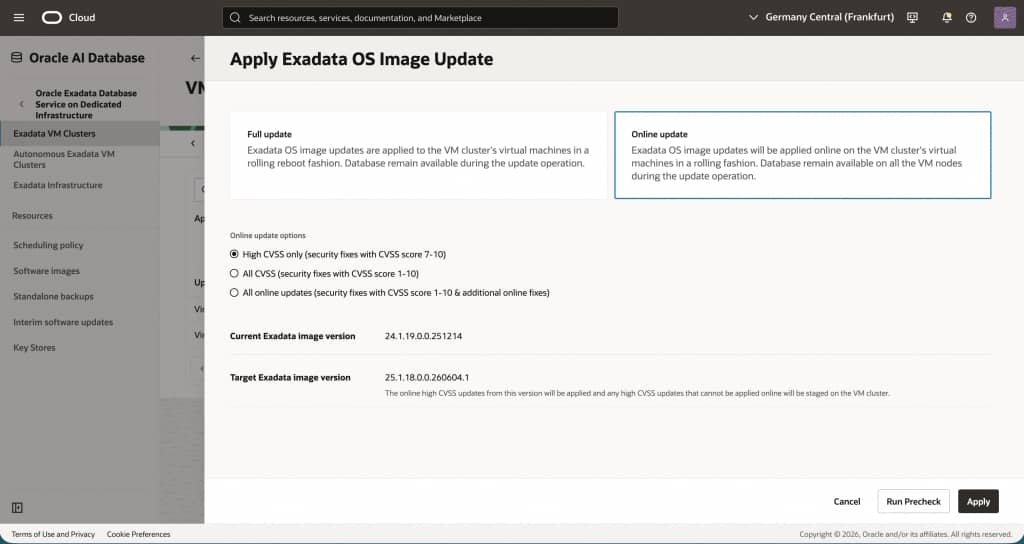
You can choose between a Full update and an Online update, depending on your maintenance objectives.
Full update
A Full update applies the selected Exadata OS image update through a rolling reboot, one VM at a time while maintaining database availability throughout the process. Choose this option when you want to apply the complete set of changes in the selected image.
Online update
An Online update applies eligible updates while your virtual machines remain online. Your database workloads can continue to run on all VM nodes, avoiding the temporary reduction in cluster capacity associated with a rolling reboot.
You can tailor the Online update to your security priorities by selecting High CVSS, All CVSS, or All online updates. High CVSS applies eligible security fixes with Common Vulnerability Scoring System (CVSS) scores from 7 through 10. All CVSS applies eligible security fixes with CVSS scores from 1 through 10. All online updates applies the broadest set of eligible updates, including CVSS-scored security fixes and additional supported updates that can be installed online.
These choices let you align maintenance with your security posture and change-management practices. For example, you can apply eligible High CVSS security fixes online, then schedule reboot-dependent updates for a later maintenance window.
Apply pending updates when convenient
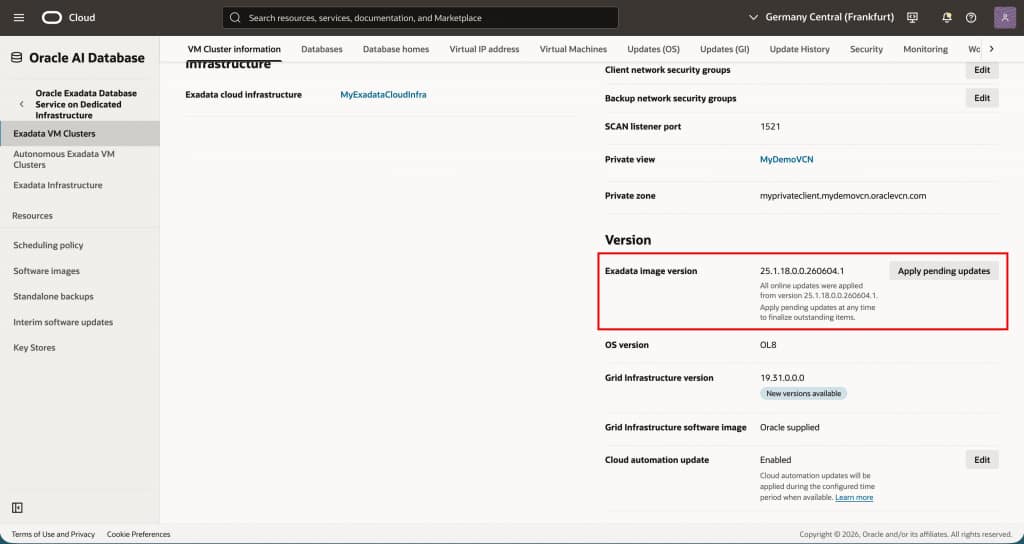
Some updates in a selected Exadata OS image require a VM reboot and cannot be applied online. In that case, eligible online updates are applied first and the reboot-dependent changes are retained as pending updates.
You can apply pending updates later through the standard rolling reboot process. This two-stage approach lets you apply urgent eligible security fixes online while completing reboot-dependent maintenance during a planned window. The OCI Console identifies pending updates and provides the option to run a precheck before you apply them.
Key benefits
- Faster security response with flexible update scope: Choose High CVSS or All CVSS security updates without waiting for a full maintenance window.
- Online update flexibility and preserved VM cluster capacity: Install eligible updates without rebooting your virtual machines, keeping all VM nodes online during an Online update.
- Maintenance on your timeline: Defer reboot-dependent pending updates to a convenient maintenance window.
Get started
From the Exadata VM cluster details page in the OCI Console, open Updates (OS) and select an available Exadata OS image update. Choose Full update or Online update. For an Online update, select the desired scope (High CVSS, All CVSS, or All online updates), run the recommended precheck, and apply the update.
After the Online update completes, review your VM cluster details and update history. If pending updates remain, apply them during a later maintenance window.
To use Exadata Live Update for Guest VM OS updates, ensure your VM clusters are running Exadata System Software release 24.1 or later.
Learn more
- How-To Guide – Apply Exadata Database Service Live Update for VM Operating System Updates
- Exadata Database Service on Cloud@Customer documentation – Updating the Guest VM Operating System
- Exadata Database Service on Dedicated Infrastructure documentation – Updating the Guest VM Operating System