
A Practical Guide to Model-in-Image, Auxiliary Images, OCIR, WKO Introspection, and Troubleshooting
Introduction
Deploying Oracle WebLogic Server on Kubernetes involves more than starting a WebLogic container. A complete deployment brings together Oracle Kubernetes Engine (OKE), WebLogic Kubernetes Operator (WKO), WebLogic Deploy Tooling (WDT), WebLogic Image Tool (WIT), container registries, Kubernetes Secrets, and WebLogic domain configuration.
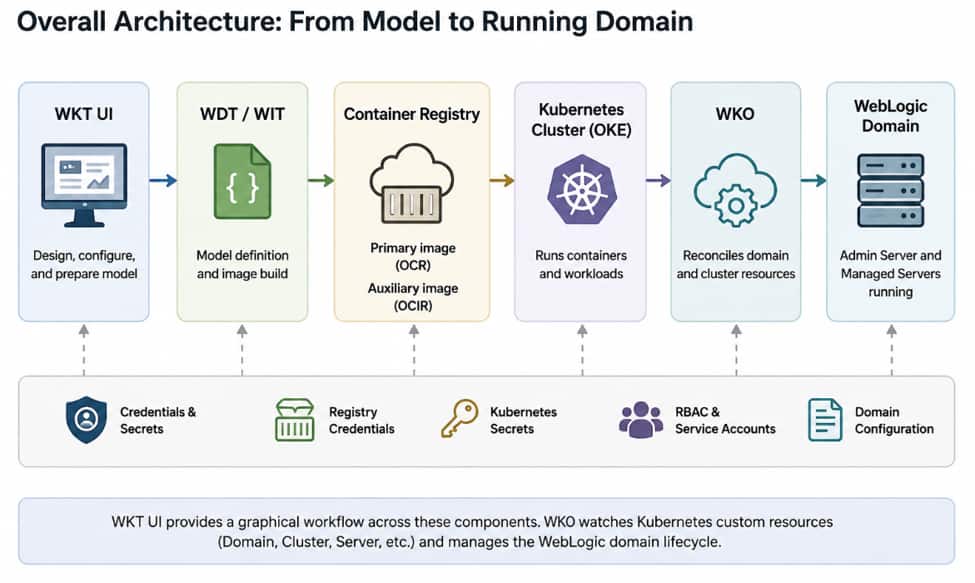
WebLogic Kubernetes Toolkit UI (WKT UI) provides a graphical workflow across these components. This guide builds on Oracle’s WKT UI and WKO documentation by bringing those pieces together into one practical OKE deployment, from creating the model and building images through deploying Kubernetes resources, WKO introspection, and validating a running WebLogic domain.
The guide also focuses on integration points that are easy to miss when reading the individual product documentation: primary versus auxiliary images, workstation registry credentials versus Kubernetes image pull Secrets, the __weblogic-credentials__ alias, auxiliary-image paths, and what actually happens after selecting Deploy Domain.
What We Are Building
This example deploys a WebLogic domain using:
- Namespace: weblogic-prod
- Domain UID: sample-domain1
- Cluster: cluster-1
- Administration Server: admin-server
- Managed Server: managed-server1
These are example values and should be adapted to your environment.
The domain uses a dedicated Kubernetes namespace, keeping the WebLogic runtime resources separate from the namespace hosting WKO.
Why Model-in-Image with Auxiliary Image?
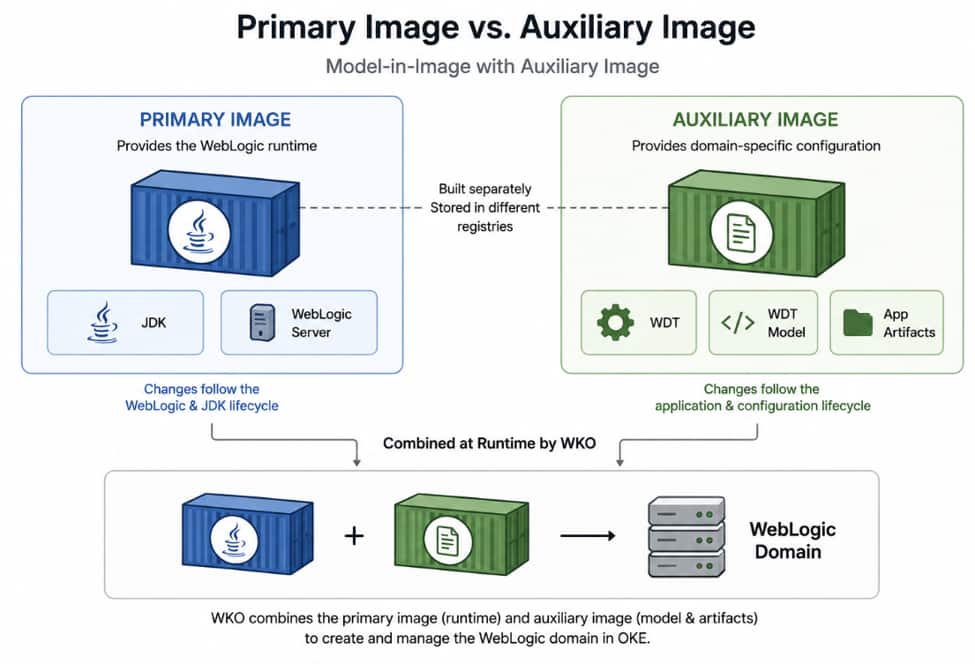
This guide uses Model-in-Image with Auxiliary Image, which separates the WebLogic runtime from domain-specific configuration.
The primary image contains Java and WebLogic Server. The auxiliary image contains WDT, the domain model, variables, and application artifacts. WKO combines these inputs when managing the WebLogic domain.
This separation simplifies lifecycle management. WebLogic Server and JDK updates can follow the primary-image lifecycle, while application and domain-configuration changes can be independently versioned and delivered through auxiliary images.
Tested Environment
The deployment in this guide was validated using the following environment:
| Component | Environment |
| Cloud Platform | Oracle Cloud Infrastructure |
| Kubernetes Platform | Oracle Kubernetes Engine |
| WKT UI | 2.0.4 |
| WebLogic Kubernetes Operator | 4.3.12 |
| WebLogic Server | 14.1.2.0 |
| JDK | JDK 21 on the WKT UI workstation; JDK 17 in the WebLogic primary image |
| Container Engine | Podman |
| Podman Client | 5.8.2 (windows/amd64) |
| Podman Server | 5.8.6 (linux/amd64) |
| kubectl | v1.36.1 |
| Kustomize | v5.8.1 |
| Helm | v4.2.3 |
| Helm Kubernetes Client | v1.36 |
| OCI CLI | 3.81.0 |
| OKE Target Architecture | linux/amd64 |
| Primary Image Registry | Oracle Container Registry (OCR) |
| Auxiliary Image Registry | OCI Container Registry (OCIR) |
| Deployment Model | Model-in-Image with Auxiliary Image |
| WKO Installation | Helm |
These versions reflect the environment used for this walkthrough rather than a required software combination. Check Oracle’s current prerequisite and compatibility documentation before selecting versions for another environment.
WKO installation: This walkthrough uses WKO installed with Helm. Enhanced OKE clusters can alternatively run WKO as an OKE-managed cluster add-on. This alternative is described in Step 6.
Environment-specific values such as <kubeconfig-path>, <region-key>, and <tenancy-namespace> are represented as placeholders throughout the guide.
1. Install WKT UI
Download and install the appropriate WKT UI release for your workstation from the Oracle WKT UI releases.
After installation, launch WKT UI and confirm that the application opens successfully.
Before creating the deployment project, verify the supporting workstation tools.
2. Install and Verify Java
Install a JDK compatible with the WebLogic Server and toolkit versions used in your environment.
Verify:
java -versionRecord the Java installation path because it will later be configured as Java Home in WKT UI.
3. Install and Verify Podman or Docker
WIT requires a container engine to build images.
For Podman:
podman version
podman machine list
podman ps
For Docker:
docker version
docker ps
Resolve container-engine connectivity problems before continuing.
Container-engine configuration, including Podman rootful or rootless operation, should follow the requirements of your workstation and security environment.
4. Install and Verify kubectl, Helm, and OCI CLI
Verify kubectl:
kubectl version --clientVerify Helm:
helm versionVerify OCI CLI:
oci --versionIf the OKE kubeconfig invokes OCI CLI for authentication, OCI CLI must be available to the same environment from which WKT UI launches kubectl.
5. Verify OKE Connectivity
This guide assumes an OKE cluster already exists. If necessary, create one using the Oracle OKE documentation before continuing.
Verify the worker nodes:
kubectl get nodes
Verify the namespaces:
kubectl get namespaces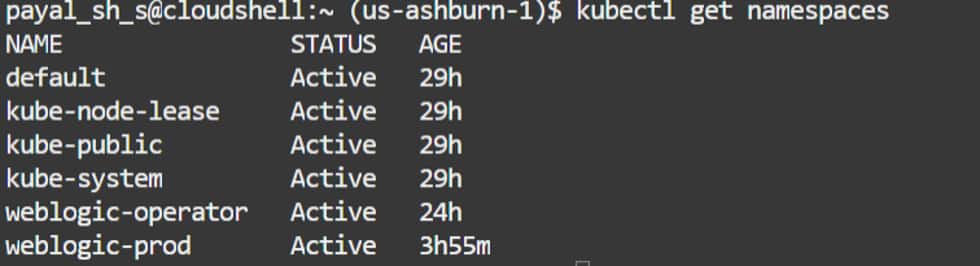
This deployment uses two namespaces. The weblogic-operator namespace hosts WKO and its supporting components, while weblogic-prod hosts the WebLogic domain resources, including the Domain and Cluster custom resources, server pods, services, and Secrets.
The weblogic-prod namespace is configured for WKO management using the namespace-selection strategy configured for the operator. In this environment, the weblogic-operator=enabled label is used.
Both connectivity commands should succeed before configuring WKT UI.
6. Verify or Install WebLogic Kubernetes Operator
WKO is the Kubernetes control plane for WebLogic domains. It watches WebLogic Domain and Cluster resources and reconciles the Kubernetes resources required to run the WebLogic environment.
This walkthrough uses WKO installed with Helm in the weblogic-operator namespace.
Verify the existing operator:
kubectl get pods -n weblogic-operatorConfirm that the operator and its supporting components are healthy.
The tested environment uses: WKO 4.3.12
If WKO is not already installed, install a currently supported version using Oracle’s documented Helm procedure and select the appropriate namespace-management and RBAC configuration.

Alternative: OKE-Managed WKO Add-on
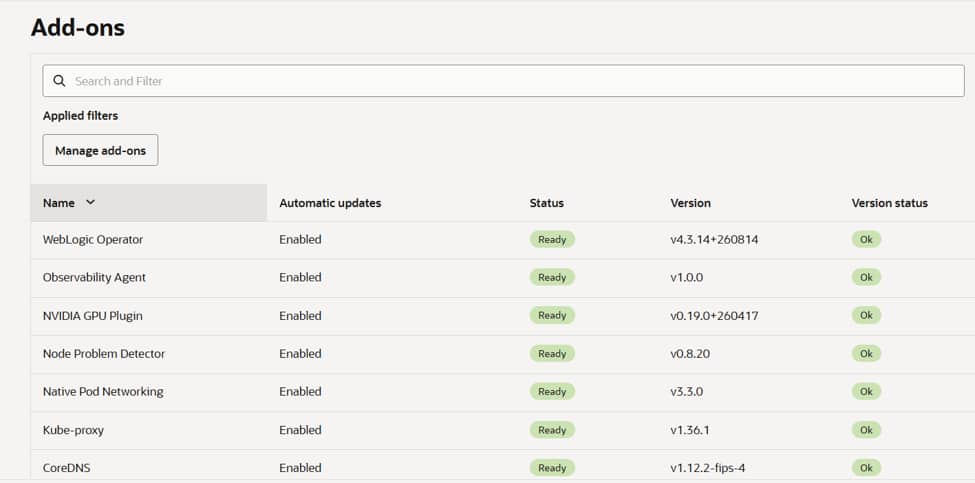
On an enhanced OKE cluster, WKO can alternatively be enabled as an OKE-managed cluster add-on.
The add-on provides another way to provision and lifecycle-manage WKO. It does not replace WKT UI or the WebLogic deployment workflow. Once WKO is running, WKT UI can still be used with the WDT model, images, Domain resources, and Cluster resources described in this guide.
The distinction is straightforward:
Helm installation: WKO is installed and lifecycle-managed separately.
OKE add-on: OKE provisions and lifecycle-manages WKO as a cluster add-on.
In both cases, the WebLogic deployment flow remains:
WKT UI → WDT/WIT → Images → Domain/Cluster resources → WKO → WebLogic Server
Below screenshot shows WebLogic Kubernetes Operator add-on enabled
Below screenshot shows WKO components provisioned by the add-on

The remainder of this walkthrough uses the Helm-installed WKO environment.
7. Create the WebLogic Domain Namespace
Create a dedicated namespace for the WebLogic domain:
kubectl create namespace weblogic-prodFor the WKO configuration used in this walkthrough, label the domain namespace so that the operator manages it:
kubectl label namespace weblogic-prod weblogic-operator=enabledVerify:
kubectl get namespace weblogic-prod --show-labels
The domain namespace must be managed by WKO. If your WKO installation uses a different namespace-selection strategy, use that configuration instead.
8. Prepare OCR and OCIR Access
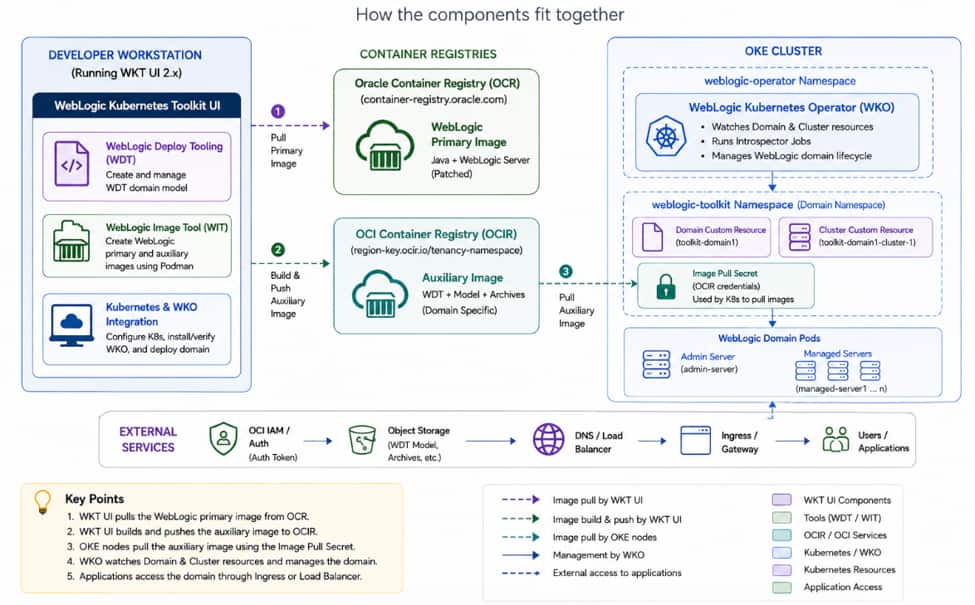
Two registry roles are used in this architecture.
Oracle Container Registry (OCR) provides the primary WebLogic image: container-registry.oracle.com
OCI Container Registry (OCIR) stores the auxiliary image: <region-key>.ocir.io/<tenancy-namespace>/middleware/sample-domain1-aux:1.0
Use an appropriately patched WebLogic image for production. For OCIR, use the appropriate OCI registry username and OCI Auth Token.
9. Create the WKT UI Project
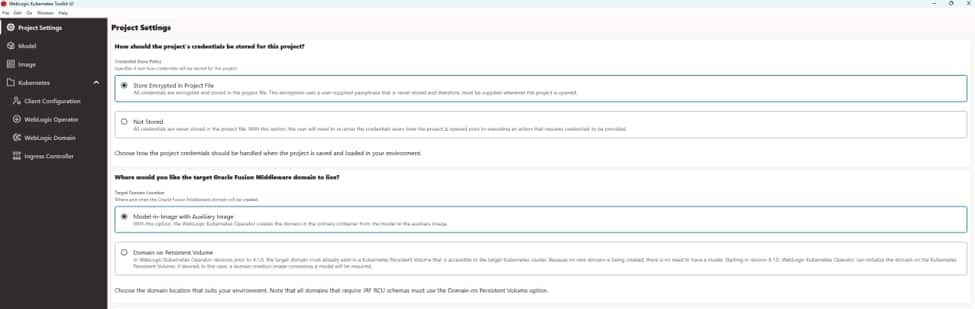
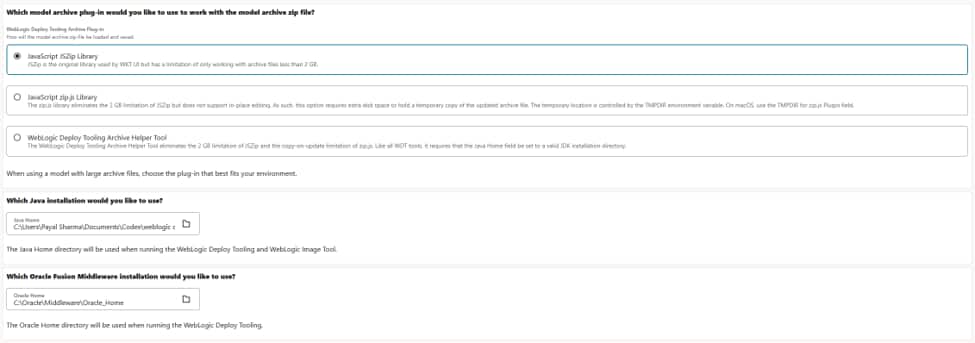
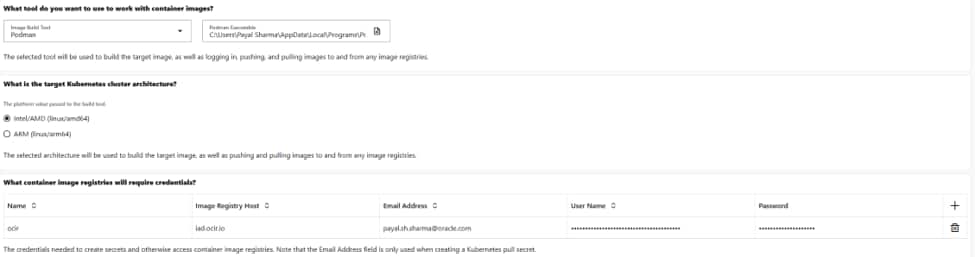
Open WKT UI and create a project. Configure:
| Setting | Value |
| Target Domain Location | Model-in-Image with Auxiliary Image |
| Java Home | Installed supported JDK |
| Oracle Home | Local WebLogic Oracle Home, if required |
| Image Build Tool | Podman or Docker |
| Image Builder Executable | Installed container-engine executable |
| Target Architecture | Architecture of OKE worker nodes |
If the workstation and OKE nodes use different CPU architectures, ensure that images are built for the target architecture.
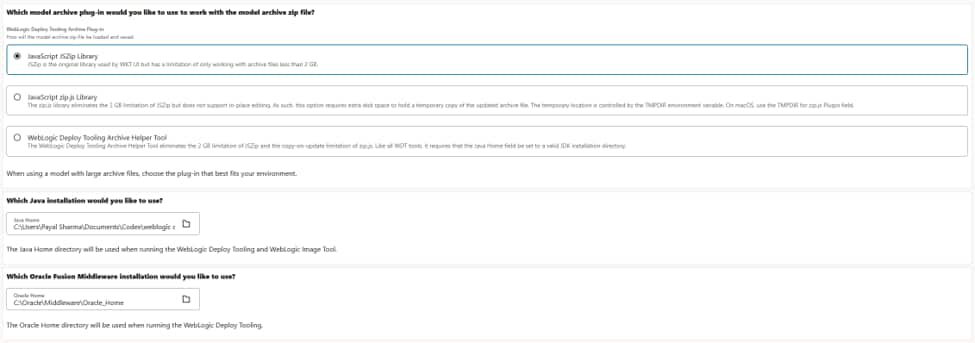
WKT UI Project Settings screenshots
10. Configure Registry Credentials
Create separate registry credentials in WKT UI.
For OCR:
Name: ocr
Registry: container-registry.oracle.com
For OCIR:
Name: ocir
Registry: <region-key>.ocir.io
Do not treat OCR and OCIR credentials as interchangeable.
11. Configure Kubernetes Connectivity in WKT UI
Navigate to Kubernetes > Client Configuration. Configure:
| Field | Value |
| Kubernetes Cluster Type | Oracle Container Engine for Kubernetes |
| Kubectl Executable | Installed kubectl |
| Helm Executable | Installed helm |
| Kubernetes Config File | OKE kubeconfig |
| Kubernetes Context | Target OKE context |
Select Verify Connectivity. Do not continue until verification succeeds.
WKT UI Kubernetes connectivity screenshots
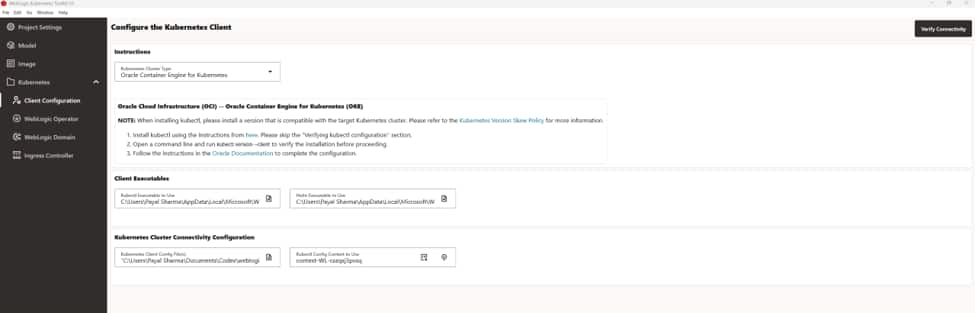

At this point, Kubernetes connectivity has been verified independently from both the command line and WKT UI.
12. Verify WKO from WKT UI
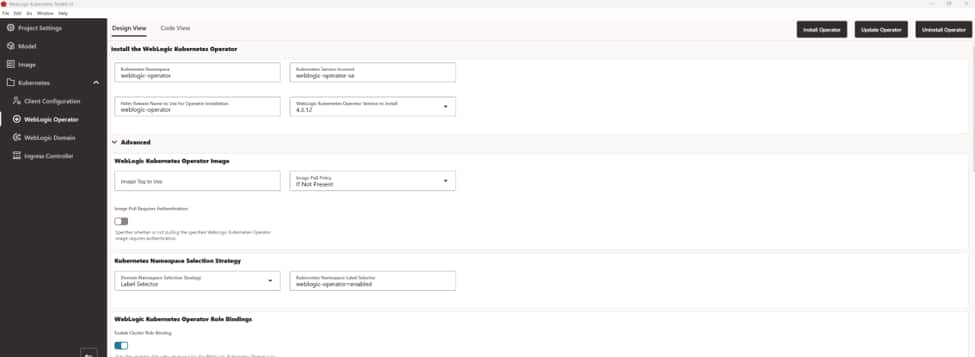
Navigate to Kubernetes > WebLogic Operator and verify that WKT UI can detect the operator on the target OKE cluster.
For the Helm-installed WKO used in this walkthrough, confirm:
- operator namespace,
- service account,
- Helm release,
- installed version,
- namespace-selection strategy.
Do not install another WKO instance from WKT UI when the cluster already has a working operator.
WKT UI WKO verification screenshots

13. Create the WDT Model
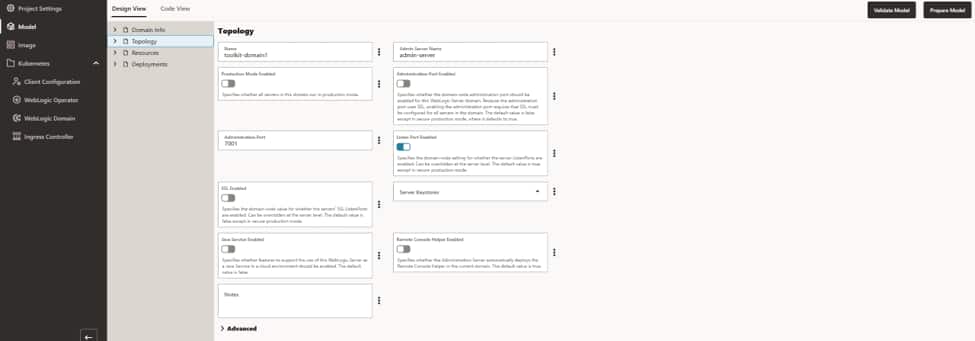
Navigate to Model. For this example:
Domain:          sample-domain1
Admin Server:    admin-server
Admin Port:      7001
Cluster:         cluster-1
Managed Server:  managed-server1
Managed Port:    8001
A WDT model can additionally describe JDBC resources, JMS resources, Work Managers, applications, libraries, security configuration, and other WebLogic resources.
The WDT model becomes the declarative source for the WebLogic domain configuration.
WDT Model screenshot
14. Configure WebLogic Credentials
Do not embed the WebLogic administrator credentials directly in the WDT model. Use the reserved WKO credential alias:
domainInfo:
  AdminUserName: '@@SECRET:__weblogic-credentials__:username@@'
  AdminPassword: '@@SECRET:__weblogic-credentials__:password@@'
__weblogic-credentials__ is a reserved WKO alias, not the Kubernetes Secret name. WKO resolves it through spec.webLogicCredentialsSecret.
Create the actual WebLogic administrator Secret in the domain namespace:
kubectl create secret generic sample-domain1-admin-credentials \
  --from-literal=username=weblogic \
  --from-literal=password='<weblogic-admin-password>' \
  -n weblogic-prod
Configure the Domain to reference sample-domain1-admin-credentials. The WDT model should continue to use __weblogic-credentials__, not the literal Kubernetes Secret name.
15. Validate and Prepare the Model
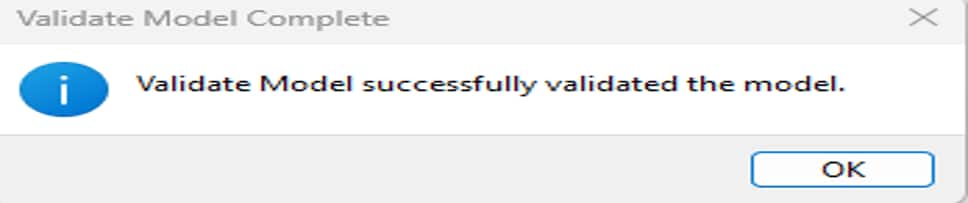
Select Validate Model and resolve any model errors before continuing.
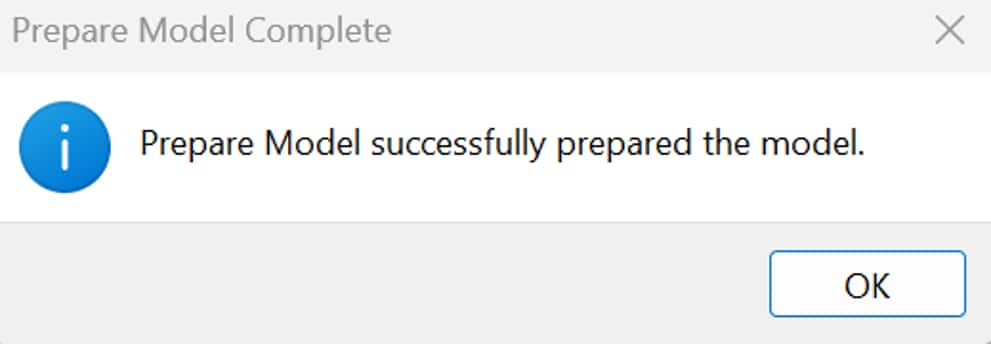
Then select Prepare Model. This prepares the WDT artifacts for Kubernetes and provides WKT UI with the model information needed later to configure the Domain and Cluster resources. Continue only after both operations succeed.
16. Configure the Primary Image
The primary image provides the JDK and WebLogic Server runtime.
Configure a WebLogic image compatible with your environment. For production, use an appropriately patched image according to Oracle’s current recommendations. For example:
container-registry.oracle.com/middleware/weblogic_cpu:<supported-tag>Domain-specific configuration remains outside the primary image.
17. Build the Auxiliary Image
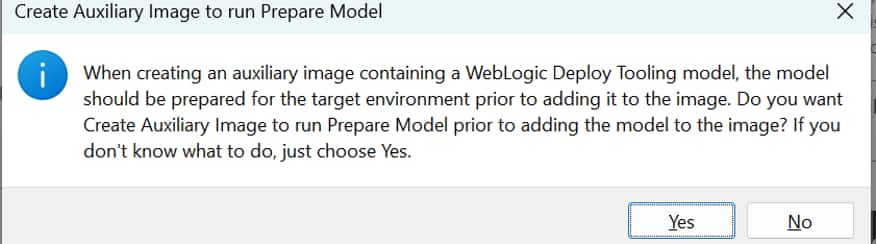
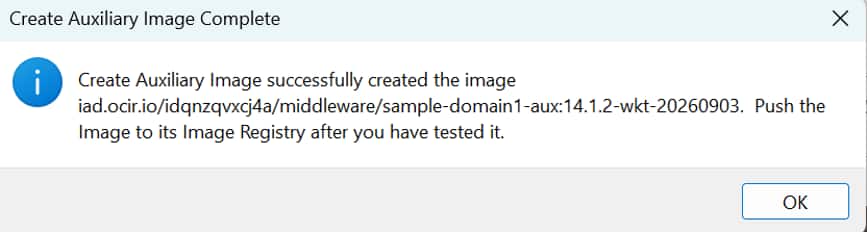
Navigate to Image > Auxiliary Image. Configure a versioned OCIR image:
<region-key>.ocir.io/<tenancy-namespace>/middleware/sample-domain1-aux:14.1.2-wkt-20260903Configure the OCIR push credentials and select Create Auxiliary Image.
WKT UI invokes WIT, which uses Podman or Docker to build the auxiliary image containing WDT, the model, variables, and application artifacts.
Auxiliary Image configuration/build screenshots
18. Push the Auxiliary Image to OCIR
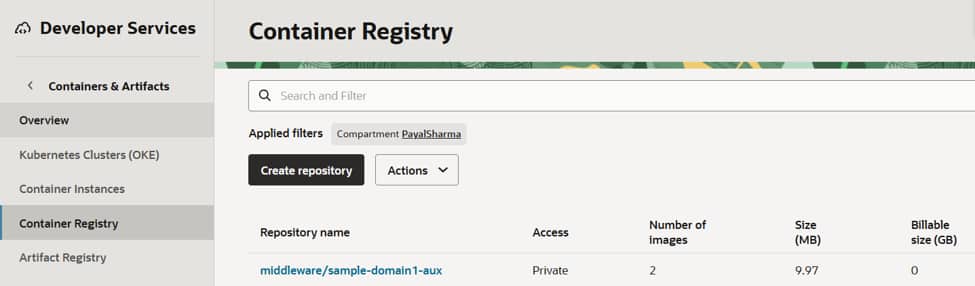
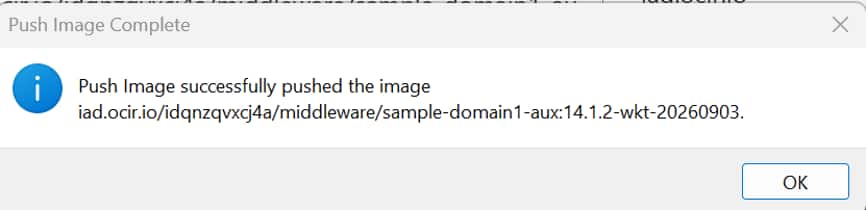
After the image builds successfully, select Push Auxiliary Image. Use a unique, versioned image tag for each auxiliary-image update rather than relying on latest. This makes configuration changes traceable and simplifies rollback.
Auxiliary-image push screenshots
19. Understand Auxiliary Image Paths
For sample-domain1, the custom auxiliary image stores the source WDT model and WDT installation under /u01/wdt:
Model source:
/u01/wdt/modelsWDT installation source:
/u01/wdt/weblogic-deployConfigure the auxiliary-image entry in the Domain to reference these source locations:
sourceModelHome: /u01/wdt/models
sourceWDTInstallHome: /u01/wdt/weblogic-deploy
These source paths must match the actual contents of the auxiliary image.
WKO copies the model and WDT installation from the configured source directories and makes them available in the WebLogic Server containers under the auxiliary-image runtime locations.
For this deployment, do not substitute the default auxiliary-image source locations because this image was built using the /u01/wdt source layout.
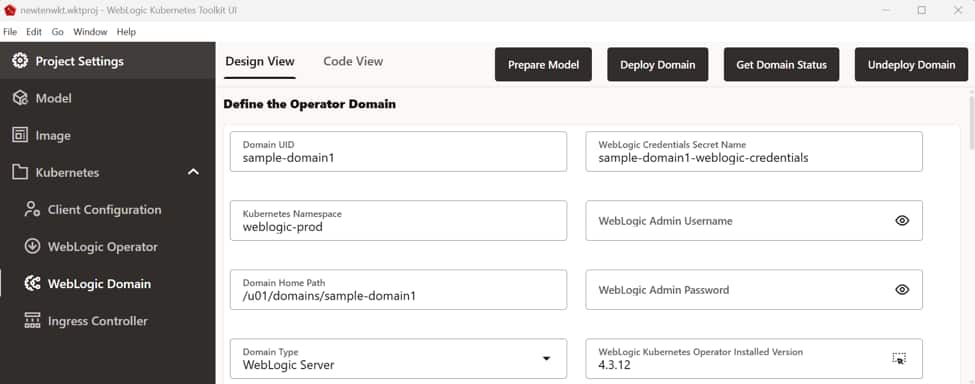
20. Configure the WebLogic Domain and Cluster
Navigate to Kubernetes > WebLogic Domain and configure the domain.
| Field | Value |
| Domain UID | sample-domain1 |
| Kubernetes Namespace | weblogic-prod |
| WebLogic Credentials Secret | sample-domain1-admin-credentials |
| Domain Home | /u01/domains/sample-domain1 |
| Domain Type | WebLogic Server |
| WKO Version | 4.3.12 |
| Primary Image | Selected WebLogic image |
| Pull Policy | If Not Present |
| Runtime Encryption Secret | sample-domain1-runtime-encryption-secret |
Configure the WebLogic cluster as sample-domain1-cluster-1 with the required replica count. The weblogic-operator namespace hosts WKO, while weblogic-prod hosts the WebLogic domain and its associated Kubernetes resources.
WebLogic Domain/Cluster configuration screenshots
21. Configure Runtime Encryption and Image Pull Credentials
Model-in-Image requires a runtime encryption Secret. Treat its value as sensitive and never expose it. Also configure the required image pull credentials.
There are two separate authentication boundaries:
- WKT UI/Podman uses registry credentials to push the auxiliary image.
- OKE worker nodes use Kubernetes imagePullSecrets to pull images at runtime.
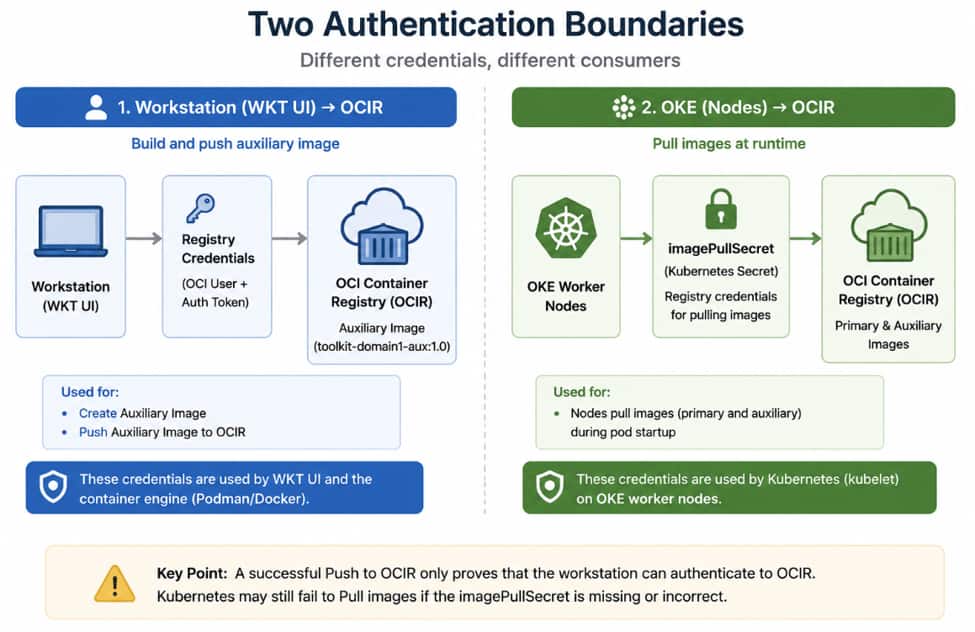
A successful Push Auxiliary Image proves that the workstation can authenticate to OCIR. It does not prove that OKE worker nodes can pull the image.
Ensure the domain namespace contains the required pull credentials for the primary WebLogic image in OCR and the auxiliary image in OCIR when authentication is required. Missing or incorrect pull credentials can result in:
ErrImagePull
ImagePullBackOff
22. Deploy the Domain
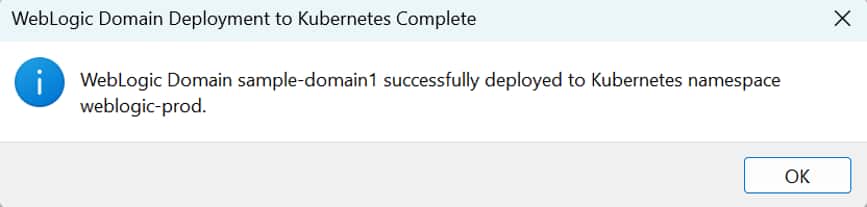
Review the WKT UI configuration and select Deploy Domain. WKT UI creates the required Kubernetes resources, including the Domain, Cluster, Secrets, and applicable ConfigMaps.
However, Deploy Domain completing does not mean that WebLogic Server has finished starting.
WKO must still detect and reconcile the resources.
Deploy Domain screenshot
23. Understand What Happens After Deploy Domain
After the Kubernetes resources are created, WKO, running in the weblogic-operator namespace, detects the desired state and begins reconciliation. The WebLogic domain resources remain in weblogic-prod.
For Model-in-Image, WKO runs introspection and uses WDT to process the model supplied through the auxiliary image. After successful introspection, WKO starts the Administration Server and Managed Servers.
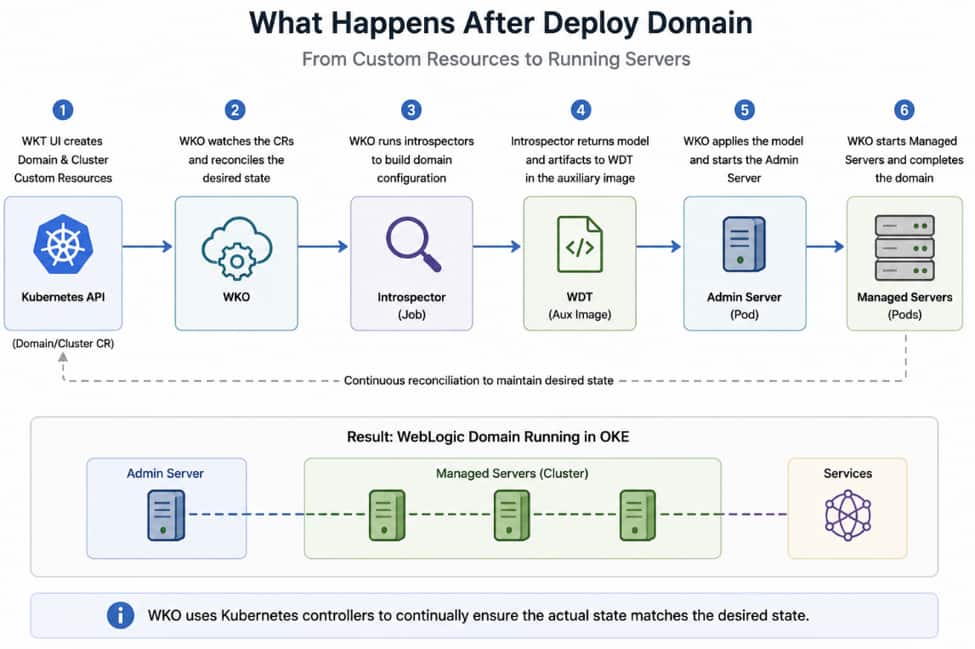
This explains why the following state is possible:
Deploy Domain:    Successful
Domain resource:  Exists
Admin Server:     Not running yet
A failure at this stage may be related to image retrieval, WKO reconciliation, introspection, Secrets, auxiliary-image configuration, or WDT processing.
During this deployment, the auxiliary-image WDT configuration required correction before introspection completed successfully. The domain subsequently reached Available=True and Completed=True, with both the Administration Server and Managed Server pods running.
24. Verify Domain Status and Introspection
Select Get Domain Status in WKT UI, then verify the Kubernetes resources:
kubectl --kubeconfig "<kubeconfig-path>" get \
  domain,cluster,pods,svc \
  -n weblogic-prod -o wide
A successful deployment should eventually show:
sample-domain1-admin-server       1/1   Running
sample-domain1-managed-server1    1/1   Running
Inspect the Domain:
kubectl describe domain sample-domain1 -n weblogic-prodIf the servers do not start, inspect the introspector:
kubectl logs -n weblogic-prod \
  job/sample-domain1-introspector \
  --all-containers=true \
  --tail=200
Domain, Cluster, pod, service, and introspector screenshots



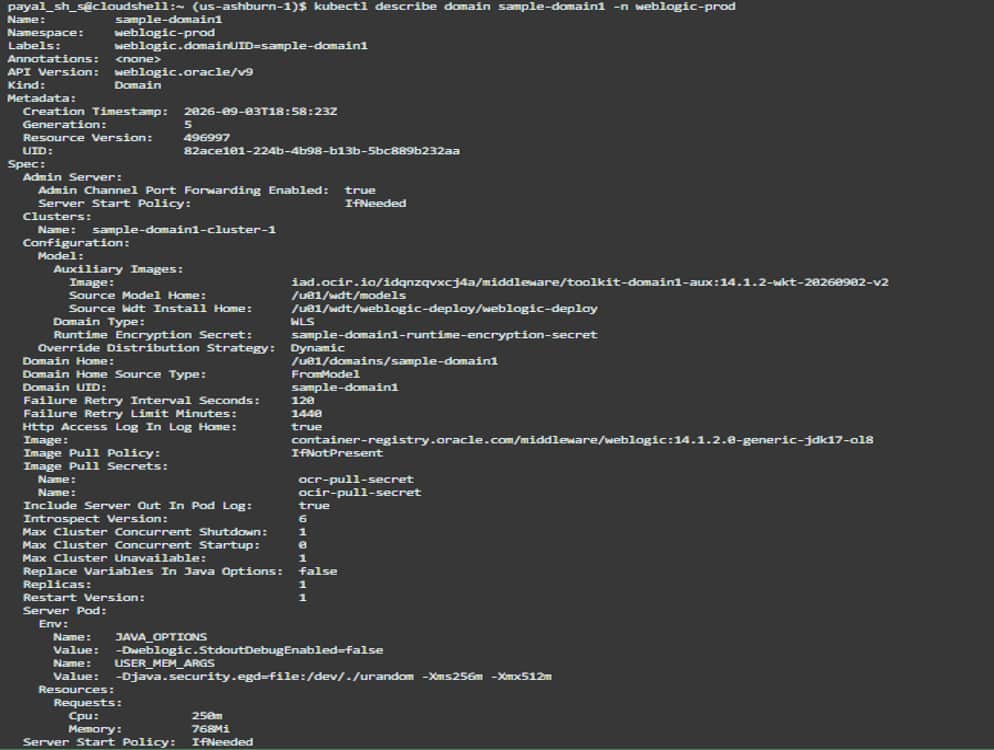
These checks provide evidence that the Kubernetes and WKO portions of the deployment completed successfully.
25. Troubleshoot Common Failure Points
If the Domain exists but WebLogic is not running, check four areas first.
Image Pull Failures For:
ErrImagePull
ImagePullBackOff
verify the registry host, image tag, Kubernetes pull Secret, registry credentials, and namespace.
Auxiliary-Image Paths
If introspection cannot locate the model or WDT installation, verify that the configured source paths match the custom auxiliary image:
sourceModelHome:
/u01/wdt/modelssourceWDTInstallHome:
/u01/wdt/weblogic-deployFor sample-domain1, these are the source locations inside the auxiliary image. Do not replace them with paths from a different auxiliary-image layout.
Credential Alias
Verify:
domainInfo:
  AdminUserName: '@@SECRET:__weblogic-credentials__:username@@'
  AdminPassword: '@@SECRET:__weblogic-credentials__:password@@'
Do not replace __weblogic-credentials__ with the literal Kubernetes Secret name.
Image Compatibility
Verify compatibility among:
- WebLogic Server,
- JDK,
- WKO,
- Kubernetes,
- CPU architecture,
- required patches.
Follow the deployment lifecycle when troubleshooting rather than changing unrelated WKT UI fields.
26. Validate the Running WebLogic Domain
Once the pods are running, validate the WebLogic domain itself.
For initial validation, port-forward the Administration Server:
kubectl port-forward -n weblogic-prod \
  service/sample-domain1-admin-server \
  7001:7001
Keep the terminal open and connect WebLogic Remote Console to:
http://localhost:7001Verify that:
- admin-server is running,
- managed-server1 is running,
- cluster-1 is available,
- expected applications and resources are present.
Note: Run kubectl port-forward on the same workstation as WebLogic Remote Console. If it runs in OCI Cloud Shell, localhost refers to the Cloud Shell environment rather than your workstation.
WebLogic Remote Console screenshots
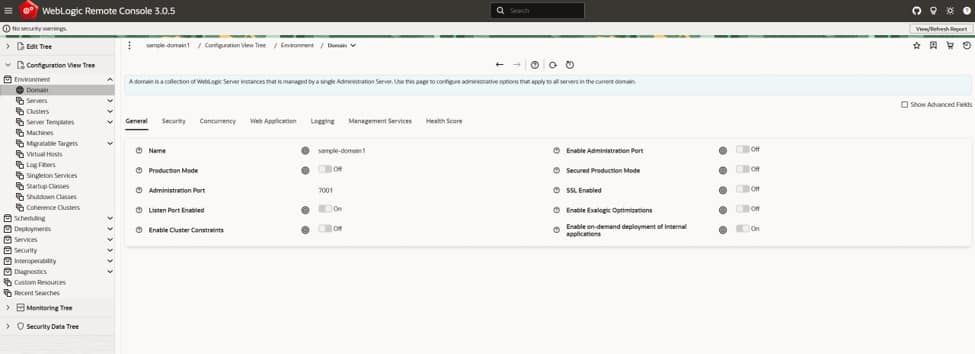
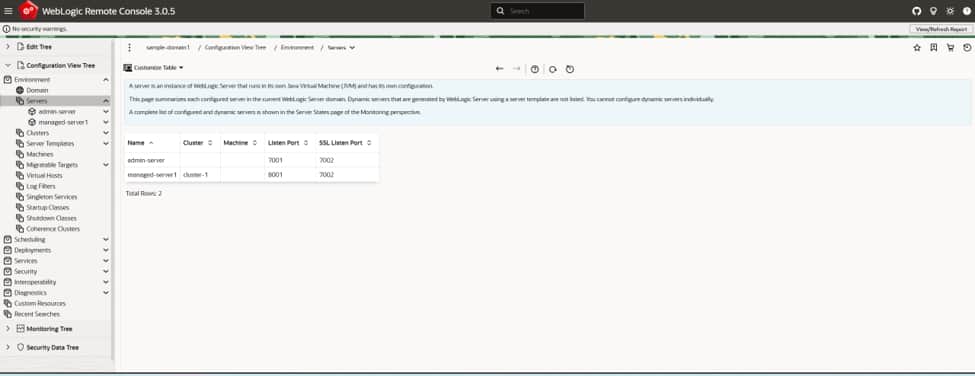
This validation confirms that WebLogic itself is operational, not merely that Kubernetes resources were created.
27. Configure External Access
Port forwarding is useful for validation but is not a production ingress architecture.
For external application access, use an appropriate Kubernetes ingress controller or OCI load-balancing architecture with TLS, DNS, network restrictions, and appropriate OCI/Kubernetes security controls.
Keep management access restricted and avoid publicly exposing the Administration Server unless there is a specific requirement and appropriate protection.
28. Production Readiness and Final Validation
A running WebLogic domain is not automatically production-ready.
Before production, review:
- WebLogic and JDK image patching,
- multiple Managed Servers and high availability,
- worker-node distribution,
- pod affinity and anti-affinity,
- PodDisruptionBudgets,
- TLS,
- network security,
- RBAC,
- Secret management,
- image scanning,
- logging, metrics, and alerting,
- persistent-storage requirements,
- backup and recovery,
- auxiliary-image versioning,
- CI/CD or GitOps,
- upgrade and rollback procedures.
Treat auxiliary images as versioned configuration artifacts so each deployment can be traced to a specific model version.
Before completing the deployment, verify:
- OKE connectivity and WKO health.
- WKO manages the target namespace.
- WKT UI connectivity succeeds.
- WDT Validate Model and Prepare Model succeed.
- Primary and auxiliary images are available and compatible.
- Image pull Secrets and WebLogic credentials work.
- Runtime encryption is configured.
- Domain and Cluster resources exist.
- Introspection completes successfully.
- Administration and Managed Server pods are running.
- The application is reachable.
Conclusion
WKT UI simplifies WebLogic deployment on Kubernetes by coordinating WDT, WIT, container tooling, Kubernetes resources, and WKO. Understanding the responsibility of each component makes the deployment easier to validate and troubleshoot.
This walkthrough uses WKO installed with Helm. On enhanced OKE clusters, WKO can alternatively be provisioned and lifecycle-managed as an OKE cluster add-on. The add-on changes how WKO itself is managed, while the WebLogic deployment continues to use the same underlying WKO, WDT, image, Domain, and Cluster concepts.
With these components correctly configured, Model-in-Image with Auxiliary Image provides a structured approach for deploying and managing WebLogic domains on OKE.
References
- WebLogic Kubernetes Toolkit UI Documentation
- WebLogic Kubernetes Toolkit UI Quick Start
- WebLogic Kubernetes Operator Documentation
- WebLogic Kubernetes Operator Prerequisites
- Model-in-Image
- Auxiliary Images
- Oracle Kubernetes Engine Documentation
- Oracle Container Registry
- Configuring Cluster Add-ons in OKE