
In 2019, Oracle and Microsoft announced their partnership to enhance cloud interoperability by connecting Oracle Cloud Infrastructure (OCI) and Microsoft Azure clouds through a private, secure, low-latency, and high-throughput network: The OCI-Azure interconnect. This partnership enables enterprises who have many on-premises, mission-critical applications that utilize both Oracle and Microsoft technologies to easily migrate to public clouds. This one-of-a-kind connected cloud alliance built for our mutual customers and complementary cloud services opens the door to swift migration of on-premises applications. Customers can then use a broader range of tools, while integrating their implementations into a single unified enterprise cloud solution.
Enterprises set up multiple cloud networks for different workloads and applications running on public cloud for security reason, and to logically segregate IT workloads based on departments inside their organizations. To meet such requirements, enterprises often configure hub-and-spoke network architecture in the public cloud.
A frequently asked question is how to connect different Azure virtual networks with different OCI virtual cloud networks (VCNs) using one interconnection between OCI and Azure. This blog post describes how you can configure different OCI VCNs within an OCI region and connect securely to the different peering virtual networks (vNET) within an Azure cloud region without compromising latency, security, and throughput.
Solution summary
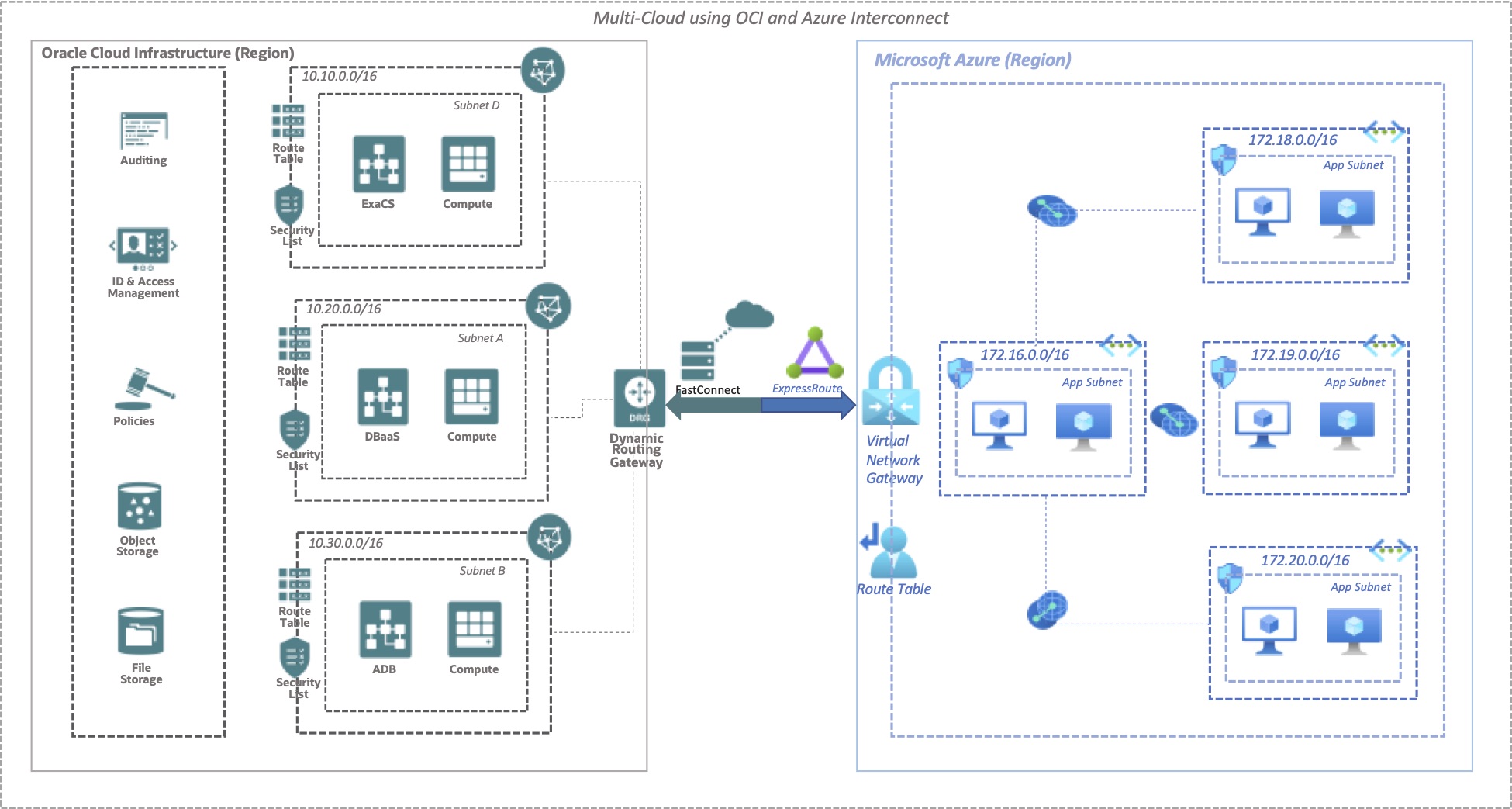
Oracle recently announced a new feature for dynamic routing gateways (DRGs) that allows a DRG to associate with multiple VCNs in OCI. We describe the association of multiple of OCI’s VCNs with OCI’s DRG and the routing of network traffic from Oracle Cloud to Azure Cloud.
Similarly, Azure provides peering capability between different Azure vNETs—another building block for this solution. This capability makes routing of the network traffic from different Azure vNETs to different OCI VCNs possible through a private interconnect that employs OCI’s FastConnect and Azure’s ExpressRoute services.
Here, we use the DRG attached to a VCN and FastConnect. You can attach other VCNs within the same OCI region to that single DRG. We can create a route table for the subnets of the VCN and add DRG route rules using the Azure vNET CIDR block as the destination CIDR block. Then open the security ports in the security list associated with the subnet in OCI to the Azure vNET CIDRs to enable network communication between the two clouds.
Similarly, you can configure peering between the Azure vNET already used for interconnect and other Azure vNETs within the same Azure cloud region. Set up appropriate routes in the Azure route table to open to corresponding CIDR blocks of OCI VCNs. Open the security ports for the OCI VCNs CIDR block in the Azure Network Security Group. This configuration allows network communication between your OCI VCNs and Azure vNETs.
The following diagram illustrates the architecture of the solution.
Steps to configure and extend the network between Azure and OCI
The scope of this article is confined to the steps for associating the DRG with different VCNs on OCI, the peering of Azure virtual networks, and the provision for network traffic transit between OCI and Azure through the OCI-Azure interconnect.
For the end-to-end interconnect configuration between OCI and Microsoft Azure, see this step-by-step guide.
Step 1: Create and associate OCI VCN with DRG
-
Create one or more new VCN with non-overlapping CIDR block in OCI.
-
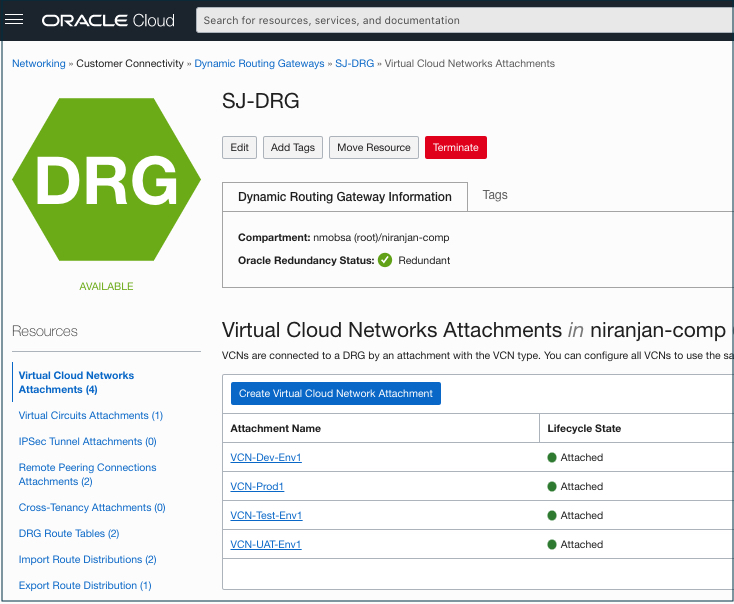
Create a VCN attachment in the existing DRG being used for OCI-Azure Interconnect for each OCI VCN.
-
Create the required subnets, route tables, and security list in each newly created VCN. Attach the route table and security list with the subnet.
The following screenshot shows the attachment of VCN with a DRG in OCI.
Step 2: Create DRG route rules
-
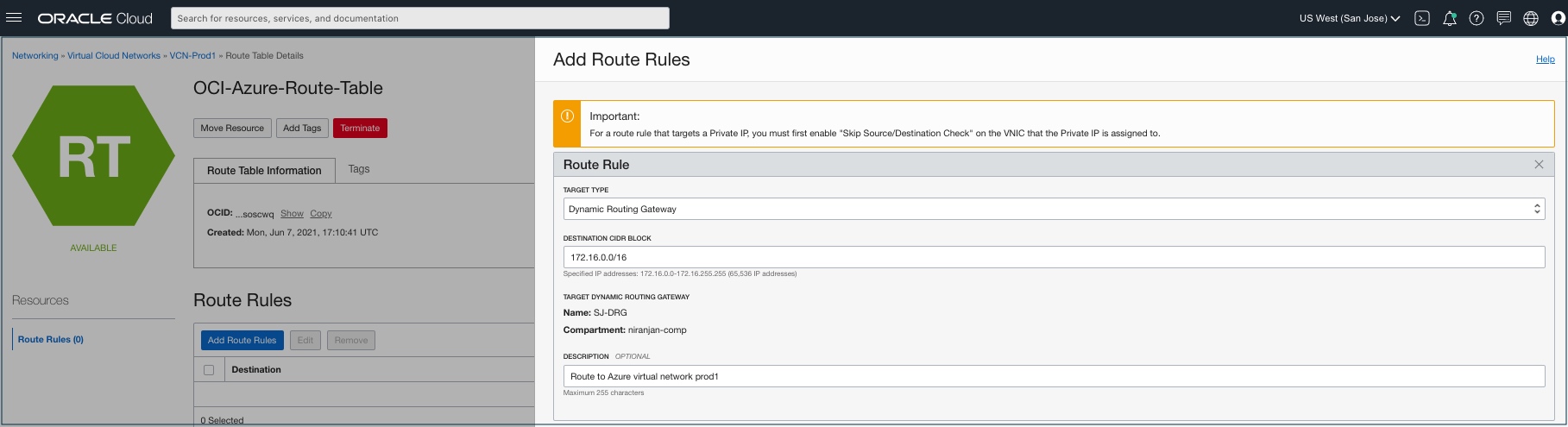
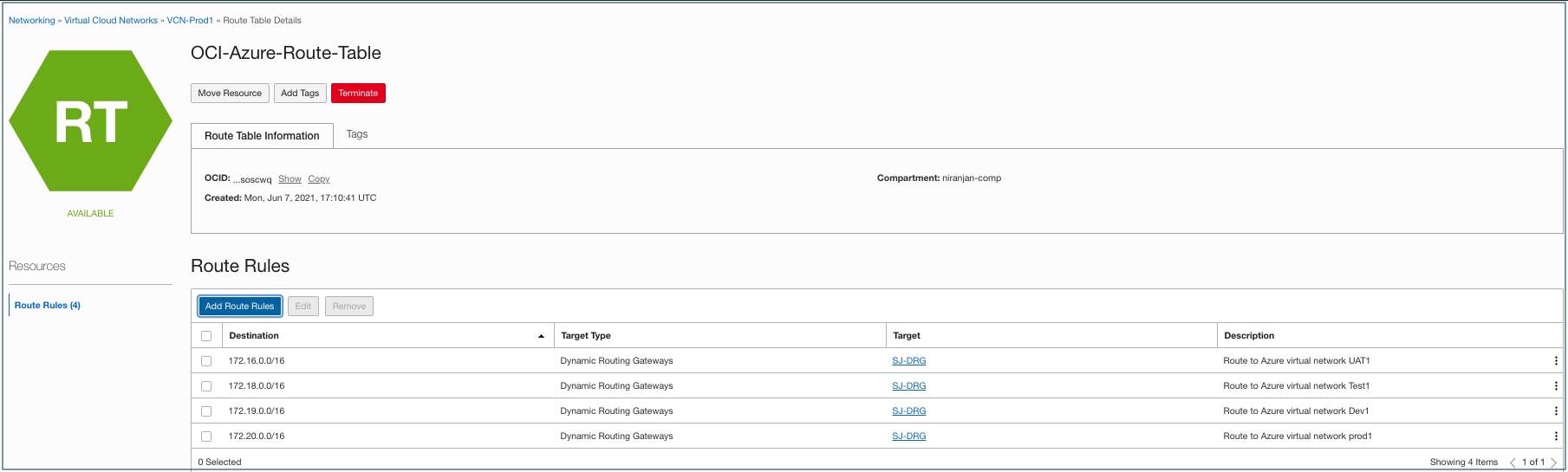
Create a DRG route rule in the route table created in the previous step for each VCN.
-
Add the Azure vNETs CIDR block as the destination CIDR block address.
In our example, the following screenshots show all the Azure vNET CIDR as the destination CIDR block addresses. If you plan to allow network communication between OCI VCNs attached to the DRG, you might need to add DRG route rules for the OCI VCN CIDR blocks as the destination addresses.
Step 3: Open security ports in the security list
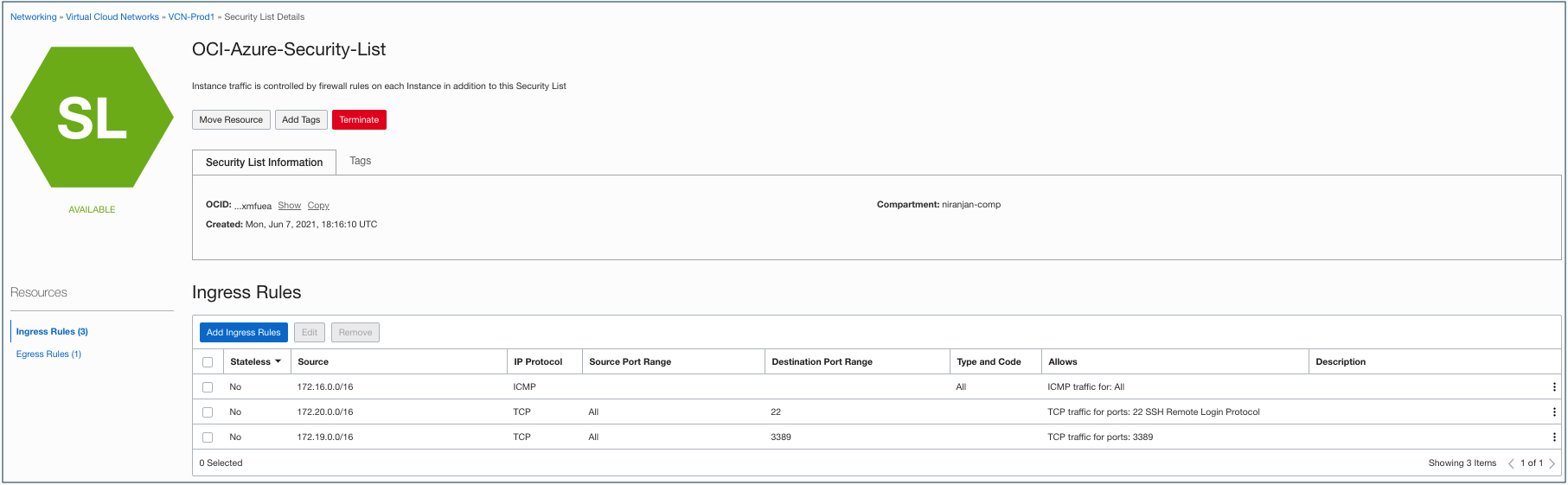
To allow incoming and outgoing network traffic from Azure vNETs, open the appropriate security ports in the security list in OCI created in step 1.
The following screenshot shows the security ports as opened for one of the VCN subnets to allow all Azure vNET CIDR blocks for incoming and outgoing network traffic. If you plan to allow network communication between OCI VCNs attached to the DRG, you might need to open the security ports for the OCI VCN CIDR blocks.
Step 4: Create peering between Azure vNETs
-
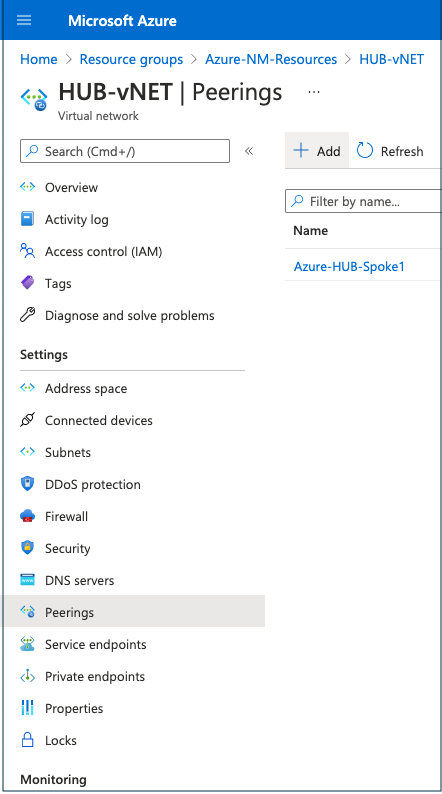
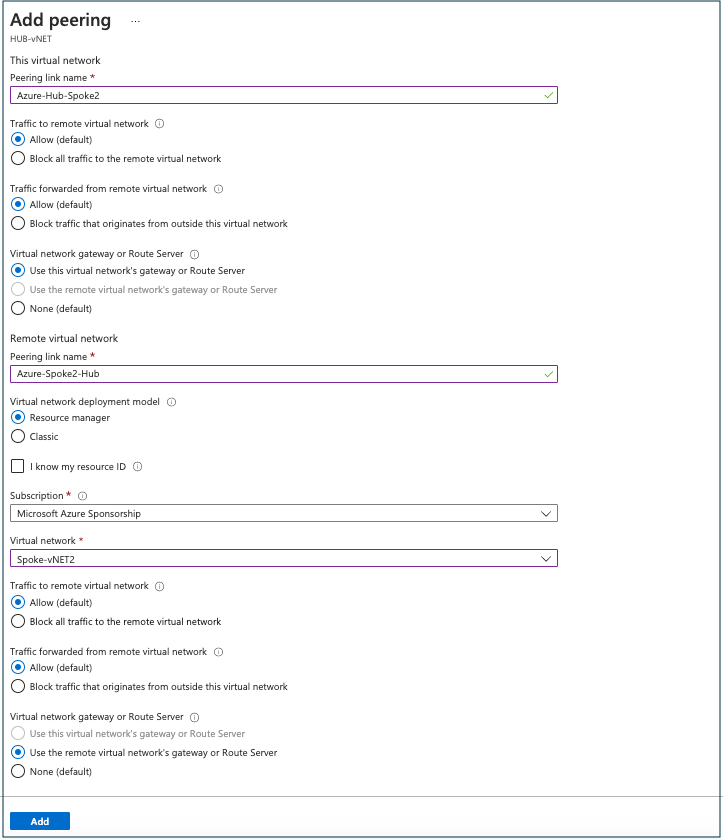
Create peering between Azure vNETs using the Azure portal. The following screenshots show an example for peering between two Azure vNETs.
-
Select the Azure vNET that’s already connected to Azure vNET gateway and configured for OCI-Azure interconnect. To add peering, click Peerings. Provide the inputs and select the appropriate options as required to complete the peering between Azure vNETs.
-
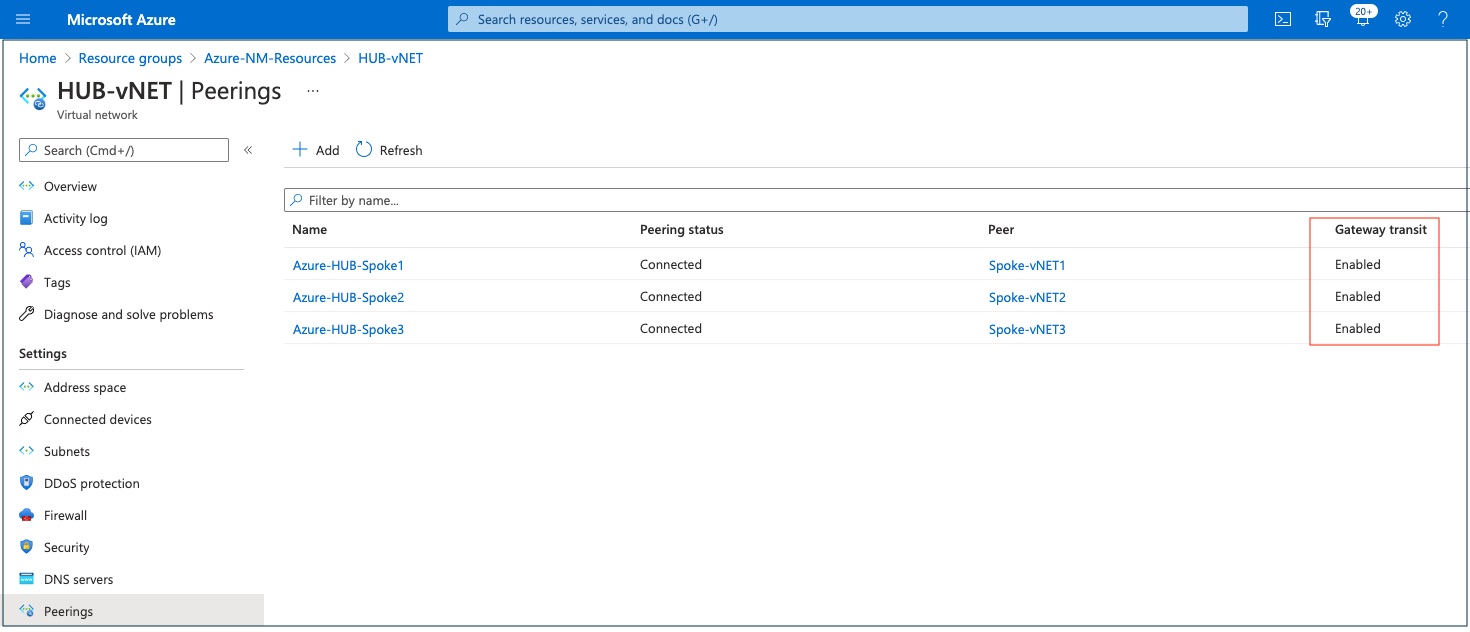
Verify the Azure vNET peering status by clicking HUB-vNET (the vNET used to configure interconnect) and then Peerings. Ensure that the gateway transit is enabled for all peered vNETs.
The following screenshot shows the peering status of all the vNETs peered with hub vNET.
Step 5: Configure Azure route table and network security group
-
Configure the Azure route table and network security groups associated with Azure virtual network gateway.
-
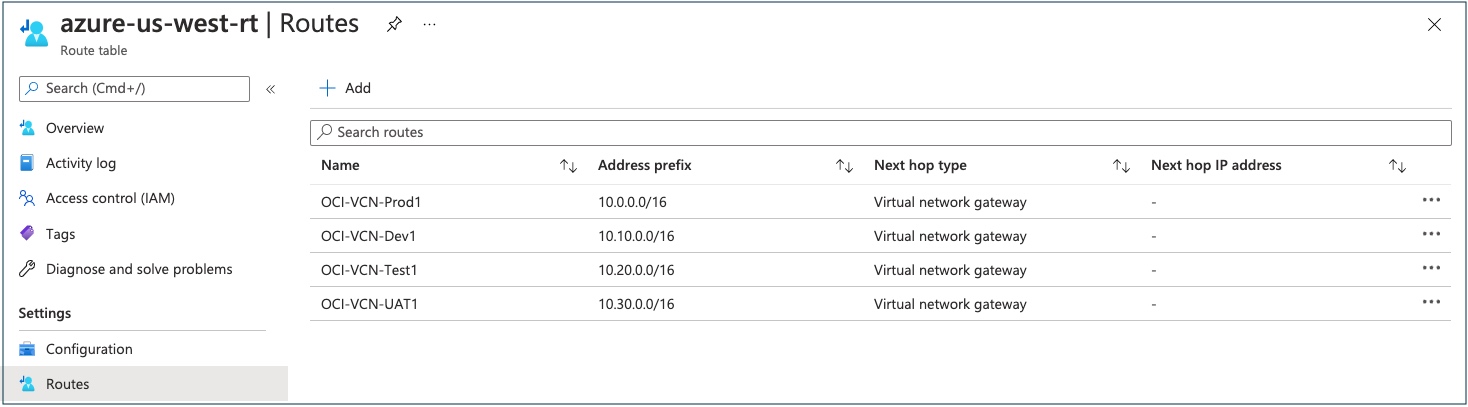
Add the route rules for the OCI VCN CIDR block. Open the ports for OCI VCN CIDR block in the Azure network security group.
The following screenshot shows an example of an Azure route table and the route rules for OCI VCN.
Conclusion
This solution illustrates how you can reduce the cost associated to connecting multiple OCI VCNs to multiple Azure vNETs by reducing the number of FastConnect ports and ExpressRoute ports. It applies the advanced OCI’s DRG feature that allows multiple OCI VCNs to be associated to a single DRG and routed to peered Azure vNETS on the other end. This solution also reduces the management overhead by simplifying network connectivity between OCI and Azure, especially where you need to connect multiple Microsoft Azure vNETs to multiple Oracle Cloud Infrastructure virtual cloud networks to make a seamless multicloud setup.
Want to continue to explore? To learn more about this strategic offering from Oracle and Microsoft, check out the following resources: