
Overview
Working with multidimensional data in Essbase often requires users to write complex MDX queries to extract meaningful insights. For many business users, this creates a dependency on technical expertise, making even simple data analysis time-consuming and less accessible.
Getting these queries right can be challenging and error-prone, especially for users who are not familiar with MDX syntax. That’s where Essbase AI Query comes in—a powerful feature that simplifies data interaction by allowing users to ask questions in plain English and automatically generating the required queries and reports.
What is Essbase AI Query?
Essbase AI Query is a feature designed to make data exploration faster and more intuitive. It enables users to interact with Essbase using natural language, eliminating the need to manually write MDX queries bridging the gap between business intent and analytical execution.
How it works:
- Ask: Submit a query in plain English (e.g., “Show me sales by region for Q1”).
- Interpret: The AI interprets the intent and context of your question.
- Generate: It automatically writes the precise MDX query required.
- Deliver: You receive structured, report-ready data instantly.
Getting Started: Prerequisites
To enable Essbase AI Query in your environment, ensure the following setup is in place:
- Deployment: Essbase version 21.8.1 (or later) deployed via OCI Marketplace.
- AI Infrastructure: An instance of Oracle AI Database 26ai must be provisioned.
- Connectivity: A Service Administrator must establish a formal connection between Essbase and the Oracle 26ai Database.
Steps:
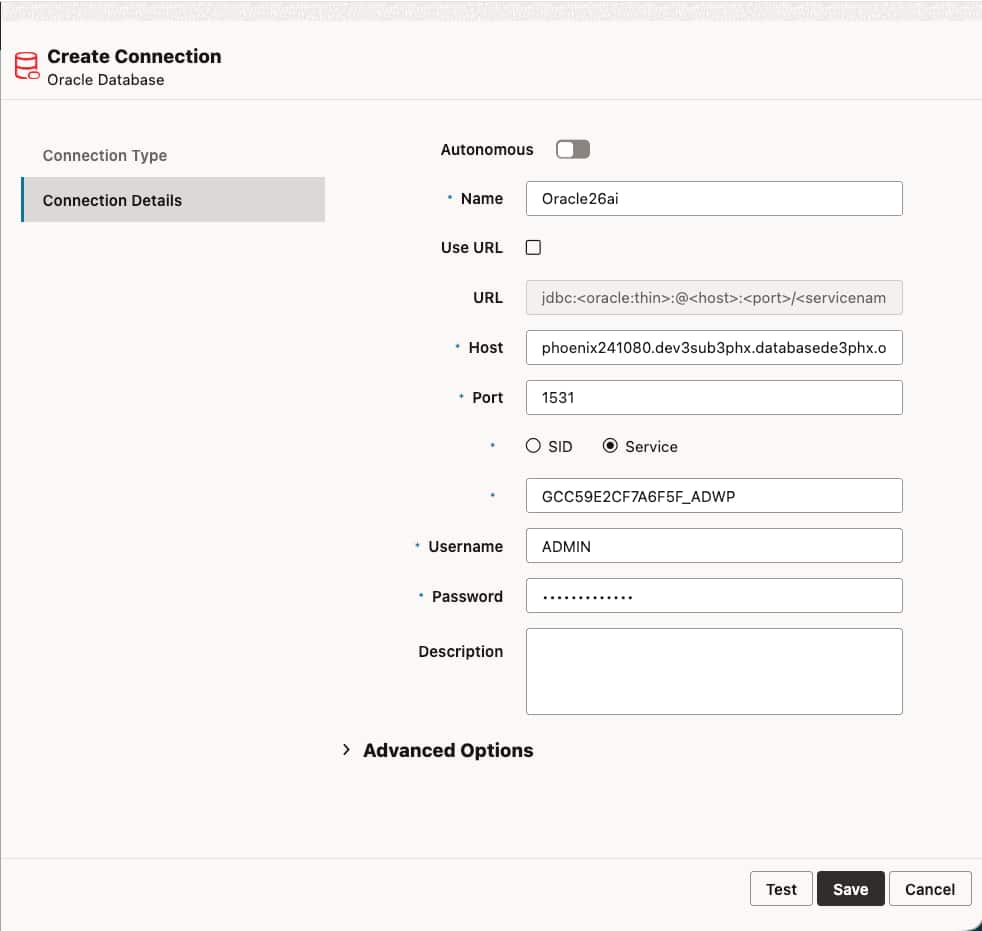
- Create a Database Connection
A Service Administrator must establish a connection to the Oracle 26ai Database.
- Create an AI Connection
An AI connection defines how Essbase communicates with the AI service, including the model and configuration. Using the previously created database connection, the Service Administrator should configure an AI connection.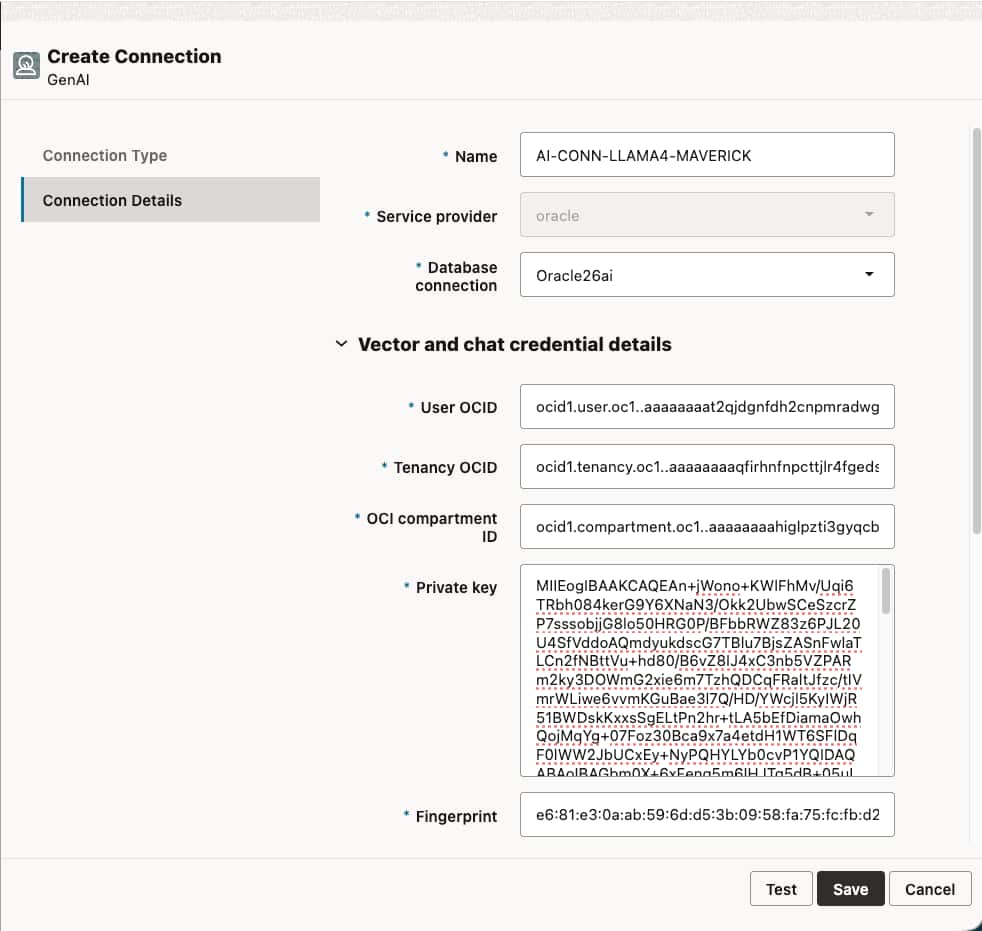
- Associate the AI Connection with an Essbase Application
An Application Manager must link the AI connection to the appropriate Essbase application.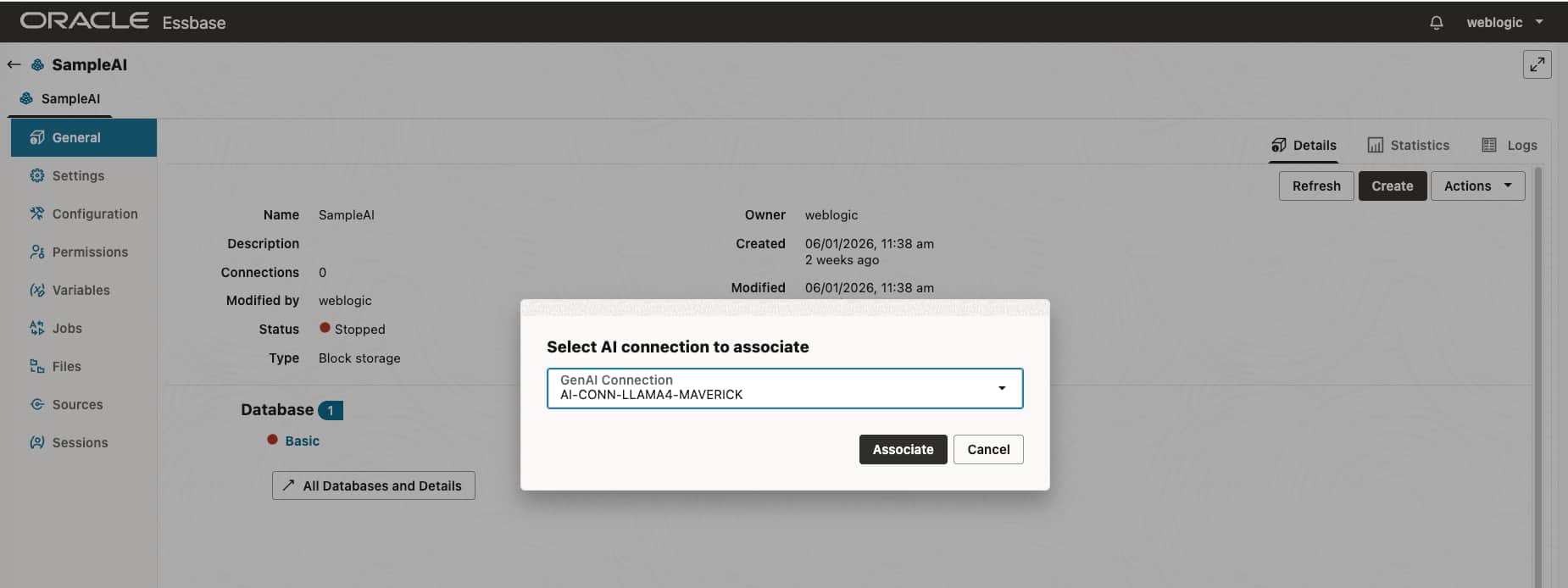
- Vectorize the Essbase Cube
Vectorizing the cube outline enables the AI to semantically interpret the data model, allowing accurate mapping of natural language queries to dimensions and members.
Executing this step requires at least Database Manager privileges.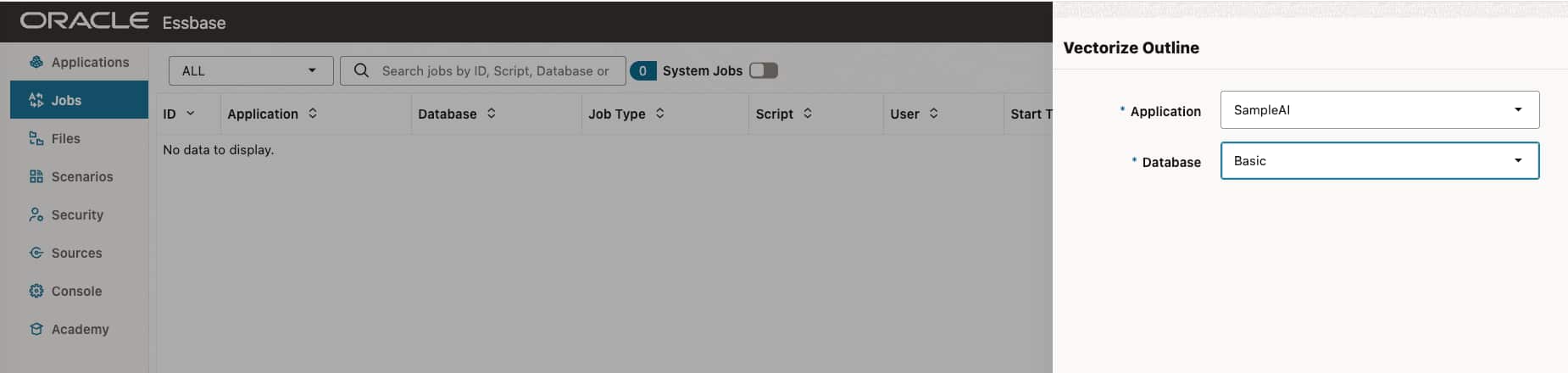
- For detailed steps you can follow the documentation here: Documentation
Who can use Essbase AI Query?
Once the job completes successfully, users with at least the Database Manager role can start interacting with the chatbot.
To access Essbase AI Query:
- Open your application and select the desired database
- Click on Analyze Data
- Navigate to Reports
- Select AI Query to launch the AI Query panel
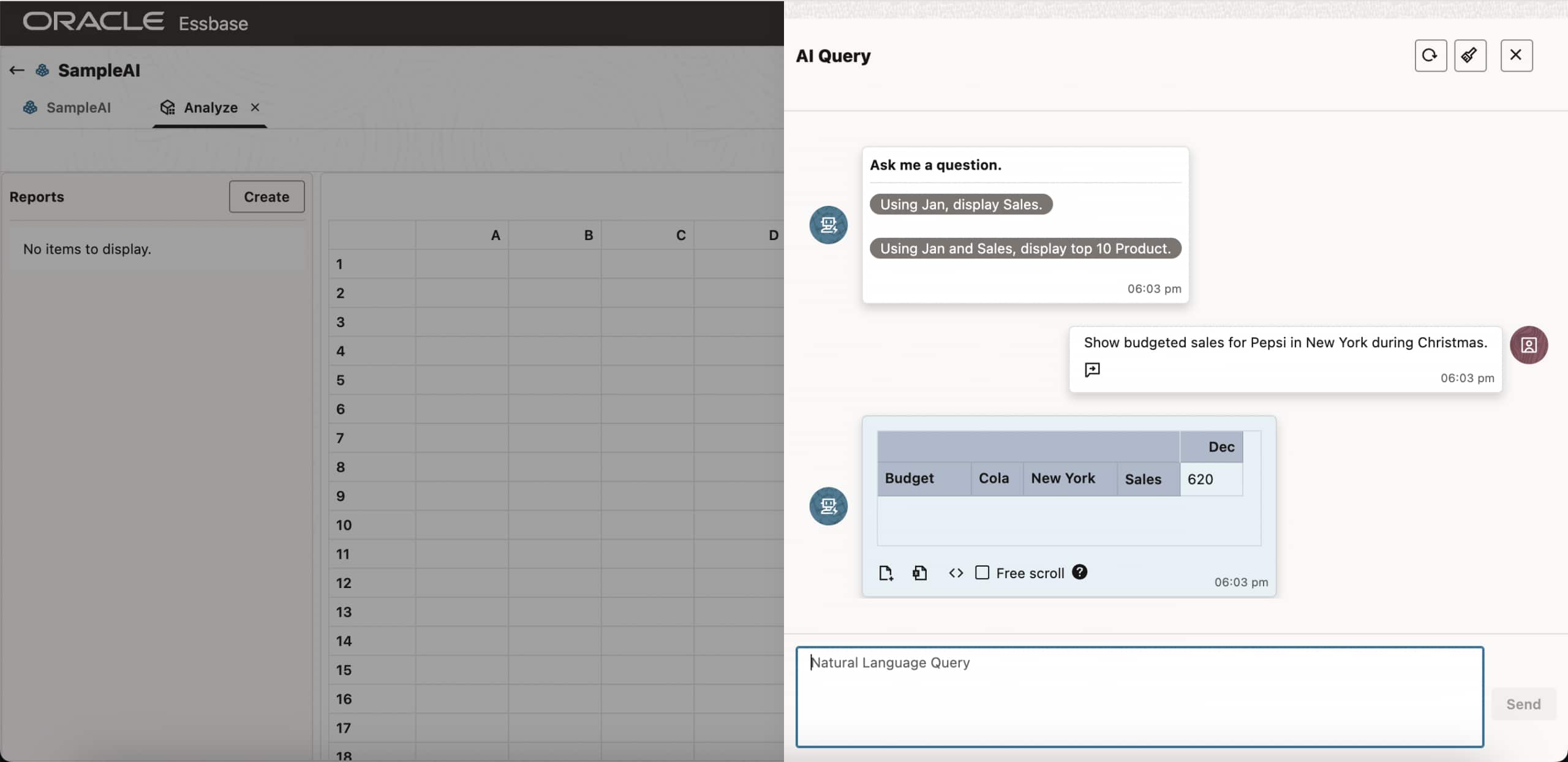
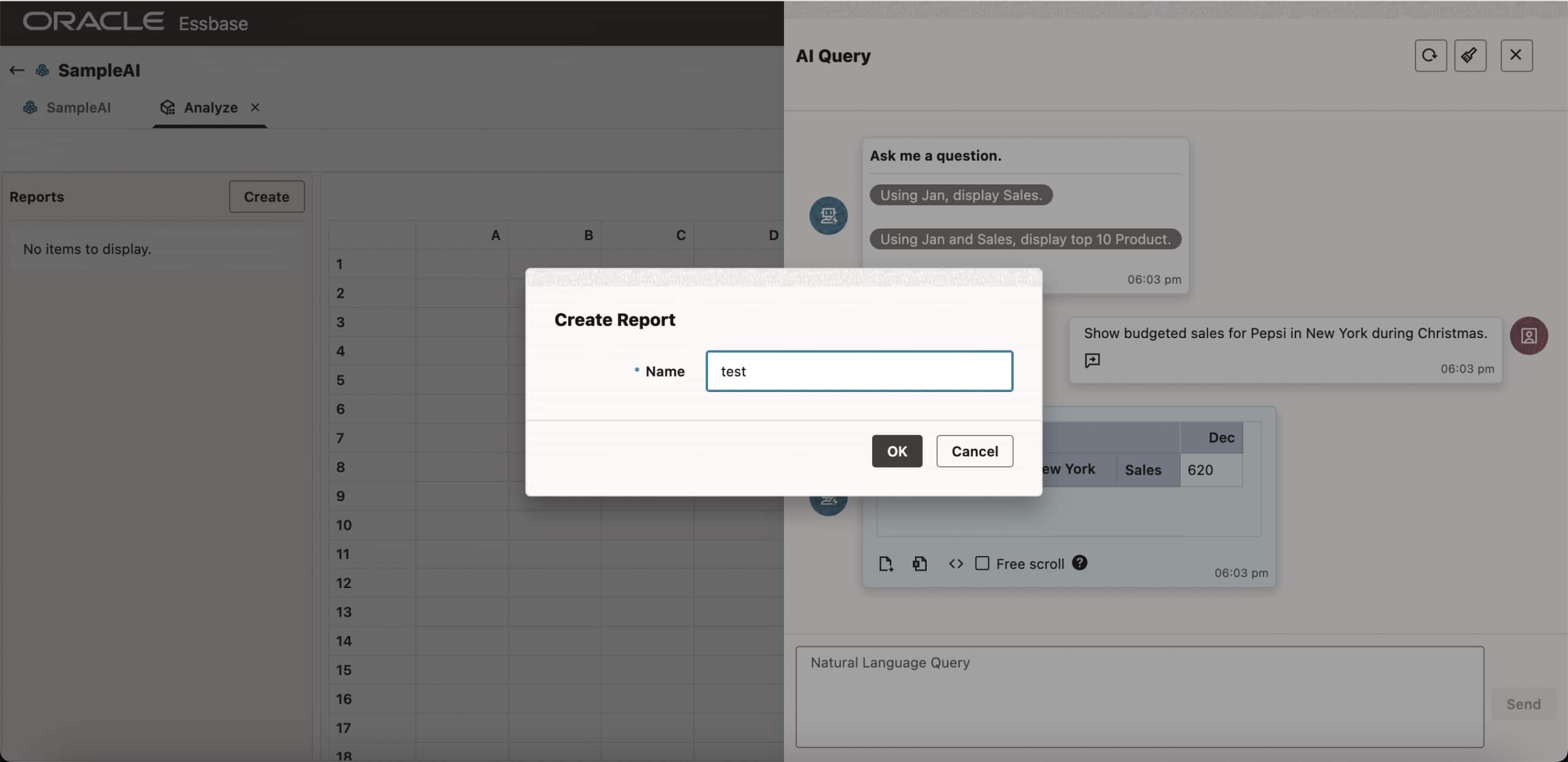
In this example, the user asks, “Show budgeted sales for Pepsi in New York during Christmas.” AI Query interprets the request and maps it to the relevant members—such as New York, Cola, Budget, December, and Sales.
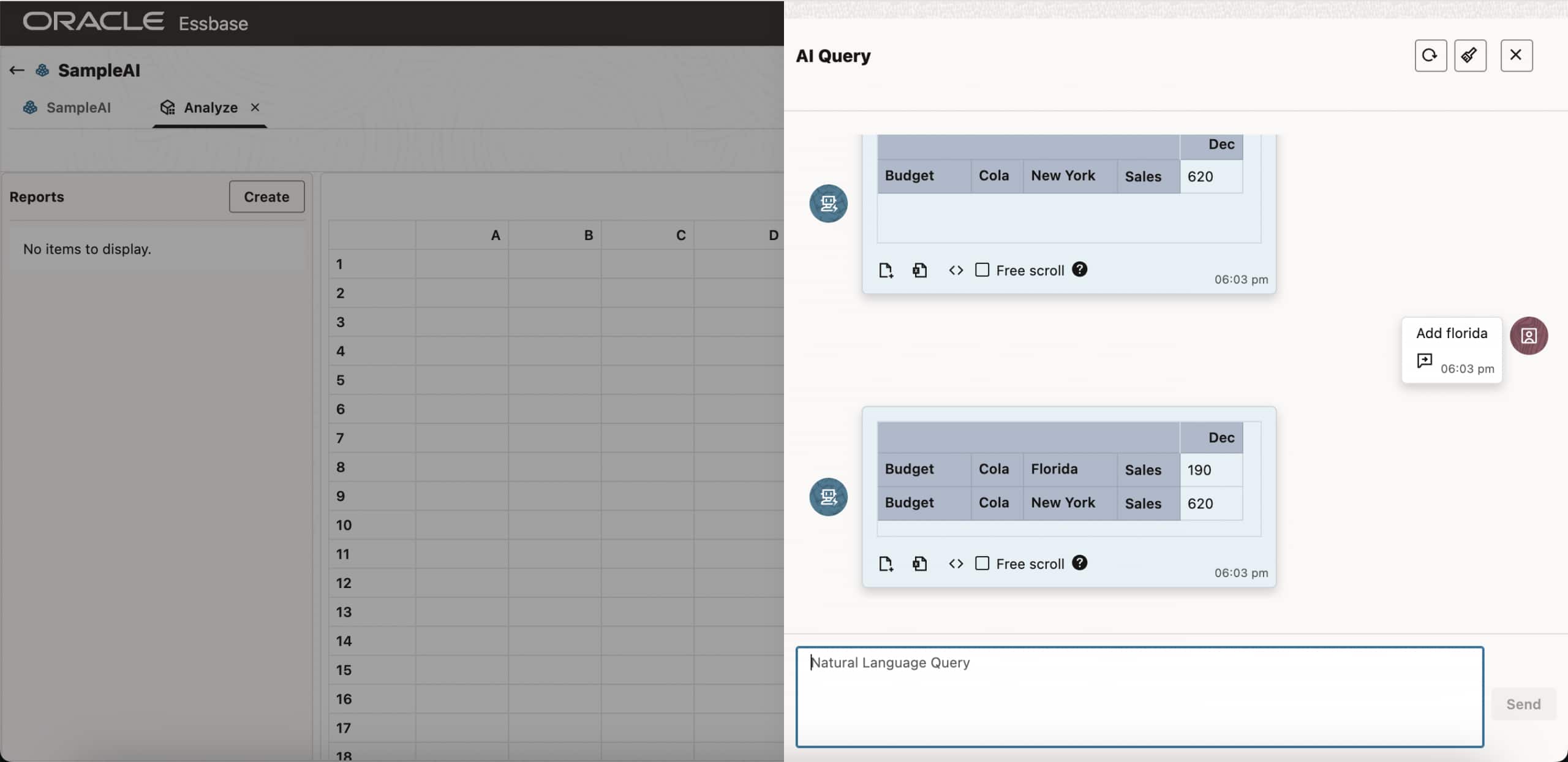
Users can further refine the query interactively. For example, they may include Florida to compare performance across regions.
Additional Options in the AI Query Panel
When you open the AI Query panel, you can choose from system-generated (auto-populated) starter questions.
AI Query features:
- Show MDX query – Displays the generated MDX query.
- Copy MDX query – Copies the generated MDX to the clipboard.
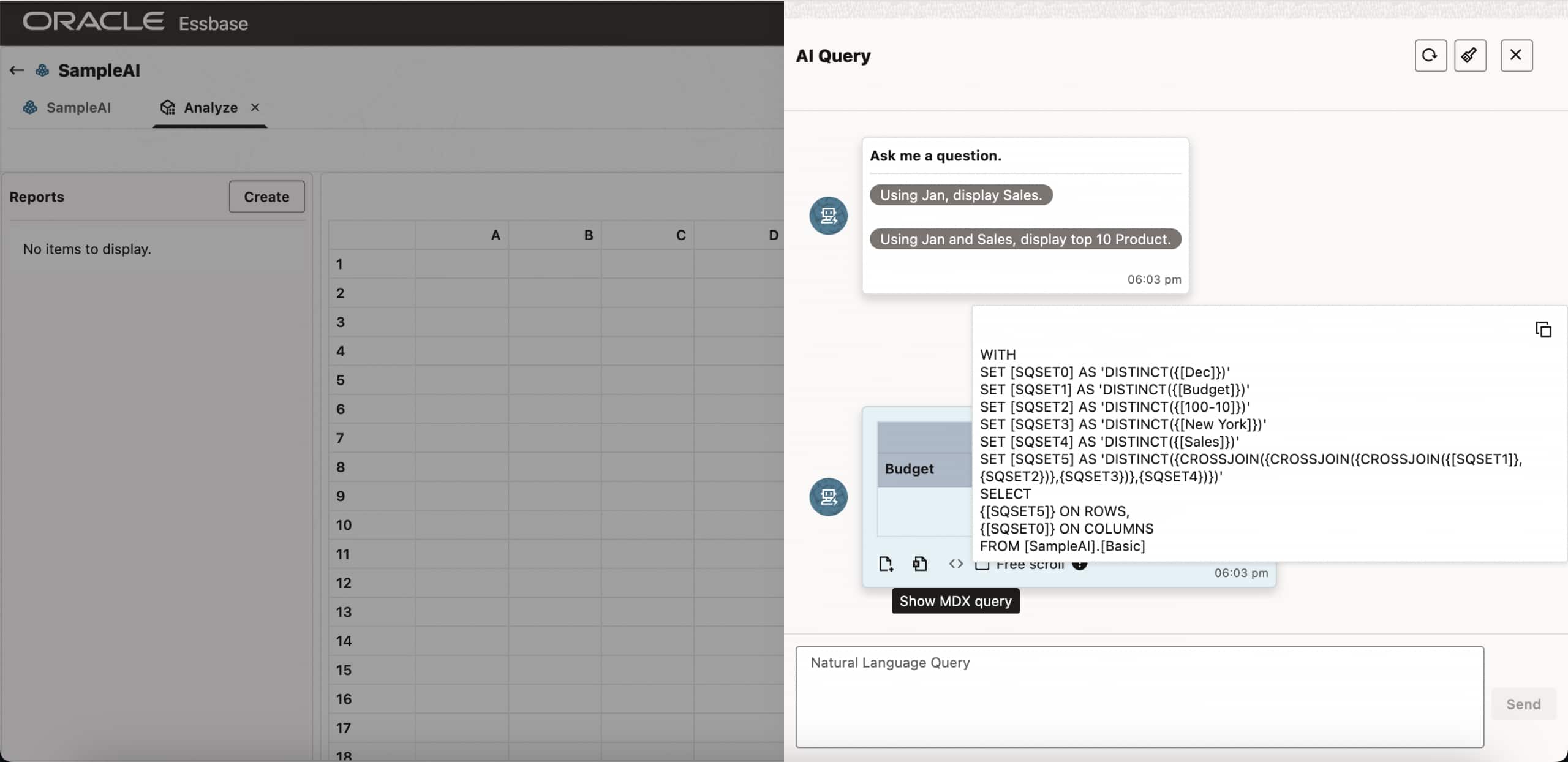
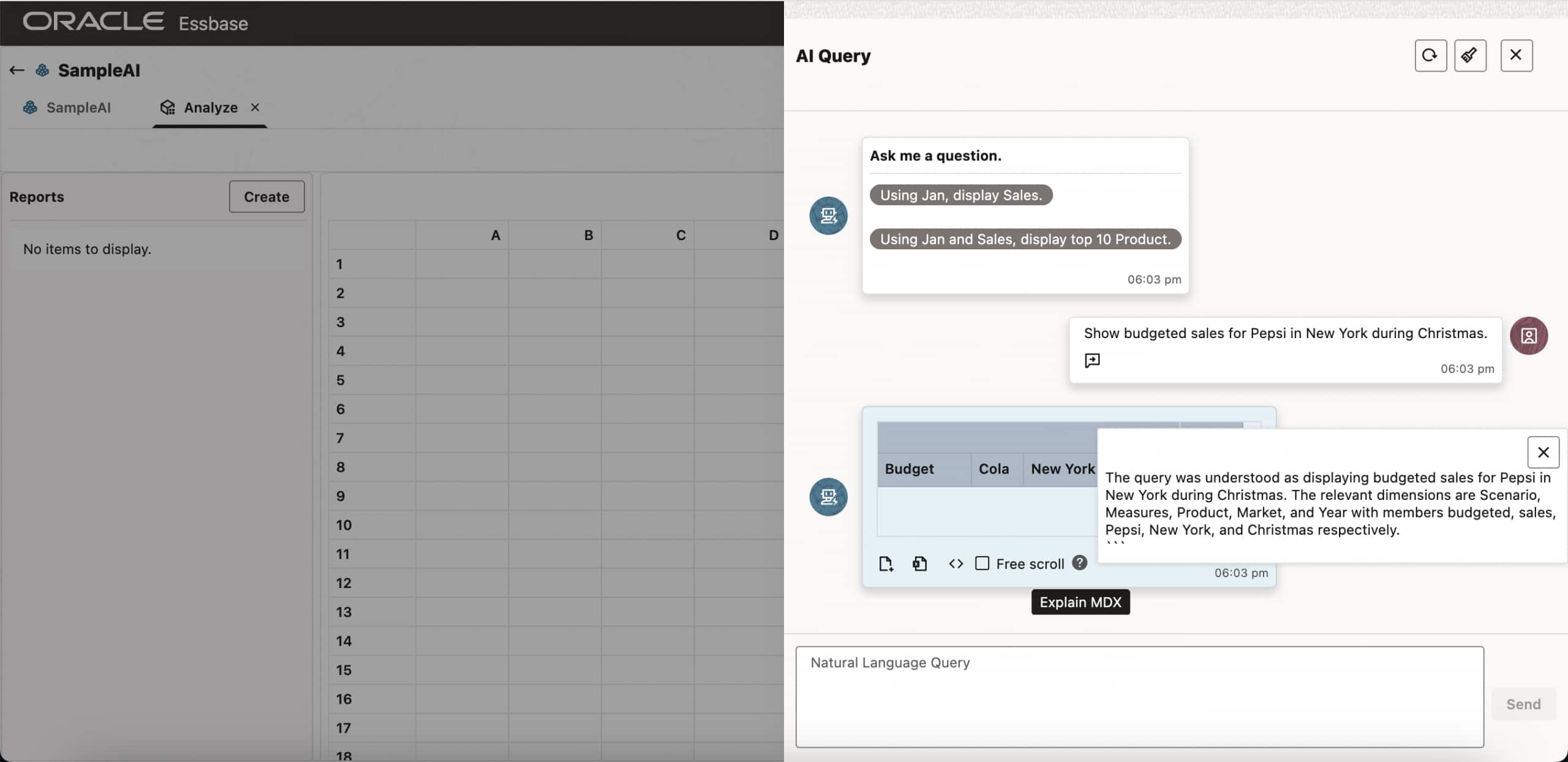
- Explain MDX – Provides a natural language explanation of the MDX query, helping users understand its structure and intent.
- Analyze query in Smart View – Opens the report in Oracle Smart View for further analysis in Excel.
- Create and Save Reports – Reports can be created directly from the chat and opened in the spreadsheet for further analysis. You can also use the action menu next to each report to edit or delete it as needed.
- Clear conversation – Resets the session and clears the conversation history.
Best Practices
- Always validate AI-generated queries before making business decisions.
- Ensure outlines are up to date before vectorization.
- Periodically re-vectorize after structural changes.
- Use clear, specific natural language queries for best results.
Deactivation of Essbase AI Query Feature
AI Query can be deactivated for an application by deleting its associated connection.
If you dissociate the AI connection, Essbase deletes the vector tables and related AI data it created during outline vectorization (in the Oracle AI Database schema).
Get started
Essbase AI Query is available now in Essbase 21.8.1.0.1 on OCI Marketplace. To learn more, see the Essbase AI Query Documentation.
If you’re deploying Essbase on OCI for the first time, start with the Essbase Stack Deployment guide for end-to-end instructions on getting up and running.