

In Part 1 we explored why APEXlang exists. This post gets practical: how to export, edit, validate, generate, and import APEX applications using APEXlang, across APEX Builder, the SQL Developer VS Code extension, and the SQLcl CLI.
APEXlang Series
- Part 1: Introducing APEXlang: The Future of Generative Application Development with Oracle APEX
- Part 2: APEXlang in Practice: Export, Edit, Validate, and Import Oracle APEX Applications ← You are here
In Part 1, we explored how APEXlang enables generative application development by representing Oracle APEX applications as structured, AI-friendly application specifications. In this post, we will move from the vision to the workflow and walk through how to export, edit, generate, validate, and import APEX applications using APEXlang.
APEXlang supports a modern, source-driven development workflow that allows you to move seamlessly between your local environment and an APEX workspace.
A typical development workflow looks like this:
- Export your application in APEXlang format
- Open the project locally in VS Code
- Modify the application using structured ‘.apx’ files
- Import the updated application back into your workspace
This approach enables faster iteration, better control over changes, and easier collaboration across teams.
Export the Application from the Builder
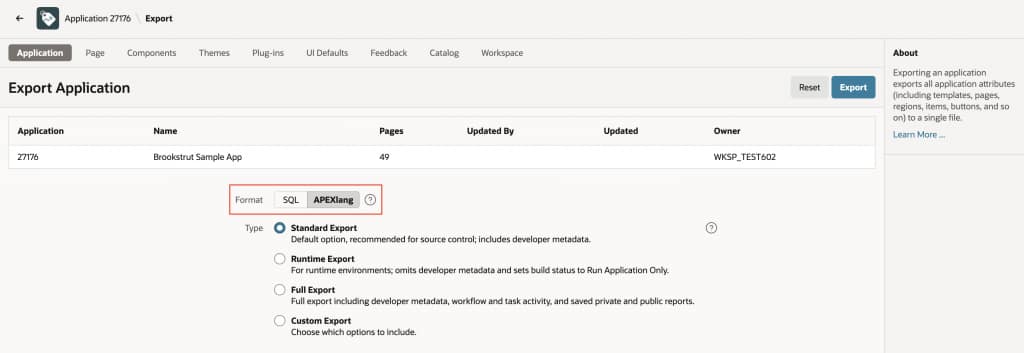
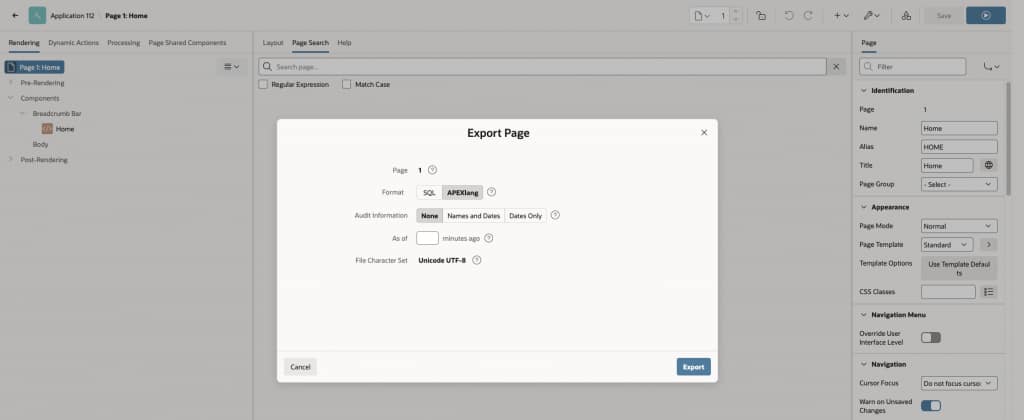
Oracle APEX 26.1 introduces APEXlang as a new export format for both application and page exports, alongside the traditional SQL export.
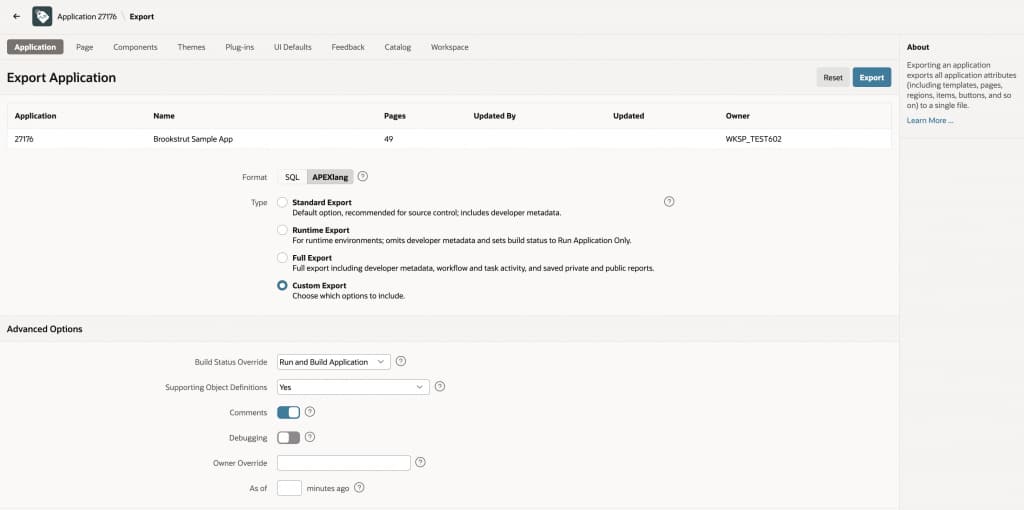
In addition to this, it has introduced new Export Types for both APEXlang and SQL export format
| Export Type | Purpose | Details |
|---|---|---|
| Standard Export | For day-to-day development and source control | Includes developer comments and audit information. Excludes runtime data, including workflow instances, task instances, and private or public report settings. |
| Runtime Export | For runtime environments such as test or production | Excludes developer comments, audit information, and runtime data. Sets the application build status to run-application-only. |
| Full Export | For migrating applications across environments | Includes runtime data, developer comments, and audit information. Because this export may include application data, it should not be versioned in source control. |
| Custom Export | For advanced export scenarios | Includes a flashback export option to export as of a time in the past and provides granular control over export options. |
When exporting in APEXlang from the builder, the application is delivered as a .zip file containing .apx files that represent the application metadata. Each component type is organized into its own directory, providing a clear and structured layout of the exported application.
Note: YAML export has been deprecated and is no longer available. All references to YAML have been replaced with APEXlang.
Import the Application from the Builder
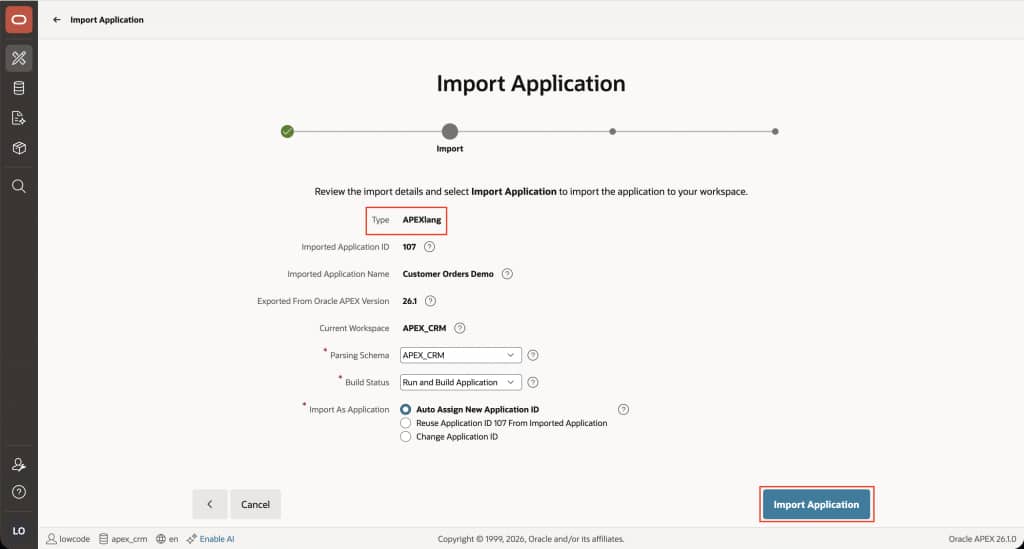
You can import an application in APEXlang format directly in the Builder. On the Import page, drag and drop the application ZIP file or select it manually, then click Next.
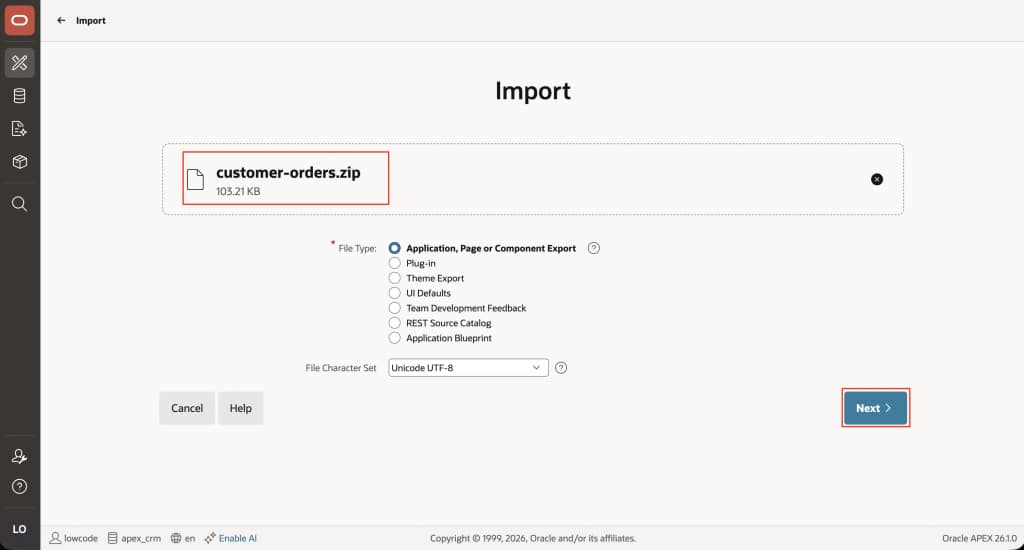
The Import wizard automatically detects the file type as APEXlang and displays the standard application import options, including the ability to choose the application ID. Click Import Application to continue.
During the import process, APEX Builder validates and compiles the APEXlang source. If no errors are detected, the application is imported successfully.
Export Application with SQL Developer Extension in VS Code
One of the key advantages of APEXlang is the ability to work with APEX applications entirely outside the APEX Builder. Using the SQL Developer extension in VS Code, you can export applications, edit them locally, apply bulk changes, and import them back, unlocking a modern, developer-centric workflow.
Prerequisites:
Before getting started, ensure you have the following:
- VS Code installed
- The latest compatible SQL Developer extension installed
- A database connection configured in the SQL Developer extension to the schema associated with your APEX workspace (this is required to import/export applications). Refer to the documentation for more information on connecting SQL Developer to VS Code.
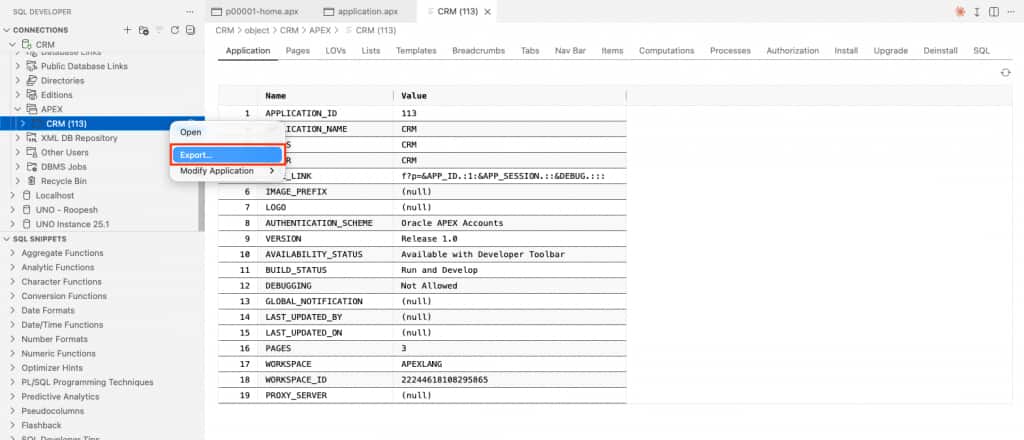
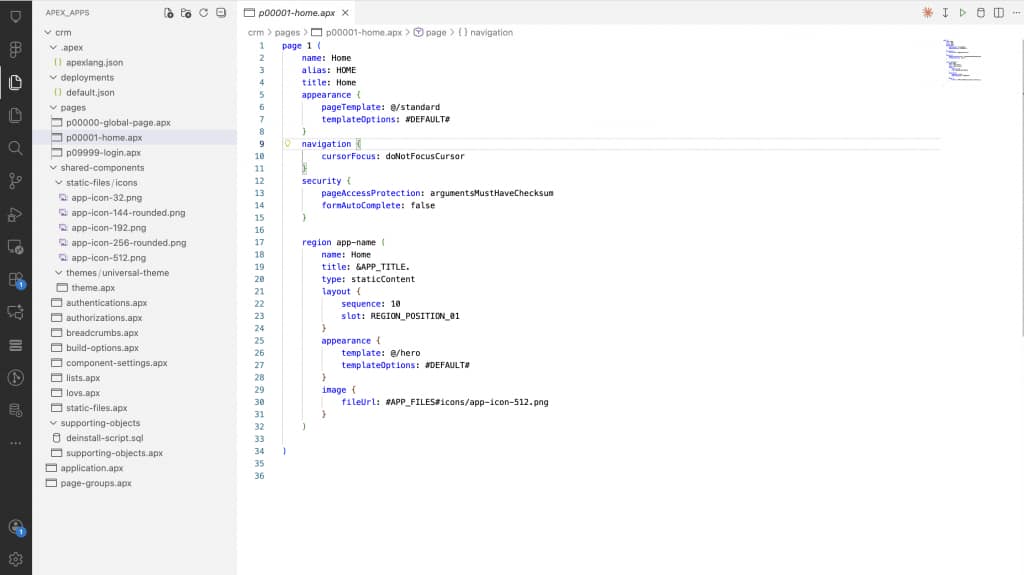
To export an application:
- Use a connection to your APEX workspace schema
- Navigate to the APEX folder
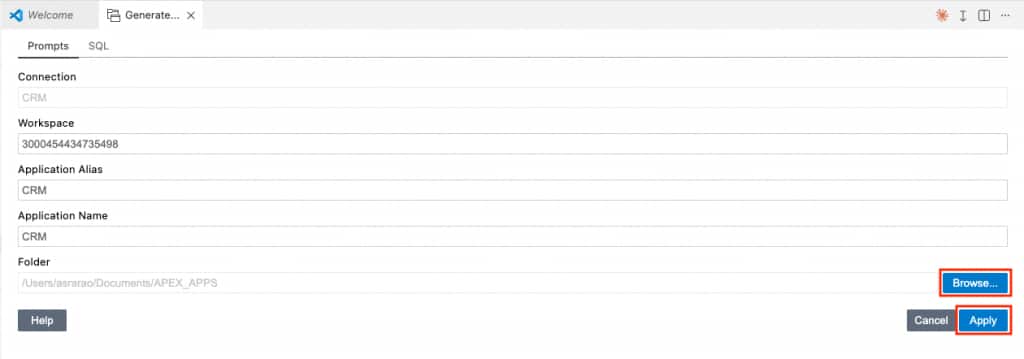
- Right-click the application you want to work with and select Export
- Choose the target directory where you want to save the APEXlang export files
- Click Apply
Import Application with SQL Developer Extension in VS Code
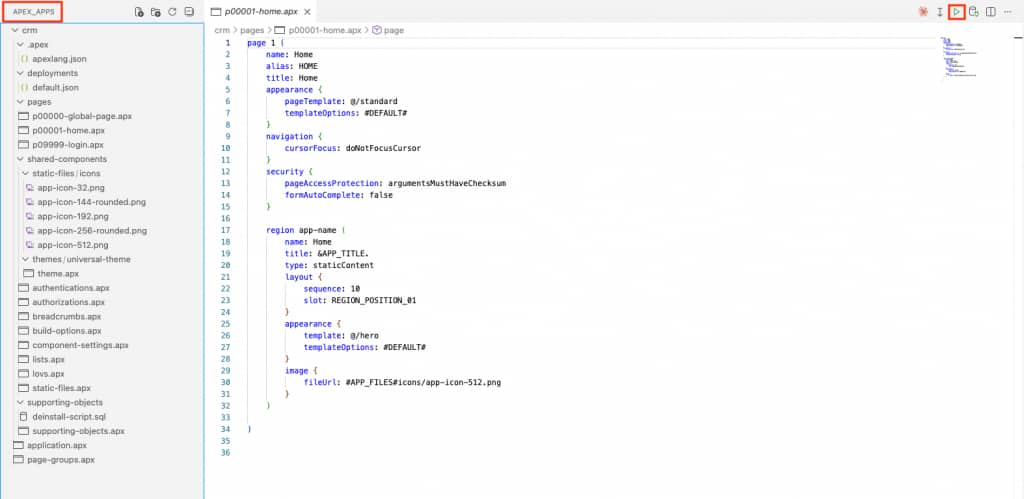
The Import button (which uses the same Play icon as compile for SQL and PL/SQL) compiles and deploys the entire application to the selected connection. If there are any unsaved changes in the application files, you will be prompted to save them before the process continues. If no connection has been selected, you will be prompted to connect first.The result of the import is displayed in a popup message.
To import an application:
- Open the application folder in VS Code
- Open any file
- Click the Import Application button at the top-right of the editor tab.

Diagnostic Indicators / Problems Panel
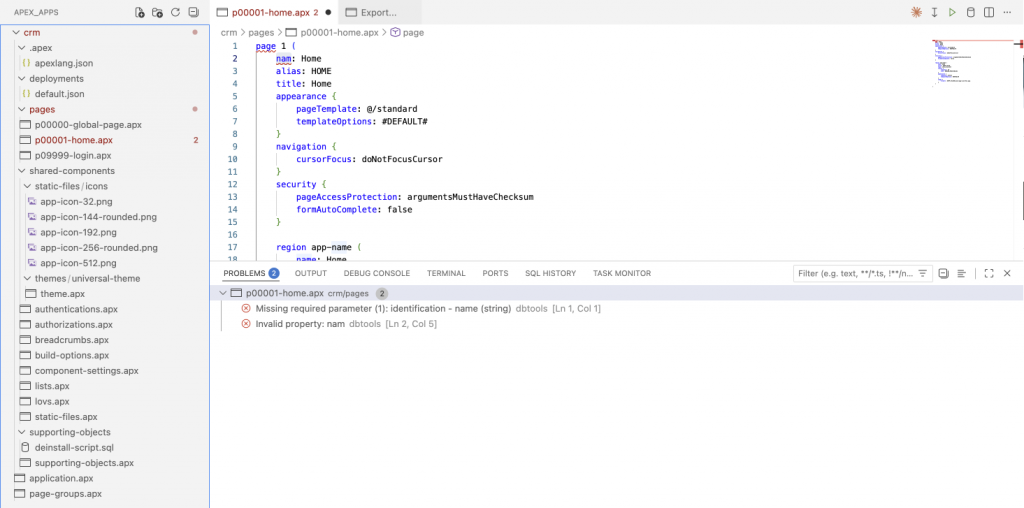
During import, SQLcl validates the application files and deploys the application to the target workspace. Any syntax errors or warnings are highlighted directly in the editor with red or grey highlighted underlines and are also listed in the Problems panel.
The Problems panel provides details such as the page, file, and exact line where the issue occurred. Files containing errors are also highlighted in the file hierarchy, making it easy to quickly identify and navigate to problem areas.
Code Completion
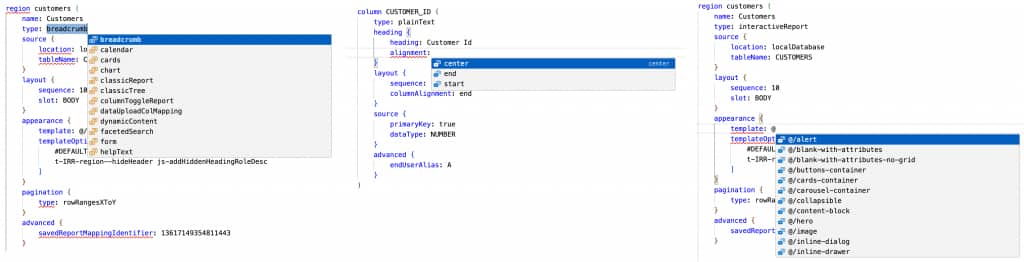
The SQL Developer VS Code extension, provides built-in code completion to make editing faster and more intuitive. By pressing Ctrl + Space, you can see context-aware suggestions for what can be added at a given location.
When code completion is invoked, APEXlang suggests valid property names that can be added at that location, including those belonging to existing groups.
This behavior helps maintain a clean and consistent structure while reducing the need to manually locate or create groups.
Import and Export Applications Using SQLcl CLI
You can also work with APEXlang using SQLcl for scripting and automation. Refer to the documentation to learn more about connecting using SQLcl.
Export with SQLcl
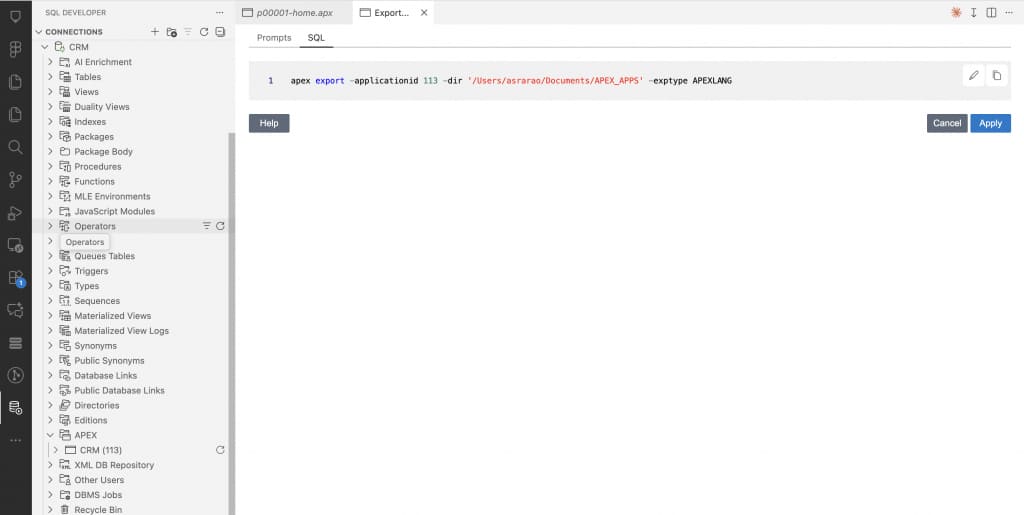
Exports the APEX application to SQL or APEXlang. A new argument, APEXLANG, has been introduced for the exptype parameter to enable APEXlang exports.
apex export -applicationid {{app id}} -dir {{local_apexlang_directory}} -exptype APEXLANG Import with SQLcl
Imports APEXlang or SQL input.
apex import -input {{local_apexlang_directory}} Validate with SQLcl – New
Developers can use the below command to ensure the updates are syntactically correct.
apex validate -input {{local_apexlang_directory}} Generate app with SQLcl – New
Generates a new starter APEXlang application project which can then be compiled and imported into APEX environment.
apex generate -workspaceid {{workspace_id}} -alias {{application-alias}} -name {[application-name}} -dir {{local_apexlang_directory}} This flexibility allows teams to integrate APEXlang into automated pipelines and CI/CD workflows.For detailed information about each command, refer to this documentation.
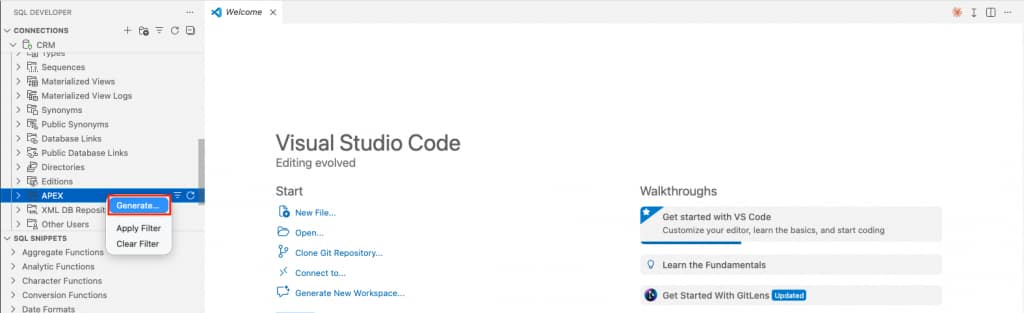
Generate a New Application from VS Code
Developers can quickly generate a new starter APEXlang application project directly from VS Code, without needing to switch to the APEX Builder. The starter application can then be compiled and imported into APEX as is.
To do this:
- Use a connection to your APEX workspace schema
- Navigate to the APEX folder
- Right-click and choose Generate.
- Enter the required details, such as the application alias, application name, and target path.
- Click Apply.
This creates a starter APEXlang application project in your local directory. You can then import the application using the steps described above to install it into the workspace.
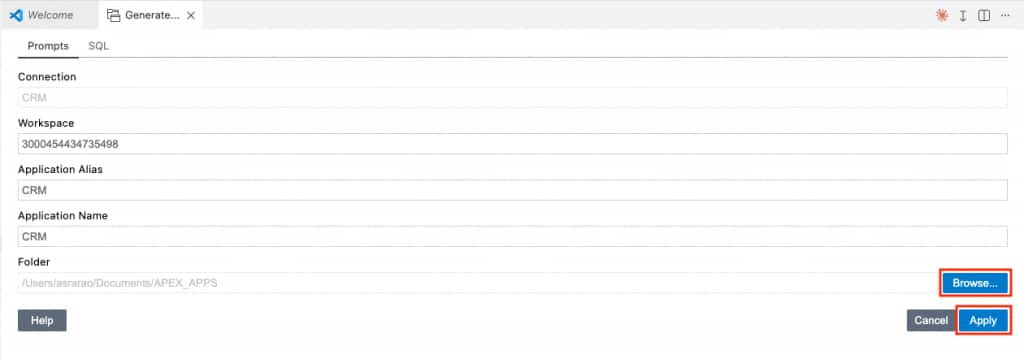
Note: When a new APEXlang application is generated, deployments/default.json file does not contain an application ID. A unique application ID is assigned when the application is first imported into the workspace. If you want to use a specific application ID, add it to deployments/default.json file before importing.
Overview of the APEXlang File Structure
An application exported in APEXlang format has an initial structure similar to the following:
APEX-APP/
├── .apex/
│   └── apexlang.json
│
├── apex-exports/
│   ├── .gitignore
│   ├── README.md
│   └── f100.sql
│
├── deployments/
│   └── default.json
│
├── pages/
│   ├── p00000-global-page.apx
│   ├── p00001-home.apx
│   ├── ...
│   └── p09999-login.apx
│
├── shared-components/
│   ├── authentications.apx
│   ├── authorizations.apx
│   ├── breadcrumbs.apx
│   ├── build-options.apx
│   ├── component-settings.apx
│   ├── lists.apx
│   ├── lovs.apx
│   ├── static-files.apx
│   │
│   ├── static-files/
│   │   └── icons/
│   │
│   └── themes/
│       └── universal-theme/
│           └── theme.apx
│
├── supporting-objects/
│   ├── deinstall-script.sql
│   └── supporting-objects.apx
│
├── application.apx
└── page-groups.apx| File or Folder | Description |
|---|---|
| application.apx | The main top-level file containing the overall application definition, including metadata and settings that control how the application behaves. |
| pages/ | Contains all application pages, with each page stored as a separate .apx file such as p00001.apx. This modular structure makes page-level changes easier to track and manage. |
| shared_components/ | Contains reusable application components such as authentication schemes, authorization schemes, breadcrumbs, lists, and LOVs. Each shared component type has its own .apx file for clarity. |
| static-files/ | Stores application static resources. The icons/ directory contains files such as the application logo, while static-files.apx contains references to those resources. |
| themes/ | Contains references to themes and template definitions. For example, theme.apx captures Universal Theme settings. |
| deployments/ | Deployment configuration files should be placed in deployments/default.json. This file specifies key details such as the application ID (app.id) and Workspace name, which is used by the SQL Developer VS Code extension during application import. |
| .apex/ | The hidden .apex/ directory contains internal metadata and configuration files used by the APEXlang compiler. |
| apex-exports/ | Contains the SQL export of the existing APEX application.This export is typically taken before importing the updated application from SQL Developer. |
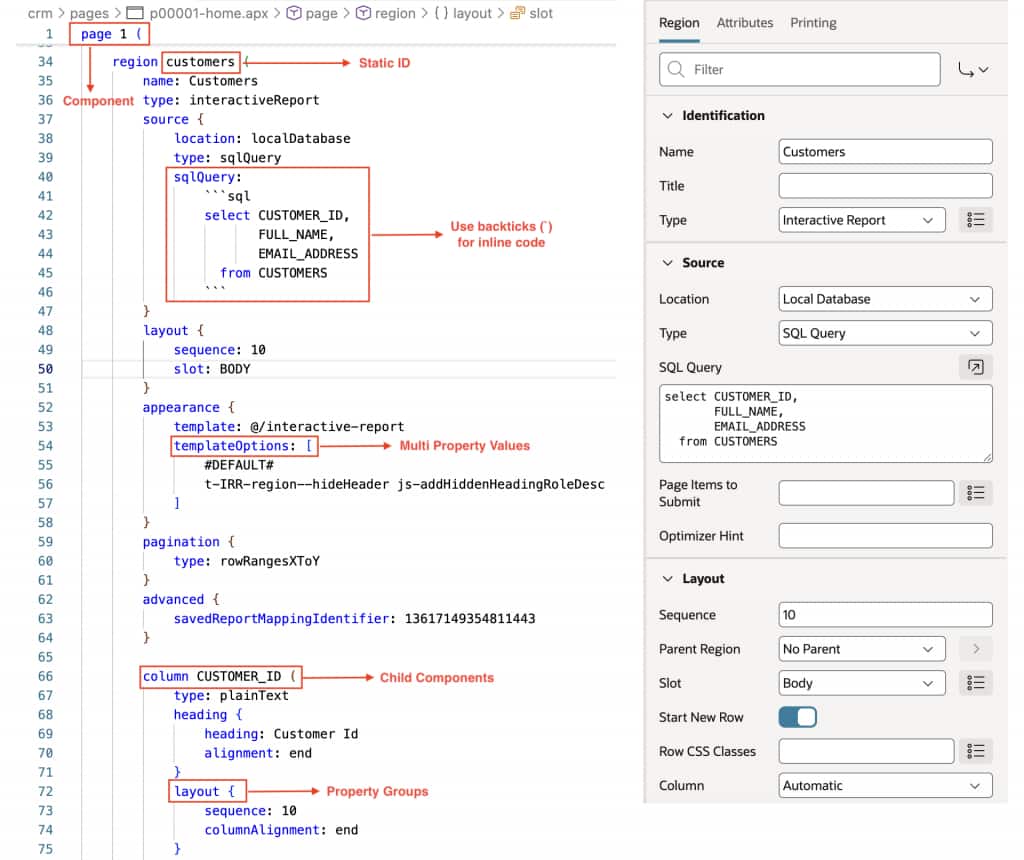
APEXlang Syntax Basics
APEXlang uses a structured and semantically rich syntax that is designed to be easy to read and write.
| Element | Description |
|---|---|
| Components | Pages, regions, and items are enclosed within parentheses (). |
| Property Groups | Groups like source, layout, and appearance are enclosed in {}. Multi-word names use camelCase. |
| Properties | Use camelCase for property names, with a colon : separating the name and value. Boolean values are expressed as true or false. |
| Multi-line Text | SQL, PL/SQL, or JavaScript is enclosed in triple backticks (`) |
| Component References | @ refers to the parent component. For example, if a region has a static ID as customer and you want to place a button within that region, you can reference the parent region in the layout group using region: @customer. |
| Multi-values | Multiple values are enclosed within square brackets []. |
| Child Components | Defined using the same structure as top-level components. |
Upgrade Existing Applications for APEX 26.1
Starting with Oracle APEX 26.1, every component is assigned a unique system-generated Static ID. By default, these are metadata-based identifiers (for example, APEX$38813120810754150132).
When upgrading an existing application, one of the first steps is to ensure all components receive these new Static IDs. During this process, APEX derives more readable Static IDs based on component names. For example, if a region is named Store Products, its Static ID will be generated as store-products.
This prepares the application for APEXlang, allowing components to be represented more clearly and consistently. After the upgrade, you can further refine these Static IDs to more meaningful names, making the application easier to understand and work with.
Note: This is different from the property previously known as Static ID, which is now called HTML DOM ID.
APEXlang Read-Only View in Page Designer
APEXlang provides a read-only view of all page attributes directly within Page Designer, making it easier to review complete page definitions without navigating multiple panels. Content is loaded on demand and helps developers quickly understand page structure.

Note: Only saved changes are reflected in the APEXlang view. Any unsaved changes made in Page Designer will not appear.
Conclusion
APEXlang brings Oracle APEX development closer to the workflows modern development teams already use every day. By representing applications as structured, readable .apx files, developers can export applications, edit them locally in VS Code, validate changes, track updates in source control, and import them back into an APEX workspace with greater confidence and control.
With support across the APEX Builder, SQL Developer extension for VS Code, and SQLcl, APEXlang fits naturally into both interactive development and automated delivery pipelines. Whether you are maintaining an existing application, generating a new starter project, reviewing page definitions, or preparing for CI/CD, APEXlang provides a cleaner and more collaborative foundation for building Oracle APEX development.
As APEXlang continues to evolve, it opens the door to faster iteration, better tooling, and more transparent application lifecycle management, while keeping the productivity and simplicity that make Oracle APEX powerful.