
Oracle APEX 26.1 brings several important improvements to Faceted Search. These enhancements help users find the right data more quickly and make it simpler to create more refined search experiences.
Faceted Search has long been a powerful way to guide users through large sets of data. By combining a report or cards region with a set of facets, users can narrow results step by step and focus on exactly what they need. In Oracle APEX 26.1, we are improving that experience in four key ways:
- Users can now exclude a value directly, instead of selecting every other value they want to keep.
- Facet charts now let users click the “Others” group to see additional values beyond the top results.
- Inline facet charts can now be maximized, making them easier to review and present.
- New server-rendered placeholders make the page feel more stable while facets are loading
1. Exclude values from facets
In many filtering scenarios, users want to remove a value from the results rather than select every other value they want to keep.
For example, suppose a user wants to see all customer orders except those with a status of Cancelled. In previous releases, that meant selecting each of the other status values manually. For facets with many values, that could take several clicks and multiple refreshes. Oracle APEX 26.1 includes support for excluding facet values. For facets type Checkbox Group, Radio Group, and Range, a new Allow to Exclude attribute is available for each facet value.
To enable Exclude option, navigate to App Builder → Faceted Search Region → Select the Facet to be excluded → List Entries → Allow to Exclude
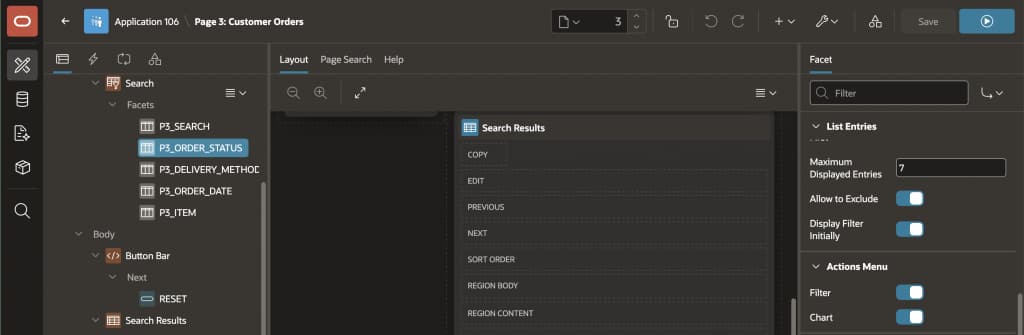
When exclude is enabled, users can hover over or tab to a facet value and choose Exclude. The report then refreshes to show all rows except those matching that value.
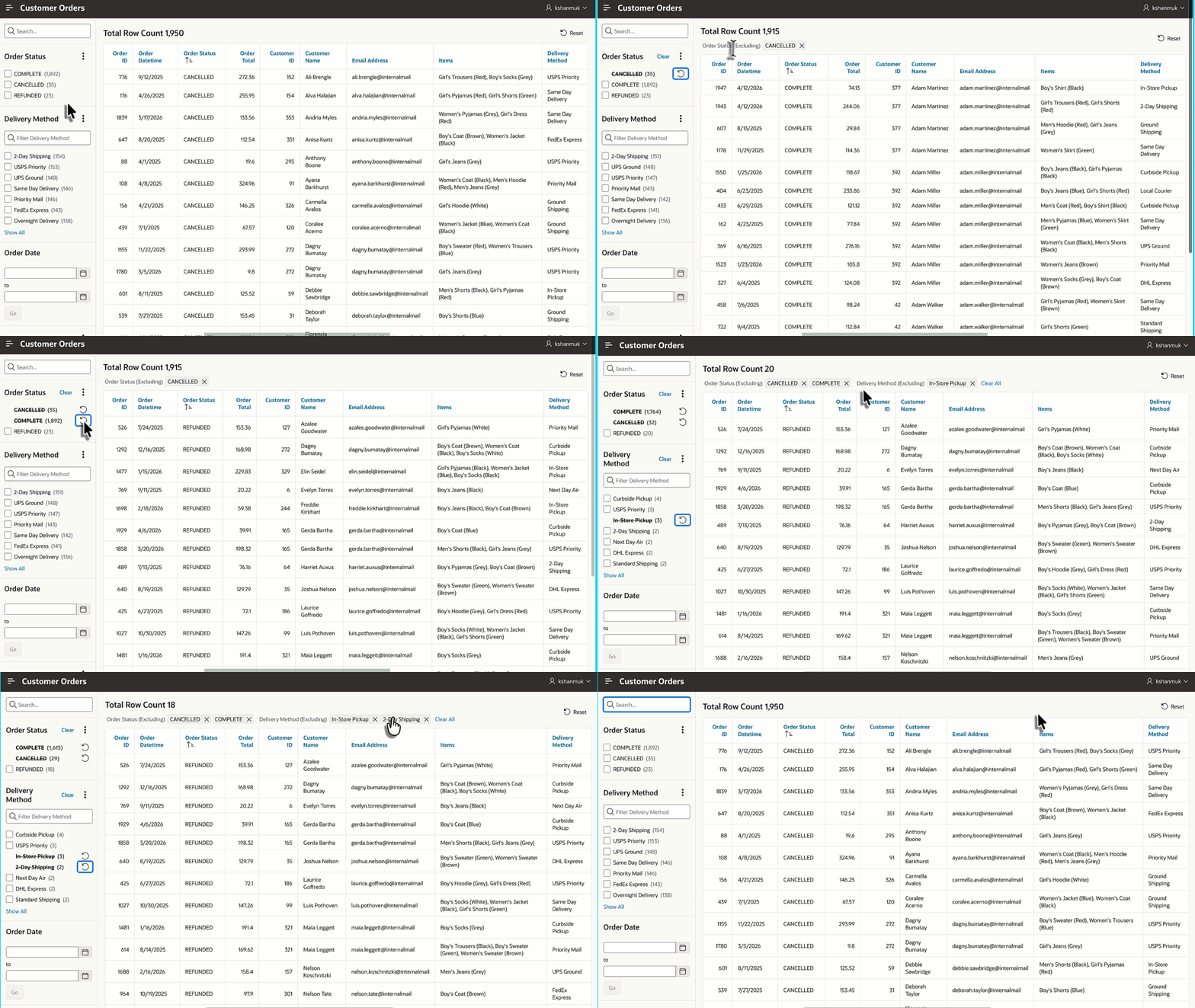
This makes common filtering tasks much more efficient. Instead of selecting every value other than Cancelled, the user can exclude Cancelled with a single action.
For example, in the below referenced Customer Orders application, the user first excludes Order Statuses Cancelled & Complete from the Order Status facet, then excludes In-Store Pickup from the Delivery Method facet. With just two actions, the report updates to show all remaining orders without cancelled, complete orders and in-store pickup deliveries.
2. Drill deeper with a clickable “Others” slice
Facet charts are a great way to add visual context to a filtering experience. They help users quickly understand the shape of the data and often encourage exploration.
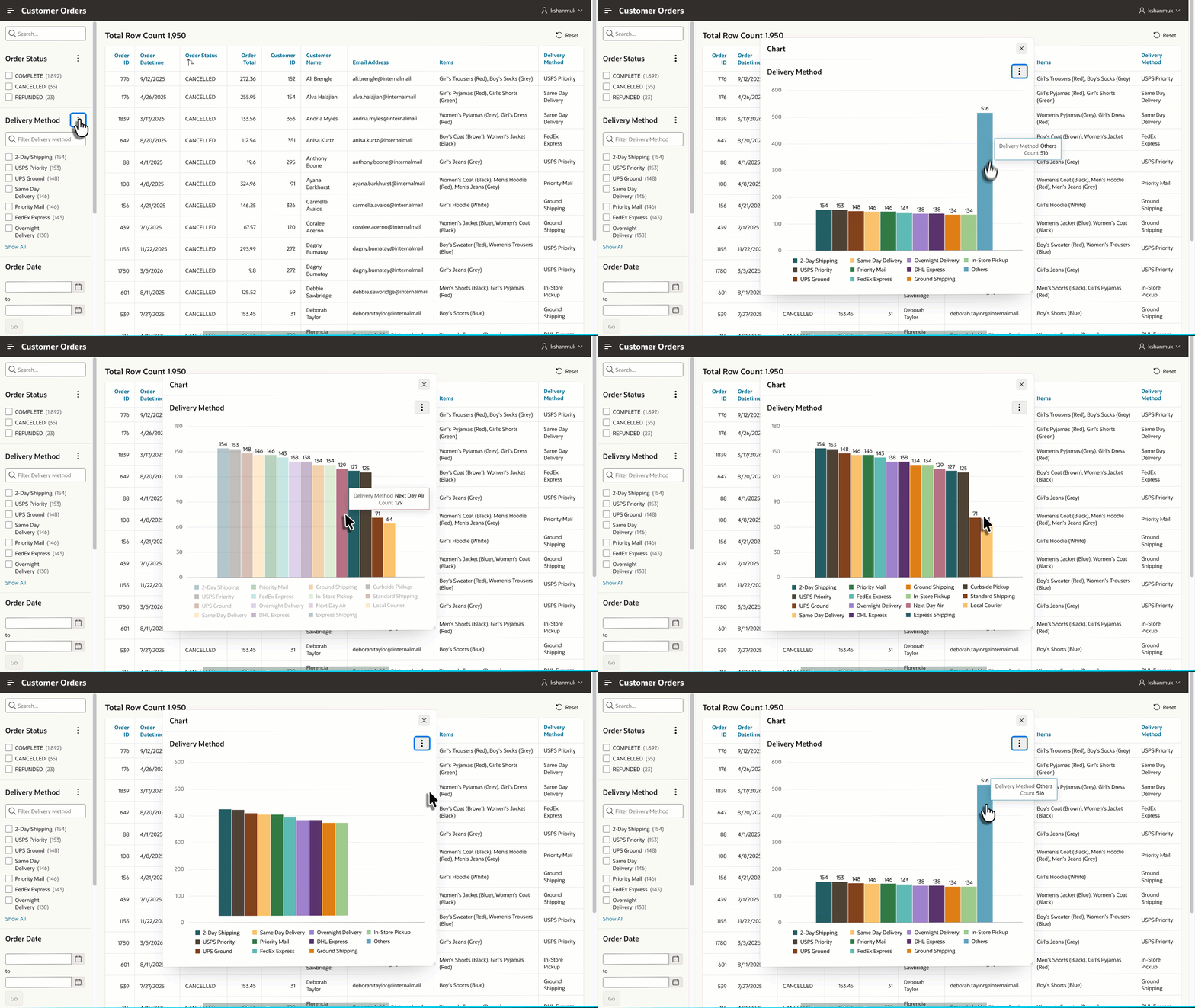
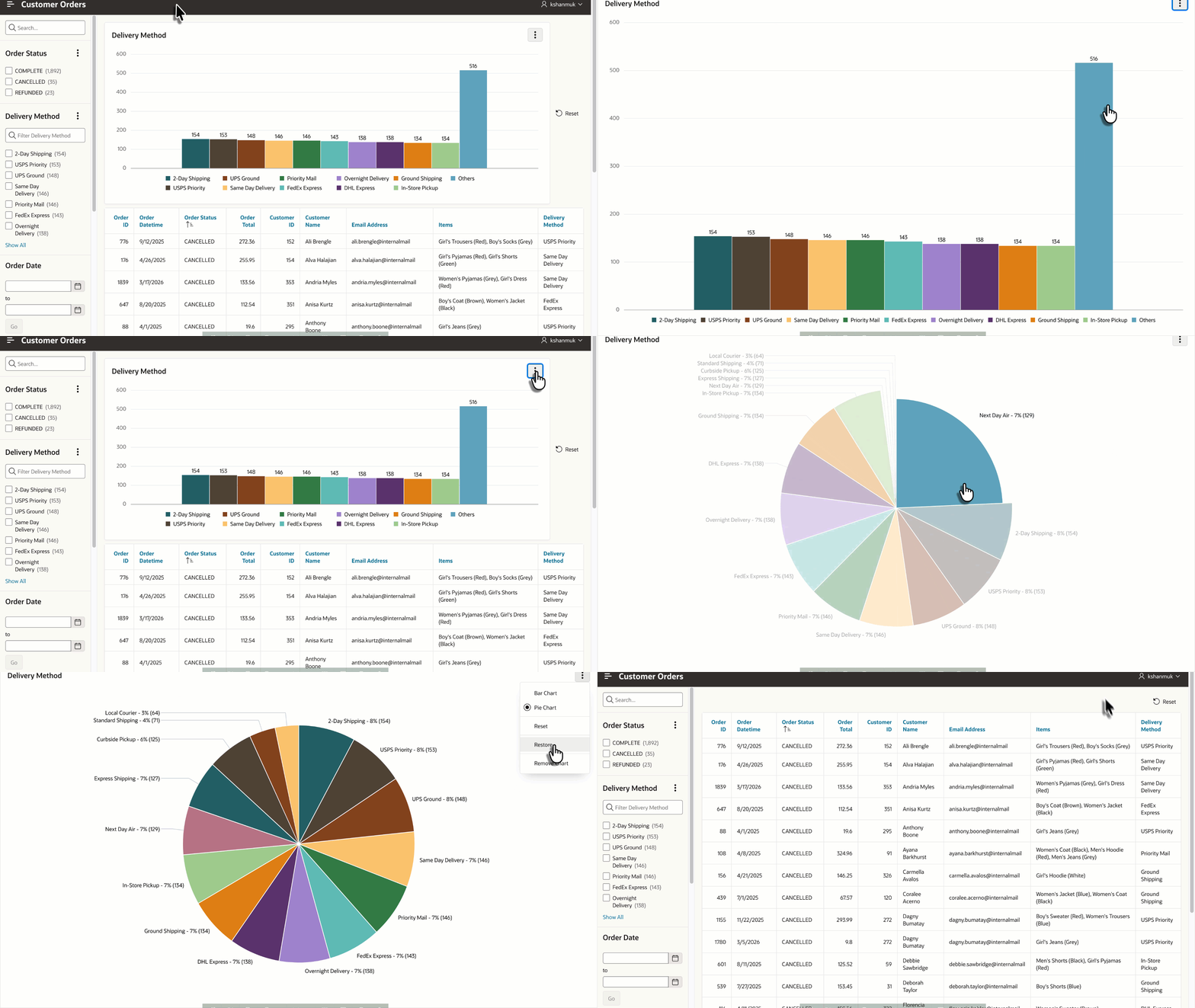
But until now, the “Others” slice in these charts was not clickable and does not show the underlying categories. When a Faceted Search chart shows the top values, everything beyond the configured Top N is grouped into a single aggregated bucket shown as “Others”. This keeps charts readable, but it also meant the long tail of values was effectively hidden from exploration.
With Oracle APEX 26.1, the Others slice is clickable. When a user clicks it, the chart expands to reveal the next set of values. If more values still remain beyond that next set, APEX displays another Others slice, allowing the user to keep drilling in step by step.
The interaction is simple and consistent:
- The chart initially shows the configured Top N values.
- Clicking Others reveals the next Top N values.
- A Reset action returns the chart to its default view.
- No page refresh is required.
Even better, the expansion behavior uses the same Top N setting that already controls the initial chart display. Developers do not need to manage a second configuration just to support drill-down behavior.
APEX also preserves the expanded state in session storage, alongside the saved chart-type selection. That means if a user switches away from the chart and comes back, the expanded view remains in place until they explicitly reset it.
3. Maximize Faceted Search Charts
Faceted search charts provide a quick visual summary of the data behind a facet. They are especially useful when users want to understand distributions at a glance while filtering a report or cards region.
Oracle APEX 26.1 adds Maximize support for these charts through a new consolidated actions menu. From this menu, users can change the chart type, reset the chart, maximize or restore it, or remove it from the page.
When maximized, the chart fills the browser window, giving users a larger and more focused view for analysis or presentation. Selecting “Restore” returns the chart to its original inline position.
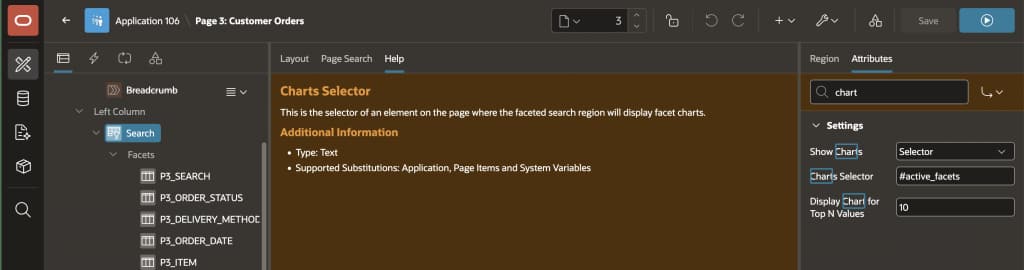
To display facet charts on the page, enable Show Charts – Selector for the Faceted Search region in Page Designer. Once a chart is visible, the actions menu provides options to change the chart type, reset the chart, maximize or restore it, or remove it from the page.
4. Faster UX Rendering
Oracle APEX 26.1 also improves the initial loading experience for Faceted Search.
In previous releases, the Faceted Search region was rendered on the server as an empty container. The visible facets were then created on the client after JavaScript initialization. Depending on page load speed, users could briefly see a blank area before the facets appeared.
Oracle APEX 26.1 now renders placeholder markup for visible facets on the server. These placeholders reserve space for the final facet content, helping keep the page layout stable while the live facet UI is loading.
This improvement reduces layout shift and removes the flash of an empty faceted search region during page load. As a result, the page feels smoother and more polished from the moment it opens.
The placeholders are visual only. They do not contain actual facet data and do not change the client-side rendering logic. Once the page is initialized, the live facet content replaces them.
Summary
Oracle APEX 26.1 continues to improve the end-user experience of search and data exploration.
This release makes filtering more expressive with Exclude support, allowing users to remove unwanted values instead of selecting every other option. It also makes chart-based exploration more useful by letting users click the Others slice to expand the chart and reveal additional values.
In addition, it includes Maximize support for facet charts and improves perceived performance by making the initial rendering of Faceted Search feel smoother and more stable, especially in data-heavy applications.