

Interactive Reports in Oracle APEX offer end users a rich set of capabilities including filtering, sorting, control breaks, highlighting, aggregations, charts, groupings, and pivots. While these features are powerful and well established, configuring them often requires navigating through multiple menus and dialogs. As a result, some capabilities may be underutilized due to discoverability challenges or the time and effort needed to apply the appropriate settings. That’s about to change.
What if you could simply ask your data a question and get the answer? APEX AI Interactive Reports makes that possible, letting you query your data in plain language and automatically applying the right filters, sorting, pivots, aggregates, and column selections based on what you asked. Every configuration the AI applies is surfaced as a visible chip, so you can see exactly what’s been set, review it at a glance, and adjust anything that doesn’t match your intent.
In an upcoming release, Oracle APEX is introducing natural language support for Interactive Reports. Ask a question in plain language, and APEX automatically configures your report, applying filters, sorting, pivots, aggregates, and column selections to match your intent. No menus, no dialogs; just results.
How It Works
Oracle APEX uses a Large Language Model (LLM) to interpret a user prompt and convert it into trusted, declarative report settings, which are then applied directly to the Interactive Report. The resulting configuration is applied as standard Interactive Report chips, ensuring the experience remains consistent with existing Interactive Report behavior. To generate these settings, APEX provides the LLM with Interactive Report context; including the report definition, column metadata, available reference values, and the current report state, so the model can determine the appropriate settings to apply.
Importantly, your business data never leaves your environment. APEX only shares report metadata and configuration context( report context, column context and the reference data) with the LLM. The actual data in your report stays where it belongs.
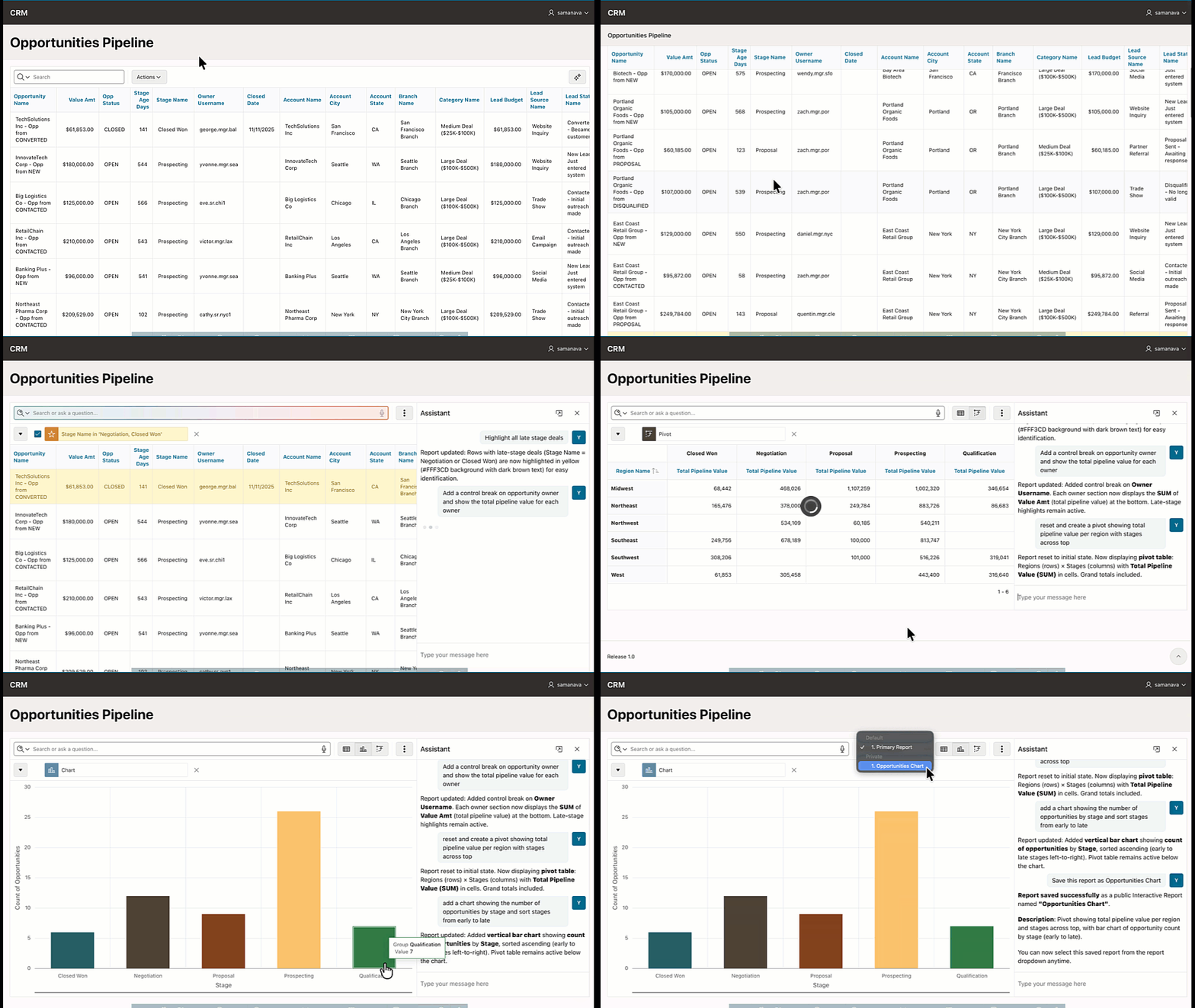
Two Ways to Interact: Search with AI and the Assistant
Oracle APEX provides two distinct natural-language entry points, each designed for a specific type of interaction.
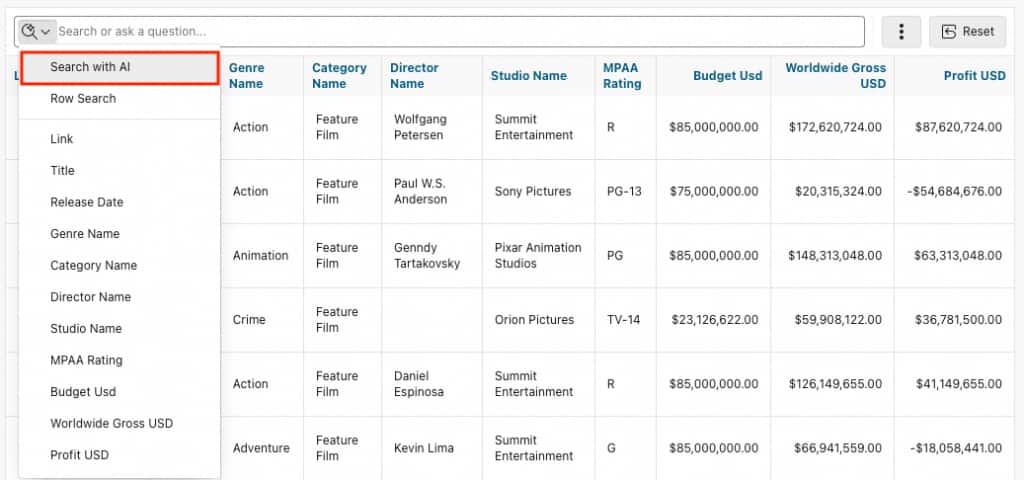
Search with AI
The familiar Search bar now includes a Search with AI option. When enabled, it accepts natural language queries and intelligently applies the appropriate report configurations. It also preserves the existing Interactive Report behavior: entering one or two words triggers an immediate row search. This provides continuity with existing end-user flows while enabling natural language input in the same control.
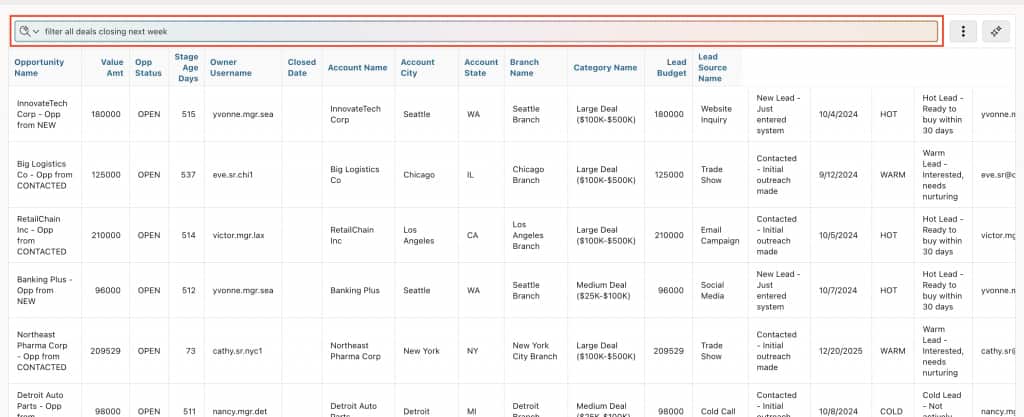
When Search with AI is enabled, the gradient color in the search bar lets users know their query is being processed by AI, providing clear visual feedback.
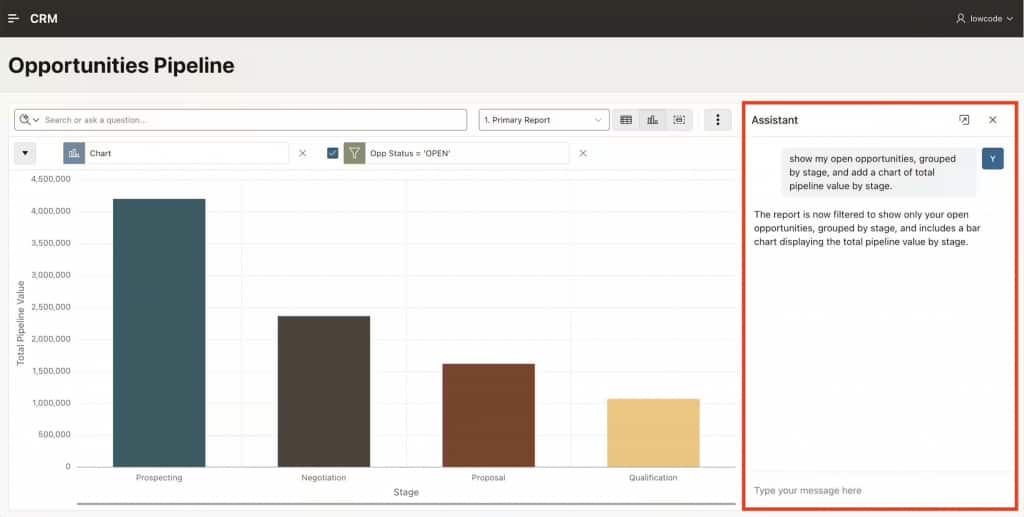
Interactive Report Chat Assistant (Assistant)
The right-side chat panel labeled Assistant provides a conversational experience focused exclusively on report configuration.
Key behaviours of the Assistant:
- The Assistant performs AI-driven search only.
- The dialog explains which settings were applied and supports incremental refinement through follow-up prompts (even when queried on the Search Bar).
- Only the Interactive Report displays the data; the Assistant does not display business data, analytics, or summaries, and it applies configuration by setting Interactive Report chips.
For example: for an opportunities pipeline report, example questions/requests include:
- “Show open opportunities grouped by stage“
- “Create a pivot showing total pipeline value by region, with stages across the top.”
- “Save this report as Opportunities Chart view”
Developer Configuration
Setting up APEX AI Interactive Reports is straightforward for developers.
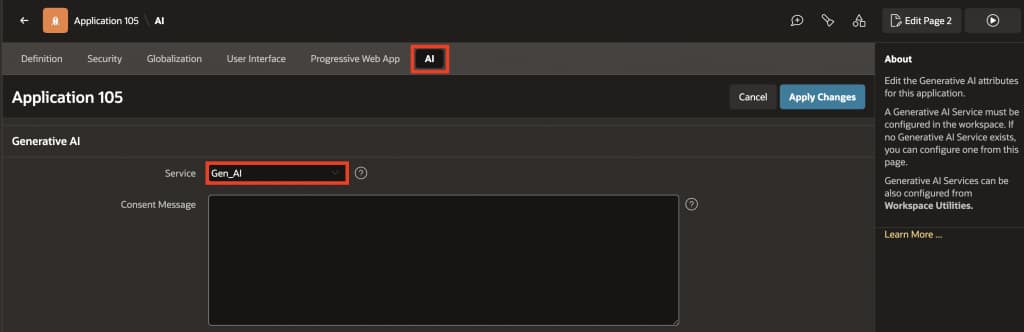
Prerequisite: Before enabling natural language support, you must configure an AI Service at the workspace level, then assign it to your application under Shared Components > AI Attributes. Natural language support requires this step to function.
Report-Level Settings
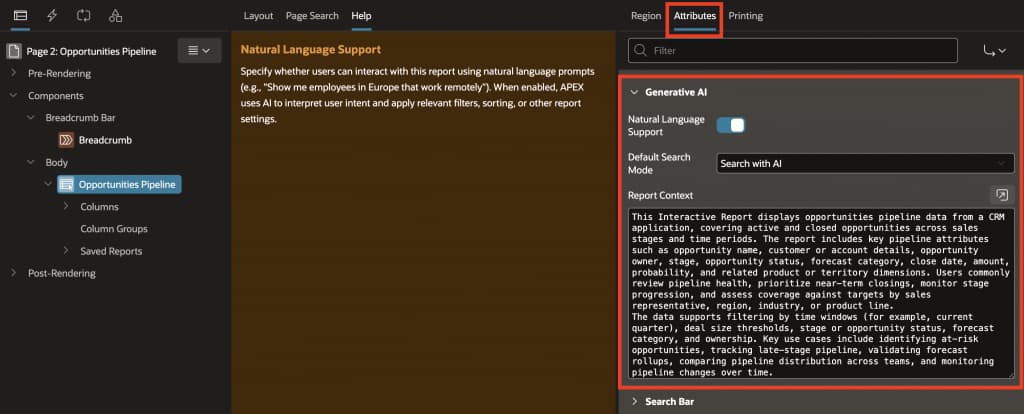
To support natural language in Interactive Reports, a Generative AI section is available in the Attributes tab. This allows developers to enable natural language support and control how the report behaves when users ask questions.
- Natural Language Support: Toggle to enable or disable natural language support for the report.
- Default Search Mode: Determines the default mode of the search bar when natural language support is enabled. Select “Row Search” to keep the original search behavior by default.
- Report Context: A text area where developers can provide extra context about the report to guide interpretation (for example, definitions for pipeline metrics, meaning of stages, or relevant business terminology). This is sent to the LLM as part of the system prompt.
Column-Level Settings
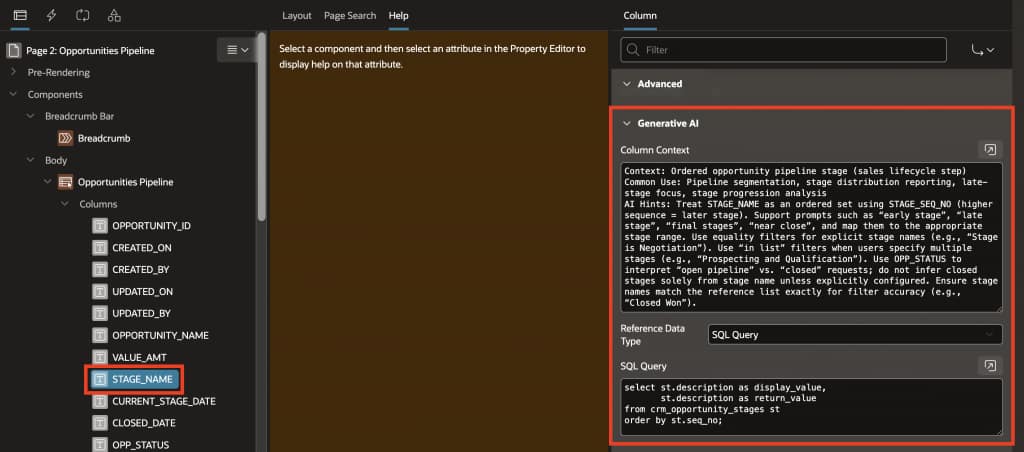
Column Attributes have a new Generative AI section in the Property Editor. Developers can refine AI behaviour at a per-column granularity:
- Column Context: Additional notes describing the purpose or interpretation of a column. This information is provided to the AI to improve how user requests are mapped to Interactive Report settings.
- Reference Data Type: Indicates the type of reference data that can be used by the AI when forming responses. The supported Reference Data Type options are None, Shared Component, SQL Query, and Static Values.
When to use each column-level attribute:
| Attribute | Use when users ask | Because the AI might otherwise | What to provide | Example (CRM opportunities pipeline) |
|---|---|---|---|---|
| Column Context | Questions that use business language rather than database language (for example, “pipeline value”, “deal size”, “stale in stage”, “late-stage deals”, “closing soon”). | Misinterpret the intent, map the request to the wrong column, or apply the right action to the wrong field (for example, confuse “pipeline value” with budget, or “closing soon” with created date). | A short business definition, common synonyms users use, and interpretation rules (units/currency, what “high/low” means, which date represents what, how “stale” should be interpreted). | VALUE_AMT Column Context: “Pipeline value (deal amount) in USD. Users may say ‘deal size’ or ‘pipeline value’.” |
| Reference Data Type | Questions naming specific values from a known list (for example, “only open opportunities”, “show Negotiation stage”, “exclude Closed Won”). | Guess values that do not exist, use the wrong spelling/capitalization, or apply invalid filter values that return no results. | A reference list so the AI can select valid values. Use Shared Component, SQL Query, or Static Values depending on how the list is maintained. | OPP_STATUS Reference Data Type: ensures requests like “show only open opportunities” map to valid values (for example, OPEN, CLOSED) used in the report. |
| Column Context + Reference Data Type | Questions combining business language with list values (for example, “late-stage pipeline”, “early-stage deals”, “group by stage”, “only Proposal and Negotiation”). | Apply the correct idea but fail on execution – either by not understanding how to interpret “early/late” or by selecting stage values that are close but not exact. | Column Context to explain meaning/interpretation (for example, stage ordering), plus reference data so filters/groupings use exact stage values. | STAGE_NAME Column Context: “Opportunity pipeline stage. Users may request ‘early-stage’ or ‘late-stage’; interpret based on stage sequence.” STAGE_NAME Reference Data Type: provides valid stages (Prospecting, Qualification, Proposal, Negotiation, Closed Won) for accurate filters/groupings. |
Guardrails and Governance
Natural language requests are limited to only those Interactive Report capabilities explicitly enabled by the developer, ensuring the feature adheres to the same governance model as standard Interactive Report functionality. For example:
- If Filter is disabled at the report level, natural language prompts cannot apply filters.
- If highlighting is disabled for a column, it cannot be triggered by AI.
Note: Natural Language Support is disabled for both new and existing Interactive Reports when the feature is introduced. This gives developers the opportunity to review behavior and validate outcomes before enabling it for end users.
Scope of Supported Actions
Displayed Columns, Filter, Sort, Control Break, Highlight, Aggregate, Chart (Bar, Pie, Donut, Line), Group By, Pivot, Reset and Save Report, Rows per Page
Summary
APEX AI Interactive Reports lets you ask questions of your data in plain language, and the AI takes care of the rest. Filters, pivots, sorting, aggregates, and column selections are applied automatically based on your request, and every setting is surfaced as a chip you can review and adjust. You can engage with your data freely, and trust the outcome.
With Search with AI and the Interactive Report Chat Assistant, Oracle APEX delivers both a familiar entry point and a conversational configuration experience, bridging the gap between everyday users and the full power of your data.