
Oracle Analytics Cloud (OAC) provides AI-powered analytics, dynamic visualizations, interactive dashboards, and actionable insights to support data-informed decisions. With the November 2025 update, Oracle Analytics expanded these capabilities by adding support for the Model Context Protocol (MCP) Server. MCP documentation is available here.
This article focuses on using MCP for content management and automation. It demonstrates how to take an existing Oracle Analytics workbook, apply different filter selections, create filtered versions, organize them into a new folder structure, and assign appropriate access permissions. OpenAI’s Codex is used for the automation, although Oracle Analytics MCP also supports workflows with other external AI clients.
The Challenge: Scaling Similar Workbooks
A common challenge for Oracle Analytics developers is maintaining reports across regions, business units, teams, or other groups. Users may need the same workbook, visualizations, measures, calculations, and design, but with data filtered for each group. Historically, developers had to duplicate the workbook, modify filters, create catalog folders, save each version, configure permissions, and repeat the process for every group. While straightforward, this can become tedious and repetitive. With Oracle Analytics and MCP, much of this process can be automated through natural language prompting.
Example Scenario: Regional Sales Reporting
Consider an organization with multiple geographic regions, each requiring location-specific sales information. All regions use the same core sales analysis, but users need workbooks tailored to their region. An administrator manages the reports while regional representatives consume the analytics. Rather than manually creating separate workbooks and catalog structures, Codex and Oracle Analytics MCP automate the process. Starting with an existing workbook, regional filters generate and organize the appropriate version for each audience. This repeatable approach reduces report development and administration while delivering consistent analytics across regions.
Prerequisites:
- Oracle Analytics Cloud Instance
- OpenAI Codex, Claude Desktop, Cline, or Copilot
- Node.js v18 or higher
Step 1 – Get OAC connected to Codex via MCP Connect
- Log in to OAC using “https://<your-oac-host>/ui”.
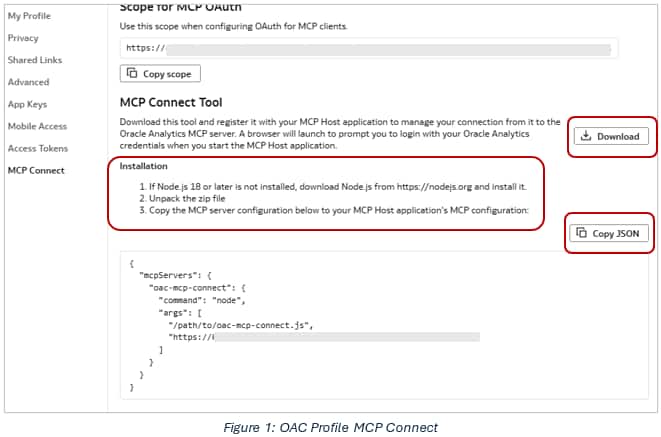
- Navigate to your User Profile, and then to MCP Connect.
- Download the zip file and follow the Installation instructions.
- Open ChatGPT app.
- Switch to Codex via the dropdown list next to ChatGPT.
- Go to Settings.
- Select Plugin under the Integrations section.
- Select the Add dropdown list, then Add MCP Server.
- Provide a name.
- In “Command to Launch“, type: node
- Provide two arguments.
- Path to the oac-mcp-connect.js that was extracted in Step 1.
- Your https://<your-oac-host.com.
- Click Save and then Back to app.
- In a New Chat, verify the connection to OAC.
- A browser window opens and displays the authentication to OAC:
Step 2 – Using Codex to recreate workbooks based on filtering and placing them in the
appropriate folders with permissions.
In this example, work is done against a completed workbook, named Regional Metrics -SampleApp located in a personal folder.

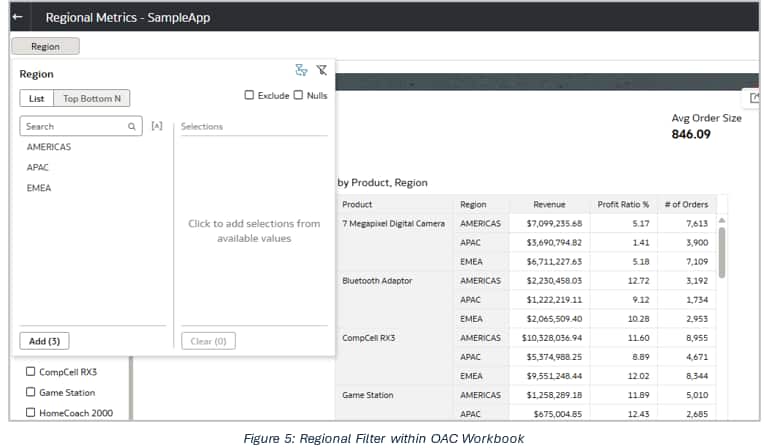
- Upon opening the workbook, see a filter for Region specified and in that filter are three different regions to select from: AMERICAS, APAC and EMEA.
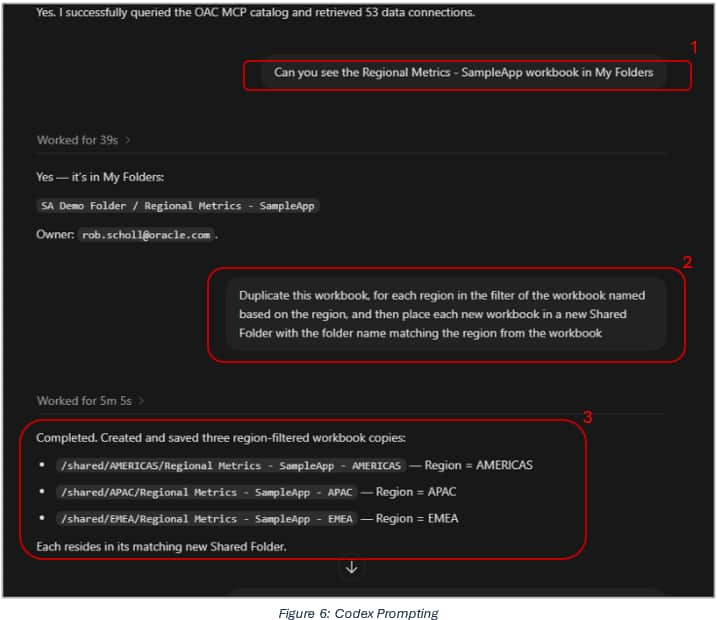
- Returning to Codex, verify that through oac_mcp, Codex can see the original workbook above that is in “My Folders”1. Now prompt Codex2:
- “Duplicate this workbook, for each region in the filter of the workbook named based on the region, and then place each new workbook in a new Shared Folder with the folder name matching the region from the workbook”
- It returns the results with three new folders with each having a filtered duplicate within each folder3.
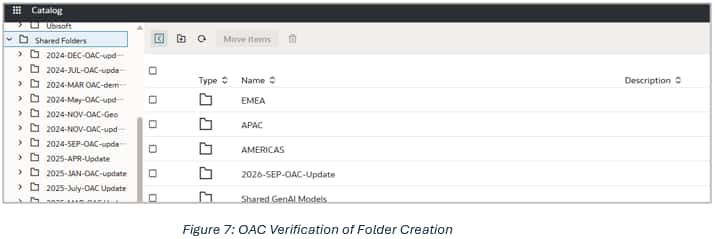
- Return to OAC and see all three folders.
- As you open each workbook, the select filter is applied.
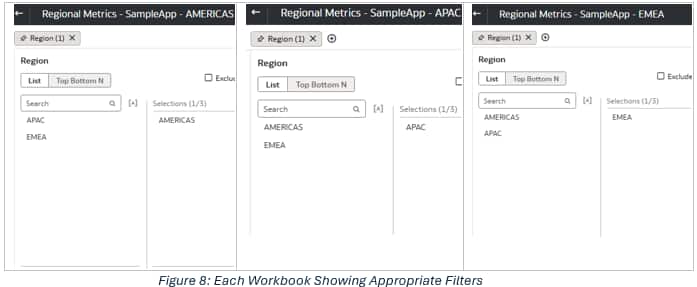
- As you open each workbook, the select filter is applied.
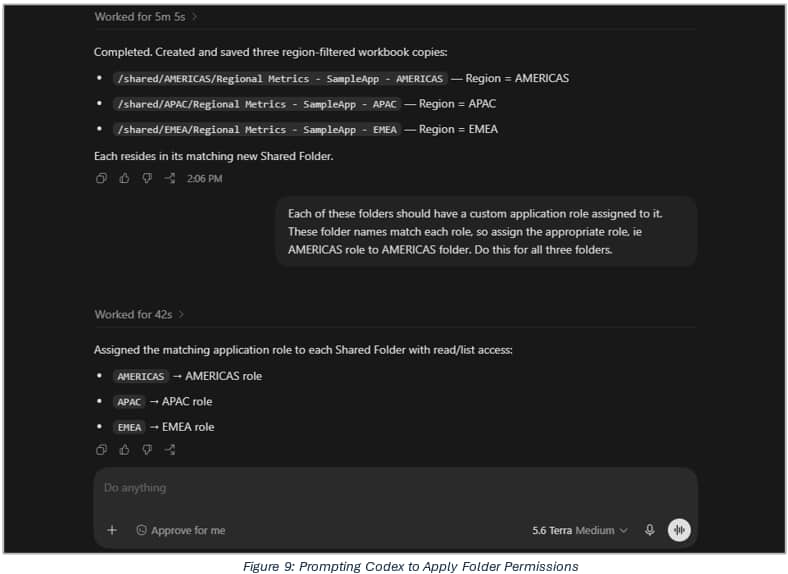
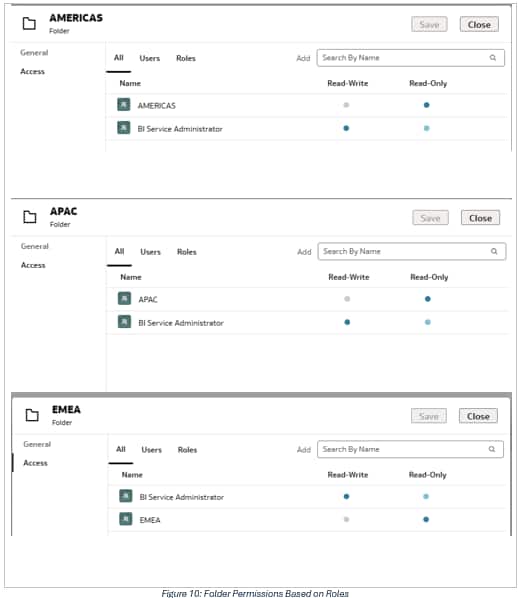
- To further secure these folders and any workbook or subfolder, further prompt Codex to apply custom application roles. In this use case, there were three custom application roles defined as just DV Consumers, also name AMERICAS, APAC and EMEA. These defined roles allow the specified users in each geo/location to view the reports generated for them, without other geos/locations viewing data irrelevant to their role or location. The following prompt was issued:
- “Each of these folders should have a custom application role assigned to it. These folder names match each role, so assign the appropriate role, ie AMERICAS role to AMERICAS folder. Do this for all three folders.”
- Resulting in each role being added to the appropriate folder, which can be checked in OAC:
Summary and Key Takeaways
Use Oracle Analytics and MCP to simplify repetitive administrative tasks with natural language prompting. Instead of manually performing each action, BI administrators can prompt for a desired outcome and have the AI client execute the necessary steps. With any AI automation, there are still required administrative checks. It’s always recommended to review and validate the work performed by automation, particularly when making changes to the catalog structure and permissions.
Documentation
Administering Oracle Analytics Cloud
Get Started with Oracle Analytics Cloud MCP Tools
Call to Action
Try OAC MCP with one of the listed AI clients and share your results in the Oracle Analytics Community. You can also use the community to ask questions and provide feedback. For additional details, refer to the Oracle Analytics documentation and Help Center Resources.