
Understanding how users interact with Oracle Analytics Cloud AI Assistant is essential for improving response quality, refining AI Agents and increasing adoption. End users can directly provide feedback on responses they get from AI Assistant by simply using the thumbs-up and thumbs-down gesture available. Every user utterance, response, and feedback action—especially the thumbs-down feedback—provides insights into where the experience succeeds and where it breaks down. All that information (for example, user, utterance, dataset, agent name and feedback) is collected live by Oracle Analytics Cloud as part of the Oracle Cloud Infrastructure logs.
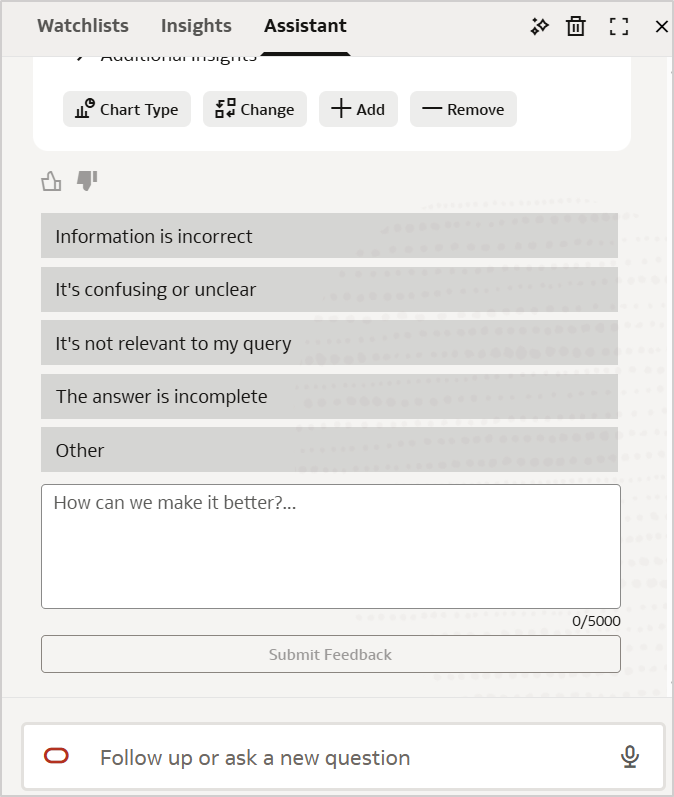
In this article, we look at a simple approach to surface and analyze the log data and transform it into a monitoring solution, highlighting insights from feedback. At a high level, the process is about enabling Oracle Cloud Infrastructure logging to gather AI Assistant usage and feedback, ingest these diagnostic-logs into a structured database view and visualize the results in Oracle Analytics Cloud dashboards. The goal is to gain deeper insight into AI Assistant interaction patterns, user behavior, and feedback trends.
Oracle Analytics Cloud publishes AI Assistant usage details in diagnostic logs that can be enabled through Oracle Cloud Infrastructure logging. These logs can automatically be saved into an Oracle Cloud Infrastructure Object Storage location in the compressed JSON format. To properly enable Oracle Analytics Cloud logging in Oracle Cloud Infrastructure logs and configure the Oracle Cloud Infrastructure Object Storage push, refer to this article Unlocking Oracle Analytics Cloud Diagnostics with Oracle Cloud Infrastructure Logging.
This article outlines how to ingest, transform, and analyze these logs using SQL in Oracle Autonomous AI Database and Oracle Analytics.
Privileges required
- Access to Oracle Cloud Infrastructure Object Storage where logs are available.
- Database privilege to execute DBMS_CLOUD, DBMS_SCHEDULER and DBMS_SODA packages to support automation and JSON processing.
How the data flows
Oracle Analytics Cloud generates diagnostic logs as users interact with the AI Assistant. These logs are centrally collected by Oracle Cloud Infrastructure Logging and can be configured to be pushed to Oracle Cloud Infrastructure Object Storage in the compressed JSON format. From there, the files are ingested into Oracle Autonomous AI Lakehouse using SQL, transformed into an analytics-ready structure, and finally analyzed using Oracle Analytics Cloud dashboards. To make this process easy to understand and implement, the approach is broken down into five logical steps, outlined below. This whole process is a one-time configuration. Once completed, log ingestion can run automatically by scheduling the ingestion procedure, as described in the “Automating the log ingestion process” section under step five.
Step 1: Create a database credential for Oracle Cloud Infrastructure Object Storage access.
Step 2: Create a SODA collection to store raw JSON logs.
Step 3: Create a control table to track log processing state.
Step 4: Create the log ingestion procedure.
Step 5: Create an analytics-ready view.
Let’s look at each step in detail:
Step 1: Create a database credential for Oracle Cloud Infrastructure Object Storage access
This step creates a secure database credential that allows Oracle Autonomous AI Lakehouse to authenticate connection to Oracle Cloud Infrastructure Object Storage using API signing credentials.
See the Oracle Cloud Infrastructure documentation for details on generating API signing keys.
BEGIN
  DBMS_CLOUD.CREATE_CREDENTIAL(
    credential_name => 'YOUR_OCI_NATIVE_CRED',
    user_ocid       => 'OCI_USER_OCID',
    tenancy_ocid    => 'OCI_TENANCY_OCID',
    private_key     => 'OCI_API_SIGNING_PRIVATE_KEY',
    fingerprint     => 'OCI_API_KEY_FINGERPRINT'
  );
END;
Step 2: Create a SODA collection to store raw JSON logs
This step creates a SODA collection in Oracle Autonomous AI Lakehouse to store the ingested Oracle Analytics Cloud logs as JSON documents, preserving the raw log structure for further processing and transformation.
DECLARE
  soda_collection SODA_Collection_T;
BEGIN
  soda_collection := DBMS_SODA.CREATE_COLLECTION('OAC_LOGS');
END; /
[Optional]: Validate Object Storage logs to ensure the Oracle Cloud Infrastructure connection can be established and log files are available
Verify that the number of records matches the number of files available in Oracle Cloud Infrastructure Object Storage.
SELECT COUNT (*) AS object_count
FROM DBMS_CLOUD.LIST_OBJECTS (
  credential_name => '< YOUR_OCI_NATIVE_CRED >',
  location_uri    => 'https://objectstorage.<region>.oraclecloud.com/n/<namespace>/b/<bucket>/o/<prefix>/' );
Step 3: Create a control table to track log processing state
This table stores the last successfully processed timestamp of the log ingestion process, allowing for subsequent incremental ingestions for only new log files.
CREATE TABLE OAC_LOG_TIMESTAMP_UPDATE (
PIPELINE_NAME        VARCHAR2(100) PRIMARY KEY,
LAST_PROCESSED_TIME  TIMESTAMP WITH TIME ZONE );
Insert data into the control table:
Insert an initial record to establish the starting timestamp for log ingestion. This value is subsequently updated by ingestion procedure after each successful run.
INSERT INTO OAC_LOG_TIMESTAMP_UPDATE
VALUES (
  'OAC_LOG_EVENTS',
  TIMESTAMP '1970-01-01 00:00:00 UTC'
);
COMMIT;
Step 4: Create the log ingestion procedure
This procedure reads new log files from Oracle Cloud Infrastructure Object Storage and loads their JSON content into the SODA collection for processing.
CREATE OR REPLACE PROCEDURE OAC_INGEST_LOGS
AS
  l_last_processed_time TIMESTAMP WITH TIME ZONE;
BEGIN
  -- Read last processed timestamp (watermark)
  SELECT last_processed_time
  INTO l_last_processed_time
  FROM OAC_LOG_TIMESTAMP_UPDATE
 WHERE pipeline_name = 'OAC_LOG_EVENTS';
  -- Process only new files from Object Storage
  FOR r IN (
    SELECT object_name, last_modified
    FROM DBMS_CLOUD.LIST_OBJECTS(
      credential_name => ‘YOUR_OCI_NATIVE_CRED',
      location_uri    =>  ‘https://objectstorage.<region>.oraclecloud.com/n/<namespace>/b/<bucket>/o/<prefix>/’
 )
    WHERE last_modified > l_last_processed_time
    ORDER BY last_modified
  )
  LOOP
    -- Load each file into the RAW SODA collection
    DBMS_CLOUD.COPY_COLLECTION(
      collection_name => 'OAC_LOGS',
      credential_name => ‘ YOUR_OCI_NATIVE_CRED',
      file_uri_list   => ‘https://objectstorage.<region>.oraclecloud.com/n/<namespace>/b/<bucket>/o/<prefix>/’ || r.object_name,
      format => JSON_OBJECT(
        'recorddelimiter' VALUE '''\n''',
        'compression'     VALUE 'auto'
      )
    );
    -- Update watermark after successful load
    UPDATE OAC_LOG_ TIMESTAMP_UPDATE
    SET last_processed_time = r.last_modified
    WHERE pipeline_name = 'OAC_LOG_EVENTS';
    COMMIT;
  END LOOP;
END;
/
Execute the ingestion procedure
Run the procedure to ingest logs from the Oracle Cloud Infrastructure Object Storage into the view.
BEGIN
  OAC_INGEST_LOGS;
END; /
Step 5: Create an analytics-ready view
This step transforms the log data into a structured view that can be queried and analyzed in Oracle Analytics Cloud.
CREATE OR REPLACE VIEW OAC_AI_INTERACTION_DETAILS AS
SELECT
  JSON_VALUE(json_document, '$.specversion') AS specversion,
  TO_TIMESTAMP_TZ(
    JSON_VALUE(json_document, '$.time'),
    'YYYY-MM-DD"T"HH24:MI:SS.FF3TZH:TZM'
  ) AS event_time,
  JSON_VALUE(json_document, '$.id')     AS id,
  JSON_VALUE(json_document, '$.source') AS source,
  JSON_VALUE(json_document, '$.type')   AS type,
  JSON_VALUE(json_document, '$.data.userId')    AS user_id,
  JSON_VALUE(json_document, '$.data.sik')       AS sik,
  JSON_VALUE(json_document, '$.data.ipAddress') AS ip_address,
  JSON_VALUE(json_document, '$.data.category')  AS category,
  JSON_VALUE(json_document, '$.data.message')   AS message,
  JSON_VALUE(json_document, '$.data.ecid')      AS ecid,
  JSON_VALUE(json_document, '$.data.rid')       AS rid,
  JSON_VALUE(json_document, '$.data.logLevel')  AS log_level,
  JSON_VALUE(json_document, '$.data.additionalDetails.parentEcid')       AS parent_ecid,
  JSON_VALUE(json_document, '$.data.additionalDetails.feedback')         AS feedback,
  JSON_VALUE(json_document, '$.data.additionalDetails.feedbackCategory') AS feedback_category,
  JSON_VALUE(json_document, '$.data.additionalDetails.feedbackDetails')  AS feedback_details,
  JSON_VALUE(json_document, '$.data.additionalDetails.datamodelName')    AS datamodel_name,
  JSON_VALUE(json_document, '$.data.additionalDetails.utterance')        AS utterance,
  JSON_VALUE(json_document, '$.data.additionalDetails.agentName')        AS agent_name
FROM OAC_LOGS;
Automating the log ingestion process
You can schedule the procedure to run automatically at a predefined interval, such as daily, to keep the data up to date without manual intervention.
BEGIN
  DBMS_SCHEDULER.CREATE_JOB (
    job_name        => 'OAC_DAILY_LOG_INGEST_JOB',
    job_type        => 'STORED_PROCEDURE',
    job_action      => 'OAC_INGEST_LOGS',
    start_date      => TRUNC(SYSTIMESTAMP) + INTERVAL '1' DAY + INTERVAL '1' HOUR,
    repeat_interval => 'FREQ=DAILY;BYHOUR=1;BYMINUTE=0;BYSECOND=0',
    enabled         => TRUE,
    comments        => 'Daily ingestion of OAC logs from OCI Object Storage'
  );
END;
/
At this stage, the ingestion process is complete, and the log data is available as an analytics-ready view that brings AI Assistant interactions and feedback into a single structure. For improved query performance at scale, you may choose to define indexes on commonly filtered attributes such as feedback category, timestamp, or identifiers. With this view in place, the next section focuses on analyzing the data in Oracle Analytics Cloud.
Visualize AI Assistant user feedback
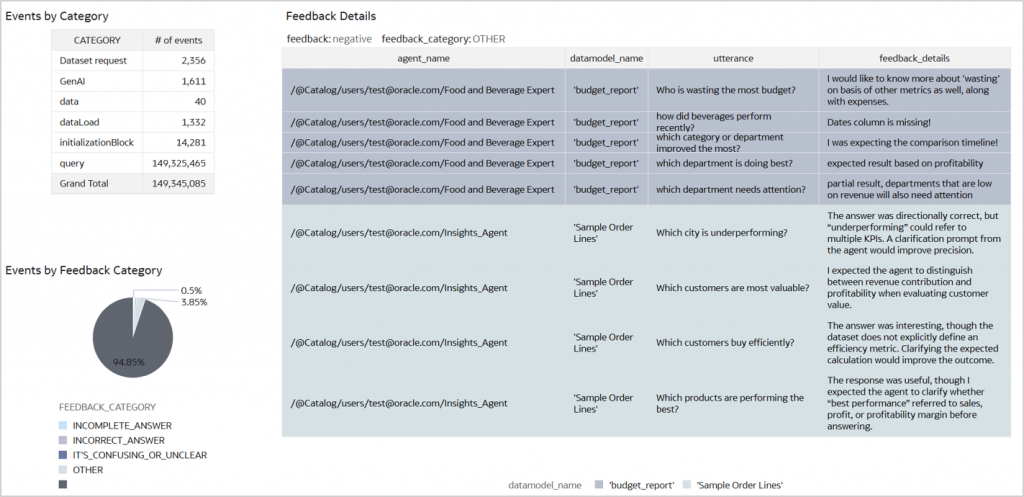
Primary analysis for key insights on logging
Create a connection in Oracle Analytics Cloud to the analytics-ready view and surface it through a dashboard. This dashboard represents the primary and mainstream area of analysis and is where most authors will spend their time understanding AI Assistant feedback. It brings together everything required to understand interactions in context – what the user asked, the AI Assistant response, and how the user reacted. Utterances, messages, data model names, agent names, and feedback details now sit side by side, supported by the identifiers needed to trace each interaction end to end. With this dashboard in place, feedback analysis becomes straightforward and actionable.
As an author, you can start from a thumbs-down response for instance, review the user’s utterance and the user feedback comments, and quickly understand where the interaction fell short. This enables the author to revisit that data source, retry utterances that elicited negative feedback from the user and investigate the cause. This helps the author to improve the overall AI Assistant experience based on user feedback.
Advanced exploration to trace feedback to LSQL
To dig deeper on specific negative feedback and get to the actual LSQL generated by the AI Assistant for that utterance, follow these steps.
- Start from a negative feedback entry for a specific user_id and note the associated event_time and parent_ecid.
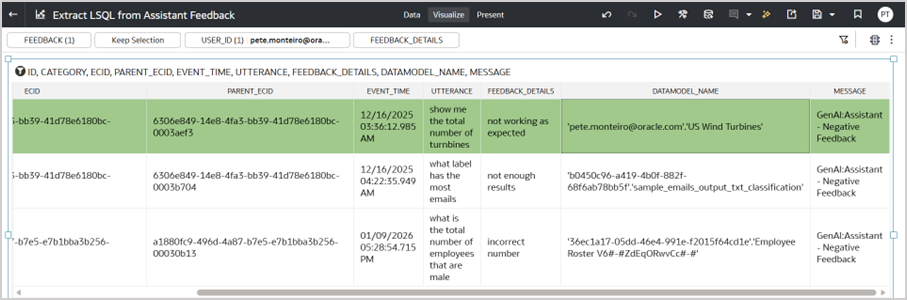
- Look for this parent_ecid in the ecid column in your dataset (highlighted in green). Sort by event_time ascending. The subsequent record (highlighted in blue) contains the LSQL for the utterance. Validate this by comparing the data model name used in the original utterance with the data model name in the LSQL.
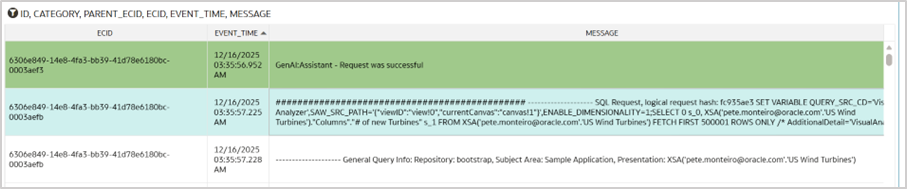
Note: If a user performs multiple activities concurrently, the sequence of LSQLs written to the log file may vary and it may not appear immediately after the actual utterance entry.
Final thoughts
This article demonstrates how AI Assistant feedback can be surfaced from logs and analyzed in Oracle Analytics Cloud. Once available in a structured view, user interactions and feedback become easier to review and act upon.
Call to action
Visit us at the Oracle Analytics and AI Community or Oracle Help Center for additional details.