
This is part of a series of best practice blogs for Oracle Analytics.
It’s often useful for administrators to see the permissions assigned to objects in the Oracle Analytics catalog. Catalog permissions are kept in access control lists or ACLs. Administrators can generate ACL reports using Catalog Manager (UI or command line utility). The Catalog Manager is part of Oracle Analytics Client Tools.
Generate a Catalog Report using Catalog Manager UI
- To open Catalog Manager UI, go to your Oracle Analytics Client Tools menu and select Catalog Manager.
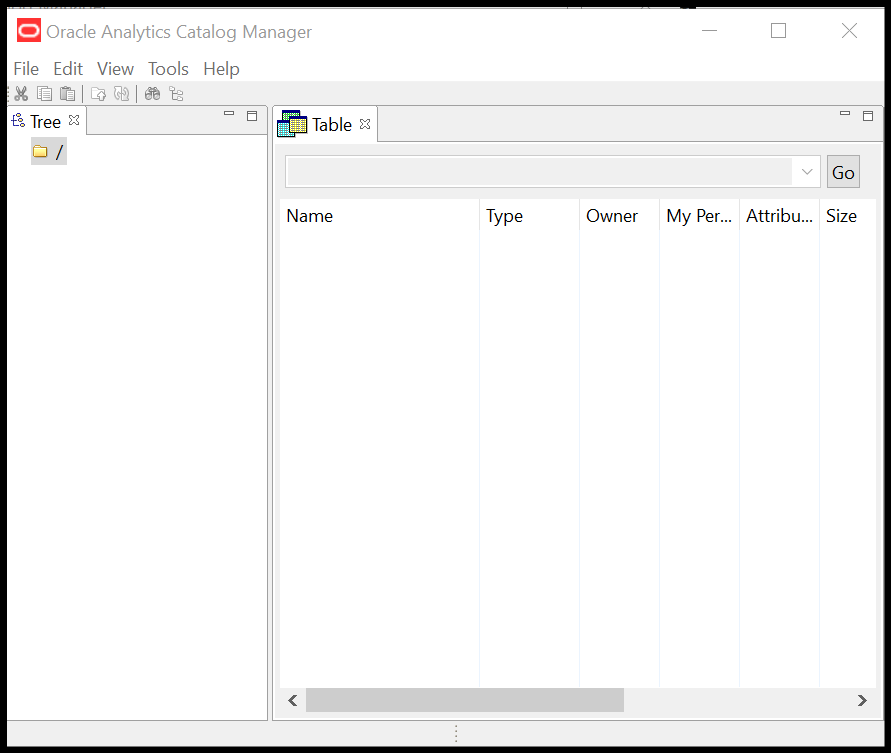
- Click the File menu, and select Open Catalog.
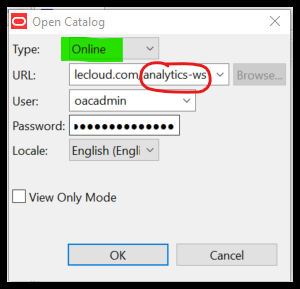
- Open the catalog for your Oracle Analytics environment in Online mode.
- For the URL, use the format
https:/<hostname>/analytics-ws. For example:https://OACinstance.ocp.oraclecloud.com/analytics-ws - Make sure you append ‘
analytics-ws‘ after the hostname. For example:https://OACinstance.ocp.oraclecloud.com/analytics-ws- Note:
/uiis part of the Oracle Analytics URL but you must exclude/uifrom the URL when you connect using Catalog Manager.
- Note:
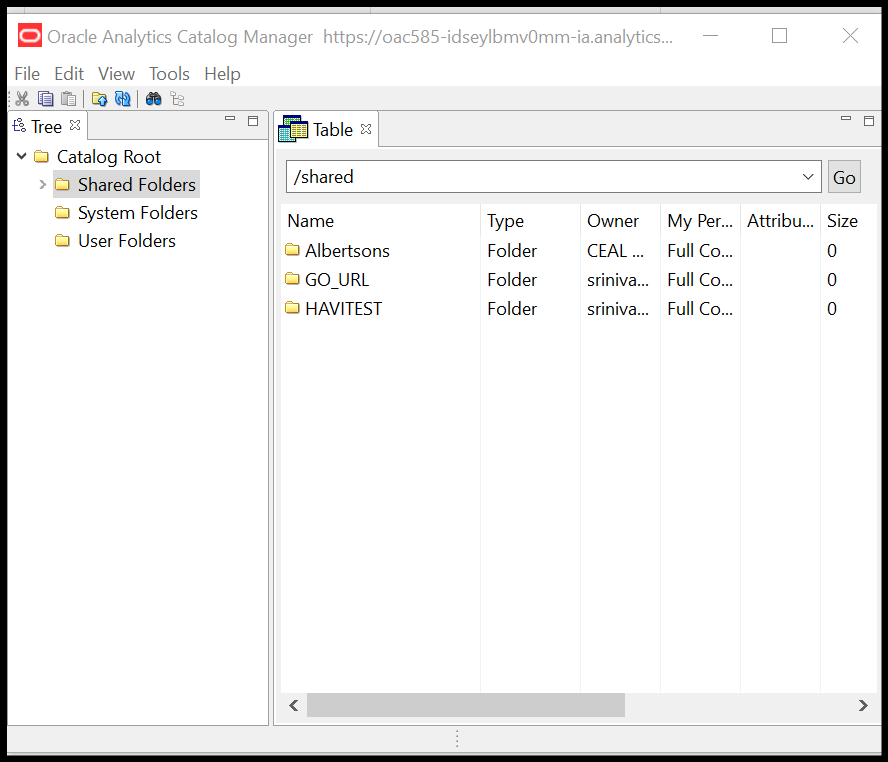
- Expand Catalog Root and select the folder you want to report on, in this case Shared Folders.
- Click the Tools menu and select Create Report.
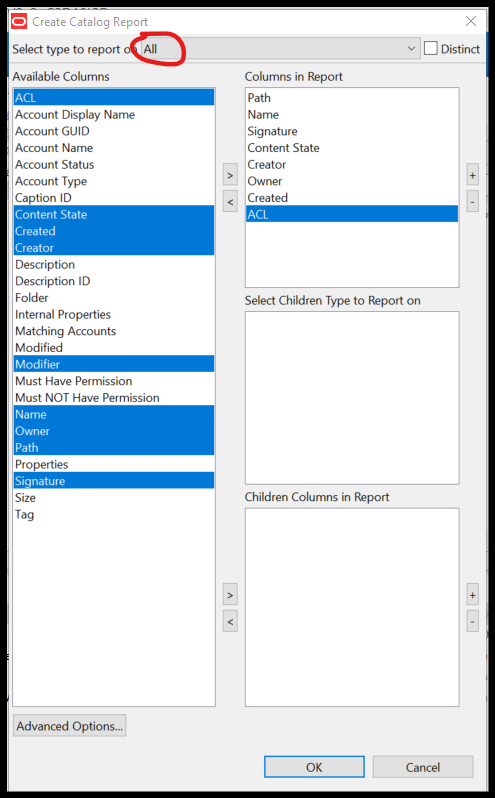
- Select the type of object you want to report on, in this case All.
- Select the columns you want to see in the report. The columns available depend on the object type.
- Reorder the columns as needed.
- Select OK.
- Select Report Preview to see what the report looks like.
- Save the report to a local directory.
- Select Excel Format if desired.
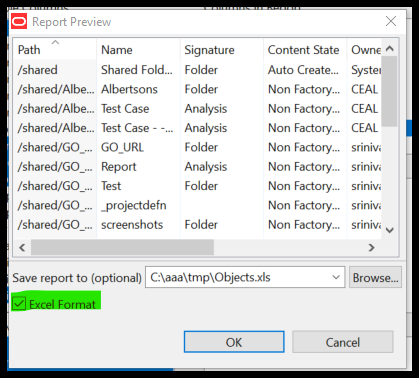
- Review the report output. For example:
| Path |
Name |
Signature |
Content State |
Owner |
Creator |
Created |
ACL |
| /shared |
Shared Folders |
Folder |
Auto Created Factory Content |
System Account |
|
10/23/2020 15:05 |
^BIConsumer=RXLSV:^BIServiceAdministrator=F: |
| /shared/Albertsons |
Albertsons |
Folder |
Non Factory Content |
Admin |
Admin |
5/20/2022 12:40 |
^BIConsumer=RXLSV:^BIServiceAdministrator=F: |
| /shared/Albertsons/Test Case |
Test Case |
Analysis |
Non Factory Content |
Admin |
Admin |
5/20/2022 12:41 |
^BIConsumer=RXLSV:^BIServiceAdministrator=F: |
| /shared/Albertsons/Test Case – – With New RPD Formula |
Test Case – – With New RPD Formula |
Analysis |
Non Factory Content |
Admin |
Admin |
5/20/2022 12:49 |
^BIConsumer=RXLSV:^BIServiceAdministrator=F: |
| /shared/GO_URL |
GO_URL |
Folder |
Non Factory Content |
srini |
srini |
4/30/2021 8:57 |
^BIConsumer=RXLSV:^BIServiceAdministrator=F: |
| /shared/GO_URL/Test |
Test |
Folder |
Non Factory Content |
srini |
srini |
4/7/2022 11:22 |
^BIConsumer=RXLSV:^BIServiceAdministrator=F: |
| /shared/GO_URL/Test/screenshots |
screenshots |
Folder |
Non Factory Content |
srini |
srini |
4/7/2022 11:22 |
^BIConsumer=RXLSV:^BIServiceAdministrator=F: |
| /shared/GO_URL/Test/screenshots/project_thumbnail.png |
project_thumbnail.png |
External Object |
Non Factory Content |
srini |
srini |
4/7/2022 11:22 |
^BIConsumer=RXLSV:^BIServiceAdministrator=F: |
| /shared/GO_URL/Test/_projectdefn |
_projectdefn |
Workbook | Non Factory Content |
srini |
srini |
4/7/2022 11:22 |
^BIConsumer=RXLSV:^BIServiceAdministrator=F: |
| /shared/GO_URL/Report |
Report |
Analysis |
Non Factory Content |
srini |
srini |
12/11/2020 6:29 |
User1=N:^BIConsumer=RXLSV:^BIServiceAdministrator=F: |
| /shared/HAVITEST |
HAVITEST |
Folder |
Non Factory Content |
srini |
srini |
4/30/2021 8:57 |
^BIConsumer=RXLSV:^BIServiceAdministrator=F: |
| /shared/HAVITEST/_portal |
Dashboards |
Folder |
Non Factory Content |
srini |
srini |
5/9/2022 6:30 |
^BIConsumer=RXLSV:^BIServiceAdministrator=F: |
| /shared/HAVITEST/_portal/Dashboard1 |
Dashboard1 |
Folder |
Non Factory Content |
srini |
srini |
5/9/2022 6:30 |
^BIConsumer=RXLSV:^BIServiceAdministrator=F: |
| /shared/HAVITEST/_portal/Dashboard1/dashboard layout |
dashboard layout |
Dashboard |
Non Factory Content |
srini |
srini |
5/9/2022 6:30 |
^BIConsumer=RXLSV:^BIServiceAdministrator=F: |
| /shared/HAVITEST/_portal/Dashboard1/page 1 |
page 1 |
Dashboard Page |
Non Factory Content |
srini |
srini |
5/9/2022 6:30 |
^BIConsumer=RXLSV:^BIServiceAdministrator=F: |
| /shared/HAVITEST/_portal/Dashboard1/Page2 |
Page2 |
Dashboard Page |
Non Factory Content |
srini |
srini |
5/9/2022 8:03 |
^BIConsumer=RXLSV:^BIServiceAdministrator=F: |
| /shared/HAVITEST/DM_HAVITEST.xdm |
DM_HAVITEST.xdm |
Folder |
Non Factory Content |
srini |
srini |
11/20/2020 9:45 |
^BIConsumer=RXLSV:^BIServiceAdministrator=F: |
| /shared/HAVITEST/DM_HAVITEST.xdm/_datamodel.xdm |
_datamodel.xdm |
Data Model Metadata |
Non Factory Content |
srini |
srini |
11/20/2020 9:45 |
^BIConsumer=RXLSV:^BIServiceAdministrator=F: |
| /shared/HAVITEST/Agent_Sensata Test2 |
Agent_Sensata Test2 |
Agent |
Non Factory Content |
srini |
srini |
1/21/2022 6:30 |
^BIConsumer=RXLSV:^BIServiceAdministrator=F: |
| /shared/HAVITEST/HAVI_TEST |
HAVI_TEST |
Analysis |
Non Factory Content |
srini |
srini |
4/30/2021 8:57 |
^BIConsumer=RXLSV:^BIServiceAdministrator=F: |
| /shared/HAVITEST/Report_Agent Test |
Report_Agent Test |
Analysis |
Non Factory Content |
srini |
srini |
1/21/2022 4:13 |
^BIConsumer=RXLSV:^BIServiceAdministrator=F: |
Report Columns
- Path – path of object
- Name – name of object
- Signature – object type
- Content State – type of content
- Owner – owner of object
- Creator – creator of object
- Created – date object was created
- ACL – Access Control List or permissions
In this example, all the catalog objects were selected for the report. If you prefer, you can select a subset of objects in the Select type to report on dropdown, for example, Analysis, Workbook, Report Datamodel Metadata and more.
By default, the report output is tab delimited.
ACL Permissions
The ACL is denoted by one or more characters representing the permissions on that object.
- N No Access
- R Read
- X Execute
- W Write
- D Delete
- P Change Permissions
- O Set Owner
- L Run Publisher Report
- S Schedule Publisher Report
- V View Publisher Output
- F Full Control
In the sample report for the /shared folder, BIConsumer has permissions RXLSV which is Read (R), Execute (X), Run Publisher Report (L), Schedule Publisher Report (S) and View Publisher Output (V). BIServiceAdministrator has F permissions or Full Control.
For the analysis /shared/GO_URL/Report, User1 was explicitly denied access, so the ACL is N.
Generate a Catalog Report using Catalog Manager Command Line
You can generate the same report from the command line utility runcat.cmd.
- Open a command window and navigate to
..\bi\bitools\binin the Oracle Analytics Client Tools install directory or../user_projects/domains/bi/bitools/binin the OAS install directory. Enterruncat.cmd/runcat.shfollowed by the parameters you want to use. - You must specify credentials in a credentials file and reference the file in the command. The credentials file contains two rows; the login
user-idand the loginpassword. The format is as follows:
| login=<userid> |
| pwd=<password> |
To generate the report, run the command:
runcat.cmd -cmd report -online “https://OACinstance.ocp.oraclecloud.com/analytics-ws/saw.dll” -credentials “C:\aaa\tmp\runcat_OAC.txt” -outputFile “C:\aaa\tmp\Object.xls” -excelFormat -folder “/shared” -type “All” -fields “Path:Name:Signature:Content State:Owner:Creator:Created:ACL”
This example uses exactly the same options that you selected from the UI. The benefit of running reports from the command line is the command can be saved in a text file that you can reuse. You can’t save report definitions when you generate reports from the Catalog Manager UI.
Troubleshooting
- For both the UI and command line methods, when you save the report as .xls, the following message is displayed when you attempt to open the file:

Select Yes to open the spreadsheet.
- When you run Catalog Manager from the command line, a
File already existsmessage is displayed if the output file already exists:

To resolve the issue, delete the output file and re-run the report. Or, use -forceoutputFile <output file> to overwrite an existing file instead of -outputFile <output file>. For example:
runcat.cmd -cmd report -online “https://OACinstance.ocp.oraclecloud.com/analytics-ws/saw.dll” -credentials “C:\aaa\tmp\runcat_OAC.txt” -forceoutputFile “C:\aaa\tmp\Object.xls” -excelFormat -folder “/shared” -type “All” -fields “Path:Name:Signature:Content State:Owner:Creator:Created:ACL”
When you run Catalog Manager from the UI, you’re asked whether you want to overwrite existing files.
- When you connect Catalog Manager to an online catalog, the catalog doesn’t open. Instead you see HTTP status code 200.
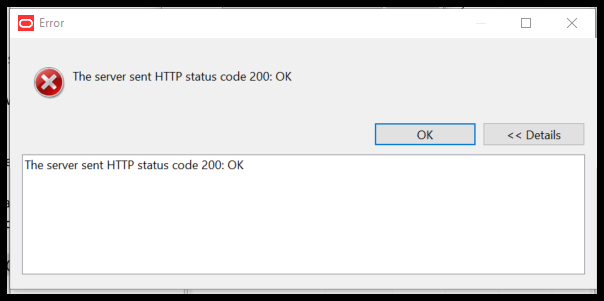
The URL used to connect to the catalog contains /ui. For example, https://OACinstance.ocp.oraclecloud.com/ui/analytics-ws
Similarly, if /ui is used when running runcat.sh/runcat.cmd, an invalid login message is seen along with an HTTP status 200 message and sometimes a thread stack.
Beginning of message:

End of message:

In both cases, remove /ui from the URL and try again.
-
When running either the catalog manager UI or command line utility you get a SSLHandshakeException similar to:
# HTTP transport error: javax.net.ssl.SSLHandshakeException: sun.security.validator.ValidatorException: PKIX path building failed: sun.security.provider.certpath.SunCertPathBuilderException: unable to find valid certification path to requested target
HTTP transport error: javax.net.ssl.SSLHandshakeException: sun.security.validator.ValidatorException: PKIX path building failed: sun.security.provider.certpath.SunCertPathBuilderException: unable to find valid certification path to requested target
#Exception: HTTP transport error: javax.net.ssl.SSLHandshakeException: sun.security.validator.ValidatorException: PKIX path building failed: sun.security.provider.certpath.SunCertPathBuilderException: unable to find valid certification path to requested target
                com.sun.xml.internal.ws.transport.http.client.HttpClientTransport.getOutput(HttpClientTransport.java:117)
                com.sun.xml.internal.ws.transport.http.client.HttpTransportPipe.process(HttpTransportPipe.java:208)
                com.sun.xml.internal.ws.transport.http.client.HttpTransportPipe.processRequest(HttpTransportPipe.java:130)
                . . .
This happens when the Oracle Analytics URL certificate does not exist in the Oracle Analytics Client Tools JDK trust store.
To resolve this issue, follow the instructions in My Oracle Support note While Opening OAC RPD In The Cloud Using Vanity URL Hostname The Model Administration Tool Errors With – “javax.net.ssl.SSLHandshakeException” [Video Content] (Doc ID 2937971.1) to import the Oracle Analytics certificate into the client tools JDK trust store.
Conclusion
The easiest way to review the permissions of objects in your Oracle Analytics catalog, is to generate a catalog report using the Catalog Manager utility.
More Information
- Catalog Manager UI: For more information, see Perform Advanced Catalog Management.
- Catalog Manager Command Line: For command line help, run:
runcat.cmd -cmd report -help
You can post questions and get answers about this and other topics in Oracle Analytics forums on Oracle Cloud Customer Connect.