
If you have upgraded your version of Visual Builder and have applications that use the sample R13 SaaS LightBlue theme from an earlier version, then you will need to go through a simple upgrade process for the LightBlue theme before trying to run the application with the new version. Just to explain, when there is a jump in the version of the Oracle JET UI toolkit between two versions of Visual Builder then any custom themes need to be re-generated. The good news is that we’ve done the hard work for you and you’ll just need to go thought the following simple steps to consume this new version of the theme.
At the end of this article you will find a list that matches the version of the theme files that you will need to use for the corresponding version of Visual Builder.
Warning (August 2022) – The ApplicationsCloudUITheme is deprecated as a sample since it relies on the deprecated Alta theme. You should convert your application to use the Redwood or the Stable theme as a basis with appropriate customization via CSS variables or to your own custom theme created in JET based on the stable theme
Here are the steps:
Step 0: Make sure you have a backup of your application or carry this work out in a separate branch for safety!
Step 1: Download the updated version of the theme files from the theme release page on GITHub. You will want to download the zip file called ApplicationsCloudUI-n.n.n.zip where the version is the correct one for your target Visual Builder version (see the list below)
Step 2: Open your Application, expand the WebApp in question and right mouse click on the resources/css node. Choose the Import option and select the ApplicationsCloudUI-n.n.n.zip file you have downloaded, then press the Import button.
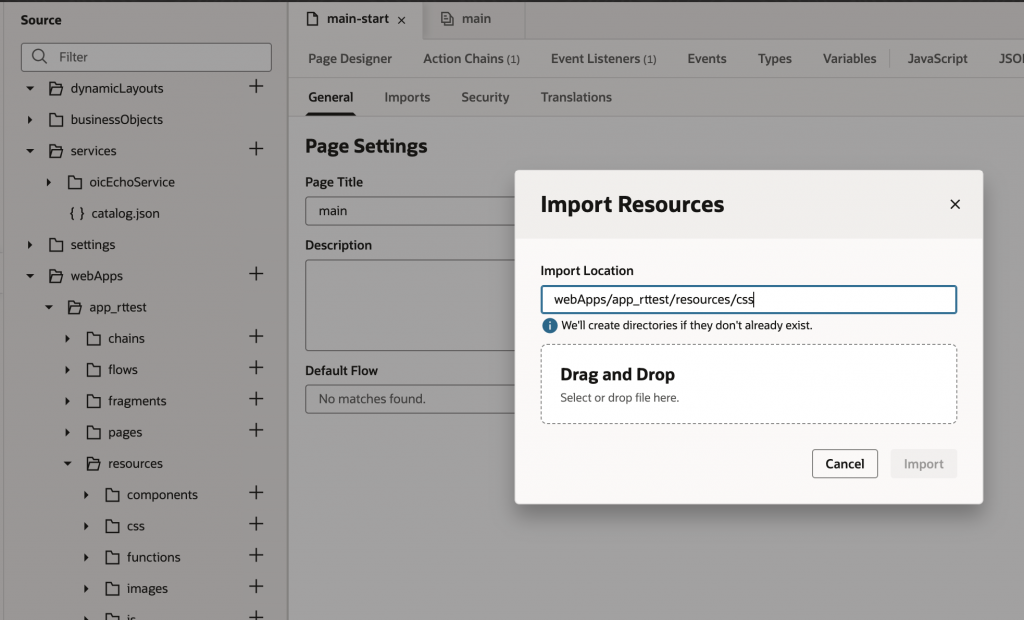
Illustrative example using the 4.1.1 release, the file name will be different depending on the version you are importing.
Make sure that you are importing into the /resources/css folder as shown here.
Step 3: Select the application in the navigator and open its Application Settings panel. In the Theme select list, select the new theme version from the list. You can choose to remove the older versions of the theme if you wish or just leave them
Theme Versions
For reference, here is the complete list of Visual Builder versions matched to the correct theme (newest to oldest)
v
| Visual Builder Release |
Oracle JET Runtime Version |
Theme File to import |
| 2307 | 14.0.8 | ApplicationsCloudUI-9.0.0.zip |
| 2304 | 13.1.5 | ApplicationsCloudUI-8.0.1.zip |
| 2301 | 13.0.5 | ApplicationsCloudUI-8.0.1.zip |
| 2210 | 12.1.4 | ApplicationsCloudUI-7.1.1.zip |
| 2207 | 12.0.3 | ApplicationsCloudUI-7.0.1.zip |
| 2204 | 11.1.5 | ApplicationsCloudUI-6.1.0.zip |
| 2201 | 11.0.0 | ApplicationsCloudUI-6.0.0.zip |
| 2110 | 10.1.3 | ApplicationsCloudUI-5.1.0.zip |
| 2107 | 10.0.4 | ApplicationsCloudUI-5.0.0.zip |
| 2104 | 9.2.0 | ApplicationsCloudUI-4.1.1.zip |
| 2010 | 9.0.0 | ApplicationsCloudUI-4.0.0.zip |
| 19.4.3 | 8.0.0 | ApplicationsCloudUI-3.0.1.zip |