
Note: This blog focuses only on connecting to OIC from within VB Studio (VBS) Visual Application workspaces, not about CI/CD of OIC integrations or App Extension workspaces. For CI/CD setup, refer to: Oracle Blog on CI/CD for OIC.
In Oracle Visual Builder Studio (VBS):
A Workspace is a container where your project source code lives.
A Visual Application workspace is used to build and deploy apps to a Visual Builder runtime instance.
An App Extensions workspace is used for extending Oracle Fusion Apps (not covered here).
We will cover how to consume published integrations from Oracle Integration Cloud (OIC) Gen 3 in Visual Application workspaces.
Environment Setup for a Visual Application workspace
To work properly, a Visual Application workspace (in VBS) needs a corresponding VB runtime instance. This is configured in VBS Environments as below
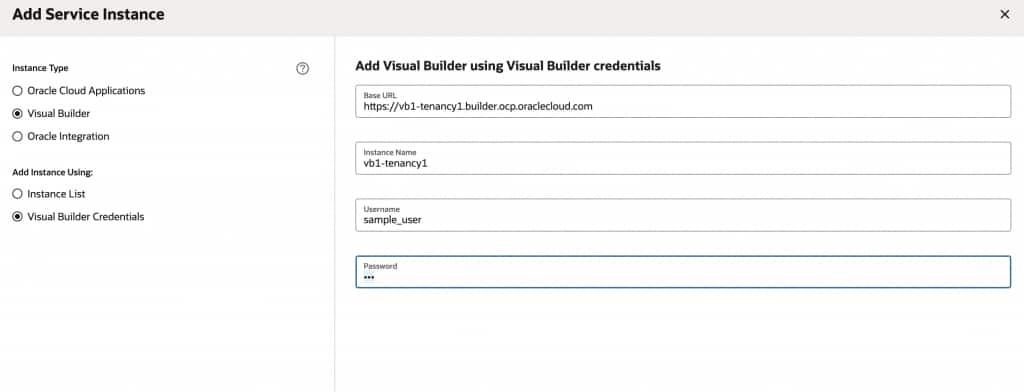
The Tenant settings of the VB runtime instance determine how an OIC instance is made available to a visual application workspace
Example setup
| Component | Value |
| OIC instance (Gen 3) | https://INT1-tenancy1.integration.ocp.oraclecloud.com |
| VB instance (co-provisioned with OIC) | https://VB1-tenancy1.builder.ocp.oraclecloud.com |
| VB instance -> Tenant Settings -> Integration Application | |
| VB Studio | https://vb-studio-instance.developer.ocp.oraclecloud.com/org |
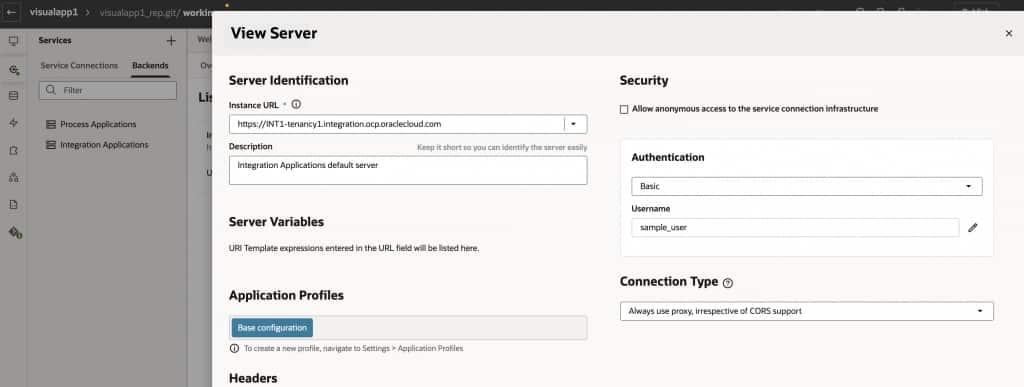
| VB Studio -> Environment | VB instance added with – Authentication = Basic – Status = Green |
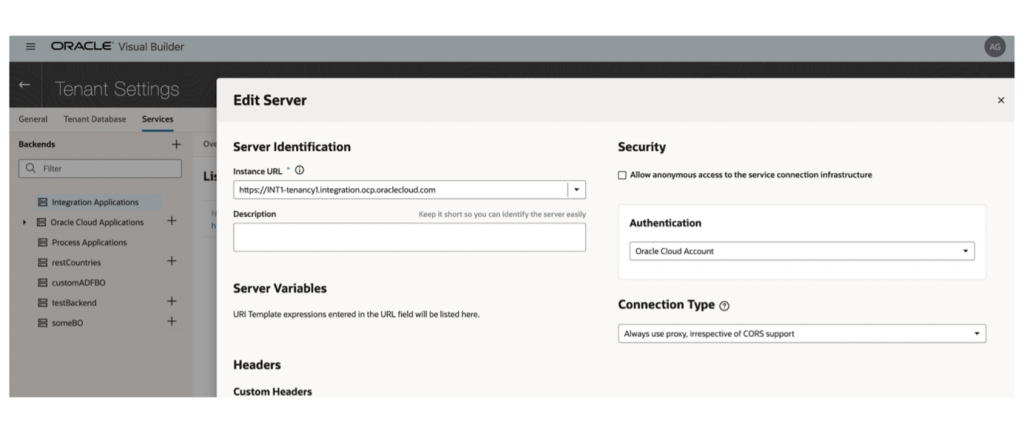
If your OIC instance was Gen 2, then this used to be where the setup ends. When the visual app workspace in VBS opens, you would see the same Integration Applications backend as configured in the VB runtime instance’s Tenant Settings. This Backend can now be used in development to select integrations from the catalog and consume in VB via Service Connections. The only difference here is that the Backend would work with Basic Auth credentials (that were setup in the Environment) rather than the authentication type that was in the Tenant Settings
However for Gen 3 OIC, Basic authentication is no longer a viable option to connect to some APIs, especially the API that brings the integration catalog. If you use it as-is in VB Studio, you may see the following error in VBS
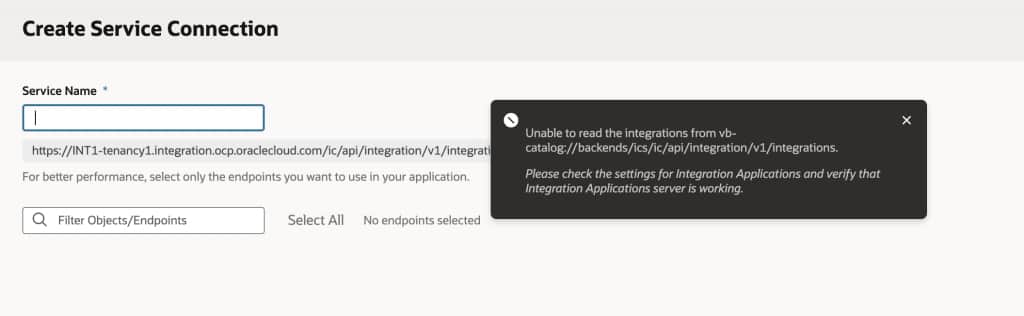
Hence we need to tweak the configuration a bit to not use Basic Auth for connecting to OIC
Application profiles to differentiate between Development and Deployment
We want to achieve the following :
- Use a valid OAuth type (OAuth 2.0 Resource Owner Password) when developing in VBS
- Use Oracle Cloud Account when deployed to VB runtime instance (Oracle Cloud Account propagates logged in user’s identity to the given REST API)
- Obviate the need for the user to manually change any URL etc between different environments (TEST, PROD etc) and rely on Tenant settings of the deployment instance (this is not strictly required, but it is a convenience)
This can be achieved by Application Profiles feature using the following steps:
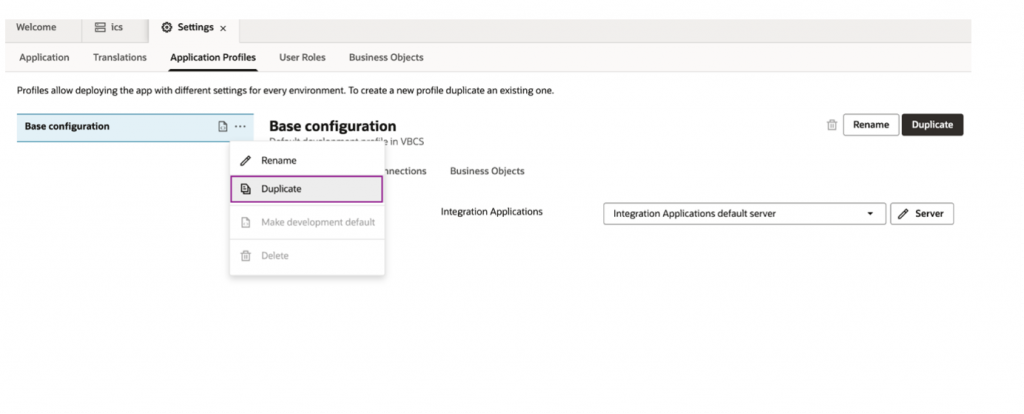
- Navigate to Workspace -> Settings -> Application Profiles. There would be a single application profile called base_configuration. Duplicate the application profile to create a deployment application profile
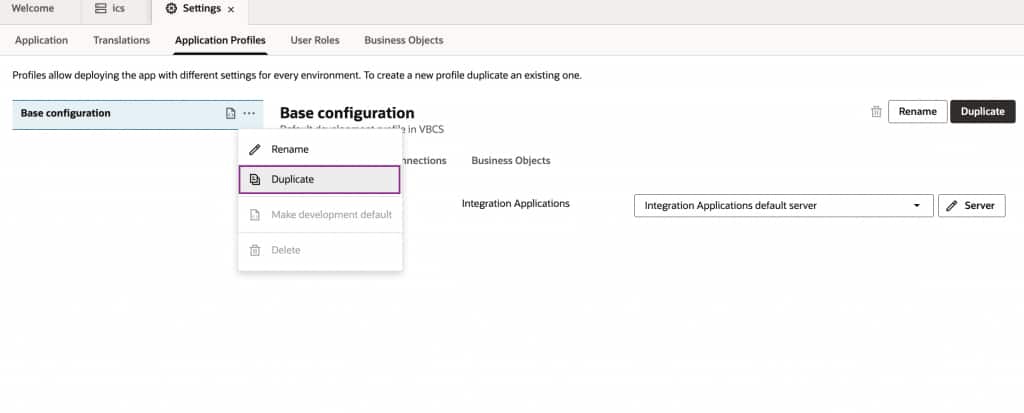
- The newly created application profile will look like below
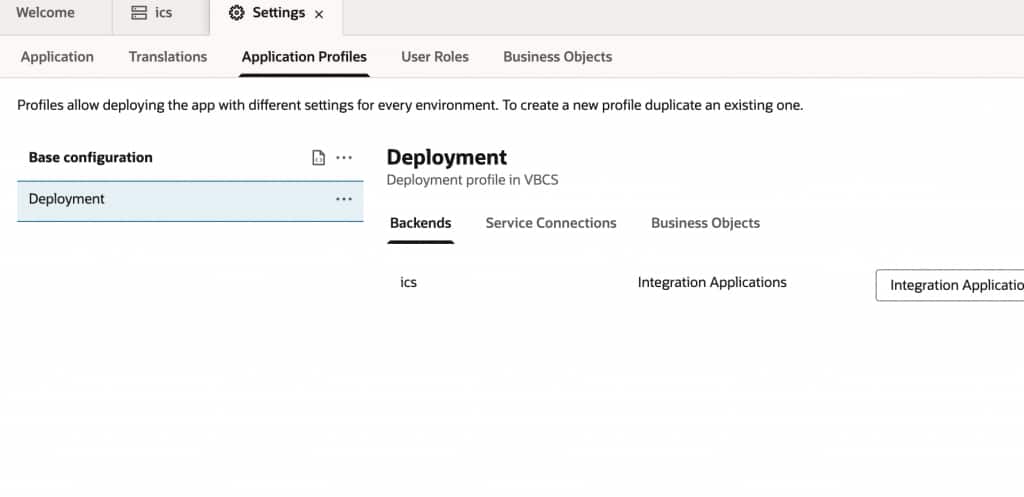
- Go to Workspace -> Services -> Backends -> Integration Applications. Click on Override Backend. You’ll now see the backend URL as
vb-catalog://backends.tenant/ics, linked to both profiles.backends.tenantis a short form way of pointing to the Tenant backend.
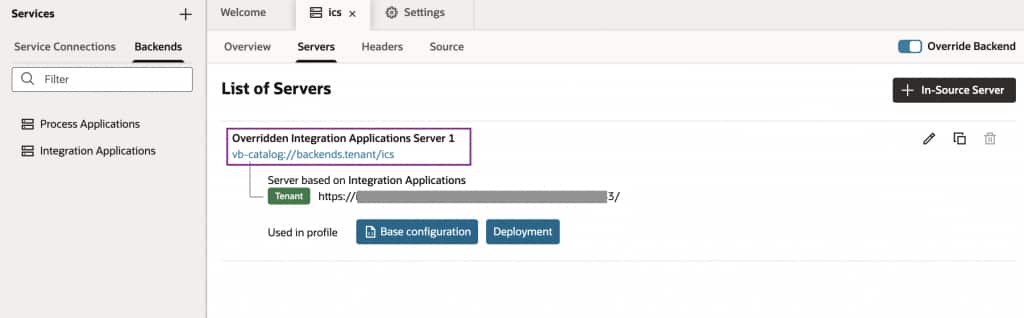
- Click on the copy icon to duplicate the server of the Integration Applications backend
- Assign
- First server -> base_configuration profile
- Second server -> deployment profile
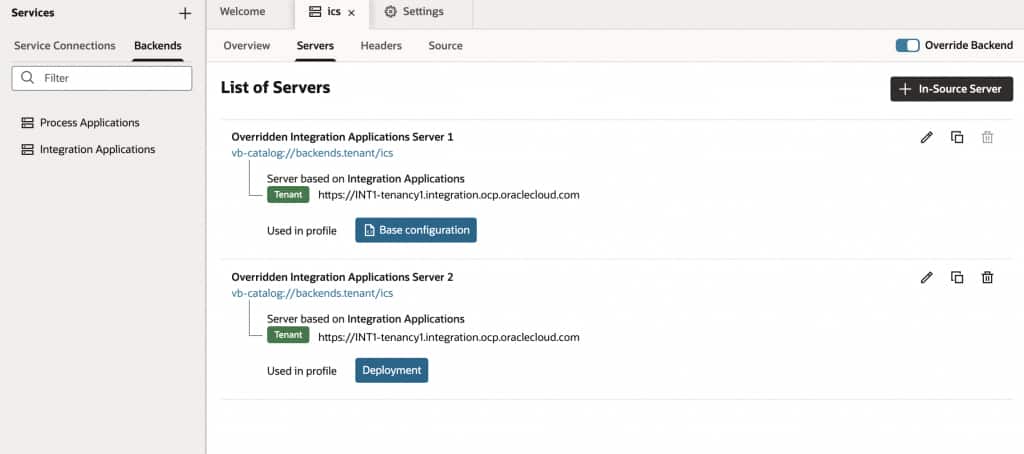
- Edit
- First server (base configuration) -> base_configuration profile
- Authentication : OAuth 2.0 Resource Owner Password
- Provide client id, secret, token URL, scope, username, password. Consult here for more
- Override Connection Type = Always Use Proxy to avoid any CORS errors
- This way the first server shares the same URL as the Integration Applications backend in the Tenant settings, but has overridden the authentication and connection type
- Second server (deployment profile)
- Make sure the Authentication Type and the Connection Type are inherited
- You may need to click “Revert to inherited” to achieve this
- This way the second server is completely based on the Integration Applications backend in the Tenant Settings
- First server (base configuration) -> base_configuration profile
- In the Build job for deployment, make sure to use the deployment profile
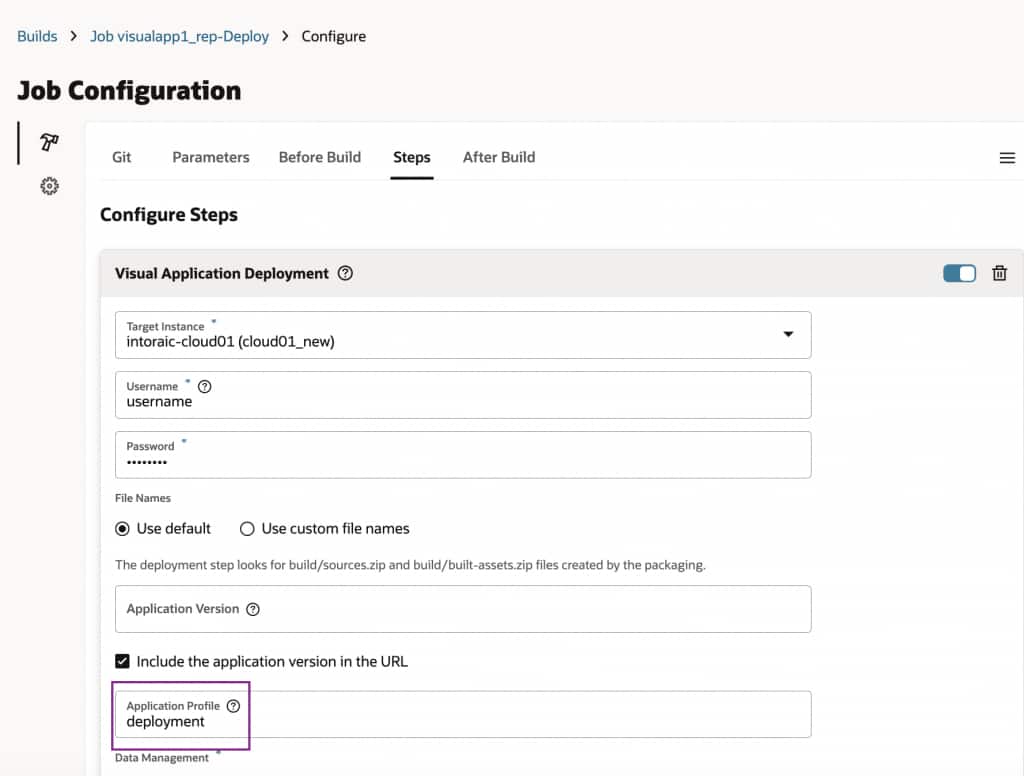
Result
When developing in VBS, the base_configuration profile will be used
- Preview will use the base_configuration profile
- Shared application will also use base_configuration profile
- Deployed application will use deployment profile (if configured in the pipeline appropriately)