
We are always focused on enhancing the developer experience by making Siebel Web Tools better. In our latest Siebel CRM 25.3 Release Update, we have taken a step forward by introducing three brand-new Object Wizards to Web Tools:
- MVG Applet Wizard
- Pick Applet Wizard
- Tree Applet Wizard
These new wizards allow developers to create Applets in Web Tools in a more guided way. In this article, we have highlighted the interesting and new aspects of the wizards. Additionally, we have optimized the developer experience in three ways:
- Prepopulating the Project property to save you a step
- Recommending Web Templates
- Preselecting Applet controls
Prepopulating the Project property
Let’s now check out the new object wizards and the prepopulated Project property.
1. Initiating the Applet Wizards – To begin, you need to start the Applet wizards. This can be done by clicking the wizard icon in Web Tools.

For future Applet wizards, you can use the A (Applet) button. This button serves as a quick access point for your Applet creation.
2. Choosing Your Applet Type – Once the wizard starts, you’ll be prompted to select the type of Applet you wish to create. You have three new options to choose from: MVG Applet, Pick Applet, and Tree Applet. Each type of Applet serves different purposes, so choose the one that best fits your project requirements.

3. Setting the Project Property – To save your time, the Project property for the Applet is now prepopulated. This means you don’t have to manually set it each time you create a new Applet. By default, the Project is set to “00Phoenix”, but you can also select any Project you like.

Recommending Web Templates
You will now see only the templates that work with your Applet type. You can still choose any Web Template, but by default only the compatible ones are displayed. You can use the Show All Templates checkbox to view all the templates.

For example, this is what you would see for an MVG Applet with the Show All Template checkbox unchecked.
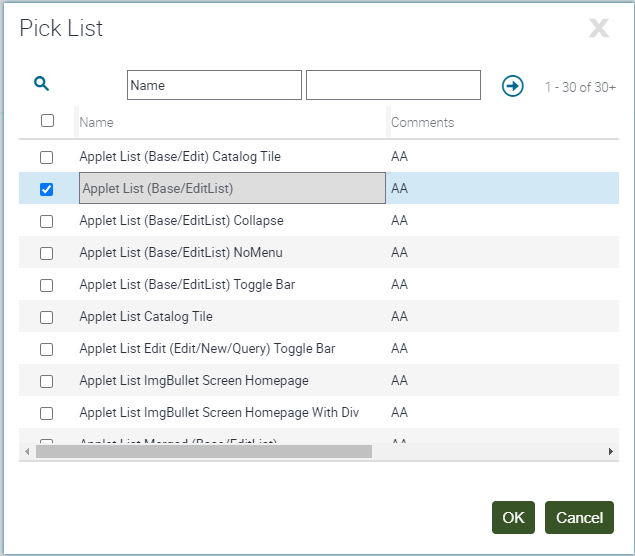
You can use this checkbox to set the conditions for each Applet Mode.
Preselecting Applet controls
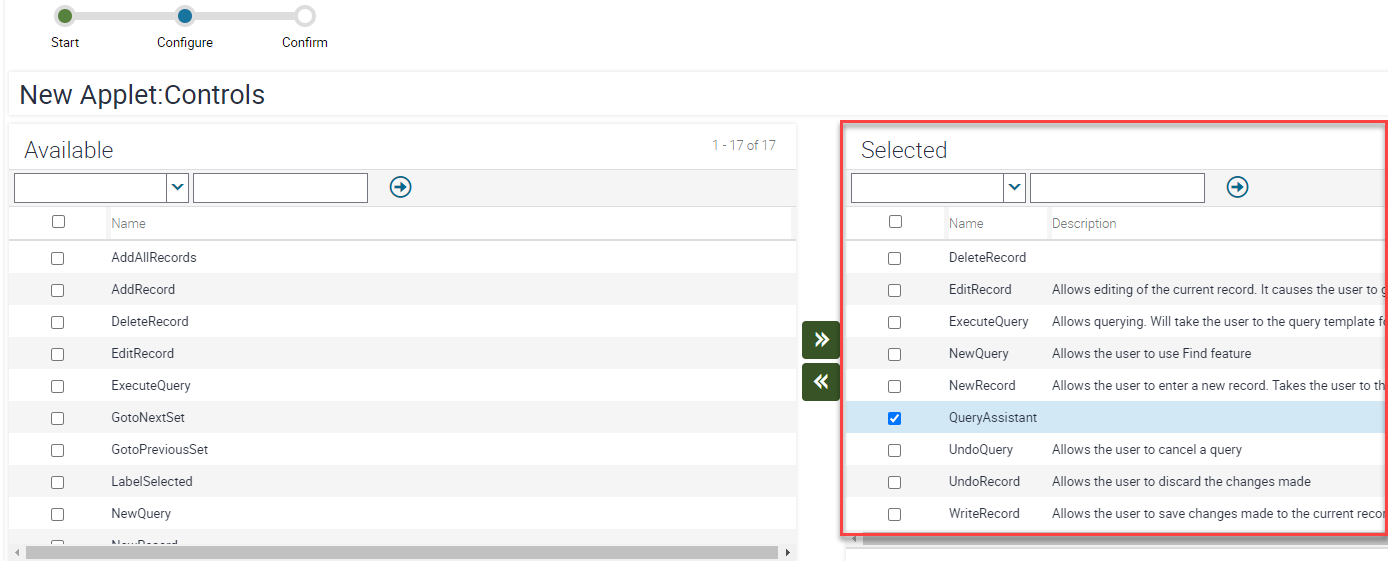
You can now view the Applet Controls preselected for you and remove only the ones you don’t want on the Applet, if required. Typically, you don’t have to exclude any controls and can leave the selected list as it is.
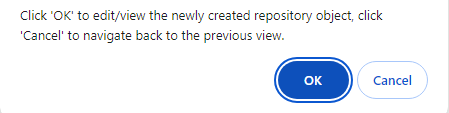
Once the Applet is created, you can directly go to the Applet and edit it. You aren’t redirected to the Applet Editor canvas as there may be other things you wish to customize prior to going to the editor. So, clicking OK on the dialog takes you to the newly created Applet record. And, clicking Cancel takes you back to the View from which you started the wizard.
On behalf of the Siebel CRM product management team, we believe that these new wizards in Web Tools will enhance developer experience. If you have any feedback, please don’t hesitate to reach out to us.