
Your agent might need information from a website, a SharePoint library, or an external application. A connector establishes the connection to that source or service.
It holds the configuration needed to connect, such as the endpoint, authentication method, and source settings. The required fields depend on the connector you choose.
Start with the information you need
Imagine you’re building an assistant for employee policies. Before designing its responses, decide how it will get the information.
With SharePointO365, approved files are synchronized and indexed through Content Intelligence. A workflow can then retrieve passages that help answer a policy question.
With Microsoft SharePoint, a workflow can call live Microsoft Graph operations. For a document finder, that might mean searching a library and returning matching filenames and links.
The source may be SharePoint in both cases, but the connection supports a different information path. Choose the path that fits the task.
What do you configure?
| Configuration area | What to establish |
|---|---|
| Source or service | The website, SharePoint source, or external service the connector will use. |
| Authentication | The authentication details required by that connector. |
| Scope | The approved content or resources covered by the configuration and permissions. |
| Access | Who can use the connector and the permissions of the connected identity. |
Available settings vary by connector and release. Follow the relevant setup guide for the fields shown in your environment.
Check the connection before building on it
Start with a small source and a result you can verify. For indexed content, check synchronization, indexing, and retrieval. For a live operation, test the connection and confirm that the selected function returns the expected information.
Once the source path works, create a connector tool to expose the functions your agent or workflow needs.
Explore three practical connector examples
Choose a guide below to follow the complete example, including connector setup, tool configuration, workflow steps, prompts, and screenshots.
| Connector | What you’ll build | Practical guide |
|---|---|---|
| WebCrawler | An assistant that answers questions from indexed website content. | Example 1: WebCrawler learning-path assistant |
| SharePointO365 | A policy assistant that answers from indexed SharePoint documents. | Example 2: SharePointO365 policy assistant |
| Microsoft SharePoint 26C | A live document finder using Graph search and metadata, with the 34-function reference. | Example 3: Microsoft SharePoint live document finder |
Connector choices in AI Agent Studio
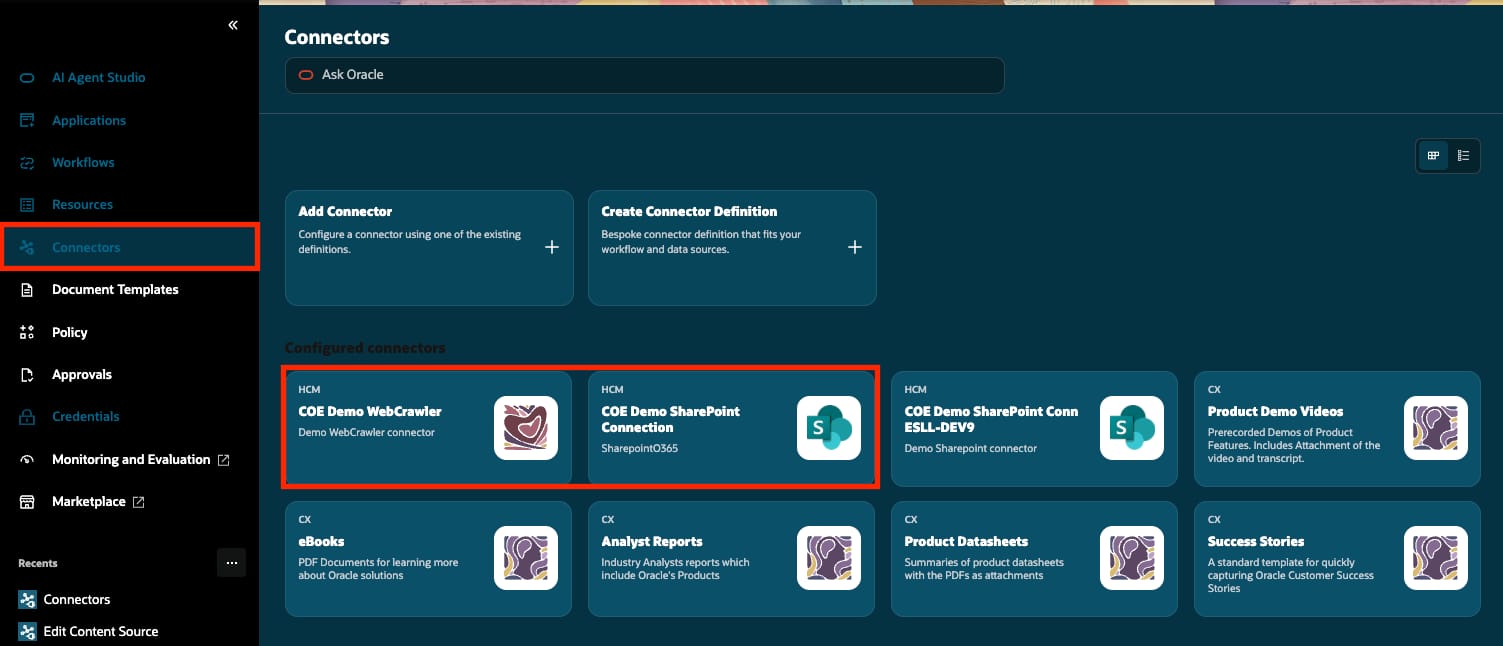
Continue with Connector tools: Choose the functions your agent needs.
Back to Introduction to Connectors
For official configuration guidance, see Create a Connector for AI Agents.