
If you’ve extended Redwood pages and successfully deployed those changes to an Oracle Fusion Applications instance from Visual Builder Studio, you’ve most likely already worked with OAuth. It plays a key role in environment provisioning, deployment automation, and application migrations across instances.
Because so many development and deployment activities depend on it, understanding how OAuth works is essential for building a reliable and repeatable delivery process.
In this blog, we’ll explore the different places where OAuth comes into play, walk through the setup and configuration steps, and discuss some important considerations that can help you avoid common issues during deployments and migrations.
We recommend OAuth 2.0 for Oracle Cloud Applications environments and CI/CD deployment steps. Basic authentication should be treated as a fallback only when OAuth setup cannot be completed.
Note (26.07 update): Starting with VB Studio 26.07, basic authentication is being eliminated entirely from the Fusion Cloud Applications 3-legged OAuth setup. On 26.07+, VB Studio can configure and use these OAuth connections without ever requiring local Fusion Applications usernames/passwords, enabling SSO, federated identity, or OAuth-only flows. The basic-auth-related steps and “what happens under the hood” details below describe the pre-26.07 behavior and no longer apply once your instance is on 26.07 or later.
Understanding the OAuth flow
VBS implements 3-legged OAuth 2.0. Three parties are always involved:
| Party | Role in the OAuth Flow |
|---|---|
| Visual Builder Studio (VBS) | The OAuth client. Initiates the flow, receives and stores tokens. |
| IDCS / Oracle Identity Domain | The authorization server. Issues access tokens after the user authenticates. |
| Fusion Applications (FA) | The resource server AND the user login endpoint for 3-legged consent. |
Prerequisites
Before you create a VBS Environment pointing to a FA instance, ensure the following are in place:
- Local FA service account: Must be a local user account (not federated). Must NOT require MFA. Used only during environment creation.
- Appropriate security privileges: Every person who deploys to production must have their own FA production account with the deployment role. The right Fusion Cloud privileges. If you use custom roles, we have documented the Administer Sandbox privilege as required for users who deploy and where OAuth shows up in the VBS Flow. Please refer to the guidelines here.
OAuth appears in three practical places within VBS:
- Environment provisioning: VBS connects an Oracle Cloud Applications instance to an environment by using OAuth 2.0.
- Manage Extension Lifecycle: VBS may ask you to provide credentials before you can deploy, delete, or inspect lifecycle details for an environment.
- CI/CD deployment jobs: The Application Extension deployment step uses OAuth authorization before it can deploy an extension artifact.
If you want to deploy an extension to another DEV, TEST, or PROD instance, you define a VBS environment for that target instance. Each environment can contain only one Oracle Cloud Applications instance, so PROD needs its own environment.
OAuth Scenario 1: Add the Fusion Cloud Instance to an Environment
In VBS, open Environments, create a new environment, and add an Oracle Cloud Applications service instance.
- Click Environments in the VBS navigator.
- Click + Create Environment.
- In Service Instances, click + Add Instance.
- Select Oracle Cloud Applications.
- Under Add Instance Using, select Application Credentials.
- Enter the Fusion Cloud base URL and instance display name.
- Enter the username and password for a user who can access the target instance.
- Under Authorization Type, keep OAuth 2.0 selected and click Add.
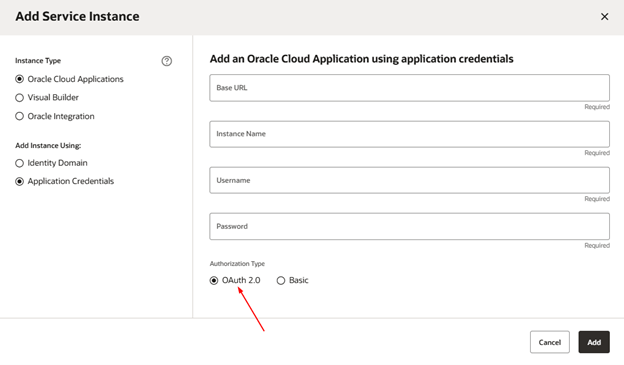
The username and password requirement is a common source of confusion. Those setup credentials must be for a local user, not a federated identity, and must not require multi-factor authentication. Once the Oracle Cloud Applications instance is connected, those credentials are discarded and are needed only to set up the initial OAuth-based connection.
If OAuth 2.0 is selected, VBS may prompt you to authorize access so it can acquire OAuth tokens for the target instance. When prompted, click Authorize and sign in to the Oracle Cloud Applications instance.
What happens under the hood
VBS makes a one-time call using the basic auth credentials to identify the IDCS identity domain associated with your FA pod. Once VBS has located the domain, it provisions a 3-legged OAuth client inside that domain. From this point:
- The basic auth credentials are discarded – not stored, not reused for deployments.
- An initial OAuth token is acquired for the Environment service. This token is used only for health/status checks.
Understand the Username Shown in Environment Details
After an Oracle Cloud Applications instance is connected, the username shown in the environment details is not the VBS username. It is the user who logged in to the connected Oracle Cloud Applications instance and created the refresh token used by that OAuth connection.
OAuth Scenario 2: Use Manage Extension Lifecycle for Direct Deployment
After the environment exists, the Manage Extension Lifecycle page is the easiest way to deploy a published extension to another environment. If you add a new environment from this page, the authentication method for the Oracle Cloud Applications instance is automatically set to OAuth.
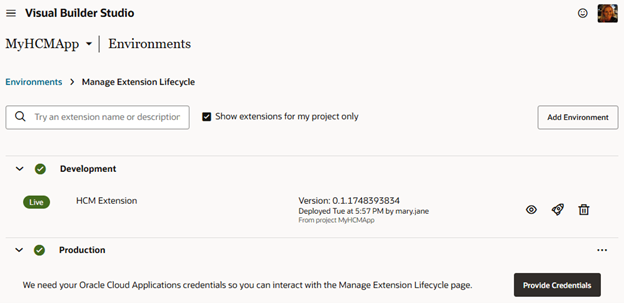
If you see Provide Credentials next to an environment, sign in before working with that environment on the lifecycle page.
OAuth Scenario 3: Configure CI/CD Deployment With OAuth
If you deploy through CI/CD, VBS uses a packaging job and a deployment job. The packaging job creates the deployable extension artifact, usually extension.vx. The deployment job copies that artifact and then runs an Application Extension > Deploy step against the target Oracle Cloud Applications environment. This is where you use OAuth comes into play.
In the deployment build job:
- Open the job configuration.
- Navigate to Steps tab within the job configuration.
- Select the target Oracle Cloud Applications environment.
- In Authorization, keep Use OAuth selected.
- Click Authorize and sign in to the target instance.
- Confirm the build artifact name, such as extension.vx.
- Save the job.
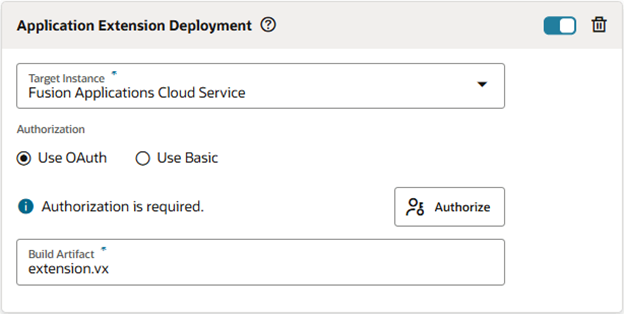
The deployment job has its own authorization step. With Use OAuth selected, VBS shows Authorization is required until the OAuth authorization is provided. We recommend completing this authorization during initial configuration. If you skip it, deployment and publishing flows that depend on the job will require authorization later.
Once the OAuth authorization is complete, the build step shows that authorization has been provided.
OAuth Token Renewal
OAuth access and refresh tokens are cycled during regular use. The refresh token is typically valid for seven days. If the user authenticates with the target instance during the active refresh-token period, the active refresh token is used to generate a new access token and a new refresh token. That cycle can continue as long as the refresh token remains valid.
If the refresh token expires after inactivity, renew it:
- For an environment connection, use the environment action menu and select Renew OAuth Access.
- For a deployment job, click Renew Authorization, or run the job manually so VBS prompts for authorization.
FAQs
Why does OAuth setup still ask for username and password when using OAuth?
The setup flow uses application credentials to connect the Oracle Cloud Applications instance and establish the OAuth-based connection. Those credentials are discarded after the instance is connected and are needed only for initial OAuth setup.
Why does the environment details page show a different username?
The username shown reflects the user who most recently performed a deployment or lifecycle action in that environment. Deployments require authorization using the credentials of the user executing the action, so the displayed username may differ from the user who originally created the environment. This applies to deployments performed through both the UI and CI/CD pipelines.
Do I need to authorize the CI/CD job every time?
No. Once authorized, the token stays valid as long as at least one deployment runs within any rolling 7-day window.