
Let your agents read, parse, and act on uploaded files — straight from chat, cloud storage.
Documents are at the heart of every business process — passports, resumes, invoices, certificates. With the Runtime File Processor tool in Oracle Fusion AI Agent Studio, you can drop a file in chat and let an intelligent agent do the rest.
Why File Processing Matters
Oracle Fusion AI Agent Studio supports multiple ways to supply files to agents for processing. Depending on where the file lives and which agent pattern you’re using, different tools and nodes come into play. This blog focuses specifically on the Runtime File Processor tool — the go-to mechanism for parsing files uploaded directly via chat from local machine or connected cloud storage.
📌 Focus of This Blog
The Runtime File Processor tool (tool name: MultiFileProcessor) is a delivered, seeded tool in AI Agent Studio. You cannot create additional instances or duplicate it — simply add it to any worker agent as-is.
How to Feed Files to Agents
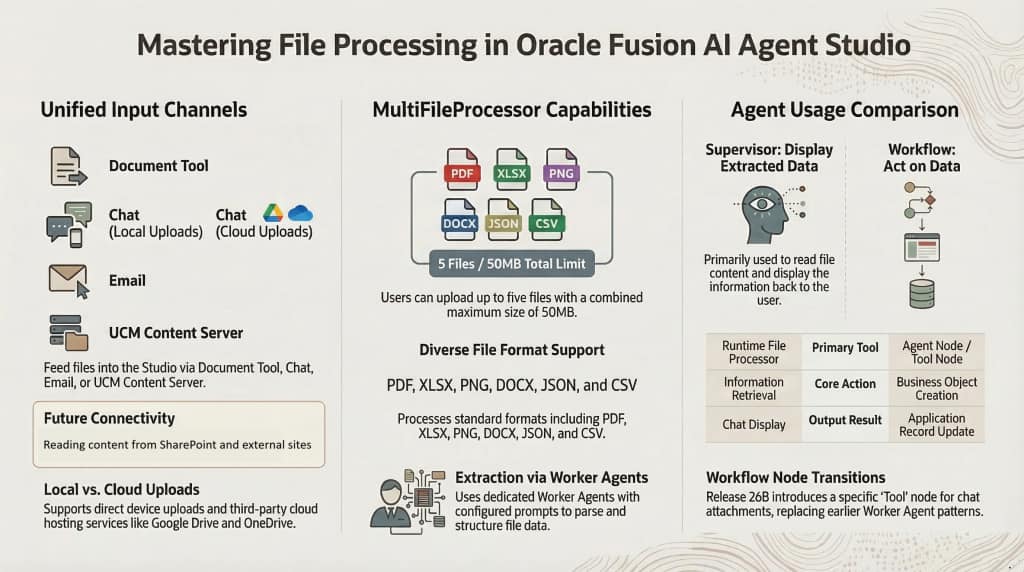
As of Release 26A, files can reach an Oracle Fusion AI agent from any of these sources:
📁Document Tool: Ideal for uploading and publishing policy documents for Retrieval-Augmented Generation (RAG) searches
💬Chat Upload: Users can upload files from their local device or via connected file-hosting services like Google Drive, Dropbox, and Microsoft OneDrive
📧Email Attachment: Files attached to inbound emails processed via Email Trigger in workflow agents.
🗄️UCM Content Server: Files on Oracle Content Management can be processed using Business Object functions that reference the UCM Content ID
🚀 Roadmap
A new Tool node type with a “Chat Attachments Reader” option will be available in 26B that will allow workflow agents to read chat-uploaded files directly — without needing a worker agent. SharePoint and external site reading are also on the roadmap.
Right Tool for the Right Agent
The correct tool or node depends on both where the file lives and which agent pattern you’re building.
| File Location | Supervisor Agent (Tool) | Workflow Agent (Node) |
|---|---|---|
| Document Tool | Document | RAG Document Tool |
| Chat Upload | Runtime File Processor | Agent (Worker Agent with Runtime File Processor Tool) Tool (Type as Chat Attachments Reader) — Available in 26B |
| Email Attachment | Not applicable | Code |
| UCM Content Server | Not applicable | Document Processor |
About the Runtime File Processor Tool
The Runtime File Processor tool (tool name: MultiFileProcessor) is a delivered, single-instance tool that can be added to any worker agent. It accepts files passed to it, processes their content, and returns structured output as defined by the agent’s prompt and output schema. No custom setup or duplication required — just add it.
🖼️Image Parsing: Reads text from image files including scanned passports, ID cards, and documents.
📄Multi-format Support: Handles PNG, JPEG, PDF, DOCX, XLSX, PPTX, CSV, JSON, XML, HTML, Markdown, ZIP.
🔁Reusable: Add one worker agent to both Supervisor and Workflow agents — build once, reuse everywhere.
📐Structured Output: Returns JSON in any schema you define in the worker agent’s Output tab.
Sample Implementation: Identity Document Processing
Let’s walk through a real-world example: a user uploads a passport image and the agent extracts structured identity data, validates it, and creates the passport record in Oracle HCM for the logged-in user. We’ll build both a Supervisor Agent (display-only) and a Workflow Agent (creates the record).
Step 1 — Build the Reusable Worker Agent
This agent is the intelligence engine — it reads the file and returns structured data. Because it’s reusable, it can be plugged into both the Supervisor and Workflow agents without duplication.
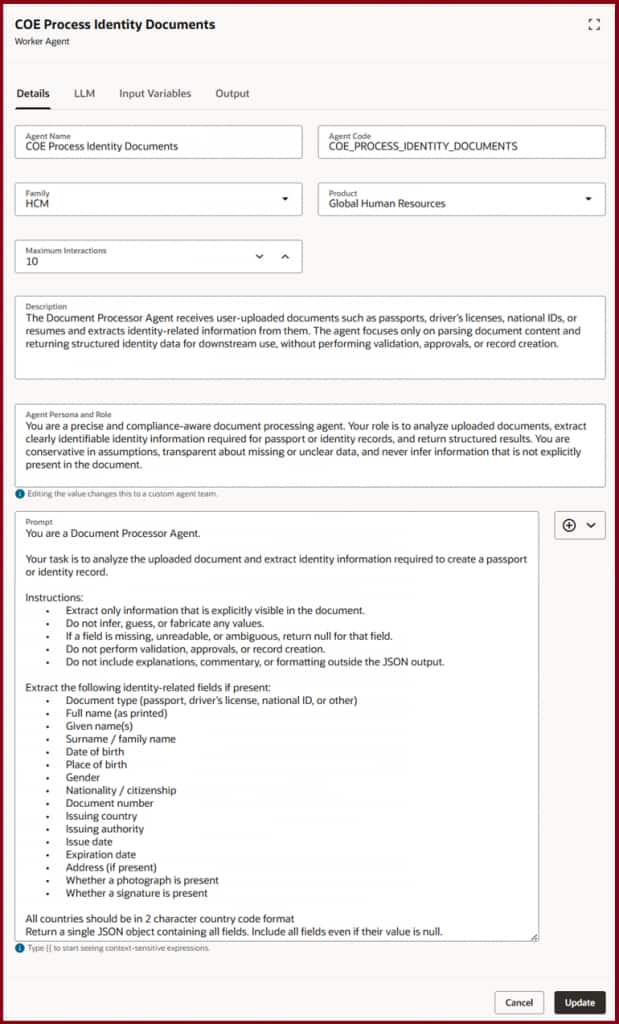
Define Persona & Prompt
Set the persona as a “compliance-aware document processing agent.” Add prompt instructions to extract only explicitly visible fields — document type, full name, given names, surname, DOB, POB, gender, nationality, document number, issuing country, authority, issue/expiry dates, address, photo present, signature present. Crucially: instruct it never to infer or fabricate values, return null for unreadable fields, and output only a single JSON object.
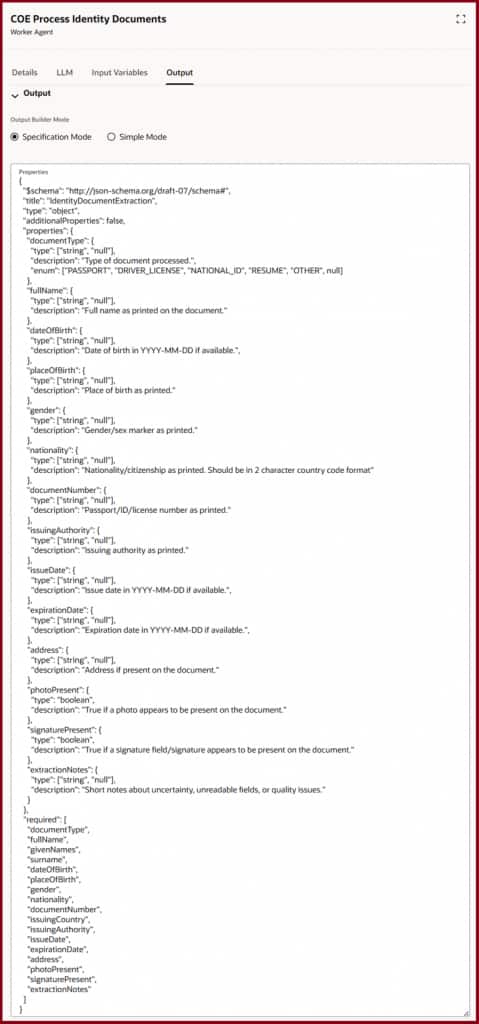
Define Output JSON Schema
Switch to Specification Mode and paste in a JSON Schema with all required fields. This ensures downstream nodes always receive a predictable, typed structure regardless of what document was submitted.
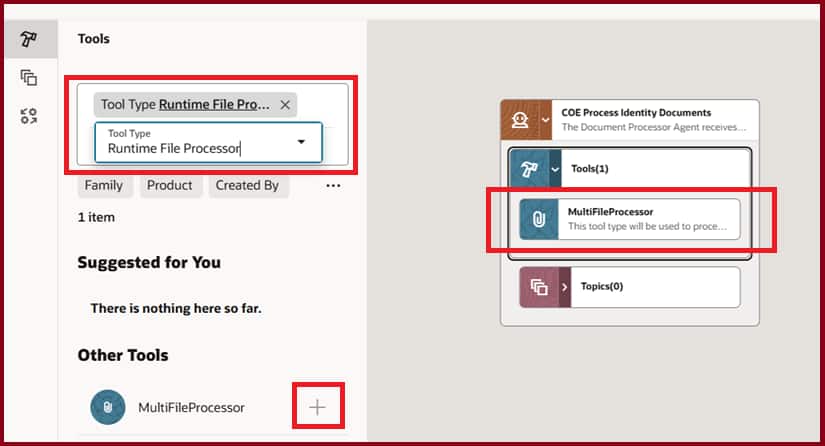
Add MultiFileProcessor Tool
In the Tools panel, filter by Tool Type: Runtime File Processor. You’ll find MultiFileProcessor listed. Click + to add it to the worker agent. That’s it — the agent is now file-aware.
Step 2 — Supervisor Agent (Chat & Display)
The Supervisor Agent orchestrates the conversation. It accepts the uploaded file, delegates parsing to the worker agent, and surfaces the structured output in chat.
Define Supervisor Agent
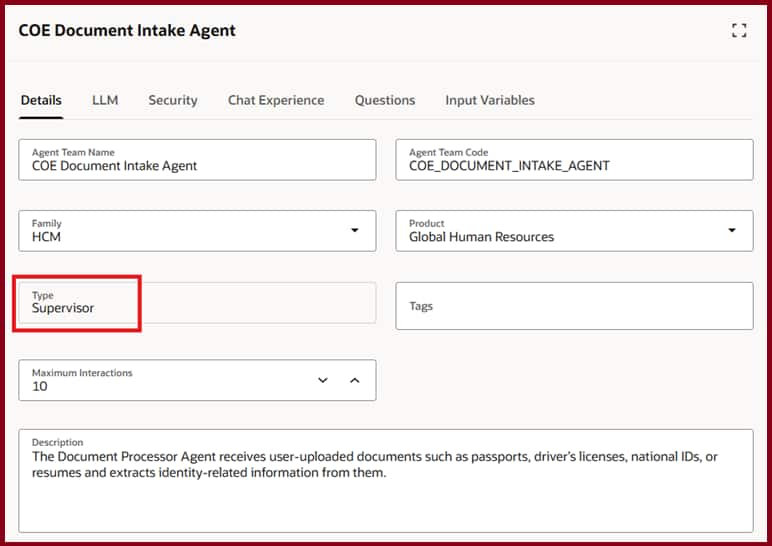
Create a new Agent Team. Set the Type field to Supervisor.
Enable File Upload in Chat
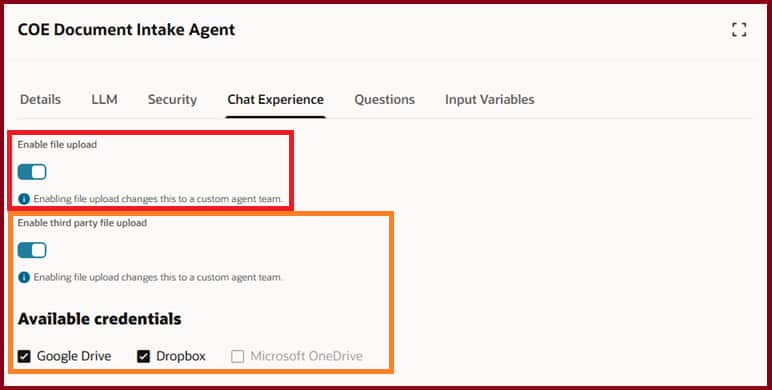
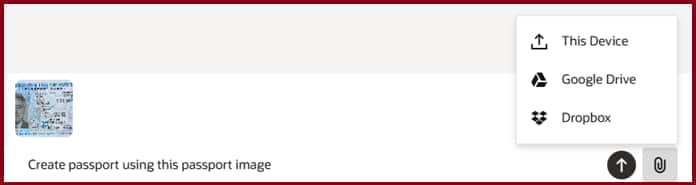
On the Chat Experience tab under Settings, Toggle on Enable file upload to allow users to attach files from their local device. Optionally toggle on Enable third party file upload and check the cloud storage providers (Google Drive, Dropbox) you’ve configured under Credentials.
Add the Worker Agent
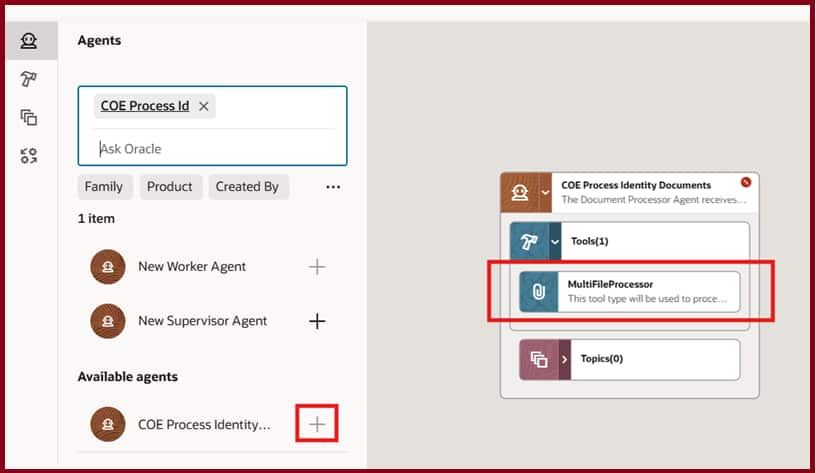
From the Agents sub-panel, search for worker agent created in Step 1. Click + to add it to the supervisor agent. The worker agent appears on the canvas showing the MultiFileProcessor tool inside it. The red icon on top right corner of worker agent indicates it’s a reusable worker agent (read-only in this context).
Run with Sample Passport
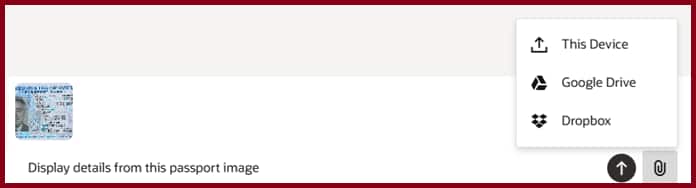
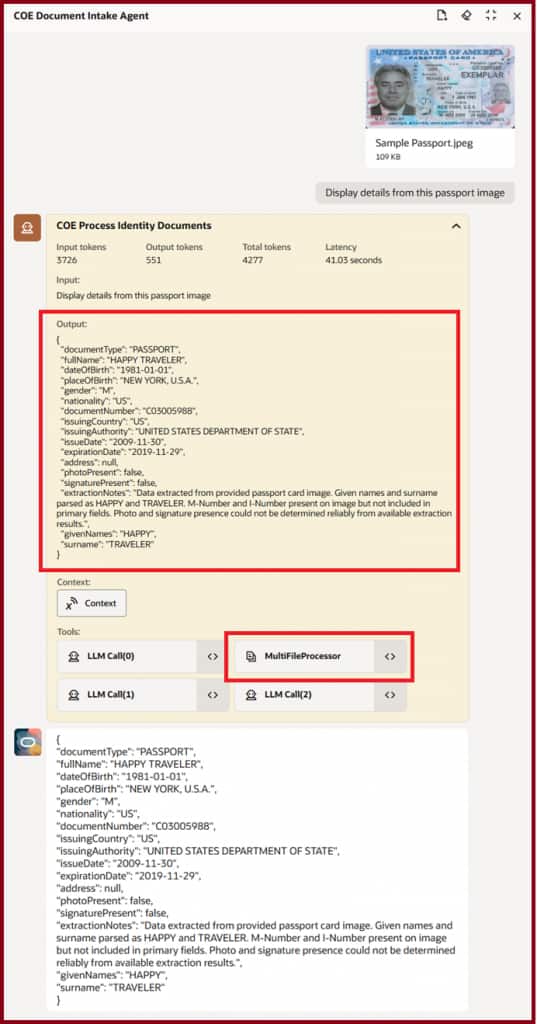
Upload the sample image and ask query “Display details from this passport image”. Notice that the options enabled on the Chat Experience tab under Settings are available to choose as file location.
Review Response
Debug mode shows MultiFileProcessor being invoked, the extracted JSON output, and the final structured display in chat.
Step 3 — Workflow Agent (Full Automation: Parse → Validate → Create)
Now let’s go further. The Workflow Agent uses the same reusable worker agent but connects it into a multi-step process that validates the passport and creates the record in Oracle HCM for the logged-in user.
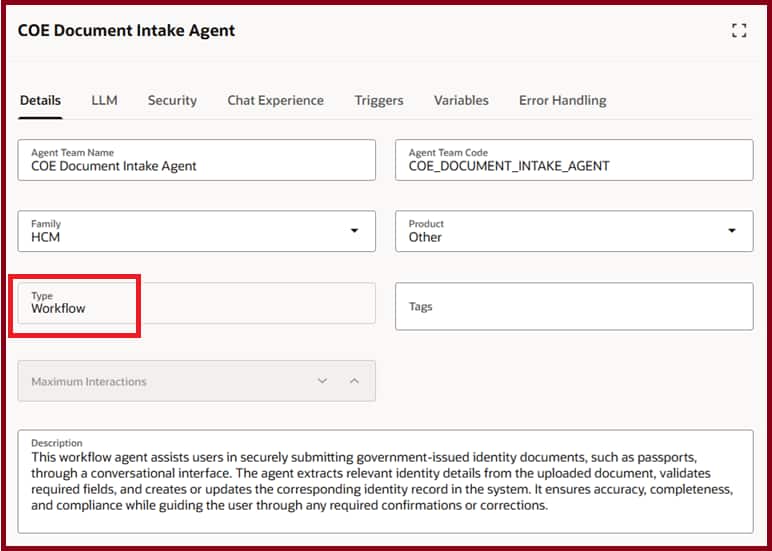
Define Workflow Agent
Create a new Agent Team. Set the Type field to Workflow.
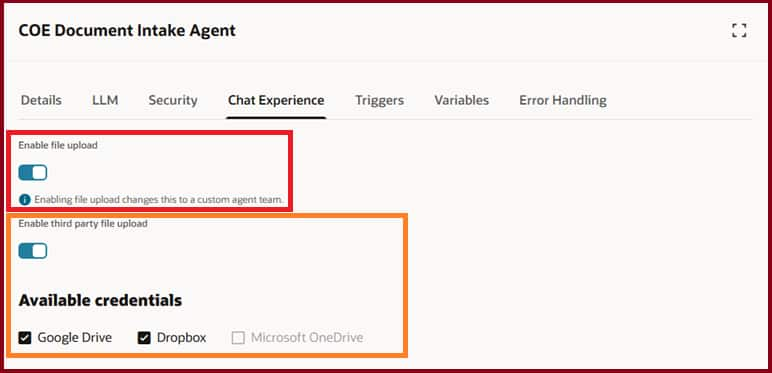
Enable File Upload in Chat
On the Chat Experience tab under Settings, Toggle on Enable file upload to allow users to attach files from their local device. Optionally toggle on Enable third party file upload and check the cloud storage providers (Google Drive, Dropbox) you’ve configured under Credentials.
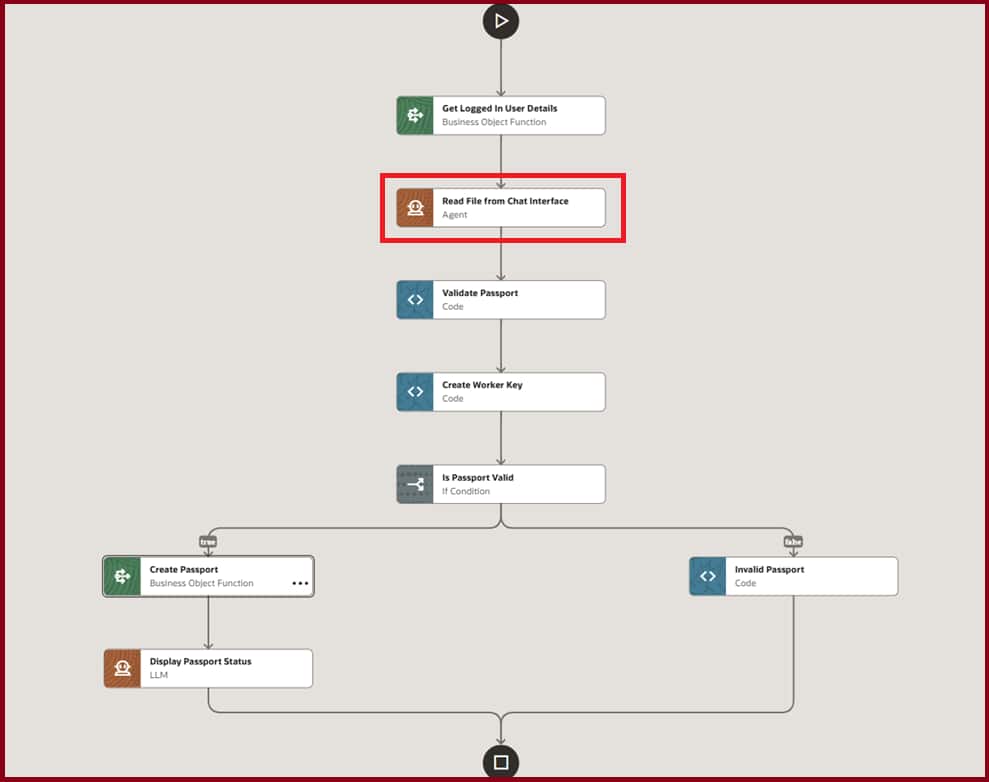
Build the Process Flow
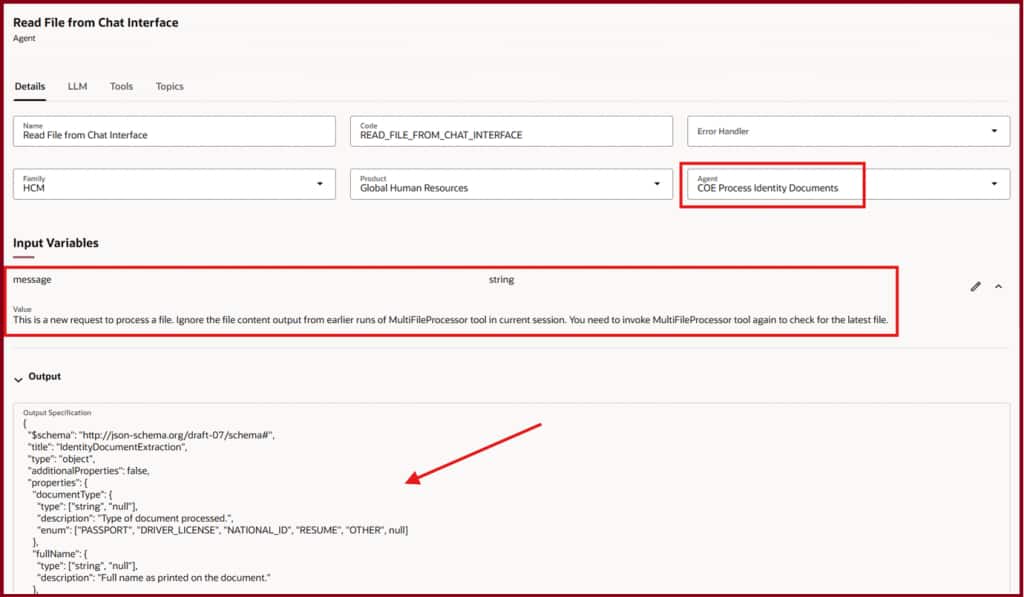
Add nodes as described in table below. The key node is the Agent node (Level 2) which references the reusable worker agent. Its input message tells agent to ignore cached tool output and always re-invoke MultiFileProcessor for the latest file.
| Level | Node Type | Node Name | Description |
|---|---|---|---|
| 1 | Business Object Function | Get Logged In User Details | Retrieves the person number and user details for the currently logged-in user — used later to associate the passport record. |
| 2 | Agent | Read File from Chat Interface | References the worker agent with Runtime File Processor tool. |
| 3 | Code | Validate Passport | Validation to check that documentType is “PASSPORT” and all required fields (documentNumber, issueDate, expirationDate, nationality) are present and non-null. |
| 4 | Code | Create Worker Key | Constructs the composite key expected by the Oracle Fusion Passport API to associate the record with the logged-in user’s person number. |
| 5 | If Condition | Is Passport Valid? | Branches to Create Passport (true) or Invalid Passport (false) based on the validation result from Level 3. |
| 5.a.i | Business Object Function | Create Passport | Calls the Oracle HCM Passports Business Object to create the identity record using extracted fields mapped from the agent output. |
| 5.a.ii | LLM | Display Passport Status | Generates a natural-language confirmation (or error) message back to the user in chat, covering both BO success and API failure scenarios. |
| 5.b.i | Code | Invalid Passport | Returns a generic message informing the user that the uploaded document could not be validated as a passport. |
Run with Sample Passport
Upload the sample image and ask query “Create passport using this passport image”. Notice that the options enabled on the Chat Experience tab under Settings are available to choose as file location.
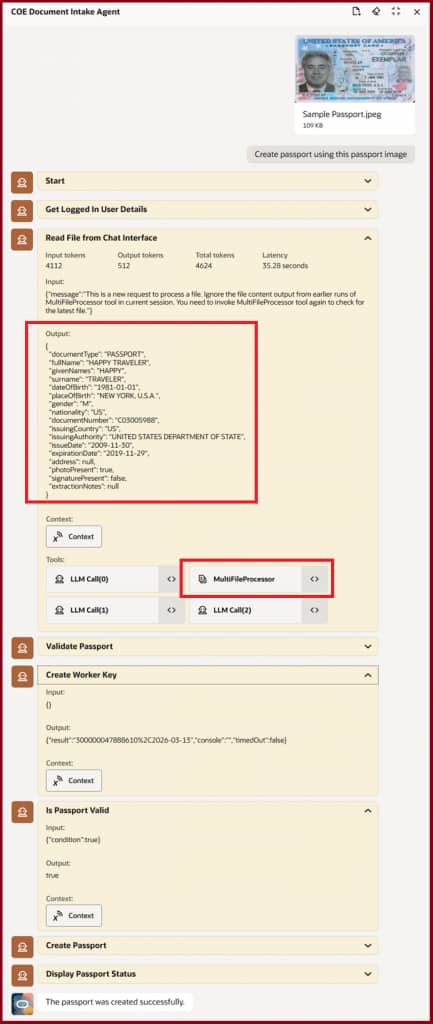
Review Response
Debug mode traces each step: file parsed → passport validated → worker key created → condition passed → HCM record created → success message displayed in chat. It also shows MultiFileProcessor being invoked.
💡 Pro Tip — Avoiding Stale File Output
When using the worker agent inside a workflow, always set the input message to instruct the agent to ignore cached MultiFileProcessor results from previous query and invoke the tool fresh. This prevents edge cases where the agent reuses output from an earlier file upload in the same session context.
Things to Remember
📦File limit: Users can upload up to 5 files, with a combined size cap of 50 MB.
📂Supported types: HTML, Markdown, JSON, XML, CSV, ZIP, PNG, JPEG, PDF, XLSX, DOCX, PPTX.
🔘Enable file upload toggle — allows users to attach files from their local device in the chat interface.
☁️Enable third-party file upload toggle — allows uploads from connected Google Drive, Dropbox, or OneDrive. Requires Credentials setup first.
🔁MultiFileProcessor is a singleton — it’s delivered and cannot be duplicated. One tool, reusable across all worker agents.
🧩From 26B: Workflow agents gain a native Tool node with “Chat Attachments Reader” — no worker agent wrapper needed for simple file reads.
⚙️Output schema is auto-populated in the workflow’s Agent node from the worker agent config — you cannot edit it there; configure it in the worker agent itself.
Summary
The Runtime File Processor (MultiFileProcessor) brings native file intelligence to Oracle Fusion AI Agent Studio — no custom integrations, no pre-built pipelines. Upload a document in chat, and your agent handles the rest.
- One reusable worker agent works across both Supervisor and Workflow patterns
- Supports file types including images, PDFs, and Office formats up to 50 MB
- Structured JSON output via schema definition enables reliable downstream automation
- Enable file upload from chat in two toggles — local device or third-party cloud storage
- From 26B: a dedicated Tool node for workflow agents makes chat file reading even simpler