
After configuring a connector, the next step is deciding what your agent or workflow should be able to do with it.
A connector tool exposes selected functions from a configured connector. A function is an operation such as searching for content or retrieving a file’s properties. The functions available depend on the connector and release.
Give the assistant the functions it needs
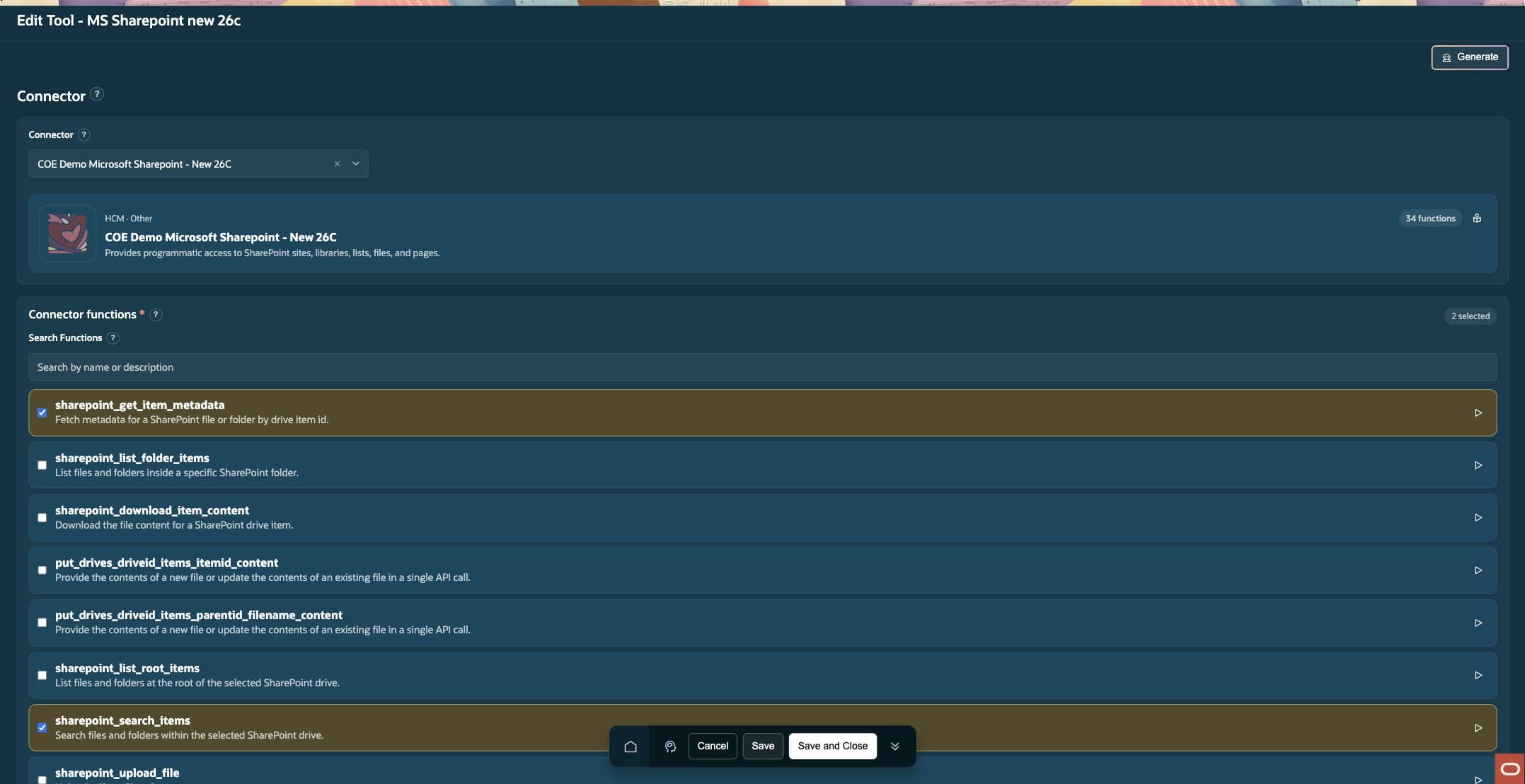
Consider a SharePoint document finder. Its first task is to locate files and present their links. A connector tool can expose sharepoint_search_items for that purpose.
If users also need to check a selected file’s properties, the tool can expose sharepoint_get_item_metadata.
| Function | What it helps the assistant do |
|---|---|
sharepoint_search_items |
Find matching files and return the available search-result information. |
sharepoint_get_item_metadata |
Retrieve properties of a specific file or folder using its identifiers. |
These functions support file discovery and property checks. Answering a question about the document itself requires readable document content to reach the LLM.
Keep the first tool focused
Choose functions around a practical task. For a document finder, start with search. Add metadata retrieval when checking a selected file adds value. Add other operations as the use case grows and their permissions and behavior have been verified.
An agent can use its assigned tool to choose among available functions. In a direct workflow Tool node, you configure the particular function that step will call.
Selecting two functions in a connector tool makes both available; the workflow still needs an explicit call for each operation it should perform.
Test the function before connecting the workflow
Supply a known input and inspect the response. Check which fields are returned, how an empty result appears, and how a failed request is reported. This tells you what information the next workflow step can use.
Once the function behaves as expected, add a Tool node to call it from your workflow.
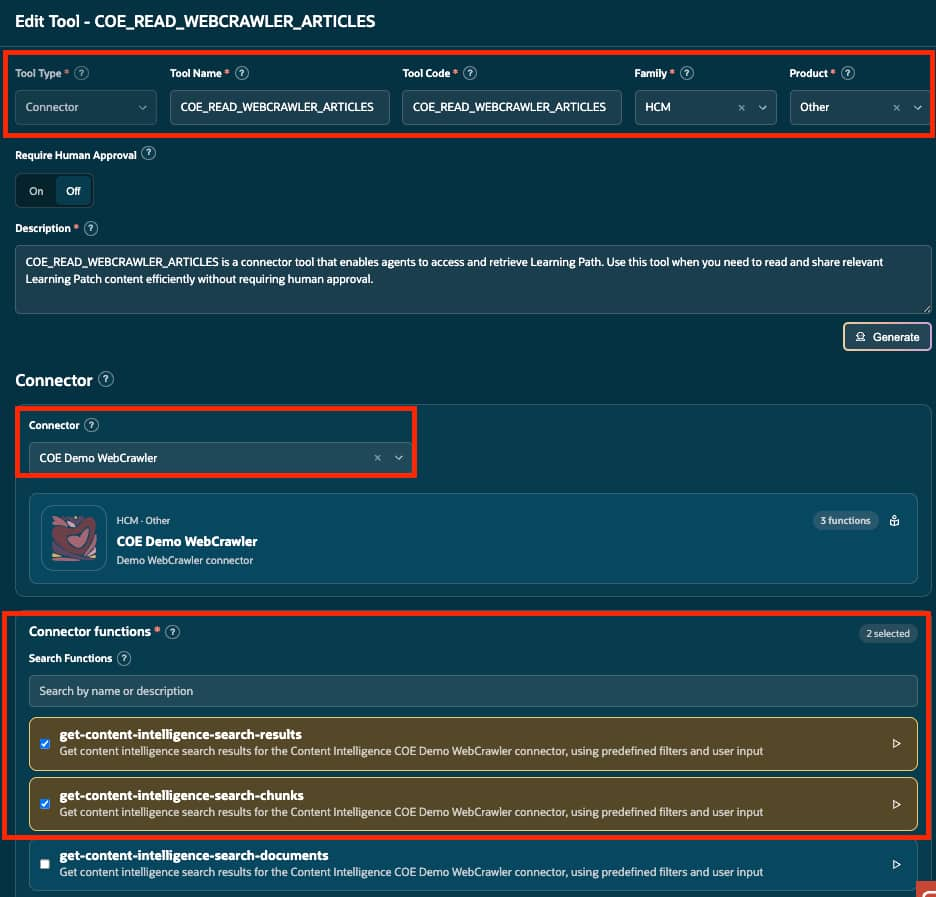
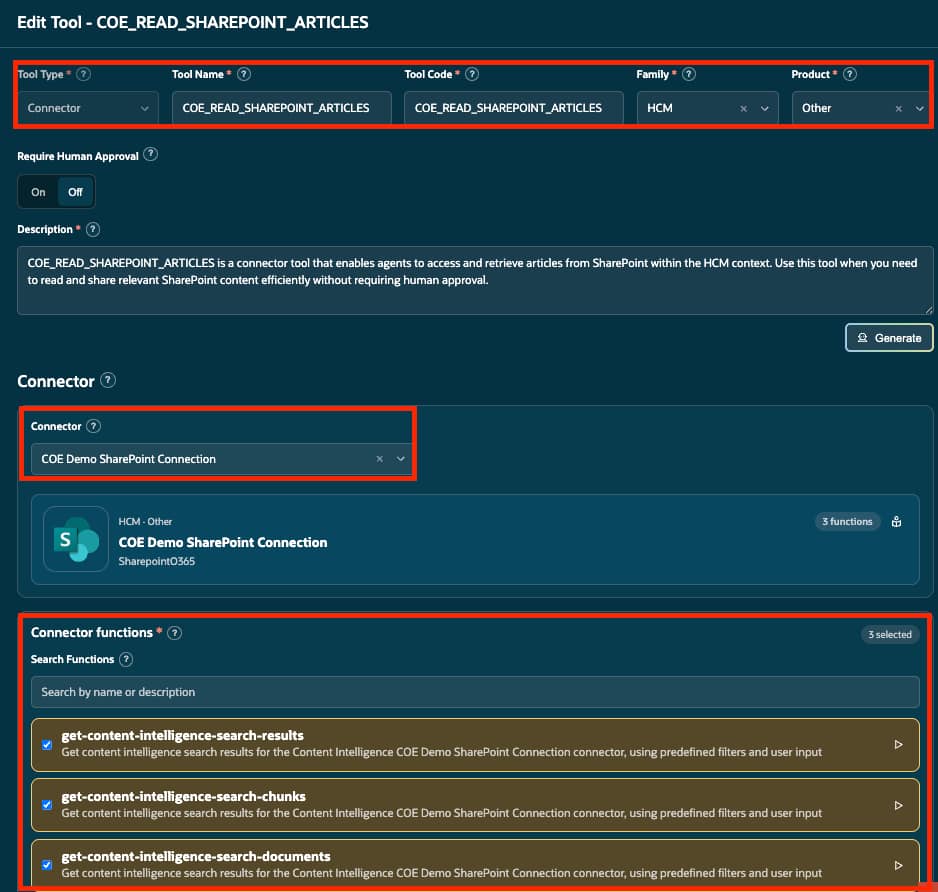
Connector tools in the practical examples
The screenshots below are retained from the existing practical workflow guide. Their original figure numbers, captions, and image sizes are preserved.
Continue with Tool nodes: Put a connector function to work.
Back to Introduction to Connectors
For official setup guidance, see Create a Tool for Your Connector.