


A practitioner’s guide to the $OraMessageHint signal — what the hints are, how they work, when each one fires, and which one to design for.
What Is a Message Hint?
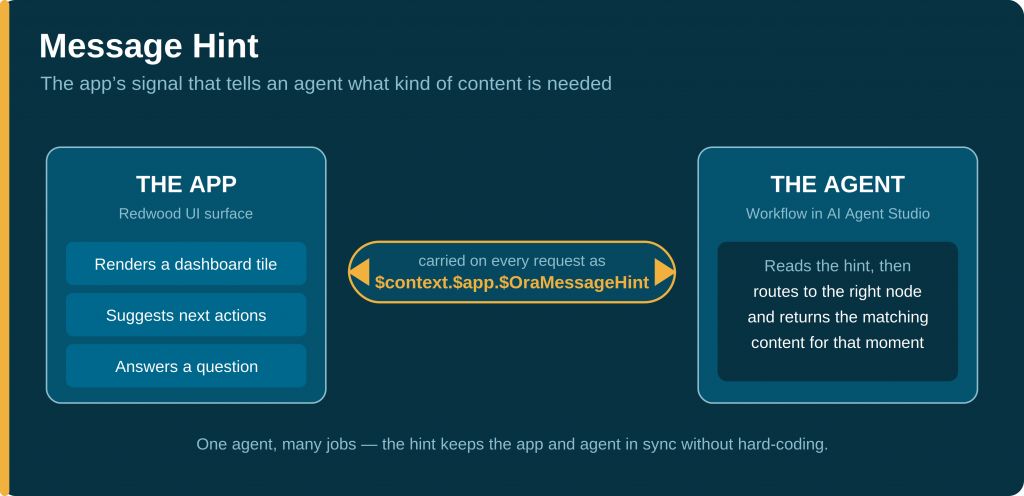
In an agentic app, a single agent does many different jobs. The same agent might write a one-line summary at the top of the screen, render a chart in a dashboard tile, suggest a few priority actions, answer a typed question, and draft an email — all within one session. The app needs a way to tell the agent which of those jobs it is being asked to do at any given moment. That signal is the message hint.
Every time the app calls an agent, it attaches a hint value. The agent reads it from $context.$app.$OraMessageHint and responds accordingly. Think of it as the app’s shorthand: a small label that says “right now I need a summary,” or “right now the user clicked an action button — handle it.”
Because the hint carries this intent, you don’t build a separate agent for every screen element. You build one agent that recognizes the hint and branches its logic. This is what makes the capability “built in, not bolted on” — the orchestration is part of the framework, not something you wire up by hand.
How It Works
The mechanism is intentionally simple. On every request to an agent, the framework populates $context.$app.$OraMessageHint with one of a fixed set of values. Your agent’s workflow inspects that value and routes to the node that produces the right kind of output.
There are three things worth holding onto:
- The framework decides which hint fires — not your code. You don’t trigger hints; the app does, based on what the user is doing and where they are in the app lifecycle.
- Your job is to recognize and respond. For each hint your agent cares about, you decide what content to return.
- One agent handles many hints. A switch (or equivalent branch) on the hint value sends each request to the appropriate handler within the same workflow.
You read the hint in an expression as {{ $context.$app.$OraMessageHint }}, or inside a Code node as $context.$app.$OraMessageHint.
The Ten Message Hint Values
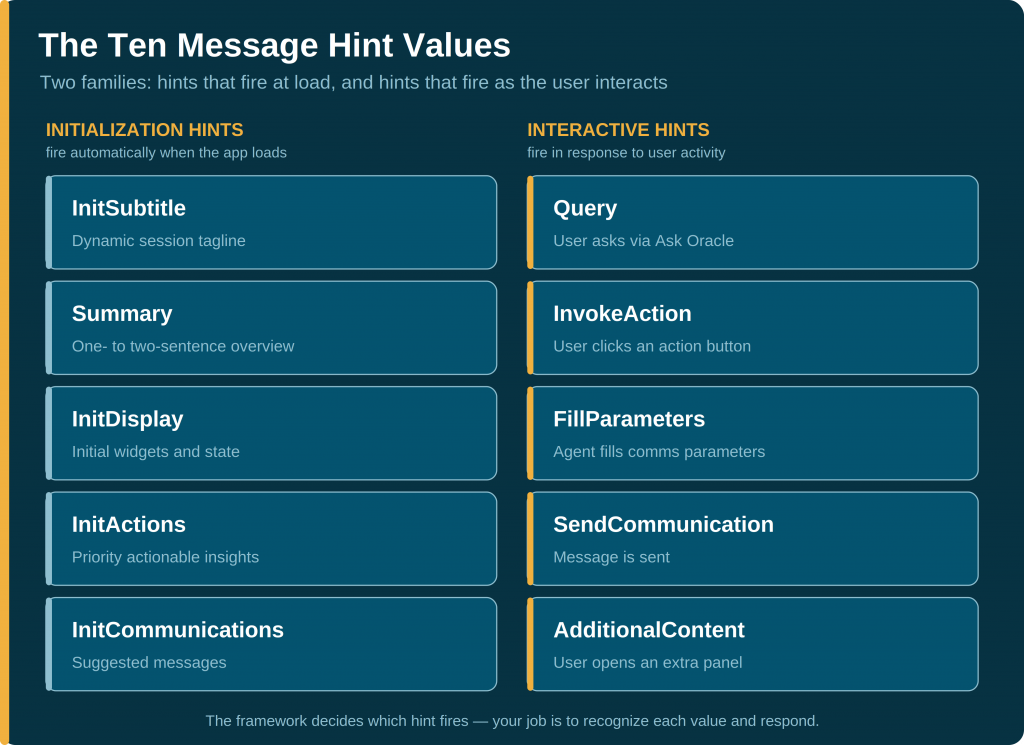
There are ten hint values, and they fall into two natural families. Initialization hints fire automatically the moment an app loads. Interactive hints fire later, in response to what the user does.
Complete Reference
| Hint value | What the app is asking for | What your agent should return |
| Summary | An initial summary for this agent’s contribution | A short (1–2 sentence) summary of the current state |
| InitSubtitle | The dynamic subtitle / session tagline | A short, personalized subtitle line |
| InitDisplay | The initial information display at startup | One or more oraInfoDisplay blocks (may include actions or comms) |
| InitActions | Priority actionable insights at startup | Zero or more action suggestions |
| InitCommunications | Communication suggestions at startup | Zero or more oraComms blocks |
| Query | An answer to something asked through Ask Oracle | An answer to the question; may include displays, actions, or comms |
| InvokeAction | Handling of an action the user triggered | Follow-up handling using the $OraAction payload |
| FillParameters | Communication parameters to be filled | The requested parameters, filled before generation/send |
| SendCommunication | The communication to be sent / completed | Send or complete the communication flow |
| AdditionalContent | More content for an expanded panel | Content for the panel named in $OraPanelName |
When Are Hints Triggered?
Hints arrive in a predictable rhythm. Understanding the sequence is what lets you design prompts that respond to the right trigger at the right time.
Startup: the five initialization hints
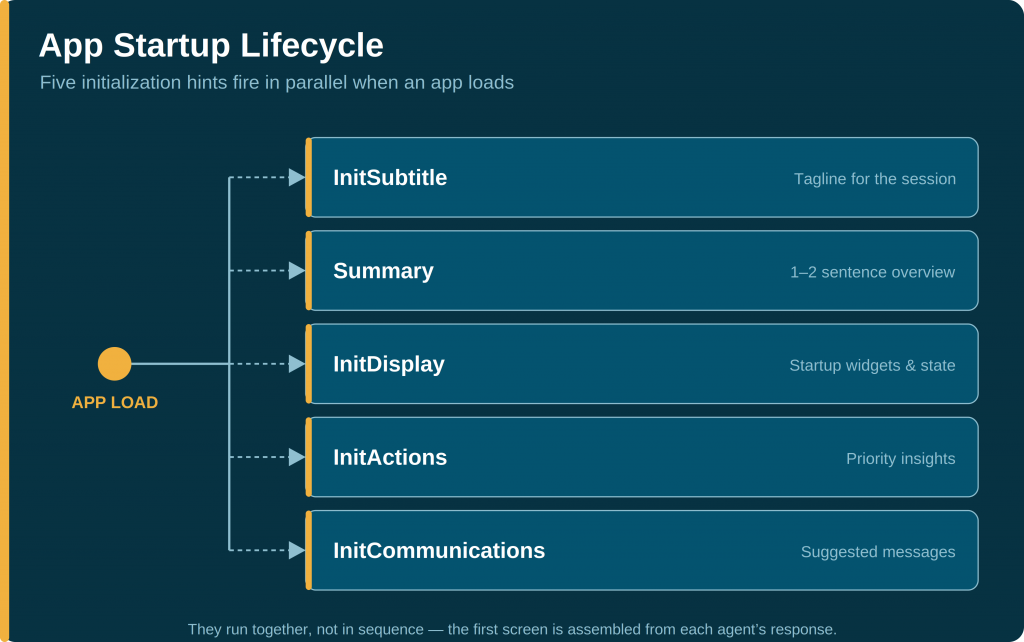
When an agentic app first loads, the framework fires its initialization hints in parallel — they run together rather than one after another. The first painted screen is assembled from whatever each agent returns for its hint.
At startup you can expect:
- InitSubtitle — a dynamic tagline for the session (for example, a personalized welcome line).
- Summary — a one- to two-sentence overview of the current state.
- InitDisplay — the initial widgets and visual state, built from the display prompt.
- InitActions — the priority actions the user should consider first.
- InitCommunications — suggested messages relevant to the current state.
After initialization: the interactive hints
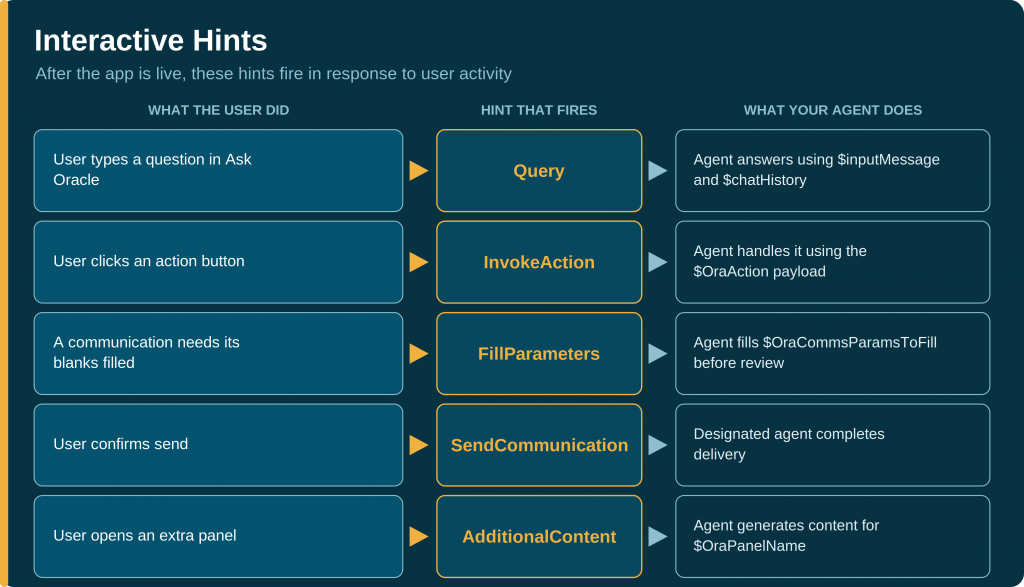
Once the app is live, the remaining hints fire in response to user activity. Each one carries its own piece of context so your agent has what it needs to respond.
| Hint value | Fires when… | Context delivered to the agent |
| Query | The user types in Ask Oracle | The question in $context.$system.$inputMessage, plus $context.$system.$chatHistory for follow-ups |
| InvokeAction | The user clicks an action button | The action payload in $context.$app.$OraAction |
| FillParameters | A communication needs its parameters filled | The parameters to fill in $context.$app.$OraCommsParamsToFill |
| SendCommunication | The user confirms send | The communication, for the designated agent to deliver |
| AdditionalContent | The user opens an extra panel | The panel name in $context.$app.$OraPanelName |
| Note on chat history: the user’s question is not automatically combined with prior turns. For a Query, pass both $context.$system.$inputMessage and $context.$system.$chatHistory into your query node so follow-up questions keep their context. (The older OraChatHistory is deprecated — use $context.$system.$chatHistory.) |
When to Use Which Hint
Since the framework chooses the hint, “using” a hint really means deciding which hints your agent should handle, and what each handler produces. Use this as a design checklist when building an agent for an app.
- Want a headline number or status line at the top? Handle Summary (and InitSubtitle for the tagline).
- Want charts, cards, or record views on first load? Handle InitDisplay and select the widgets the agent may produce.
- Want the app to suggest next steps? Handle InitActions to surface priority insights, and InvokeAction to process the click when the user takes one.
- Want the user to ask free-form questions? Handle Query, and make the agent’s description specific so the orchestrator routes the right questions to it.
- Need the app to draft a message? The communication hints (InitCommunications, FillParameters, SendCommunication) cover that — see the reference table above.
- Want expandable detail panels? Handle AdditionalContent and branch on $OraPanelName.
| A prerequisite worth calling out: an agent only participates in an app if it has been exposed to it. On the Output Tab of the Agent or LLM node, enable Expose to Agentic Apps and select the widgets the agent may produce. Without this, the agent can’t be selected in the app builder, and action- and display-related hints won’t be routed to it. |
A Closer Look: InitDisplay and InitActions
These two initialization hints do the heavy lifting of an app’s first screen. InitDisplay builds what the user sees; InitActions tells them what to do about it. Both reward careful configuration, and both follow the same shape: enable the feature on the agent, write a specific prompt, and return the right structured output.
InitDisplay — building the initial view
When the hint is InitDisplay, the agent returns one or more oraInfoDisplay blocks. Each block carries a key attribute plus a small JSON payload describing what to render.
| oraInfoDisplay field | What it carries |
| title | The display title shown to the user |
| patternId | The widget to render — one of the seven widget types |
| description | A short description of what is being shown |
| properties | The widget-specific data object |
The key attribute controls how a display is managed: unique for single, non-repeatable alerts; contextual for supplementary information; and list for lists of items. The patternId names the widget — there are seven to choose from: Chart, Card, Message List, Change List, Multi Record, Record, and Sankey.
Enabling InitDisplay is a two-step pattern:
- Expose the agent. On the Output Tab, enable Expose to Agentic Apps, which reveals the App Experience Tab.
- Select widgets, then prompt. On the App Experience Tab, under Select Widgets, choose which widgets this agent may produce — selecting at least one is what turns on the information display feature, and restricting the choice keeps the agent from emitting widget types you don’t want. Then use the Display Prompt to say how to present the data. Specific prompts produce specific output, for example: “Focus on the top 5 most critical items using the Message List widget.”
InitActions — surfacing what to do next
When the hint is InitActions, the agent’s workflow must produce one or more oraInsight entries — each a suggested next step the user can act on with a single click.
| oraInsight field | What it carries |
| title | A short label for the insight (a few words) |
| shortDescription | A single sentence describing the insight |
| actionText | The button label the user sees |
| followUpCommand | What runs when the button is clicked (typically ora.Invoke(…)) |
| priority (optional) | Set true to mark the insight as critical so it surfaces more prominently — use sparingly so it stays meaningful |
For actions to appear, three configuration points must agree:
- Output Tab on the LLM node. Enable Enable Actions for the Widgets. Without this, the framework won’t route action-related hints to the agent.
- Agent Editor in the app builder. Enable Include in Actions, then provide the Initial Actions Prompt describing what kinds of actions this agent should suggest.
- The agent prompt. When the hint is InitActions, the workflow actually produces the oraInsight entries.
InitActions has a natural second half. The followUpCommand on an insight usually calls ora.Invoke(…). When the user clicks the button, the framework fires InvokeAction and passes the action’s context in $context.$app.$OraAction — so design the two together: InitActions proposes the step, InvokeAction carries it out.
The Context That Travels With Each Hint
Hints rarely arrive alone. The framework also populates context variables that give the agent what it needs to respond. These are the ones you’ll reach for most often.
| Variable | Type | What it carries |
| $context.$app.$OraMessageHint | String | The request type — the hint value itself |
| $context.$app.$OraAction | String | The action payload; populated when the hint is InvokeAction. Set by ora.Invoke(…, context) |
| $context.$app.$OraAppContext | String | Launch context, typically passed via URL parameters, used to scope the experience |
| $context.$app.$OraUserContext | Object | User identity: fullName, userId, userName, guid |
| $context.$app.$OraCommsParamsToFill | Array | Parameters to fill; populated when the hint is FillParameters |
| $context.$system.$chatHistory | String | Prior conversation; available when the hint is Query |
| $context.$app.$OraPanelName | String | The panel requesting content; populated when the hint is AdditionalContent |
| $context.$app.$OraAttachments | String | Files and contents associated with the conversation |
Putting It Together: the Routing Pattern
The standard way to build an agent for an app is a single workflow that branches on the hint. A Switch node reads $context.$app.$OraMessageHint and routes each request to the handler that produces the right output.
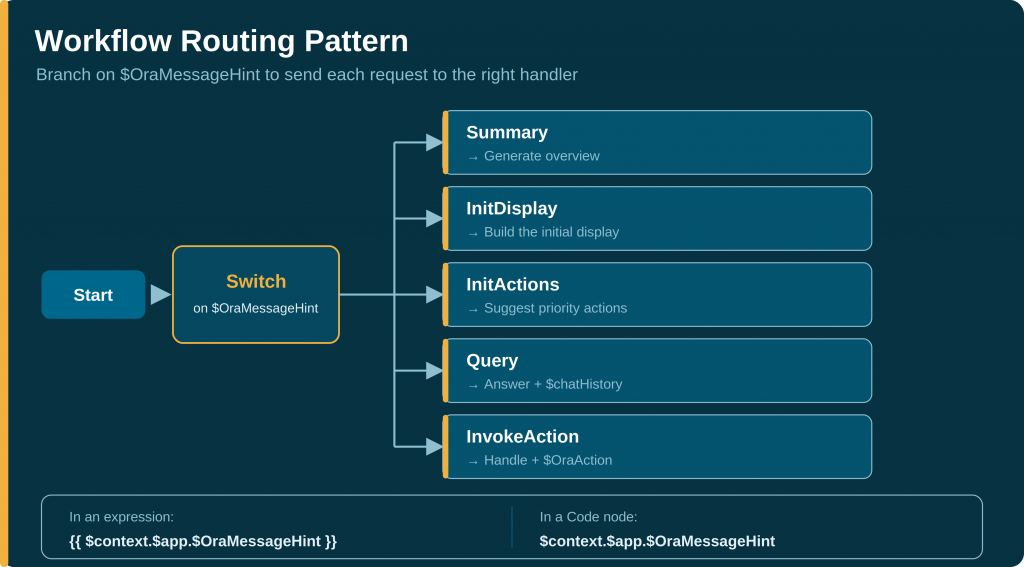
Expressed as logic, the routing looks like this:
/* Route based on $OraMessageHint */

if  $OraMessageHint == "Summary"
      -> summary generation node
if  $OraMessageHint == "InitDisplay"
      -> initial display node
if  $OraMessageHint == "InitActions"
      -> actions generation node
if  $OraMessageHint == "Query"
      -> query handler  (include $chatHistory)
if  $OraMessageHint == "InvokeAction"
      -> action handler  (use $OraAction for context)
In a multi-agent app, an orchestrator first decides which agent should handle a request based on each agent’s description, and then the chosen agent’s workflow routes on the hint. That’s why specific, well-written agent descriptions matter: vague descriptions cause the orchestrator to skip your agent, or pick the wrong one.
Things to Remember
- Don’t try to trigger hints. The framework fires them based on the app lifecycle and user activity. Design your agent to recognize and respond.
- Branch on the hint in one workflow. A single agent with a Switch on $OraMessageHint is the intended pattern — not a separate agent per behavior.
- Pass chat history yourself for queries. The user’s question and prior turns are separate; include both for coherent follow-ups.
- Expose the agent first. Enable Expose to Agentic Apps on the Output Tab and select widgets, or the agent won’t appear in the app builder.
- Write specific agent descriptions. Orchestrator routing for Query depends on them.
- Invest in InitDisplay and InitActions. They build the first screen and tell users what to do next. Select widgets, write specific display and action prompts, and pair InitActions with InvokeAction.
New to Oracle Fusion AI Agents?
Explore AI Agent Studio Learning Path — blog series to help build from zero to production-grade AI agents, with deep dives on every agent pattern, node type, and tool integration.
Explore AI Agentic Apps Learning Path — blog series on everything you need to build Oracle Fusion AI Agentic Apps using AI Agent Studio.