


The four pillars, standard section structure, app lifecycle, communication lifecycle, and Ask Oracle behavior that compose every agentic application
Introduction
Now that you understand the design philosophy—that agentic apps are decision-making partners, not data retrieval tools—the natural question is: what exactly is inside one?
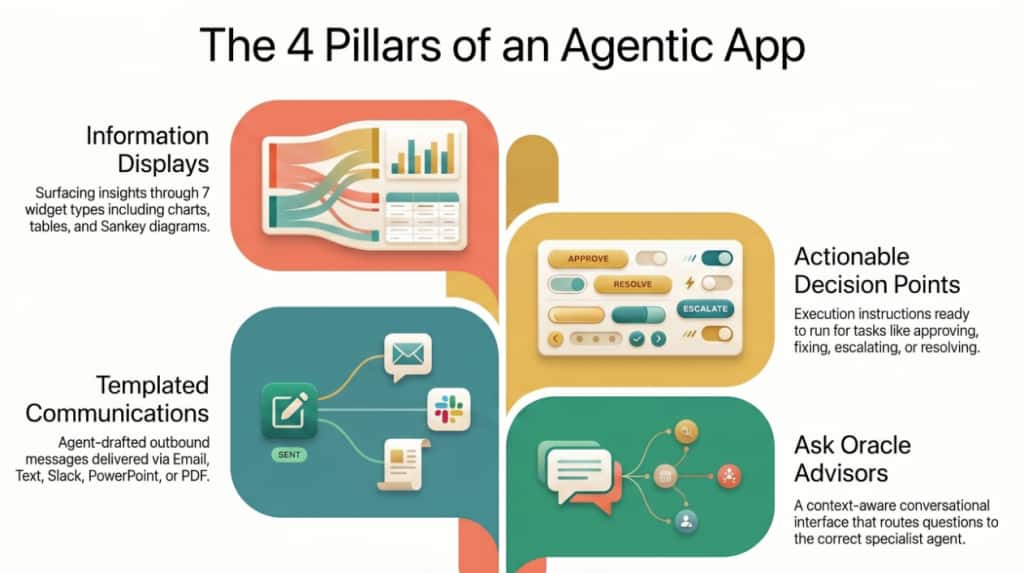
Every agentic app is composed of one or more Agent Teams built in Oracle’s AI Agent Studio. These agents are highly specialized and work together to compose the application through four foundational pillars: Information Displays, Actionable Insights, Communications, and Ask Oracle Advisors. Every feature, every interaction, every output in an agentic app maps to one of these four pillars.
This post dissects the anatomy of an agentic app from the inside out. We will explore each pillar in depth, examine the standard section structure that keeps the experience consistent, walk through the app lifecycle that powers startup, and trace the communication lifecycle from suggestion to delivery. By the end, you will have a comprehensive mental model of how all the pieces fit together.
Pillar 1: Information Displays
Information displays are the visual backbone of every agentic app. They are agent-generated visualizations that conform to established UX patterns—lists, charts, tables, cards, forms, and Sankey diagrams. The key word is agent-generated: the UI is not hardcoded by a developer. Instead, agents produce structured metadata based on their prompting, reasoning, and access to enterprise data. The framework then renders that metadata into rich, interactive displays.
How Information Displays Work
- Generation: Agents produce display metadata using the <oraInfoDisplay> XML tag. Each display specifies a title, a widget type (patternId), a description, and widget-specific properties. The agent decides what to show based on its analysis of the data.
- Hosting: Displays are hosted in specific areas within the page template. The template controls how displays are rendered, dismissed, and managed. Builders arrange agents in the Builder UI, and each agent’s output appears in its designated slot.
- Context Awareness: Each display is generated with a topic key that captures the context of the user’s request. As conversation topics shift, the page template may automatically hide or remove displays that are no longer relevant. This keeps the interface clean and focused.
- Startup Behavior: At application startup, every agent is given an opportunity to generate an initial information display via the InitDisplay event. This means the app is populated with meaningful content the moment it loads—no waiting, no empty states.
- Default Behavior: Agents built for agentic apps default to answering questions by creating information displays, with exceptions only for intent clarification, confirmations, or very brief responses. The display is the primary response mechanism.
The Seven Widget Types
Oracle’s framework provides seven widget types for information displays. Each serves a specific data visualization purpose. Choosing the right widget is a critical design decision—it determines how effectively users can interpret and act on the data.
| Widget | patternId | Best For |
| Chart | chartWidget | Trends over time (line), category comparisons (bar), proportions (pie) |
| Card | cardWidget | Single alerts, notifications, or status indicators with priority variants |
| Message List | messageListWidget | Ordered lists of messages, alerts, or notifications with priority badges |
| Change List | changeListWidget | Before/after comparisons showing current vs. previous values |
| Multi Record | multiRecordWidget | Tabular data with sortable columns, row actions, and bulk operations |
| Record | recordWidget | Single record details, form inputs, or key-value property displays |
| Sankey | sankeyWidget | Flow visualization showing how quantities move between stages or nodes |
| Widget Selection Tip Match the widget to the data story. If you are showing trends, use a chart. If you are showing a prioritized list of alerts, use a message list. If you are comparing before and after, use a change list. The widget is the lens through which the user sees the agent’s analysis—choose the lens that makes the insight clearest. |
Pillar 2: Actionable Insights
Actionable insights are the mechanism that turns analysis into execution. When an agent identifies something that requires human approval or action—a contract to renew, an anomaly to investigate, a budget variance to address—it generates an actionable insight. Each insight is a self-contained decision point with everything the user and the system need to proceed.
The Three Components of Every Action
- Title: A clear, descriptive label for the action. This is what the user sees in the actions panel. Example: “Renew AcmeParts Supplier Contract.”
- Description: Context about what the action does and why it matters. Example: “Contract expires in 3 days. Renewal at current terms with a 5% volume discount saves $47K annually.”
- Execution Instructions: The commands and parameters the agent will use when the action is invoked. This is agent-generated and not user-modifiable. The same agent that created the action handles its execution when the user clicks it.
Key Behaviors
Actions have several important characteristics that builders should understand:
- Single-agent ownership: An action originates from one specific agent, and that same agent handles execution when the action is invoked. This ensures the agent has full context about the action it created.
- Startup and runtime: Agents can produce an initial list of priority actions at startup via InitActions. They can also generate new actions in response to user queries, and information displays may expose actions directly within their widgets.
- Instant vs. workflow: An instant action completes immediately (one click). A workflow action involves multiple steps—the agent may present a review summary, ask for confirmation, or collect additional inputs before executing. Both types are configured in the Actions Editor.
- Communication-triggering: Some actions are tied to a high-priority item and automatically generate a tailored communication. The user gets both the decision and the outreach in a single flow.
Pillar 3: Communications
Communications are the outbound messaging pillar of agentic apps. When a decision requires outreach—notifying a supplier, alerting a team, sharing a report—the communications pillar keeps the workflow in one place. The user never needs to switch to their email client, copy data into a presentation tool, or manually compose a message. The app handles it.
Two Types of Communications
Builders can use two types of communications, each suited to different needs:
- App-Defined Communications: Configured in the Builder UI and Template Editor. Support all four formats (email, text, PowerPoint, PDF). Template-based—the structure is defined ahead of time and agents fill the parameters at runtime.
- Agent-Generated Communications: Produced at runtime via the <oraComms> XML tag. Limited to email and text formats. The agent provides the actual content—no placeholders. The agent must include real, contextual data.
| Critical Rule Communications are always outbound—they never intercept incoming messages. They can be routed to any agent for delivery, including a generic reusable communications agent. This separation keeps the architecture clean and the routing predictable. |
Pillar 4: Ask Oracle Advisors
Ask Oracle is the conversational intelligence layer of every agentic app. It gives users a natural-language interface to ask questions, explore data, and get guided recommendations from the specialized agents powering the application. Unlike a generic chatbot, Ask Oracle is deeply integrated with the app’s domain agents and its responses are rich—combining text answers with full information displays.
How Ask Oracle Behaves
- The Ask Oracle Bar: When users click the Ask Oracle bar, a chat panel opens. This panel behaves like memory—it stores past prompts, uploaded files, generated artifacts, cited sources, and suggested actions across the session. It is a persistent workspace, not a disposable chat window.
- Response Placement: Ask Oracle responses appear as a new section at the top of the page. This gives them immediate visibility without disrupting the existing layout. If a user pins a section (treating it as a decision to keep), subsequent responses appear above it without overwriting it.
- Multiple Questions: By default, a new Ask Oracle response replaces the previous one (temporary context). Pinned sections are preserved. This design prevents the page from growing endlessly while respecting the user’s explicit decisions about what to keep.
Scoped Intelligence in Section Focus
One of the most powerful aspects of Ask Oracle is how it behaves in Section Focus View. When a user drills into a specific section, Ask Oracle automatically scopes to only the agents powering that section. This means questions are answered by the domain expert, not a generalist. If you are in the Procurement section, your questions go to the procurement agent. If you are in the HR section, the HR agent responds. The guidance is focused, relevant, and authoritative.
The Standard Section Structure
Consistency is a core design value for agentic apps. To achieve it, every section follows a standard five-layer structure that users learn once and recognize everywhere. This predictable pattern reduces cognitive load, builds trust, and ensures users always know where to find the key insight, the supporting data, and the available actions.
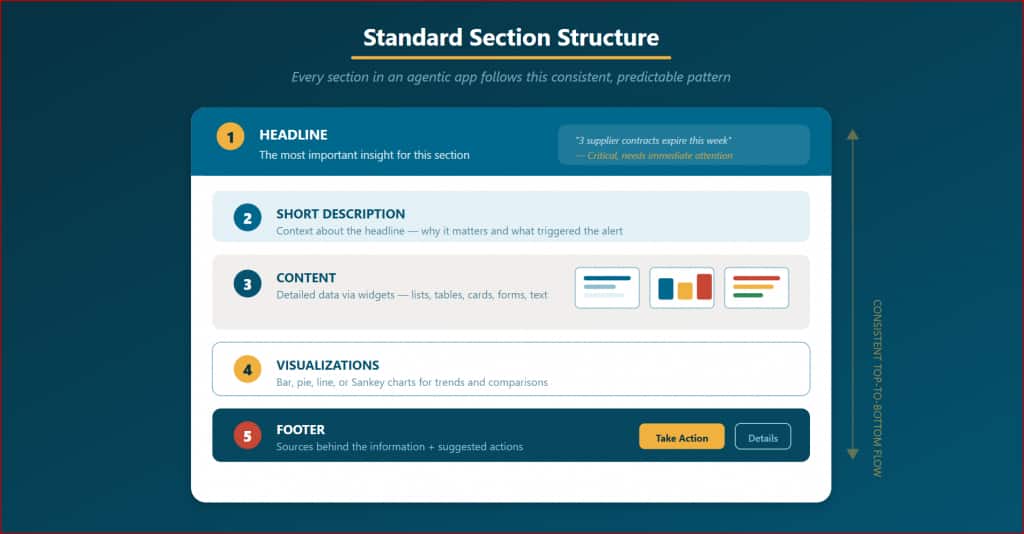
Layer 1 — Headline: The most important insight for this section. This is the agent’s top finding, stated clearly and concisely. Example: “3 supplier contracts expire this week.” The user should be able to read the headline alone and know whether this section demands their attention.
Layer 2 — Short Description: Context about the headline—why it matters, what triggered it, and what the scope covers. Example: “Two contracts are high-value renewals; one is a routine extension. AcmeParts has the highest renewal risk based on recent delivery SLA trends.”
Layer 3 — Content: The detailed data, rendered via one or more widgets. This is where lists of items, tables of records, card alerts, or form inputs live. The widget type is chosen by the agent based on the data story.
Layer 4 — Visualizations: Charts and diagrams that provide visual context—trends over time (line charts), category comparisons (bar charts), proportional breakdowns (pie charts), or flow analysis (Sankey diagrams).
Layer 5 — Footer: The sources behind the information (so users can verify) and suggested actions (so users can act immediately). This is the bridge from insight to action—every section ends with a path forward.
The App Lifecycle: What Happens When an App Loads
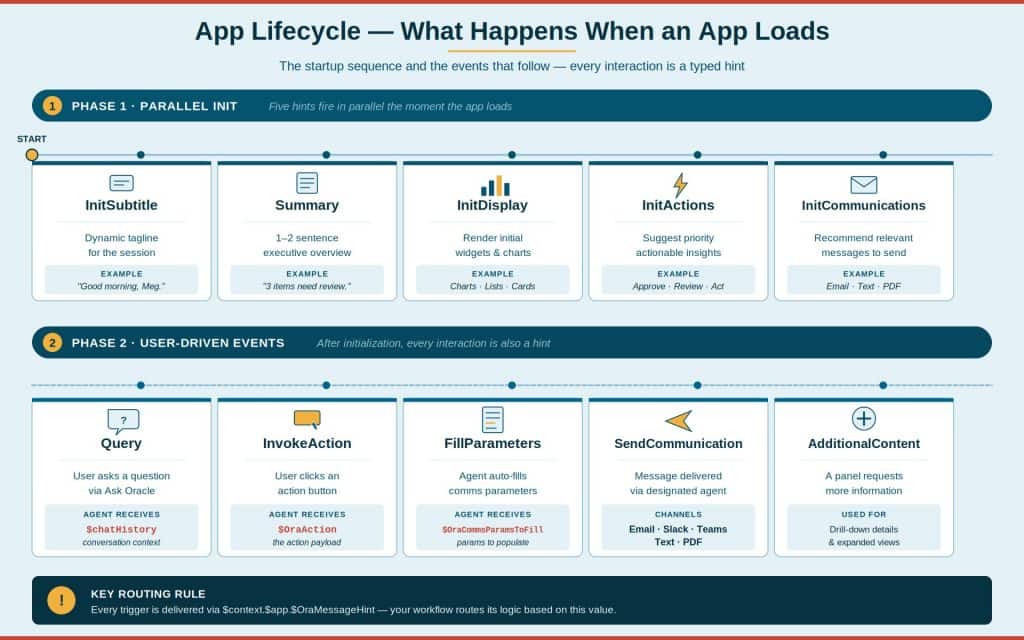
Understanding the app lifecycle is essential for builders because it determines when and how agents are invoked. When a user opens an agentic app, the framework fires a series of initialization events—delivered to agents as specific OraMessageHint values. These events fire in parallel, which means the app populates quickly and users see meaningful content almost immediately.
Phase 1: Parallel Initialization
Five initialization events fire simultaneously when the app loads:
- InitSubtitle: Requests a dynamic tagline for the session. The agent should return a personalized greeting like “Good morning, Meg. 3 items need review.”
- Summary: Requests a 1–2 sentence executive overview of the current state. This populates the summary banner at the top of the app.
- InitDisplay: Requests the initial information displays. Each agent renders its startup widgets—charts, lists, cards—based on its Display Prompt configuration.
- InitActions: Requests the initial set of actionable insights. Agents surface the priority actions the user should consider immediately.
- InitCommunications: Requests communication suggestions relevant to the current state. The communications panel is pre-populated with recommended outreach.
Phase 2: User-Driven Events
After initialization, the app enters an interactive phase. Events are triggered by user actions: queries via Ask Oracle, action button clicks, communication parameter filling, message sending, and panel content requests. Each event type is routed via the OraMessageHint value, and your agent’s workflow should handle each one appropriately.
| Builder Tip Keep AI Agent Studio open in one browser tab and the Agentic App Builder in another. Apps auto-save as you make changes, so you can quickly switch between configuring agents and previewing the app. Test each initialization event individually to ensure your workflow routes correctly. |
Putting It All Together
Here is how the four pillars, the section structure, and the lifecycle work in concert during a typical user session:
The app loads. Five initialization events fire in parallel. The Summary agent produces a 1–2 sentence overview. Each domain agent renders its initial displays (charts, lists, cards). The actions panel populates with priority items. The communications panel suggests relevant outreach. The user sees a fully populated app in seconds.
The user scans the Summary View. Each section follows the standard structure: headline, description, content, visualizations, footer. The user immediately spots that the Procurement section flags 3 expiring contracts.
The user drills into Procurement. Section Focus View expands with more items, richer details, and scoped Ask Oracle. They ask: “Which contract has the highest risk?” The procurement agent responds with an information display (a card widget showing AcmeParts) and an actionable insight (“Renew with 5% discount”).
The user approves the action. The InvokeAction event fires. The procurement agent executes the renewal, confirms success, and automatically surfaces a communication: “Notify AcmeParts of the renewed terms.” The email is pre-drafted with the supplier name, contract details, and renewal terms already filled in.
The user reviews and sends. The communication passes through the lifecycle: parameters filled, user reviews, sends. The designated agent delivers the email. The contract section updates to reflect the resolved status. The action is removed from the panel.
From problem discovery to resolution and outreach — all within a single session, within a single app, powered by the four pillars working in concert. That is the anatomy of an agentic app in action.
| The Anatomy Principle The four pillars are not independent features—they are an integrated system. Information Displays show what matters. Actionable Insights let users decide. Communications let users follow through. Ask Oracle Advisors let users explore. Together, they close every gap between seeing a problem and resolving it. |
New to Oracle Fusion AI Agents?
Explore AI Agent Studio Learning Path — blog series to help build from zero to production-grade AI agents, with deep dives on every agent pattern, node type, and tool integration.
Explore AI Agentic Apps Learning Path — blog series on everything you need to build Oracle Fusion AI Agentic Apps using AI Agent Studio.