
As an SDN partner, NetSuite provides an ecosystem of dedicated testing infrastructure to help you give our joint customers the best experience while using your products. In this article we’re going to explore some of those tools along good practice tips. Notice:
NetSuite Accounts
First, we’ll start with a quick recap of a few characteristics of NetSuite accounts, some of these may seem obvious but it’s important that you follow along because we’re going to revisit some concepts later in the article.
Accounts, users and roles
Each NetSuite account represents one company. The ones we call “production” accounts (paid for by a real customer with real data), are actual management systems for companies. SDN provisioned accounts, represent a simulation, but each, supposedly, encapsulates a single company. As an SDN partner you’re going to use those accounts differently than a real company would, we will explore this a bit further down.
NetSuite has users, which are defined by an email and a password. A specific user can have access to multiple accounts among which they can switch after logging in. Each user is normally linked to an employee record on an account. So, if you would want to give access to a user to an account, you would create a new employee record in the company and link that employee to the user. If the user already exists in the NetSuite ecosystem, it would give it access to the new account. If it doesn’t, they will be prompted via email to create a new password.
Users, in turn, have roles. Each specific role has different permissions and access. When assigning a user to an employee, you will need to specify which role that user will have. That is configured in the Access subsection in the employee record form.
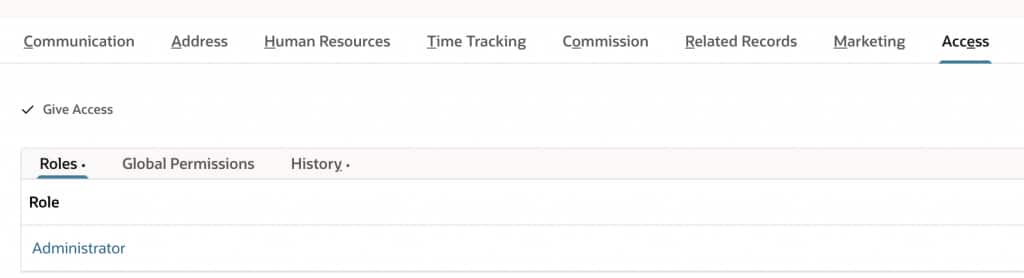
Role assignment has to do with which actions the user will perform in the account, we will explore a couple specific role for SDN partners further down the article. Administrators can perform almost any action in the account and are critically the ones that can create new employees and users, particularly new Administrators. SDN provisioned accounts are real accounts, which means that, even within NetSuite, there are no backdoors or ways to access if the users get locked out for any reason. Because of this, we strongly recommend having multiple users with the Administrator role, which would allow accessing the account to create further users if necessary.
Roles configuration is out of scope for this article, you can find more information here.
NetSuite as a company also has their account on NetSuite and partners get assigned a user in that account to configure their SuiteApp and partner records, fill out the BFN questionnaire and access the SDN portal for information access. Obviously, you won’t have Administrator access to that account, we call the role APC (Advanced Partner Center).
How to recognize accounts
NetSuite accounts look alike, the elements present on the screen have to do with the specific permissions and the configuration the user has. After using them for a while you’re going to start developing an intuition of which environment you’re in, but there is a quick and easy way to identify NetSuite accounts: the URL.
The NetSuite URL will always have the structure ACCOUNT_ID.app.netsuite.com. The ACCOUNT_ID can be:
– a number for production accounts
– a number starting with TD or TSTDRV for Test Drive accounts assigned to SDN partners
– “nlcorp” for NetSuite’s account
You’re likely not going to want to be in nlcorp unless you’re specifically editing your SuiteApp record or accessing the SDN portal. As an SDN partner you should never work on production accounts. Development and testing of your SuiteApp should be done in Test Drive accounts.
Leading and Trailing
Accounts have a designation of Leading or Trailing. This configures how they get updated, or better said, when NetSuite updates every six months. The update process takes about three months and customers are updated gradually until every account is in the new version. Test Drive accounts behave differently:
Partners’ Leading accounts get updated first and about a month before customers start getting the new version. This gives partners time to test and adjust their SuiteApp and integrations before their customers could be affected.
After Leading accounts, customers get updated.
Finally, once every single customer is using the new version, partners’ Trailing accounts get updated.
This means that during the update months, you will have accounts running the new version and others running the current version. As an SDN partner you should get one Leading and three Trailing accounts. Other than their update dates, those accounts have no differences. As a good practice, you should not use a Leading account for development.
Deployment account
One of your trailing accounts is configured as the Deployment account. This links the account to your Publisher ID (usually com.company_name) when using the SuiteApp Control Center to manage the SuiteApp. It’s important to identify this account since it’s the only one you can manage your SuiteApp from.
Accounts have names that will identify them when switching accounts, for example. Those names can be edited and are just a label. By default, SDN accounts are named
- Dev/Publisher Trailing
- QA Trailing
- Sales Demo Trailing
- Leading
While it is not required to maintain those names or to use each account for the activity specified in the name, it is recommended to maintain the Trailing/Leading label in the name to quickly identify them; as well as the Publisher tag, being that the account linked to the Publisher ID. Feel free to update the account names to whatever fits your development process best.
SuiteApp Control Center and the SuiteApp Release Manager role
Managing your SuiteApp is done via de SuiteApp Control Center (SACC). From there you can create new SuiteApps, upload and release new versions, monitor which accounts have your SuiteApp installed, manage marketplace listings, and more.
To access the SuiteApp control center, it first needs to be enabled in the account. You can find the configuration in
Setup -> Company -> Enable features -> SuiteCloud subtab -> SuiteApp Control Center
Ony the SuiteApp Release Manager role can access the SACC, you will need to give a user in your organization the role. That role is particular in that it doesn’t have access to any other NetSuite features, so when selected, everything else is hidden and the user can only navigate to the SACC.
NetSuite Next
NetSuite has unveiled its new interface and AI integrated capabilities with Next. Customers are being migrated and this new version will soon be available to all users. As an SDN partner you have access to Next on your Leading account. It’s important to test your SuiteApp and integrations with Next in order to make sure that your customers will be able to fully leverage the possibilities this new version brings.
In order to enable Next or if your leading SDN account lost access to NetSuite Next after the June minor release during the week of June 18, please follow these steps to restore access:
- Using the Administrator role, navigate to Setup > Company > AI > NetSuite Next Access.
- Select all roles
- Choose Optional from the dropdown menu
- Click Save
- Log out and log back in. The Switch to NetSuite Next option should be restored in the top right menu (under profile)