
The blog will have you running Agentic AI Workflows with Langflow and Oracle Database MCP, Vector RAG, NL2SQL/”Select AI”, and AI Optimizer in no time. This is possible for free using Oracle Database 23ai either in the cloud or using the container image, so be sure to check them out here.
As a bonus, I’ll also show you how to create custom components and use custom models in Langflow, how to front your agentic AI system with an interactive Unreal metahuman avatar/hologram, and how to run your models, etc. on NVIDIA GPUs and Inference Microservices.
All source code, including flows, components, etc., are ready to go and can be found here: https://github.com/paulparkinson/langflow-agenticai-oracle-mcp-vector-nl2sql
And a video walkthrough can be found here…
In short, Langflow is the most popular (and open source) agentic AI workflow tool out there and is a darling of the Langchain (and Langraph) community, MCP is the USB of AI letting you hook up and call tools via LLM decisions etc.(you probably know more about that already so I’ll spare any intro beyond that), and Oracle Database is simply the best and most versatile database that ever was 🙂 especially now with all of its AI capabilities.
The example flow…
I’ll demo with a financial advisor/agent flow. One that you can ask “advise me on my stock portfolio”, “purchase x shares of y“, etc. Of course, these are made-up entries in a database, and you shouldn’t use this thing to manage your retirement. And overall, when using MCP and agents, you must be very careful to set up secure access and authorization, human in the loop, etc.
The financial advisor flow is also part of the new/v2 “Simplify Microservices with Converged Oracle Database” workshop I just released, and all the flows can be found in the same repos I mentioned.
In coming blogs, I’ll also show spatial digital double agentic flows, a video game system, etc.
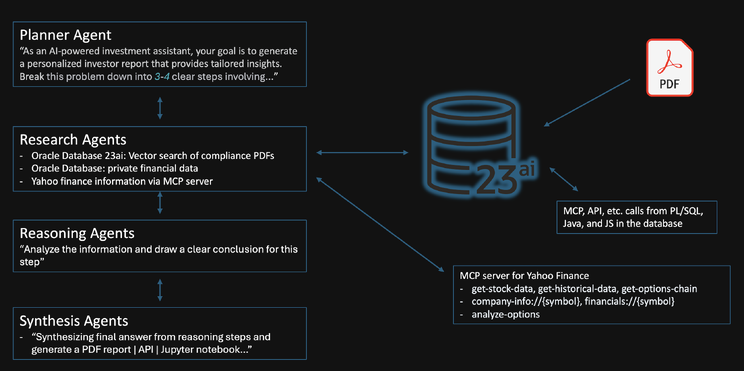
As anyone who works in agentic AI knows, there are MANY ways to set up these workflows/systems, however, one key aspect, and one that makes Oracle Database stand out so strongly, is the fact that the closer the context and meta of an agentic flow is to the data (and the less ETL and transport involved), the greater the quality, speed, simplicity, security, availability, and maintainability of the system.
I will show the various ways to access Oracle Database and its AI features, but I will not be prescriptive about which one you choose. For example, you could call Vector RAG and NL2SQL/”Select AI” directly from the flow or via MCP or even the other way around, or use the AI Optimizer, etc., in various combinations. I will show you the most basic, discrete ways that are also extremely easy to extend.
Also, the ease of use of MCP can make it quite tempting to overcomplicate a system in an attempt to make it better/fancier, and so, while I am guilty of creating flows that call out to various market finance services, new feeds, social media, etc., each of these examples is a single agent, made as simple as possible. And in some cases, I will also show how to use local resources (eg, LLMs, embedding models, etc.) rather than yet another unnecessary network call, API key, etc., even if it’s to a free HuggingFace resource.
Ie, the example flows look less like this…

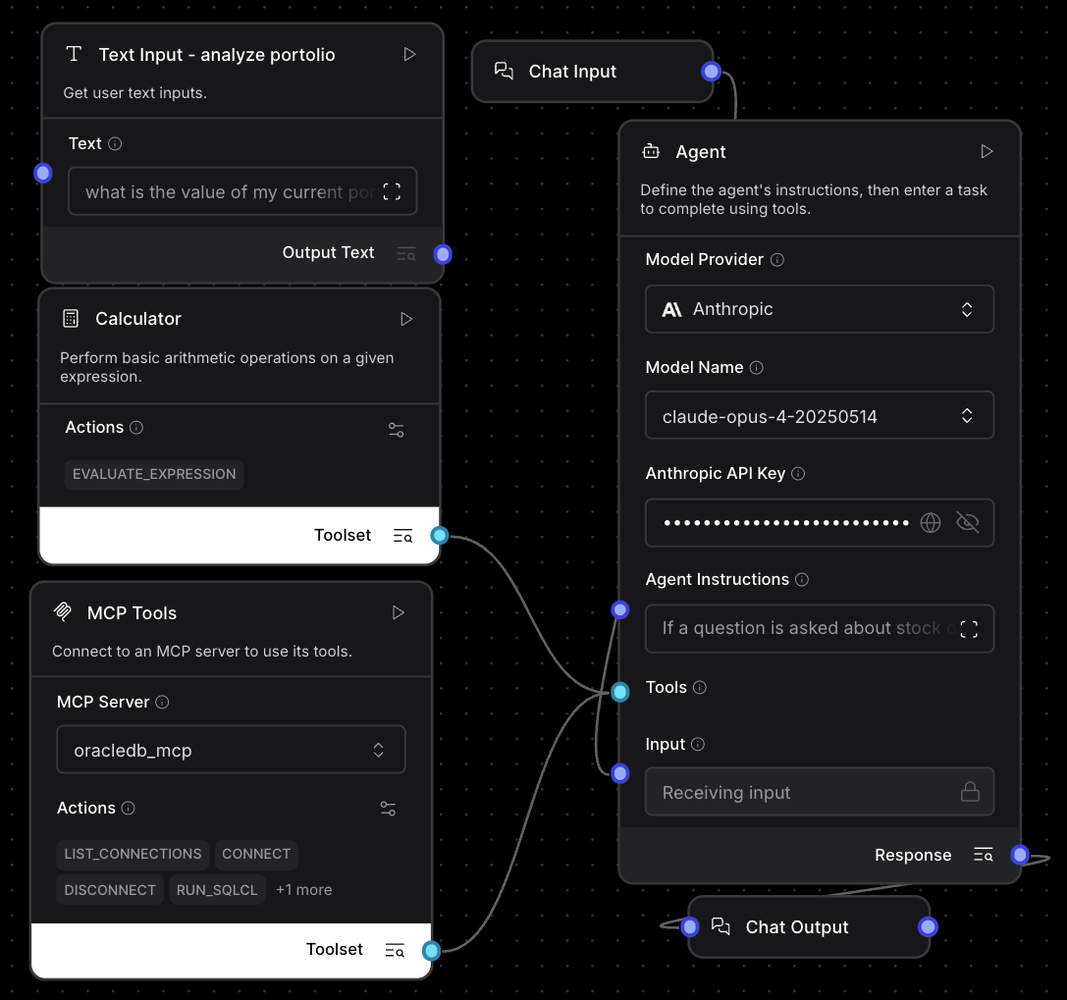
And more like this…
Alright, let’s get to it…
Langflow and Agents
Langflow install is easy, but I mention steps explicitly as, in my experience and others, you will need to install it just like this, being sure to use a devoted venv, –no-cache-dir option, etc.
python -m venv langflowenv
    .\langflowenv\Scripts\activate
    python -m pip install --upgrade pip
    uv pip install langflow --no-cache-dir
    langflow run --host 0.0.0.0 --port 7860
Create an agentic AI flow. If creating a new flow, you may as well select the AI Agent template option you are presented with; otherwise, in the component menu on the left, just type “agent” then select the “+” next to “Agent” to create one.
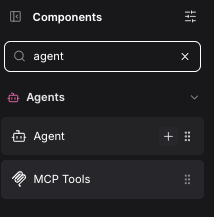
And you’ll have your agent template…
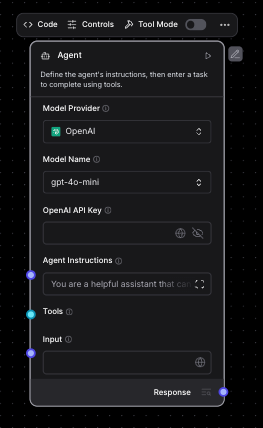
Note that an MCP server (or any tool) used in Langflow must be switched to “Tool Mode” to be plugged into and called by an agent…

Oracle Database 23ai MCP
Oracle Database has an MCP server, and you can read the doc here.
The Oracle SQL Developer VS Code extension is an extremely handy one-stop tool when working with Oracle Database, which is highly recommended regardless, but it is also an MCP server that allows LLMs with tooling calling capability to use it to do any number of operations on the database via natural language. SQLcl is the CLI for the Oracle Database, which is the actual core of the MCP server that the extension exposes, and can also be downloaded and installed separately.
Here is the screenshot of the Oracle SQL Developer extension…

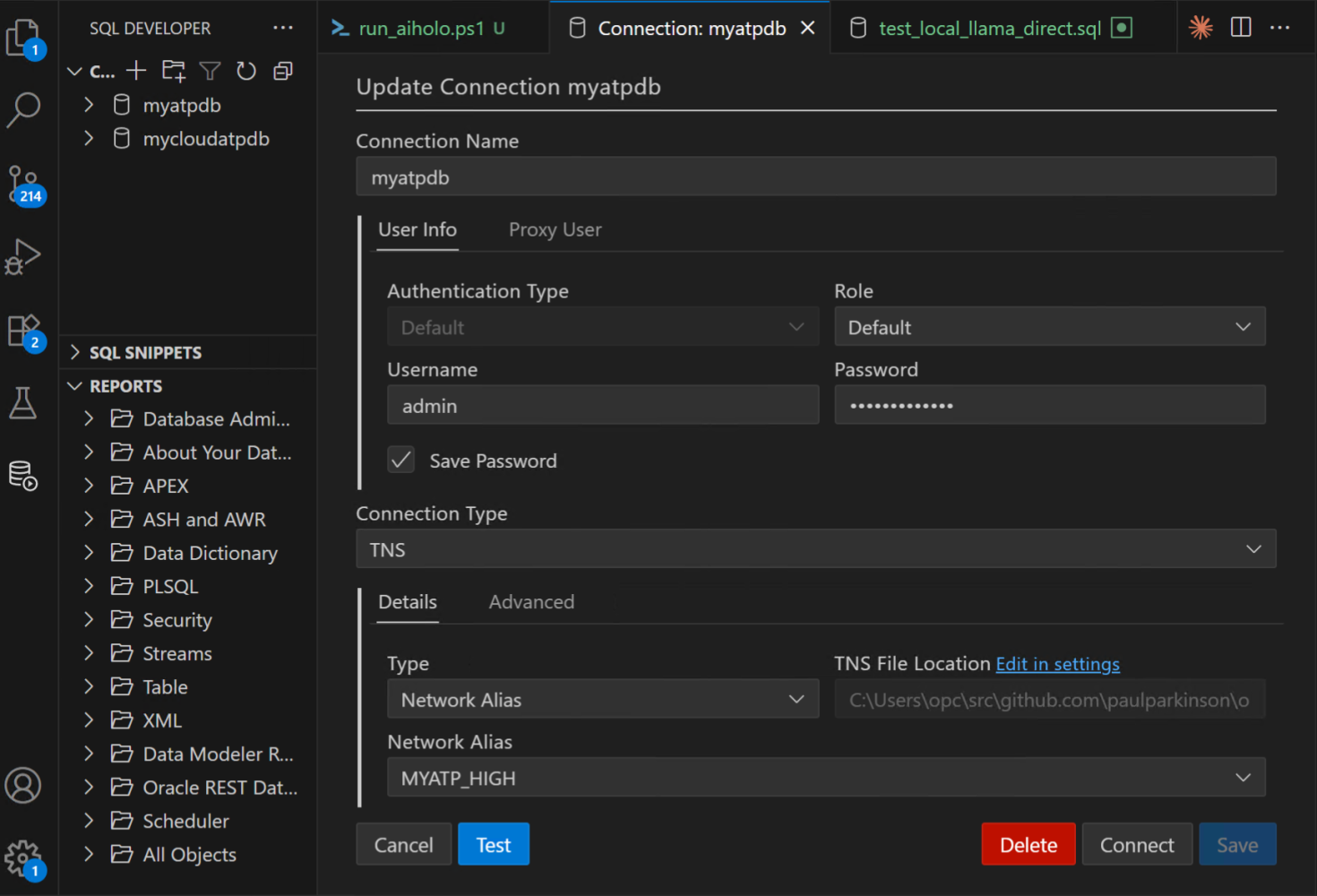
Here is an example of a connection created for an Oracle Database 23ai container/image…
And here is an example of a connection created for an Oracle Database 23ai running in the cloud (whatever cloud that may be, since Oracle Database now runs in all of them)…
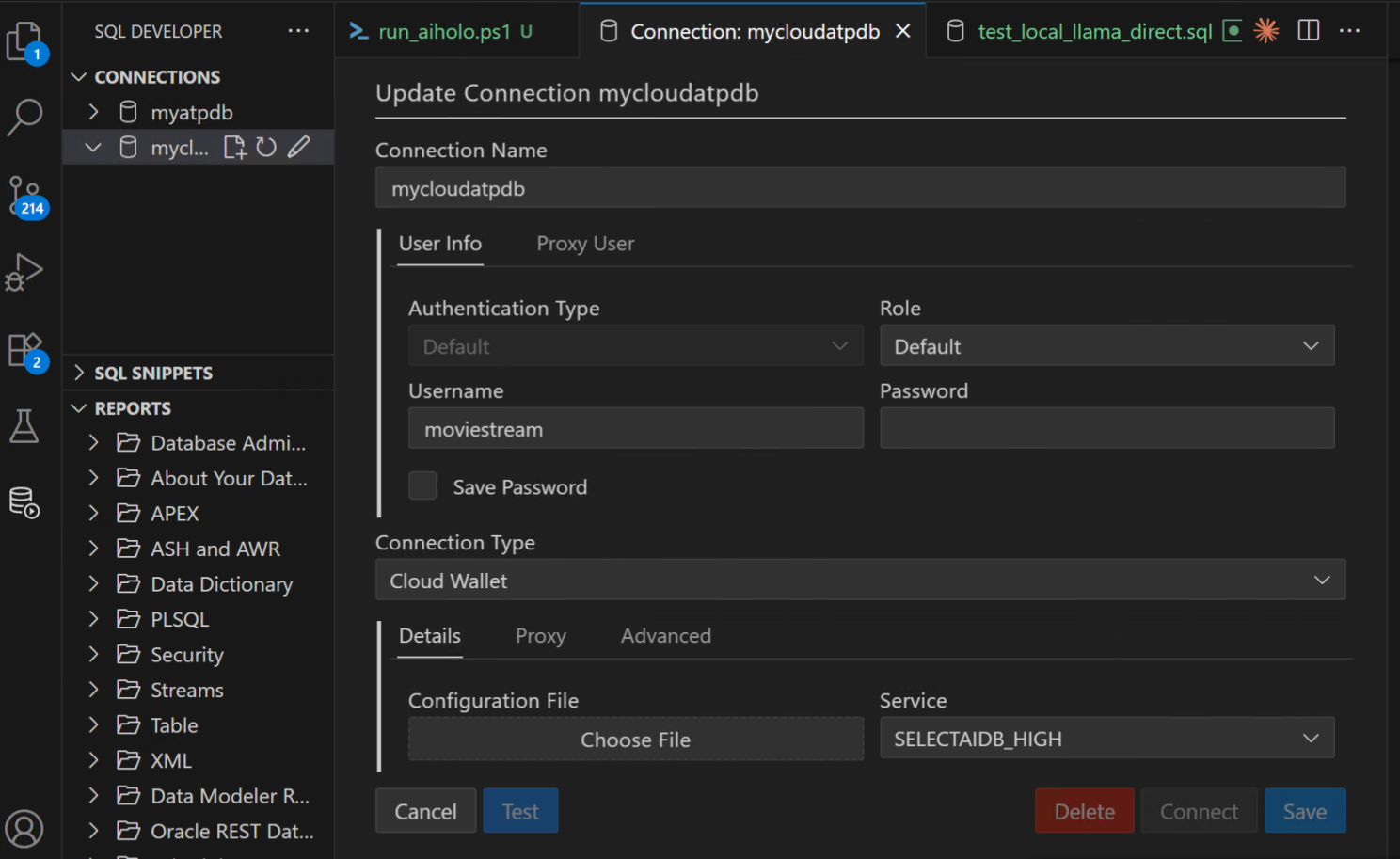
Notice the names given to them, “myatpdb” and “mycloudatpdb” as that is how you can refer to them when using MCP to connect. Here’s a quick screenshot to give you the idea of using it with copilot and sonnet in VS Code…

Let’s move on to using the Oracle Database MCP server as a tool for our AI agent in Langflow…
As you did to create an agent, in the component menu on the left of Langflow, type “agent” or “mcp” and select the “+” next to “MCP Tools” to create one.

In the “MCP Tools” panel, select “MCP Server” and then “Add MCP Server”

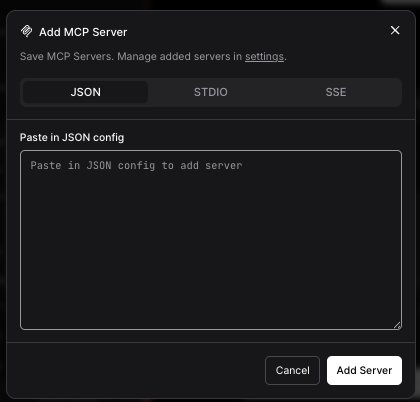
Then paste this in, making any mods to the path you need and forgoing the TNS_ADMIN entry/override if you don’t need it
{
      "mcpServers": {
        "oracledb-mcp": {
          "command": "C:\\Users\\opc\\sqlcl\\bin\\sql",
          "args": ["-mcp"],
          "env": {
            "TNS_ADMIN": "C:\\Users\\opc\\src\\github.com\\paulparkinson\\oracle-ai-for-sustainable-dev\\wallet_local"
          }
        }
      }
    }
Another option to set up the Oracle MCP as shown here: https://github.com/oracle/mcp/tree/main/src/dbtools-mcp-server, and so optionally you could copy in https://github.com/oracle/mcp/blob/main/src/dbtools-mcp-server/dbtools-mcp-server.py instead
Define the agent’s instructions, then enter a task to complete using tools. For example, I use…
If a question is asked about stock or portfolio, use only the stock symbols and portfolio information found in the database via the run-sql functionality of the oracledb_mcp mcp-server services and not use or include external, realworld information like AAPL, etc.Use the PORTFOLIO_STOCKS view whenever possible and the STOCKS and PORTFOLIO table. If a question requests to buy stock, update the relevant portfolio row with the number of shares and commit that change to the database. If the question asks about details of one or more of the companies the stock represents, do an Oracle vector search on the PDFCOLLECTION table to get a description. Reply in sentences, not tables, etc., as if a financial advisor and make the reply 30 words or less.Once configured, wire the Oracle Database MCP server in as a tool on the agent and connect the chat input and output components as follows (add a calculator if you like to calculate values such as stock price * stock value on the agent side for cases where not all data resides in the database).

Click “Playground” in the upper right and try some queries like the following…

Oracle Database Vector search
You may have noticed the “If the question asks about details of one or more of the companies the stock represents, do an Oracle vector search on the PDFCOLLECTION table to get a description” part of the agent instructions in the MCP section above. Indeed, you are ready to go with vector searches already by just using the MPC server, and below is an example that shows the results of a query that returned both structured data about the number of shares in the portoflio and their value and a longer description of the (fictitious) ACME company that is the result of a vector search on a pdf vectorized/stored in the PDFCOLLECTION table…

You can alternatively use a Vector Store and Embeddings directly in the Langflow agentic flow. Though they likely will soon, currently, Langflow does not have Oracle-specific components for its Vector Store. However, I have written one that you can see, along with local versions of sentence-transformers for the embedding model, in the “custom components” section below, and of course, it is in the src repos as well. You can simply copy and paste them into the Langflow install as described, and you’ll be able to see and add them (“Oracle Database Vector Store” and “Oracle Database Local Embeddings”) from the components menu on the left, as you have with other components.
Here is what the flow looks like. Notice I expose the Number of Results (k) as one of the options along with the option to cache, etc., and you can modify and expand on this if you like… You do not need to specify anything for “ingest data” if you have vectorized and stored your embeddings already.

Running this flow, you see results like this…

Oracle Database 23ai NL2SQL/ “Select AI”
As I keep saying, there are many ways to go about implementing agentic flows, and a guiding light is almost always to try to bring the AI to the data. Oracle Database NL2SQL/”Select AI” takes natural language queries and converts them to SQL on the database side, and thus follows this best practice.
You specify meta on the database side to help the LLMs with context via comments and annotations like so…
COMMENT ON TABLE ADMIN.STOCKS IS 'Information about stocks such as symbol and description of company and sector';

    COMMENT ON TABLE ADMIN.PORTFOLIO IS 'Information about stocks owned in portfolio including the count and current market price';

    COMMENT ON TABLE ADMIN.PORTFOLIO_STOCKS IS 'Information about stocks owned in portfolio including the count and current market price and information about stock such as symbol and description of company and sector';
Give network access privs…
--Grants EXECUTE privilege to ADB_USER
    GRANT EXECUTE on DBMS_CLOUD_AI to ADB_USER;

    --Grants EXECUTE privilege DBMS_CLOUD_PIPELINE to ADB_USER
    GRANT EXECUTE on DBMS_CLOUD_PIPELINE to ADB_USER;

    BEGIN
            DBMS_NETWORK_ACL_ADMIN.APPEND_HOST_ACE(
                 host => 'api.openai.com',
                 ace  => xs$ace_type(privilege_list => xs$name_list('http'),
                         principal_name => 'ADMIN',
                         principal_type => xs_acl.ptype_db)
           );
    END;
    /
Then, create the credential for the LLM you will use. It essentially supports them all…
BEGIN
      DBMS_CLOUD.CREATE_CREDENTIAL (
          credential_name  => 'OPENAI_CRED',
          username         => 'OPENAI',
          password         => 'youropenaikey'
      );
    END;
    /
Create the profile, including the tables, views, vector indexes, spatial, etc., you like…
    BEGIN
      BEGIN
        DBMS_CLOUD_AI.drop_profile(profile_name => 'OPENAI_PROFILE');
        DBMS_OUTPUT.put_line('Dropped existing OPENAI_PROFILE');
      EXCEPTION
        WHEN OTHERS THEN
          DBMS_OUTPUT.put_line('No existing OPENAI_PROFILE to drop');
      END;
      DBMS_CLOUD_AI.create_profile(
        profile_name => 'FINANCIAL_OPENAI_PROFILE',
        attributes   => '{"provider": "openai",
                          "credential_name": "OPENAI_CRED",
                          "model": "command",
                          "temperature": 0.1,
                          "max_tokens": 4096,
                          "object_list": [
                            {"owner": "ADMIN", "name": "STOCKS"},
                            {"owner": "ADMIN", "name": "PORTFOLIO"},
                            {"owner": "ADMIN", "name": "PORTFOLIO_STOCKS"}
                          ],
                          "comments": "true"}'
      );
      DBMS_OUTPUT.put_line('Created OPENAI_PROFILE');
    END;
    /
Then try some queries with the profile…
    -- where action can be "narrate", "showsql", "runsql", "explainsql"
    SELECT DBMS_CLOUD_AI.GENERATE(
                    prompt       => :prompt,
                    profile_name => 'FINANCIAL_OPENAI_PROFILE',
                    action       => :action)
                FROM dual;

    SELECT DBMS_CLOUD_AI.GENERATE(
                    prompt       => 'what is the value of my portfolio?',
                    profile_name => 'FINANCIAL_OPENAI_PROFILE',
                    action       => 'NARRATE')
                FROM dual;
Since everything is set up on the server/database side, you can just use it from Langflow by calling SQL directly or using the MCP server and simply instruct the agent to do something like “If a question is related to stocks or portfolio, use the DBMS_CLOUD_AI.GENERATE procedure, passing in the prompt, as-is without any alterations, using an action of ‘narrate’, and profile_name of ‘investments’ “.
Easy and powerful, and it has an amazing roadmap ahead as well.
Oracle AI Optimizer and Toolkit
The Oracle AI Optimizer and Toolkit provides an environment where developers and data scientists can explore the potential of GenAI combined with RAG capabilities. By integrating Oracle Database 23ai AI VectorSearch and soon SelectAI and MCP, the Sandbox enables users to tweak their models and usage. The optimizer has a GUI and is exposed as an endpoint, so we can call it from Langflow. Here is a screenshot of the GUI (this particular screen being of the very useful testbed)…
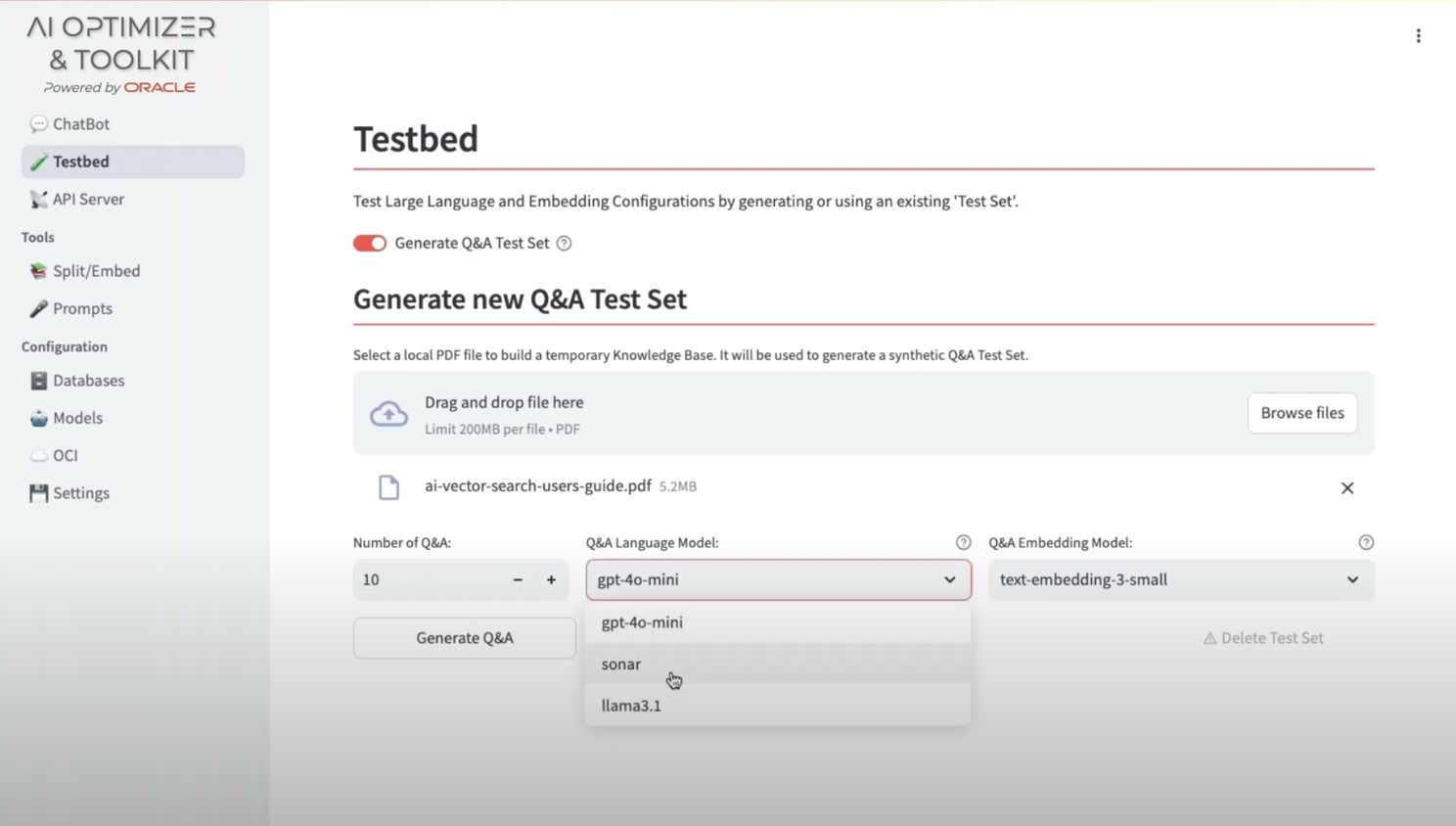
Since it is accessible as an API, you can simply use the Langflow “API Request” component and enter the appropriate URL, headers, request, etc. – super easy… Here, I additionally use a local model to tweak and structure the body/request….

You can see and use the latest headers, body, etc., using the AI Optimizer doc, but to give you the idea…


Playground, Share API, etc…
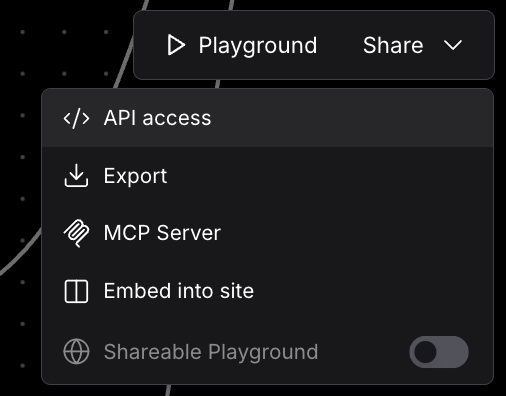
In the upper right, you can try the agentic flow via the playground or by sharing it as an API or even MCP server itself…
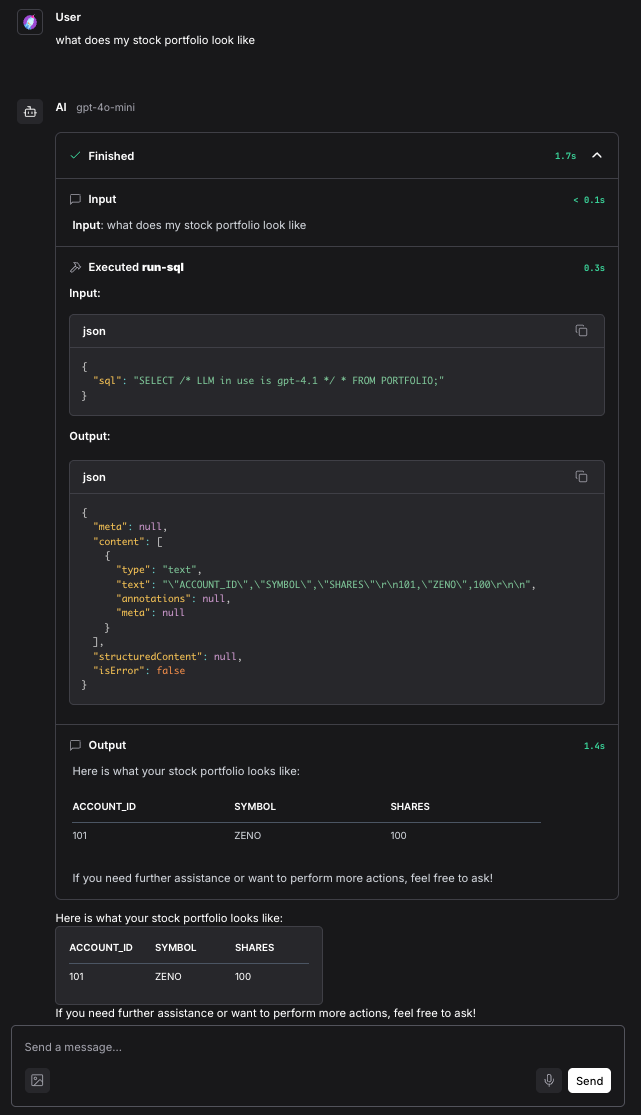
You can expand the steps in the playground to see the chain of thought and actions that are being taken in detail. For example, ask “What is the total value of my portfolio?” – This uses the MCP server to get the number of stock owned and current market value, and then uses the calculator tool to come up with the full value…
Interactive AI Hologram Agents
I hook these Langflow agentic flows up to my Interactive AI Holograms activation (blog here).
You can ask things like “Analyze my stock portfolio and the companies in it”, “purchase x share of y”, or “Show me a digital twin of the airport” and a metahuman hologram of the appropriate agentic system will appear and answer your questions with verbal and visual responses… The original activation was first demoed at Oracle CloudWorld and KubeCon 2024 the agentic AI version at the ai4 conference in 2025…
Langflow Custom components (for Oracle Database 23ai)
Langflow has many components for models, vector stores, tools, etc., and also allows you to add custom components. Currently, there is no Oracle-specific component built into Langflow; therefore, I have written one for you, and regardless, it is good to know as they are easy to write and convenient to use.
Here is a Langflow Vector Store custom component I have written for Oracle Database…
You can see the inputs, outputs, etc…
    """
    Oracle Database Vector Store Component with Local Embeddings Integration
    (Configurable retrieval behavior for Langflow)

    This component integrates Oracle 23ai Vector Store (OracleVS) with a pluggable
    embeddings handle and exposes configurable search parameters such as:
      - number_of_results (k)
      - search_type (similarity, mmr, similarity_score_threshold)
      - score_threshold (for threshold mode)
      - fetch_k (preselect pool size before filtering/MMR)
      - mmr_lambda (diversity vs. similarity)
      - distance_strategy (COSINE, EUCLIDEAN, DOT_PRODUCT)

    Author: Paul Parkinson
    """

    import oracledb
    from typing import List

    from langchain_community.vectorstores.oraclevs import OracleVS
    from langchain_community.vectorstores.utils import DistanceStrategy

    from langflow.base.vectorstores.model import (
        LCVectorStoreComponent,
        check_cached_vector_store,
    )
    from langflow.helpers.data import docs_to_data
    from langflow.io import (
        HandleInput,
        IntInput,
        StrInput,
        SecretStrInput,
        MessageTextInput,
        FloatInput,
        DropdownInput,
    )
    from langflow.schema import Data


    class OracleDatabaseVectorStoreComponent(LCVectorStoreComponent):
        """
        Oracle Database Vector Store optimized for local embeddings with configurable retrieval.
        """

        display_name = "Oracle Database Vector Store"
        description = "Oracle 23ai Vector Store with local embeddings (no cloud dependencies) and configurable retrieval"
        name = "oracledb_vector"

        # ---------------------
        # UI Inputs
        # ---------------------
        inputs = [
            # Connection
            SecretStrInput(
                name="db_user",
                display_name="Database User",
                info="Oracle database username (e.g., ADMIN)",
                required=True,
            ),
            SecretStrInput(
                name="db_password",
                display_name="Database Password",
                info="Oracle database password",
                required=True,
            ),
            SecretStrInput(
                name="dsn",
                display_name="DSN",
                info="Database connection string (e.g., myatp_high)",
                required=True,
            ),
            SecretStrInput(
                name="wallet_dir",
                display_name="Wallet Directory",
                info="Path to Oracle wallet directory",
                required=True,
            ),
            SecretStrInput(
                name="wallet_password",
                display_name="Wallet Password",
                info="Oracle wallet password",
                required=True,
            ),

            # Storage/table
            StrInput(
                name="table_name",
                display_name="Table Name",
                info="Vector table name (e.g., PDFCOLLECTION)",
                value="PDFCOLLECTION",
                required=True,
            ),

            # Query
            MessageTextInput(
                name="search_query",
                display_name="Search Query",
                info="Enter your search query for vector similarity search",
            ),

            # Embedding handle
            *LCVectorStoreComponent.inputs,
            HandleInput(
                name="embedding",
                display_name="Embedding Model",
                input_types=["Embeddings"],
                info="Connect a Local SentenceTransformer or other embedding model",
            ),

            # Retrieval configuration
            IntInput(
                name="number_of_results",
                display_name="Number of Results (k)",
                info="Maximum number of results to return",
                value=5,
                advanced=False,
            ),
            DropdownInput(
                name="search_type",
                display_name="Search Type",
                options=["similarity", "mmr", "similarity_score_threshold"],
                value="similarity",
                advanced=True,
            ),
            FloatInput(
                name="score_threshold",
                display_name="Score Threshold (for threshold mode)",
                value=0.35,
                advanced=True,
            ),
            IntInput(
                name="fetch_k",
                display_name="Fetch K (preselect pool)",
                info="Number of top candidates to fetch before MMR/threshold filtering",
                value=20,
                advanced=True,
            ),
            FloatInput(
                name="mmr_lambda",
                display_name="MMR Lambda (0=diversity, 1=similarity)",
                value=0.5,
                advanced=True,
            ),
            DropdownInput(
                name="distance_strategy_ui",
                display_name="Distance Strategy",
                options=["COSINE", "EUCLIDEAN", "DOT_PRODUCT"],
                value="COSINE",
                advanced=True,
            ),
        ]

        # ---------------------
        # Connection
        # ---------------------
        def get_database_connection(self) -> oracledb.Connection:
            """Create Oracle database connection with wallet authentication."""
            connect_args = {
                "user": self.db_user,
                "password": self.db_password,
                "dsn": self.dsn,
                "config_dir": self.wallet_dir,
                "wallet_location": self.wallet_dir,
                "wallet_password": self.wallet_password,
            }
            try:
                return oracledb.connect(**connect_args)
            except Exception as e:
                raise ConnectionError(f"Failed to connect to Oracle Database: {str(e)}")

        # ---------------------
        # Vector Store Builder
        # ---------------------
        @check_cached_vector_store
        def build_vector_store(self) -> OracleVS:
            """Build the Oracle Vector Store with configurable distance strategy."""
            conn = self.get_database_connection()

            try:
                # Validate table exists
                cursor = conn.cursor()
                cursor.execute(
                    """
                    SELECT table_name
                    FROM user_tables
                    WHERE UPPER(table_name) = UPPER(:table_name)
                    """,
                    {"table_name": self.table_name},
                )
                row = cursor.fetchone()

                if not row:
                    cursor.execute(
                        """
                        SELECT table_name
                        FROM user_tables
                        WHERE UPPER(table_name) LIKE '%COLLECTION%'
                        ORDER BY table_name
                        """
                    )
                    available = [r[0] for r in cursor.fetchall()]
                    cursor.close()
                    msg = f"Table '{self.table_name}' does not exist."
                    if available:
                        msg += f" Available collection tables: {', '.join(available)}"
                    else:
                        msg += " No collection tables found. Create a vector table first."
                    self.status = f"❌ {msg}"
                    raise RuntimeError(msg)

                actual_table_name = row[0]
                cursor.close()

                # Map UI distance strategy to enum
                ds_map = {
                    "COSINE": DistanceStrategy.COSINE,
                    "EUCLIDEAN": DistanceStrategy.EUCLIDEAN,
                    "DOT_PRODUCT": DistanceStrategy.DOT_PRODUCT,
                }
                distance = ds_map.get(
                    getattr(self, "distance_strategy_ui", "COSINE"),
                    DistanceStrategy.COSINE,
                )

                vs = OracleVS(
                    client=conn,
                    table_name=actual_table_name,
                    distance_strategy=distance,
                    embedding_function=self.embedding,
                )
                self.status = f"✅ Connected to Oracle Vector Store table: {actual_table_name}"
                return vs

            except Exception as e:
                msg = f"Failed to build vector store: {str(e)}"
                self.status = f"❌ {msg}"
                raise RuntimeError(msg)

        # ---------------------
        # Search
        # ---------------------
        def search_documents(self) -> List[Data]:
            """Perform a similarity/MMR/thresholded vector search based on UI settings."""
            if not self.search_query or not self.search_query.strip():
                return []

            vector_store = self.build_vector_store()
            query = self.search_query.strip()

            # read UI values with sane defaults
            try:
                k = max(1, int(getattr(self, "number_of_results", 5) or 5))
            except Exception:
                k = 5

            search_type = getattr(self, "search_type", "similarity") or "similarity"

            # optional knobs
            fetch_k = getattr(self, "fetch_k", None)
            try:
                fetch_k = int(fetch_k) if fetch_k is not None else None
            except Exception:
                fetch_k = None

            try:
                mmr_lambda = float(getattr(self, "mmr_lambda", 0.5))
            except Exception:
                mmr_lambda = 0.5

            try:
                score_threshold = float(getattr(self, "score_threshold", 0.35))
            except Exception:
                score_threshold = 0.35

            try:
                if search_type == "similarity":
                    kwargs = {}
                    if fetch_k:
                        kwargs["fetch_k"] = fetch_k
                    docs = vector_store.similarity_search(query=query, k=k, **kwargs)

                elif search_type == "mmr":
                    kwargs = {}
                    if fetch_k:
                        kwargs["fetch_k"] = fetch_k
                    docs = vector_store.max_marginal_relevance_search(
                        query=query,
                        k=k,
                        lambda_mult=mmr_lambda,
                        **kwargs,
                    )

                elif search_type == "similarity_score_threshold":
                    retriever = vector_store.as_retriever(
                        search_type="similarity_score_threshold",
                        search_kwargs={
                            "k": k,  # cap
                            "score_threshold": score_threshold,
                            **({"fetch_k": fetch_k} if fetch_k else {}),
                        },
                    )
                    docs = retriever.get_relevant_documents(query)

                else:
                    # fallback to similarity
                    docs = vector_store.similarity_search(query=query, k=k)

                data = docs_to_data(docs)
                self.status = data
                return data

            except Exception as e:
                self.status = f"Search failed: {str(e)}"
                return []

        # ---------------------
        # Ingest
        # ---------------------
        def add_documents(self, documents) -> None:
            """Add documents to the vector store."""
            vs = self.build_vector_store()
            try:
                vs.add_documents(documents)
                self.status = f"Successfully added {len(documents)} documents"
            except Exception as e:
                self.status = f"Failed to add documents: {str(e)}"
                raise
I also wrote a local SentenceTransformer embedding component (includes ll-MiniLM-L12-v2 (SentenceTransformers model)), as you can see here. You could also get it from HuggingFace component easily enough, but may as well have one less API key for things like this that can be easily installed/created locally…
"""
    Local SentenceTransformer Embedding Component for Langflow
    Uses the same embedding model as the investment advisor: all-MiniLM-L12-v2
    """

    from langflow.custom import Component
    from langflow.io import Output
    from langflow.schema import Data
    from langchain_community.embeddings import SentenceTransformerEmbeddings
    from typing import List


    class LocalSentenceTransformerComponent(Component):
        display_name = "Local SentenceTransformer Embeddings"
        description = "Local SentenceTransformer embeddings using all-MiniLM-L12-v2 (same as investment advisor)"
        documentation = "Uses the same embedding model that created your PDF vectors"
        icon = "🔗"
        name = "LocalSentenceTransformerComponent"

        inputs = []

        outputs = [
            Output(display_name="Embeddings", name="embeddings", method="build_embeddings"),
        ]

        def build_embeddings(self) -> Data:
            """Build local SentenceTransformer embeddings component"""
            try:
                # Use the same model as your investment advisor
                embeddings = SentenceTransformerEmbeddings(
                    model_name="all-MiniLM-L12-v2",
                    # Cache directory to avoid re-downloading
                    cache_folder="./.cache/sentence_transformers"
                )

                # Test the embeddings to make sure they work
                test_embedding = embeddings.embed_query("test")
                print(f"✅ Local embeddings working! Dimension: {len(test_embedding)}")

                self.status = f"✅ Local SentenceTransformer ready (dim: {len(test_embedding)})"

                return Data(
                    value=embeddings,
                    data={
                        "model_name": "all-MiniLM-L12-v2",
                        "embedding_dimension": len(test_embedding),
                        "type": "local_sentence_transformer"
                    }
                )

            except Exception as e:
                error_msg = f"❌ Failed to load local embeddings: {str(e)}"
                print(error_msg)
                self.status = error_msg
                raise RuntimeError(error_msg)
In most cases, you don’t need to modify the init.py file in the components dir, but if you find that you do, it is simply this format…
// other imports
    from .local_sentencetransformer import LocalSentenceTransformerComponent

    __all__ = [
    // other components
        "LocalSentenceTransformerComponent",
    //  other components0
    ]
The name of the directory you store these custom components in is the way they will appear in Langflow, eg “VectorStores”, “Embeddings”, “MyCustomComponentType”, … You point Langflow to the parent directory of these customer component directories by exporting the locations as LANGFLOW_COMPONENTS_PATH, however, short story is, this sometimes doesn’t work and so you may need to copy it directly into the Langflow dir like this…
cp ./mylangflowcomponents/embeddings/local_sentencetransformer.py langflowenv/Lib/site-packages/langflow/components/embeddings/

    cp ./mylangflowcomponents/vectorstores/oracle_vectorstore.py langflowenv/Lib/site-packages/langflow/components/vectorstores/
After doing this and (re)starting Langflow, you should see your custom components for Oracle Database Vector Store and SentenceTransformer Embedding (for vectorizing PDF, etc., docs)
Using local or non-default model providers (eg Ollama) for AI Agents in Langflow
To use a Language Model/Provider that is not in the “Model Provider” list of the Langflow agent, simply select “Custom” under the drop-down…

The “Model Provider” menu will turn to “Language Model” and if you click the input circle to the left the Components menu on the left will automatically filter to models (or of course you can simply search for one)…

Enter the Base URL and Model Name and wire the Language Model into the Agent. An example for using locally run Ollama on http://localhost:11434 is show here…

Notice the “Tool Model Enabled” mode. This filters the models that can actually be used for/by tool calling (not all models can)…

That’s all for now…
Thanks for reading, let me know if you have any questions or feedback, and again, this is all built around Oracle 23ai, which you can run for free either on cloud or container, ready to run with Kubernetes. Click here to try.
.
.
.
.
.
.
.
.
Bonus:
Running GPUs on Kubernetes to host your models locally and optionally using NVIDIA Inference Microservices to do so…
I have a dev and prod env…
-
Dev is a handy all-in-one machine that actually runs on Windows as I use not only NVidia for its GPUs but for its RTX capabilities (see How to Create the Ultimate AI, 3D Spatial, XR, Gaming Dev, Design, Run, and Stream Cloud Machine w NVIDIA A10 RTX and Oracle Database blog on that if interested). Langflow, multiple models (including Ollama models and others, that you can easily select from a drop-down and run with the utility in the repos), Oracle Database 23ai container version, etc., all run on the one A10 machine just fine.
-
Prod runs on Kubernetes using GPUs, again hosting models locally, and using NVIDIA NIM (I put a section on how to set this after the end of this blog if interested).
-
The point is, the setup for all of these is basically the same as far as the “Develop Agentic AI Workflows with Langflow and Oracle Database MCP, Vector RAG, NL2SQL, and AI Optimizer” aspect, and you can do the basics with an average laptop, which is nice, and in all cases, the Oracle Database 23ai is free, also nice.
That said, to get the most out of the powerful NVIDIA GPUs and the benefits of running models locally, you can simply set up a Kubernetes cluster with a GPU pool, and the “Deploy to Oracle Cloud” option found here is an easy way to do so while also ensuring you have CUDA drivers, etc., set up correctly: https://github.com/oracle-quickstart/oci-hpc-oke . The Oracle AI Optimizer and Toolkit also has an option to deploy a GPU node pool, and of course, you can do it manually yourself.
NVIDIA NIM (NVIDIA Inference Microservices) are pre-built, optimized inference microservices that allow developers to deploy AI models on various NVIDIA-accelerated infrastructure (cloud, data center, workstations, and edge). They simplify the process of deploying AI models by providing industry-standard APIs, making integration into existing applications and workflows easier. NIM microservices are designed to optimize inference latency and throughput for specific model and GPU combinations.”
The setup is fairly straightforward and, just like the OraOperator for Oracle Database, there is also a Kubernetes operator for NIM to make things simpler.
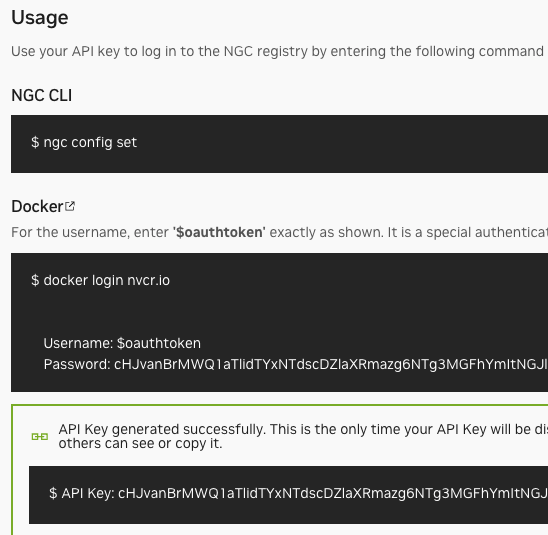
First, get an account at https://org.ngc.nvidia.com/setup/api-key in order to generate a NGC_API_KEY …

Then, follow the following commands to use helm to install the NIM operator…
% kubectl get nodes
    [...nodes info that should include GPU nodes]

    % create namespace nim
    namespace/nim created

    % helm fetch https://helm.ngc.nvidia.com/nvidia/charts/k8s-nim-operator-2.0.1.tgz

    % helm fetch https://helm.ngc.nvidia.com/nim/charts/nim-11m-1.11.0.tgz -username='$oauthtoken' --password="$NGC_API_KEY"

    % helm install nim-operator k8s-nim-operator-2.0.1.tgz --namespace nim
    NAME: nim-operator
    LAST DEPLOYED: Wed Aug 6 09:13:12 2025
    NAMESPACE: nim
    STATUS: deployed
    REVISION: 1
    TEST SUITE: None
    Thank you for installing nim-llm.
    ***********************************
    **********

    % kubectl get pods -n nim
    [...nim-operator-k8s-nim-operator will show as READY after a few
    seconds]
Next create the necessary secrets to pull and use the image
% kubectl create secret docker-registry ngc-secret
    --namespace nim \
    --docker-server=nvcr.io \
    -docker-username='$oauthtoken' \
    -docker-password="$NGC_API_KEY"
    secret/ngc-secret created

    % kubectl create secret generic ngc-api-secret \
    --namespace nim \
    -from-literal=NGC_API_KEY="$NGC_API_KEY" \
    -from-literal=NVIDIA_API_KEY="$NGC_API_KEY"
    secret/ngc-api-secret created
The following are the contents of the llama-nemtron-values.yaml file. You can modify as needed, of course, to change the model, GPU, etc., used. For example, a single GPU nvcr.io/nim/mistralai/mistral-7b-instruct-v03:latest model would be a considerably more humble setup for local development than the H100s required for the super-49b shown. The list of models is here: https://docs.nvidia.com/nim/large-language-models/1.1.0/models.html
image:
      repository: nvcr.io/nim/nvidia/llama-3.3-nemotron-super-49b-v1
      tag: 1.10.1
      pullSecrets:
        - name: ngc-secret
    model:
      name: nvidia/llama-3.3-nemotron-super-49b-v1
      ngcAPISecret: ngc-api-secret
    service:
      type: LoadBalancer
    resources:
      requests:
         nvidia.com/gpu: 2
      limits:
         nvidia.com/gpu: 2
Go ahead and create that file and install the model with helm and then check the pod(s) are running (they will of course take some time to deploy depending on the size, params, … of the model)….
% helm install llama3 nim-llm-1.11.0.tgz \
    --namespace nim \
    --values llama-nemtron-values.yaml
    NAME: 1lama3
    LAST DEPLOYED: Wed Aug 6 09:15:11 2025
    NAMESPACE: nim
    STATUS: deployed
    REVISION: 1
    NOTES:
    Thank you for installing nim-llm.
    ****************************************
    **********
    I It may take some time for pods to become ready while model files download
    **************************************************
    Your NIM version is: 1.10.1

    % kubectl get pods -n nim
    [...llama3-nim-1lm-0, or whatever model you've deployed, will eventually show as READY]
And then test it….
% curl -X POST http://129.80.196.124:8000/v1/chat/completions \
      -H "Content-Type: application/json" \
      -d '{
        "model": "nvidia/llama-3.3-nemotron-super-49b-v1",
        "messages": [
          {
            "role": "user",
            "content": "Hello!"
          }
        ],
        "max_tokens": 50
      }'

    {
      "id": "chatcmpl-1905ea9b74fe47aa8cc91c943a30eecd",
      "object": "chat.completion",
      "created": 1754496952,
      "model": "nvidia/llama-3.3-nemotron-super-49b-v1",
      "choices": [
        {
          "index": 0,
          "message": {
            "role": "assistant",
            "content": "Hello! \n\nIt's lovely to meet you! Since this is our first interaction, I'll offer you a few conversation starters to get us underway. Feel free to pick any that interest you, or suggest something entirely different!\n\n### 1. **Chat",
            "tool_calls": []
          },
          "logprobs": null,
          "finish_reason": "length"
        }
      ],
      "usage": {
        "prompt_tokens": 12,
        "completion_tokens": 50,
        "total_tokens": 62
      }
    }
We can now use that model, endpoint, etc., in our Langflow agentic AI flow as described earlier.