
A new OCI GoldenGate version can affect maintenance planning, testing, approvals, and production change windows. OCI GoldenGate emits events when a new build is available or an upgrade is scheduled, but you must configure the notification that delivers those events to your team.
In this blog, we will use OCI GoldenGate, OCI Events, and OCI Notifications to deliver upgrade notifications.
Benefits of upgrade notifications
A new GoldenGate version is more than a release-note item. It can affect the timing of maintenance work, validation in a test environment, coordination with database owners, and the change window used for a production deployment. Without a notification, an operator may only see the information by visiting the deployment console or reviewing the upgrade list manually.
The notification creates an event-driven reminder so your team can review the available build, check the applicable upgrade timeline, and follow the normal upgrade preparation steps.
OCI GoldenGate upgrade events
OCI GoldenGate provides two upgrade-related notification templates. You can create one or both, depending on whether your team wants to know when a build becomes available, when maintenance is scheduled, or both.
| Notification | Event type | Purpose |
| Deployment upgrade is available | GoldenGate Upgrade Available com.oraclecloud.goldengate. upgradenewversion | Indicates that a newer deployment build is available. |
| Deployment upgrade maintenance is scheduled | GoldenGate Upgrade Maintenance Scheduled com.oraclecloud.goldengate. upgrademaintenanceschedule | Indicates that an upgrade has been scheduled. |
For the new-version event, the event payload includes the version label in additionalDetails.version. The scheduled-maintenance event includes the scheduled time and GoldenGate version. See the OCI GoldenGate Events reference for details.
When a notification identifies a new build, review the OCI GoldenGate Versions page to see the release type, build number, and the features, bug fixes, or enhancements documented for that version and deployment type.
The notification frequency changes as the upgrade deadline gets closer. See more information in Upgrade notifications:
| Time remaining to upgrade | Notification period |
| Less than 180 days | Every 30 days |
| Less than 30 days | Every 7 days |
| Less than 7 days | Every day |
| Security fixes | Every day |
From events to notifications
Three pieces work together:
- OCI GoldenGate emits a structured event when the upgrade condition occurs.
- An Events rule matches the GoldenGate upgrade event and sends the event to a Notifications topic.
- The topic publishes the message to its subscriptions, such as email, Slack, or SMS.
Before you begin
Make sure you have the following information before creating notifications:
- An OCI GoldenGate deployment for which you want to receive upgrade notifications.
- Policies to manage the Events rule and Notifications topic used by the notification (location can be a compartment name, OCID, or the tenancy):
allow group <domain/group name> to manage ons-topics in <location>
allow group <domain/group name> to manage cloudevents-rules in <location>
- The email address, Slack endpoint, or SMS number that should receive the message.
- You can create a new Topic from the Create notification screens in OCI GoldenGate or select an existing one.
Create a notification from OCI GoldenGate
The Create notification quickstart is the simplest way to configure a notification for a deployment.
- On the OCI Console, open the Deployments page and select the deployment you want to monitor.
- On the Deployment details page, select Monitoring.
- Scroll to Notifications and select Create notification.
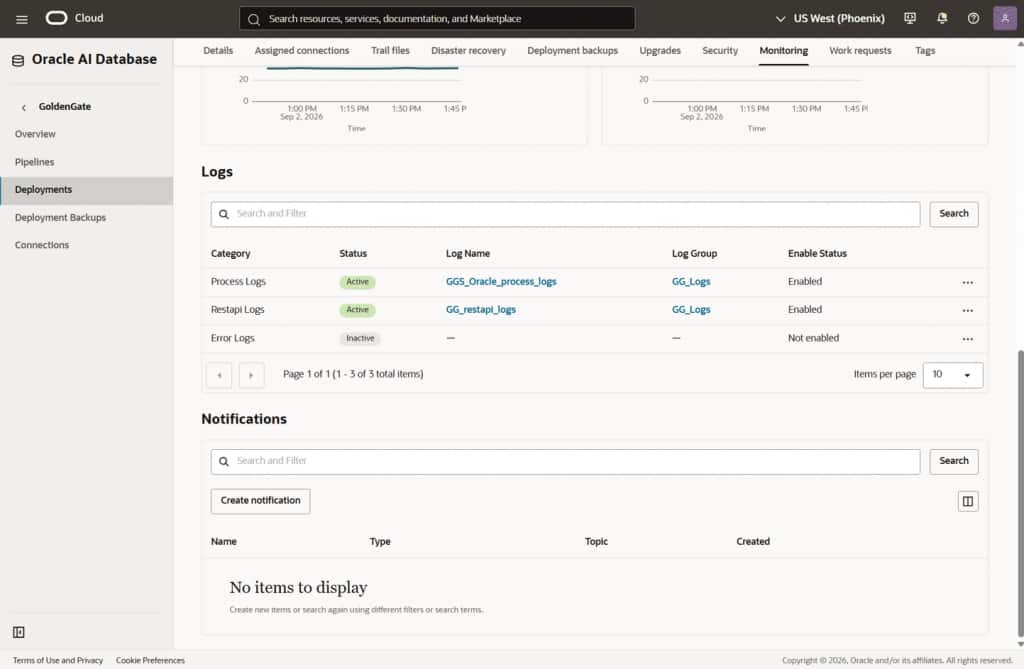
- In the Create notification panel, select Quickstart.
- From Template selection, choose Deployment upgrade is available.
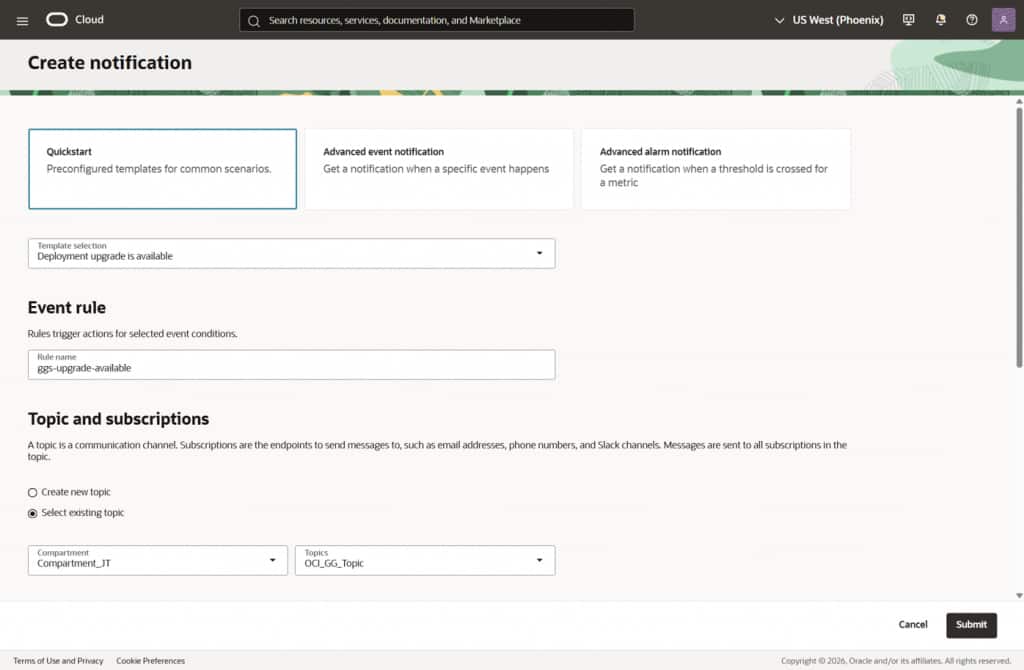
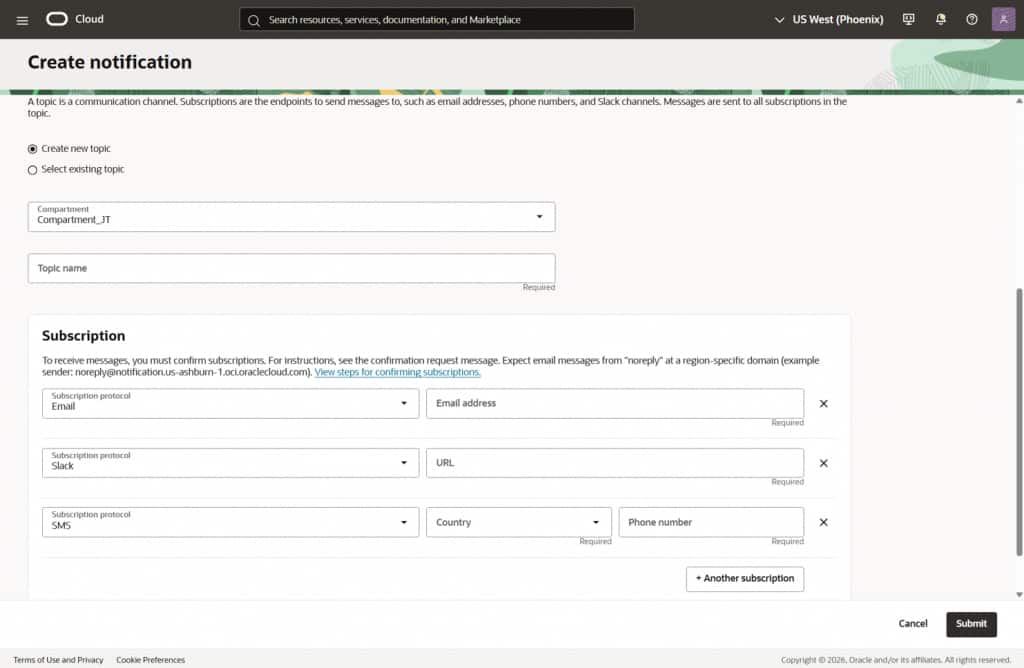
- In Topics and subscriptions, create a new topic or select an existing topic.
- Select at least one subscription protocol and provide its destination:
- Email, followed by a valid email address.
- Slack, followed by the Slack endpoint for the channel. The endpoint uses the Slack webhook URL format documented by Slack.
- SMS, followed by the country code and phone number.
- Optionally modify the default settings shown above Topics and subscriptions, such as the event type or alarm severity.
- Click Submit to create the notification.
After the notification is created, messages are sent to the configured contact information whenever the notification condition is satisfied. For email subscriptions, Notifications sends a confirmation URL and the subscription remains pending until it is confirmed.
Centralized setup: If your organization already manages OCI Events rules and Notifications topics centrally, you can create the same flow directly from those OCI services. Match the GoldenGate upgrade event types listed above and route it to a Notifications topic.
Operational recommendations
- Route notifications to a shared operations topic or distribution list.
- Use the version label to begin release review and confirm which build applies to the deployment.
- Treat security-fix notifications and scheduled upgrades as inputs to your normal testing, approval, maintenance, and rollback procedures.
Conclusion
OCI GoldenGate provides upgrade-availability and scheduled-maintenance events, and you can configure the notification that delivers them. Use the Create notification quickstart under Monitoring for a deployment-specific setup, or route the same events through centrally managed Events rules and Notifications topics.