
Oracle AI Database@Google Cloud brings Oracle AI Database services into Google Cloud data centers on OCI Exadata infrastructure, with built-in integration across Oracle Cloud Infrastructure and Google Cloud. Customers can create and manage Autonomous AI Database resources and GoldenGate resources from Google Cloud console, Google Cloud CLI, or the Oracle AI Database@Google Cloud API.
With OCI GoldenGate on Oracle AI Database@Google Cloud, teams can provision a managed runtime for real-time data replication, create secure source and target connections, assign those connections to deployments, and then configure Extracts, Replicats, and data transformations. A GoldenGate deployment is the managed runtime for designing, orchestrating, and monitoring replication and transformation work; a GoldenGate connection stores the credentials, network details, and resources needed to securely access a data source or target.
What we will provision
In this first part, we will provision the foundational components required to run OCI GoldenGate on Oracle AI Database@Google Cloud. The goal is to create a secure, reusable GoldenGate environment that can support multiple replication patterns, including database-to-database, cloud analytics, object storage, streaming, and big data targets.
We will cover:
- Google Cloud and Oracle AI Database@Google Cloud networking readiness
Create or validate the Google Cloud VPC, ODB Network, and Client ODB Subnet required for Oracle AI Database and GoldenGate connectivity. - IAM roles and OCI policies
Configure the Google Cloud IAM roles and OCI policies required to create, manage, and operate GoldenGate deployments, connections, connection assignments, secrets, and supporting network resources. - GoldenGate deployment planning
Review deployment type, region and zone placement, ODB subnet selection, license model, environment type, sizing, autoscaling, and administrator credential handling. - Oracle GoldenGate deployment provisioning
Create a GoldenGate deployment for replication between supported source and target - GoldenGate networking and connectivity model
Review private endpoint connectivity, shared versus dedicated endpoints, required ports, DNS considerations, and routing requirements between GoldenGate deployments and source or target systems. - GoldenGate connection lifecycle
Create, assign, and test GoldenGate connections that can later be used by Extracts, Replicats, Distribution Paths, or other GoldenGate runtime components. - Operational readiness checklist
Validate that the deployment, network, IAM, policies, secrets, and connections are ready before configuring any replication workload.
The actual replication workload is intentionally deferred to Part 2, where we will use this GoldenGate foundation to replicate from Oracle Autonomous AI Database@Google Cloud to Google BigQuery.
Google Cloud prerequisites
Use a Google Cloud project with billing enabled. The VPC network must be in the same Google Cloud project as the Oracle AI Database@Google Cloud resources, and the Oracle AI Database@Google Cloud API must be enabled. The VPC setup requires roles/compute.networkAdmin, and Oracle AI Database@Google Cloud supports IPv4 connections.
For Oracle AI Database@Google Cloud resources, assign the following IAM roles to the provisioning user or provisioning group:
| Area | Role or permission | Purpose |
|---|---|---|
| VPC networking | roles/compute.networkAdmin | Create or manage the Google Cloud VPC used by Oracle Database@Google Cloud. |
| ODB Network and ODB Subnets | roles/oracledatabase.networkAdmin, or scoped roles/oracledatabase.odbNetworkAdmin and roles/oracledatabase.odbSubnetAdmin | Create and manage ODB Networks and ODB Subnets. |
| Autonomous AI Database | roles/oracledatabase.autonomousDatabaseAdmin | Create and manage Autonomous AI Database resources. |
| GoldenGate deployments | roles/oracledatabase.goldenGateDeploymentAdmin | Create, view, start, and stop GoldenGate deployments. |
| GoldenGate connections | roles/oracledatabase.goldenGateConnectionAdmin | Create and manage GoldenGate connections. |
| GoldenGate connection assignments | roles/oracledatabase.goldenGateConnectionAssignmentAdmin | Assign connections to deployments and test assignments. |
These GoldenGate roles are required for GoldenGate deployment, connection, and assignment workflows. The GoldenGate Deployment Admin, Connection Admin, Connection Assignment Admin, and Oracle Database@Google Network Admin roles are also documented in the Oracle AI Database@Google Cloud IAM reference.
OCI policy prerequisites
OCI GoldenGate on Oracle AI Database@Google Cloud still relies on OCI-side policies for GoldenGate resources, private endpoints, network resources, vaults, and secrets. At minimum, Oracle recommends policies that allow a group to manage GoldenGate resources and manage virtual network resources. Oracle also recommends a dynamic group for GoldenGate deployments so the deployments can access resources such as secrets.
Use environment-specific compartment names and identity domain names:
allow group <identity-domain>/<gg-admin-group> to manage goldengate-family in <location>
allow group <identity-domain>/<gg-admin-group> to manage virtual-network-family in <location>

name: <gg-deployment-dynamic-group>
Matching rule: ALL {resource.type = 'goldengatedeployment', resource.compartment.id = '<compartment_ocid>'}

allow dynamic-group <identity-domain>/<gg-deployment-dynamic-group> to read secret-bundles in <location>
allow group <identity-domain>/<gg-admin-group> to manage secret-family in <location>
allow group <identity-domain>/<gg-admin-group> to use keys in <location>
allow group <identity-domain>/<gg-admin-group> to use vaults in <location>
allow dynamic-group <identity-domain>/<gg-deployment-dynamic-group> to use keys in <location>
allow dynamic-group <identity-domain>/<gg-deployment-dynamic-group> to use vaults in <location>
allow dynamic-group <identity-domain>/<gg-deployment-dynamic-group> to read secret-bundles in <location>

allow group <identity-domain>/<gg-admin-group> to read autonomous-database-family in <location>
Networking model
Oracle AI Database@Google Cloud uses ODB Networks to connect resources in the OCI child site back to your Google Cloud VPC. When an ODB Network is created, Oracle AI Database@Google Cloud automatically provisions the underlying connectivity components, including VCNs, subnets, DNS zones, and other private connection objects.
Create a Client ODB Subnet for this deployment. Oracle AI Database@Google Cloud supports Client ODB Subnets and Backup ODB Subnets; Autonomous AI Database requires one Client ODB Subnet.
GoldenGate deployment console access uses HTTPS over port 443. GoldenGate connects to Oracle databases using default ports 1521 or 1522, and Big Data targets use port 443. Connections can use a shared endpoint, where traffic originates from the assigned deployment’s ingress IPs, or a dedicated endpoint, where the connection has its own private endpoint and ingress IPs.
For Autonomous AI Transaction Processing and Autonomous AI Lakehouse, OCI GoldenGate creates private endpoints over port 1522 unless “Secure access from everywhere” is selected. If the Autonomous AI Database is selected when creating the connection, the private endpoint is created automatically; otherwise, shared endpoint security rules and DNS resolution must be configured manually in the selected subnet.
Step 1: Create or validate the Google Cloud VPC
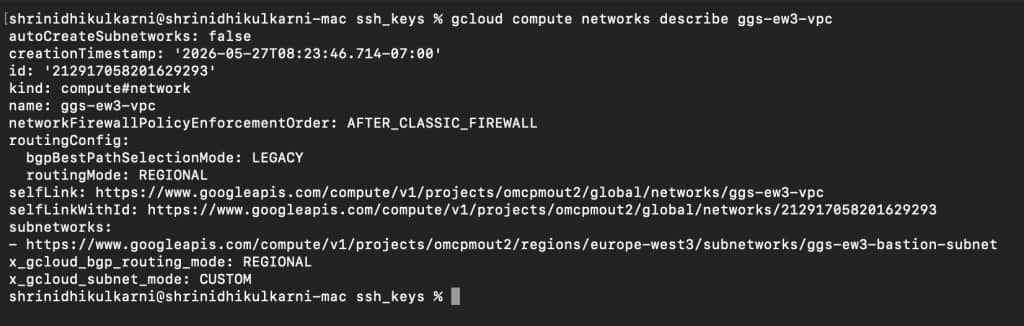
Create a VPC network in the Google Cloud project that hosts Oracle AI Database@Google Cloud resources. Use an IPv4-only VPC design because Oracle AI Database@Google Cloud supports IPv4 connections.
For complete VPC setup instructions, follow the Google Cloud documentation for creating and managing VPC networks. The Google Cloud documentation covers auto mode and custom mode VPC networks, subnet behavior, console and CLI options, and the requirement that each new VPC network name must be unique within the same project.
This walkthrough uses the Google Cloud CLI for provisioning examples. At the time of writing, the Oracle AI Database@Google Cloud documentation for creating GoldenGate deployments, connections, and connection assignments documents the GoldenGate provisioning flow through gcloud CLI commands and REST API examples. We use gcloud throughout this blog for consistency, repeatability, and easy automation. Before running the commands in this blog, install and initialize the Google Cloud CLI.
Step 2: Create the ODB Network
Create the ODB Network in the project associated with the Oracle AI Database@Google Cloud Marketplace order. The ODB network must be created in the same region and zone where the Oracle AI Database@Google Cloud resources will be provisioned. You can create the ODB Network by using the Google Cloud console, the Google Cloud CLI, or the REST API. This blog uses the gcloud CLI example for repeatability, but the official Google Cloud documentation provides console steps, the equivalent gcloud oracle-database odb-networks create command, and a REST API curl example.
gcloud oracle-database odb-networks create ODB_NETWORK_ID \
--project=PROJECT_ID \
--location=REGION \
--network=projects/PROJECT_ID/global/networks/VPC_NETWORK
Replace:
PROJECT_ID        = Google Cloud project ID
REGION            = Google Cloud region
ODB_NETWORK_ID    = ODB Network ID
VPC_NETWORK       = Google Cloud VPC network name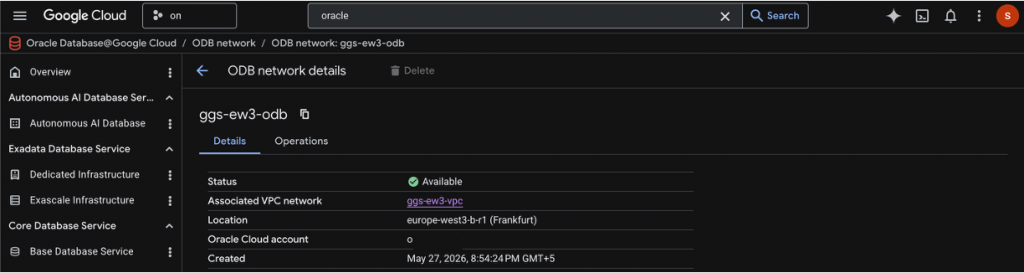
Step 3: Create the Client ODB Subnet
Create a Client ODB Subnet with a non-overlapping CIDR range. The accepted subnet purposes are client_subnet and backup_subnet; Autonomous AI Database and GoldenGate deployment requires a Client ODB Subnet.
gcloud oracle-database odb-networks odb-subnets create ODB_SUBNET_ID \
  --project=PROJECT_ID \
  --location=REGION \
  --odb-network=ODB_NETWORK_ID \
  --cidr-range=CIDR_RANGE \
  --purpose=client_subnet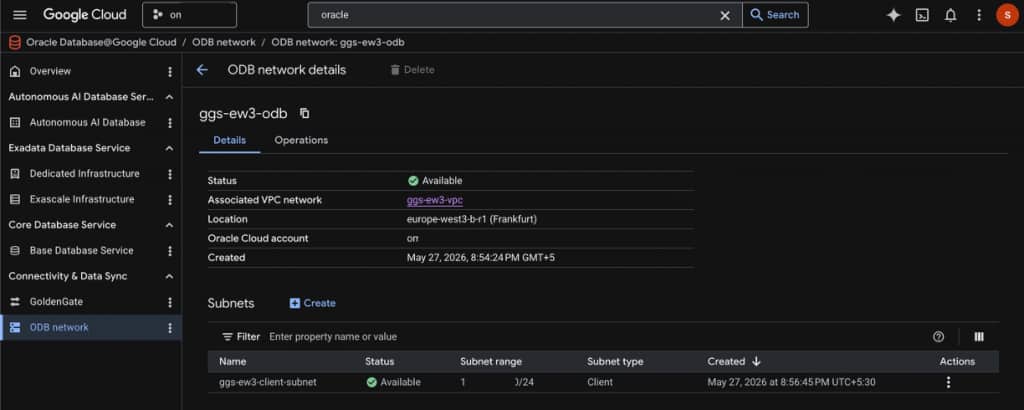
Optional step: Create or validate the Autonomous AI Database source
This step is required only if you plan to use Oracle Autonomous AI Database on Oracle Database@Google Cloud as a GoldenGate source database. For example, this step is required for the Part 2 walkthrough, where we capture changes from Oracle Autonomous AI Database and replicate them to Google BigQuery. If your first GoldenGate use case uses a different Database source, or only provisions GoldenGate for future use, you can skip this step and continue with GoldenGate deployment provisioning.
To create an Autonomous AI Database in Google Cloud, Google Cloud documentation requires an active Oracle Database@Google Cloud Marketplace order, the Oracle Database@Google Cloud API, an ODB Network and ODB Subnet, and the Autonomous Database Admin role.
For this replication pattern, use Private endpoint access only unless your organization has explicitly approved public access. In the Autonomous AI Database networking section, select the network project, ODB Network, and Client subnet.
Recommended launch-blog defaults:
Workload type: Transaction Processing, Lakehouse, or JSON
Network access: Private endpoint access only or Public access
Network project: PROJECT_ID
ODB Network: ODB_NETWORK_ID
Client subnet: ODB_SUBNET_ID
mTLS: Follow enterprise security policy
Step 4: Create a GoldenGate deployment
Oracle AI Database@Google Cloud lets you create GoldenGate deployments for different replication and transformation workloads. A GoldenGate deployment is the managed runtime environment used to design/configure, orchestrate, and monitor real-time replication and data transformation tasks. Google Cloud documentation currently describes GoldenGate deployment creation through gcloud CLI and API examples.
Before creating the deployment, choose the deployment technology that matches the workload you plan to run.
| Workload intent | Deployment technology | --properties-deployment-type value |
|---|---|---|
| Capture from or deliver to Oracle AI Database | Oracle AI Database | DATABASE_ORACLE |
| Replicate to big data, analytics, streaming, object storage, or lakehouse targets | Big Data | BIGDATA |
| Work with Microsoft SQL Server | Microsoft SQL Server | DATABASE_MICROSOFT_SQLSERVER |
| Work with MySQL | MySQL | DATABASE_MYSQL |
| Work with PostgreSQL | PostgreSQL | DATABASE_POSTGRESQL |
| Work with IBM Db2 for i | IBM Db2 for i | DATABASE_DB2ZOS |
| Work with IBM Db2 for z/OS | IBM Db2 for z/OS | DATABASE_DB2I |
| Build graphical data transformations | Oracle Data Transforms | DATA_TRANSFORMS |
These GoldenGate resources must be created in the same region and zone as the ODB Network for optimal performance and communication.
Use the following command pattern to create a GoldenGate deployment:
gcloud oracle-database goldengate-deployments create DEPLOYMENT_ID \
--project=PROJECT_ID \
--location=REGION \
--display-name="DEPLOYMENT_NAME" \
--gcp-oracle-zone=GCP_ORACLE_ZONE \
--odb-subnet=projects/ODB_NETWORK_PROJECT_ID/locations/ODB_NETWORK_REGION/odbNetworks/ODB_NETWORK_ID/odbSubnets/ODB_SUBNET_ID \
--properties-license-model=LICENSE_MODEL \
--properties-environment-type=ENVIRONMENT_TYPE \
--properties-is-auto-scaling-enabled \
--properties-deployment-type=DEPLOYMENT_TYPE \
--properties-cpu-core-count=CPU_CORE_COUNT \
--ogg-data-deployment=OGG_DEPLOYMENT_NAME \
--ogg-data-admin-username=OGG_ADMIN_USERNAME \
--ogg-data-admin-password-secret-version=OGG_ADMIN_PASSWORD
Replace
DEPLOYMENT_ID = Unique GoldenGate deployment resource ID
DEPLOYMENT_NAME = Display name shown in Google Cloud
GCP_ORACLE_ZONE = Google Cloud Oracle zone
ODB_NETWORK_PROJECT_ID = Project containing the ODB Network
ODB_NETWORK_REGION = Region containing the ODB Network
ODB_NETWORK_ID = ODB Network ID
ODB_SUBNET_ID = Client ODB Subnet ID
LICENSE_MODEL = bring-your-own-license or license-included
ENVIRONMENT_TYPE = DEVELOPMENT_OR_TESTING or PRODUCTION
DEPLOYMENT_TYPE = Deployment technology, such as DATABASE_ORACLE or BIGDATA
CPU_CORE_COUNT = Number of OCPUs, from 1 to 24
OGG_DEPLOYMENT_NAME = GoldenGate instance deployment name
OGG_ADMIN_USERNAME = GoldenGate administrator username
OGG_ADMIN_PASSWORD = GoldenGate administrator user password
Step 6: Verify the GoldenGate deployment
After the deployment is created, verify that it is listed and available before creating connections or assigning connections.
List GoldenGate deployments:
gcloud oracle-database goldengate-deployments list \
  --project=PROJECT_ID \
  --location=REGION
Describe a specific deployment:
gcloud oracle-database goldengate-deployments describe DEPLOYMENT_ID \
  --project=PROJECT_ID \
  --location=REGION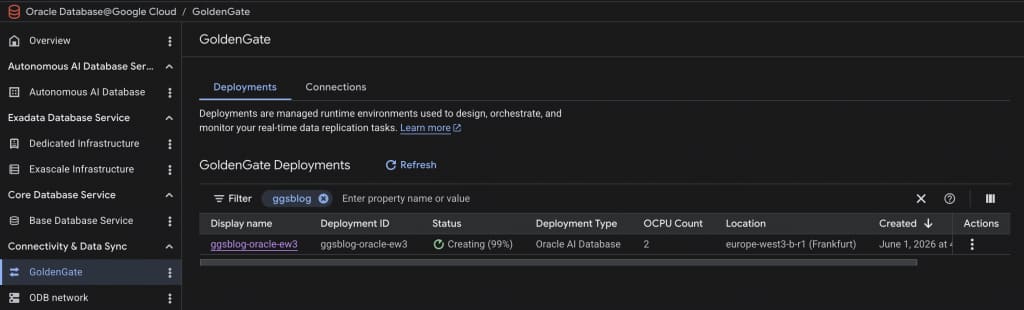
Step 7: Choose the required GoldenGate connection types
A GoldenGate connection stores the credentials, network details, and resource information required to securely access a source or target. After a connection is created, it must be assigned to a GoldenGate deployment before the deployment can use it.
Choose connection types based on the workload you plan to configure later.
| Use case | Typical connection type |
|---|---|
| Connect GoldenGate to Oracle AI Database, Autonomous AI Database, Exadata, or Oracle AI Database@Google Cloud | ORACLE |
| Connect one GoldenGate deployment to another GoldenGate deployment, usually for trail distribution | GOLDENGATE |
| Connect to Google Cloud Storage | GOOGLE_CLOUD_STORAGE |
| Connect to Google BigQuery | GOOGLE_BIGQUERY |
| Connect to MySQL | MYSQL |
| Connect to PostgreSQL | POSTGRESQL |
| Connect to Microsoft SQL Server | MICROSOFT_SQLSERVER |
| Connect to Kafka | KAFKA |
| Connect to Snowflake | SNOWFLAKE |
| Connect to Amazon S3 | AMAZON_S3 |
| Connect to Google Pub/Sub | GOOGLE_PUBSUB |
| Connect to a generic host endpoint | GENERIC |
| and many more.. |
For supported source and target combinations, use the OCI GoldenGate “What’s supported” matrix as the authoritative compatibility reference.
Step 8: Create GoldenGate connections for Source and Target
Use the connection command pattern below required for creating connection for both source and target. The final properties depend on the connection type you choose.
gcloud oracle-database goldengate-connections create CONNECTION_ID \
  --project=PROJECT_ID \
  --location=REGION \
  --gcp-oracle-zone=GCP_ORACLE_ZONE \
  --properties-display-name="CONNECTION_NAME" \
  --properties-description="DESCRIPTION" \
  --properties-connection-type=CONNECTION_TYPE \
  --properties-routing-method=ROUTING_METHOD \
  CONNECTION_SPECIFIC_PROPERTIES
Replace:
CONNECTION_ID                 = Unique GoldenGate connection resource ID
CONNECTION_NAME               = Display name shown in Google Cloud
DESCRIPTION                   = Short description of the connection purpose
CONNECTION_TYPE               = ORACLE, GOLDENGATE, GOOGLE_BIGQUERY, MYSQL, POSTGRESQL, and so on
ROUTING_METHOD                = SHARED_DEPLOYMENT_ENDPOINT or DEDICATED_ENDPOINT
CONNECTION_SPECIFIC_PROPERTIES = Properties required by the selected connection type
Here is an example for creating a GoldenGate connection for Oracle Autonomous AI Database@Google Cloud,
gcloud oracle-database goldengate-connections create gcp-ggsadb \
  --project="$PROJECT_ID" \
  --location=europe-west3 \
  --properties-display-name=ggsadb-adb \
  --properties-description="Autonomous Database GGSADB connection for GoldenGate" \
  --properties-connection-type=ORACLE \
  --properties-routing-method=SHARED_DEPLOYMENT_ENDPOINT \
  --oracle-connection-properties-technology-type=ORACLE_AUTONOMOUS_DATABASE_AT_GOOGLE_CLOUD \
  --oracle-connection-properties-username=ggadmin \
  --oracle-connection-properties-session-mode=DIRECT \
  --oracle-connection-properties-string="$ADB_TCPS_CONNECT_STRING" \
  --oracle-connection-properties-wallet-file="${PATH_ADB_WALLET_FILE}" \
  --oracle-connection-properties-password=$ADB_GGADMIN_PASSWORD \
  --gcp-oracle-zone=europe-west3-b-r1
For selecting the Autonomous AI database@Google Cloud, the CLI equivalent property is:
--oracle-connection-properties-gcp-database-id=projects/<PROJECT_ID>/locations/<REGION>/autonomousDatabases/<ADB_NAME>Optional: Create a GoldenGate connection
Optional step: Create a
GOLDENGATEconnection only when your topology needs one GoldenGate deployment to connect to another GoldenGate deployment. A common example is a source Oracle AI Database GoldenGate deployment sending trail files to a target Big Data GoldenGate deployment by using a Distribution Path. This is the topology used later in Part 2 for Autonomous AI Database to BigQuery replication.
gcloud oracle-database goldengate-connections create ogg-target-link1 \
  --project="$PROJECT_ID" \
  --location=europe-west3 \
  --properties-display-name=ogg-target-link1 \
  --properties-description="Source Oracle GoldenGate to target Big Data GoldenGate link" \
  --properties-connection-type=GOLDENGATE \
  --properties-routing-method=SHARED_DEPLOYMENT_ENDPOINT \
  --goldengate-connection-properties-technology-type=GOLDENGATE \
  --goldengate-connection-properties-username=oggadmin \
  --goldengate-connection-properties-password="$TARGET_GG_PASSWORD" \
  --goldengate-connection-properties-host='<deployment_fqdn>' \
  --goldengate-connection-properties-port=443 \
  --gcp-oracle-zone=REGION
Step 9: Assign connections to deployments
After a connection becomes available, assign it to the GoldenGate deployment that needs to use it. A deployment can have multiple assigned connections, and a connection can be assigned to multiple deployments.
gcloud oracle-database goldengate-connection-assignments create ASSIGNMENT_ID \
  --project=PROJECT_ID \
  --location=REGION \
  --display-name="ASSIGNMENT_NAME" \
  --properties-goldengate-connection=projects/PROJECT_ID/locations/REGION/goldengateConnections/CONNECTION_ID \
  --properties-goldengate-deployment=projects/PROJECT_ID/locations/REGION/goldengateDeployments/DEPLOYMENT_ID
Step 10: Test and verify connection assignments
After creating each connection assignment, test it before configuring Extracts, Replicats, Distribution Paths, or data transforms.
gcloud oracle-database goldengate-connection-assignments test ASSIGNMENT_ID \
  --project=PROJECT_ID \
  --location=REGION \
  --type="TYPE"
At this point, the GoldenGate foundation is ready. We have provisioned the deployment runtime, selected supported deployment and connection types, assigned connections to deployments, and verified connectivity. We have not yet configured Extracts, Replicats, Distribution Paths, or data transforms. Those workload-specific steps belong in follow-on implementation guides. In Part 2, we will use this foundation to configure change data capture from Oracle Autonomous AI Database on Oracle AI Database@Google Cloud to Google BigQuery.

Final verification from the Google Cloud console
After creating the GoldenGate deployments, connections, and connection assignments, verify the resources from the Google Cloud console before configuring Extracts, Replicats, Distribution Paths, or Transforms.
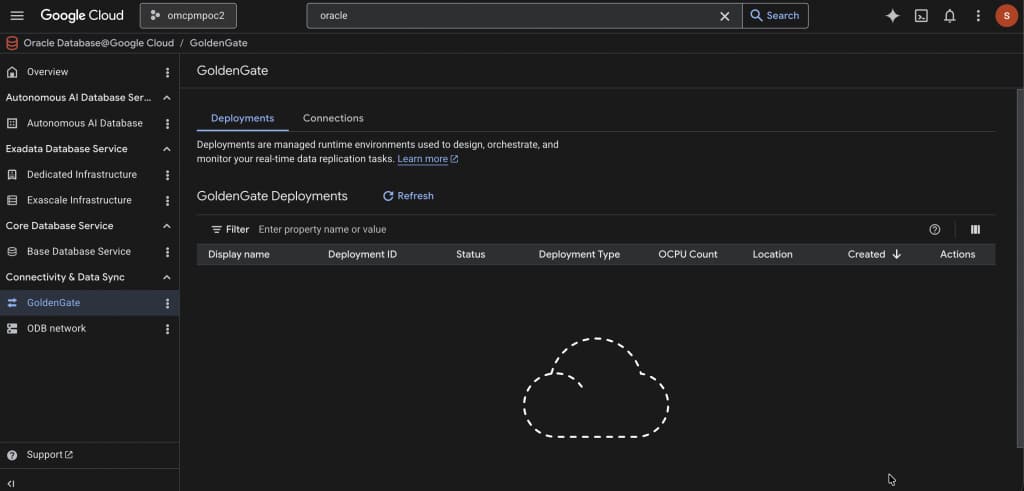
In the Google Cloud console, open the project used for Oracle Database@Google Cloud, then navigate to Oracle AI Database@Google Cloud > GoldenGate.
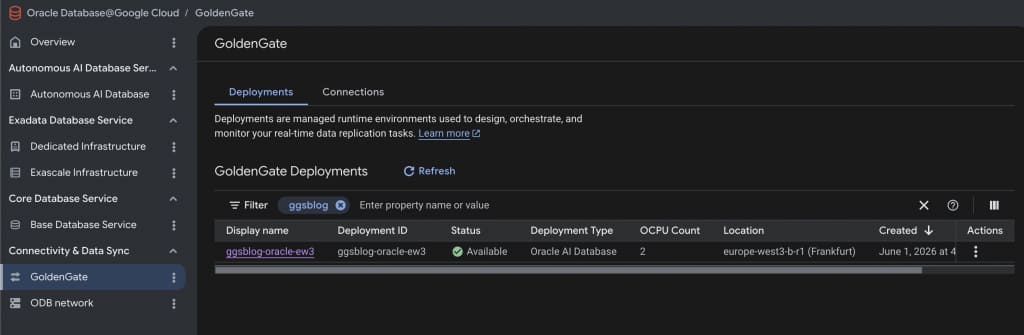
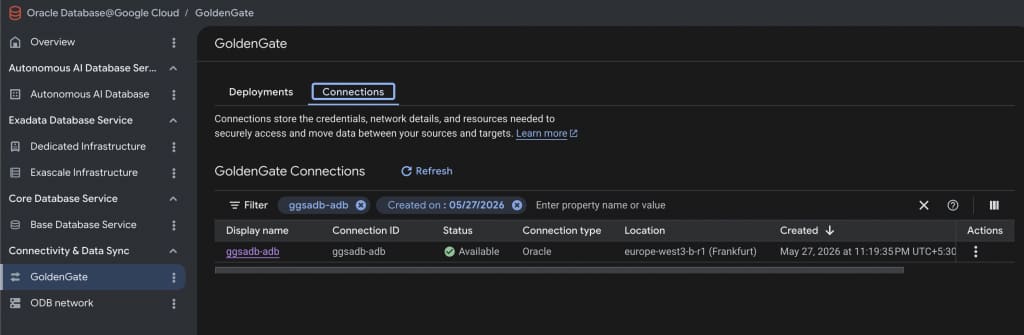
In Part 2, we will use this GoldenGate foundation to configure an end-to-end replication pipeline from Oracle Autonomous AI Database on Oracle Database@Google Cloud to Google BigQuery, including Extract configuration, Distribution path configuration, BigQuery Replicat setup, Google Cloud Storage staging, and validation of replicated data in BigQuery.