
Overview
Want to get started with APEXlang as quickly as possible? Then you’re in the right place. This blog walks through the steps required and focuses on the what, not the how or why. Let’s jump right in!
Prefer video? Watch this on YouTube
Setup
APEX
First of all, you’ll need access to an instance of Oracle APEX 26.1 or newer. That is the minimum version required for APEXlang. You’ll also need access to a workspace so that you can inspect and run the applications that you generate.
VS Code
VS Code is Microsoft’s free code editor. Used by over 50 million developers, VS Code is the current de facto standard editor. The easiest path to generating APEXlang is to use SQL Developer for VS Code. Thus, you’ll need to download and install both of those tools.
Technically, any text editor will work, and you can compile the APEXlang files via SQLcl. But that’s for another post.
- Download and install VS Code from here: https://code.visualstudio.com/
SQL Developer for VS Code
Once VS Code is installed, you can install SQL Developer via the Marketplace.
- Launch VS Code
- Select the Marketplace icon
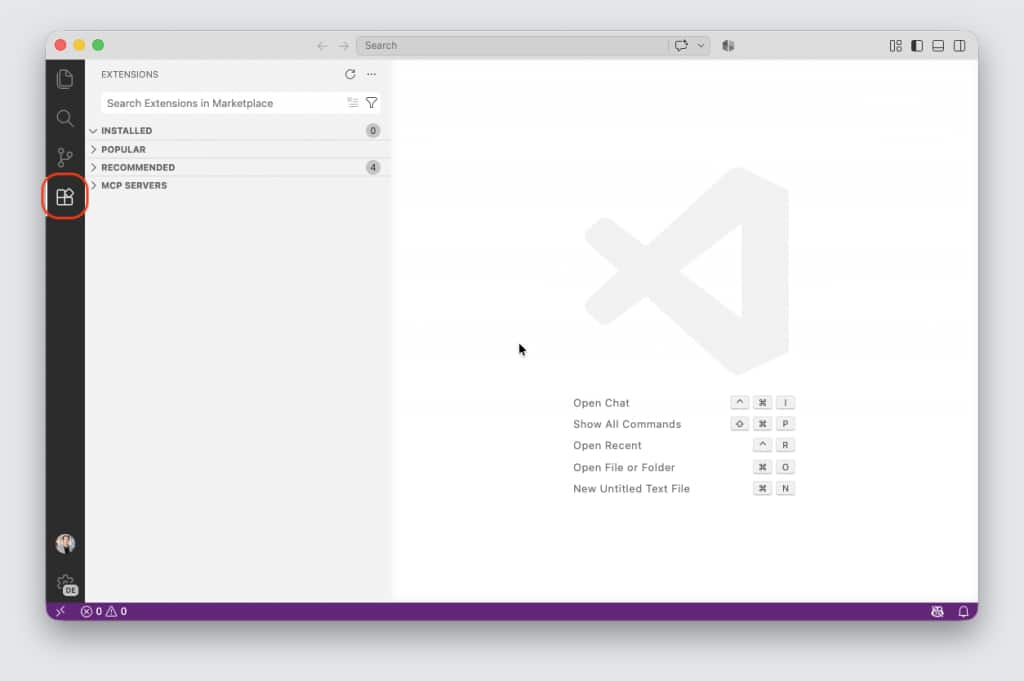
- Search for “Oracle SQL Developer“
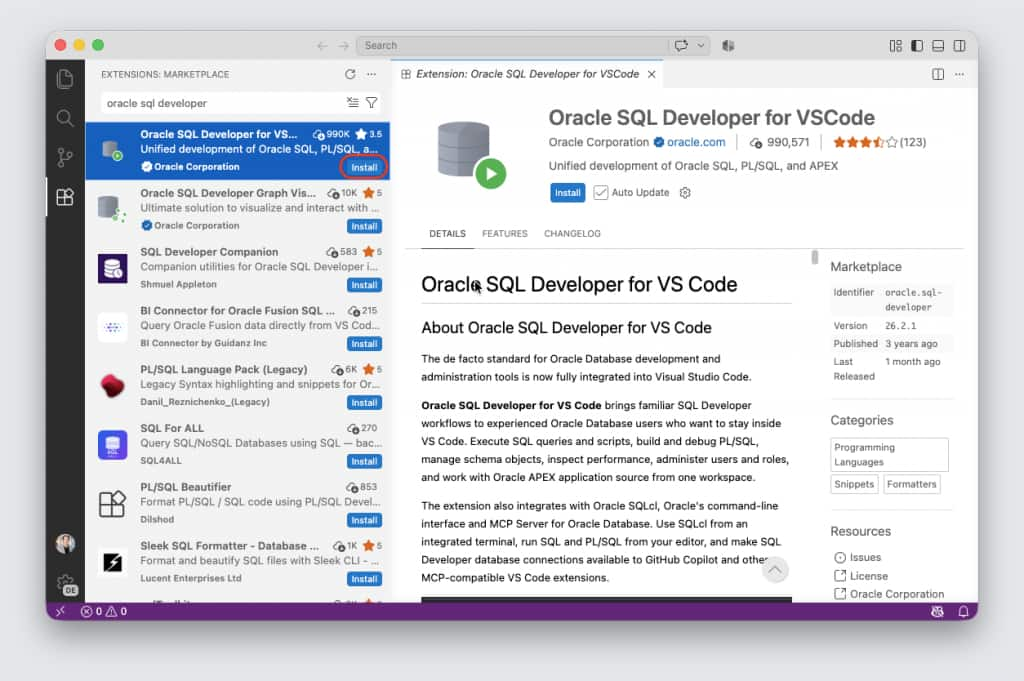
- Click Install
Be sure to select “Auto Update” so that you will always have the most current version of SQL Developer.
Database Connection
In order to compile APEXlang from your local machine, you will need direct access to the schema. How you get this access depends on where your database lives and who manages it. Don’t have a database? You can download and install a free container that contains Oracle Database & APEX, or you can spin up an ADB in OCI’s Always Free Tier.
Once you’ve identified your schema name, password and connection details, add them to SQL Developer as a new connection. Steps will vary depending where your database is, how it’s configured, etc. If you don’t know how to do this, have a look at this video for some general guidance.
AI Agent
Next, you’ll need an AI Agent. For purposes of this quick start guide, we’ll use Codex. Others will work and can be configured similarly.
Let’s install Codex from the VS Code Marketplace as well. Keep in mind, you can also install Codex as a native application and run it from the command line.
Codex does offer a free tier, but usage is restricted and the models available may not be best suited to generate APEXlang files effectively.
Codex
- Switch to VS Code
- Select the Marketplace icon
- Search for “Codex“
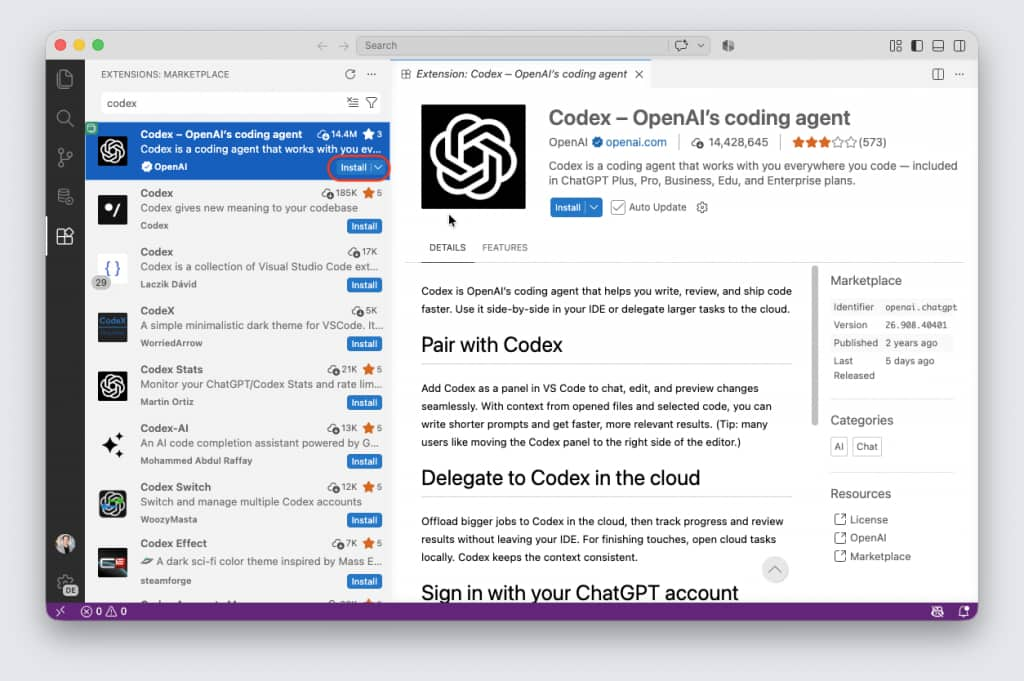
- Click Install
APEXlang Skills
The last step is to download the APEXlang skills so that the LLM can generate proper APEXlang. The fastest way to do this is via SQLcl – which can be run from SQL Developer.
- Right-click your database connection
- Select Open SQLcl
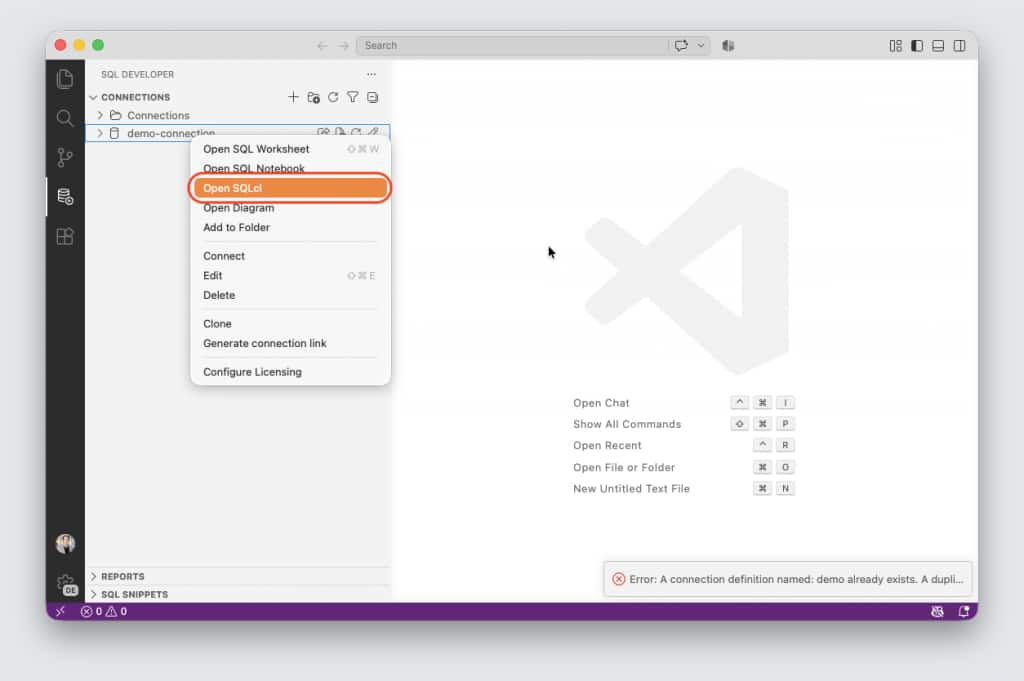
- From the SQLcl window, enter
skills syncand press return
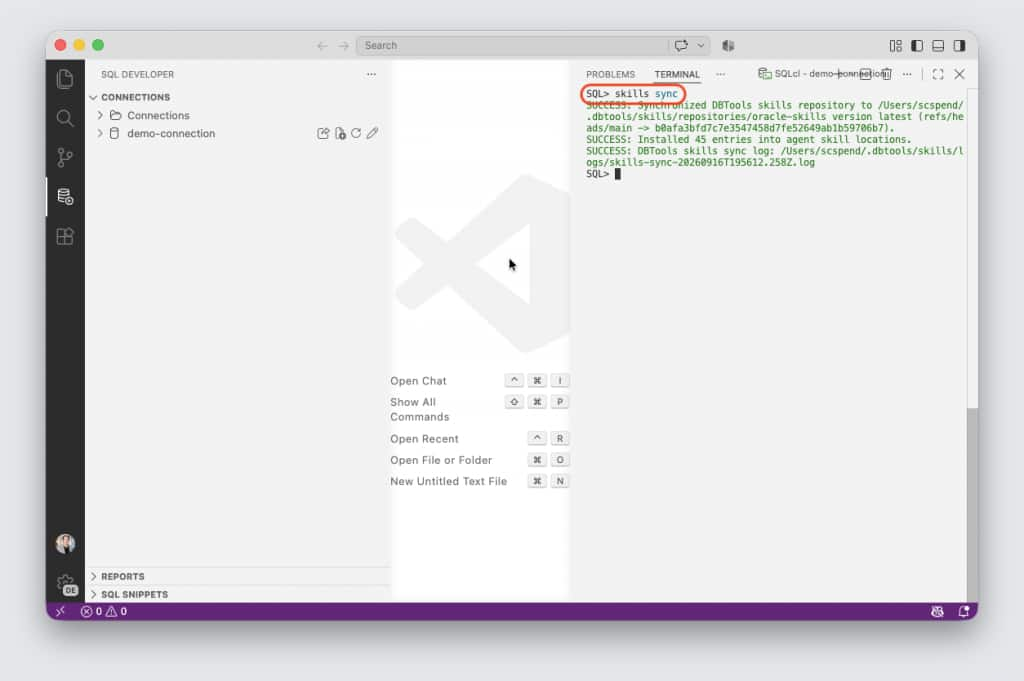
- Close the SQLcl window
Exploring Generative Development
Generate an Application
Now that your workstation is configured, let’s generate and install an application.
- Switch to VS Code
- Expand your database connection
- Locate the APEX node and right-click it and select Generate…
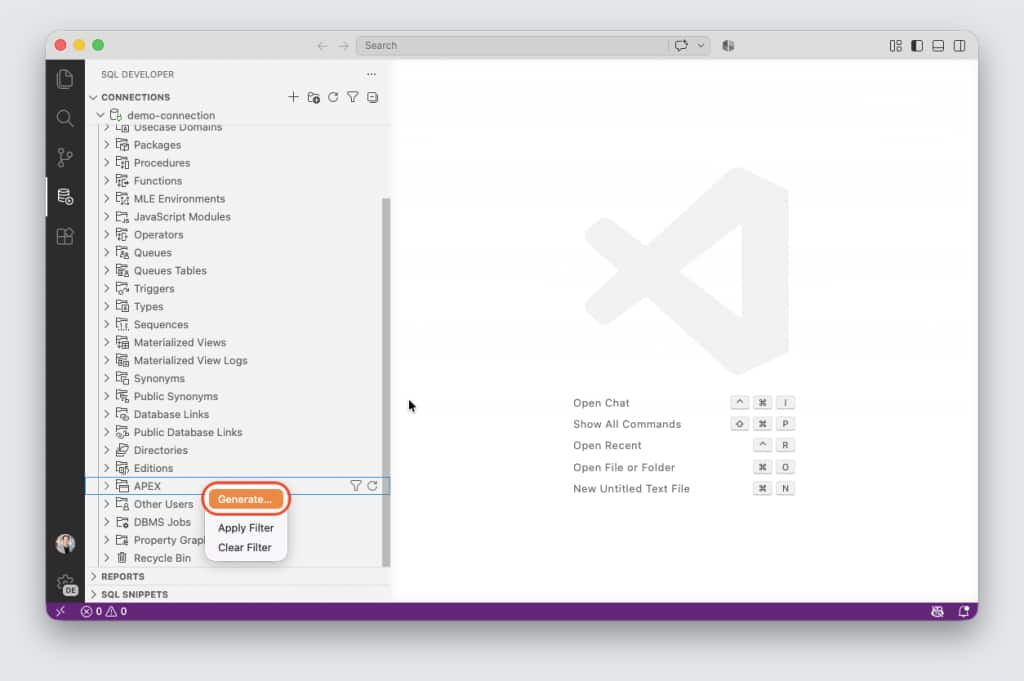
- Fill out the form and click Apply.
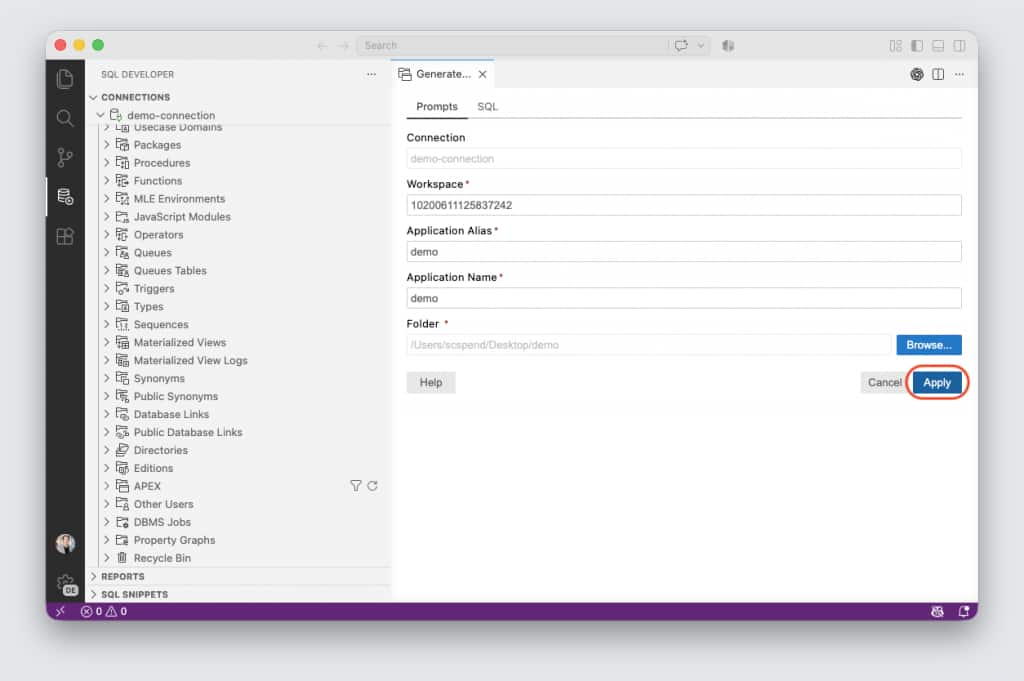
Compile an Application
Now that you have a directory of APEXlang files, let’s compile the application so that it appears in the APEX Builder.
- Switch to VS Code
- Open the folder where you generated your APEXlang files
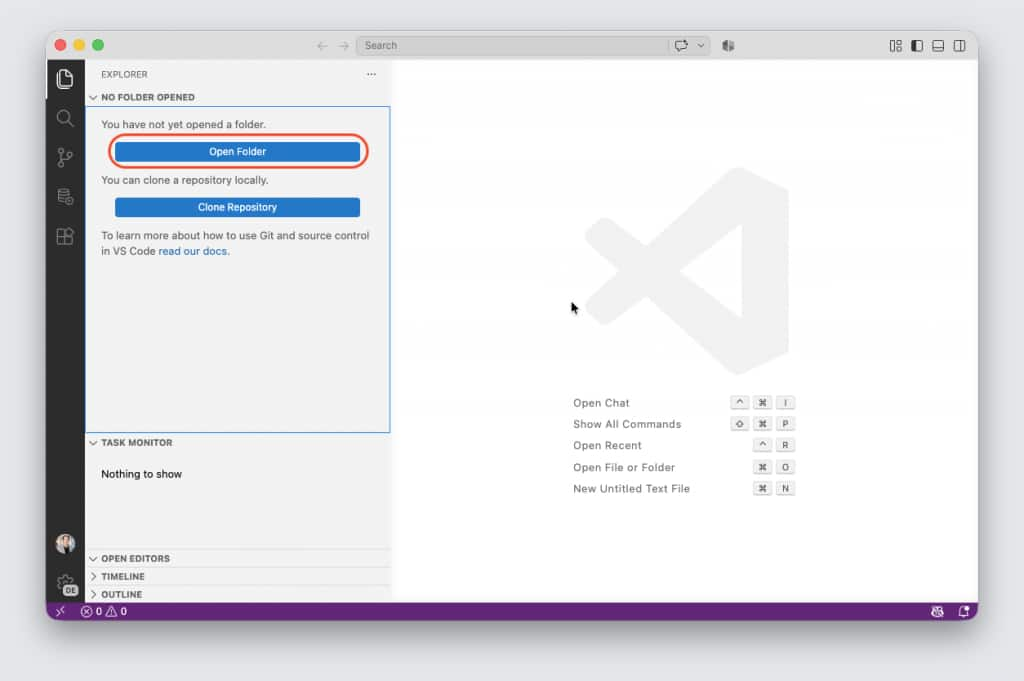
- Select the file application.apx and click on the green “play” icon ▶️ to install your application
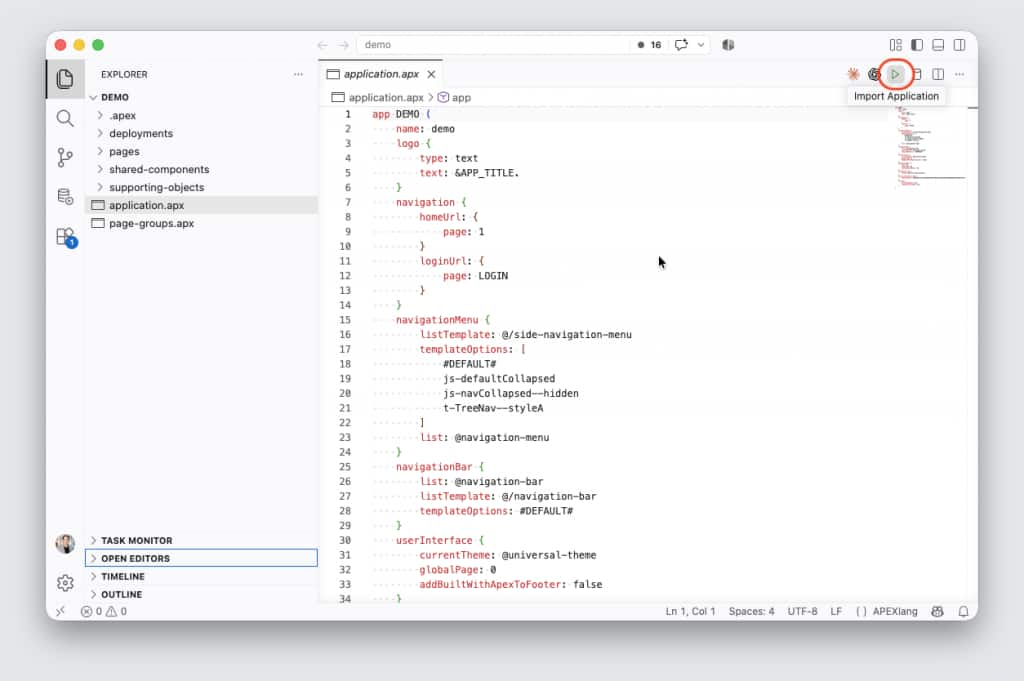
- If prompted, select the database connection that you previously created
- Login to the APEX Builder and verify that the application is there
- Run the application
Conclusion
You’re now ready to get some serious work done with Oracle APEX, APEXlang and your AI Assistant.
But what if I don’t want to use VS Code? Or have Claude, not Codex? All of that will work, and we will be providing additional content in upcoming blogs and videos to address the variations in environments and tools and how to navigate them.