
APEXlang Atlas is your interactive learning tool for Oracle APEX components and properties. Explore how changing property values affects what’s valid. Focus to see missing required properties. Show all properties to learn why one is hidden and how to make it relevant. Reset it to explore another scenario.
This walkthrough shows how Atlas helps you explore components and properties.
Introducing APEXlang Atlas
APEXlang Atlas helps you navigate and understand the world of Oracle APEX components and properties. Its searchable trees of Components and Properties let you discover interesting Details about your current selection. By setting property values, picking from LOVs where available, you can see which child components and other properties become relevant or are no longer applicable.
Selecting a Component and Property
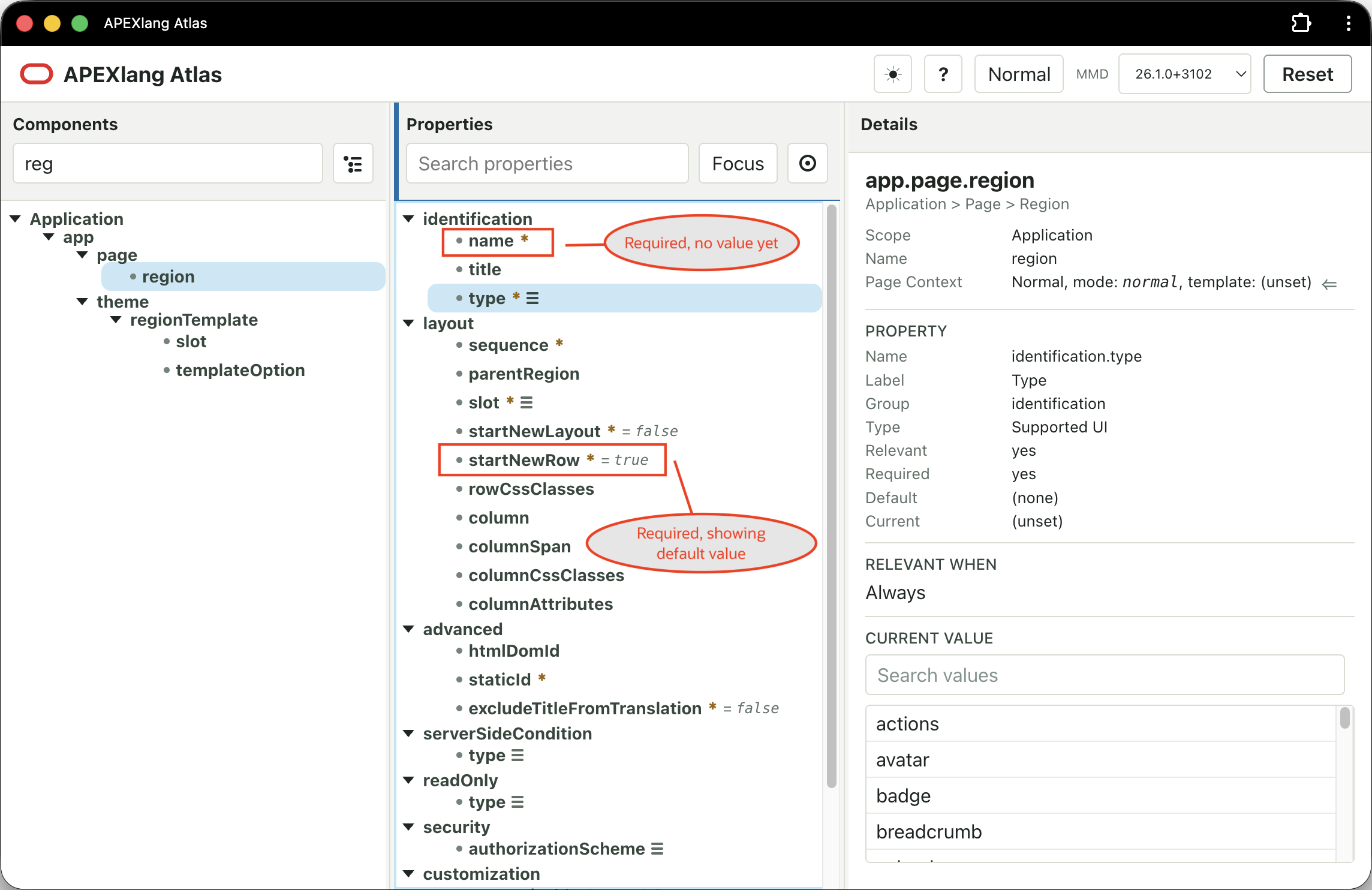
The properties and available child components of a region are different, depending on what type of region you are working with. If you type reg into the Components search area to narrow the list of components, then select region in the Components tree, all the region’s relevant properties appear in the Properties tree. Initially, you see the ones that don’t depend on the type of region.
Notice an asterisk appears next to required properties, a list icon appears next to properties that have an LOV, and properties with a default value show their value in italics. For example, the layout.startNewRow property displays a true default value.
Select the type property in the identification group, as shown below, and notice the Details panel shows information about the selected region component and its type property, including the list of valid values at the bottom of the Details panel.
Searching a Property LOV
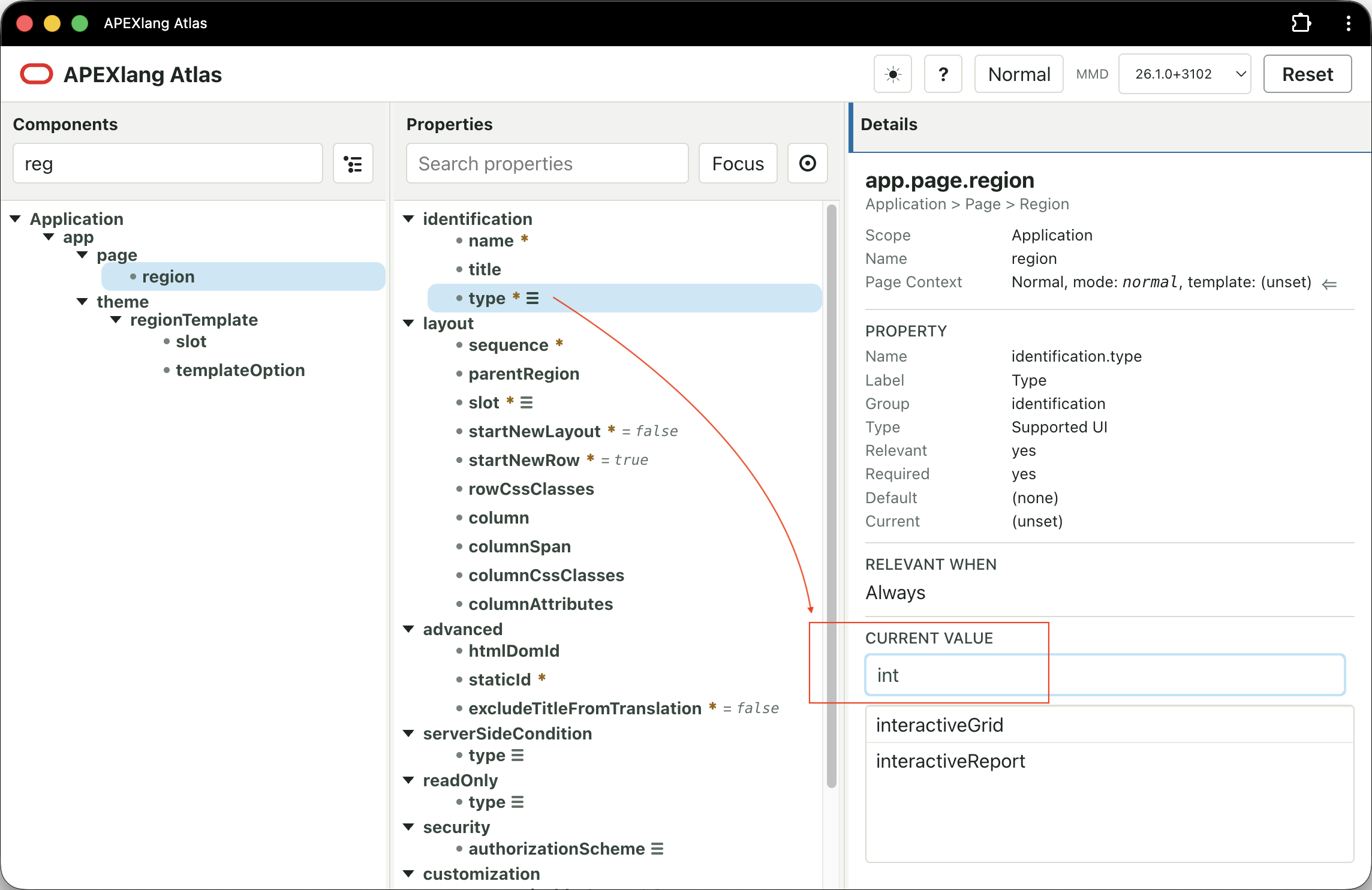
With the app.page.region component’s identification.type property selected, click into the CURRENT VALUE list of values search field in the Details panel as shown and type int to narrow the list. Notice the two choices remaining are interactiveGrid and interactiveReport.
Selecting a Value from a Property LOV
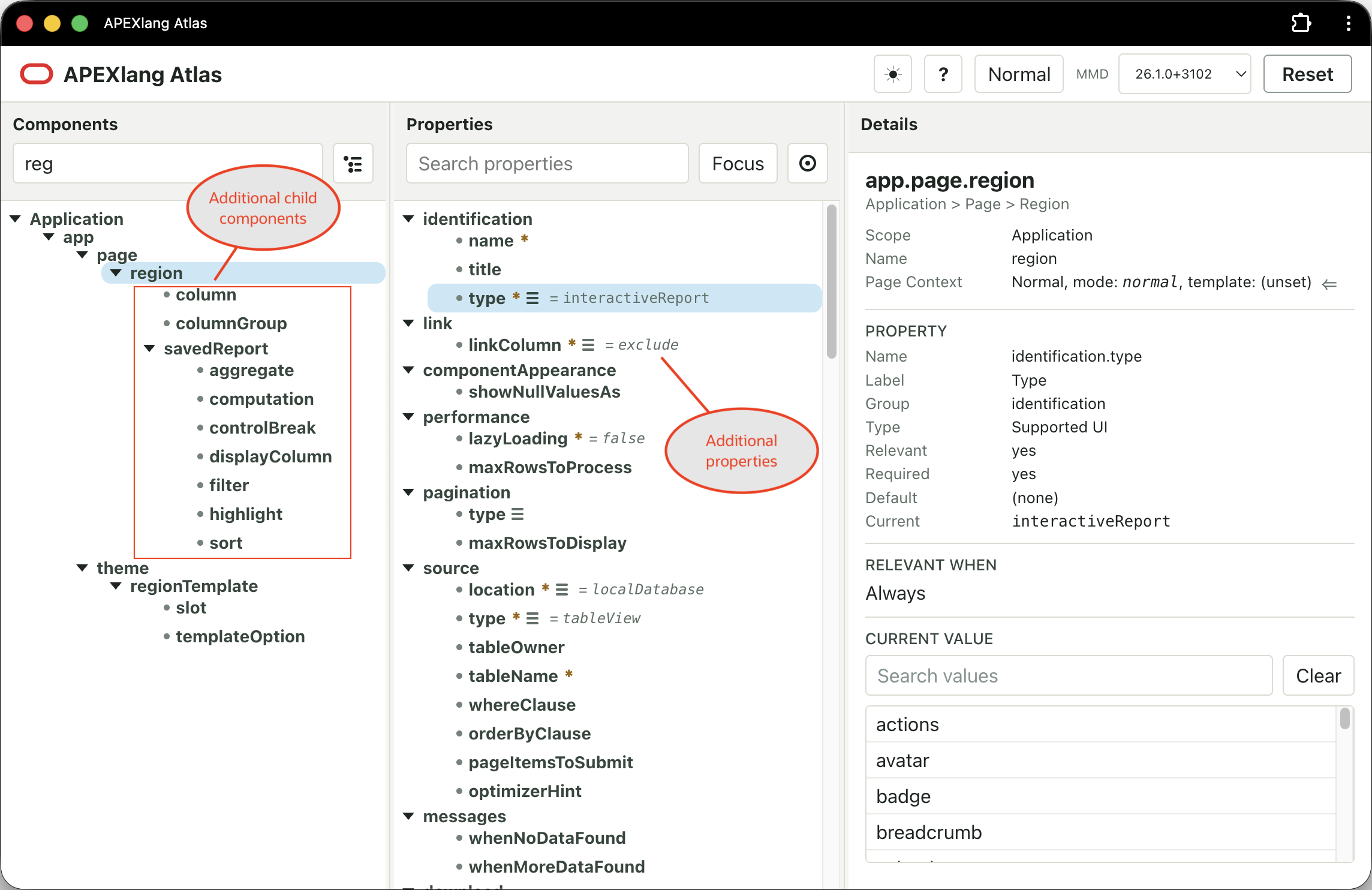
You can select a choice from an LOV by clicking on it, or using the arrow keys and pressing Enter to select it. After selecting interactiveReport for the region type, notice two things:
- Additional child components appear indented inside of
regionin the Components tree - Additional properties appear in the Properties tree
Child components like column, columnGroup, and savedReport are relevant for an Interactive Report region, so they only appear after setting the region’s type property to interactiveReport. Similarly, many properties that are only relevant for an Interactive Report only show after setting the region’s type.
Focusing to See Missing Required Properties
An Interactive Report has many properties, but most are optional or have default values. In your APEXlang .apx files for components and pages, you only need to specify properties that are required and have no default, or ones you want to assign a different value than the default.
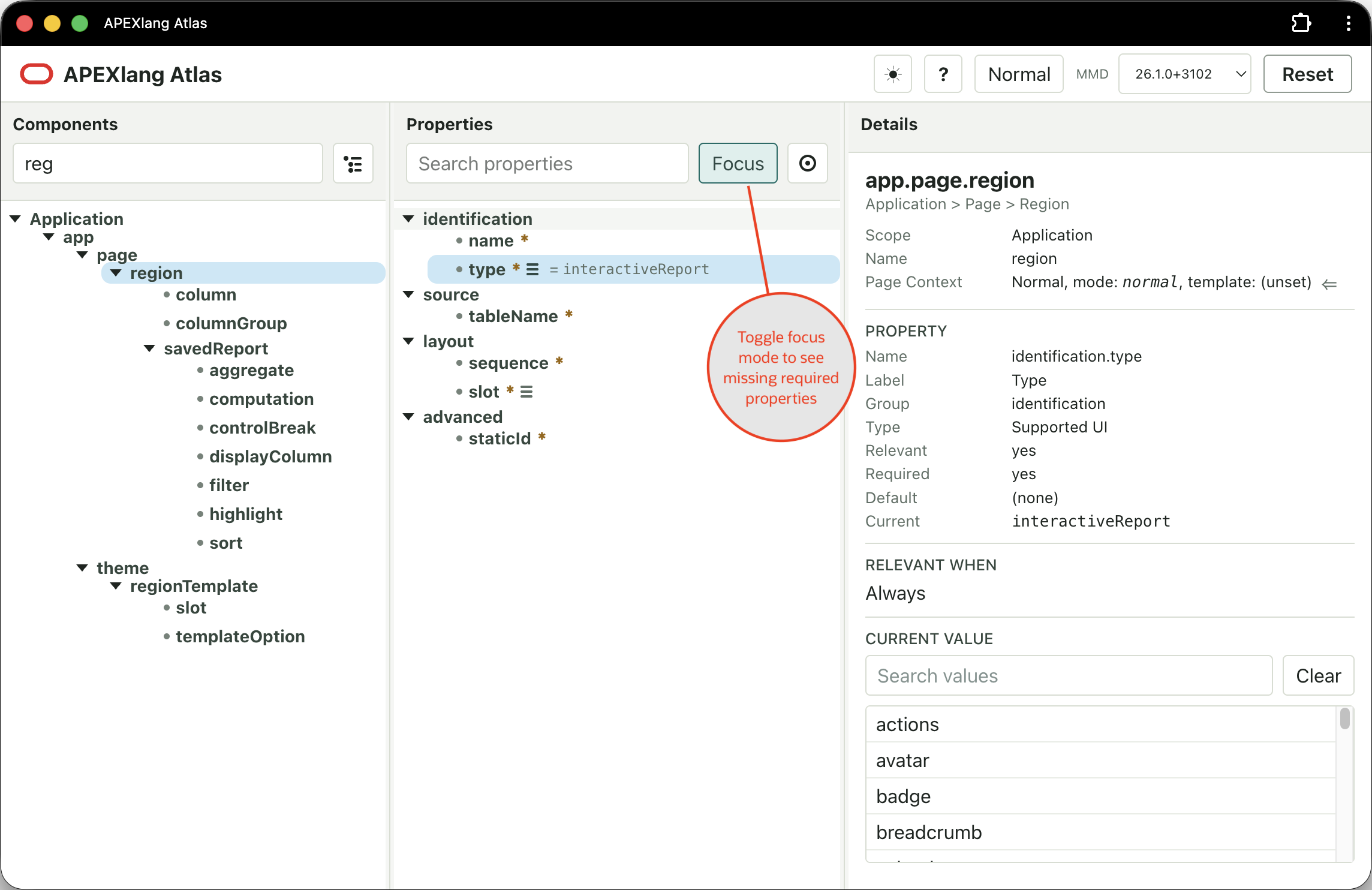
To focus your attention on the properties you must provide, click the (Focus) button in the Properties panel. As shown, it toggles a mode showing only properties with simulated values and missing required ones. This helps you see the minimum set you need to include to avoid a validation error from the APEXlang compiler.
Simulated Properties Shape Your View
Atlas tracks all the properties you assign a value to while you explore. Think of them as the “simulation state”. A property value remains in simulation state until you change it, or press the (Reset) button to clear all simulation state to start a fresh experiment.
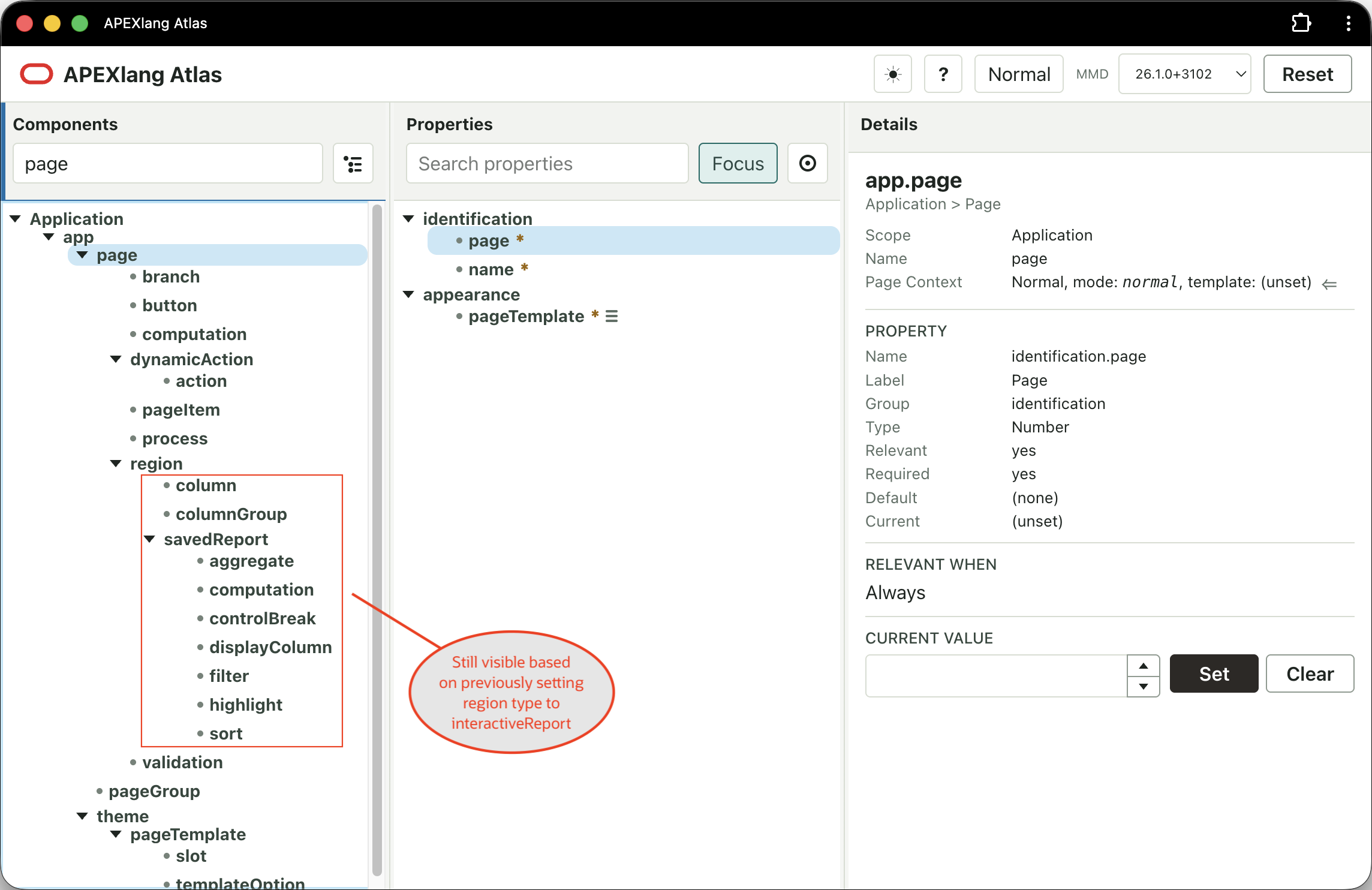
The properties in simulation state determine whether child components are relevant and which properties display in the Properties panel. For example, you previously set the type property of the region component to interactiveReport above. Notice that column, columnGroup, and savedReport child components continue to show in the Components tree even when you change the search to find page components, and select the page component.
Understanding Relevance and Reference Constraints
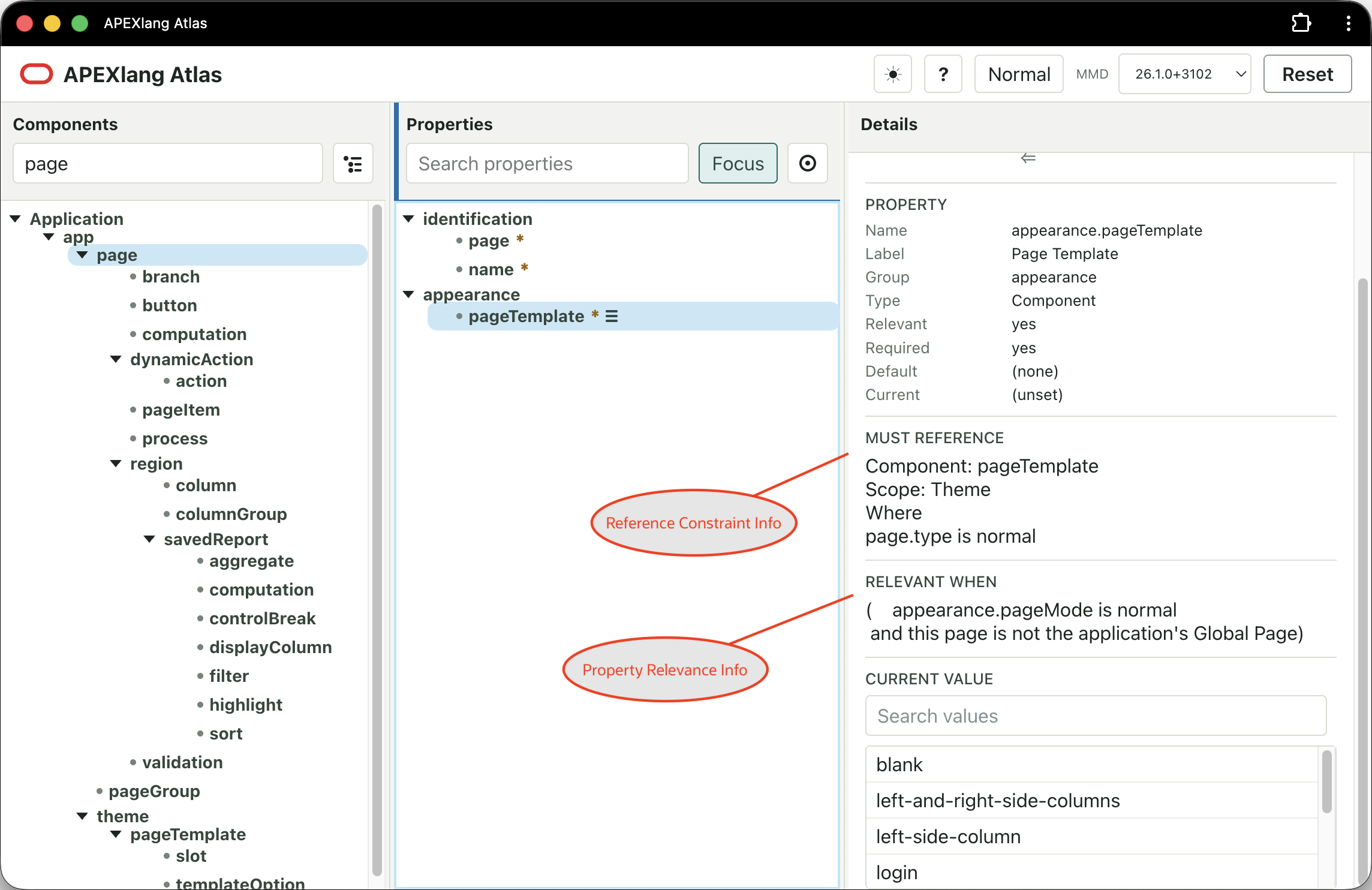
After selecting the page component’s appearance.pageTemplate property, notice the Details panel shows you MUST REFERENCE and RELEVANT WHEN information about that property. These sections show that pageTemplate property must reference a theme-scoped pageTemplate whose page.type is normal. You can also see that it’s relevant when the pageMode is normal and the page is not the application’s Global Page.
Simulating a Global Page Context
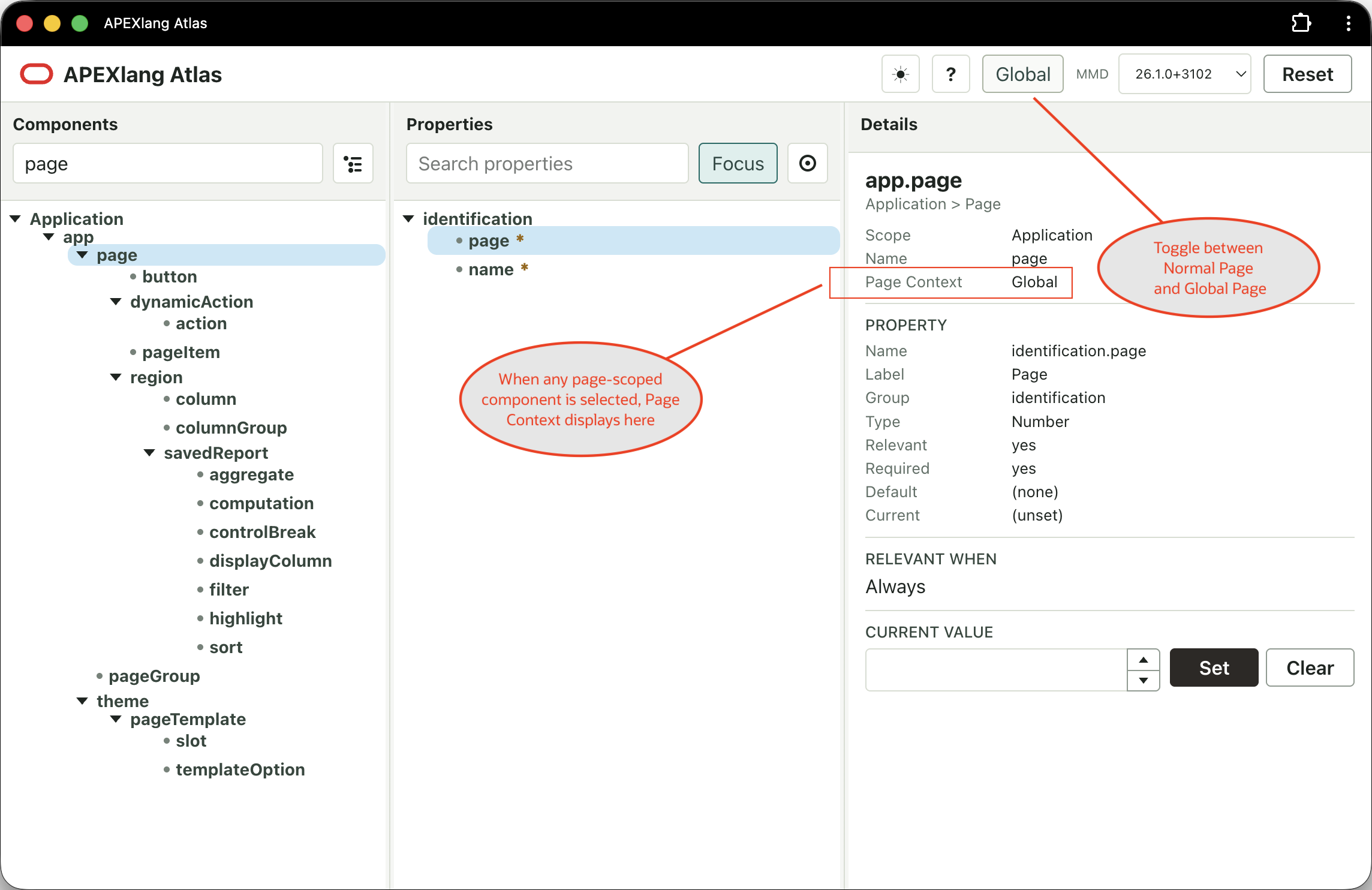
Atlas lets you simulate working on a Global Page, since some components and properties (like pageTemplate) are not relevant if you are editing the Global Page. Use the (Normal) button in the toolbar to toggle between simulating a Normal page environment and the Global Page. As shown below, it displays (Global) when in Global Page mode. After toggling to Global Page mode, notice that pageTemplate no longer displays, and some of the components like branch and computation have disappeared from the Components tree. They are not applicable to a Global Page.
Also notice the Details panel’s Page Context indicator. Whenever any page-scoped component is selected in the Components tree, this information displays to help you understand what kind of page context you are simulating at the moment.
Understanding the Page Context Indicator
Click the (Global) button to toggle back to simulating a Normal page, and select pageTemplate again. Notice the Page Context indicator reflects that:
- You’re simulating a Normal Page
- The
page.pageModeisnormal(and that normal is the default since it’s in italics) - The page.pageTemplate is not set
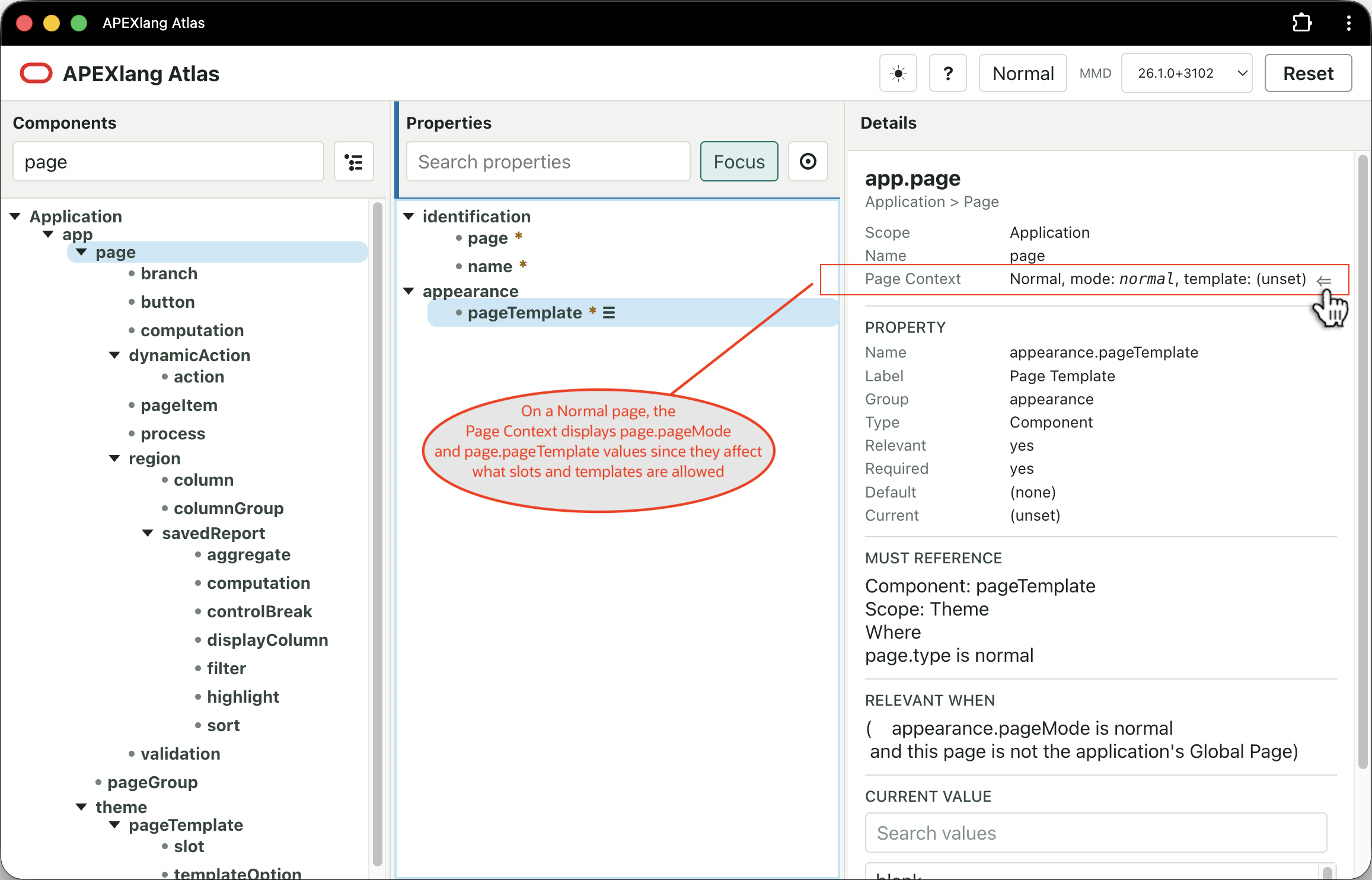
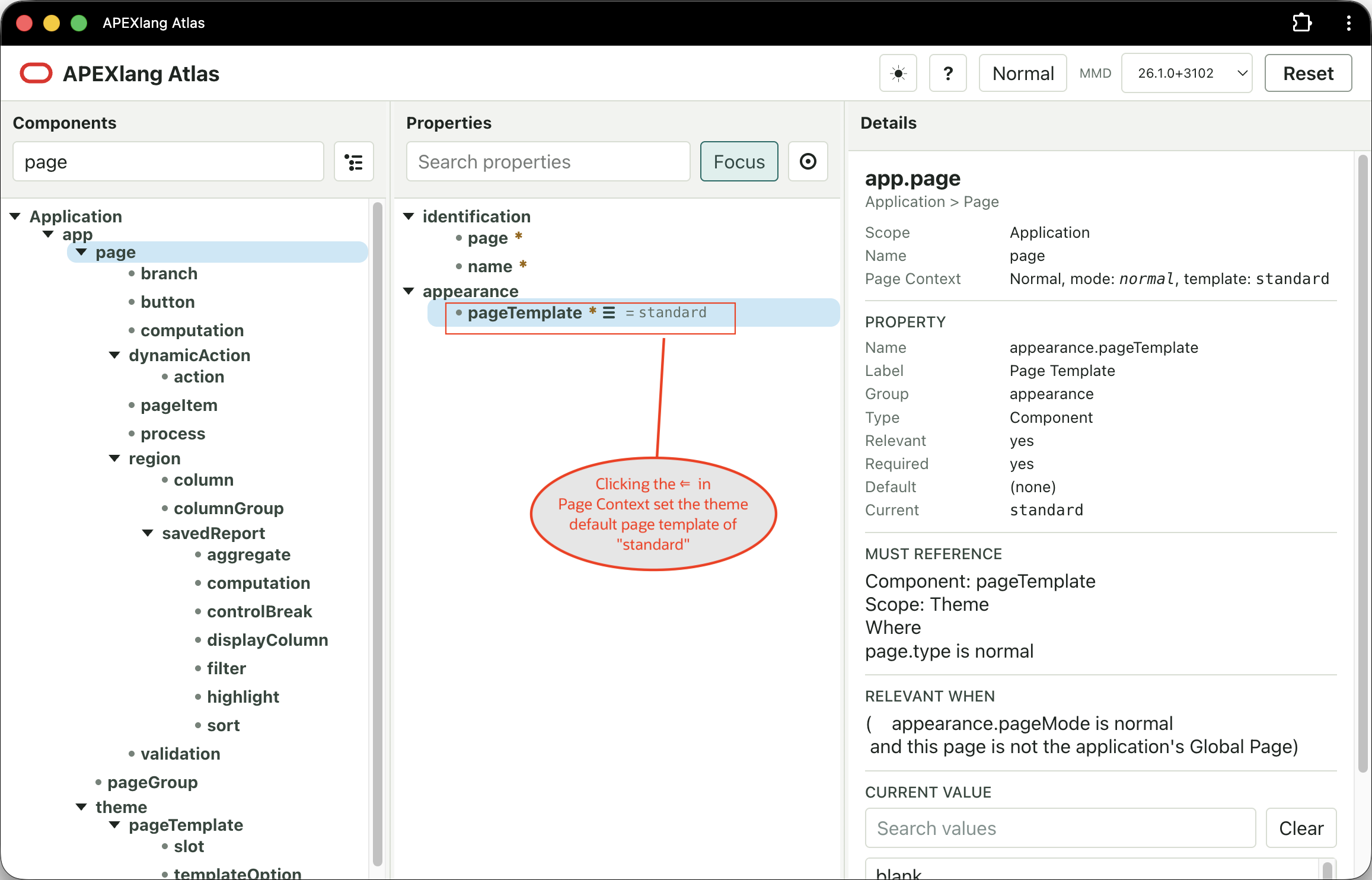
The page component’s pageTemplate does not have a default value, so you have to explicitly set it as an APEXlang page developer. You can click the shortcut arrow (⇐) in the Page Context indicator to set the theme’s default page template. Alternatively, you can use the LOV in the Details panel to set the page component’s pageTemplate property to a different page template.
The Page Context info affects what slot and template values are legal to specify, so try clicking the arrow (⇐) in the Page Context indicator.
Page Context Affects Slots and Template Options
Notice that the Page Context shows the page template in use is the default standard template. The same value shows as the current value of the appearance.pageTemplate property of the page component.
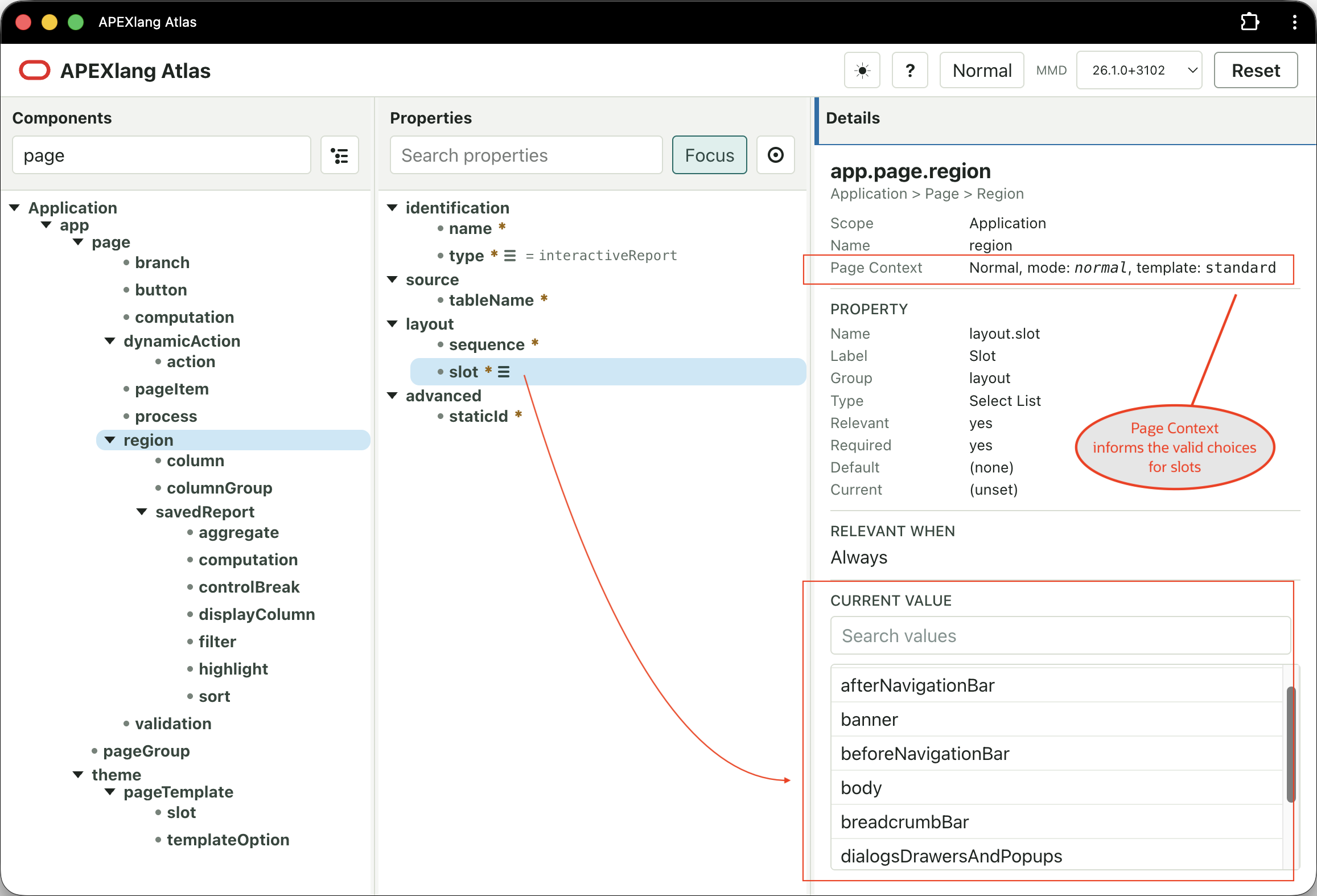
Selecting the region component in the Components tree and selecting its layout.slot property, observe that its LOV shows the appropriate slots a region can occupy in the Standard page template.
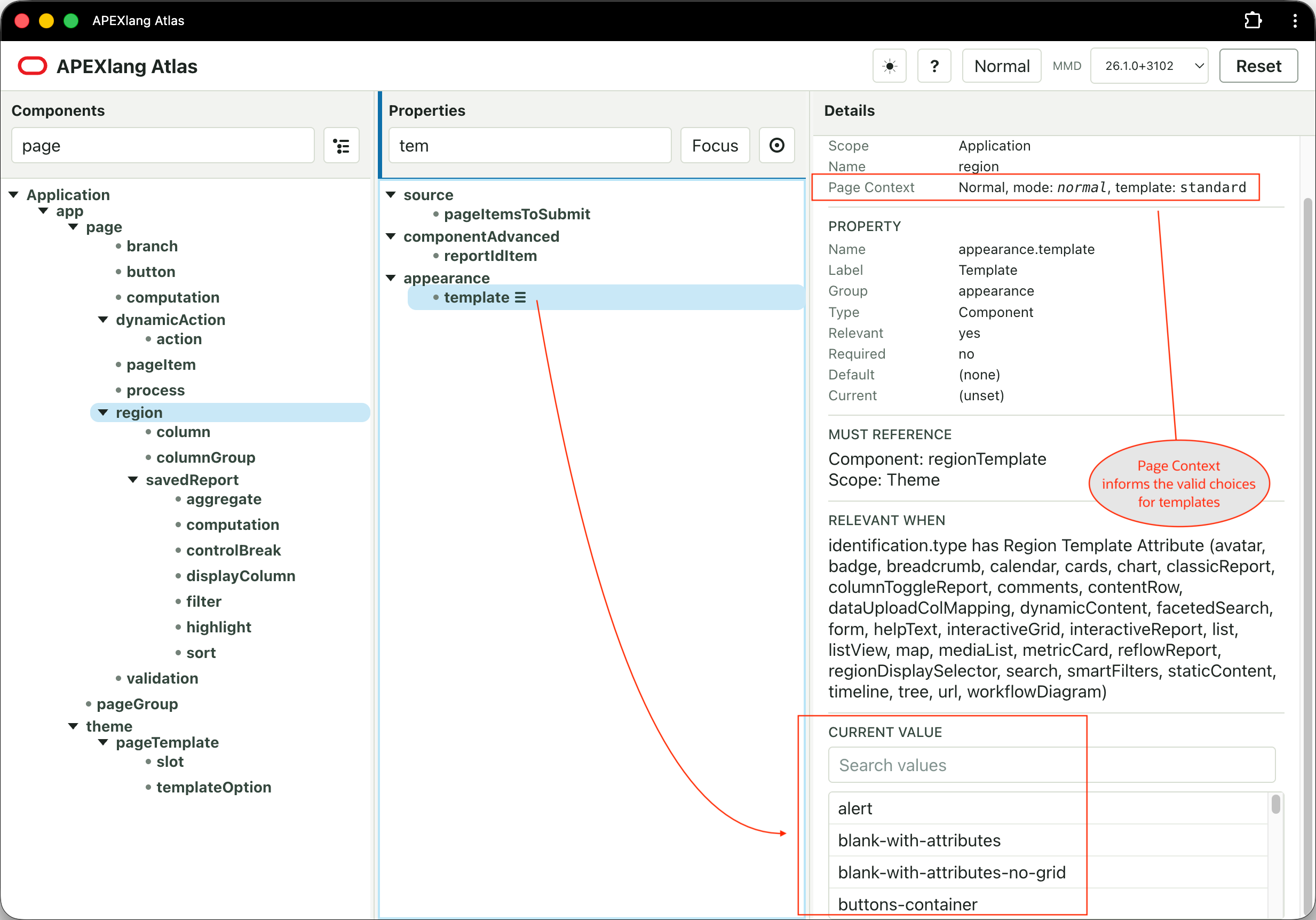
Toggling the (Focus) mode off again, and entering a Properties search of tem to narrow the list, notice the Page Context informs the set of valid choices for the region component’s template property.
Discovering Why a Property is Hidden
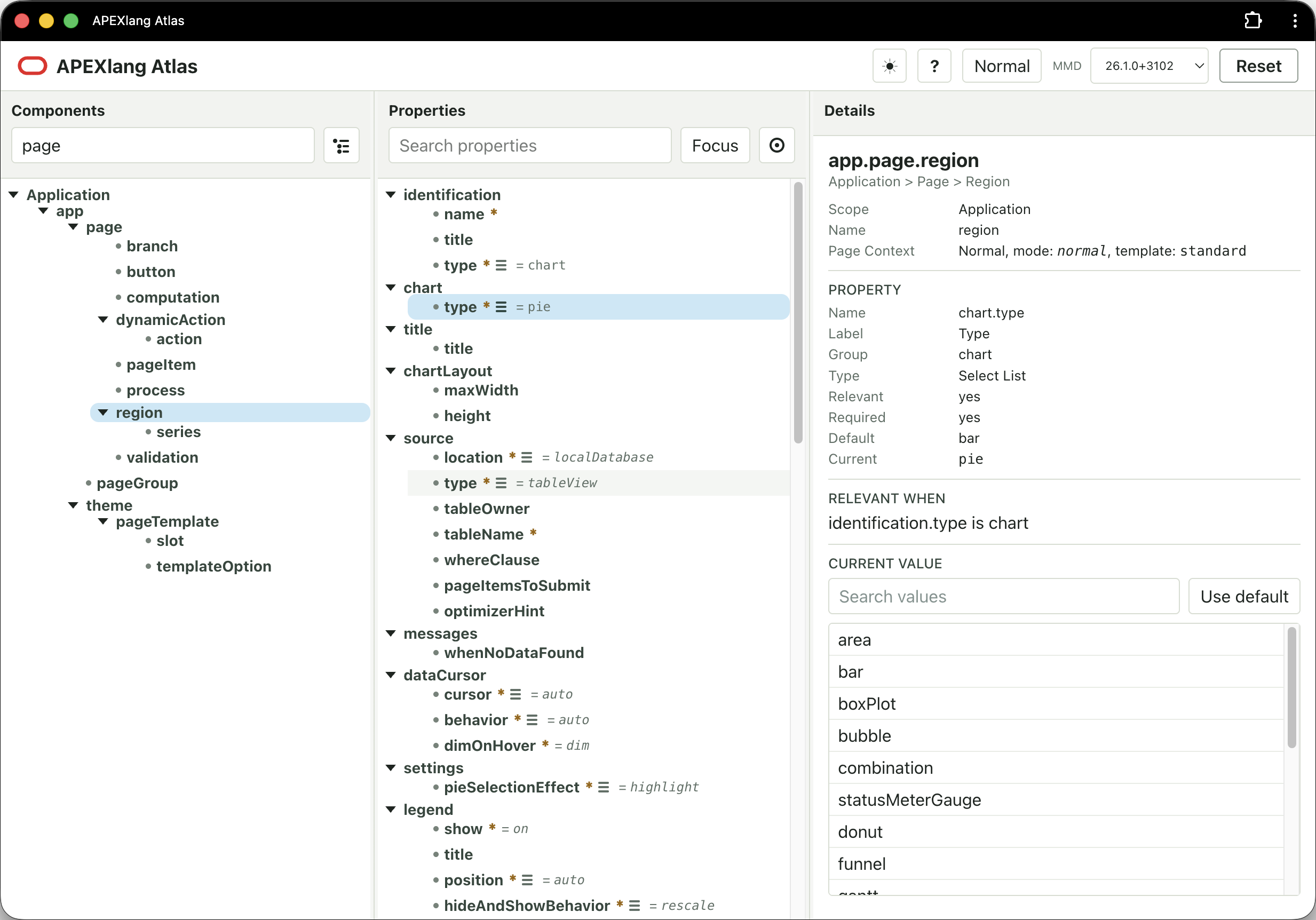
Clicking into the Properties search field, pressing [Esc] clears the search and all of the Interactive Report region‘s properties display again. Next, as shown below, change the region component’s type to chart and set its chart.type to pie.
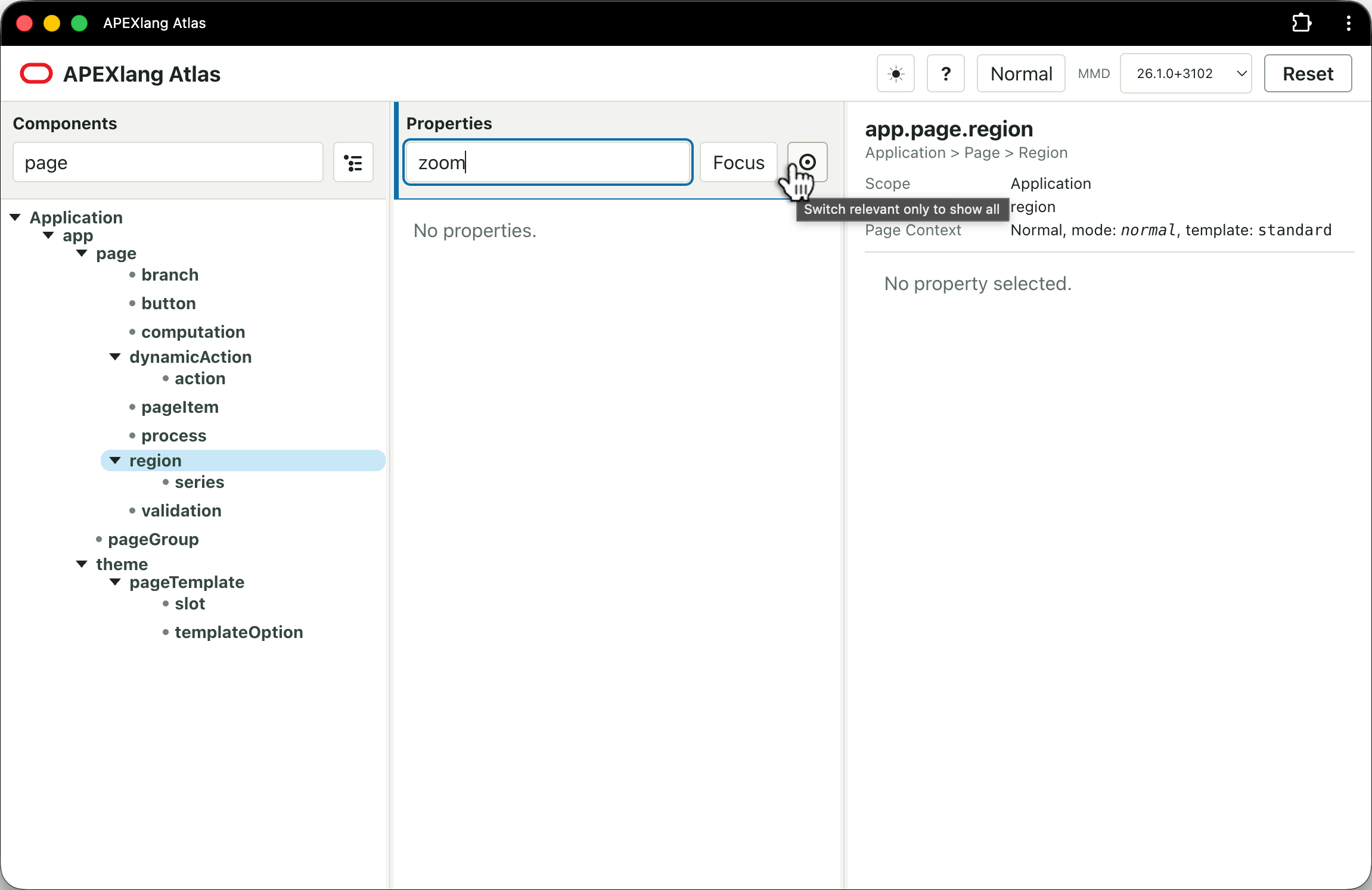
Let’s say you’re interested in a chart property you remember that has zoom in the name, so you type zoom into the Properties panel’s search field. But you get no matches.
By default, the Properties panel works in “Relevant Only” mode. The “bullseye” icon next to the (Focus) button toggles between this mode and the “Show All” mode.
After toggling to “Show All” Mode in the Properties panel, any property with zoom in the name or in its group name displays. Hidden properties are marked as such, and clicking on the zoomAndScroll property you were thinking of reveals information in the Details panel about why it’s hidden.
It shows that there are two criteria required to be relevant, but only one is currently true:
- [x]
identification.typeischart(this one is currently true, so it shows an “x”) - [ ]
chart.typeis not one ofstatusMeterGauge,pie,donut,gantt
So, the fact that our simulated chart region currently has type = pie has disqualified the zoomAndScroll property from being relevant to it.
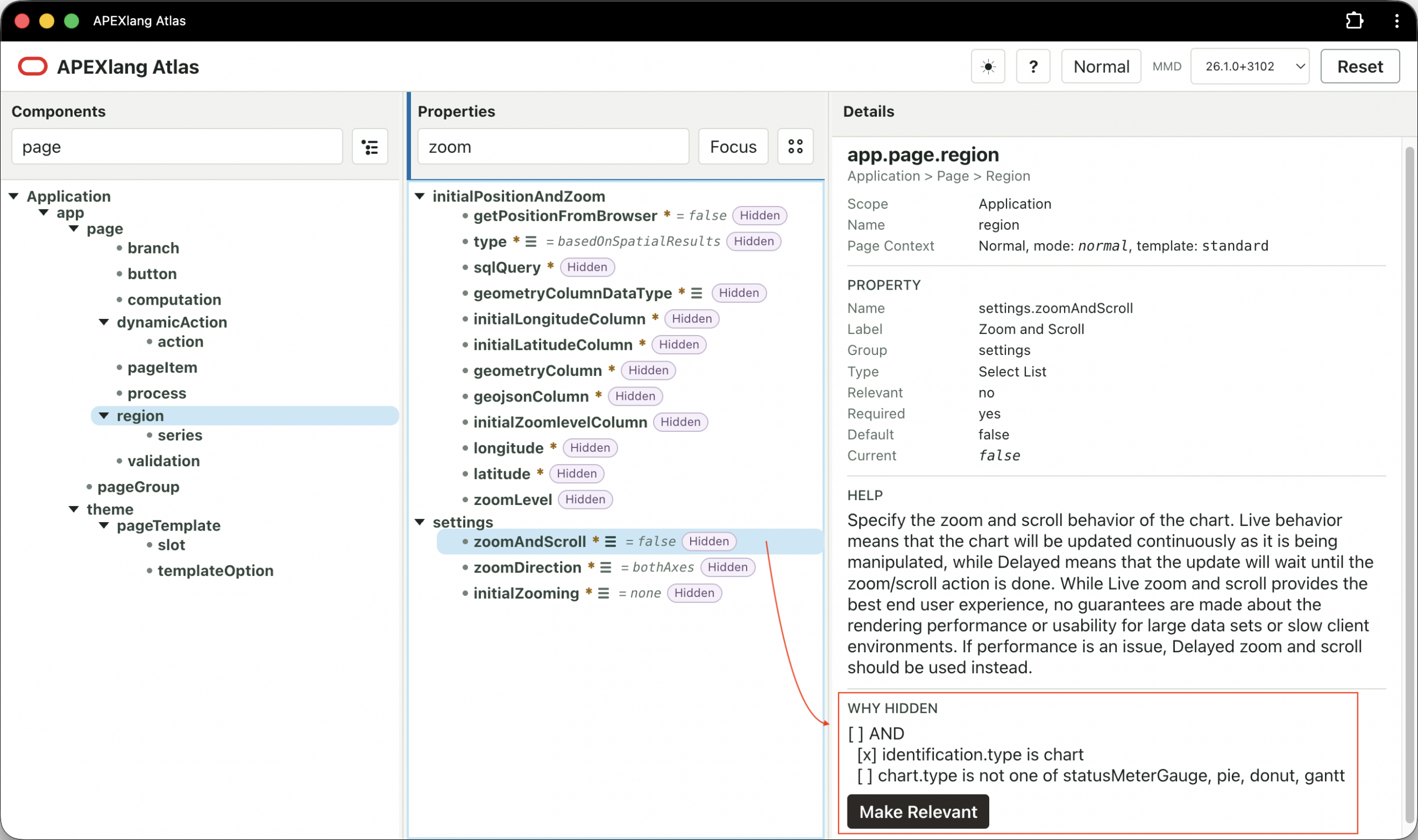
Attempting to Make a Hidden Property Relevant
In some cases, as shown above, a (Make Relevant) button will appear for a hidden property. If you click it, Atlas will try to make the property relevant by setting properties to make its conditions true. If the criteria are more complicated, then no (Make Relevant) button is shown.
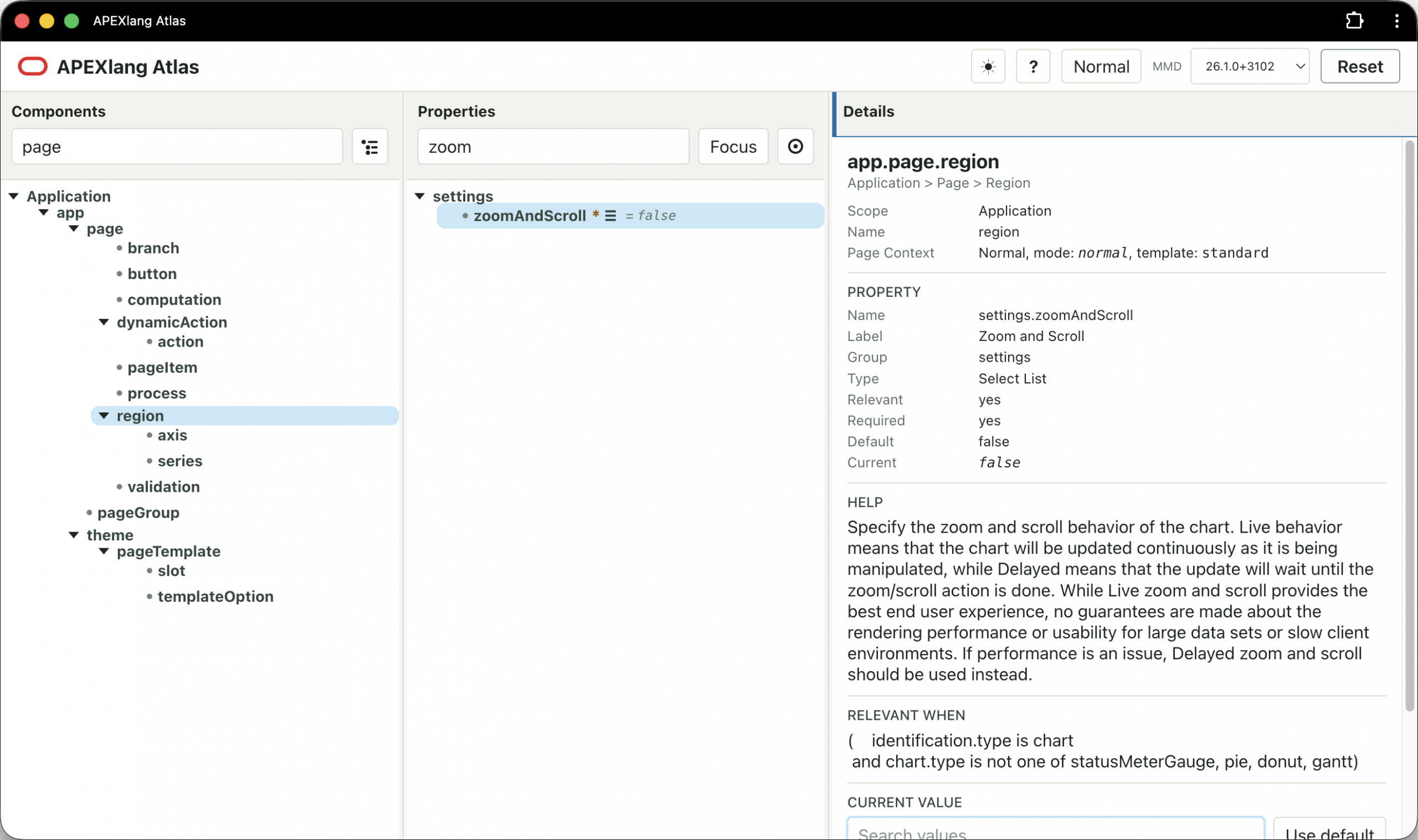
After clicking the (Make Relevant) button for the hidden zoomAndScroll property, Atlas switches back to “Relevant Only” mode, and you now see the property is showing as relevant. Since the zoom filter is still present, it’s the only matching relevant property in the list.
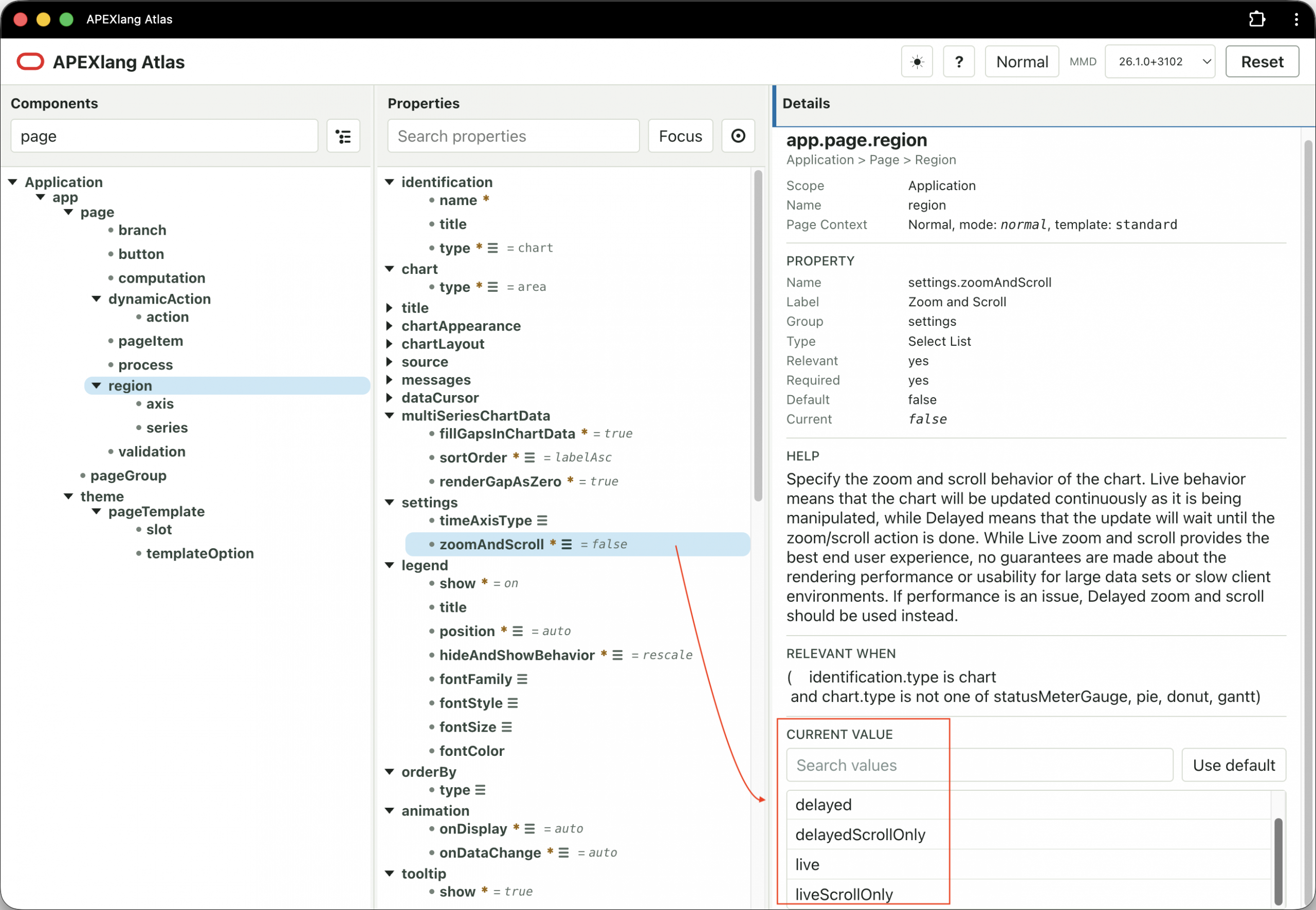
Clearing the Properties search, all relevant region component properties show again. After collapsing a few of the property group headings, you can now see the chart type changed from pie to area and the valid values for the zoomAndScroll property show in the Details panel LOV.
Final Notes
This walkthrough toured the APEXlang Atlas features to help you explore the landscape of APEX components and properties. Some additional interesting details to bring to your attention include:
Help Dialog and Keyboard Navigation
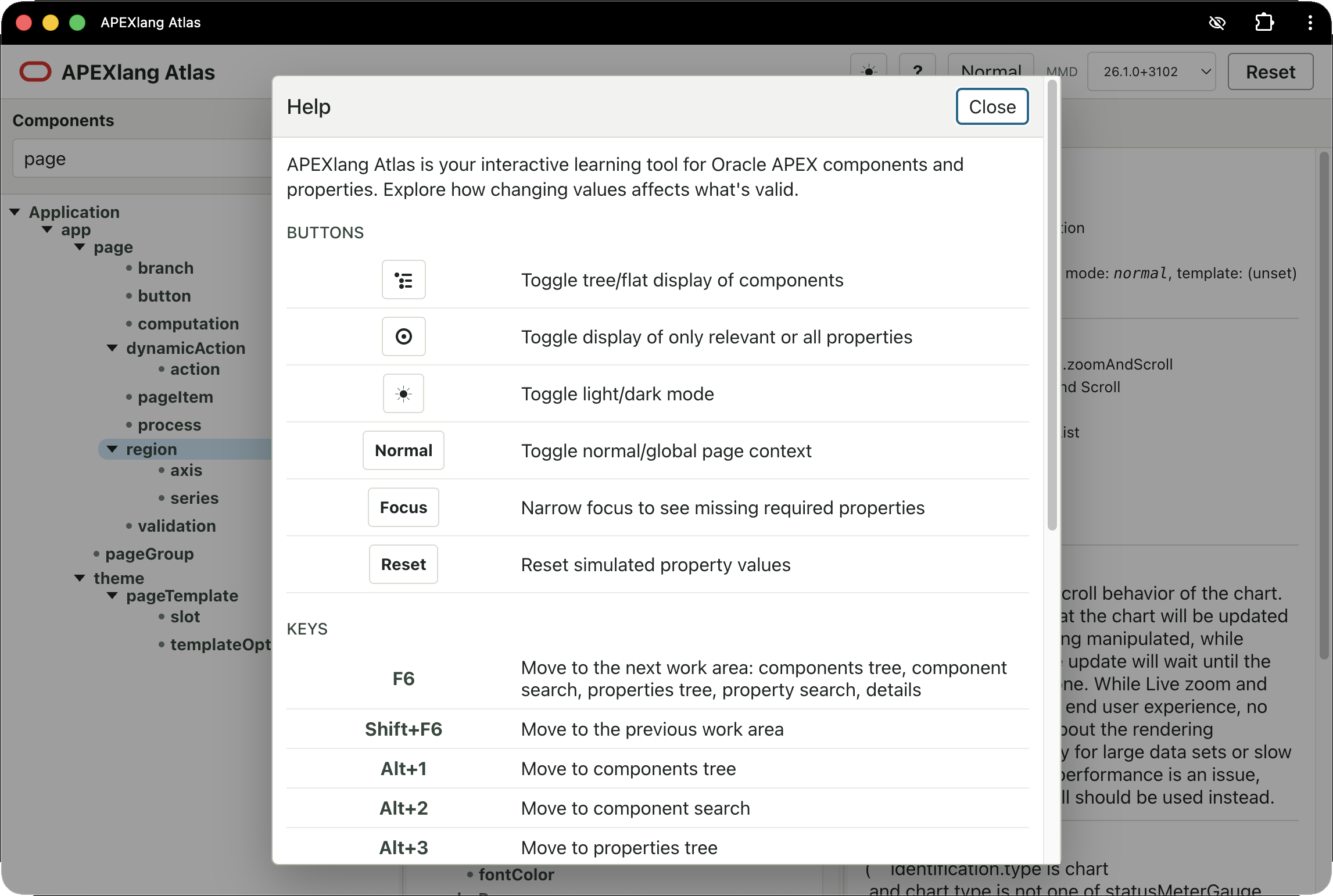
The question mark key or toolbar button opens the help dialog to review key bindings and buttons. All of the functionality is keyboard accessible and the keys are mentioned in the help dialog.
Dark Mode
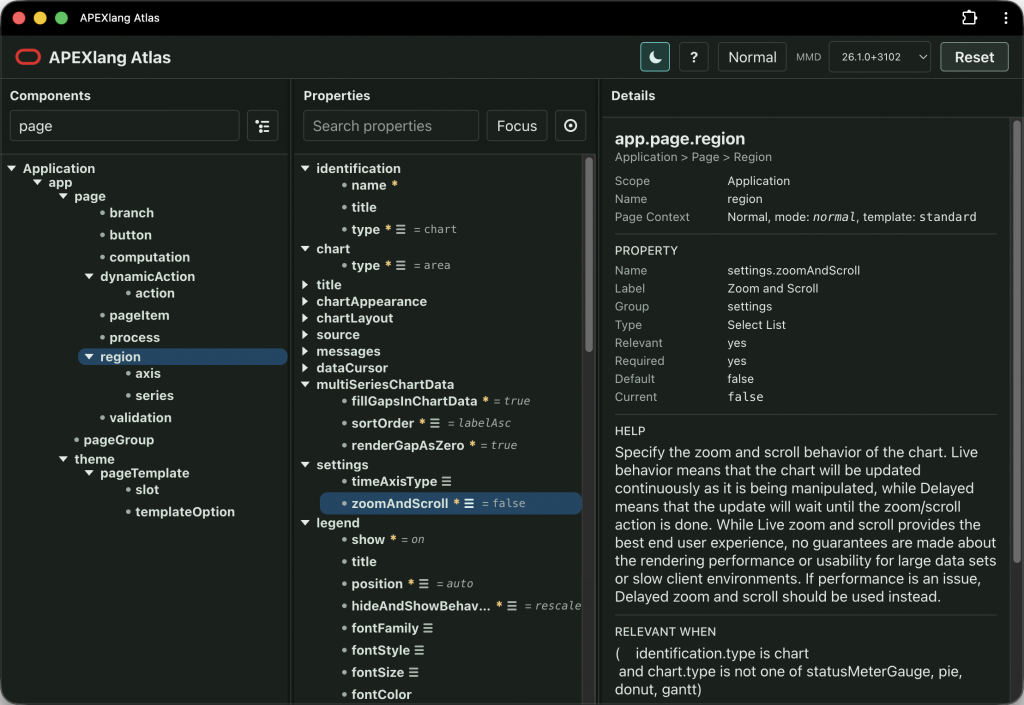
The sun/moon toolbar button toggles between light mode and dark mode.
Installing as a PWA
The application is enabled for PWA installability, so you can install it and launch it from the dock, home screen, or taskbar. When installed as a PWA, you can also use the tool offline.
Accessing APEXlang Atlas
The link to access APEXlang Atlas is https://oracleapex.com/go/apexlang-atlas