
Oracle APEX 26.1 introduces native clipboard support for editable Interactive Grids, making bulk data entry significantly easier. Users can copy a range of cells from Excel or another spreadsheet and paste them directly into an Interactive Grid, no custom JavaScript, plug-ins, or import process required. It also supports copying rows from an Interactive Report to an Interactive Grid.
This is a meaningful improvement for business applications where users regularly enter or update multiple records at once, such as budgets, pricing, or operational transactions.
Copy, Cut, and Paste in Interactive Grids
Editable Interactive Grids now support the following actions and standard keyboard shortcuts:
| Action | Shortcut on Windows | Shortcut on Mac OS |
| Copy | Ctrl + C | ⌘ + C |
| Cut | Ctrl + X | ⌘ + X |
| Paste to overwrite | Ctrl + V | ⌘ + V |
| Paste to insert | Shift + Ctrl +V | Shift + ⌘ + V |
| Drag and drop from spreadsheet-style applications | N/A | N/A |
Ideas delivered with this feature
- Enable Paste from Excel to Interactive Grid
- Allow Copy Interactive Grid Column Value If the Column is Display only in EDIT mode
- Add a actions keyboard shortcut modifier that defaults to Cmd on MacOS and Ctrl to other OS
Considerations
- Grids must be editable; cells must be editable
- Pasted data must match the target column data types. For example, text should not be pasted into a numeric column.
- For List of Values columns, the clipboard value may need to match the stored return value rather than the displayed label.
- Source applications must place tabular data on the clipboard in a compatible format; spreadsheet applications commonly do this well.
- Display value columns data will be ignored when copying data to these columns.
- Clipboard actions work when the grid is in navigation mode, not while actively editing an individual cell.
- Some browsers like Google Chrome and Microsoft Edge ask users to allow or block access to the clipboard content the first time they try this action; once selected, you won’t see the prompt again. If the user has previously blocked this feature, they will need to enable it by going to Site Settings -> Clipboard and changing the value to Allow or Ask.

How to use it?
To use the clipboard paste, the Interactive Grid simply must be editable. No additional configuration is required. Watch the following video to learn how to use this new feature in different situations:
How to control what is copied to the clipboard?
Depending on the type of column, you may want to control which value is copied to the clipboard. For example:
- When you have null values. Should it copy a null value or an indicator for null columns?
- When you have a list of values. Should it copy the display value or the return value?
By default, APEX copies what the user sees in the grid. You can override this behavior when you need to copy the underlying value instead, such as the return value of a List of Values. This helps users build a simple mental model before introducing the property and technical details.
The copyValueToClipboard property gives you this control. When it is null or undefined, copying a cell uses the text displayed in that cell. Set it to true to copy the model display value, or set it to false to copy the model LOV return value.
How to configure it?
Navigate to the column you need to specify how the data will be copied. You simply need to add the following JavaScript code under Column Initialization JavaScript Function:
function(config) {
    config.defaultGridColumnOptions = {
        copyValueToClipboard: <false or true>
    }
    return config;
}| copyValueToClipboard | Null Value | LOV |
| True | It copies a null value | It copies the displayed value |
| False | It copies the value entered for “Show Null Values as” | It copies the return value |
If you want to let users choose which data is copied, follow these steps:
1. On the Interactive Grid page, create a Switch item that lets users choose whether to copy the ID or description value: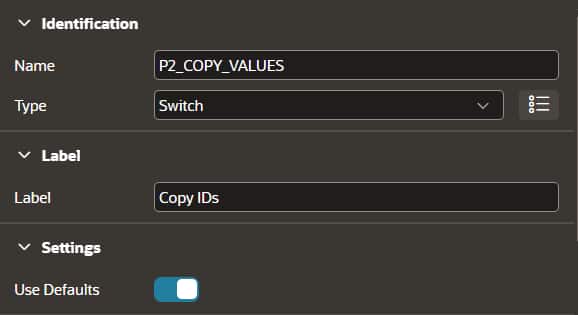
2. Under Function and Global Variable Declaration, add the following JavaScript code:
function copyValue(column, value, text) {
	let copyValue = $v("P2_COPY_VALUES") === "Y";
	return copyValue ? value.v ?? value : text;
}
3. In the Interactive Grid region, navigate to the List of Values column. Locate the Column Initialization JavaScript Function property and add the following code:
function(config) {
	config.defaultGridColumnOptions = {
		copyValueToClipboard: copyValue
	}
	return config;
}
4. Save and Run the page.
Watch the demo by John Snyders, Lead Principal Platform Software Engineer, in the Oracle APEX Office Hours session:
Summary
Paste from Clipboard closes a common usability gap in data-heavy APEX applications. Users no longer need to retype spreadsheet data cell by cell or rely on custom import solutions for small, frequent updates. It delivers a faster, more familiar data-entry experience while preserving existing validations and business rules.
Try this feature and other new features in APEX 26.1 on Oracle Cloud, oracleapex.com, or download this release from apex.oracle.com/download.