
Oracle APEX continues to evolve its AI capabilities with a clear focus on making AI integration declarative and enterprise ready.
APEX 24.1 launched AI services with out-of-the-box support for OpenAI, Cohere, and OCI Generative AI. Oracle APEX 26.1 extends that architecture to provide out-of-the-box connectivity to other major AI service providers. It provides greater flexibility to choose the AI provider and model that best meet the needs of a given task.
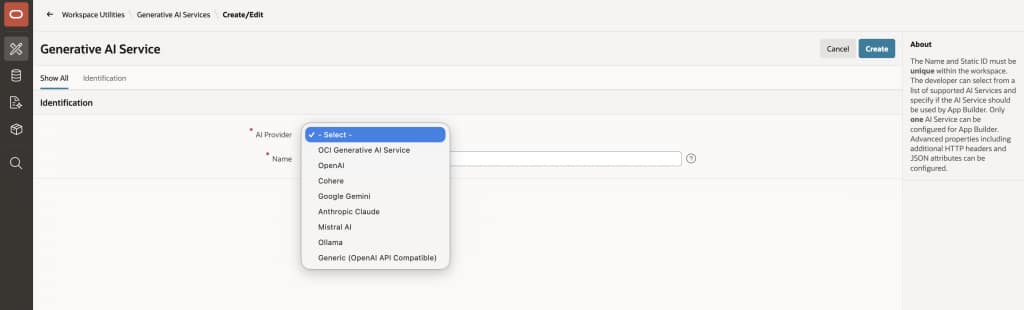
New AI providers include:
- Google Gemini (chat and embeddings)
- OpenAI-compatible APIs (enabling local and custom endpoints such as LM Studio)
- Anthropic Claude
- Mistral AI
- Ollama (chat and embeddings for local LLM execution)
Existing applications using OCI Generative AI, OpenAI, or Cohere continue to work exactly as before. The new providers are purely additive, no reconfiguration.
Why this matters
Oracle APEX 26.1 expands AI provider choice while keeping the experience consistent. Additional major AI providers can be used through the same declarative APEX configuration model, without the need to build separate integration logic for each one.
This makes it easier to try new models and adapt as AI services continue to evolve. Existing applications continue to work as before, while these new provider options bring more flexibility to AI-powered APEX applications.
How it works
Setting up an AI service in APEX is a simple process in Application Builder. Follow these steps.
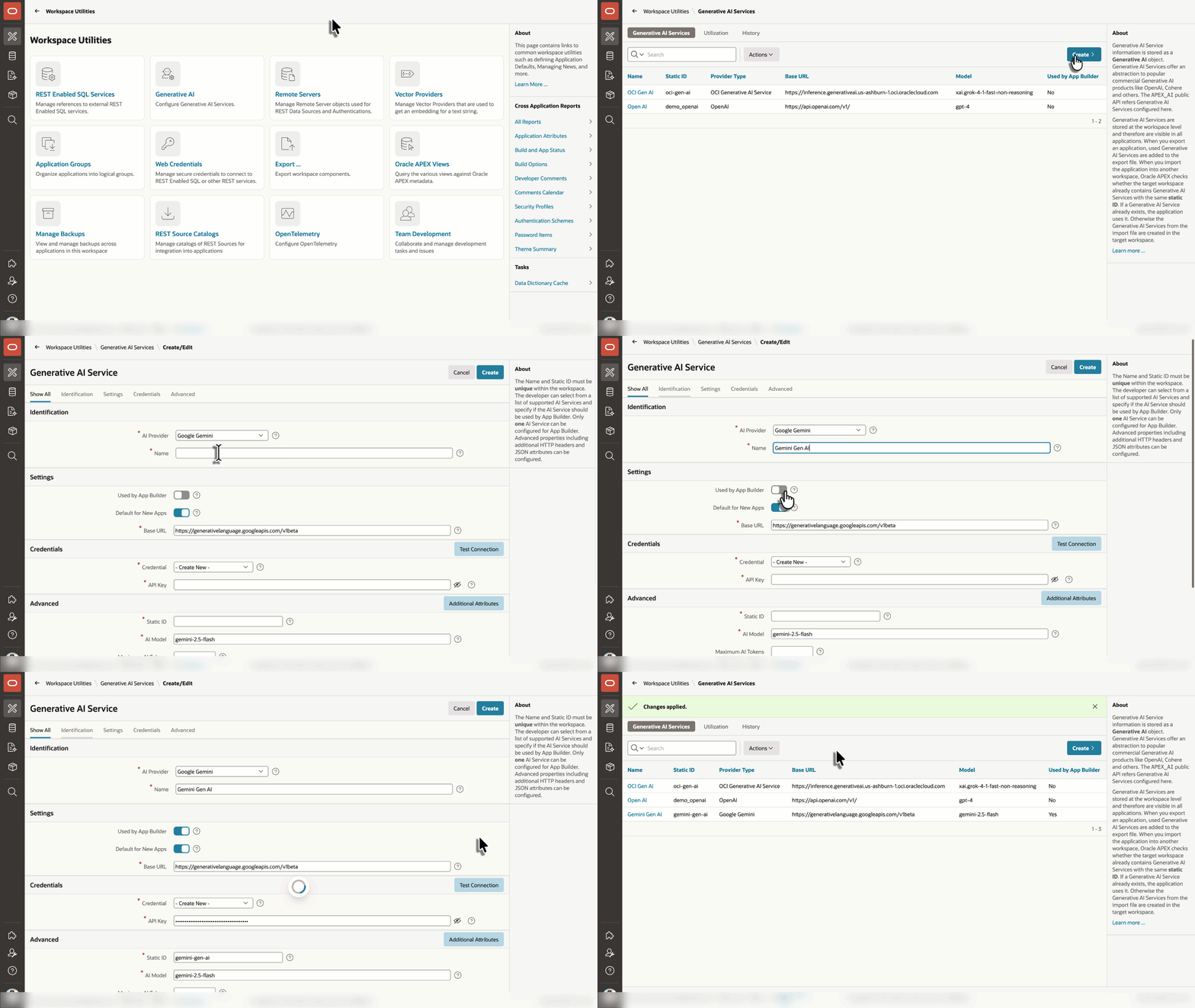
1) Open the Generative AI Service page
In the App Builder go to Workspace Utilities → Generative AI Services and create a new service entry. This is a single configuration page that defines the service for your workspace.
2) Identity & routing
Give the service a name, choose the provider type from the list, and enter the provider’s base URL (the endpoint APEX will call).
3) Model selection
Pick the model to use (for example claude-sonnet-4-6 or gemini-3.1-pro-preview). APEX uses the selected model name when it builds the provider specific API request.
4) Credentials
Select or create a Web Credential to authenticate to the provider. Keys and secrets are stored securely in APEX’s credential repository, they are never exposed to application code or the browser.
5) Builder integration & defaults
Control whether this service is available to App Builder features (AI Assistant, Create Page from Natural Language, etc.), and optionally mark it as the default for new applications in the workspace.
6) Optional runtime controls
Configure operational settings such as Maximum AI Tokens and server timeout value so long-running calls are handled predictably.
7) Save
Once saved, every AI-powered component in the app routes through the configured service. Swapping providers later is a single configuration update, so apps don’t need code changes.
What Happens When Your App Makes an AI Call
Every AI request in an APEX application follows the same path at runtime.
- An APEX component initiates the request and looks up the configured provider, endpoint, and credential for this service.
- A provider-specific REST payload is assembled automatically.
- The request is sent through APEX’s server-side REST infrastructure.
- The provider’s response is parsed and normalized into a consistent APEX format.
- That normalized response is returned to your application.
This architecture gives developers the flexibility to switch LLM models with ease. As new models become available or business needs evolve, they can change providers, update endpoints, or select a different model through a simple configuration update.
Summary
Expanding out-of-the-box connectivity to major AI Service Providers lets organizations use the models that best meet their business, technical and regulatory needs, while preserving enterprise controls and developer productivity.