

| Your Fusion Applications hold a goldmine of enterprise data — ERP transactions, HCM records, and supply chain events. But what if you need that data for custom AI and/or ML workloads? That’s where the BICC connector comes in. |
Oracle AI Data Platform lets you connect directly to raw Fusion data using the Business Intelligence Cloud Connector (BICC). A clean path from Fusion to a Spark-powered notebook where you can transform, enrich, and build on your enterprise data.
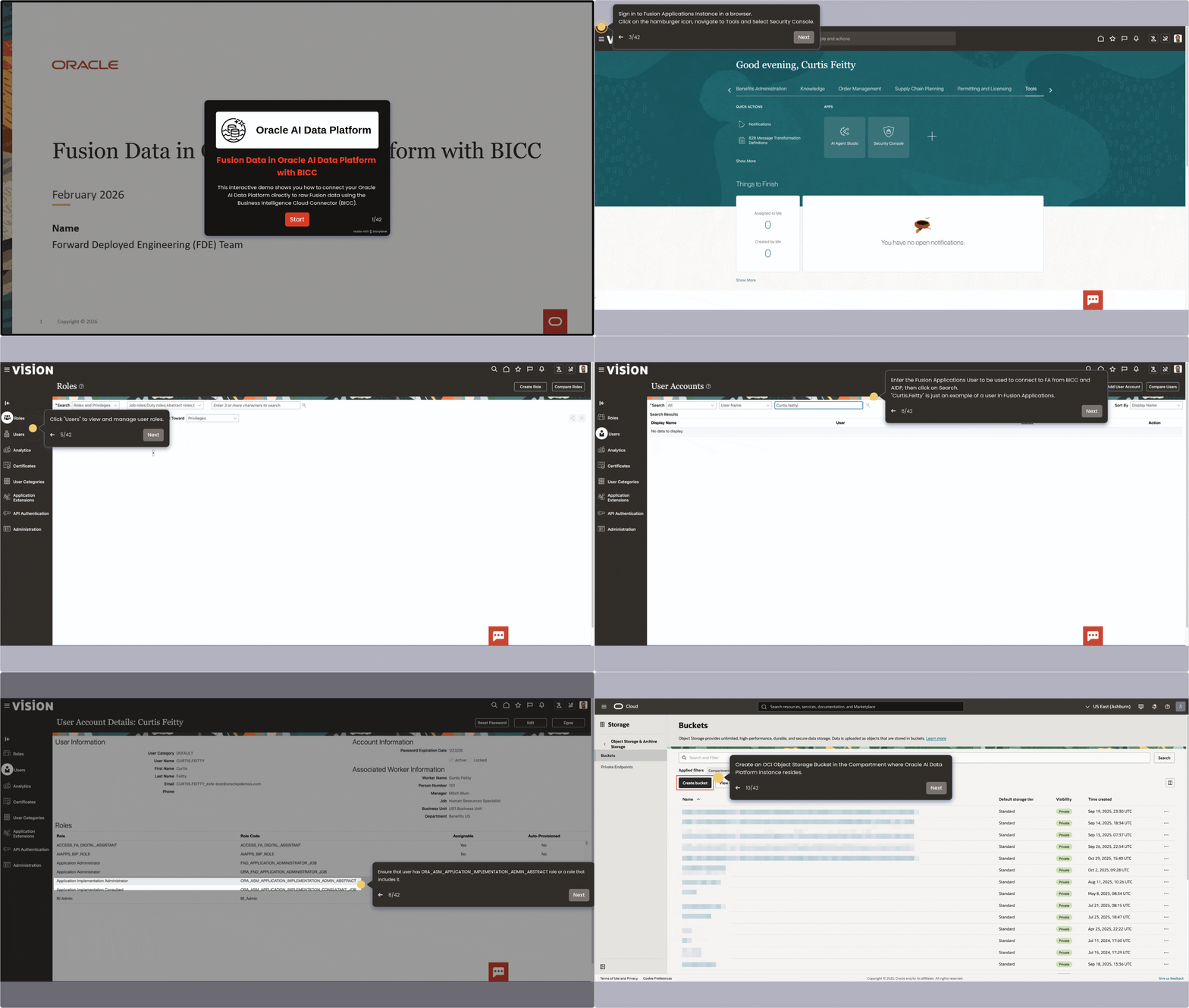
In this blog article, we walk through the end-to-end flow from configuring the connection to running your first Spark query against Fusion data, based on the official Oracle documentation and the 42-steps interactive demo built by the Forward Deployed Engineering (FDE) team.
Interactive Demo: “Fusion Data in Oracle AI Data Platform with BICC” — 42 steps · Launch Demo ↗
Where Does BICC Fit in the Architecture?
Oracle’s Fusion Integration reference architecture defines three options for getting Fusion data into Oracle AI Data Platform. The BICC path is Option 1 — the most direct route, designed for teams that need raw Fusion data in Oracle AI Data Platform without standing up a full Oracle Fusion AI Data Platform pipeline.
| Option | Path | Best For |
| ① BICC | Fusion → BICC → Object Storage → Oracle AI Data Platform notebook | Custom AI and ML, raw data access, data engineering |
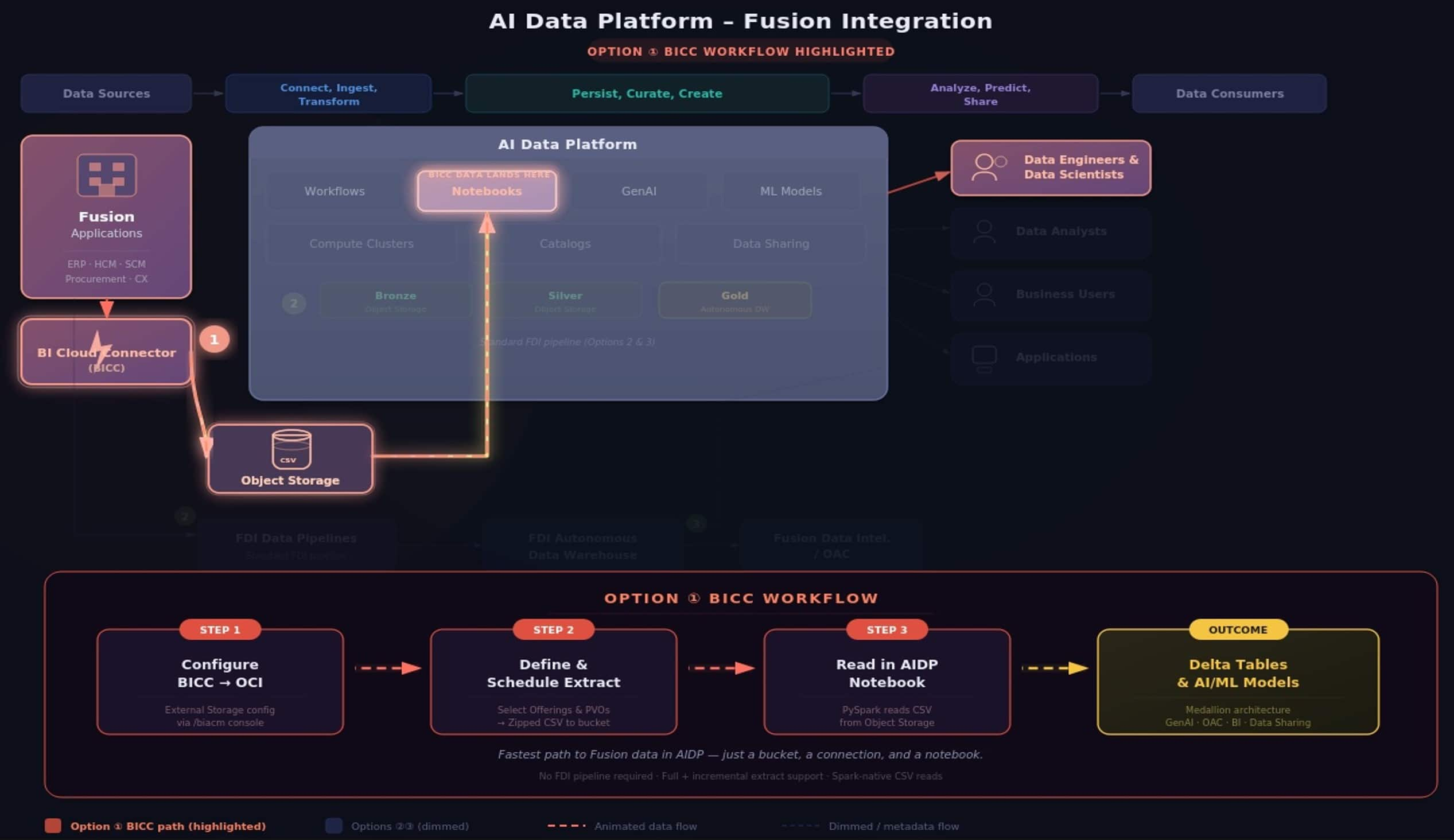 AI Data Platform – Fusion Integration Reference Architecture · ① (BICC) highlighted
This BICC connector option is the fastest path to value when you need Fusion data in Oracle AI Data Platform for use cases where Oracle Fusion AI Data Platform doesn’t serve — think custom ML model training, cross-source data enrichment, or building AI agents grounded in operational data.
The End-to-End Flow
BICC is Oracle’s native bulk extraction tool, included with every Fusion Applications subscription. It extracts data from prebuilt Public Virtual Objects (PVOs) — optimized views covering Oracle ERP, HCM, SCM Analytics, and more — and writes compressed CSV files to Oracle Cloud Infrastructure Object Storage. From there, Oracle AI Data Platform’s Spark engine picks them up natively.
| 🏢 Fusion Apps | → | ⚡ BICC Extract | → | 🪵 Object Storage | → | 📓 AI Data Platform Notebook | → | △ Delta / AI-ML |
What Exactly Is BICC?
The Business Intelligence Cloud Connector is a built-in extraction framework within Oracle Fusion Applications. It provides pre-packaged data extracts called offerings, each containing a set of Public Virtual Objects (PVOs) that represent specific business data views. Think of offerings as curated packages — there are offerings for Financials, Procurement, HCM, Supply Chain, and more. Each PVO inside contains an offering map to a specific database view optimized for bulk extraction.
BICC supports both full extracts (initial load of all records) and incremental extracts (only changed data since last run), making it suitable for both one-time migrations and ongoing data sync. Extracted data lands as zipped CSV files with an accompanying manifest file.
Prerequisites
| Requirement | Side | Details |
| Fusion Admin access | FUSION | Administrator permissions on the Fusion instance |
| BICC role | FUSION | ORA_ASM_APPLICATION_IMPLEMENTATION_ADMIN_ABSTRACT role or equivalent |
| OCI Object Storage Bucket | OCI | Bucket in the same compartment as your Oracle AI Data Platform |
| Bucket identifiers | OCI | Bucket name, namespace, hostname, and region |
| API key and user OCID | OCI | OCID of user with API key to access the bucket, plus tenancy OCID |
| Oracle AI Data Platform | OCI | Active AI Data Platform instance with a Spark compute cluster running |
Three Steps to Fusion Data in Oracle AI Data Platform
|
|
|
|
The connector abstracts away bucket paths, CSV parsing, and file discovery. You point it at the Fusion service URL and the PVO datastore you need — Oracle AI Data Platform handles the rest. This is the recommended approach and the same pattern shown in the official Oracle AI Data Platform sample notebooks.
Once the data is in your DataFrame, write it to a managed Delta table to make it queryable across the platform:
From here, you are in the full Oracle AI Data Platform environment. Clean and transform the data using Spark. Write it into Delta tables following a medallion architecture (bronze → silver → gold). Train ML models. Feed it into GenAI agents. Connect BI tools like Oracle Analytics Cloud (OAC) via JDBC. The data is yours to work with.
What Can You Do Once the Data is in Oracle AI Data Platform?
Once Fusion data lands in Oracle AI Data Platform, you unlock capabilities that go beyond standard Oracle Fusion AI Data Platform analytics:
|
|
Resources
▶ Interactive Demo: oracle.storylane.io/share/yx2k1grzsd9x
📄 Oracle AI Data Platform Fusion Docs: docs.oracle.com/…/fusion-data-oracle-ai-data-platform
📘 BICC Extract Guide: docs.oracle.com/…/biacc/index
💻 Oracle AI Data Platform Ingestion Samples (GitHub): oracle-aidp-samples/…/Read_Only_Ingestion_Connectors.ipynb