
Oracle HCM Cloud has Location Based Access Control, which an excellent feature to control user access to tasks & data based on their roles and IP addresses. We will discuss LBAC in details in a separate article but at first let’s understand how to enable this feature. You do need IT Security Manager role to access the security console. To avoid any incorrect setup, by default LBAC is neither enabled nor visible.
Security Console -> Administration Tab : location based access control page is hidden.
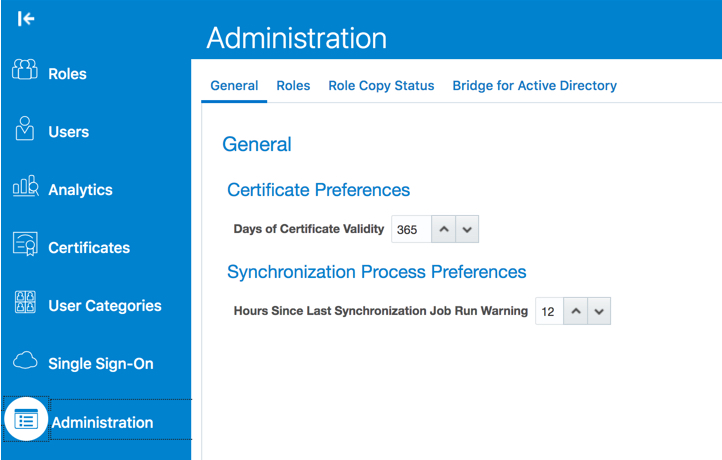
Steps to enable Location Based Access tab on the Administration page:
You need to update “Enable Access to Location Based Access Control” profile option via FSM. Navigate to Setup and Maintenance > Manage Administrator Profile Values and set the profile value to Yes at the site level.
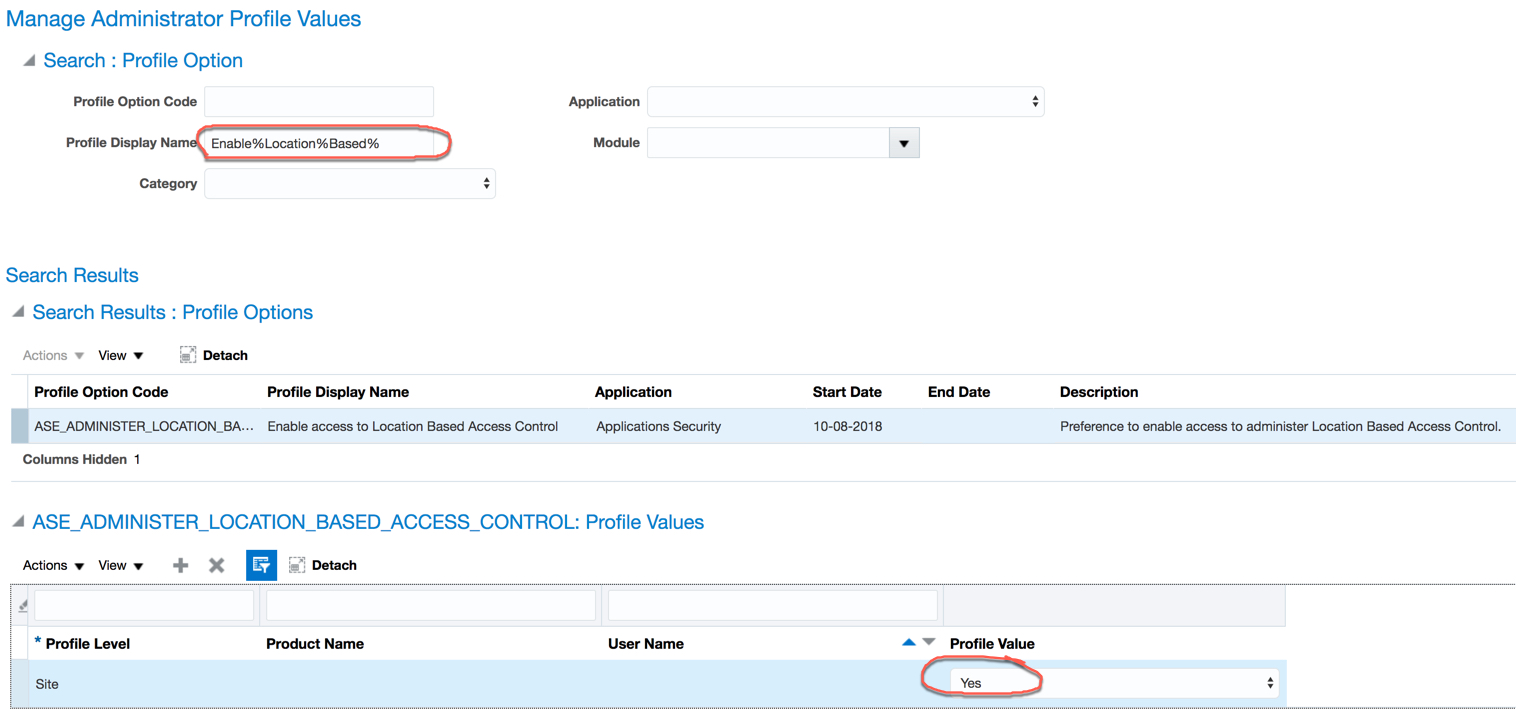
There is no system bounce or sign-out necessary. Simply go back to the security console now and you should be able to access setup pages to configure LBAC.
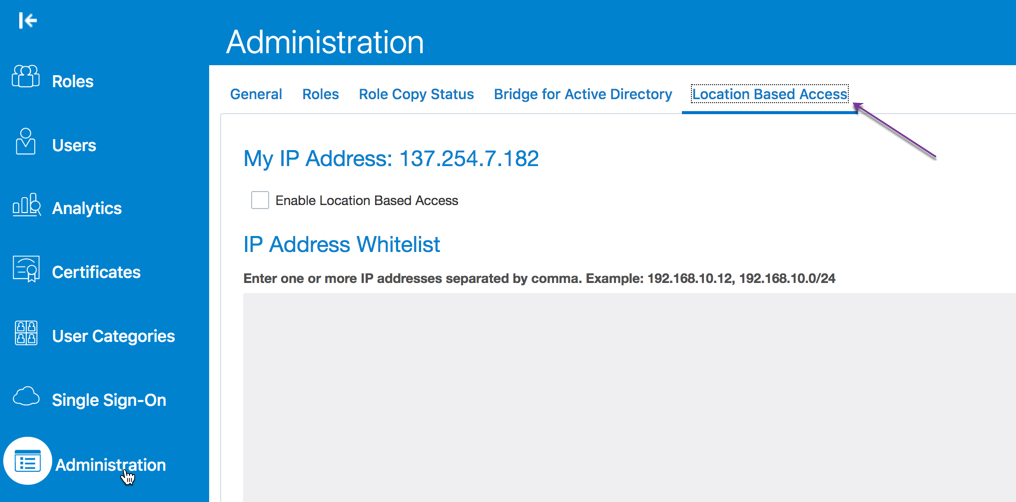
Steps to Disable Location-Based Access
To disable location based access, deselect the Enable Location Based Access check box. The existing IP addresses remain in a read-only state so that you can reuse the same information when you enable the functionality again. At that point, you can add or remove IP addresses based on your need.
Recovery Methods
My favorite section for sure! As a security admin you need to have an action plan in place incase one of your engineers does the incorrect setup (which may prevent you from using your IT Security Manager Role). Please review following steps and you can easily recover without any panic.
-
Make sure you have an admin user with the following privileges (IT Security Manager role will have these privileges):
- ASE_ADMINISTER_SSO_PRIV
- ASE_ADMINSTER_SECURITY_PRIV
- Make sure the notification is enabled for ORA Location Based Access Disabled Confirmation Template. (Security Console- User Categories-Notifications)
- Access admin recovery URL https://<podname>.fa.<datacentername>.oraclecloud.com/hcmUI/faces/AdminActivity and enter your admin user name
- After you request access to the Administration Activity page, you get an email at your registered email ID containing a URL similar to the one given below: https://<podname>.fa.<datacentername>.oraclecloud.com/fscmUI/faces/FuseWelcome
- Click the URL and you’re directed to a secure Administrator Activity page. Select the Disable Location Based Access option and click Submit. You receive a confirmation that location-based access is disabled. Immediately, you’re redirected to the Oracle Applications Cloud login page where you can sign in using your registered user name and password, and gain access to tasks and data as earlier.
Good luck with your implementation…